
KB: Duplicate Item ID (HRID) Error When Creating Server Items
Updated: 七月 16, 2026
 A365
A365
The “Duplicate item HRID” error occurs when creating a new Server Item in Altium 365 or Altium Enterprise Server and indicates that the specified Item ID already exists on the server. The term Item ID (also referred to as HRID, Human Readable ID) represents the unique identifier of a server item. In many cases, the conflicting item is not visible because it exists in a soft-deleted, hidden, or planned lifecycle state. This commonly occurs when items remain in the Trash folder or when older Altium Enterprise Server versions hide deleted planned items due to a known defect. Additionally, this error can occur when attempting to create a new project release item that reuses the Item ID of an abandoned item, as the ID remains reserved. Resolving the issue requires locating and permanently deleting the conflicting item, upgrading the server, or using an older Altium Designer version to expose and remove hidden items.
Solution Details
Error when creating items with existing IDs
The "Duplicate item HRID" error appears when attempting to create a Server Item using an Item ID (HRID) that already exists in an Altium 365 Workspace or Altium Enterprise Server.
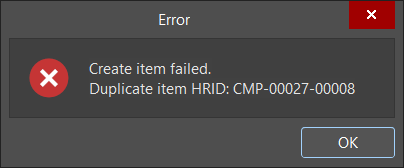
Although the item may not be visible in Altium Designer or the server web interface, it still exists in the backend and prevents reuse of the same Item ID.
Underlying causes of hidden or reserved Item IDs
This issue is typically caused by one or more of the following conditions:
- Soft-deleted item in Trash: The item remains in the Trash folder and must be permanently removed.
- Hidden soft-deleted planned item: Items created without release remain in the Planned lifecycle and may transition to a hidden Deleted state when removed.
- Legacy server limitation: Older Altium Enterprise Server versions do not expose deleted planned items, preventing proper cleanup.
- Reserved Item ID for abandoned project release items: When a project release item is abandoned, its Item ID remains reserved by the server and cannot be reused.
Available approaches to resolve Item ID conflicts
- Check the Trash and permanently delete the conflicting item
- Upgrade to Altium Enterprise Server version 7.2.5 or later
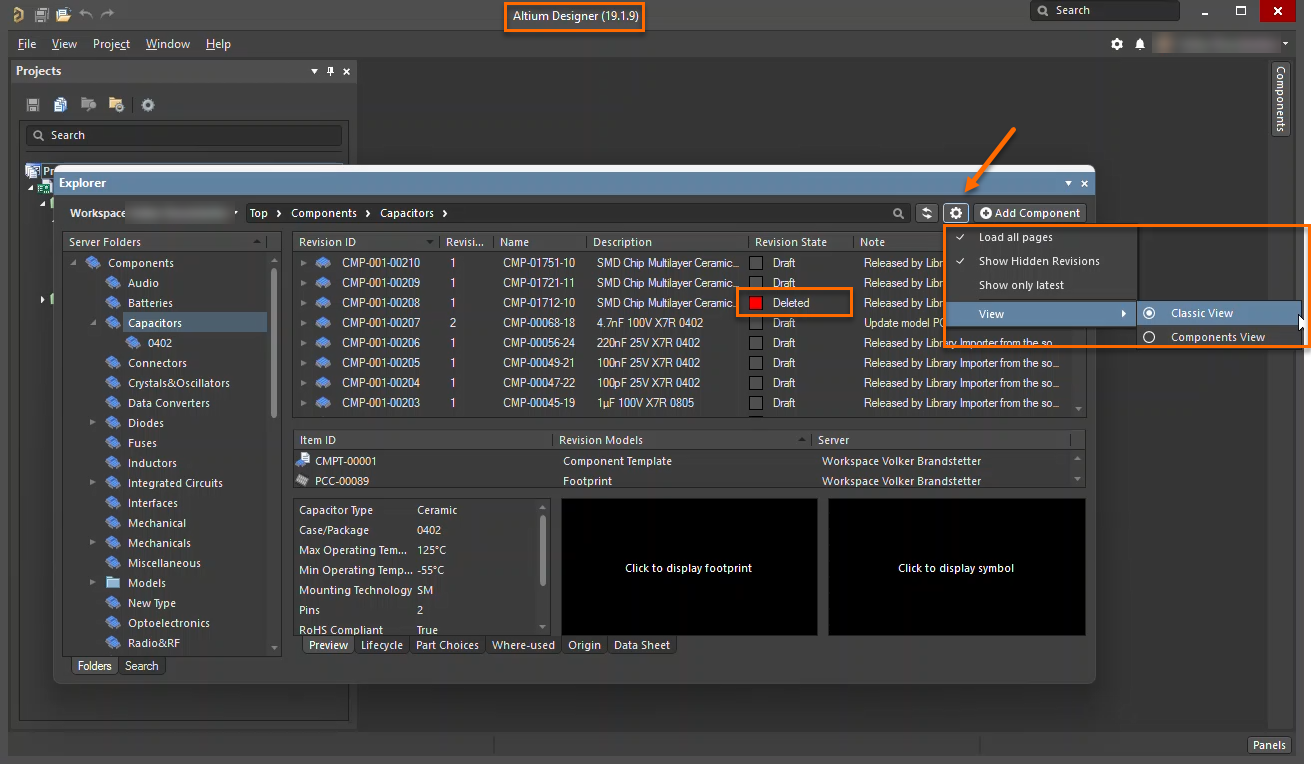
- Use Altium Designer 19.1.9 or earlier to locate hidden deleted items
- Address conflicts caused by abandoned project release items using the related Knowledge Article
Steps to locate and remove conflicting Item IDs
1. Remove the item from the Trash
- Open the Altium 365 or Altium Enterprise Server web interface.
- Navigate to the Trash folder.
- Locate the item with the conflicting Item ID (HRID).
- Perform a permanent (hard) delete.
Warning: Permanent deletion is irreversible. Ensure the item is no longer needed before proceeding.
2. Upgrade the server to expose hidden items
- Verify the current Altium Enterprise Server version.
- If the version is older than 7.2.5 (Build 13, dated 24 June 2025), perform an upgrade.
- After upgrading, return to the Trash folder.
- Locate and delete previously hidden planned items.
3. Use an earlier Altium Designer version to locate hidden items
- Install Altium Designer 17, 18, or 19 (recommended: 19.1.9).
- Launch the application.
- Connect to the appropriate server:
- For Altium 365: sign in with credentials (SSO is not supported in older versions; use a non-SSO account if required).
- For Altium Enterprise Server: ensure licensing and connect to the server instance.
- Open the Explorer panel.
- Click the settings (gear) icon and enable:
- Load All Pages
- Show Hidden Revisions
- View » Classic View
- Search for the conflicting Item ID (HRID).
- Verify the item appears with lifecycle state Deleted.
- Permanently delete the item.
- Confirm the item no longer appears in Trash or search results.
- Recreate the Server Item using the same Item ID.
4. Address conflicts caused by abandoned project release items
- If the error occurs when creating a new project release item using the same Item ID as a previously abandoned item.
- Note that the Item ID remains reserved by the server even when the item is in an abandoned lifecycle state.
- Refer to the related knowledge base article for detailed resolution steps and supported approaches: KB: Duplicate item HRID error for new release item
Additional Notes
- Ensure Item IDs (HRIDs) are unique before creating new Server Items.
- Use older Altium Designer versions only for cleanup purposes.
- Newer versions do not expose items with a Deleted lifecycle state.
References
Product Documentation
- Working with Items
- Managing Item Revision Lifecycle
- Configuring and Administrating Your Workspace - Explorer Panel
- Altium Enterprise Server 7.2 Release Notes (Fix 48205)
Knowledge Base Articles
- KB: Duplicate item HRID error for new release item - Abandoned Items Scenario
- KB: Delete items from Altium 365 Workspace permanently