
KB: Lifecycle Transition Permissions in Altium 365 Platform Solutions
Updated: 十一月 25, 2026
 A365
Lifecycle transition permissions in Altium 365 depend on the selected platform solution. Altium Agile Teams supports controlled transitions restricted to selected users or groups, while Altium Agile Enterprise additionally supports approval-based transitions. Lifecycle management is not available in Altium Develop. Administrators can configure lifecycle definitions and transition permissions in Altium Designer or the Altium 365 web interface.
Solution Details
Controlling Access to Lifecycle State Transitions
Engineering teams may need to ensure that lifecycle state transitions are performed only by authorized users. Restricting transition permissions helps prevent unintended status changes and supports consistent review and governance processes.
Available Controls Depend on Platform Solution
The available lifecycle transition controls depend on the Altium platform solution in use:
- Altium Develop: Lifecycle management features are not available.
- Altium Agile Teams: Supports Controlled transitions restricted to assigned users or groups.
- Altium Agile Enterprise: Supports Controlled transitions and Using Approvals for formal approval workflows.
Choose Where to Configure Lifecycle Permissions
- Configure lifecycle definitions in Altium Designer.
- Configure lifecycle definitions in the Altium 365 web interface.
Configure Lifecycle Transition Permissions
Using Altium Designer
- Open Altium Designer.
- Navigate to Preferences » Data Management » Servers.
- Verify that Active Server is set to your Altium 365 workspace.
- Select Properties » Lifecycles.
- Right-click the lifecycle transition and select Edit.
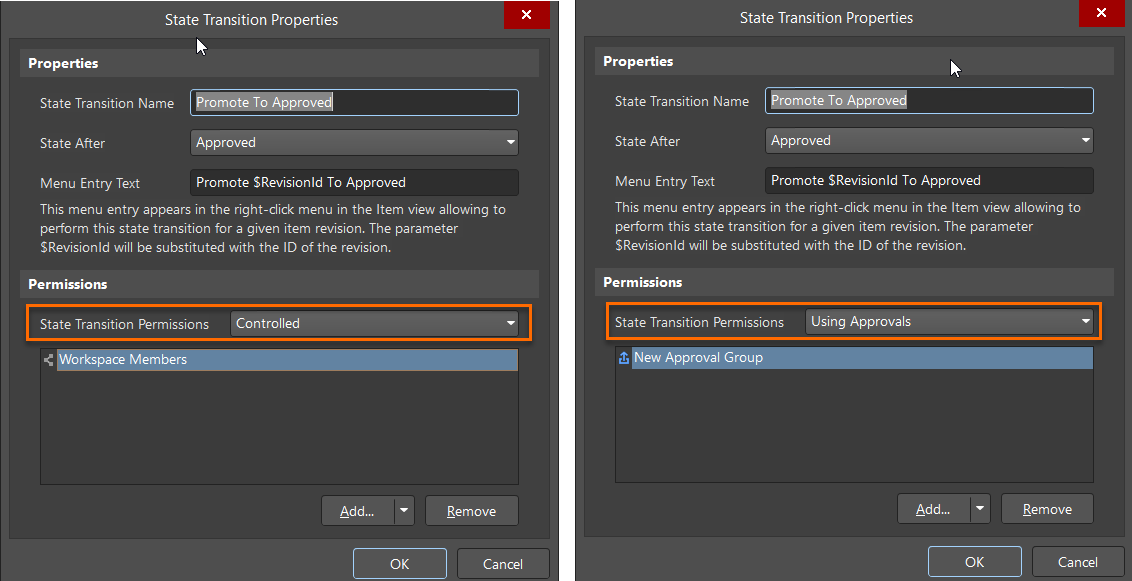
- In the State Transition Permissions section, select the applicable permission option:
- For Altium Agile Teams, choose Controlled.
- For Altium Agile Enterprise, choose Controlled or Using Approvals, as required.
- Assign the users or groups who can perform or approve the transition.
Using the Altium 365 Web Interface
- Open your Altium 365 workspace in a supported web browser.
- Select the Admin tab.
- Select Settings.
- Select Lifecycle Definition.
- Edit an existing lifecycle or create a new one.
- Double-click a transition arrow between lifecycle states.
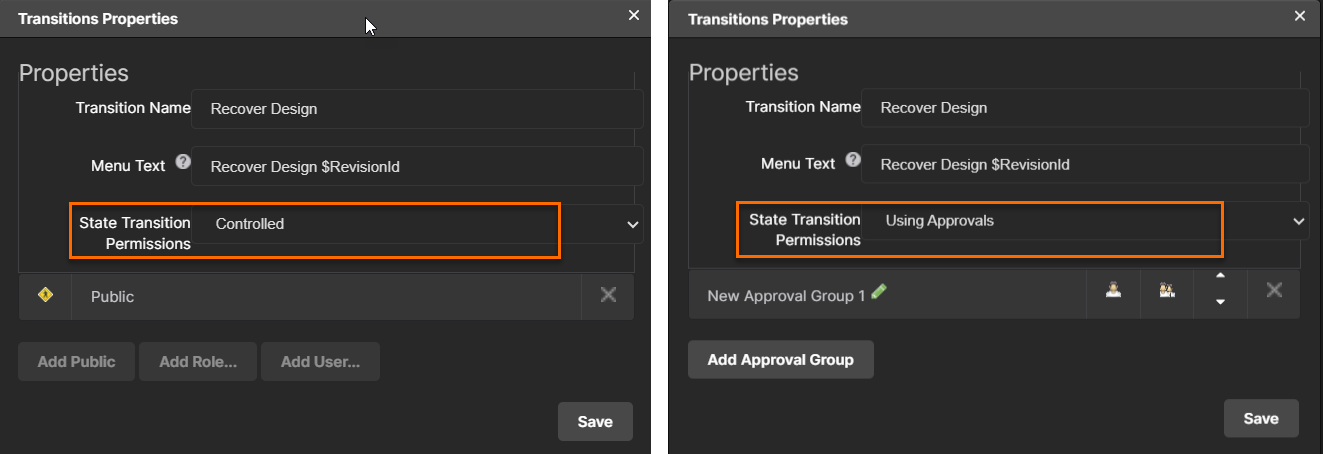
- Select the applicable permission option:
- Controlled for Altium Agile Teams or Altium Agile Enterprise.
- Using Approvals for Altium Agile Enterprise.
- Assign the appropriate users or groups.
Additional Notes
- Only workspace administrators can configure lifecycle definitions.
- Ensure that roles and groups are properly configured before assigning lifecycle transition permissions.