
KB: Requirements Portal Shows 400 Bad Request Error
Updated: 六月 30, 2026
 A365
A365
Users accessing the Requirements Portal may occasionally encounter a “400 Bad Request – Request Header or Cookie Too Large” error, preventing normal use of the portal. This issue is typically related to excessive or corrupted browser cache and cookie data. Clearing browsing data and restarting the browser generally resolves the problem, restoring normal portal access.
Solution Details
Error prevents access to Requirements Portal
When attempting to access the Requirements Portal, users may see the error message “400 Bad Request – Request Header or Cookie Too Large.” This issue can block access entirely and has been reported more frequently in Google Chrome and Microsoft Edge browsers.
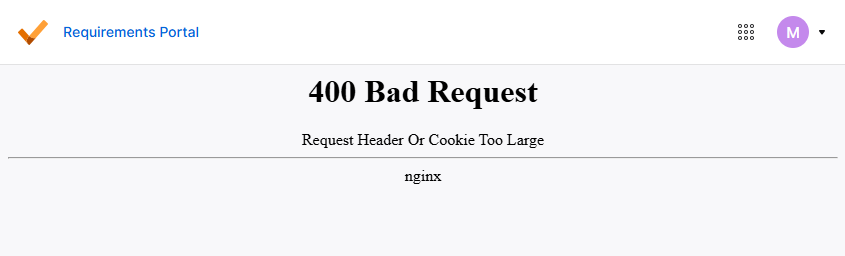
Excessive or corrupted browser data accumulation
This issue is typically caused by excessive or corrupted cache and cookie data stored in the browser. Over time, accumulated data can exceed size limits or become inconsistent, leading to request header errors during portal access.
Recommended actions to restore portal access
- Clear browser cache and cookies
- Restart the browser after clearing data
- Test access in a private/incognito window to confirm the issue
- Try accessing the portal using a different browser
Steps to clear cache and cookies in browsers
- Open the browser experiencing the issue.
- Click the Ellipsis icon (three dots) in the top-right corner.
- Select Deleting Browsing Data.
- Choose to clear cache and cookies.
- Confirm the action and complete the data deletion.
- Restart the browser.
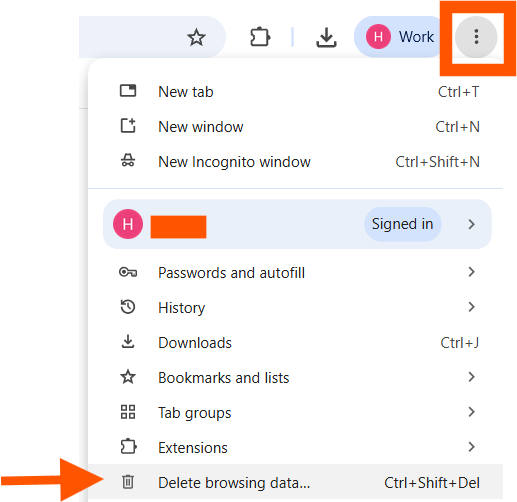 | 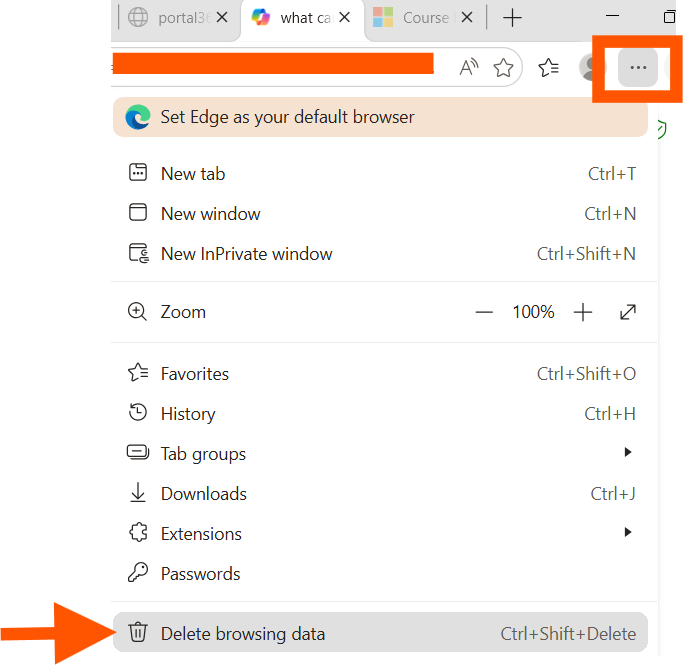 |
| Google Chrome | Microsoft Edge |