
KB: Resolving "Incorrect Identity Provider Setting" Error with Microsoft Entra ID SAML SSO
Updated: 十一月 19, 2026
 A365
When configuring SAML SSO between Microsoft Entra ID and Altium Cloud, sign-in may fail with an “Incorrect identity provider setting” error even when the Entra Test Sign-In succeeds. This can be associated with an issuer mismatch, formatting issues in the SAML signing certificate, or unnecessary SAML claims. Verify the issuer URL, use a clean Base64 certificate value from the Federation Metadata XML, and simplify the SAML claims before retrying authentication.
Solution Details
SSO Authentication Fails After Successful Sign-In
Users configuring SAML SSO between Microsoft Entra ID and Altium Cloud may experience a final authentication failure displaying Incorrect identity provider setting.
This can occur even when:
- Microsoft Entra Test Sign-In succeeds.
- The browser shows a complete SAML flow, including the expected redirects and POST to the Assertion Consumer Service.
- The SAML response contains a valid NameID value.
Affected components include Microsoft Entra ID, Altium Cloud services such as live.altium.com, SAML 2.0 authentication, and cloud-hosted deployments.
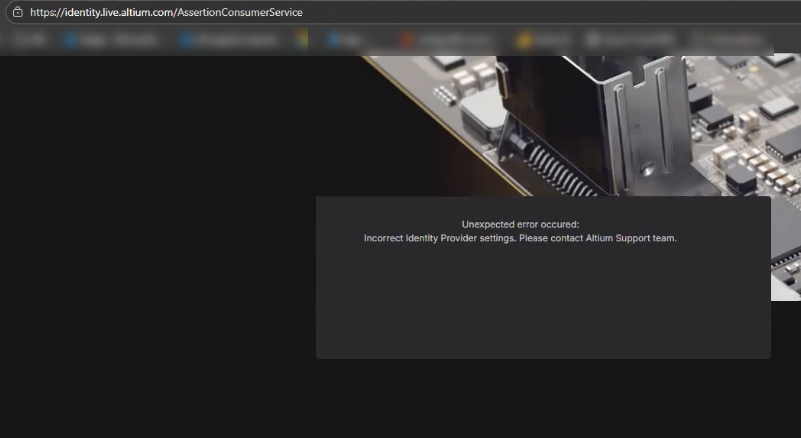
SAML Configuration Values Can Fail Validation
The authentication failure can be associated with SAML configuration values that do not pass validation on the Altium service provider side. The following configuration conditions have been observed to contribute to the error:
- Issuer mismatch: The Identity Provider Issuer URL does not exactly match the issuer in the SAML response. For example, a missing trailing slash may cause validation to fail.
- Signing certificate formatting: Manually copying the Base64 signing certificate from the Federation Metadata XML may introduce spaces, line breaks, or other formatting differences that can interfere with certificate or signature validation.
- Additional SAML claims: Unnecessary attributes in the SAML assertion may complicate claim mapping and validation.
Correct Issuer Certificate and Claim Configuration
- Verify that the Identity Provider Issuer configured in Altium exactly matches the issuer used by Microsoft Entra ID, including the trailing slash.
- Replace the signing certificate with a clean Base64 certificate value copied from the Microsoft Entra Federation Metadata XML.
- Simplify the SAML claims so that only the attributes required for authentication remain.
Save the updated SSO configuration and retry authentication after making the changes.
Update Microsoft Entra SAML Configuration Values
- Verify the Identity Provider Issuer configured in Altium. Ensure that it exactly matches the Microsoft Entra ID issuer, including the trailing slash. The expected format is https://sts.windows.net/<tenant-id/>. A missing trailing slash may cause issuer validation to fail.
- In Microsoft Entra, go to Enterprise Application » Single Sign-On » Federation Metadata XML.
- Download and open the Federation Metadata XML file.
- Locate the
<X509Certificate>element and copy only its Base64 certificate value. - Paste the certificate value directly into the corresponding Altium certificate field. Ensure that no additional spaces or unintended formatting characters are introduced and that Base64 padding characters such as = or == remain intact.
- Review the SAML claims and keep only the required authentication claims:
- NameID (email)
- userPrincipalName
- Remove optional claims such as:
- displayName
- givenName
- surname
- Save the SSO configuration.
- Retry the SAML sign-in and verify that authentication completes without the identity provider setting error.