
KB: Altium Designer and Altium 365 Viewer Display Different Cross References
 Altium Designer
Solution Details
Cross References Display In Different Formats
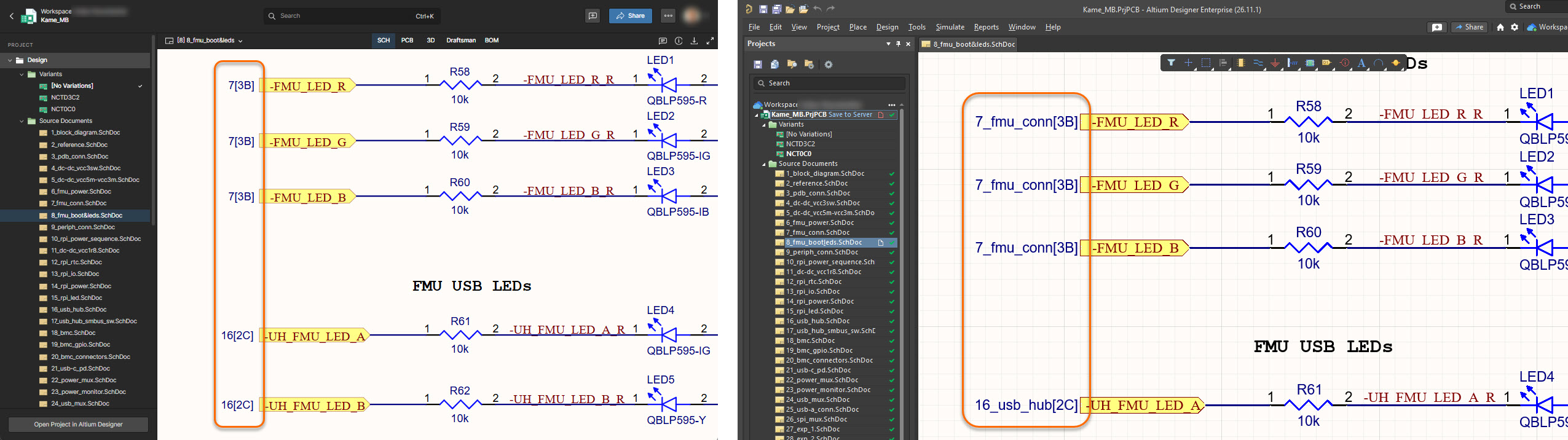
Cross references can display differently between Altium Designer and the Altium 365 Viewer. Different Altium Designer users may also see different formats for the same project. For example, one view may display Sheet Number + Zone while another displays Sheet Name + Zone.
Local Preferences Control Cross Reference Formatting
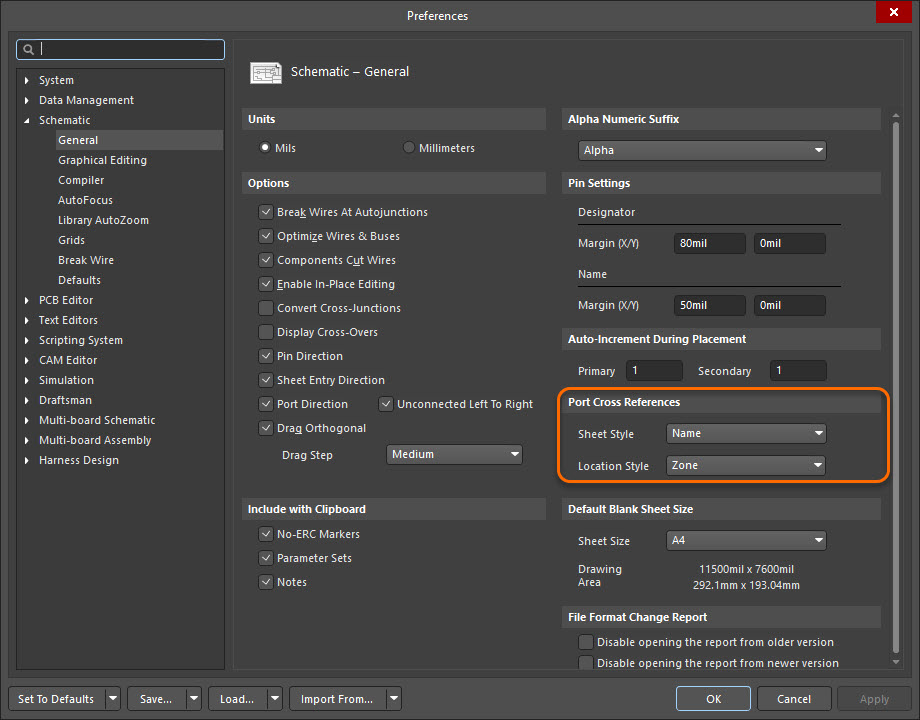
Cross-reference display can be controlled by either local Altium Designer user preferences or project-level cross-reference settings. When Follow Cross References settings in Preferences is enabled in the project options, Altium Designer inherits the Sheet Style and Location Style values from the user’s local preferences.
These local values are configured under Preferences » Schematic » General » Port Cross References. Sheet Style can be set to None, Name, or Number, while Location Style can be set to None, Zone, or Location X,Y. Changes to these local preferences do not modify the project files. As a result, different users can see different cross-reference formats for the same project, and the displayed format can differ from the Altium 365 Viewer.
Use Project-Level Cross Reference Settings
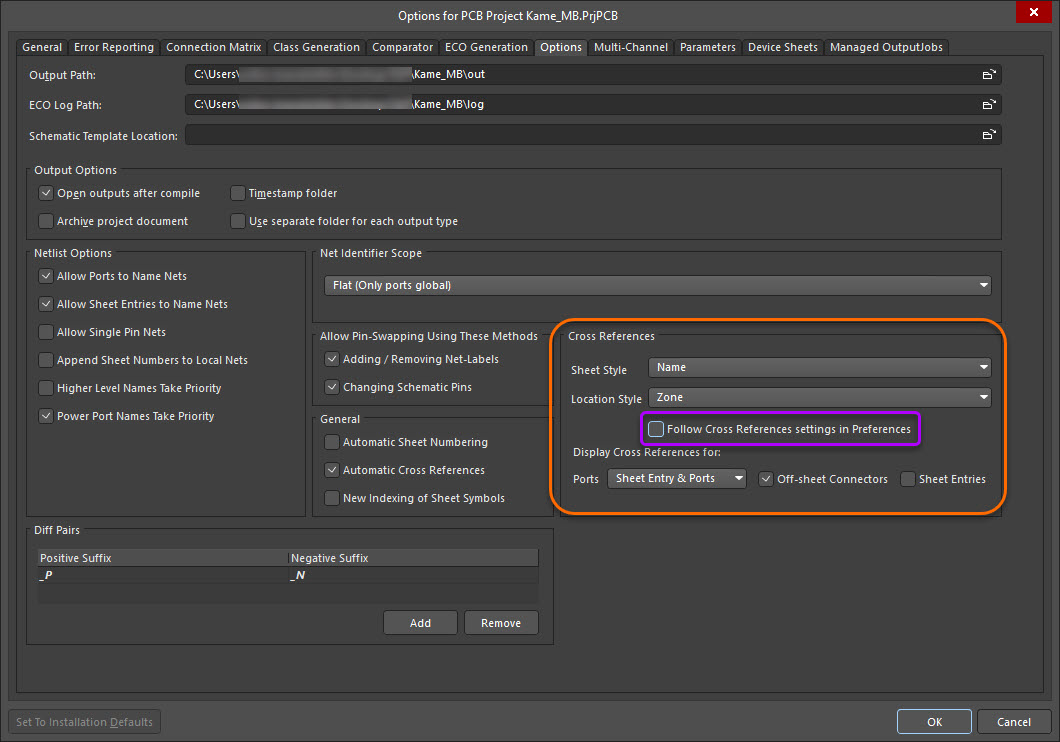
For consistent cross-reference formatting across project collaborators and the Altium 365 Viewer, disable Follow Cross References settings in Preferences in the project options. Then configure the required project-level Sheet Style and Location Style. Settings configured through the Project Options dialog are specific to the project and are stored in the project file, such as *.PrjPcb. Save the project and perform Save to Server to make the updated project available to the Altium 365 Viewer.
Configure And Publish Consistent Cross References
- Open the project in Altium Designer.
- Select Project » Project Options.... Alternatively, right-click the project entry in the Projects panel and select Project Options.
- Select the Options tab.
- Locate the Cross References section.
- Disable Follow Cross References settings in Preferences.
- Configure the required Sheet Style as None, Name, or Number.
- Configure the required Location Style as None, Zone, or Location X,Y.
- Save the project.
- Perform Save to Server.
- Refresh the Altium 365 Viewer.
Additional Notes
- Follow Cross References settings in Preferences in Project Options is enabled by default.
- When the option is disabled, cross-reference settings become project-level data and are stored within the project configuration.
- Project-specific options configured through the Project Options dialog are stored in the project file, such as
*.PrjPcb. - Changes to project-level cross-reference settings modify the project file and require Save to Server before they are reflected in the Altium 365 Viewer.
- Disabling Follow Cross References settings in Preferences ensures that project collaborators and the Altium 365 Viewer use the same cross-reference display format.
- For example, a project with Sheet Style set to Number, Location Style set to Zone, and Follow Cross References settings in Preferences disabled will display cross references consistently across Altium Designer and the Altium 365 Viewer after the project has been saved and published to the Workspace.