
知识库:使用独立 3D 实体避免元件间距违规
 Altium Designer
解决方案详情
有意放置的 3D 实体触发间距违规
某些 PCB 设计会将自由 3D 实体直接放置在 PCB 上,用作机械或光学参考,例如连接器支柱或 LED 光路。这些自由 3D 实体会有意与现有 PCB 元件重叠。尽管实际物理间距足够,Altium Designer 仍会因元件轮廓或 3D 对象重叠而报告元件间距违规。目标是在不修改元件封装或移除自由 3D 实体的情况下,避免这些违规。
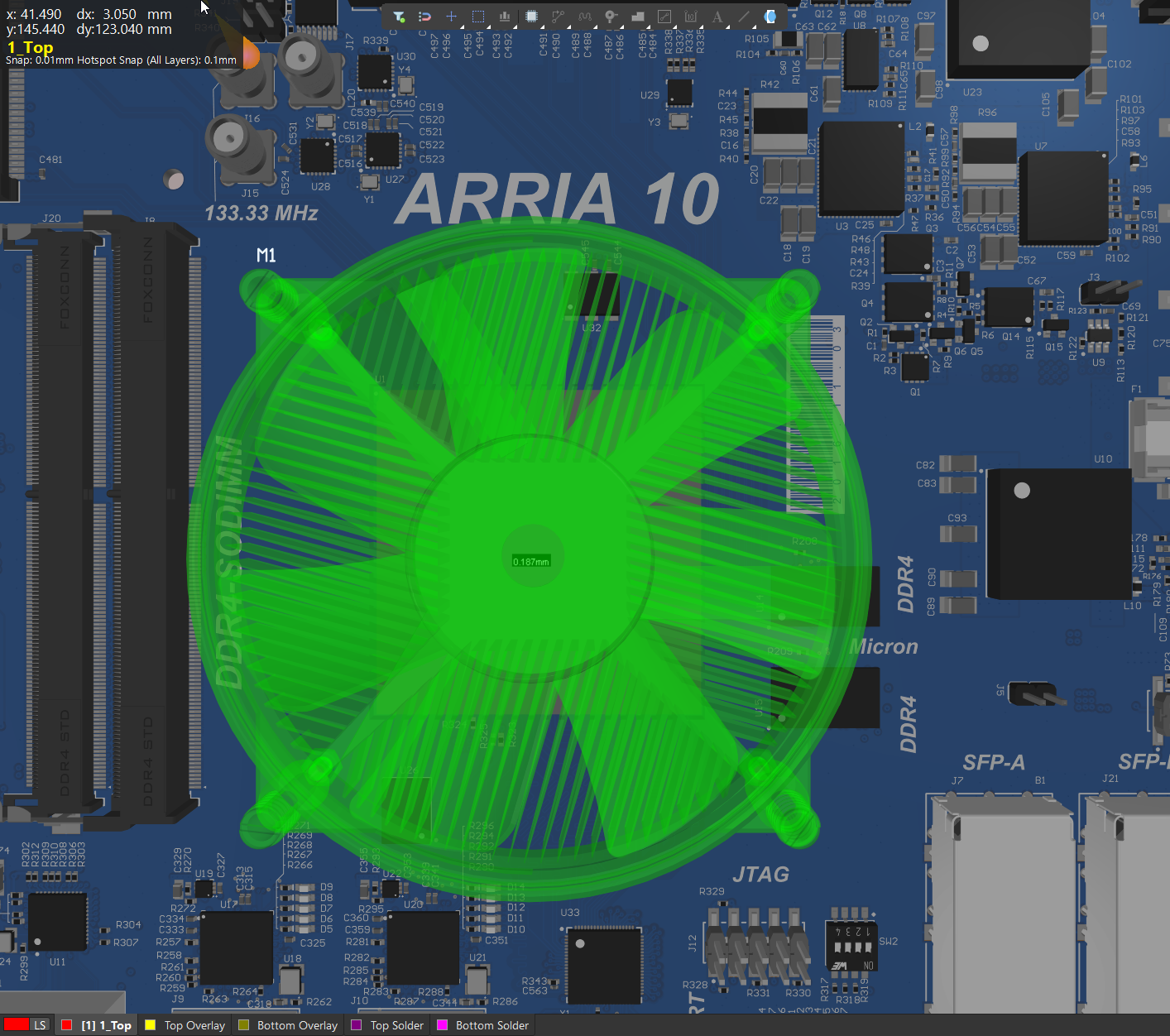
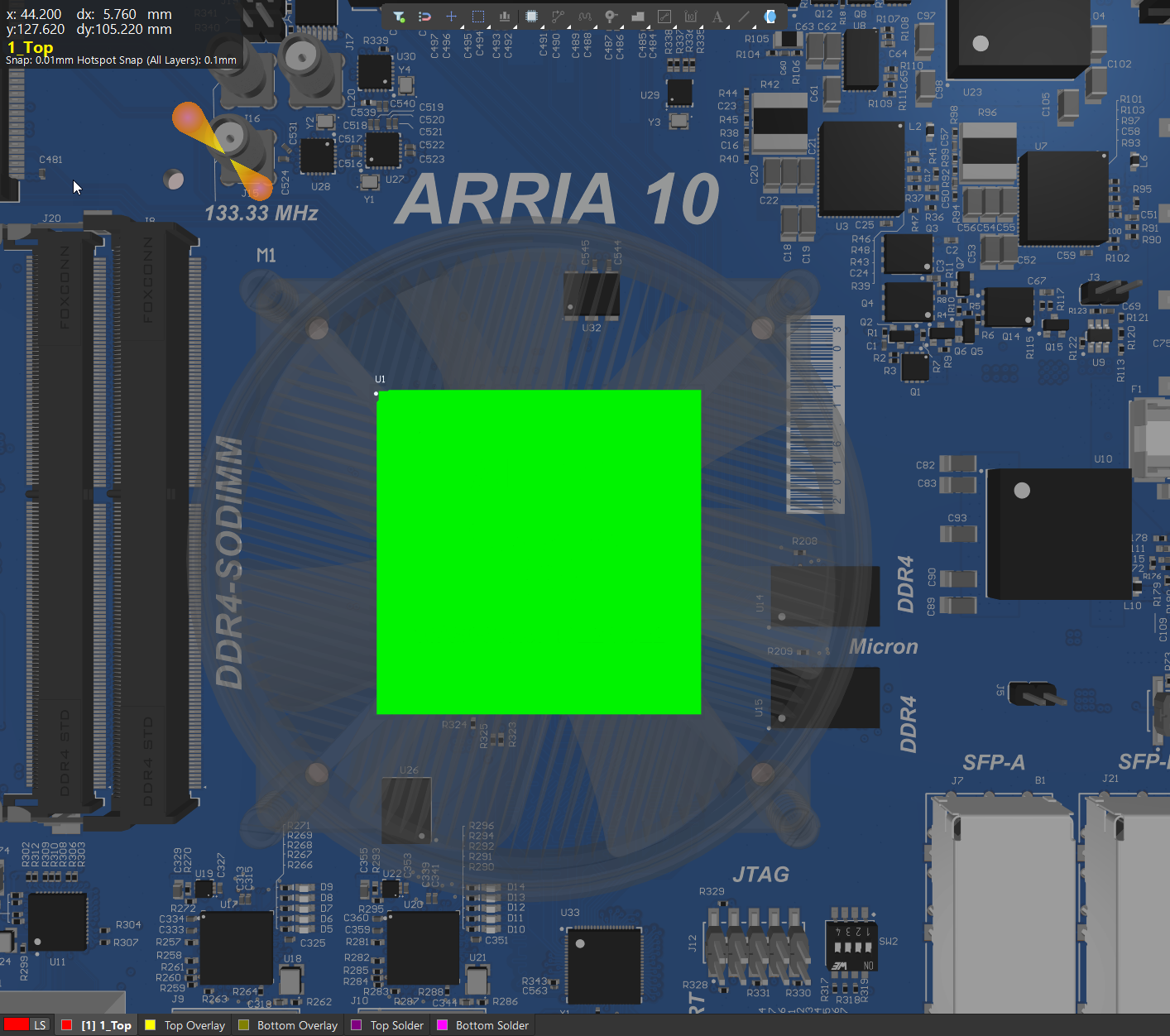
Example of a Free 3D body intentionally overlapping a PCB component
间距检查检测到重叠的 3D 几何体
元件间距规则会评估所选参与间距检查的元件和对象的轮廓及 3D 表示。当轮廓或自由 3D 实体重叠时,即使是有意为之,间距检查引擎也可能将其标记为违规。从 Altium Designer 24.9 开始,对于重叠的元件,需要使用 negative clearance value 来明确禁用目标对象的间距检查。
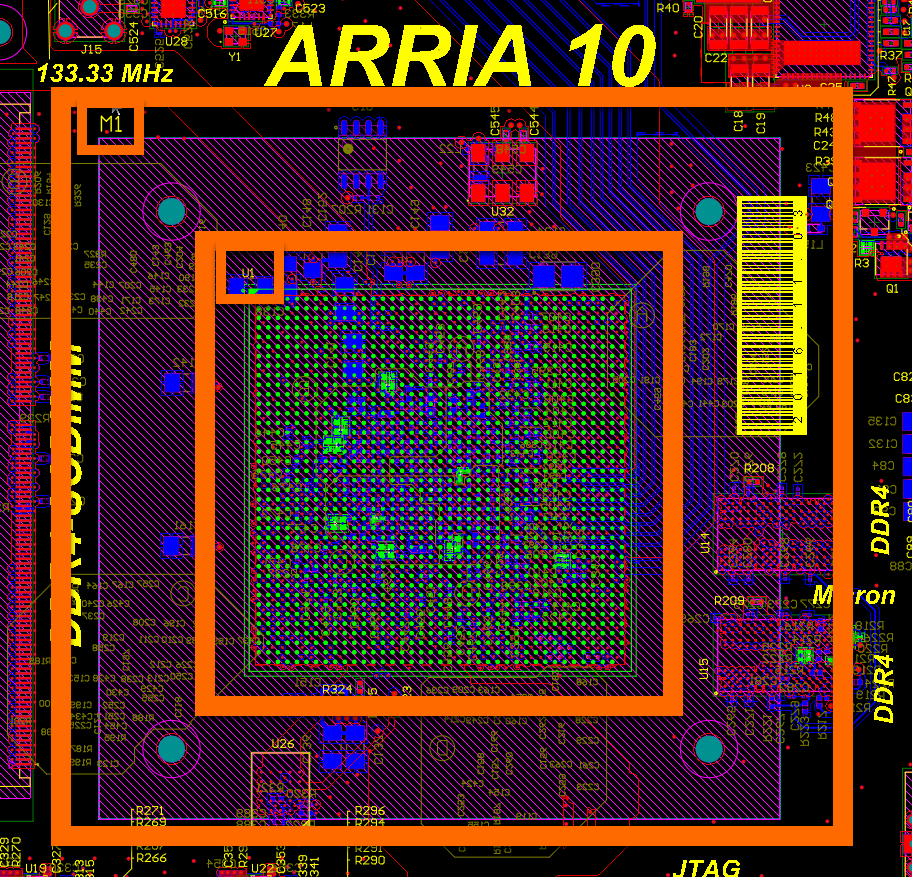
Component Clearance violation caused by overlapping outlines or 3D bodies
选择有意重叠的处理方式
- 在特定元件之间定义元件间距规则,并使用负间距值。
- 使用自定义查询定位自由 3D 实体,并定义其与特定元件或封装之间允许的重叠。
- 对于有意重叠导致的元件间距违规,逐项予以豁免,并记录豁免原因。
配置规则或豁免预期违规
Option 1: Allow Overlap Between Two Components
- 打开 Design » Rules » Placement » Component Clearance。
- 将第一个对象的作用范围设置为第一个元件的位号,例如 M1。
- 将第二个对象的作用范围设置为第二个元件的位号,例如 U1。
- 将 Horizontal Clearance 和 Vertical Clearance 设置为负值,例如 -1mm。
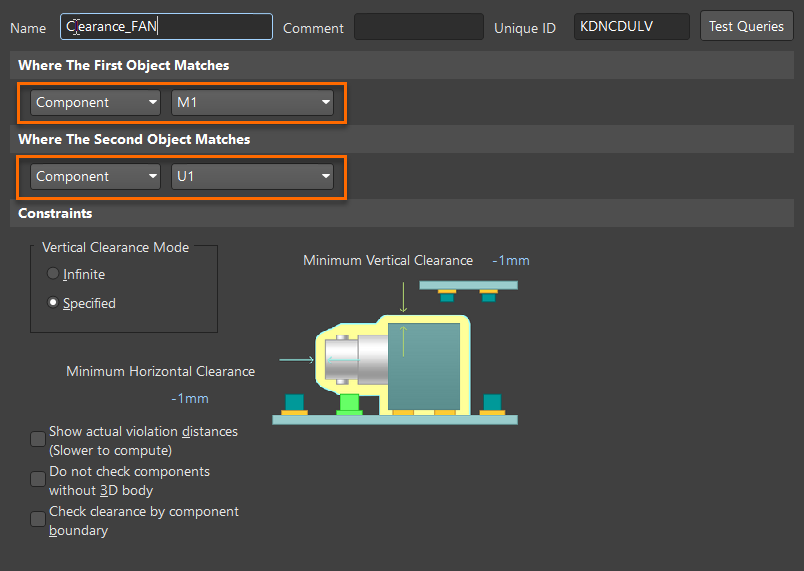
Component Clearance rule targeting two component designators with negative clearance
Option 2: Target Free 3D Bodies Using a Custom Query
- 在 PCB 中选择自由 3D 实体。
- 右键单击并选择 Find Similar Objects。
- 在 Find Similar Objects 对话框中,将 3D Body 及其 Identifier 设置为 Same。
- 启用 Create Expression,然后单击 OK。
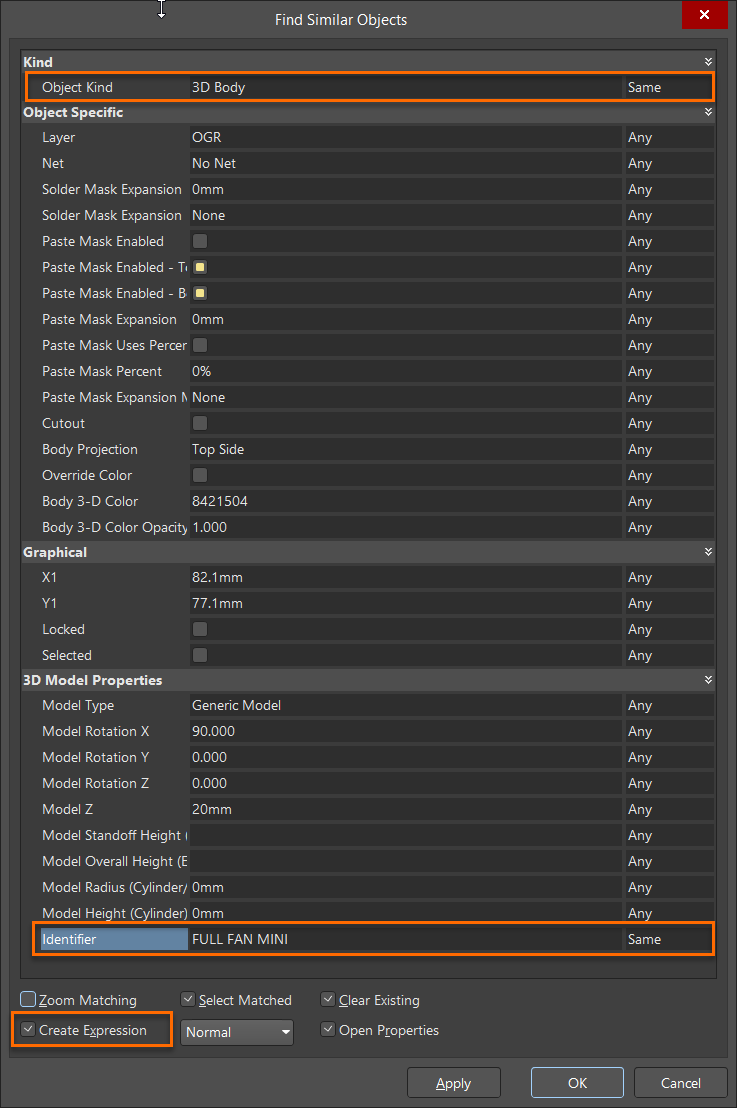
Find Similar Objects dialog targeting the Free 3D body
- 打开 PCB Filter 面板并复制生成的查询表达式。

PBC Filter panel showing the generated query expression
- 打开 Design » Rules » Placement » Component Clearance。
- 将第一个对象的作用范围设置为 Custom Query,然后粘贴复制的表达式。
- 将第二个对象的作用范围设置为目标元件位号或封装。
- 将间距设置为负值。
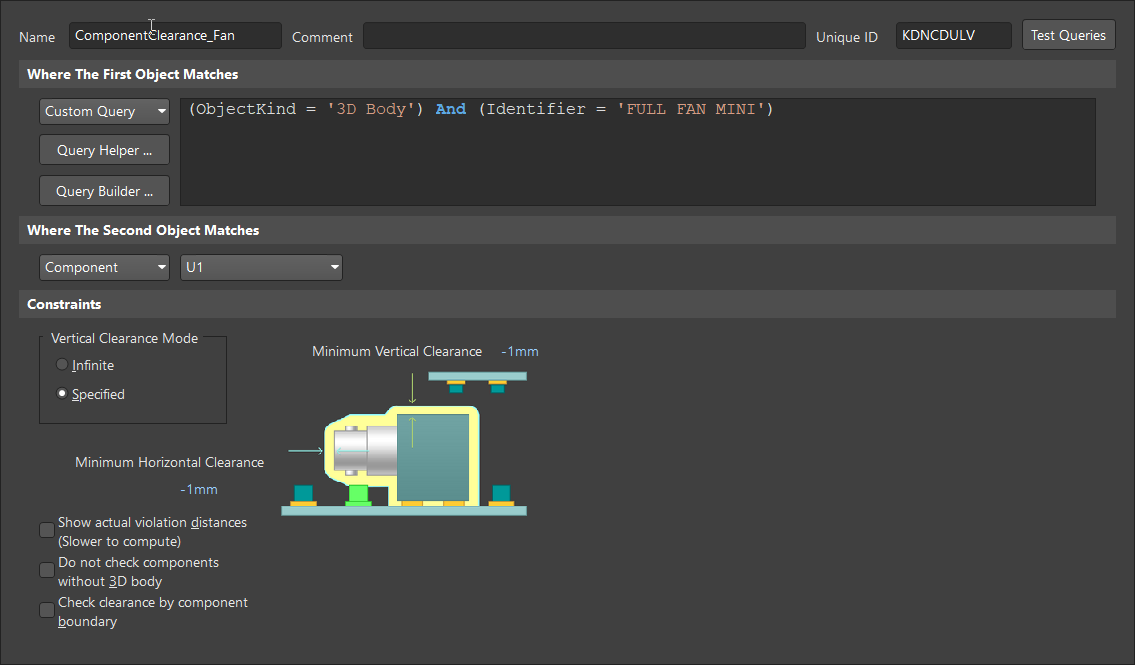
Component Clearance rule using a Custom Query
Option 3: Waive Intentional Violations
- 打开 PCB Rules and Violations 面板。
- 选择 Component Clearance 规则并运行检查。
- 找出与有意重叠相关的违规。
- 右键单击这些违规并选择 Waive。
- 添加备注,说明该重叠是有意为之且已获批准。
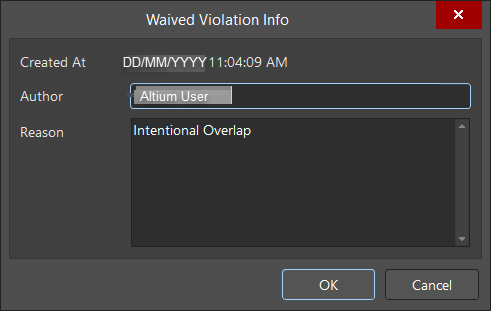
Waiving a Component Clearance violation with an intentional-overlap note
补充说明
- 即使物理间距足够,轮廓重叠也可能触发违规。
- 从 Altium Designer 24.9 onward 开始,必须使用负间距值才能禁用有意重叠元件的间距检查。
- 在早于 Altium Designer 24.9 的版本中,将间距值设为 0 即可。
- 已豁免的违规应包含清晰的理由说明,以便进行审查和审核。
- 在明确排除间距检查后,自由 3D 实体可用作机械或光学参考。
 AI 翻译