
KB: Component Values Missing From BOM After Migration to Altium 365
 Altium Designer
Solution Details
Component Values Are Replaced by Part Numbers
In the original integrated library, the Comment field was configured with values such as =resistance for resistors and =capacitance for capacitors. This allowed the component value to be displayed through the Comment field in the BOM.
After importing the components into Altium 365, the BOM can show the part number instead of the expected passive component value. The component saved in the Workspace can therefore appear different from the version stored in the personal integrated library.
Source Parameter Mapping Controls Displayed Value
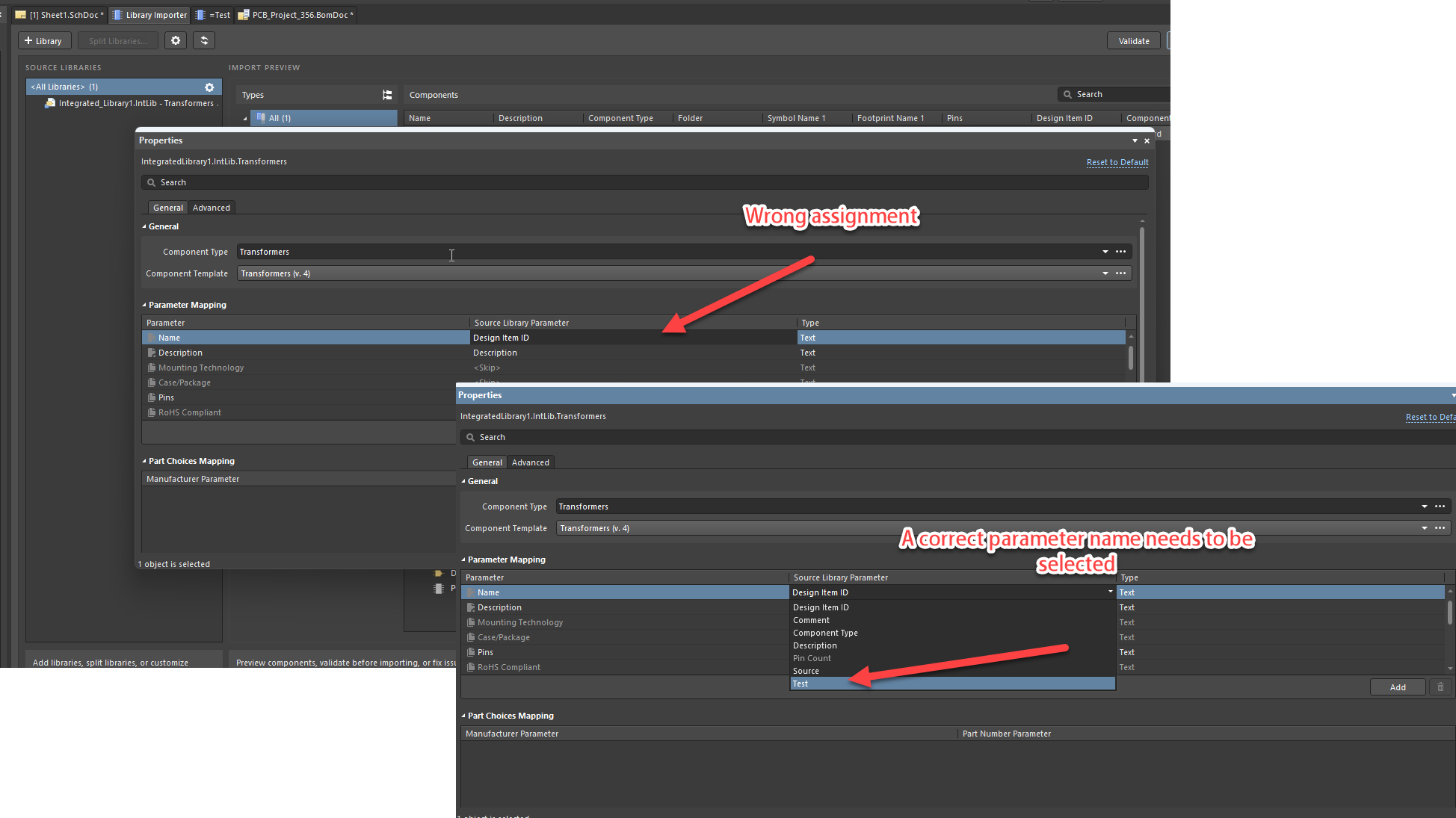
This occurs when the library configuration is not checked before importing the library into Altium 365. By default, the importer can use Design Item ID rather than the source library parameter that previously supplied the desired component value.
For managed components, Name and Comment are the same. Therefore, the parameter selected as the component Name during the import also determines the Comment value used by the managed component.
Review Mapping and Validate Before Importing
- Configure the Library Importer so that the parameter previously referenced by the Comment field is selected as the Name in the Altium 365 library.
- In Advanced mode, review the proposed component data, parameters, and import settings before proceeding with the migration.
- Run Validate before performing the import and review any reported duplicate symbol or footprint warnings.
- After migration, review Library Health in the Altium 365 Workspace and investigate reported component health issues.
Warning: Importing or reimporting library content can result in duplicate component or model conditions. Review validation and import warnings before proceeding, and check Library Health after migration to identify potential issues.
Configure and Verify the Library Import
- Start the Library Importer.
- Open the importer properties and, where appropriate, use Advanced mode to review the proposed component data and import settings.
- Locate the Source Library Parameter setting.
- Select the source library parameter that was previously referenced by the Comment field in the integrated library, for example
=ParameterName. - Make sure this parameter is configured as the Name in the Altium 365 library instead of using Design Item ID.
- Review the proposed parameter mappings and other import settings.
- Run Validate and review any warnings concerning duplicate symbols, footprints, or other migration issues.
- Import the library into Altium 365 using the verified configuration.
- After the import, open Library Health in the Altium 365 Workspace and review reported component health issues, including potential duplicates.
Additional Notes
The original integrated library used the Comment field to reference component-specific parameters, for example =resistance and =capacitance. For managed components, Name and Comment are the same, so the source parameter selected for Name during migration must be chosen accordingly.
Running Validate before the import allows Library Importer warnings to be reviewed first. After migration, use Library Health in the Altium 365 Workspace to review component health issues.