
KB: Control Which Altium Designer Version Opens from Altium 365 Web
 A365
A365
Solution Details
Unexpected Altium Designer version opens
When selecting Open Project in Altium Designer in the Altium 365 Web UI, the project may open in an unintended version of Altium Designer. This issue is most commonly observed on Window systems where multiple versions of Altium Designer are installed in parallel.
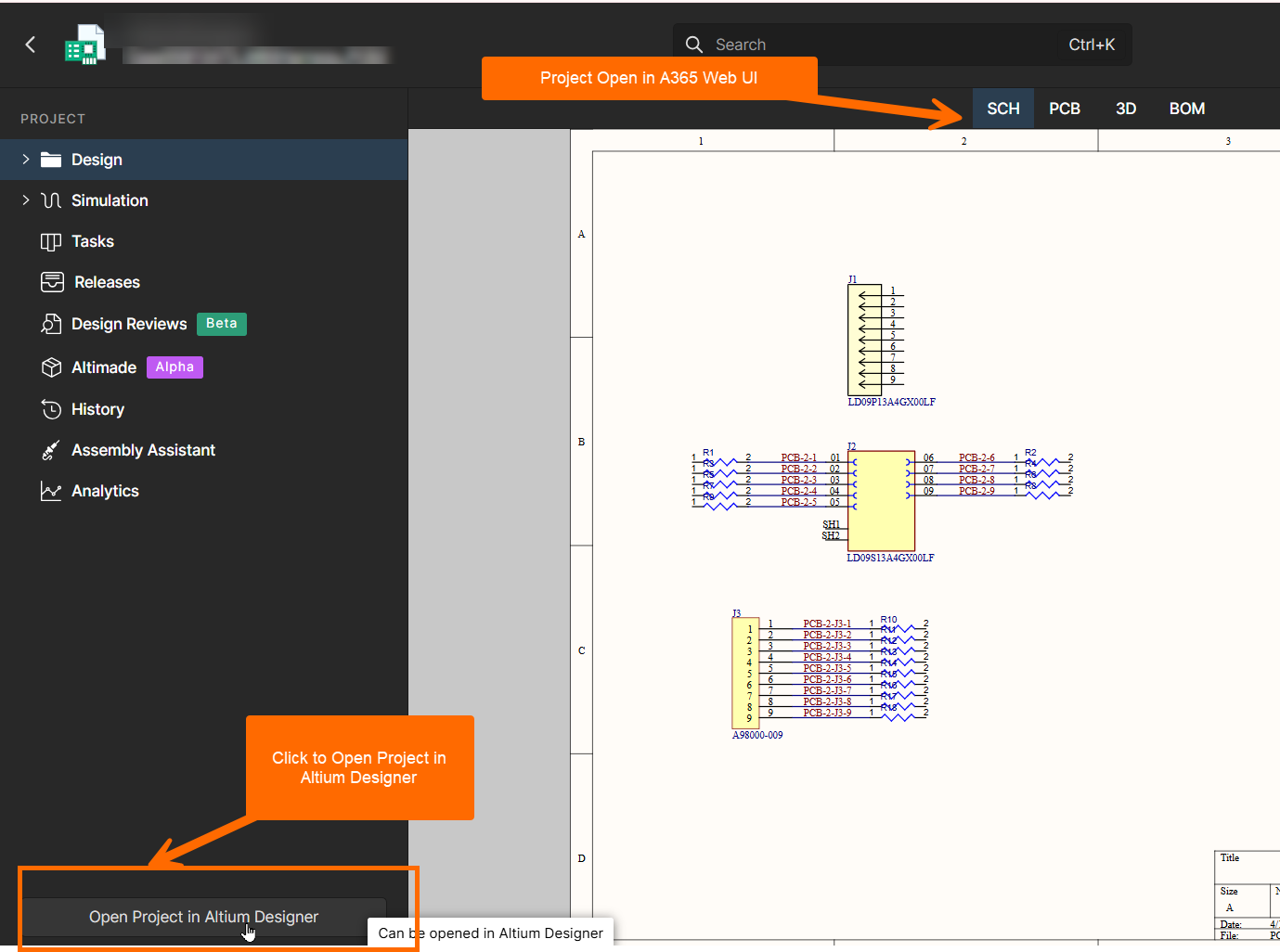 |
| Opening the Project in Altium Designer from the Altium A365 Web UI |
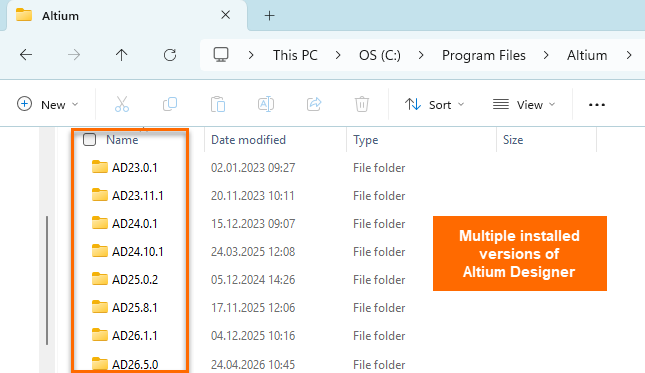 |
| Example with multiple parallel installations of different versions of Altium Designer |
DXP protocol controls launched executable
The Altium 365 Web UI uses a custom Windows URL/protocol handler named DXP to open projects in the local desktop application. Windows resolves this handler through a registry association that specifies the exact X2.exe executable to run. As a result, the version of Altium Designer that launches is controlled entirely by this registry entry, not by browser settings or Altium 365 preferences.
Redirect the protocol to the intended version
The resolution is to update the Windows registry entry for the DXP protocol so that it points to the X2.exe executable of the desired Altium Designer version.
Modify the registry command for DXP handler
- Open the Windows Registry Editor (administrator privileges are required).
- Navigate to:
Computer\HKEY_LOCAL_MACHINE\SOFTWARE\Classes\DXP\shell\open\command - Locate and edit the (Default) value.
- Set the value data to the full path of the intended
X2.exeexecutable, followed by"%1". - Click OK to save the change.
- Return to the Altium 365 Web UI and click Open Project in Altium Designer to verify that the correct version launches.
Use the following syntax:
Name: (Default)Type: REG_SZData: "<Path to desired version of X2.exe>" "%1"Example:
"C:\Program Files\Altium\AD26.5.0\X2.exe" "%1" 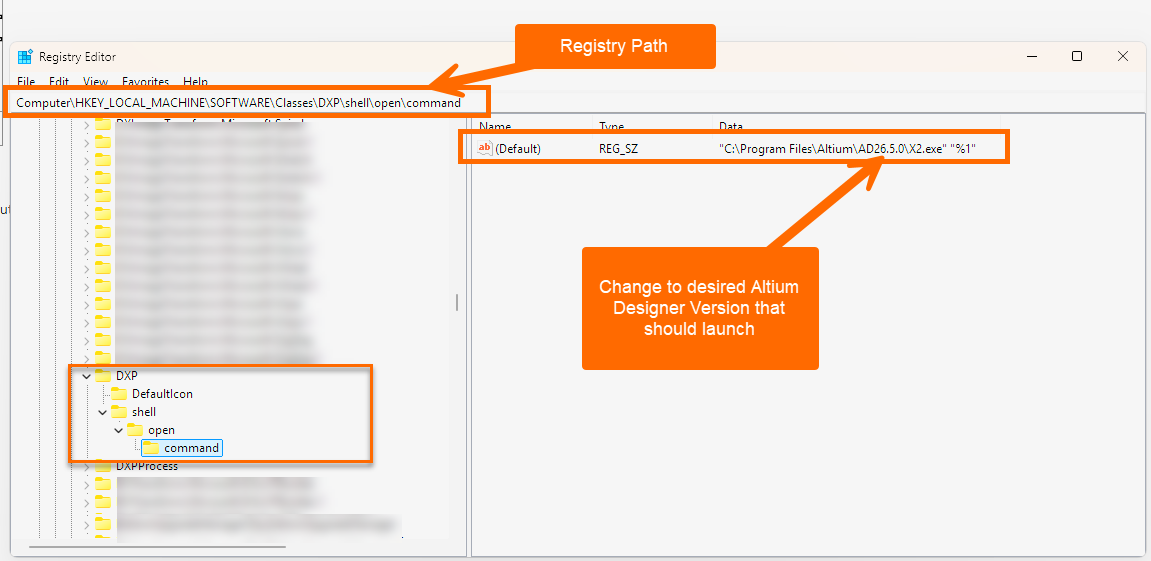 |
| Editing the Registry to specify which version of Altium Designer should be launched from A365 Web UI |
Additional Notes
- Editing registry keys under
HKEY_LOCAL_MACHINErequires administrator access. - Before making any changes, it is recommended to back up the Windows registry to allow recovery if an incorrect modification prevents Altium Designer from launching correctly.