
KB: Altium Designer Login and Connectivity Issues on Unsupported Operating Systems
 Altium Designer
Solution Details
Symptoms Related to Unsupported Operating Systems
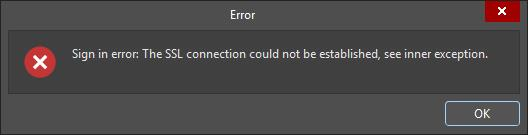
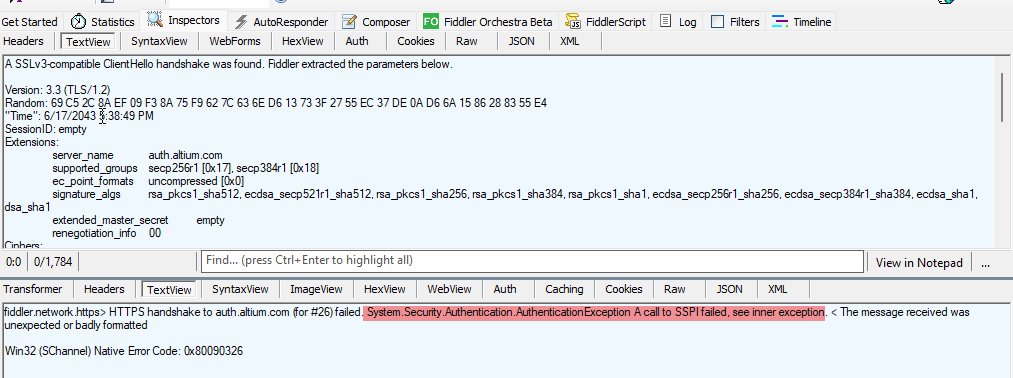
On older or unsupported operating systems, Altium Designer may fail to sign in, report SSL/TLS or authentication handshake errors, or lose access to Altium cloud services. An older Altium Designer version may continue to work while a newer version fails on the same computer, and connectivity can stop working even if it previously functioned correctly.
These symptoms do not necessarily indicate an operating system problem. Similar failures can result from blocked network endpoints, firewalls, antivirus software, proxies, DNS or certificate issues, or SSL/TLS inspection.
Why Legacy Platforms Can Lose Connectivity
Altium Designer depends on operating system components, security libraries, certificates, and third-party dependencies. As these technologies and cloud authentication services evolve, unsupported operating systems may no longer provide the capabilities required by current Altium Designer versions or Altium cloud services.
Altium 365 uses TLS 1.2 for secure connections. Because unsupported operating systems are outside the validated platform configuration, successful operation with one Altium Designer version does not guarantee compatibility with later versions or future cloud-service changes.
Choose a Supported or Temporary Configuration
- Recommended: Use a supported operating system. Windows 11 (64-bit) is the recommended configuration for current Altium Designer releases.
- Windows 10: Windows 10 (64-bit) remains supported, although it is not recommended.
- Temporary workaround: If the operating system cannot be upgraded immediately, continue using the last Altium Designer version confirmed to work in that specific environment.
- Licensing alternative: Where applicable, a standalone license can reduce dependency on cloud-based licensing authentication. Features that use Altium cloud services still require appropriate network connectivity and security protocols.
Verify and Test the Working Configuration
- Verify the operating system.
- Check the installed Windows version and compare it with the current Altium Designer system requirements.
- If the operating system is unsupported, compatibility with current Altium Designer versions and cloud services cannot be guaranteed.
- Check TLS 1.2.
- Verify that TLS 1.2 is available and enabled on the system.
- Rule out network and security restrictions.
- Verify that the required Altium endpoints and ports are accessible.
- Check firewall, antivirus, proxy, VPN, DNS, and certificate configurations.
- Ensure that required Altium traffic is not affected by SSL/TLS inspection or HTTPS interception.
- If possible, test a supported computer on the same network. If multiple computers are affected, investigate the network environment before attributing the issue to the operating system.
- Upgrade the operating system where possible.
- Move to a supported Windows configuration, preferably Windows 11 (64-bit).
- Install the current Altium Designer version and verify sign-in, licensing, and cloud connectivity.
- Use a temporary legacy configuration if necessary.
- If an OS upgrade is not immediately possible, start with an Altium Designer version previously confirmed to work on that computer.
- If necessary, test newer versions incrementally and verify sign-in, licensing, and required cloud services after each upgrade.
- If authentication or connectivity fails after other causes have been excluded, revert to the last confirmed working version.
Additional Notes
- There is no generally applicable “latest working” Altium Designer version for an unsupported operating system.
- Previous successful operation does not guarantee continued compatibility with Altium cloud services.
- An SSL/TLS or authentication error alone does not prove that the operating system is responsible. Network restrictions, proxies, security software, certificate configuration, and SSL/TLS inspection can produce similar symptoms.
- A standalone license may reduce dependency on cloud-based licensing authentication but does not make an unsupported operating system a supported Altium Designer environment.
- For long-term stability, use an operating system listed in the current Altium Designer system requirements.