
KB: Ansys CoDesigner 403 Forbidden Error When Pushing a Design
 Altium Designer
Solution Details
Error Occurs During Design Push
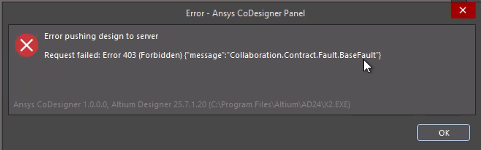
When pushing a design to the server through the Ansys CoDesigner panel, the following error may be displayed:
Request failed: Error 403 (Forbidden)
The issue occurs during the push operation from Altium Designer.
Restricted Project Permissions Prevent Server Updates
The error can occur when the user does not have the required permissions to edit the project. A common indicator is that the affected project displays Local Edits Only in the Projects panel. This status means that changes can be made locally, but they cannot be saved or synchronized to the server.
Local Edits Only can occur when a project is shared with Read Only rights and the option Viewers can download the project is enabled. An expired workspace license can also cause projects to switch to view-only mode.
Confirm Access Requirements Before Retrying
- Confirm that the user has permission to edit the project.
- Check whether the project displays the text Local Edits Only in the Projects panel.
- If the project is marked as Local Edits Only, obtain project editing permissions before attempting the push operation again.
- If the project has Read Only access, obtain Edit Rights before attempting the push operation again.
- Verify that the workspace subscription is active, because an expired workspace license can cause projects to switch to view-only mode.
Request Edit Rights And Verify Project Access
- Open the Projects panel in Altium Designer.
- Locate the affected project.
- Check whether the project displays the text Local Edits Only.
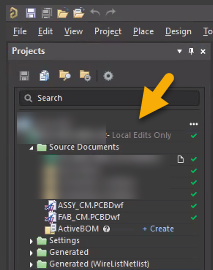
- If the status is displayed, contact the workspace administrator, project owner, or a user with edit rights.
- Request that the project be shared with you using Edit Rights.
- Verify that your workspace subscription is active.
- Confirm that the Local Edits Only status is no longer displayed after permissions have been assigned.
- Retry the push operation from the Ansys CoDesigner panel.
Additional Notes
Projects marked as Local Edits Only can be modified locally, but those changes cannot be synchronized to the server until the user has the required edit permissions.