
KB: How to Delete Component Types?
 Altium Designer
Solution Details
Component Types Remain In Use
A Component Type cannot be deleted while components are still associated with it. Even after deleting components from Altium Designer, the Component Type may continue to appear as being in use if the associated component revisions still exist in the Workspace Trash.
![Error dialog stating: “Cannot delete [redacted] tag. It is being used by revisions.” with OK button.](http://files.doc.altium.com/sites/default/files/wiki_attachments/324312/fa19368fdd59569fe28da299b4a70590.jpeg?VersionId=si6cDA7E_65N4sKm6dGdcsg5_ZY5dJNK)
Soft-Deleted Revisions Still Exist
Deleting a component performs a soft delete and moves the component to the Workspace Trash. As long as the component revisions remain in the Trash, they continue to exist within the Workspace and will prevent the associated Component Type from being deleted.
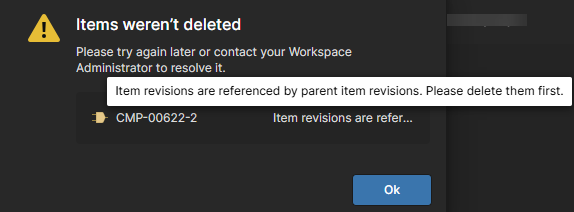
Users may also encounter an error when attempting to permanently delete component revisions from the Trash. This error indicates that the item revisions are referenced by parent item revisions and therefore cannot be permanently deleted until the associated references have been removed.
Remove All Associated Revisions First
- Identify all components associated with the Component Type.
- Delete the associated components or change them to another Component Type.
- Permanently delete all associated component revisions from the Workspace Trash.
- If dependency-related errors occur, permanently delete the associated parent and child item revisions before attempting to delete the remaining revisions.
- Delete the Component Type only after no associated components or revisions remain in the Workspace or Trash.
Permanently Delete Components And Component Type
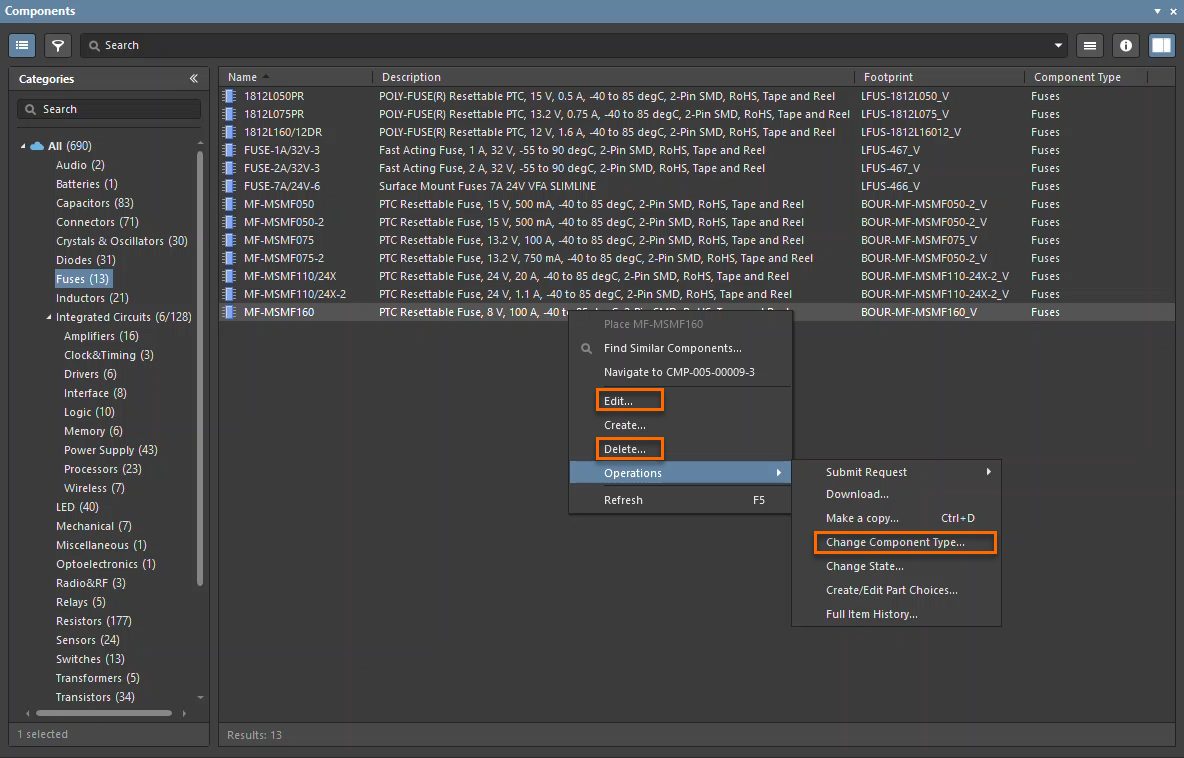
- Use the Components panel to locate all components that use the specific Component Type.
- Select the components from the list and either:
- Right-click the selected components and choose Delete... or
- Right-click and select Operations » Change Component Type... to assign them to a different Component Type.
- After deleting the components, open the Workspace Trash and permanently delete all associated component revisions. Deleting components alone is not sufficient because this only performs a soft delete.
- If an error indicates that item revisions are referenced by parent item revisions, identify and permanently delete the associated parent and child item revisions first. Once the dependencies have been removed, retry the permanent deletion of the remaining items from the Trash.
- Verify that no associated components or component revisions remain in the Workspace or the Workspace Trash.
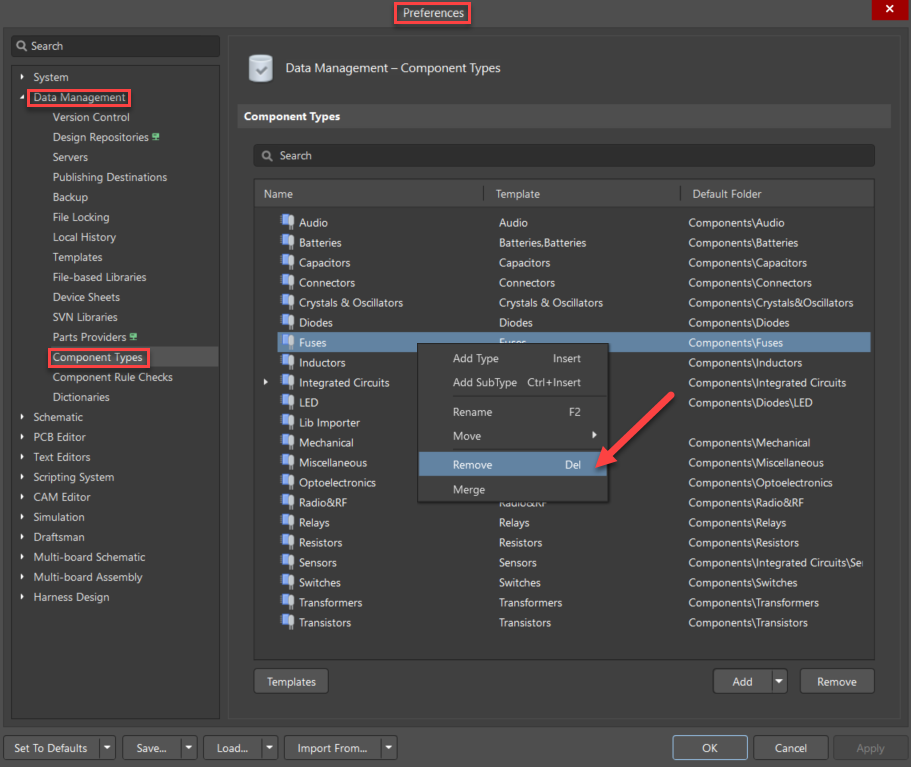
- Once all associated components and revisions have been permanently removed, delete the Component Type from Preferences » Data Management » Component Types.
Additional Notes
- If components are reassigned to a different Component Type, it is strongly recommended to move them to the appropriate Component folder using the Explorer panel and assign the appropriate Component Template. This helps maintain a consistent component organization structure and ensures that components are stored in the correct folder corresponding to their assigned Component Type.
- The advantage of using the Components panel over the Explorer panel is that it offers a more streamlined and intuitive way to organize and interact with Component Types. This approach works for simple 1-to-1 associations, where all components of the same Component Type are in a single folder, and for more complex cases, such as components of the same Component Type distributed across multiple folders or components of different Component Types grouped in the same folder.