
KB: HTTP Error 400 - The Request Host Name Is Invalid
Updated: 11月 18, 2026
 Altium Designer
Users may encounter the error message "HTTP Error 400 - The request host name is invalid" when attempting to access an Altium on-premise server through a web browser. This issue typically occurs when the hostname used in the URL does not match the hostname configured in IIS site bindings or server configuration files. The problem is commonly observed after a server has been renamed following installation of Altium Server. To resolve the issue, verify the IIS site bindings, review the LocalVault.ini configuration file for hostname consistency, and restart the affected Altium services.
Solution Details
Browser Access Returns Hostname Validation Error
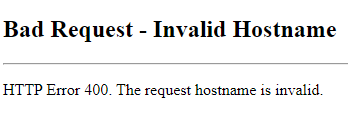
When attempting to connect to an Altium on-premise server through a browser, the following error may be displayed:
Hostname And Binding Configuration Are Misaligned
This error occurs when the hostname specified in the browser URL does not match the hostname configured in the IIS site bindings. The issue is commonly encountered after the server hosting Altium Server has been renamed. In some cases, the hostname stored in LocalVault.ini may also be outdated and contribute to the issue.
Verify Hostname Configuration Before Restarting Services
- Verify that the server hostname used in the URL matches the hostname configured in IIS.
- Review the
LocalVault.inifile located in the server installation directory and confirm the hostname values are correct.
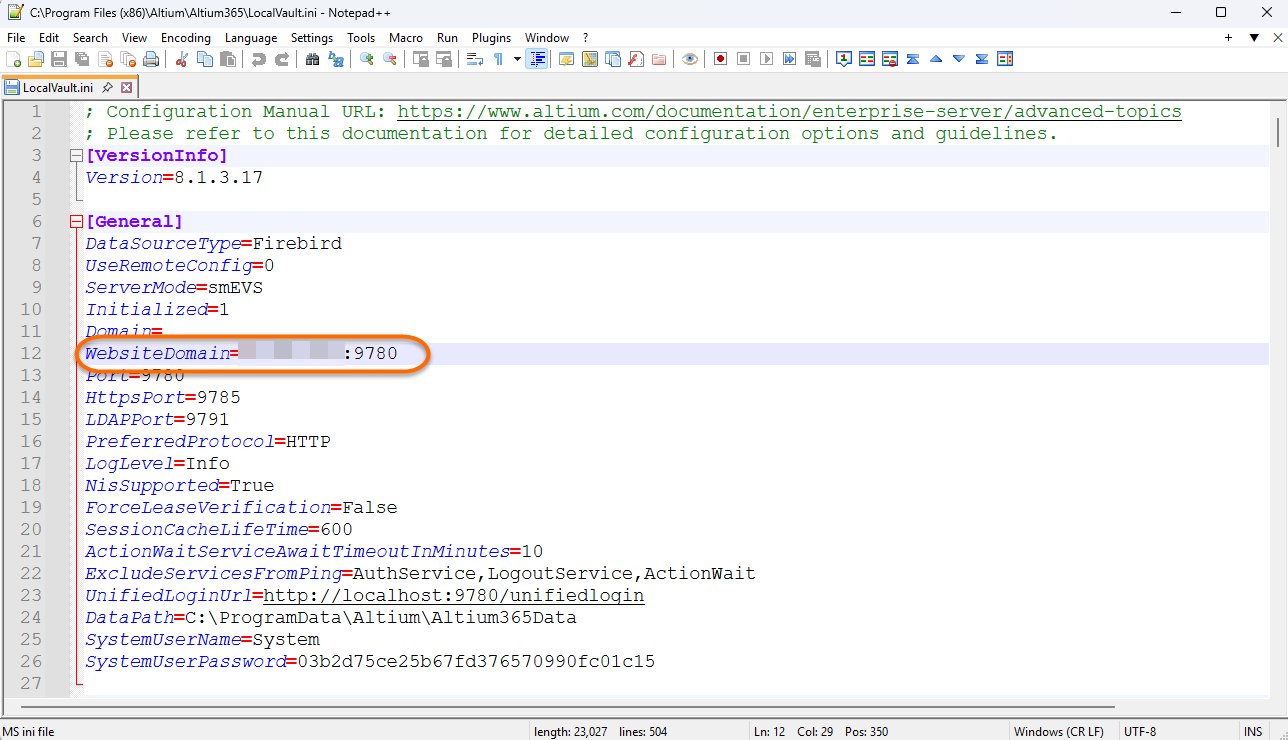
- Update any incorrect hostname entries before restarting services.
- Restart the affected Altium services after configuration changes are applied.
- Restart the server if the issue persists after service restart.
Update IIS Bindings And Restart Altium Services
- Open Windows Search and search for IIS.
- Launch Internet Information Services (IIS) Manager.
- Expand the server node.
- Expand Sites.
- Right-click the Altium On-Premise server site and select Edit Bindings.
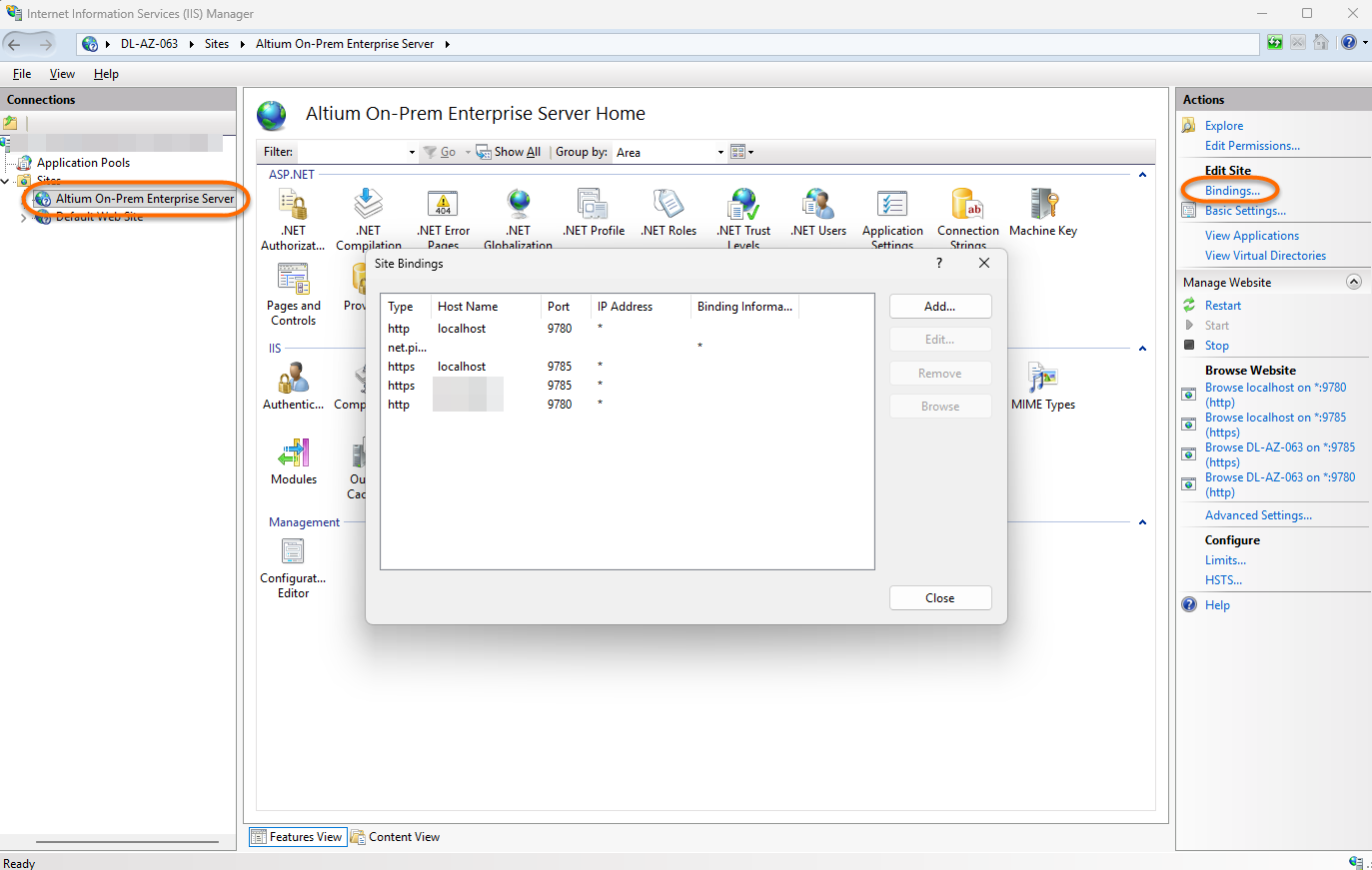
- Update the hostname value for the HTTP binding to match the server hostname.
- Select Apply and then OK.
- Open Windows Search and search for Services.
- Launch the Services console.
- Locate the Altium DXP App Server Pinger service.
- Ensure the Server Health Monitor window is closed.
- Restart the Altium DXP App Server Pinger service.
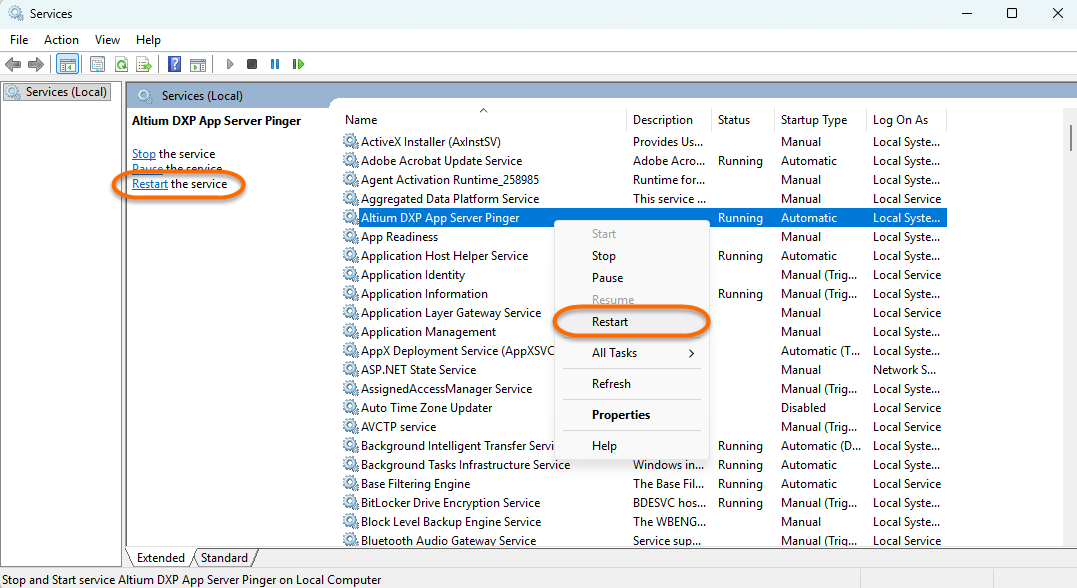
- Test access to the server from a browser.
- If the issue remains, restart the server and test again.
Additional Notes
This issue is most commonly encountered after renaming a server after the Altium Server application has already been installed.