
KB:ローカルライブラリにコピーするために管理コンポーネントのリンクを解除する
 Altium Designer
Solution Details
To break the link, first we would need to have a library with the components. You can create one from your existing design:
1 With the schematic document open, Design » Make Schematic Library (Or Design » Make PCB Library when on the PCBDoc).
2 With the library created, save the library file.
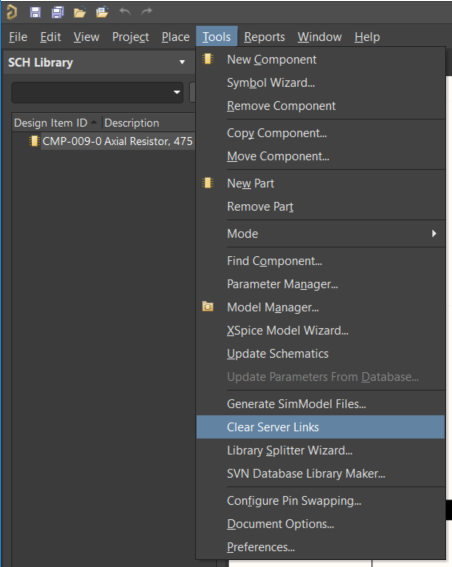
3 Then, to break the link to the server, within the library: Tools » Clear Server Links » Yes to Continue.
4 With the links broken, you would need to create a copy of the components to account for all scenarios and assure that no old ones still retain the link.
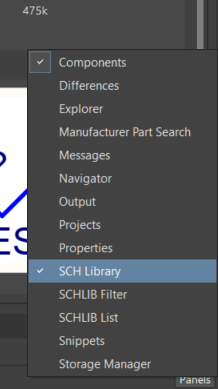
5 Open the SCH Library panel from the Panels button at the lower right corner of the screen (or PCB Library if done for PCB for PCB Footprints.)
6 Select all the components by clicking the first one in the list then hold the shift key while clicking the last component in the List.
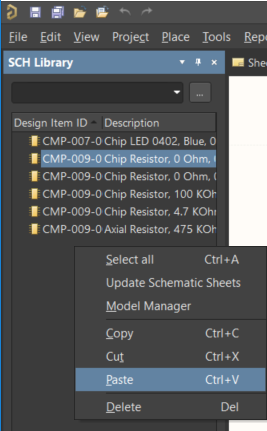
7 Right-Click » Copy. You should now have the components copied.
8 You can then Right-Click » Delete. To remove the old Components.
9 Then Right-Click » Paste to add the newly copied components (without the links) back to your Library. Repeat this Process for your PCB Library.
If you do not want to create a new library and want to just add the managed component to an existing local library:
1 Place the components from the Server to a Schematic Document (or PCB Document)
2 With the component select, Edit » Copy
3 Open the existing Library and then open the SCH Library panel from the Panels button at the lower right corner of the screen (or PCB Library if done for PCB)
4 Right-Click the list in the SCH Library » Paste
5 This should add the component to the Schematic Library
6 Now, run: Tools » Clear Server Links » Yes to Continue.
7 With the links broken, you would need to create a copy of the components to account for all scenarios and assure that no old ones still retain the link.
8 In the SCH Library panel, select the component: Right-Click » Copy.
9 You can then Right-Click » Delete. To remove the old Components.
10 Then Right-Click » Paste to add the newly copied components (without the links) back to your Library.



 AI で翻訳