
KB: Component Parameter Name Appears with Value in Altium Designer
 Altium Designer
Solution Details
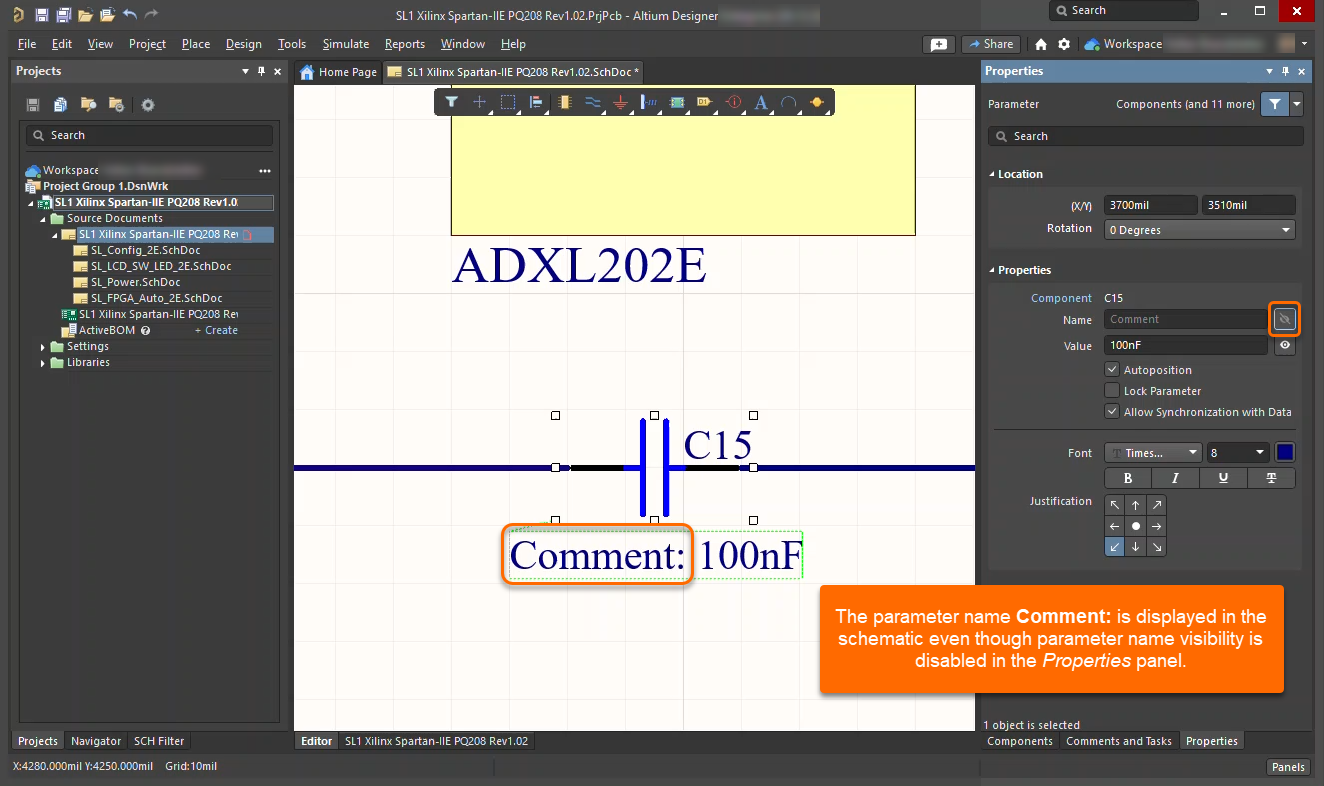
Parameter Name Remains Visible When Disabled
The parameter name can remain visible in the schematic even though parameter name visibility is disabled in the Properties panel. The issue can also affect newly placed components when the source library is configured correctly.
Preferences Can Affect Parameter Display Behavior
This behavior can be caused by corrupted Altium Designer preferences that interfere with the expected parameter display settings.
Choose How to Correct the Parameters
- Reset Altium Designer preferences to restore the expected behavior for newly placed components.
- Use Find Similar Objects to correct existing components without replacing them.
- Optionally, use Tools » Update from Libraries with Full Replace when restoring components from their source library is appropriate.
Reset Preferences and Fix Existing Components
Reset Preferences
- Back up the current preferences using Save... in the Preferences dialog. If applicable, record information required to reconnect to a private license or managed content server.
- Close Altium Designer.
- Start the Altium Designer Uninstaller and select Remove Preferences.
- Restart Altium Designer. If prompted, do not import the previous preferences.
- Place a component and verify that the parameter name is no longer displayed.
For further details, see: KB: Reset the Altium Designer configuration to the installation defaults.
Fix Existing Components
- Select an affected parameter, right-click, and select Find Similar Objects.
- Set the appropriate parameter attribute to Same and enable Select Matching.
- In the Properties panel, disable parameter name visibility for the selected parameters.
For further details, see: Using Find Similar Objects Tools | Altium Designer Documentation
Optional: Full Replace from Library
- For components with a suitable source library, select Tools » Update from Libraries.
- Enable Full Replace for the affected components.
- Verify the schematic and component connections after the replacement.
Additional Notes
Resetting preferences removes the current user preferences and can also clear Altium Designer cache information and some registry settings. Back up preferences and record relevant server or licensing configuration before performing the reset. Find Similar Objects is the less invasive option when only parameter name visibility needs to be corrected.
References
- KB: Reset the Altium Designer configuration to the installation defaults
- Using Find Similar Objects Tools | Altium Designer Documentation
- Work Faster Using the Find Similar Objects Tool in Altium Designer | Altium Academy Video
- Updating Schematic Components From Libraries | Altium Designer Documentation