
KB: Git Initialization Hangs When Opening a Large Workspace Project
 Altium Designer
Solution Details
Git Initialization Hangs During Project Opening
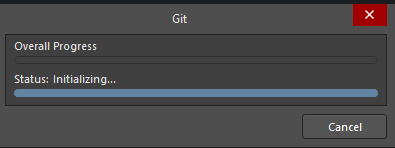
When opening a large project from a Workspace, the Git initialization dialog may remain open for an extended period. If the Git operation is cancelled while this is occurring, Altium Designer may freeze.
Repository Size and Network Delays
The behavior can be related to the size of the project repository and the time required to download its revision history. Download performance can also vary between machines.
Network communication delays can contribute to freezing or long delays when Altium Designer is waiting for a network request to complete. Firewall, proxy, or SSL/TLS inspection restrictions can also interfere with services required for Workspace connectivity.
Reduce the Initial Repository Download
- Enable VCS.GitShallowClone before opening the affected Workspace project. This reduces the amount of repository history retrieved during the initial download.
- After confirming that the local project has been successfully created from the Workspace project, disable VCS.GitShallowClone and refresh the project history.
- If the issue persists, investigate network connectivity, including firewall, proxy, and SSL/TLS inspection settings that could delay or block Altium 365 communication.
Enable Shallow Clone and Refresh History
- Open Altium Designer and select Preferences.
- Navigate to System » General » Advanced.
- Search for VCS.GitShallowClone and enable the Value checkbox.
- Close and restart Altium Designer to apply the change.
- Open the affected project from the Workspace.
- Verify that the project has been downloaded successfully and that a local copy of the Workspace project is available.
- Return to Preferences » System » General » Advanced.
- Search for VCS.GitShallowClone and clear the Value checkbox.
- Refresh the project history.
Additional Notes
The VCS.GitShallowClone procedure is based on the workaround successfully used in the reported support cases. If it does not resolve the issue, investigate network communication between Altium Designer and the Altium 365 Workspace.