
KB: How to Resolve a Red Output-to-Container Arrow in an Output Job
 Altium Designer
Solution Details
Red Links Appear for Specific Outputs
A red connecting arrow can appear for some enabled outputs in an Output Job while other output-to-container links remain green. The issue can affect print-based outputs when their configured page settings are incompatible with the selected output container or printer. A Gerber output can also show a red container link when an external printer is configured in the Output Job.
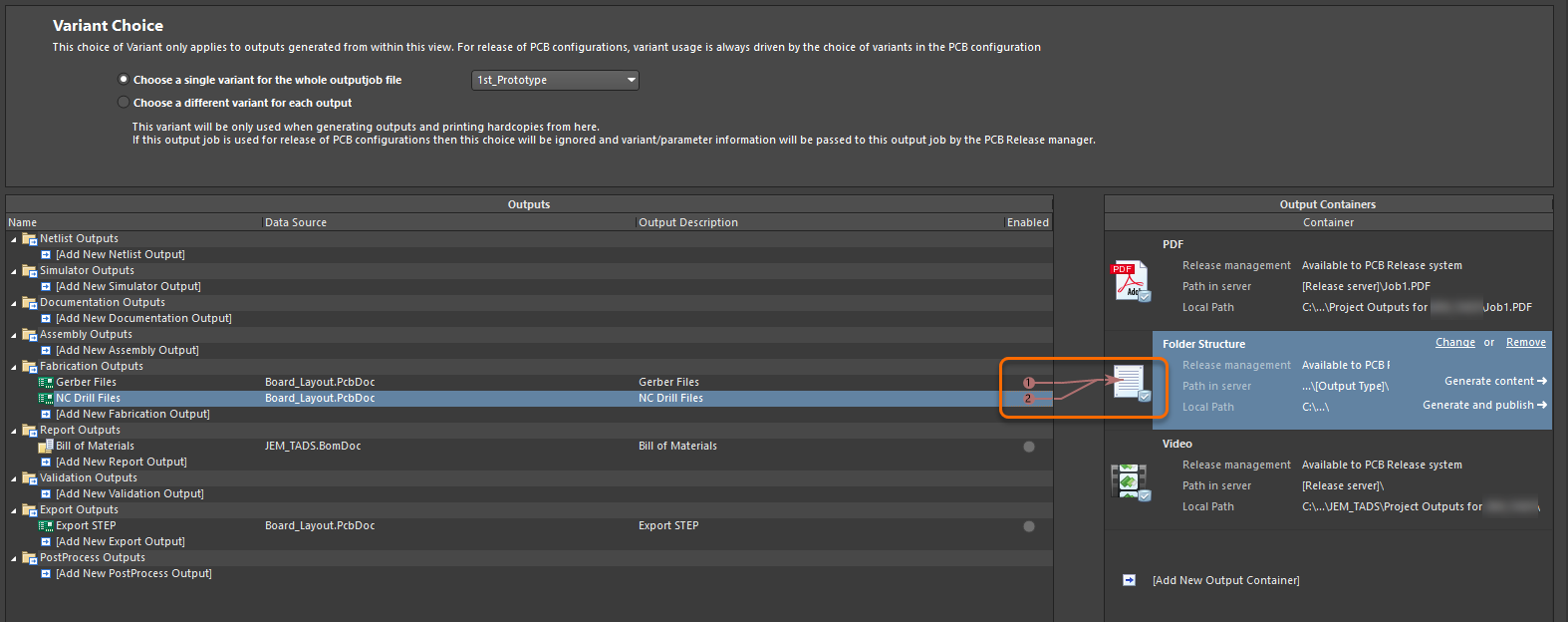
Check the Page Setup and Output Container
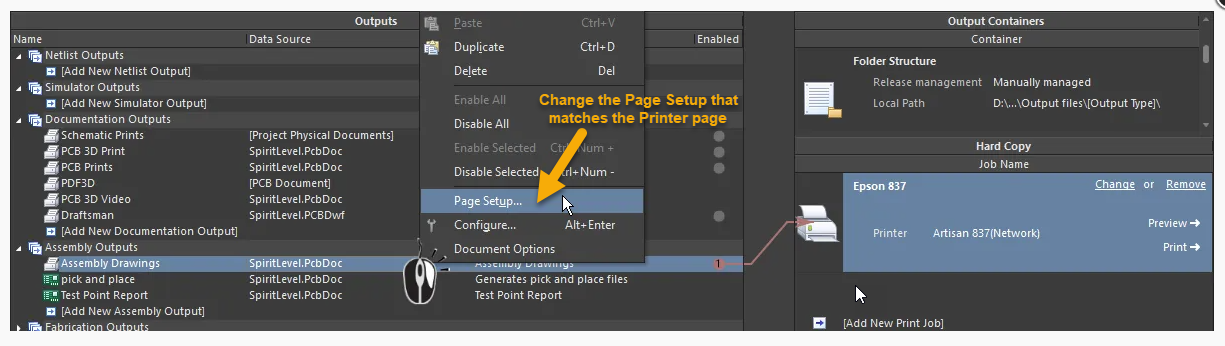
A red link can occur when the page settings configured for the output generator are not supported by the selected output container.
For example, when a print-based output is changed from a PDF output container to a physical printer, the configured paper size may not be supported by that printer.
To resolve the issue:
- Right-click the affected output and select Page Setup.
- Check the configured paper size.
- Either:
- Change the paper size to one supported by the selected output container or printer.
- Change the target output container or printer to one that supports the configured paper size.
- Check whether the connecting arrow changes from red to green.
For additional information, see the Altium Designer documentation: Why is my Output to Container Link Red? | Preparing Manufacturing Data with Output Jobs
Check the Printer Configuration
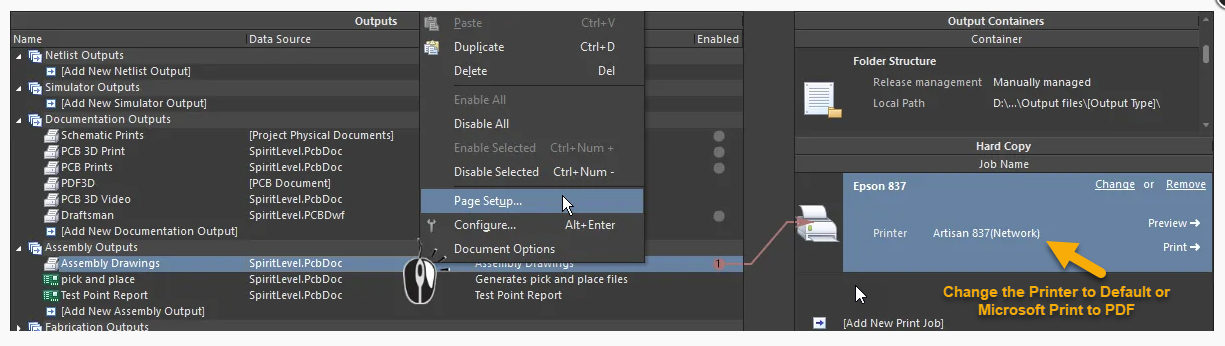
The printer configuration or printer driver can also cause a red output container link.
If an external printer is configured in the Output Job:
- Check the printer configured for the hard-copy output.
- Change the printer configuration to Default.
- If a physical printout is not required, try Microsoft Print to PDF.
- If the issue persists when using a physical printer, uninstall and reinstall the printer driver.
Note: This may also resolve cases where the Output Job displays a red container link for a Gerber Output when an external printer is configured.
Reset Altium Designer Preferences
If the Page Setup and printer configuration are correct but the issue persists, corrupted Altium Designer preferences may be the cause.
Reset the Altium Designer configuration to the installation defaults, then check the Output Job again.
Note: Resetting the configuration restores Altium Designer preferences to their default settings. Review the reset procedure before proceeding.
For instructions, see: KB: Reset the Altium Designer Configuration to the Installation Defaults