
KB: No License for Lifecycle Approvals Error
 Altium Designer
Solution Details
Error Appears When Saving Lifecycle Changes
Users may receive the message “You don't have a license for using 'Approvals' in the life cycle” or “No license for approvals in lifecycles available” when applying changes to a lifecycle definition. This typically occurs when one or more lifecycle state transitions are configured to use approval-based permissions.
Lifecycle Approvals Require Appropriate Licensing
The Using Approvals transition permission enables an approval workflow for lifecycle transitions. Non-administrative users request a state transition, and members of configured Approval Groups can authorize or reject the request. Lifecycle approvals require Altium Agile Enterprise or, when using Altium Designer, an Enterprise-level subscription. If the required solution or subscription level is not available, a lifecycle definition containing a transition configured as Using Approvals cannot be saved.
Choose the Appropriate Transition Permission
- If managed approval workflows are not required, change affected lifecycle transitions from Using Approvals to Controlled. Controlled transitions use permissions assigned to users or groups rather than the approval-request workflow.
- If managed approval workflows are required, verify that the Workspace is covered by Altium Agile Enterprise or, when using Altium Designer, an Enterprise-level subscription.
Review and Update Lifecycle State Transitions
- Ensure you have Workspace administrator privileges before modifying lifecycle definitions.
- Open the lifecycle definition that generates the error.
- Review each lifecycle state transition, such as Draft to Prototype or Prototype to Production.
- Select a state transition and open its properties.
- Check the State Transition Permissions setting.
- If the transition is configured as Using Approvals and managed approvals are not required, change it to Controlled.
- Configure the appropriate users or groups for the Controlled transition as required.
- Repeat the check for the other state transitions in the lifecycle definition.
- Click Apply Changes to save the modified lifecycle definition.
- Retest the lifecycle transition.
Alternatively, a Workspace administrator can review lifecycle definitions through the Altium 365 Workspace browser interface by navigating to Admin » Settings » Lifecycle Definitions.
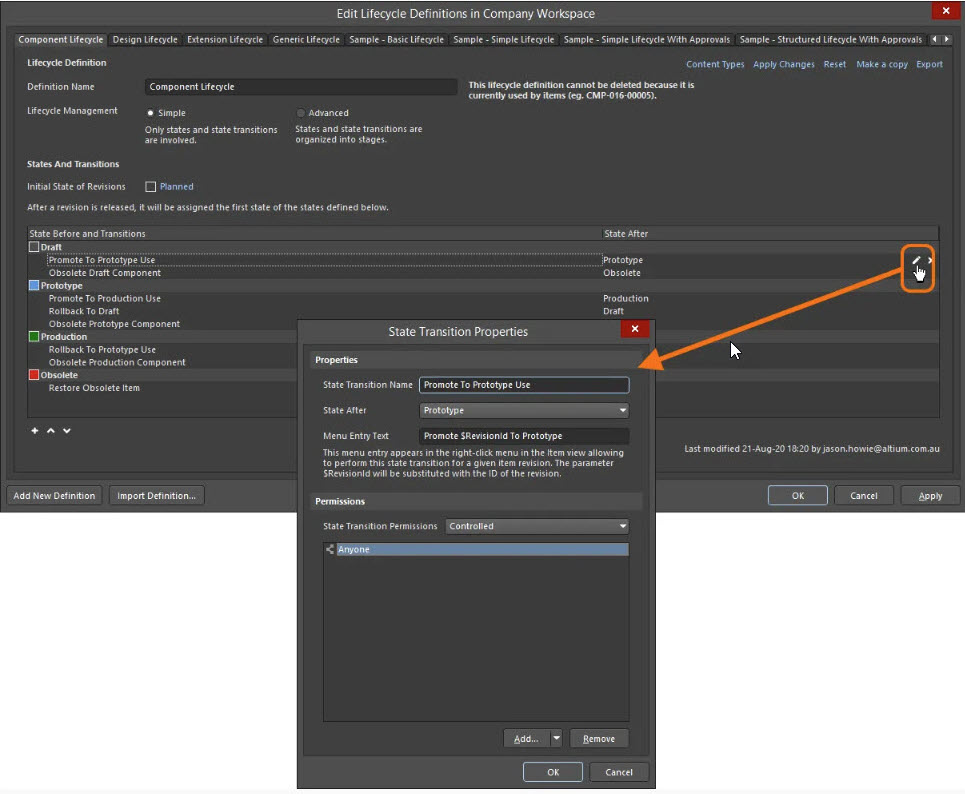
Component lifecycle state transition configured with Controlled permissions.
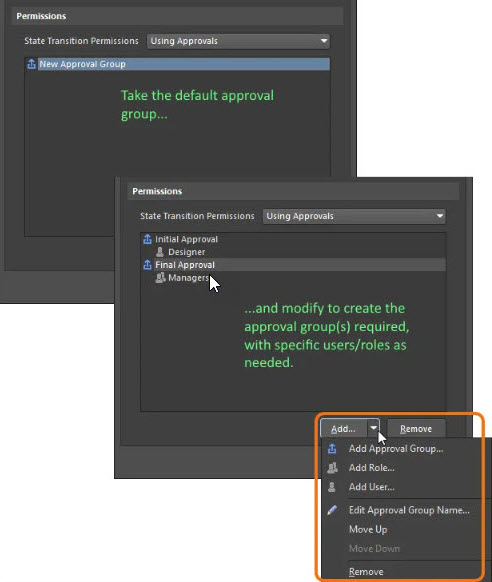
Lifecycle state transition configured with Using Approvals
Additional Notes
If managed lifecycle approvals are required but are not available with the current licensing, contact Altium Sales or the customer's Altium Account Manager to discuss the applicable solution or subscription.