
KB: Replace Local Project Components with Workspace or Server Managed Components
Updated: October 23, 2026
 Altium Designer
After migrating an existing local project to an Altium 365 Workspace or an Altium On-Prem Enterprise Server, schematic components may still reference unmanaged local library components. These components can be replaced with managed Workspace or Server components using the Item Manager auto-match capability when a common parameter exists between local and managed components. If no suitable matching parameter is available, components can be replaced in groups using the Find Similar Objects feature. After completing the replacement process, Item Manager can be used to identify and verify any remaining unmanaged components.
Solution Details
Existing Components Still Use Local References
After a project and its libraries have been migrated to an Altium 365 Workspace or an Altium Enterprise Server, components already placed in schematic designs may continue to reference unmanaged local library components instead of managed Workspace or Server components.
Migration Imports Libraries but Preserves Component Links
Importing local libraries into a Workspace or Server creates managed components, but existing schematic components are not automatically relinked to those managed items. Component associations must be updated separately.
Select the Appropriate Replacement Method
- Use Item Manager Auto Match when a common parameter exists between the local component and the managed component.
- Typical matching parameters include manufacturer part number, internal part number, or another unique identifier available on both components.
- Review all proposed matches before applying updates, especially if the matching parameter is not unique.
- Use Find Similar Objects to replace groups of components when no suitable matching parameter exists.
- Perform the replacement process on a backed-up project or under source control so changes can be reverted if necessary.
Replace Local Components with Managed Components
- Migrate existing local library components to the Workspace or Server using the Library Importer.
- Open Tools » Item Manager.
- Create a matching rule that maps a local component parameter to the corresponding managed component parameter.
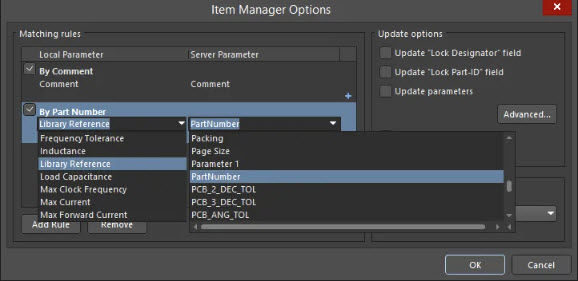
- Click Auto Match.
- Review the proposed component matches.
- Apply the updates to replace local components with managed Workspace or Server components.
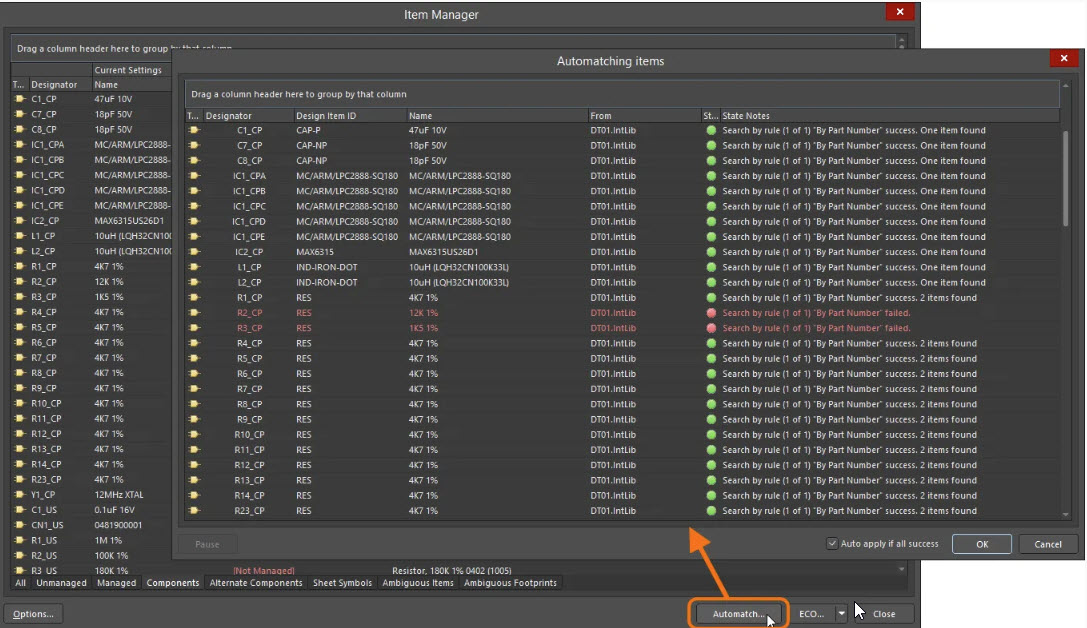
If no matching parameter exists, use the following procedure:
- Select one of the components in the schematic.
- Right-click and choose Find Similar Objects.
- Set Design Item ID to Same.
- Enable Select Matching.
- Change the scope from Current Documents to Project Documents.
- Enable Open Properties.
- Click Apply, then OK.
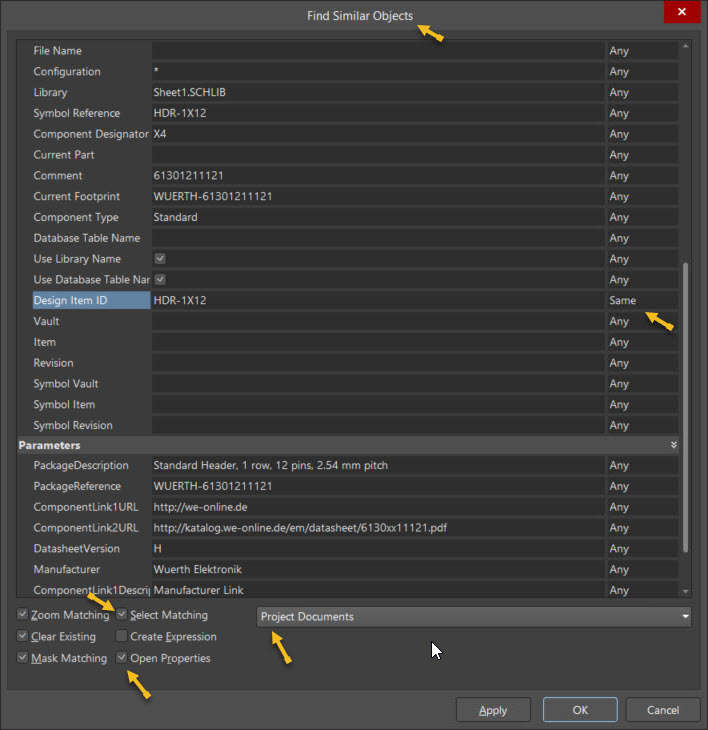
- Verify that all components with the same Design Item ID are selected across all schematic sheets.
- In the Properties panel, click the ... button next to Design Item ID.
- Search for the managed component that will replace the selected components.
- Apply the replacement and confirm the changes.
- Repeat the procedure for other component groups as required.
- Compile the project and review the Engineering Change Order (ECO) results to verify that the component links have been updated correctly and that no unintended design changes have occurred.
- Open Tools » Item Manager.
- Review the Unmanaged section to identify any remaining local components that were not matched or replaced.
- Repeat the replacement process as required until all intended components are managed.
Additional Notes
The Item Manager provides a configurable auto-matching capability that attempts to match each local design component with a component in the connected Workspace. When a match is found, the corresponding Workspace component is proposed for update.