Welcome to the OrCAD® Basic Connector
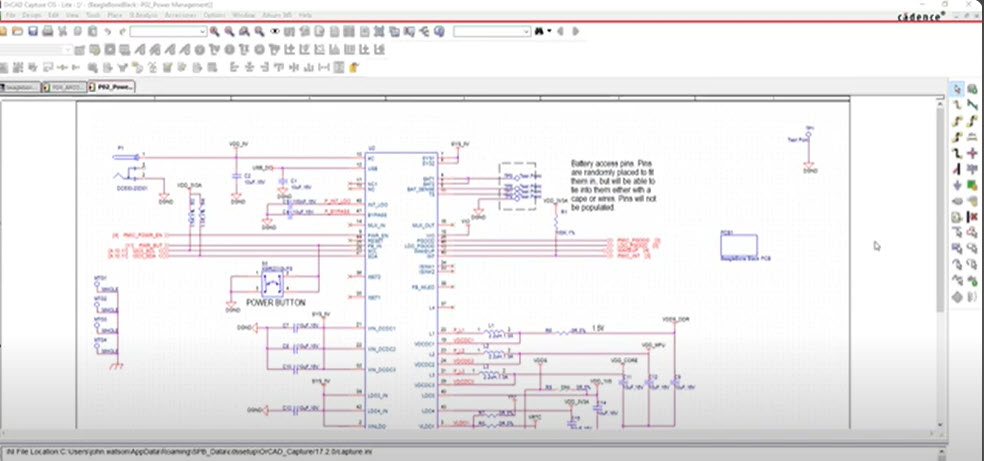
Integrate any OrCAD® PCB Design into the Altium 365 electronics development platform to experience secure, seamless, and streamlined collaboration.
Please download the OrCAD® Basic Connector here.
Once installed, you'll see a new Altium 365 menu option in your OrCAD® environment.
Connector Capabilities
By integrating OrCAD® projects into an Altium 365 Workspace, you will be able to:
- View your OrCAD® designs in a web browser
- Streamline your design reviews
- Efficiently manage your BOM workflow
- Get intelligent BOM insights with supply chain data
- Manage your design data in one version-controlled space
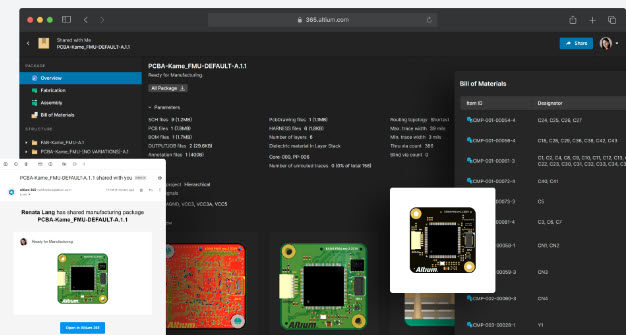
- Share version-controlled release packages with your manufacturer
Getting Started
There are two ways to upload your first project into your Altium 365 Workspace:
From OrCAD®
- Open an existing OrCAD® project
- Select Altium 365 in the top menu > Save to Server
- Add a project name and description, then select Save
Once the project has been saved to the server, select Altium 365 > View in Server to see the project in your Altium 365 Workspace.
From Altium 365
- Open the Projects section in your Altium 365 Workspace
- Select +New > Upload OrCAD and choose your OrCAD® zip file stored on your computer
- Add a project name and description, then select Upload
Working With Your First Project
Often a need arises to work with outside contractors, and Altium 365 allows you to share individual projects with them.
Sharing Steps
- Open the Projects section in your Altium 365 Workspace
- Select the ellipsis icon next to your listed project and choose Share
- Enter the user's email, name, or role, and confirm to give view or editing rights, then select Share
Advanced settings are also available within the Share dialog, including who can share the project and download files.
Once shared, the user will receive an email invite to access your project in Altium 365.

Sharing a Project
With your OrCAD® project uploaded to Altium 365, you now have a wealth of capabilities available to you. Here's a quick overview to encourage further exploration:
Projects
- Source documents are the Schematic, PCB (2D), PCB (3D), and the Bill of Materials.
- A convenient search feature allows you to search for a specific component or net.
- Selecting a component shows the manufacturer, part number, further parameter information, and live availability data from suppliers.
- In the PCB (2D) view, you have the option of turning layers on and off in a design, so if you want to look at just the top layer, you can easily do that or view a group of layers, such as copper layers, solder mask, face masks, etc.
- You can turn objects on or off in the PCB (3D) view. For example, to look at just a PCB's pads or other items.
Project Side Panel (Open a project to see this)
- This provides a great view of the design according to the source documents, where you can view all components and Nets in the project.
- The Project Tasks list shows all the tasks assigned to a particular project.
- Design Reviews will be the area that will set up, assign, and manage design reviews in the project.
- The Project History uses the built-in GIT repository in the Altium 365 platform, and each event in your project is saved in version control.
Component Library
Altium 365 consolidates all the components you need for your design into a single library.
You also can take advantage of the Library Health capability, which monitors your library based on four criteria: supply chain, component details, duplicates, and models.
Tasks
There is yet another Task area at the project level. This particular area shows all the tasks across any project in your Workspace.
Workspace Members
Here you can add, remove, and manage your Workspace Members.

Understanding the Altium 365 Platform
The Commenting and Tasks capabilities will significantly improve your productivity. These make it convenient to streamline the internal or external process of reviewing and iterating on designs, no matter who you collaborate with.
Adding Comments
- Open a project in your Altium 365 Workspace
- From any of the listed design documents, select the Comment icon > Place a Comment
- Place your comment anywhere in your design, add a description, and select Post
You can add a comment to a specific design object, such as the pins on a device, and the comment is available for your entire team to see.
Adding Tasks
There are three ways to add a task to your project:
- From the Tasks section within a project, select +New
- With an existing comment open, select the ellipsis icon and choose Convert to Task
- While creating a new comment, use the @ symbol to enter a user's name, and select the checkmark option to assign the task to them
All tasks appear in the project's Tasks section. Remember, another task list on the upper level of the Altium 365 platform allows you to see all project tasks and determine whether they are still in progress.
Commenting and Tasks are available for a schematic, PCB layout, the 3D view of a board, Draftsman documentation, and the BOM.

Commenting and Tasks
You can create managed BOMs directly from your OrCAD® files, which can help to reduce supply chain risks by having part data, pricing, availability, and procurement trends at your fingertips.
Creating a Managed BOM
- Open a project in your Altium 365 Workspace
- Select the ellipsis icon in the top-right corner and choose Create Managed BOM
With your Managed BOM created, you have access to powerful BOM management capabilities in your browser.
Here's an overview of what you'll see in your Managed BOM view to encourage further exploration:
Main View
This is the main view of the BOM itself, which looks at its "raw" form.
Supply Chain
This shows the supplier breakdown in BOM coverage. It also looks at your selected suppliers and determines what is in stock.
Issues
This Identifies components with specific problems, specifically on the procurement side, by looking at your manufacturing lifecycle, compliances, and supply chain.
Releases
This is where any releases of the BOM will be stored and managed.
Dashboard
This shows the overall health of your BOM based on manufacturability, procureability, and compliance.
It will then look at the manufacturer’s lifecycle states and whether each of your components complies or not.
Lastly, it will look at your supply chain, and provide a great chart showing the lead times on components and identify those that will cause problems for your PCB Project.
