
Renesas 365
Renesas 365, powered by Altium, é baseado na plataforma Altium 365 e desenvolvido para o projeto de sistemas eletrônicos. Ele dá mais liberdade aos engenheiros ao unificar os fluxos de trabalho de desenvolvimento para melhorar a eficiência e acelerar os ciclos de projeto, do conceito à produção em volume.
A principal entidade de alto nível no Renesas 365 é um(a) Solution que unifica diferentes aspectos do sistema que você cria – projeto do sistema, projetos de software e projetos de hardware.
Para obter uma visão geral do Renesas 365 e saber como criar um novo Workspace do Renesas 365, consulte a página renesas.com Renesas 365.
O Modelo de Dados do Sistema
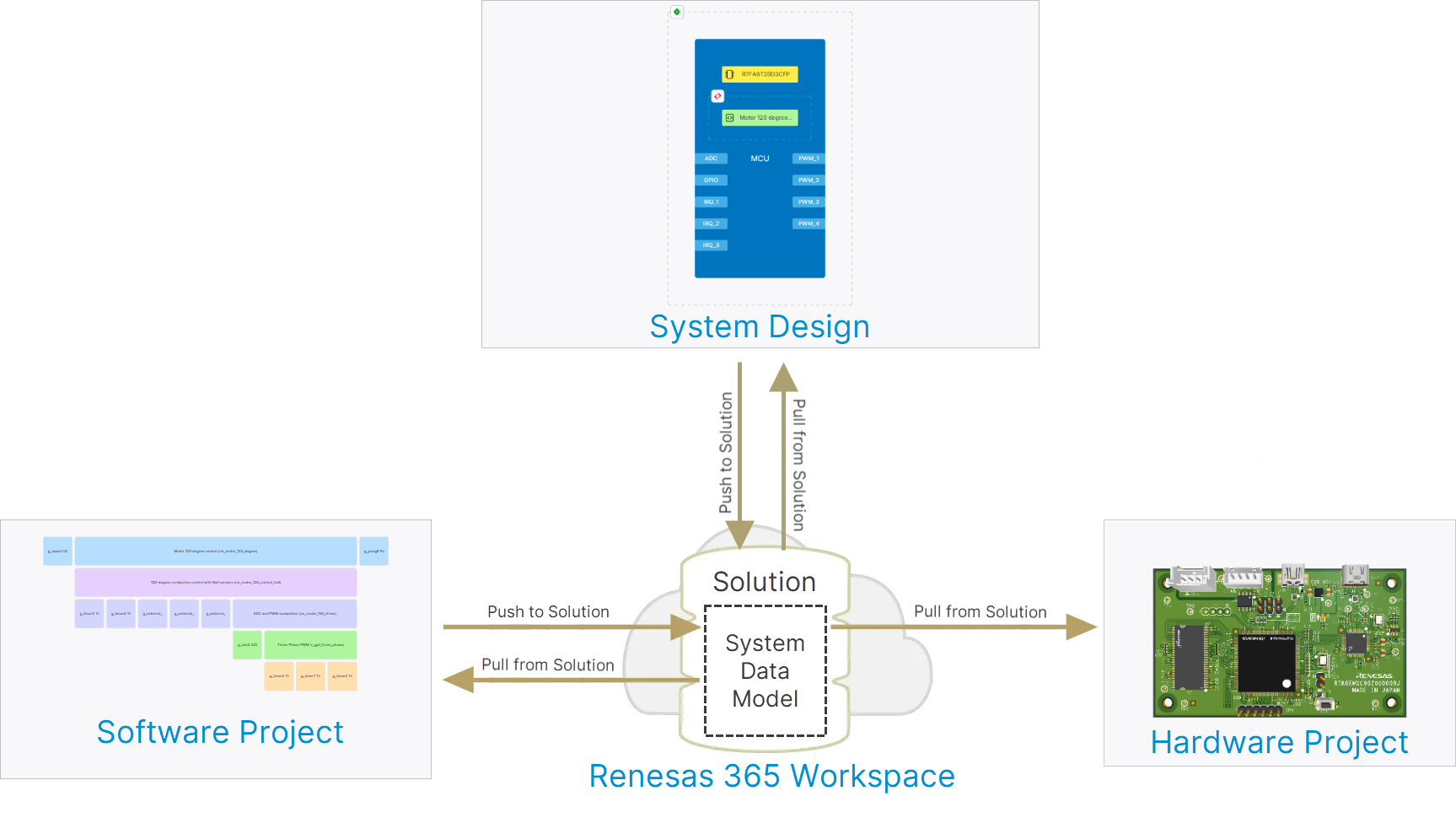
Um elemento fundamental de uma solução é o System Data Model (SDM) – um modelo único, coeso e de alto nível que ocupa uma posição central no processo de definição da solução e molda a arquitetura do sistema. Os dados dentro do modelo podem ser acessados e manipulados pelos vários meios fornecidos pelo Renesas 365. O SDM é estruturado para acomodar todas as informações de todos os aspectos da solução e encapsula seus elementos e os relacionamentos entre eles para definir o sistema como um todo. Os processos de push e pull são usados para enviar (fazer upload de) alterações de um projeto para o SDM e obter (fazer download de) alterações feitas no SDM para integrá-las a um projeto, respectivamente.
-
O push para o SDM a partir do projeto de sistema de uma solução e o pull do SDM para esse projeto são realizados a partir de seu documento ESD. Para mais informações, consulte a página Electronic System Design.
-
O pull do SDM para o projeto de hardware de uma solução é realizado a partir do Altium Designer. Para mais informações, consulte a página Working with Renesas 365 Solutions.
-
O push para o SDM a partir do projeto de software de uma solução e o pull do SDM para esse projeto são realizados a partir do e² studio.
Acessando um Workspace do Renesas 365
Seu Workspace do Renesas 365 é um ambiente dedicado para hospedar e gerenciar suas soluções e conteúdo relacionado. A interface baseada em navegador de um Workspace do Renesas 365 é apresentada como uma parte constituinte da Interface da Plataforma Altium 365 como um todo. Depois que seu Workspace do Renesas 365 for criado, você poderá acessar sua interface de várias maneiras. Consulte a Altium Platform Interface page para mais detalhes.
Explorando a Interface Baseada em Navegador
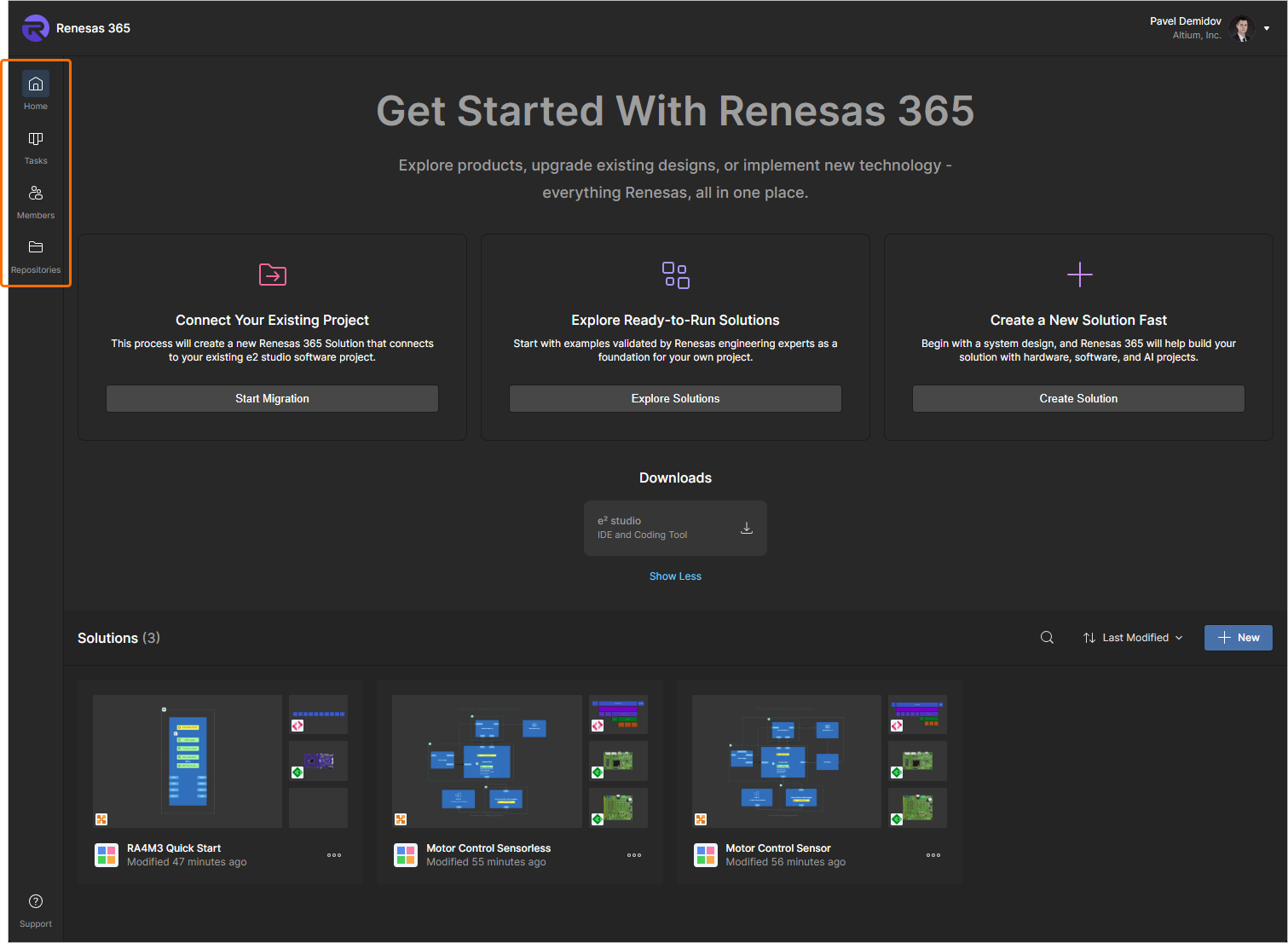
Os elementos da interface de navegador do seu Workspace do Renesas 365 podem ser acessados usando os controles na barra de ferramentas à esquerda mostrada na imagem a seguir e descritos depois.
-
Home – esta página fornece controles para criar uma nova solução e também oferece acesso às soluções atualmente disponíveis no seu Workspace do Renesas 365.
Para mais informações sobre como criar uma nova solução, consulte a seção Creating a New Solution abaixo.
Para mais informações sobre como explorar uma solução, consulte a seção Exploring a Solution abaixo.
-
Tasks – esta página permite acessar e gerenciar todas as tarefas atualmente ativas no seu Workspace do Renesas 365.
Para mais informações sobre como trabalhar com tarefas, consulte a seção Working with Tasks abaixo.
-
Members – esta página permite gerenciar quem tem acesso ao Workspace do Renesas 365.
Para mais informações sobre como gerenciar a associação ao Workspace, consulte a seção Managing Workspace Membership abaixo.
-
Repositories – esta página permite configurar o acesso a repositórios de software externos.
Para mais informações sobre como trabalhar com repositórios, consulte a seção Working with Repositories abaixo.
Criando uma Nova Solução
A interface de navegador do Workspace do Renesas 365 fornece os meios para criar uma nova solução.
Criando uma Solução em Branco
Uma nova solução em branco pode ser criada na página Home da seguinte forma:
-
Clicando no botão
 na região Create a New Solution Fast na parte superior da página.
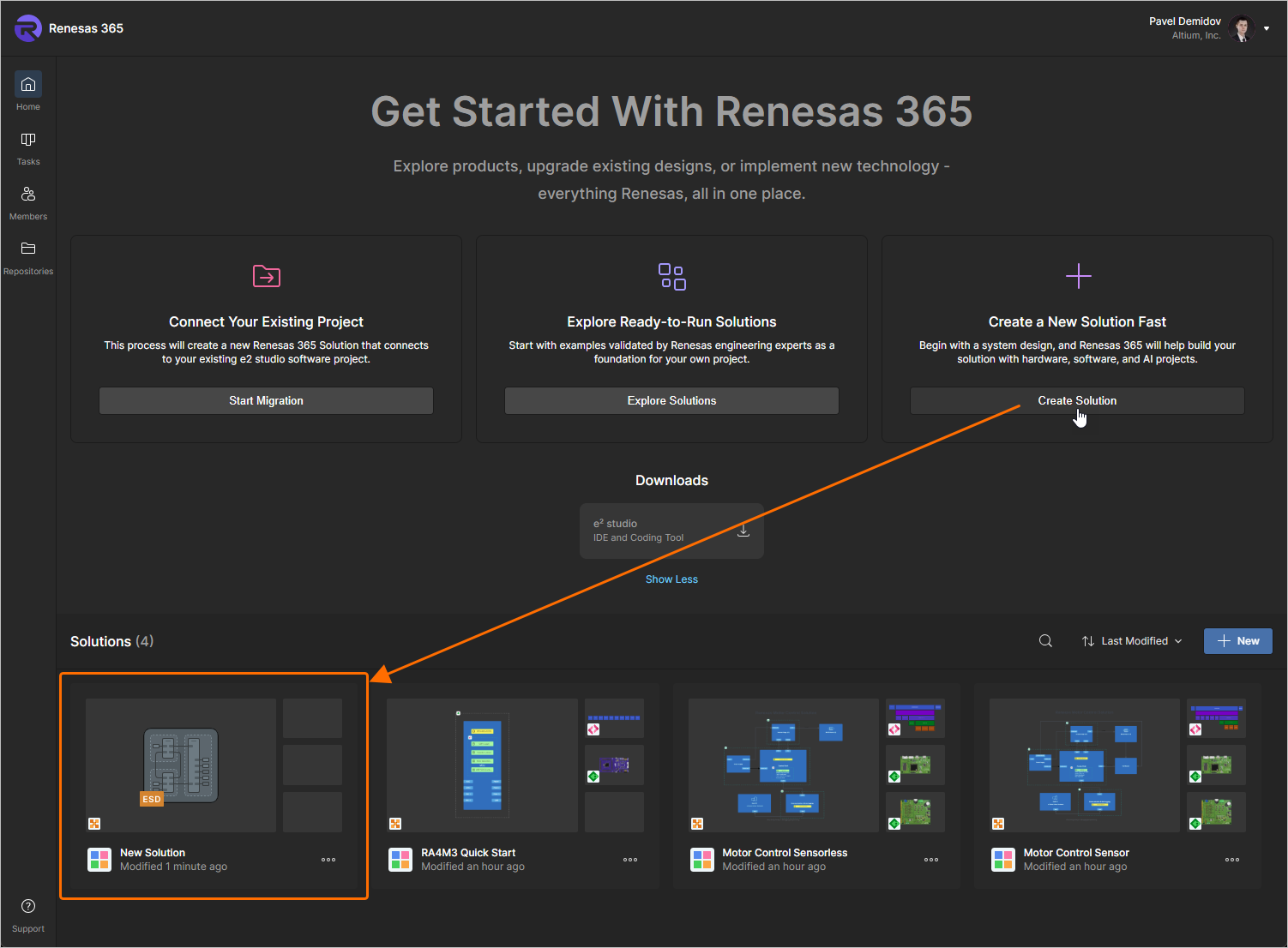
Uma nova solução (nomeada
New Solution) será criada imediatamente. Além disso, um novo documento ESD document vinculado a essa solução será criado e aberto automaticamente. -
Clicando no botão
 na região Solutions . A janela Add solution será aberta.
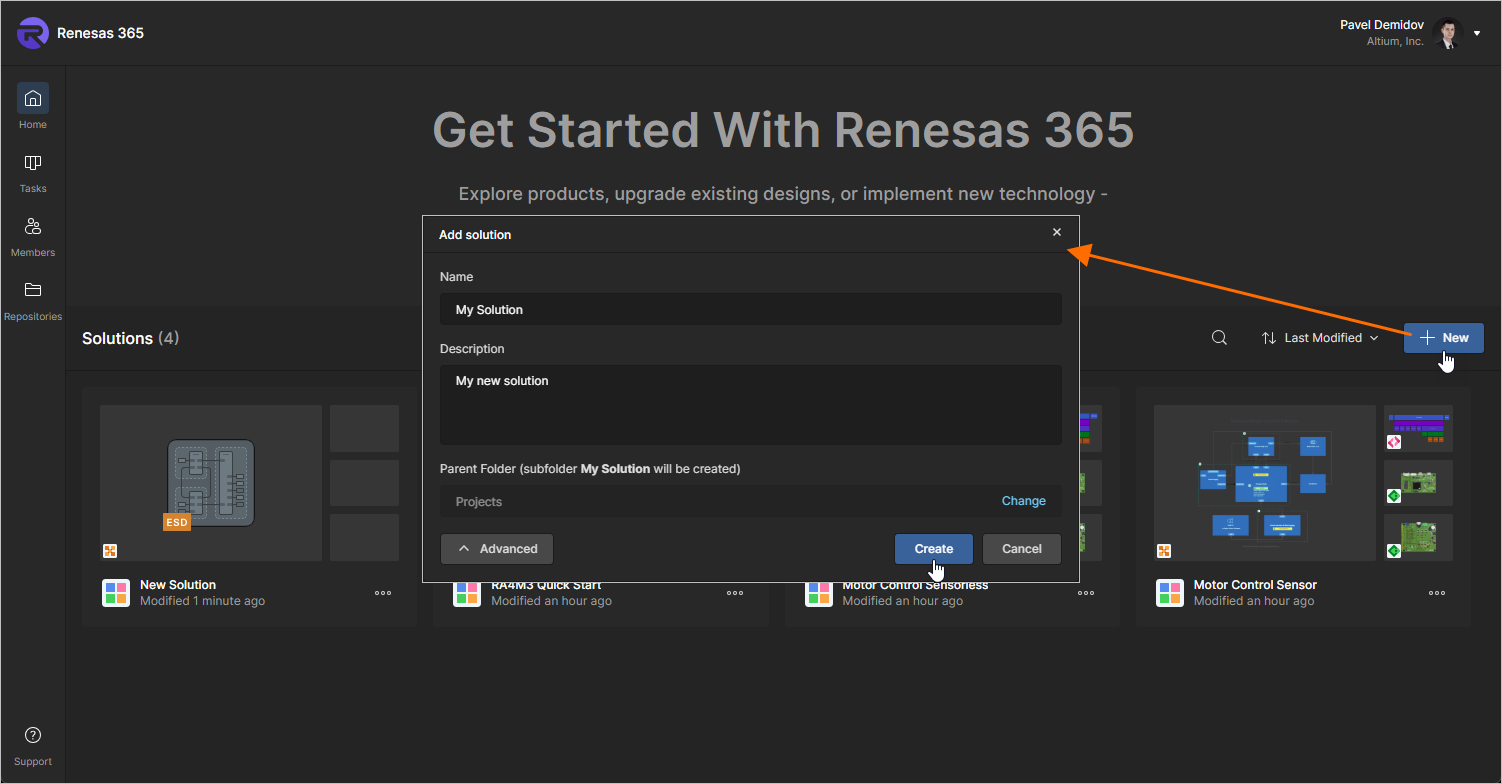
A janela apresentará os seguintes campos:
-
Name – insira o nome desejado para a solução.
-
Description – insira uma descrição opcional para a solução.
-
Folder (use o botão
 para ocultar e exibir este campo) – use este campo para especificar onde a solução deve ser criada dentro da estrutura de pastas do Workspace. Por padrão, esta é a pasta Projects . Clique no link Change à direita do campo para acessar a estrutura de pastas do Workspace, na qual é possível selecionar uma pasta alternativa para armazenar a solução (
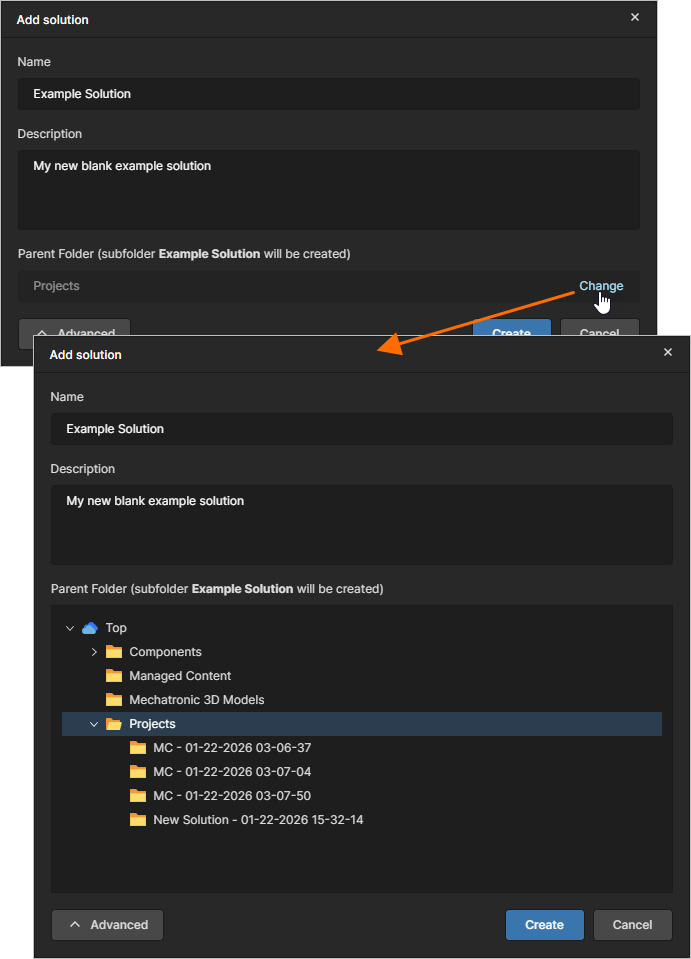 ).
).
Depois de definir a nova solução conforme necessário, clique no botão
 . Uma nova solução será criada e sua página detalhada será aberta.
-
Depois que uma solução é criada, novos projetos podem ser criados como parte dela ou projetos existentes podem ser vinculados a ela. Para mais informações, consulte a seção Exploring a Solution abaixo.
Criando uma Solução de Exemplo RA
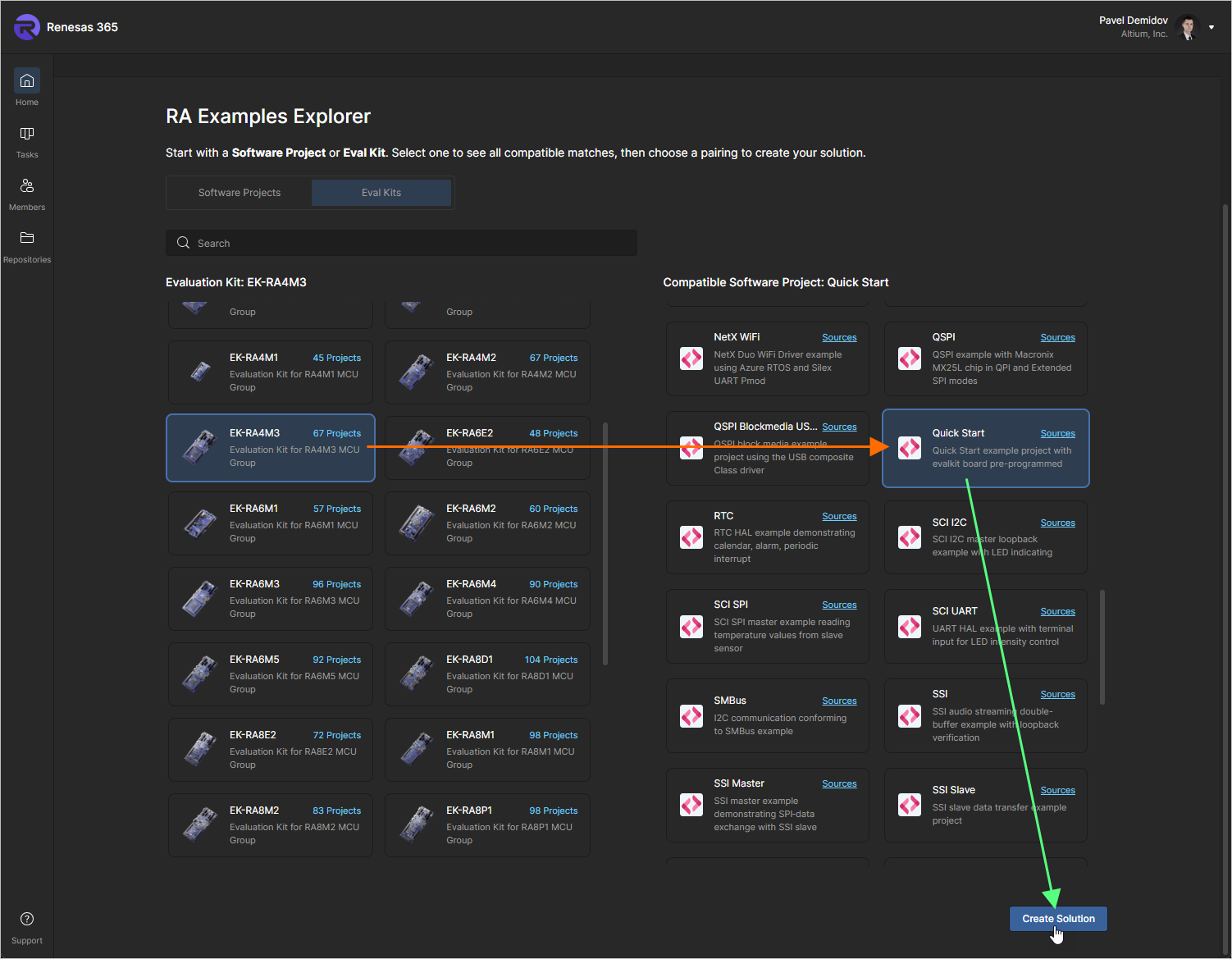
São fornecidas várias soluções de exemplo. Na página Home, clique no botão  na região Explore Ready-to-Run Solutions para abrir a página Explore Ready-to-Run Solutions.
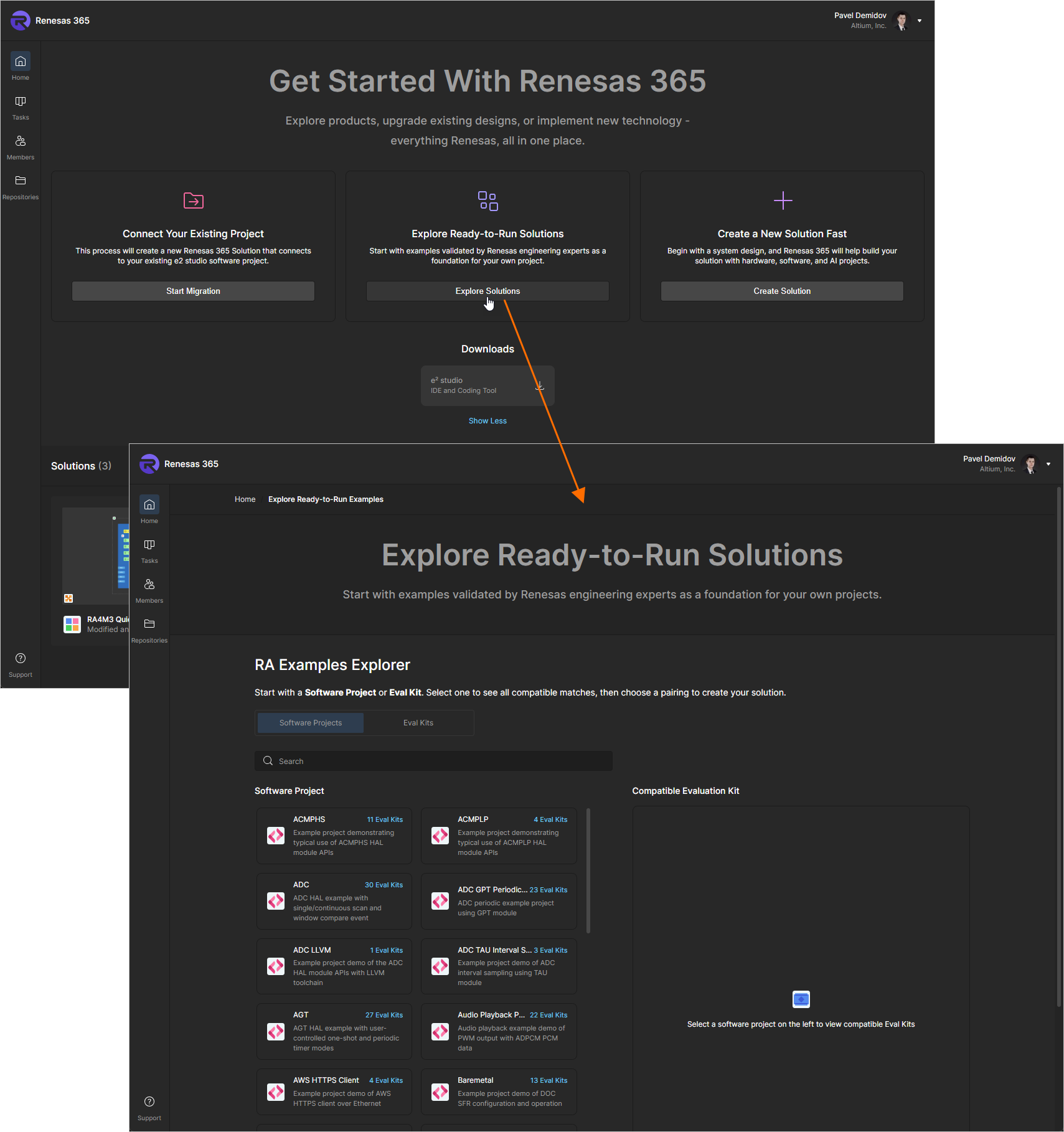
Na região RA Examples Explorer da página Explore Ready-to-Run Solutions, você também pode procurar uma solução por projeto de software ou kit de avaliação. Selecione o projeto de software / kit de avaliação desejado no lado esquerdo da página, depois selecione um kit de avaliação / projeto de software compatível no lado direito e clique no botão  para criar uma solução correspondente no seu Workspace do Renesas 365.
Transformando um Projeto e² studio Existente em Solução
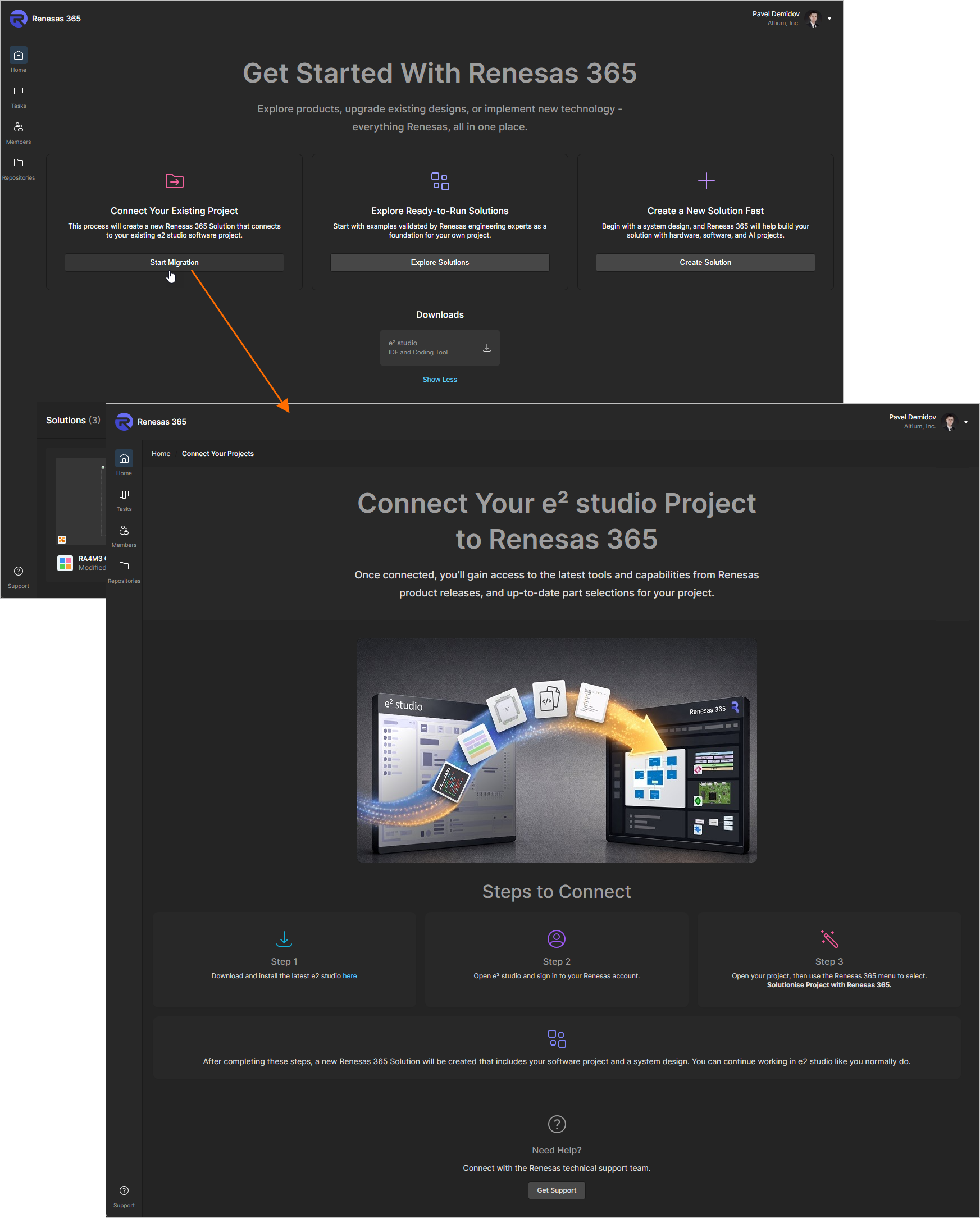
Um projeto existente do e² studio pode ser convertido em uma solução do Renesas 365. Na página Home, clique no botão  na região Connect Your Existing Project para abrir a página Connect Your e² studio Project to Renesas 365 com instruções.
Explorando uma Solução
Todas as soluções que existem atualmente no seu Workspace do Renesas 365 são apresentadas na região Solutions da página Home. Cada solução é apresentada como um bloco, com ícones representando os projetos constituintes da solução (projeto de sistema, projetos de PCB etc.).
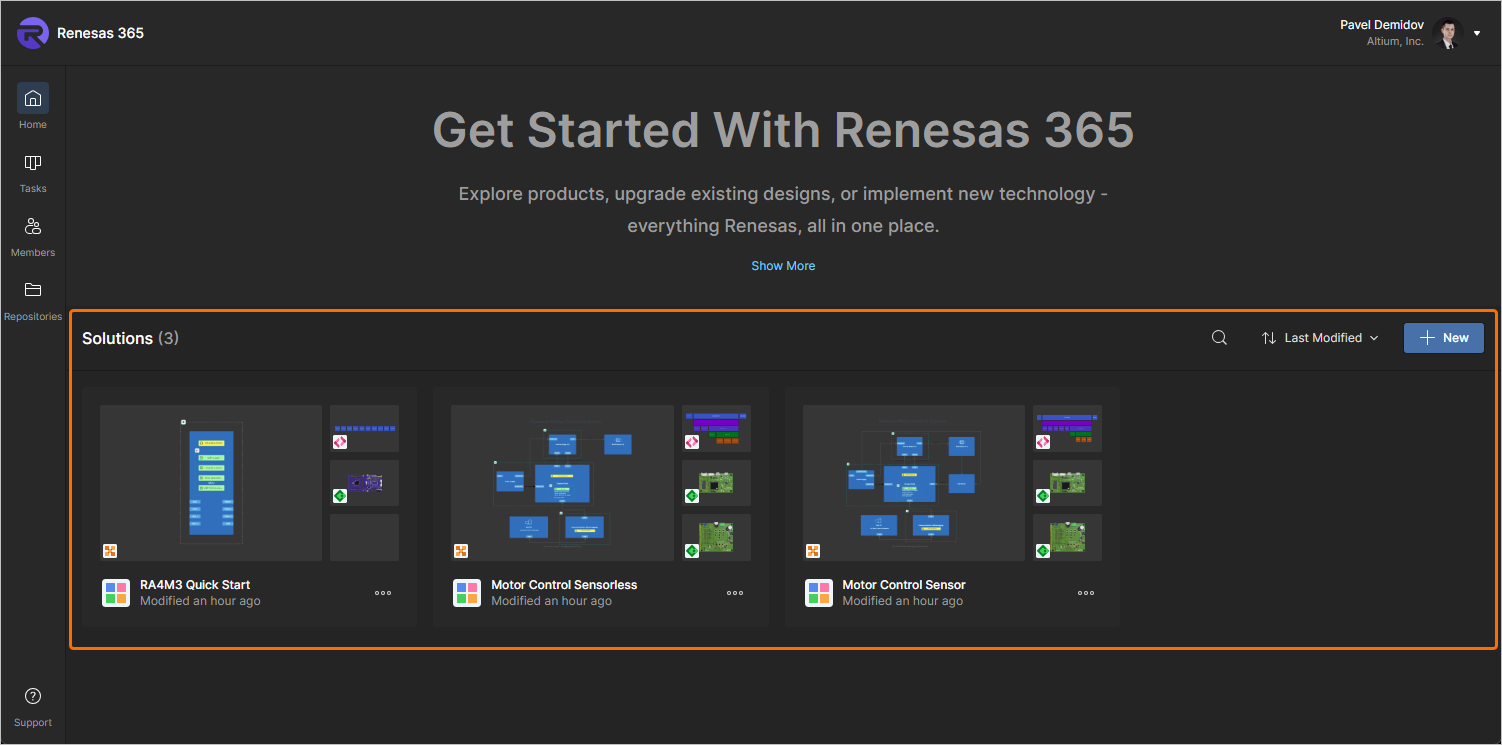
 e inserindo texto no campo de pesquisa exibido. A lista de soluções será filtrada com base na sequência inserida. Para limpar o filtro de pesquisa, clique no ícone x à direita do campo de pesquisa.
 à direita do campo de pesquisa para classificar a lista de soluções por Name, Last Modified ou Owner e selecionar a direção da classificação
 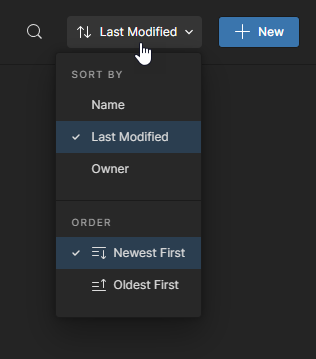 ).
).A página detalhada de uma solução pode ser acessada clicando no controle  no bloco da solução desejada na página Home do seu Workspace do Renesas 365 e selecionando Open no menu exibido. Como alternativa, clique no nome da solução desejada. A página detalhada apresentará informações básicas sobre a solução (nome, descrição e o número de projetos de cada tipo), com seus projetos constituintes listados abaixo.
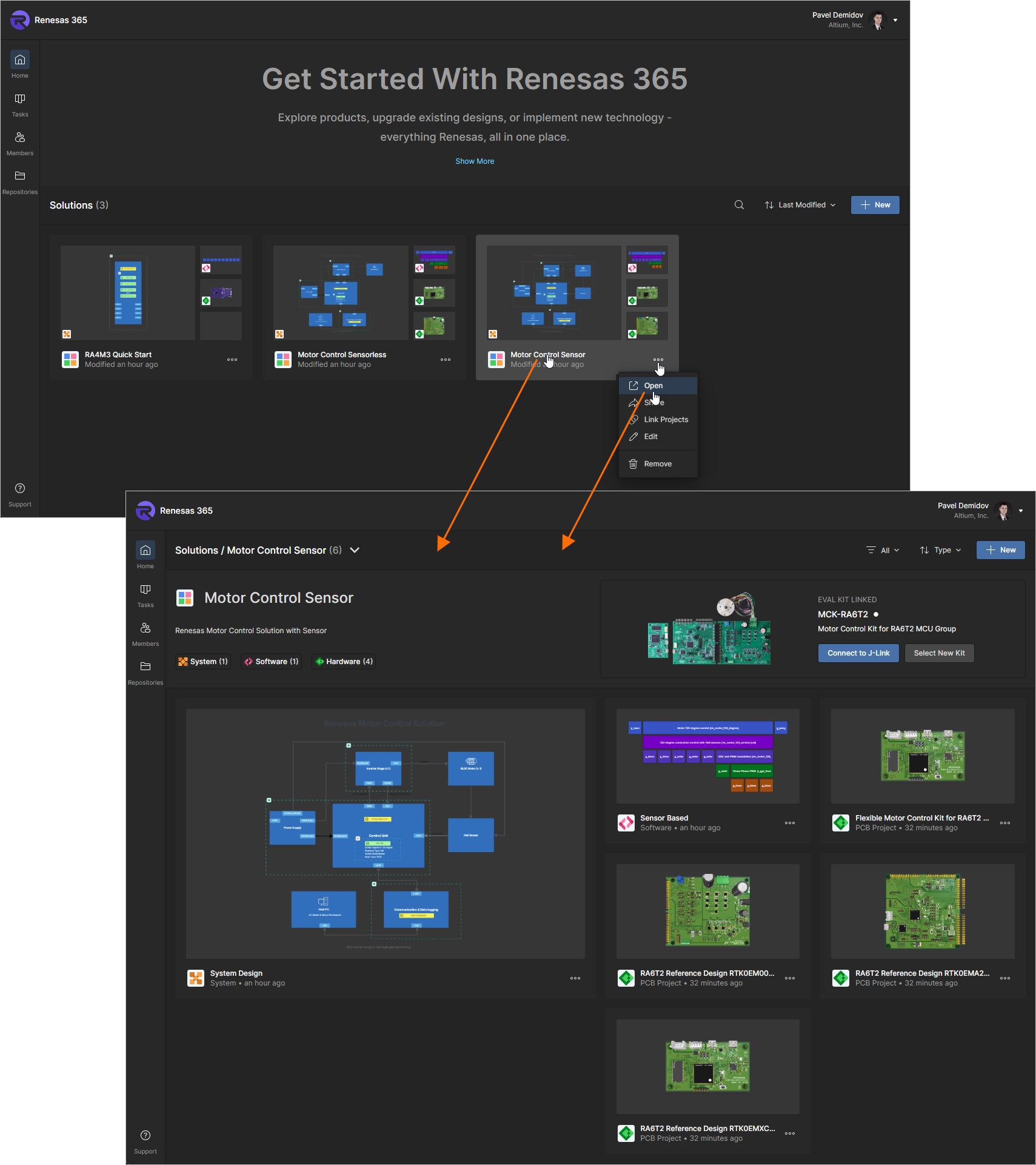
O nome e a descrição da solução podem ser alterados clicando no ícone  na parte superior da página e selecionando Edit no menu exibido. Na janela Edit solution que será aberta, faça as alterações necessárias e clique no botão
  .
.
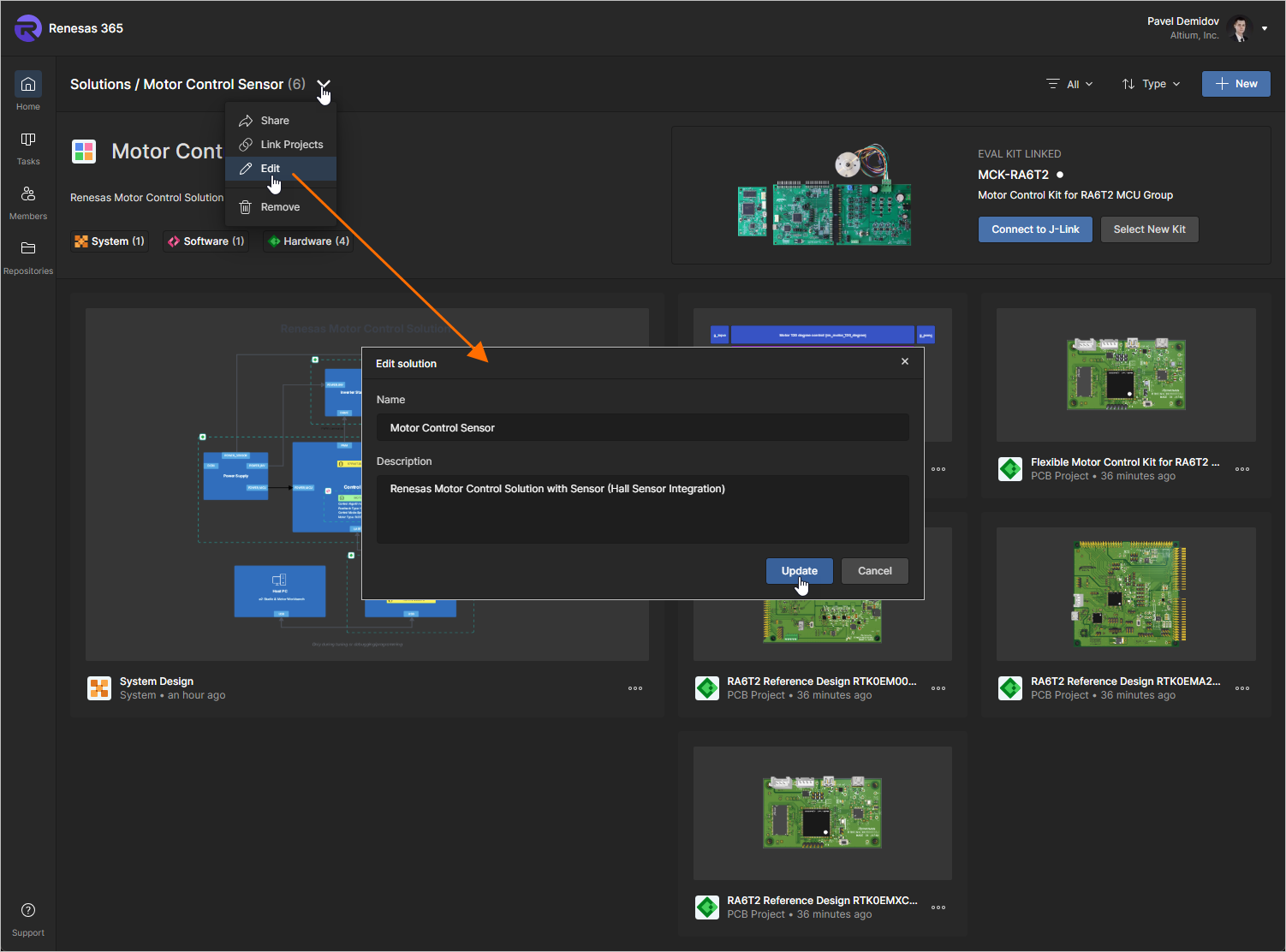
Uma solução pode incluir os seguintes projetos:
-
System Design – um documento Electronic System Design (ESD) que visualiza uma visão geral de alto nível da arquitetura da solução e de seus projetos principais.
Para mais informações sobre como trabalhar com documentos ESD, consulte a página Electronic System Design .
-
PCB Project – um projeto de Placa de Circuito Impresso (PCB) que representa uma parte de hardware da solução.
-
Software Project – um projeto de software que representa uma parte de software da solução. Um projeto de software é definido usando uma Web IDE integrada baseada no Theia Framework ou o e² studio.
Para mais informações sobre como usar o Eclipse Theia IDE, consulte a Theia IDE documentation.
 )
) ).
). )
)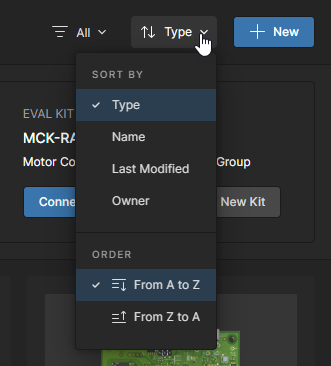 ).
).Um novo projeto (projeto de sistema, PCB ou software) pode ser criado como parte de uma solução, ou um projeto já existente no seu Renesas 365 Workspace pode ser vinculado a ela.
-
Para criar um novo projeto, clique no botão
 no canto superior direito e selecione o tipo necessário na seção Create do menu exibido.
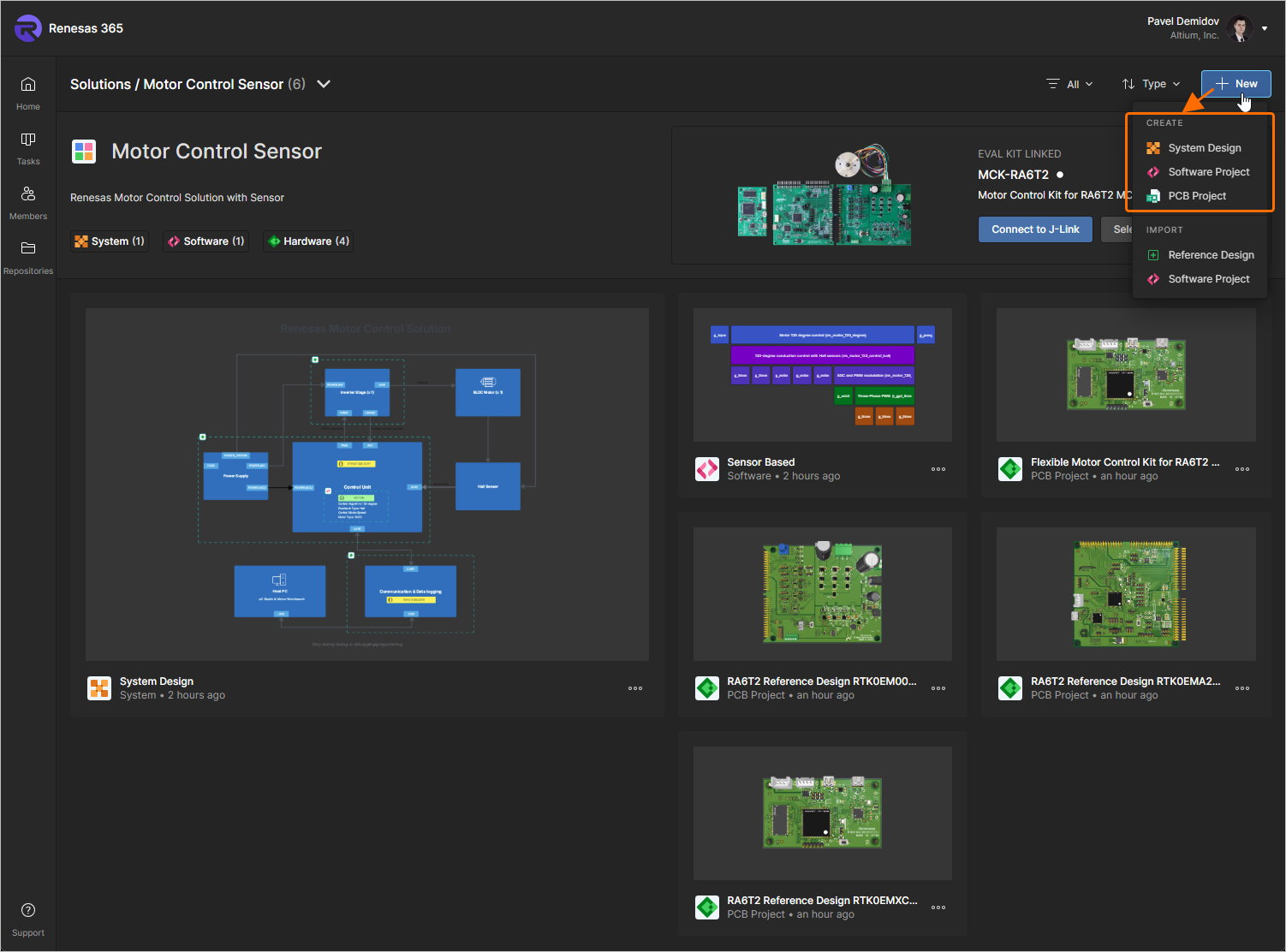
Assim que um projeto for criado, ele será automaticamente vinculado à solução, e seu bloco aparecerá na página da solução.
-
Como alternativa, selecione Reference Design ou Software Project na seção Import do menu do botão
para adicionar à solução um projeto de PCB ou de software existente, respectivamente.
-
Quando a opção Reference Design é selecionada, a janela Importing a Reference Design é aberta. Selecione um design na lista do lado esquerdo da janela para exibir seus detalhes no lado direito da janela. Depois de selecionar o design necessário, clique no botão
 .
.
-
Quando a opção Software Project é selecionada, a janela Importing a Software Project é aberta. Selecione o projeto de software necessário no lado esquerdo da janela e, em seguida, selecione um kit de avaliação compatível no lado direito da janela. Depois de selecionar o projeto e o kit de avaliação necessários, clique no botão
.
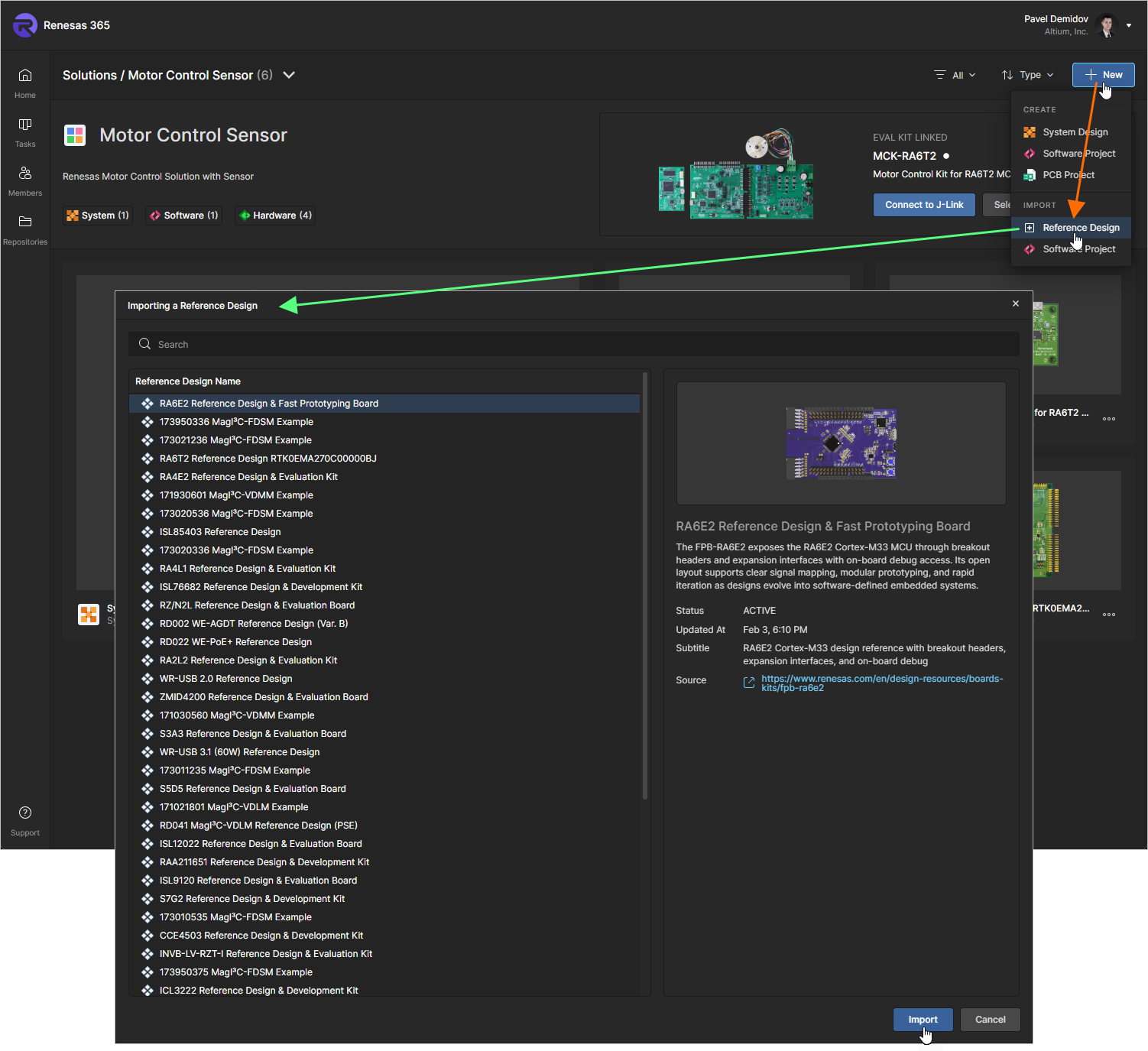
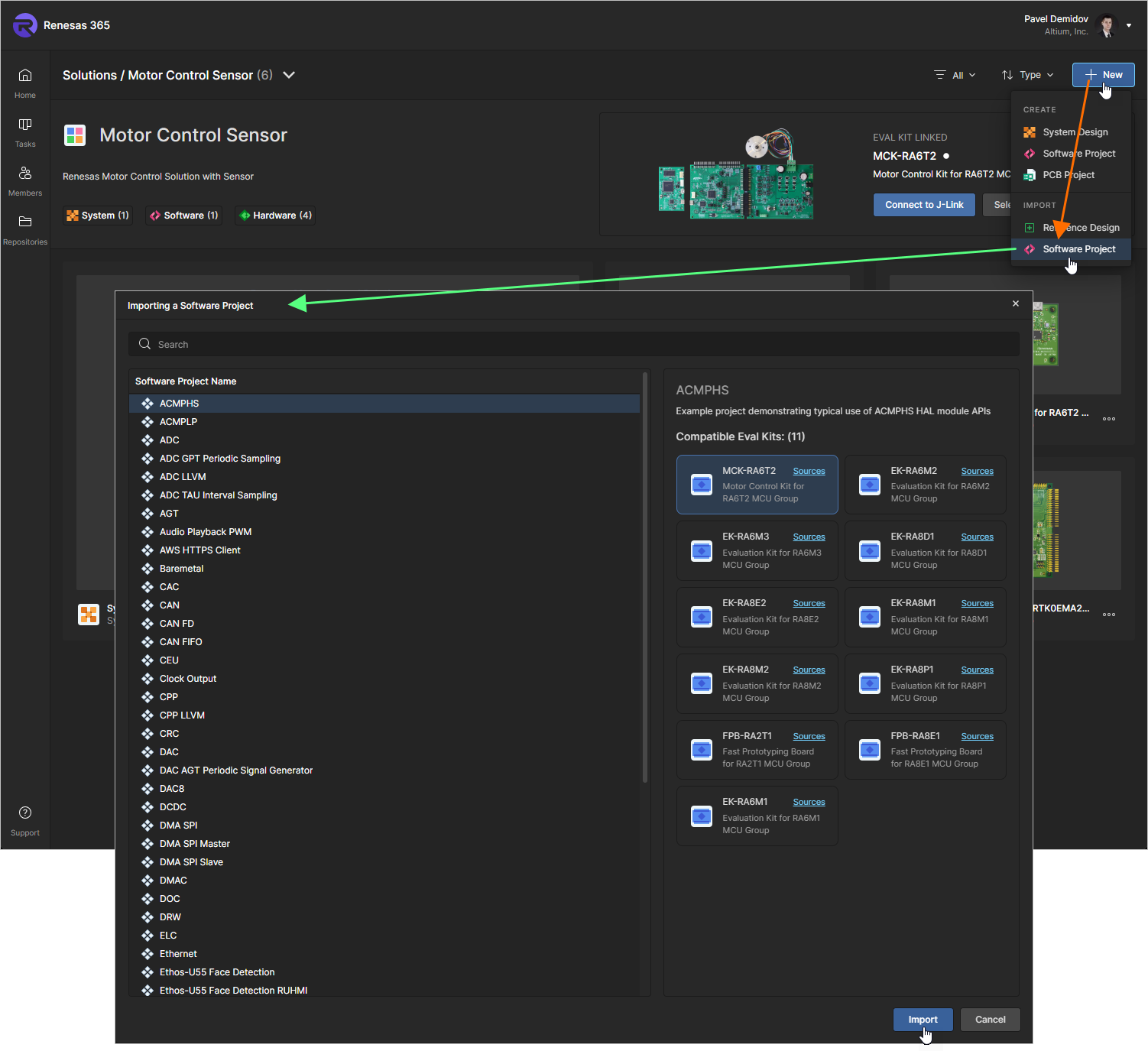
O projeto selecionado será importado para o seu Renesas 365 Workspace e automaticamente vinculado à solução, e seu bloco aparecerá na página da solução.
-
-
Para vincular um projeto existente, clique no ícone
na parte superior da página e selecione Link Projects no menu exibido. Use a janela Select projects that will be linked to Solution que é aberta para navegar pela estrutura de pastas do seu Renesas 365 Workspace e selecionar os projetos necessários usando as caixas de seleção à esquerda. Depois de selecionar os projetos, clique no botão .
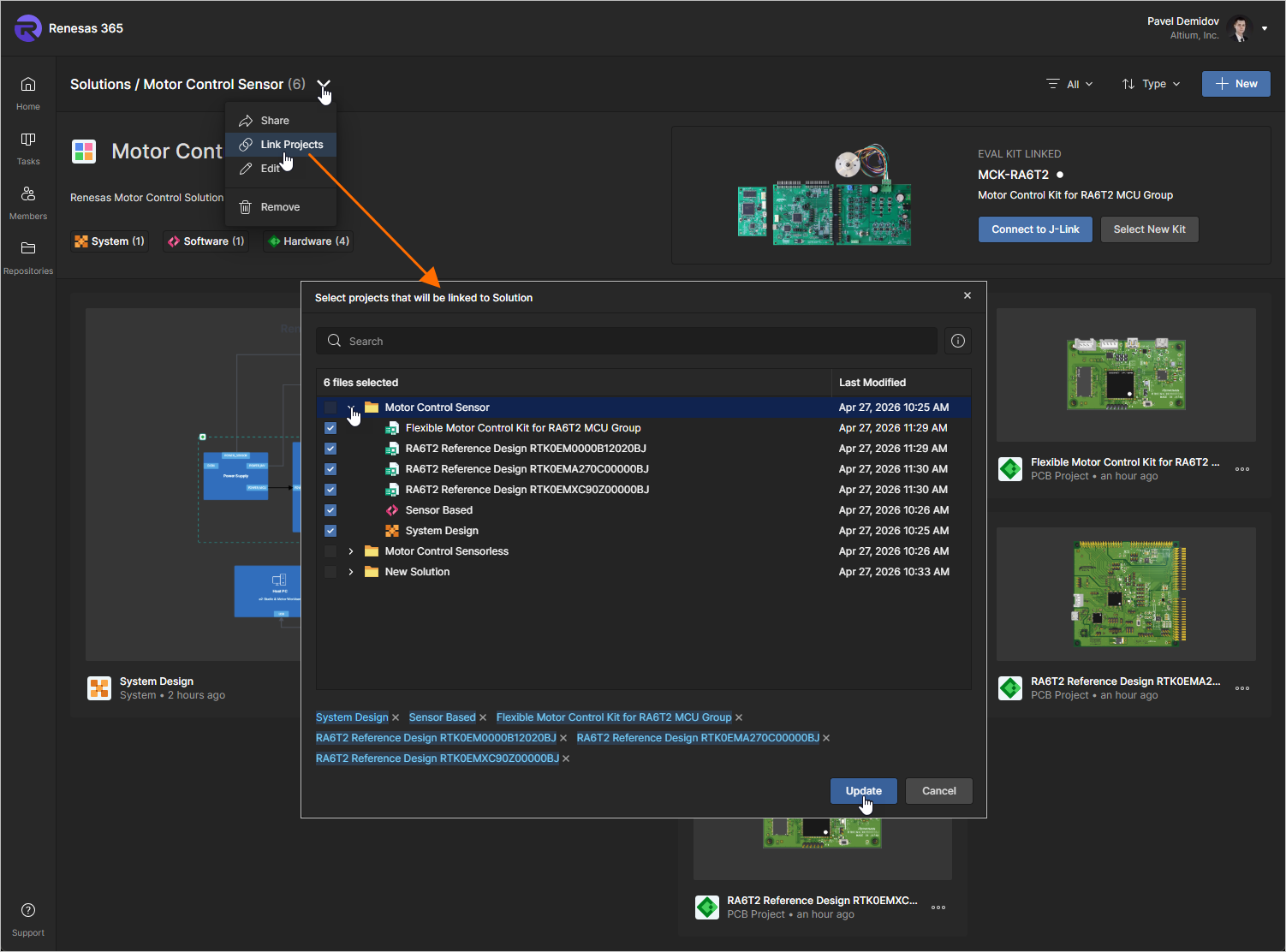
 à direita de sua entrada.
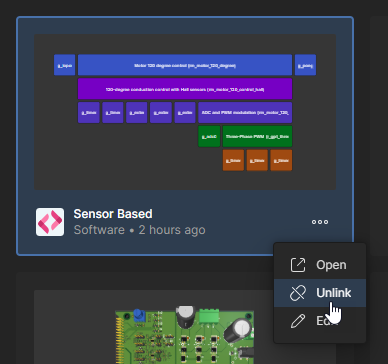 ).
).Abrindo um projeto
Para abrir um projeto existente vinculado à solução, clique no ícone  dentro do bloco do projeto e selecione a entrada Open no menu associado.
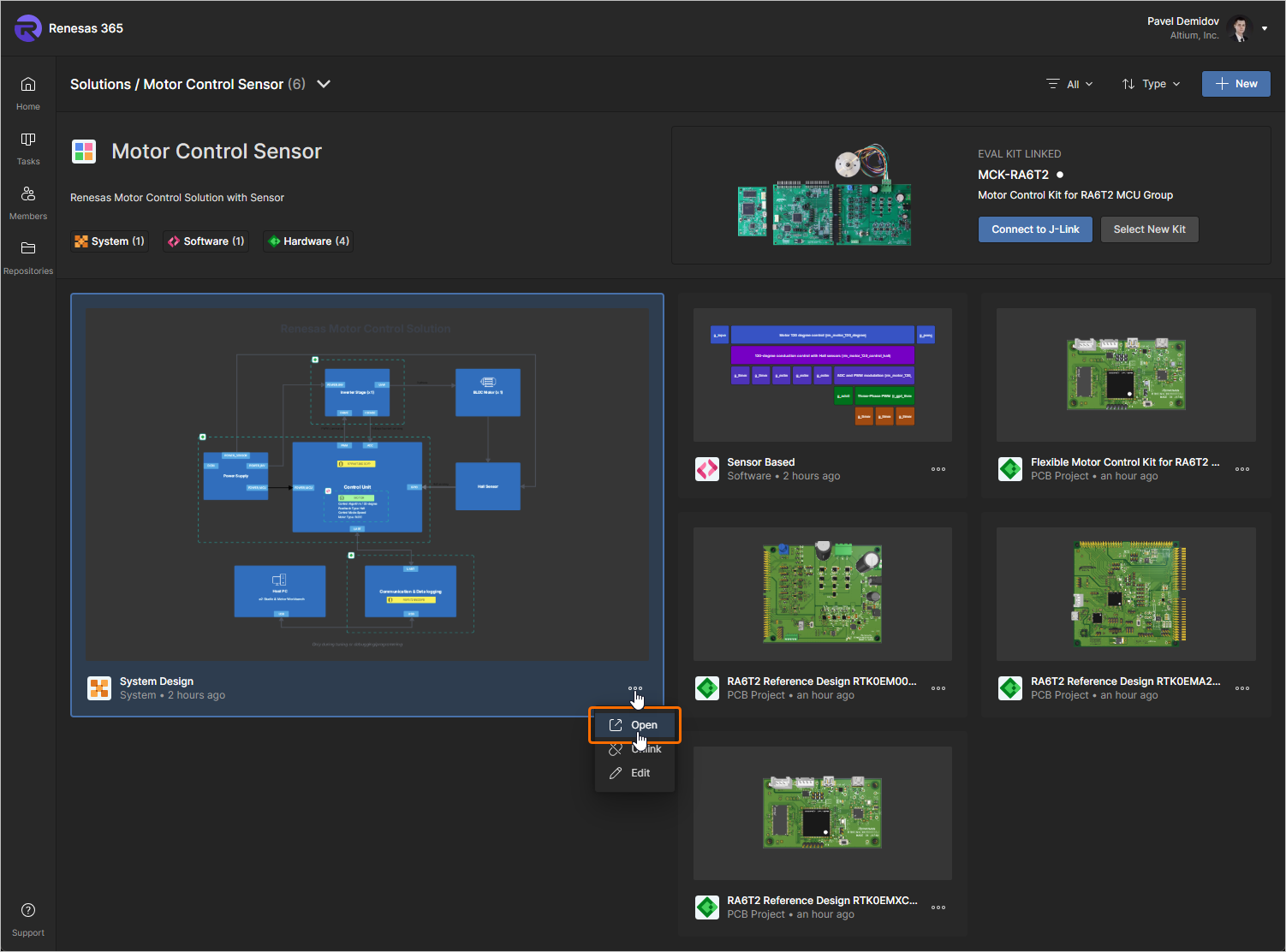
Como alternativa, clique duas vezes diretamente no bloco do projeto desejado ou clique no nome do projeto. Uma nova guia do navegador será aberta, apresentando o projeto no editor ou visualizador correspondente:
-
Design de sistema – será aberto no editor Electronic System Design.
-
Projeto de PCB – será aberto em sua página detalhada de gerenciamento.
-
Projeto de software – será aberto no Web IDE integrado.
Editando um projeto
Para editar as propriedades de um projeto existente vinculado à solução, clique no ícone dentro do bloco do projeto e selecione a entrada Edit no menu associado. Na janela Edit Project a seguir – que é aberta em visualização simplificada – você pode alterar o Name e o Description do projeto.
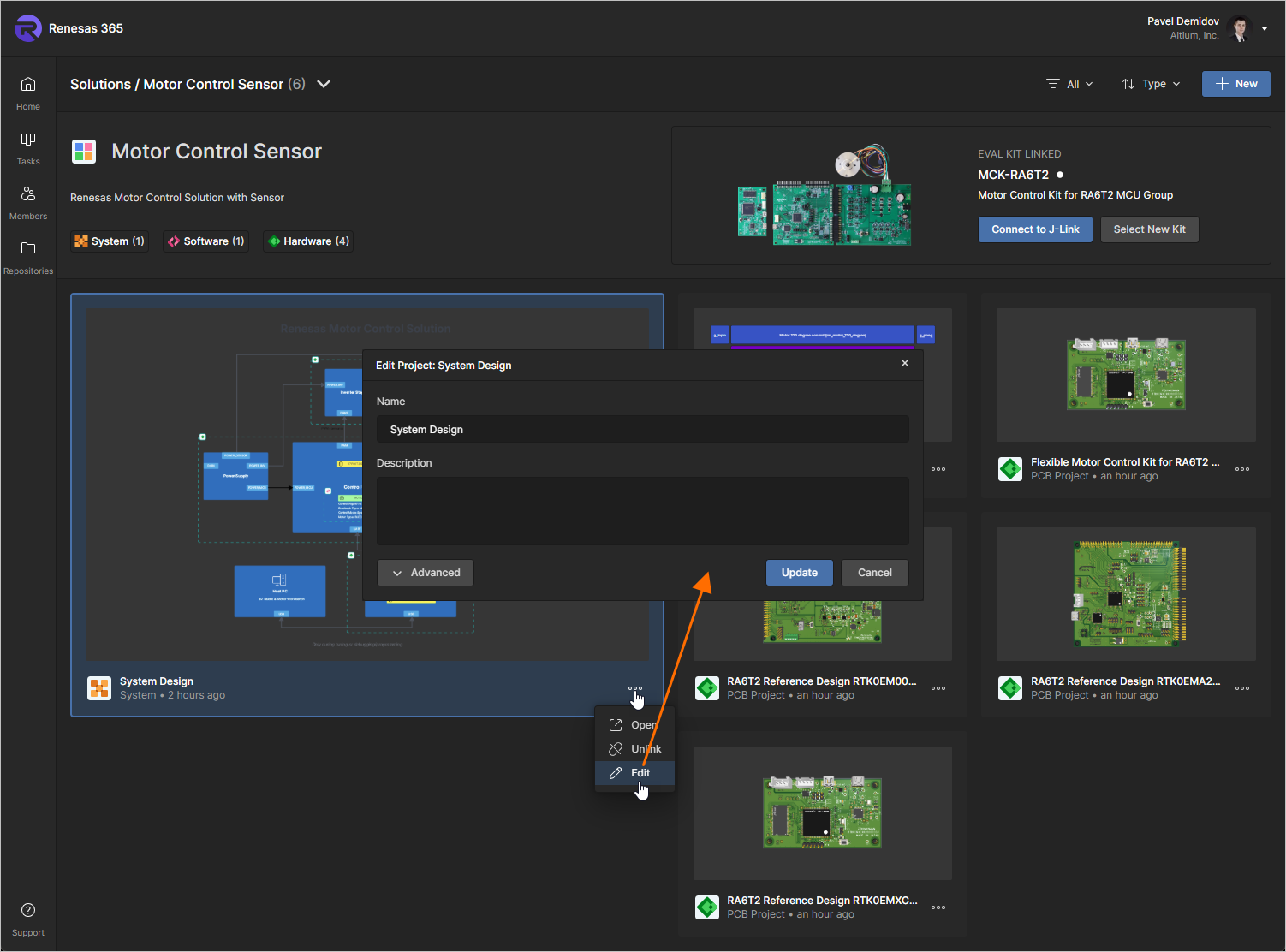
Clique no botão para acessar os campos adicionais da janela Edit Project:
-
Parent Folder – um campo somente leitura que mostra onde o projeto está localizado na estrutura de pastas do Workspace.
-
Parameters – nesta região, você pode gerenciar parâmetros do projeto. Pares de parâmetro Name/Value podem ser adicionados (
 ), editados (edição em linha) ou removidos (
 ).
).
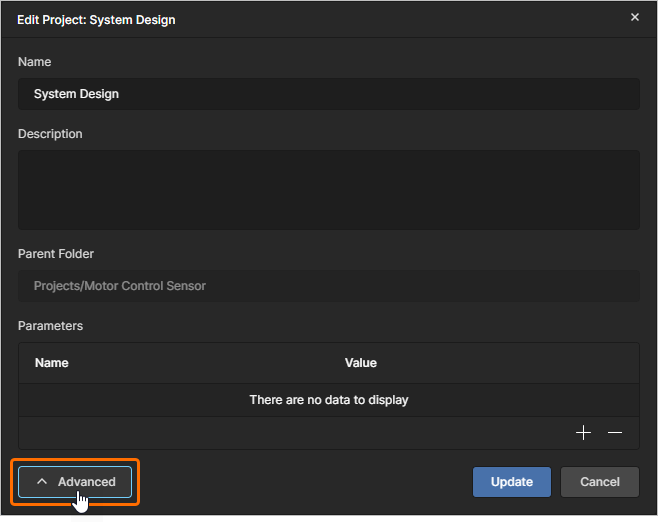
Clique no botão  para confirmar quaisquer alterações feitas.
Vinculando um kit de avaliação
Ao acessar uma solução vinculada a um kit de avaliação, esse kit de avaliação será mostrado no canto superior direito da página detalhada da solução, na região Eval Kit Linked, que exibe uma imagem de visualização do kit, seu nome e descrição, bem como seu estado de conexão.
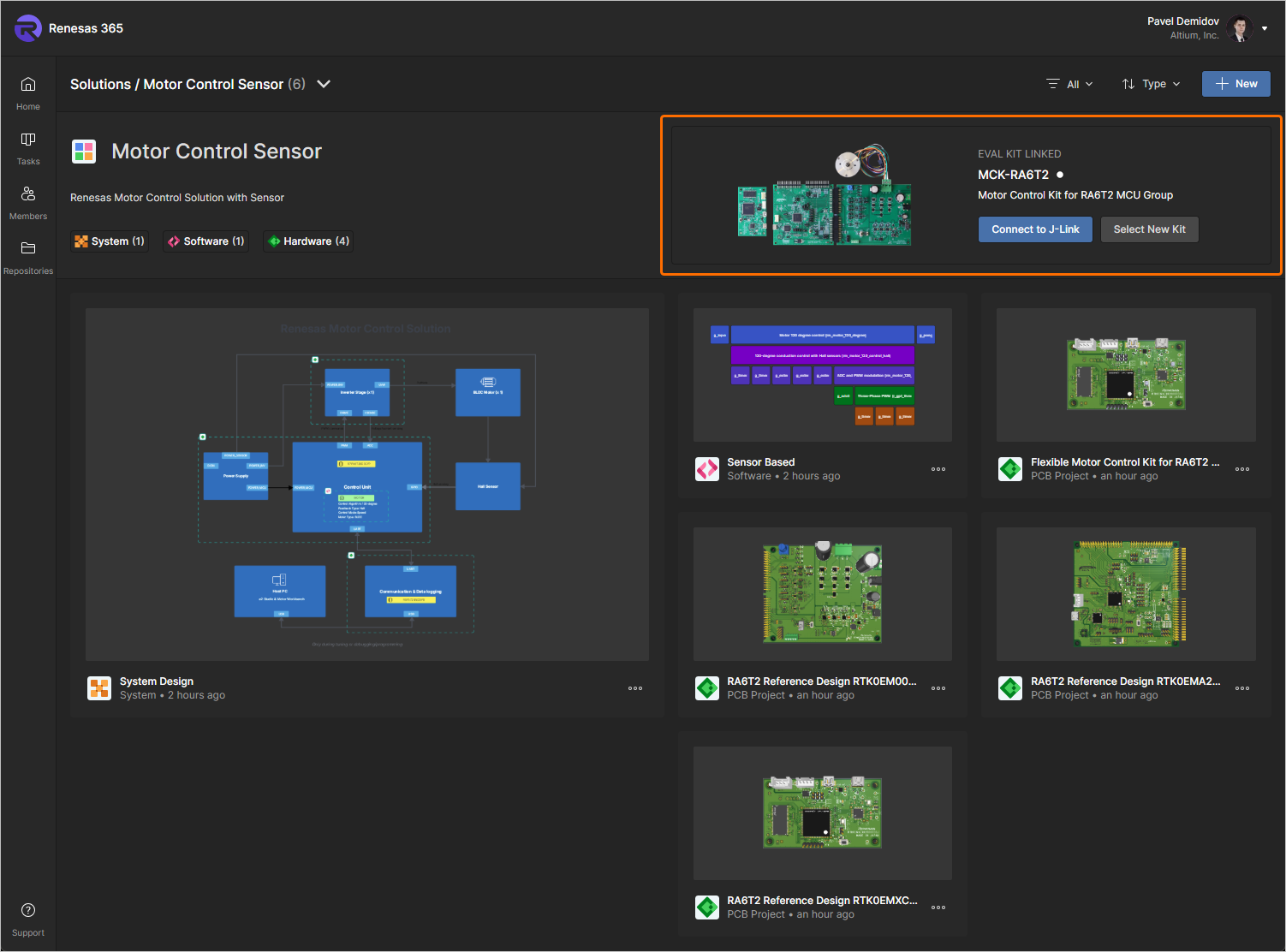
Para permitir que o navegador no qual seu Renesas 365 Workspace está aberto funcione com o kit de avaliação, clique no botão  quando o kit de avaliação estiver conectado ao seu computador, selecione J-Link no pop-up do navegador exibido e, em seguida, clique no botão Connect. Quando a conexão for permitida e o kit estiver conectado ao computador, o indicador de estado da conexão à direita do nome do kit muda para um ponto verde.
Para selecionar outro kit de avaliação, clique no botão  , use a janela Select Evaluation Kit que é aberta para escolher outro kit aplicável na lista e clique em
  .
.
Trabalhando com tarefas
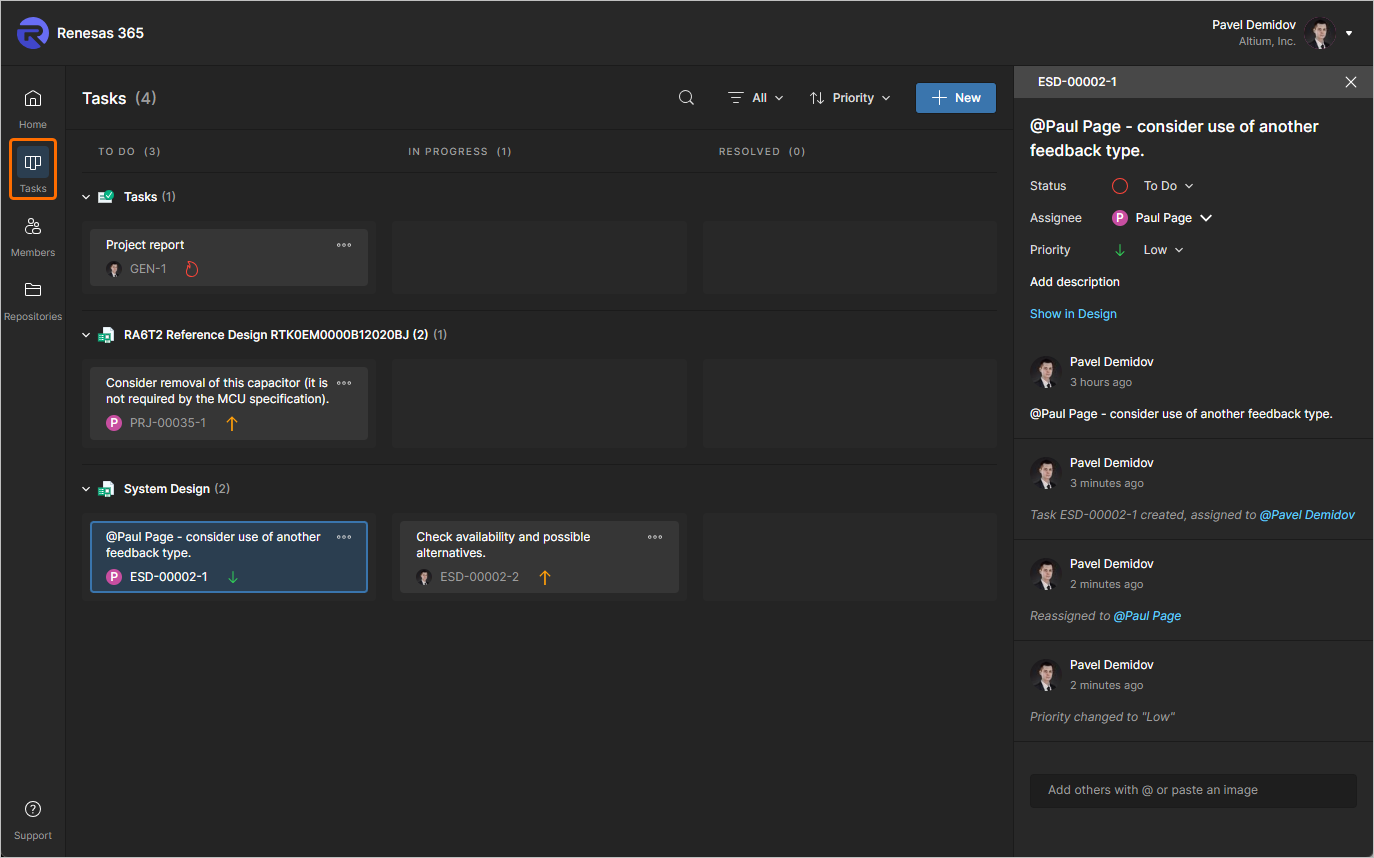
A página Tasks da interface do navegador do seu Renesas 365 Workspace permite acessar e gerenciar todas as tasks – solicitações de atividade de trabalho – que estão atualmente ativas no Renesas 365 Workspace. As tarefas são apresentadas em estilo de fluxo de quadro Kanban, com seu estado de progresso (To Do, In Progress e Resolved) movendo-se pelas linhas de tarefas. Uma linha é reservada para tarefas gerais (aquelas não associadas a um projeto), e cada linha restante se aplica a tarefas de um projeto específico (projetos de PCB e documentos ESD).
-
As tarefas gerais são criadas na própria página clicando no botão
 no canto superior direito da página. Atribua uma tarefa a um usuário específico ou dê a ela uma prioridade diferente por meio do painel Task details . Essas tarefas não estão associadas a um projeto específico.
-
As tarefas específicas de projeto são criadas ao atribuir um comentário de projeto a um membro do Workspace.
Gerenciando a associação ao Workspace
O gerenciamento de usuários de um Renesas 365 Workspace é realizado por um administrador por meio da página Members da interface do navegador desse Workspace. Essa página é usada para criar e gerenciar uma lista de usuários do Workspace – pessoas que são membros do Workspace e têm acesso ao Workspace e/ou às tecnologias associadas.
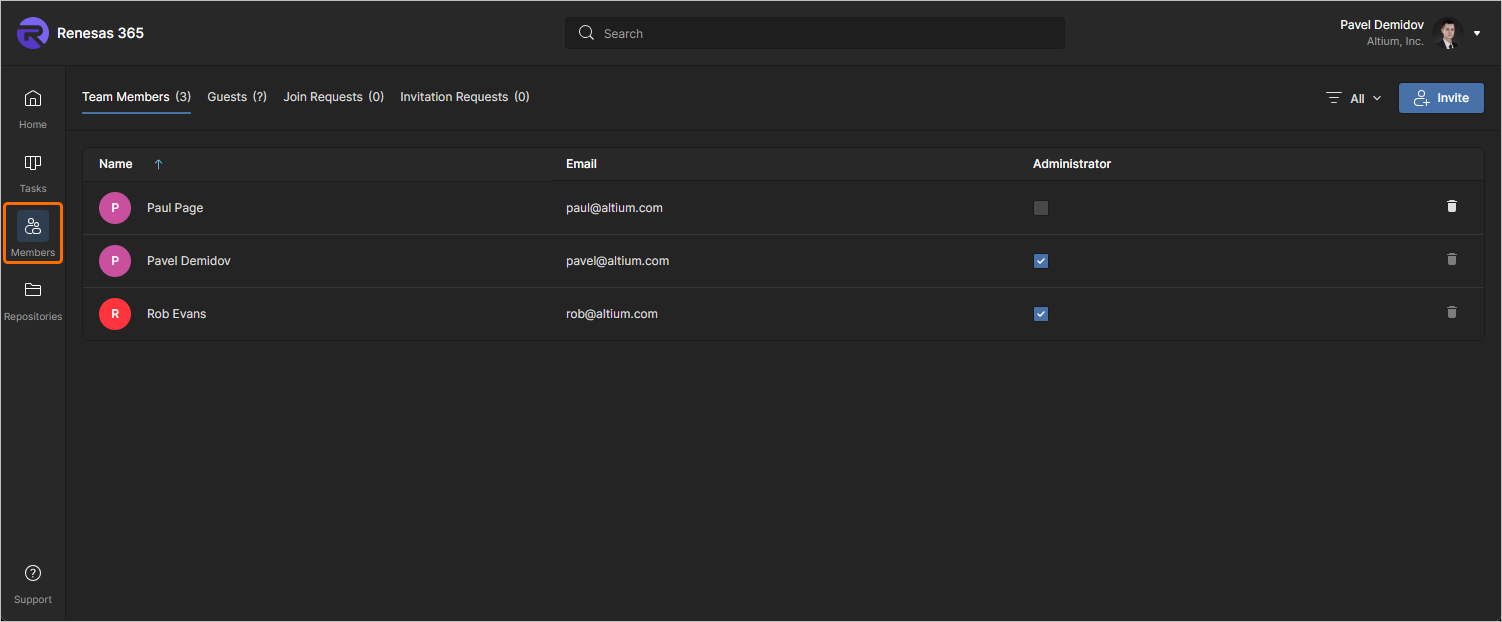
As opções de guia na parte superior da página permitem que os administradores visualizem todos os usuários com acesso ao Workspace e gerenciem quaisquer usuários que estejam solicitando acesso ao Workspace:
-
Members – todos os usuários com acesso de membro ao Workspace. A guia Members é a única visualização disponível para membros do Workspace que não estão no grupo Administrador. Os administradores (somente) podem usar a opção
 de uma entrada para remover um usuário do Workspace.
-
Guests – usuários externos ao Workspace (não membros) aos quais foi concedido acesso compartilhado a um documento ESD dentro do Workspace (saiba mais). Esses usuários são indicados por um ícone
 associado.
-
Join Requests – solicitações enviadas por usuários que estão buscando acesso ao Renesas 365 Workspace.
-
Invitation Requests – solicitações enviadas por membros do Workspace para permitir o acesso ao Workspace por outro usuário, ou usuários.
Trabalhando com repositórios
Um projeto de software pode ser criado no seu Renesas 365 Workspace usando o tipo de repositório externo. Nesse caso, o repositório externo será listado na página Repositories do Workspace, e você poderá gerenciar as conexões com esses repositórios a partir dessa página.
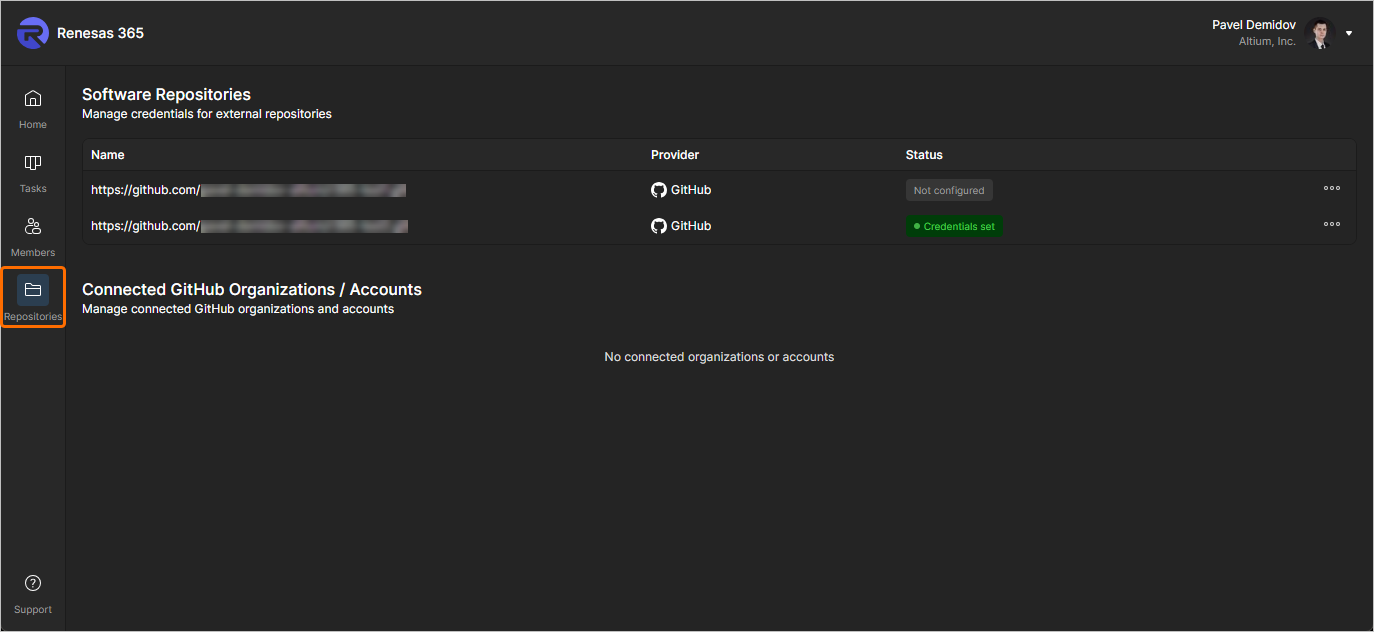
Para um repositório que tenha o status  , clique no botão
  à direita para se conectar a uma organização/conta ou definir credenciais para este repositório específico. Depois que as credenciais forem definidas para um repositório, seu status mudará para
  . Use o menu do botão para atualizar ou remover as credenciais desse repositório.
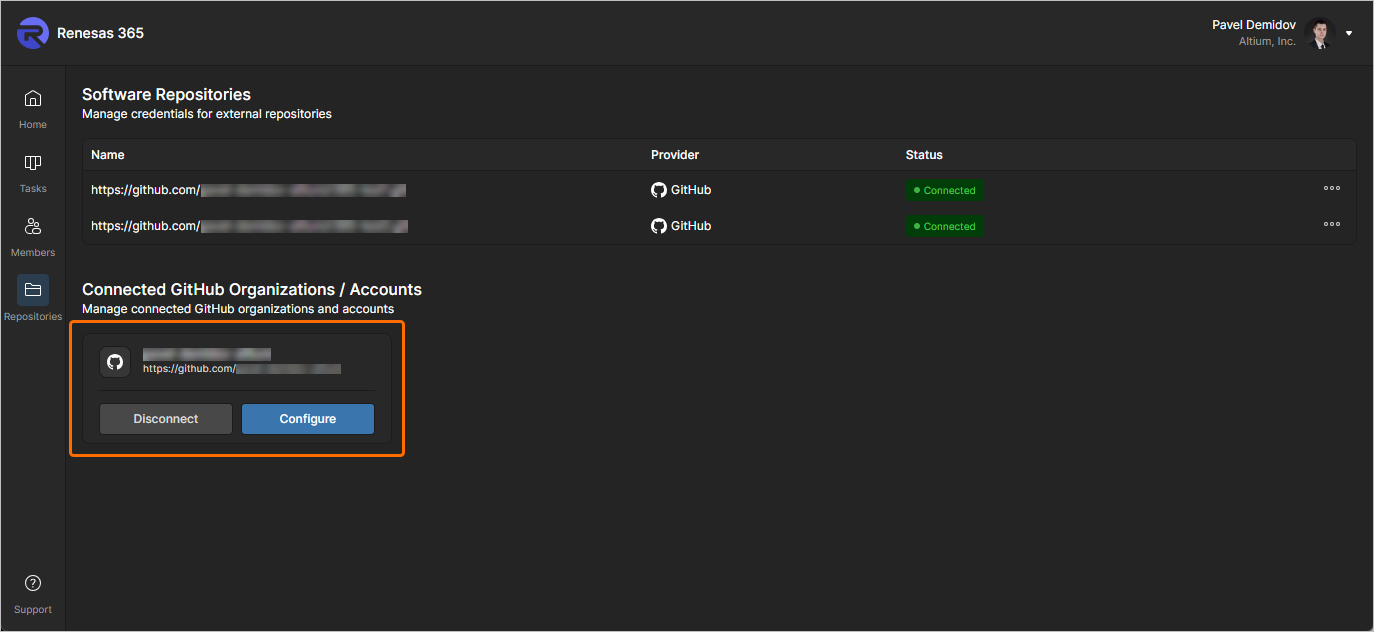
Se uma organização/conta do GitHub tiver sido conectada, sua entrada será exibida sob o cabeçalho Connected GitHub Organizations / Accounts da página. Use os controles disponíveis para configurar a conexão ou desconectar-se da conta. Os repositórios conectados em virtude da conexão com uma conta/organização têm o status  .
.
 Localizado por IA