
KB: Batch DRC reports no shorts when the violation limit is reached
 Altium Designer
Solution Details
Large violation counts hide expected short errors
A PCB design is suspected to contain a short circuit, but the Batch DRC violation summary reports zero short-circuit violations. The same design often contains a very large number of total DRC violations (for example, 2000 or more). In the generated HTML DRC report, a warning message—often highlighted in red—indicates that the rule check stopped after reaching the maximum violation count. New users may overlook this warning and assume the DRC results are complete. In some cases, users may also see shorts highlighted during editing while the Batch DRC report does not list them, which can happen due to Batch DRC terminating early.
Batch DRC stops when the threshold is hit
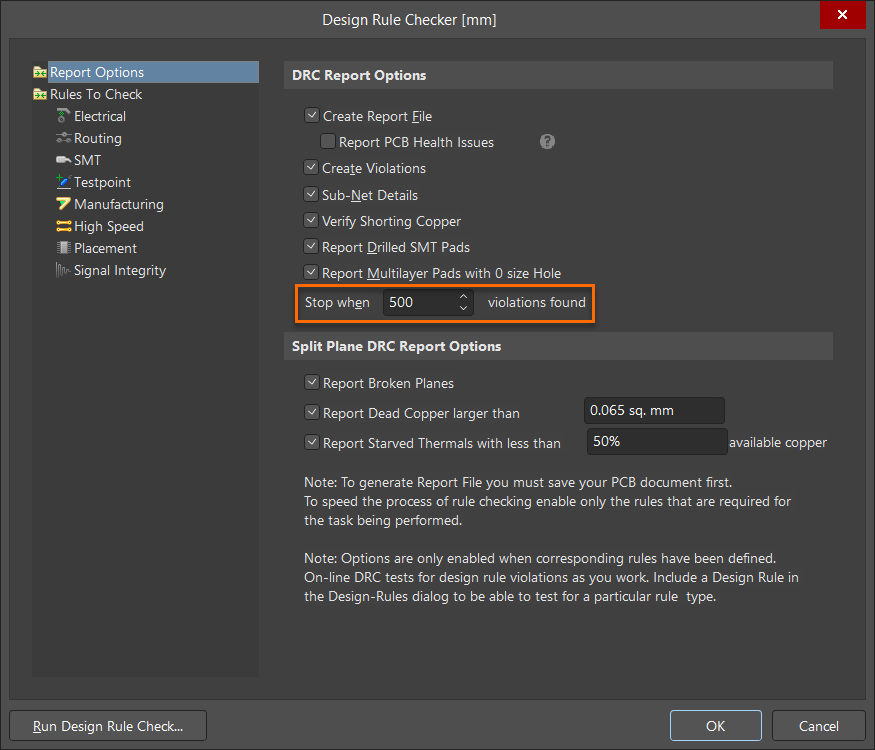
Batch DRC includes a Stop when n violations found threshold under the Design Rule Checker Report Options, which limits how many violations are detected before the check stops (default 500). When total violations exceed this limit, Batch DRC terminates early and does not continue checking additional rule types. As a result, some violation categories—such as short-circuit violations—may not appear yet, even if they exist in the design. This is expected behavior and does not indicate a software defect. Online DRC behavior can differ because it flags violations interactively while editing, whereas Batch DRC produces a report based on the checks completed before stopping.
Complete the check to reveal remaining categories
- Increase the Stop when n violations found limit so Batch DRC can continue far enough to evaluate and report remaining violation types.
- Reduce the number of existing violations (for example, by resolving the most frequent rule category first) and re-run Batch DRC in stages so the check progresses to later rule types.
Either approach ensures Batch DRC can fully evaluate the design and report all relevant violation categories, including short circuits.
Increase the limit and re-run Batch DRC
- Open the PCB document.
- Go to Tools » Design Rule Check.
- Select Report Options.
- Increase Stop when n violations found to a value higher than the expected total number of violations.
- Run Batch DRC again and regenerate the HTML report.
- Review the HTML report for the warning indicating the check stopped early; if the warning is still present, increase the limit further or resolve additional violations and re-run.
Additional Notes
If the design contains a very large number of violations, resolve them in stages (for example, by rule category or severity) and re-run Batch DRC periodically. This keeps reports manageable and helps ensure later-detected violation categories are not missed due to early termination.