
KB: Cannot Use an On-Demand License Because the Seat Is Occupied
 Altium Designer
Solution Details
License Seat Appears Unavailable
An on-demand license seat is shown as occupied and cannot be used. Altium Designer may indicate that the current session is not using a license, while the license server still shows a previously occupied seat associated with the same user.
Stale Session Remains Registered
This issue can occur when the license server does not receive a proper disconnect notification from a previous session. Common causes include:
- Software crash
- Computer crash or unexpected shutdown
- Changing network adapters
- Switching between a docking station and a direct connection
- Changing from a wired connection to Wi-Fi, or vice versa
The license usage is tied to the device MAC address, so the server may continue to treat the seat as active until the session times out.
Available Methods to Recover Access
- Release your own occupied seat from the License Management page in Altium Designer.
- Have a Group Administrator force-release the occupied seat from the organization's Dashboard.
- Wait for the session to expire automatically, which typically occurs after approximately four hours.
The License Management page displays the licenses available to the signed-in user through their organization, making it easier to identify the correct license seat when multiple licenses are available.
Group Administrators can use the Dashboard's Real Time Usage report to review current license consumption and verify the correct seat before performing a force release. Force release is intended for situations where a license remains occupied unexpectedly, such as after an abnormal disconnect or when a user is no longer connected.
Release the Occupied License Seat
Release a Seat from the License Management Page
- Open Altium Designer.
- Sign in using your Altium account credentials.
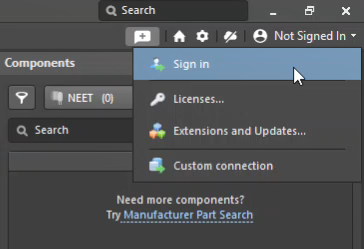
- Select your avatar icon and choose Licenses... to open the License Management page.
- Locate the affected license.
- In the Seats field, click the drop-down arrow to display the currently occupied seats.
- Select the seat to be released.
- Click Release (or right-click the seat and select Release).
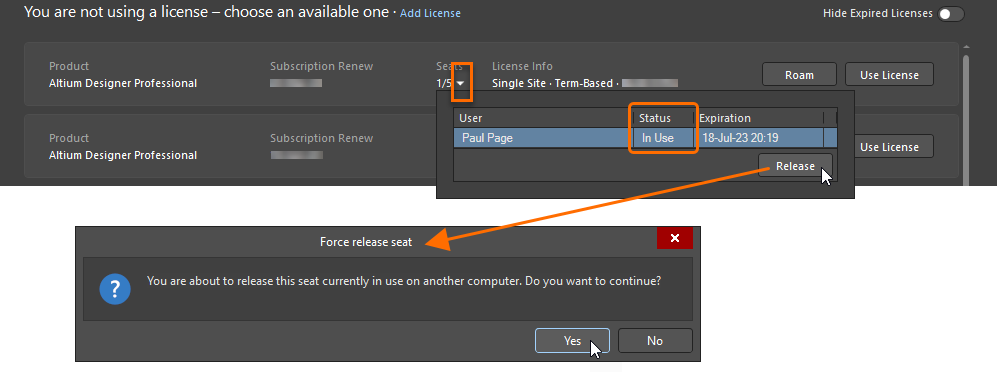
- Attempt to use the license again.
Force-Release a Seat from the Dashboard
- For Group Administrators, open the organization's Dashboard.
- Navigate to the reports area and open the Real Time Usage report.
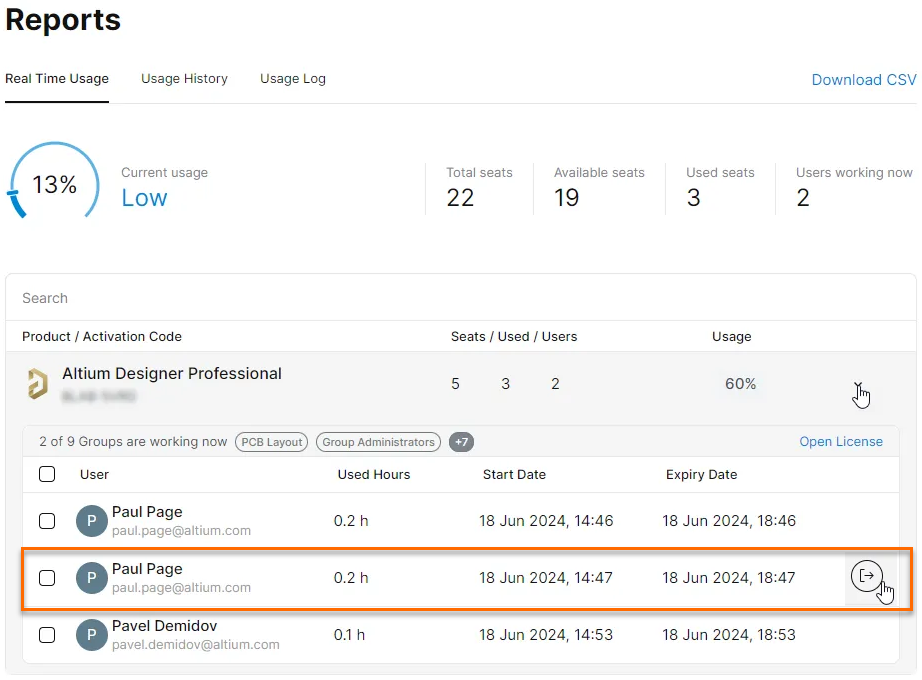
- Locate the affected license and expand its usage details by selecting the arrow on the right.
- Verify that you have selected the correct user and seat.
- Hover the cursor over the user's entry to display the Force Release button on the right side of the entry.
- Select Force Release to release the occupied license seat.
Additional Notes
- Any Altium account user can release a seat currently associated with their own account, including seats occupied on another computer. Members of the Group Administrators group can release license seats for any user within the organization.
- If a seat is released remotely while the original Altium Designer session is still running and communicating with the license server, the license may not become immediately available until that session is disconnected.
- Behavior in Earlier Versions: In older versions of Altium Designer, occupied license seats were released by expanding the license entry, right-clicking the user occupying the seat, and selecting Release. The exact user interface may differ from the current release.