
KB: Incomplete Results when Searching Items in Explorer Folders
 Altium Designer
Solution Details
Folder search does not return expected items
When performing a folder-level search using Ctrl+F in the Explorer panel, certain items may not appear in the search results even though they exist in the selected folder. For example, a footprint stored in the folder may not be listed. Searching the entire Workspace successfully finds the item, and using Navigate confirms that it resides in the same folder where the folder-level search was performed.
Paging limits what the search can see
The Explorer panel loads folder contents in pages as a performance optimization. Folder-level searches only scan the items that are currently loaded and visible. If additional pages are not loaded, those items are excluded from the search. Workspace-wide searches are not affected by this limitation and always scan all available items.
Available options to ensure complete results
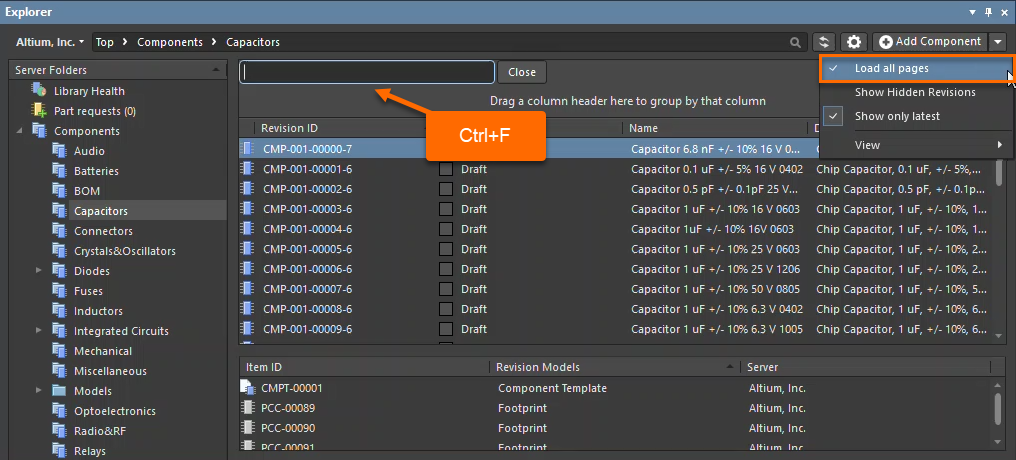
- Enable Load all pages so that all items in the selected folder are loaded and included in folder-level searches.
- Use column-based filtering in the Explorer panel, which is the supported method for precise item discovery, particularly in folders with a large number of items.
Steps to perform a complete folder-level search
- Open the Explorer panel in Altium Designer.
- Select the folder you want to search.
- Click the Gear icon to open the panel settings.
- Enable the Load all pages option.
- Use Ctrl+F to search within the folder.
- Verify that the expected items (for example, a footprint) now appear in the results.
- Alternatively, apply column-based filters to narrow down the visible items.
Additional Notes
A development ticket has been raised to address this limitation; however, there is currently no confirmed schedule for a fix in a future release. Until then, the workaround described above provides a practical and reliable solution.