
KB: Install Altium Designer Without Internet Access or Behind a Firewall
 Altium Designer
Solution Details
Online Installation Fails or Updates Are Unavailable
The Altium Designer Online Installer requires an internet connection and may fail when a firewall, router, proxy, or other network condition blocks required installation traffic. In these situations, Altium Designer can be installed using an offline installation package. See Obtaining the Offline Installation Package.
An offline installation does not automatically check for software updates or new extensions. This applies both to computers that are temporarily unable to use the Online Installer and computers intentionally disconnected from Altium services.
Offline Packages Replace Online Installation Services
The Online Installer obtains required installation files from the Altium Cloud repository. The Offline Installer instead uses files contained in an extracted local package. The ZIP package contains the required installation files, extensions, and the applicable Altium Designer Installer. See Installing and Managing Altium Designer.
Each Altium Designer version has a dedicated installer and therefore requires its corresponding offline installation package. After the initial Offline Installer request is approved, packages can be obtained for existing and newly released versions by selecting the required Altium Designer version.
An offline installation does not check for software updates or new extensions. Updating a computer that remains offline requires a newer offline installation package. Altium-developed extensions included in the package can be managed through Extensions and Updates. See Extension Types.
Choose the Appropriate Installation Configuration
- Use Offline installation when the target computer has no internet access or network restrictions prevent the Online Installer from completing.
- Keep Offline installation selected when the computer must continue using the extracted offline package as its installation source.
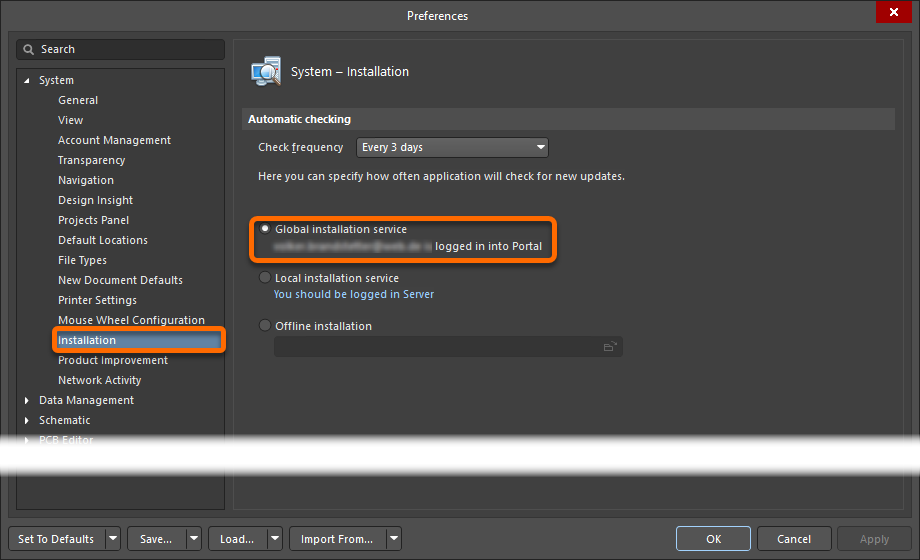
- Select Global installation service under Preferences » System » Installation when the computer can connect to Altium services and should use online installation and extension services.
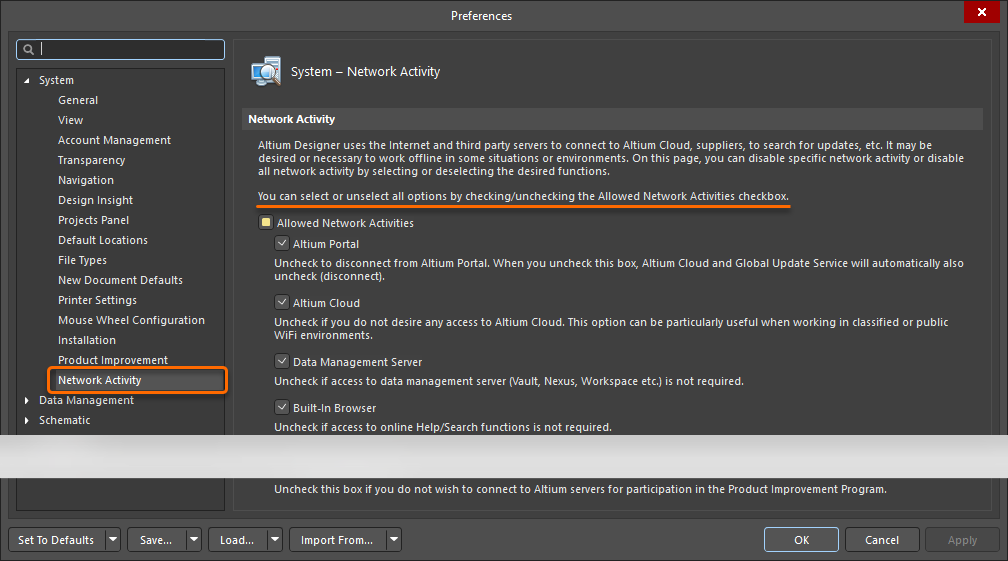
- For a computer that must remain completely disconnected, open Preferences » System » Network Activity and clear Allowed Network Activities to disable all listed network activities. Individual network activities can also be enabled or disabled as required. See System Preferences and Network Activity.
- For a fully disconnected computer, use an appropriate offline licensing method, such as a Standalone license file or a supported Private License Service.
Download and Install the Offline Package
- On a computer with internet access, sign in to your Altium Account and open https://www.altium.com/products/downloads.
- In the Altium Designer section, select the required software version.
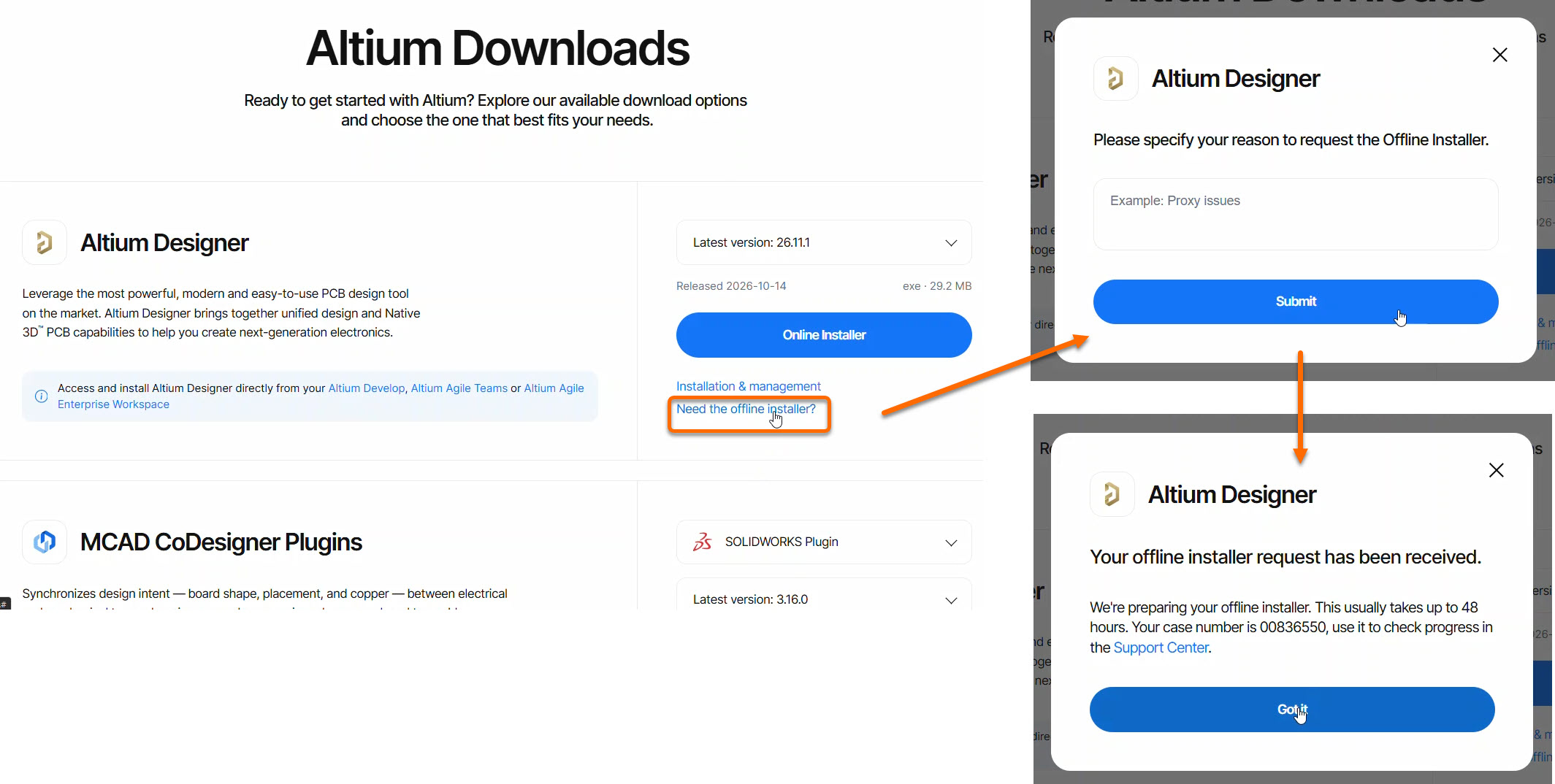
- Under Download, select Need Offline Installer?. You must be signed in to your Altium Account to see this link.
- Follow the prompts and provide the reason for requesting the Offline Installer.
- Return to the Downloads page. The request link should be replaced with a ZIP package download link.
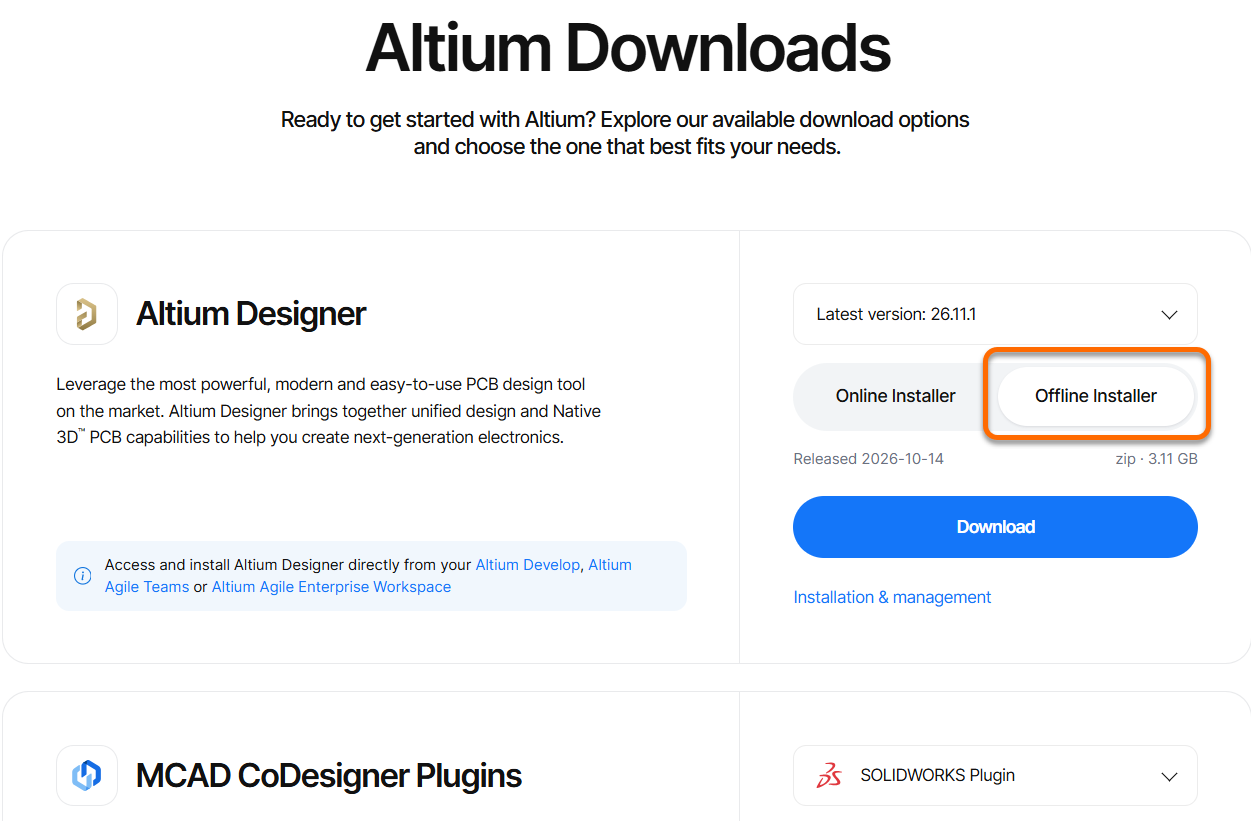
- If the download link does not appear, sign out of your Altium Account and sign back in. The change may take a minute or two.
- If the original link is still displayed, clear the browser cache and cookies, then sign out and sign back in. In most Windows-based browsers, press Ctrl+Shift+Delete to access the relevant browser settings.
- If the download link still does not appear, contact Altium Support. The Altium Account may need to be reset.
- Download the ZIP package for the required Altium Designer version and copy it to the target computer.
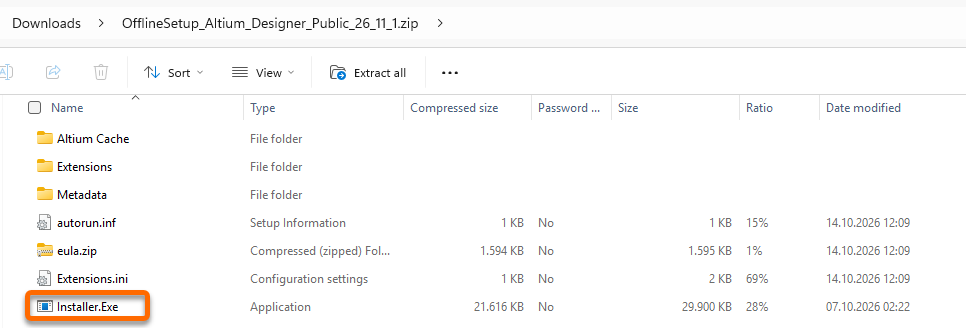
- Extract the complete ZIP package to a local folder on the target computer.
- Open the extracted package folder and run Installer.exe.
- Complete the installation wizard and select the required design functionality and extensions.
- After installation, open Preferences » System » Installation. Verify that Offline installation is selected and that the displayed path points to the extracted offline package folder.
- If the computer must remain completely disconnected, open Preferences » System » Account Management and clear Allowed Network Activities to disable all listed network activities.
- If the computer can access Altium services and should use online installation and extension services, open Preferences » System » Installation and select Global installation service.
Additional Notes
When Offline installation is selected, retain the complete extracted installation folder and keep its configured path accessible. If the folder is deleted, moved, or unavailable, extensions may no longer be accessible from the Available tab of Extensions and Updates. An unavailable package location may also delay application startup.
If the computer is connected to the internet, selecting Global installation service removes the dependency on the local package and enables online installation and extension services. The downloaded ZIP package and extracted installation folder can then be deleted to save disk space.
For a computer that remains offline, retain the extracted package. To install a later Altium Designer version or update the available extensions, obtain the corresponding newer offline installation package.
A disconnected installation requires an applicable licensing method. A previously activated Standalone license can continue to operate offline. Initial activation or reactivation may require a connection unless a Standalone license file or supported Private License Service is available.