
KB: List-Based Editing of Pin Length and Propagation Delay
Updated: апреля 24, 2026
 Altium Designer
This article explains how to add Pin/Pkg Length and Propagation Delay to a schematic component without manually editing each pin. By unlocking the component pins, selecting all pins that belong to the component, and using the SCH List panel, pin properties can be edited in a table-based, spreadsheet-style format. This method is especially useful for components with many pins and helps ensure consistent pin-level parameters while significantly reducing manual effort.
Solution Details
Bulk pin edits are not obvious
When working in the component or schematic editor, pin properties such as pin length and propagation delay are typically edited one pin at a time. For components with many pins, this makes the process slow and repetitive and increases the chance of inconsistent values.
Locked pins prevent bulk selection
By default, component pins are locked to the component, which prevents selecting them directly on the design. Because of this, bulk selection and editing of pins is not possible until the pins are unlocked in the component properties.
Use selection and list-based editing
- Unlock the component pins so they can be selected individually.
- Select all pins that belong to a single component using Find Similar Objects.
- Edit all selected pins at once using the SCH List panel, which displays pin properties in a spreadsheet-style view.
Update all pins using the SCH List panel
- Select the component and open the Properties panel.
- Select the Pins tab.
- Click the Lock button in the bottom-left corner to unlock the pins.
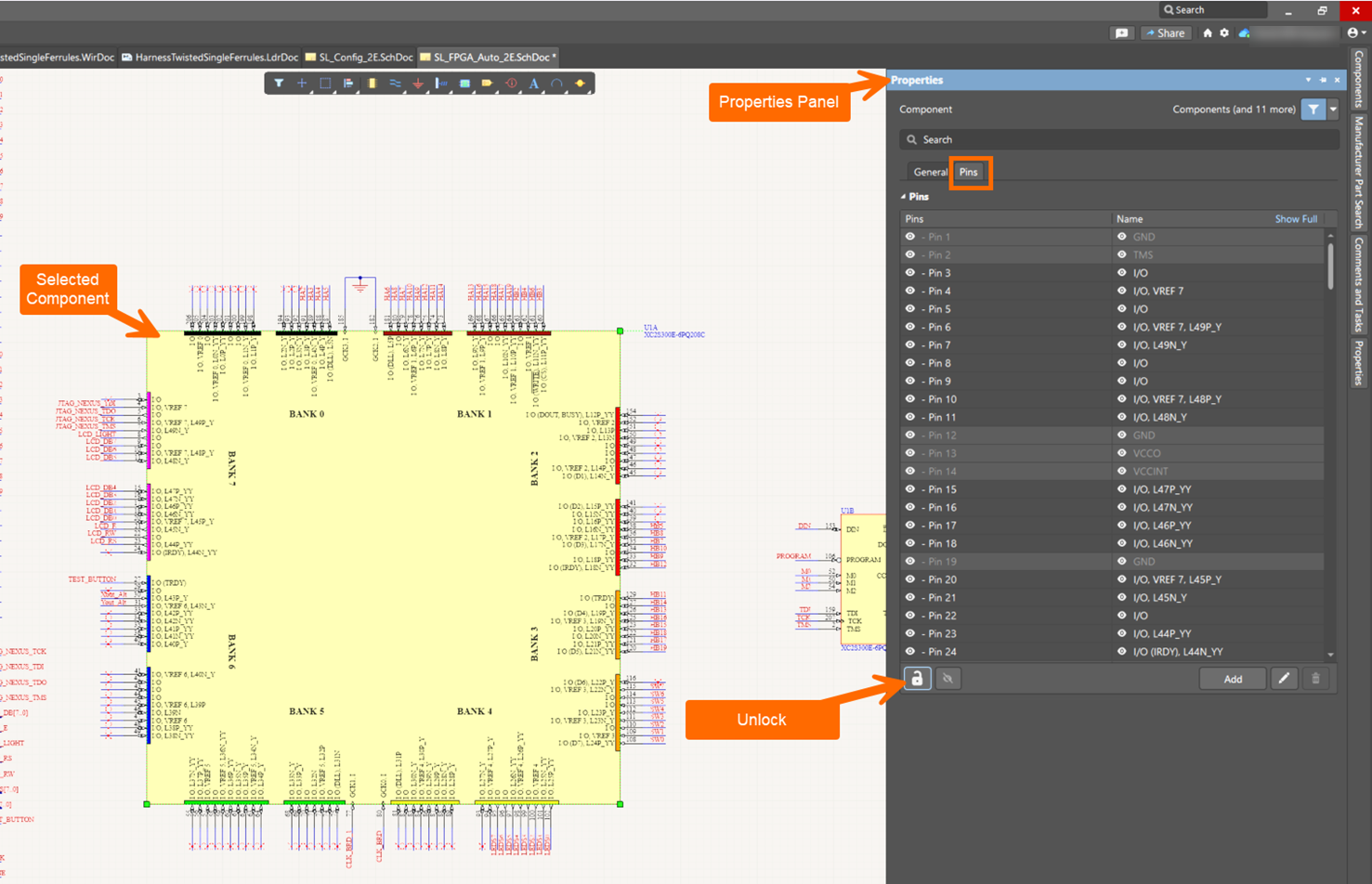
Selecting Component and Editing Pin Properties - With the pins unlocked, select a pin directly on the design.
- Right-click the pin and select Find Similar Objects.
- In the Find Similar Objects dialog:
- Set Pin to Same.
- Set Owner to Same.
- Enable Select Matching.
- Select OK to select all pins of the current component.
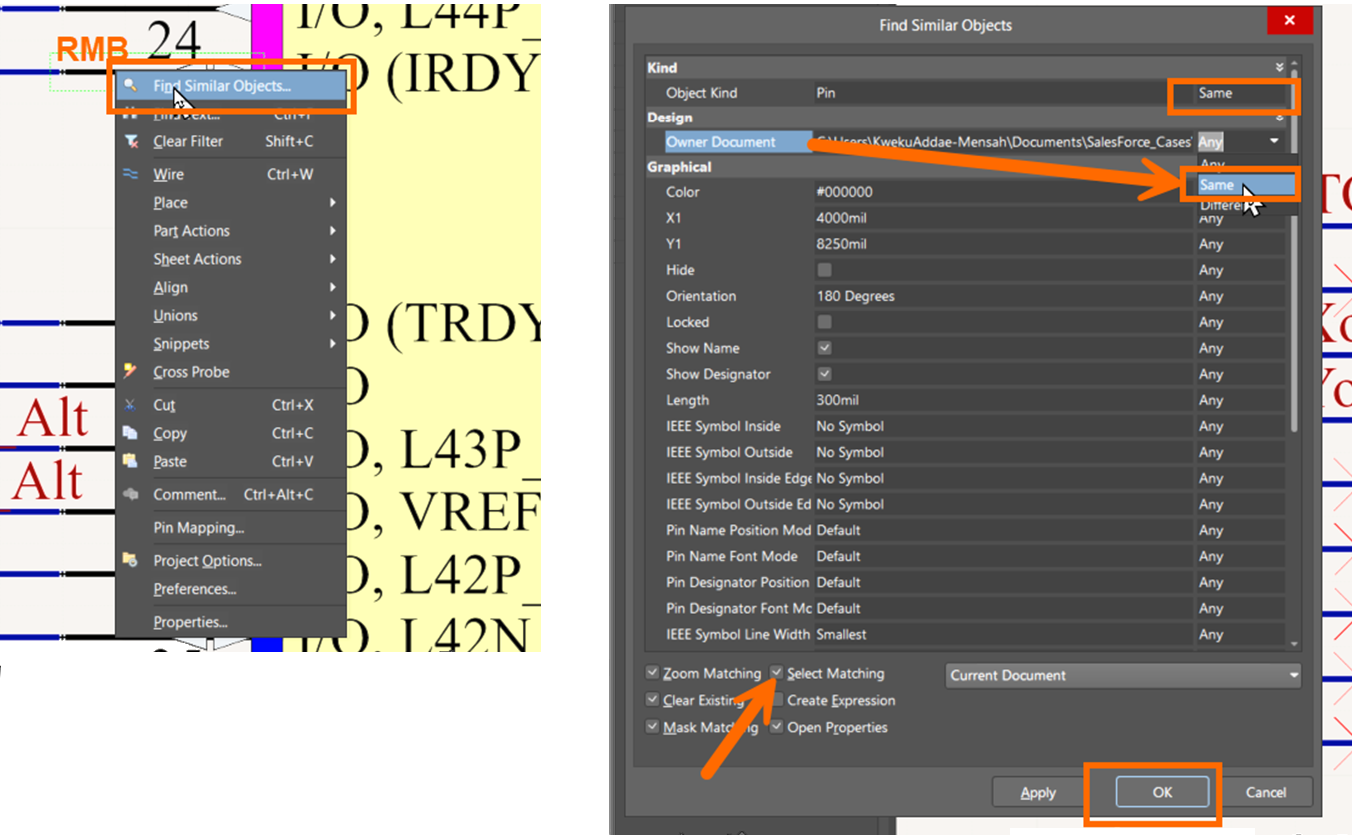
Using Find Similar Objects to select all the pins of the Component - In the bottom-right corner, select Panels » SCH List.
- At the top of the SCH List panel, set Edit selected objects from current document include all types of objects.
- The selected pins are now displayed in a spreadsheet format where pin length and propagation delay can be edited for all pins at once.
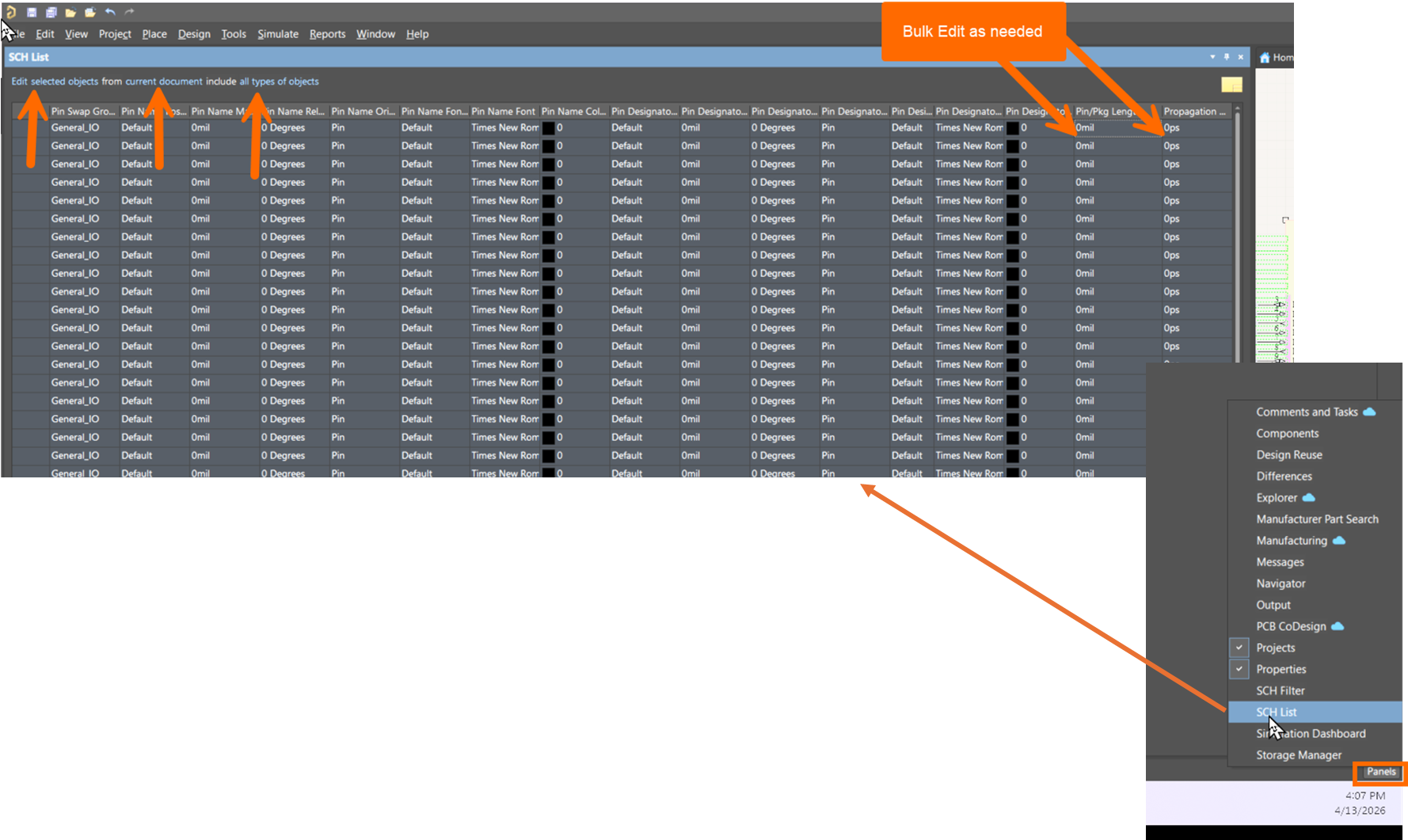
SCH List to Bulk Edit Pin/Pkg Length and Propagation Delay