
KB: ODB++ Export Missing Overlay Layers
Updated: июня 22, 2026
 Altium Designer
When generating ODB++ files in Altium Designer, certain layers such as the Bottom Overlay may be missing from the output even though primitives exist on those layers in the PcbDoc. This issue typically occurs when an overlay layer has been unintentionally removed from the Layer Stack Manager, causing it to no longer be part of the defined PCB stackup. Restoring the overlay layers in the Layer Stack Manager and ensuring they are both present and enabled resolves the issue and allows them to be included in the generated ODB++ files.
Solution Details
ODB++ Output Missing Expected Overlay Layers
Some layers, such as overlay layers, may not appear in generated ODB++ files. For example, the Bottom Overlay layer can be selected in the export configuration but is missing from the resulting ODB++ output files, despite primitives being present on that layer in the PCB document.
Layer Removed From Stackup Definition Unintentionally
This issue typically occurs when overlay layers have been unintentionally removed from the Layer Stack Manager. Such unintended removal can occur when modifying the layer stack after routing or placement, where changes to the stackup may lead to layers being removed without immediate visibility of the impact on fabrication outputs.
Restore Missing Layers in Stackup Before Output
- Re-add any accidentally removed overlay layers (such as Bottom Overlay) to the PCB stackup.
- Ensure all required layers are present in the Layer Stack Manager before generating fabrication outputs.
- Verify that the layers are also enabled for plotting in the ODB++ setup.
Steps to Re-add Overlay Layers and Export
- Open the PCB document (
.PcbDoc). - Navigate to Design » Layer Stack Manager... .
- Review the stackup to confirm whether the required overlay layers (e.g., Bottom Overlay) are missing.
- If missing, re-add the required overlay layers to the stackup.
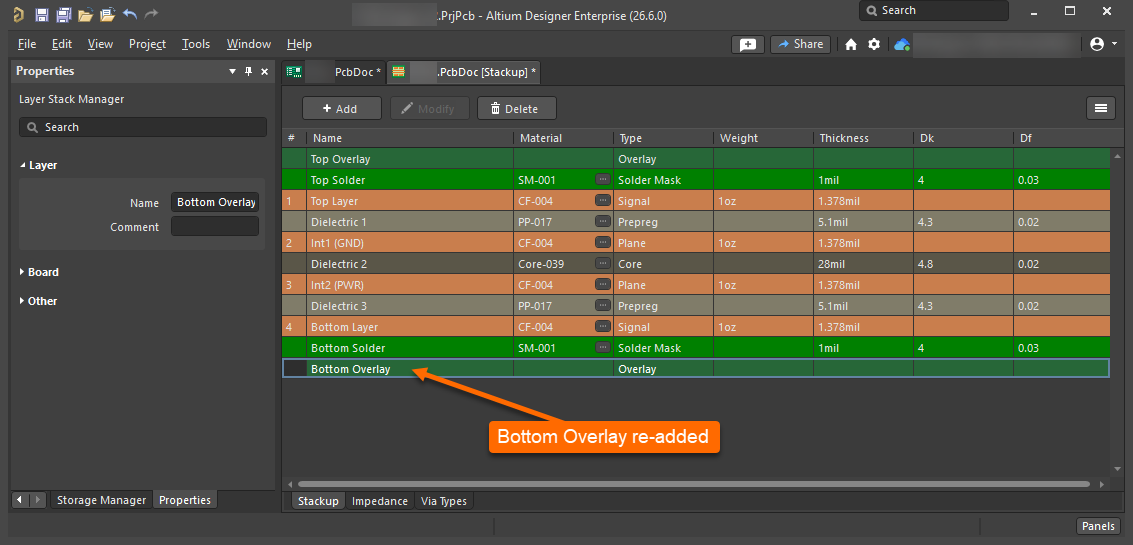
- Save the updated stackup to the PCB document.
- Generate the ODB++ output via File » Fabrication Outputs » ODB++ Files or through an Output Job.
- In the ODB++ Setup dialog, verify that the required layers are enabled under the plotting options.
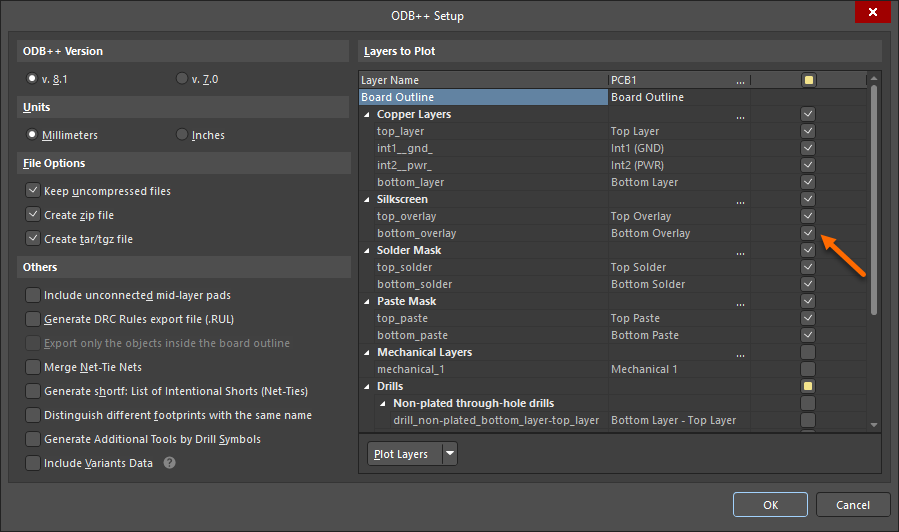
- Regenerate the ODB++ files and confirm that the previously missing layers are now included.