
KB: Organizing Components in Folders by Type for Consistent Display Across Views
 Altium Designer
Solution Details
Understanding Component Organization Across Panels
The Components panel and the Altium 365 web interface categorize and display components based on Component Types. This differs from the Explorer panel, where users can create any custom folder structure. As a result, new folders created in the Explorer panel do not automatically appear in the Components panel, because the latter does not reflect folder structures—only Component Types.
Why Components Appear in Different Categories
Components are grouped by their assigned Component Type. If a new component is created without specifying a Component Type, it will appear in the Uncategorized group. When components are created or moved into a custom folder in the Explorer panel, their displayed location in the Components panel is determined solely by their Component Type—not their folder location.
How to Maintain Alignment Between Panels
To ensure consistent organization across the Explorer panel, Components panel, and Altium 365 interface, you can:
- Assign appropriate Component Types to components.
- Associate specific folders with a Component Type so new components inherit the correct type.
- Adjust Component Types for any existing components you move into a folder.
Steps to Configure Folder–Component Type Association
- In the Explorer panel, right‑click the folder you want to configure.
- Select Properties…
- In the Edit Folder dialog:
- For Altium Develop, choose a Component Type from the dropdown.
- For Altium Agile (Teams or Enterprise), select a Component Template associated with the required Component Type.
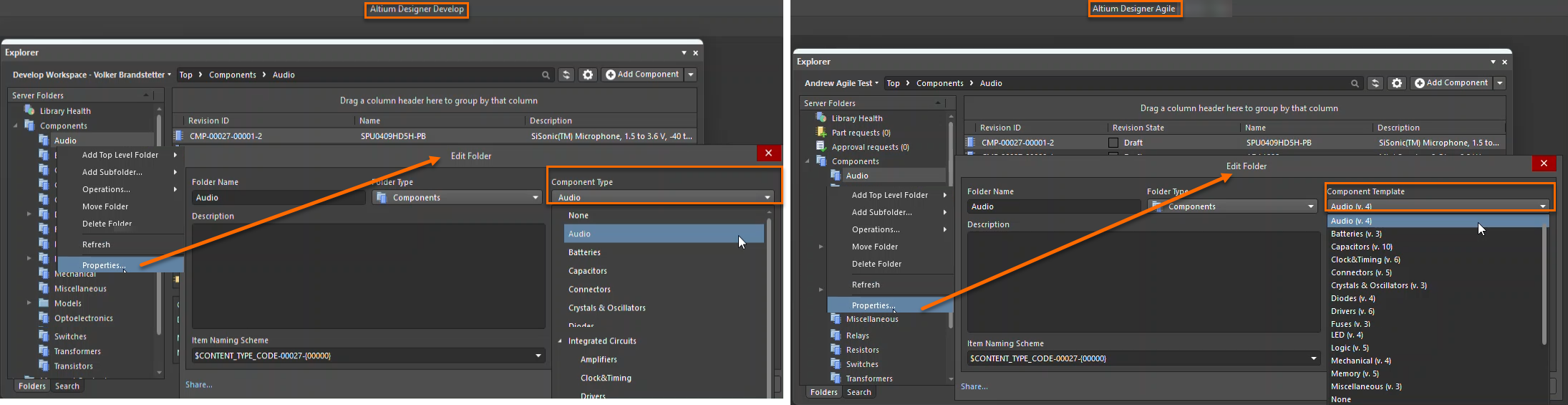
- Click OK to apply the association.
- For existing components moved into the folder, open each component and edit its Component Type as needed to ensure consistent categorization.
- Optionally, adjust Component Types globally using Preferences » Data Management » Component Types.
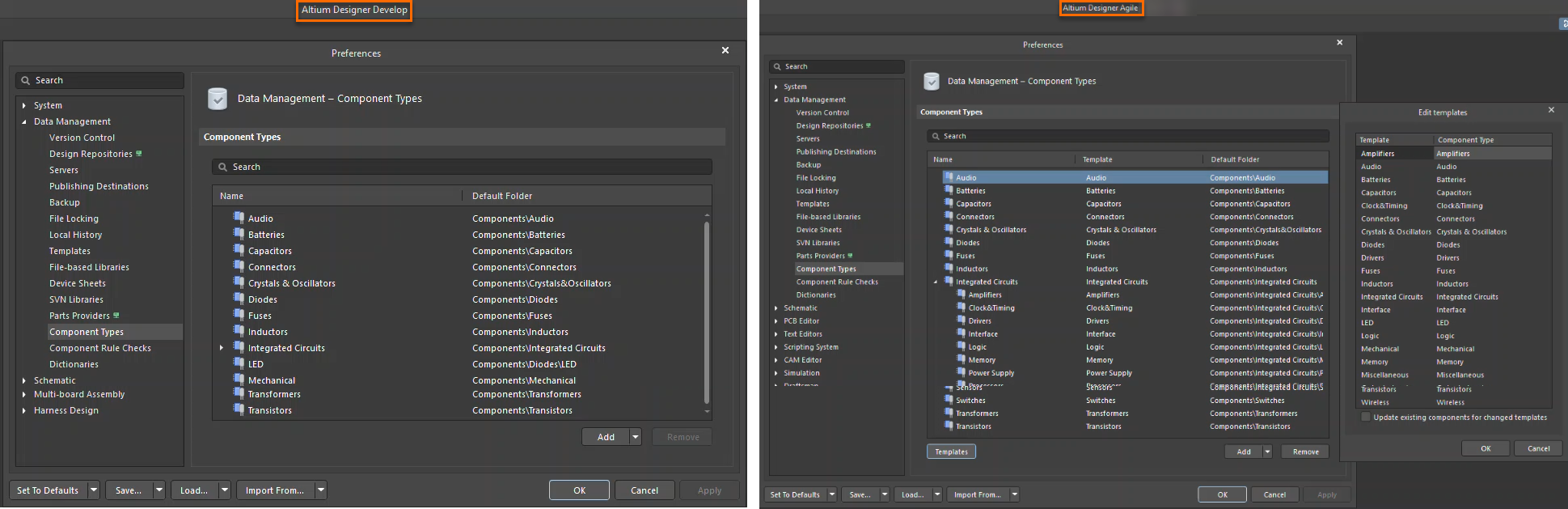
Sub‑folders follow the same logic; each can be mapped to its own Component Type or subtype.
Additional Notes
- Newly created components within a mapped folder inherit the folder’s assigned Component Type automatically.
- Components that do not have a Component Type assigned will always appear under Uncategorized.
- Sub‑folders can be used to represent sub‑types but must be explicitly associated for consistency across views.
- Altium Develop does not support Component Templates, while Altium Agile (Teams or Enterprise) supports Component Templates.
📢 Using Subscriptions?
If you're still using our previous subscription model (Standard, Professional, or Enterprise), please see the related Legacy Documentation for details.