
KB: PartSync fails or crashes when using Excel as a Custom Parts Provider
 Altium Designer
Solution Details
PartSync failure or crash symptoms
Users may encounter PartSync failures or application crashes when synchronizing a Custom Parts Provider that uses an Excel file as its data source. The error may explicitly reference Sheet$, which is the internal name used by the Microsoft ACE OLE DB provider for Excel worksheets. Renaming the worksheet is not required, as this reference is generated internally by the provider. The issue often occurs immediately when starting PartSync and may appear after a Windows restart, Office update, or other system-level change.
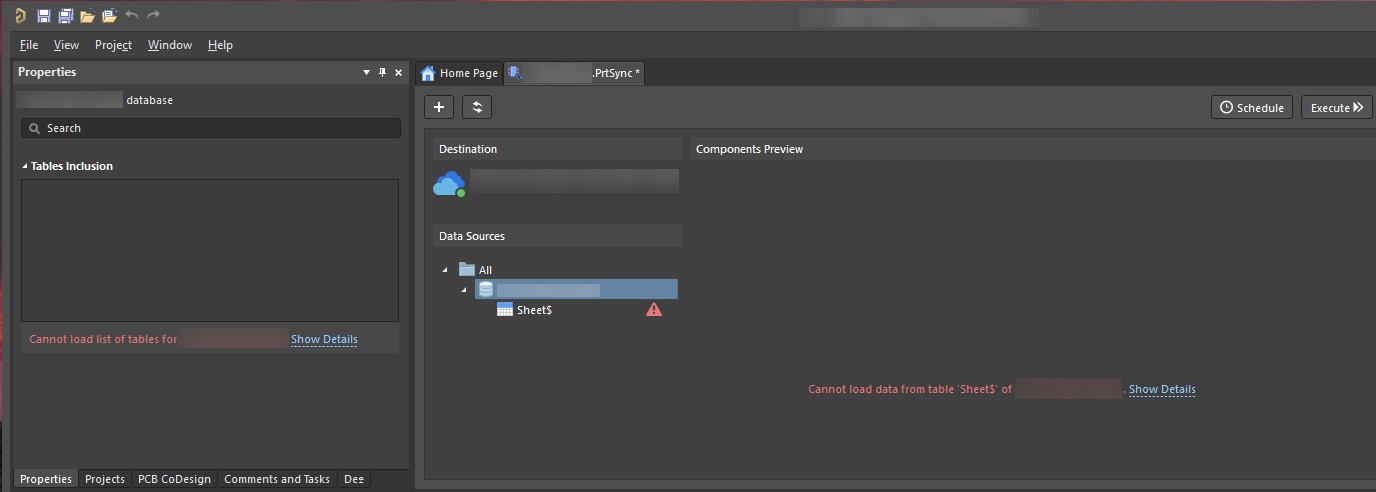
Why Excel access can fail unexpectedly
Altium Designer accesses Excel data through the Microsoft ACE OLE DB provider. If the provider is not fully initialized, is in an inconsistent state, or encounters access or timing issues—particularly with Excel files stored on network paths—it may fail to load the worksheet data. In such cases, the provider may return a generic error or fail to open the worksheet entirely, which can result in a PartSync failure or an application crash. Reinstalling Microsoft Office alone does not always resolve this behavior, as the ACE OLE DB provider is installed and maintained separately from Office.
Recommended actions to restore stability
- Refresh the Microsoft ACE OLE DB provider by reinstalling the Access Database Engine.
- Ensure the system and network environment are fully initialized after a restart before running PartSync.
Steps to refresh the Access Database Engine
- Uninstall any existing Microsoft Access Database Engine installation from Windows.
- Download and install the Microsoft Access Database Engine 2016 Redistributable.
- Restart the computer.
- After restart, wait until Windows startup processes and network connectivity are fully initialized.
- Confirm that the Excel file used for PartSync is not open on any other computer.
- Launch Altium Designer and run PartSync again.
Additional Notes
Best practices and recommendations:
- Reinstalling Microsoft Office is not typically required to resolve PartSync issues. Altium Designer relies on the Microsoft Access Database Engine (ACE) to read Excel files, which is installed and managed separately from Office.
- While Excel files stored on network drives are supported, they are more sensitive to access timing, file locks, and provider initialization. For improved reliability, storing the Excel file on a local drive is recommended where possible.
- For environments with frequent updates, multiple users, or larger datasets, consider using a database source such as Microsoft Access or SQL Server instead of Excel. Database sources provide more robust concurrency handling and are less susceptible to provider-related access issues.
- A one-time failure or crash may occur immediately after the first restart following reinstallation of the Access Database Engine. This is typically related to provider or network initialization timing and does not indicate a persistent issue.
References
- Microsoft Access Database Engine 2016 Redistributable: Download
- Component Database to Workspace Data Synchronization