
KB: Project Releaser Fails with Access Not Granted or Insufficient Rights Errors
 Altium Designer
Solution Details
Release Process Fails With Access Errors
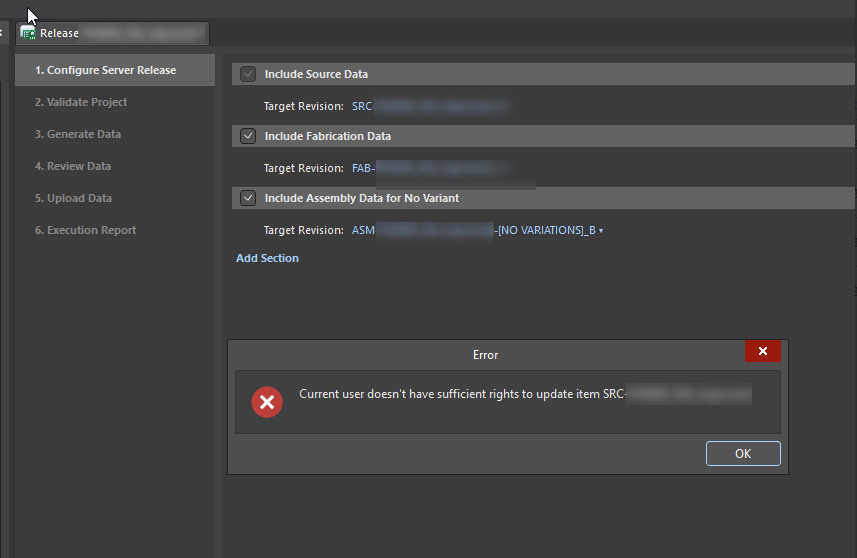
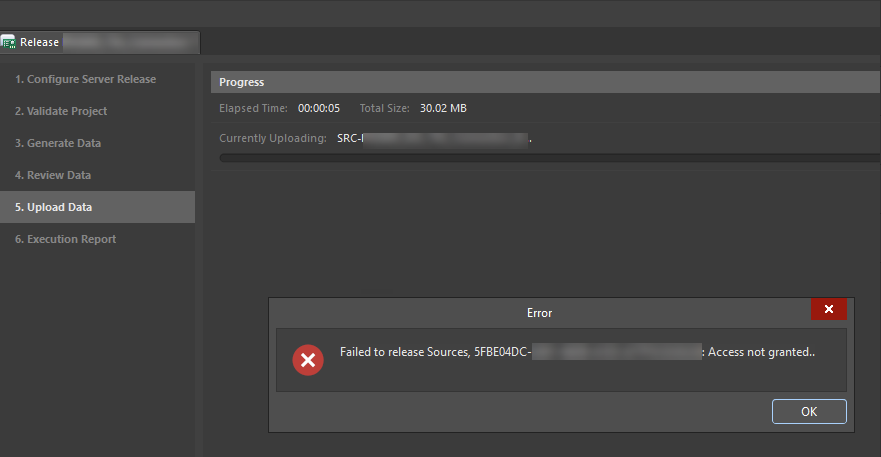
Users may receive one or more of the following errors while releasing project outputs through the Project Releaser:
- “Current user doesn't have sufficient rights to update item SRC-xx-xxxx.”
- “Failed to release Sources, {GUID}: Access not granted.”
These errors prevent the release operation from completing successfully.
 |  |
Insufficient Access Rights Block Release Operations
The issue occurs when the user lacks the permissions required to perform release operations. Missing operational permissions for Project Design items, insufficient project edit rights, or restrictive sharing settings on SRC items can all cause access-denied errors during release processing.
Release permissions are managed separately from project ownership and edit permissions. A user may have permission to edit a project while still lacking permission to release it.
Operational permissions are role-based and must be granted through at least one role assigned to the user within the Workspace.
Review Workspace, Project, And Item Permissions
- Verify release permissions for Project Design items.
- Confirm the user's assigned role includes the required Release permission.
- Review role assignments for conflicts if the user belongs to multiple roles.
- Confirm the user has edit rights for the project being released.
- Review sharing permissions on affected SRC items.
Verify And Restore Required Access Rights
-
Update release permissions:
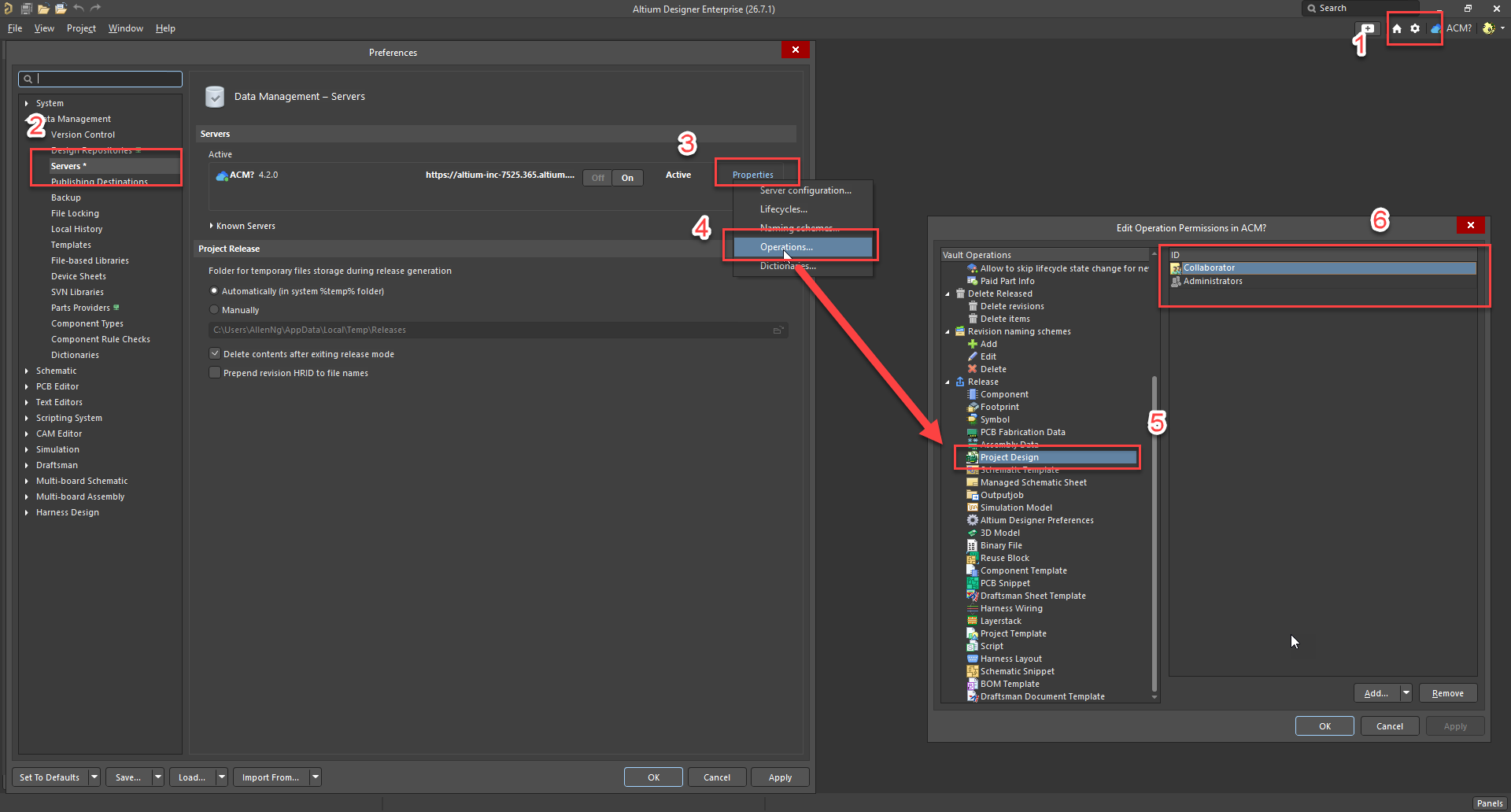
- Navigate to Tools » Preferences » Data Management » Servers » Properties » Operations.
- Under Release, locate Project Design.
- Ensure the appropriate roles have permission to release the item.
- Confirm the affected user is assigned to a role that grants the required Release permission.
- If the user belongs to multiple roles, review each assigned role to identify potential permission conflicts.
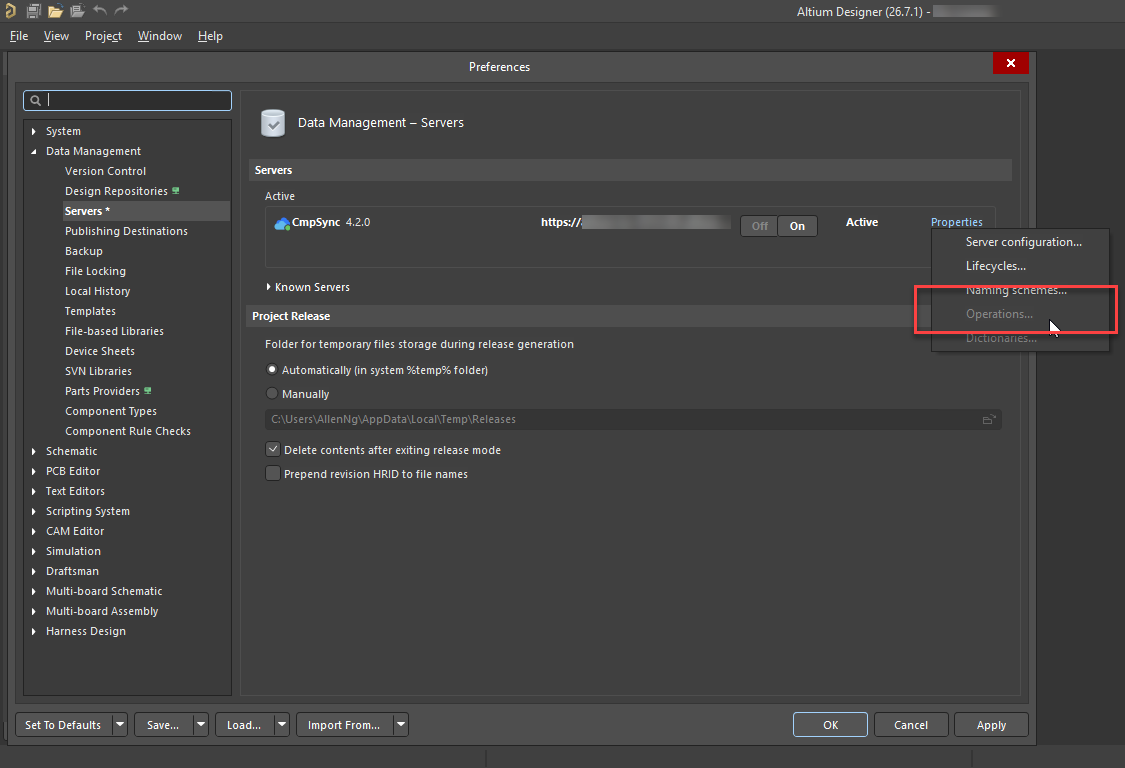
Note: The Operations page is available only to Workspace Administrators. If the user cannot access this page, a Workspace Administrator must review and update the permissions.
-
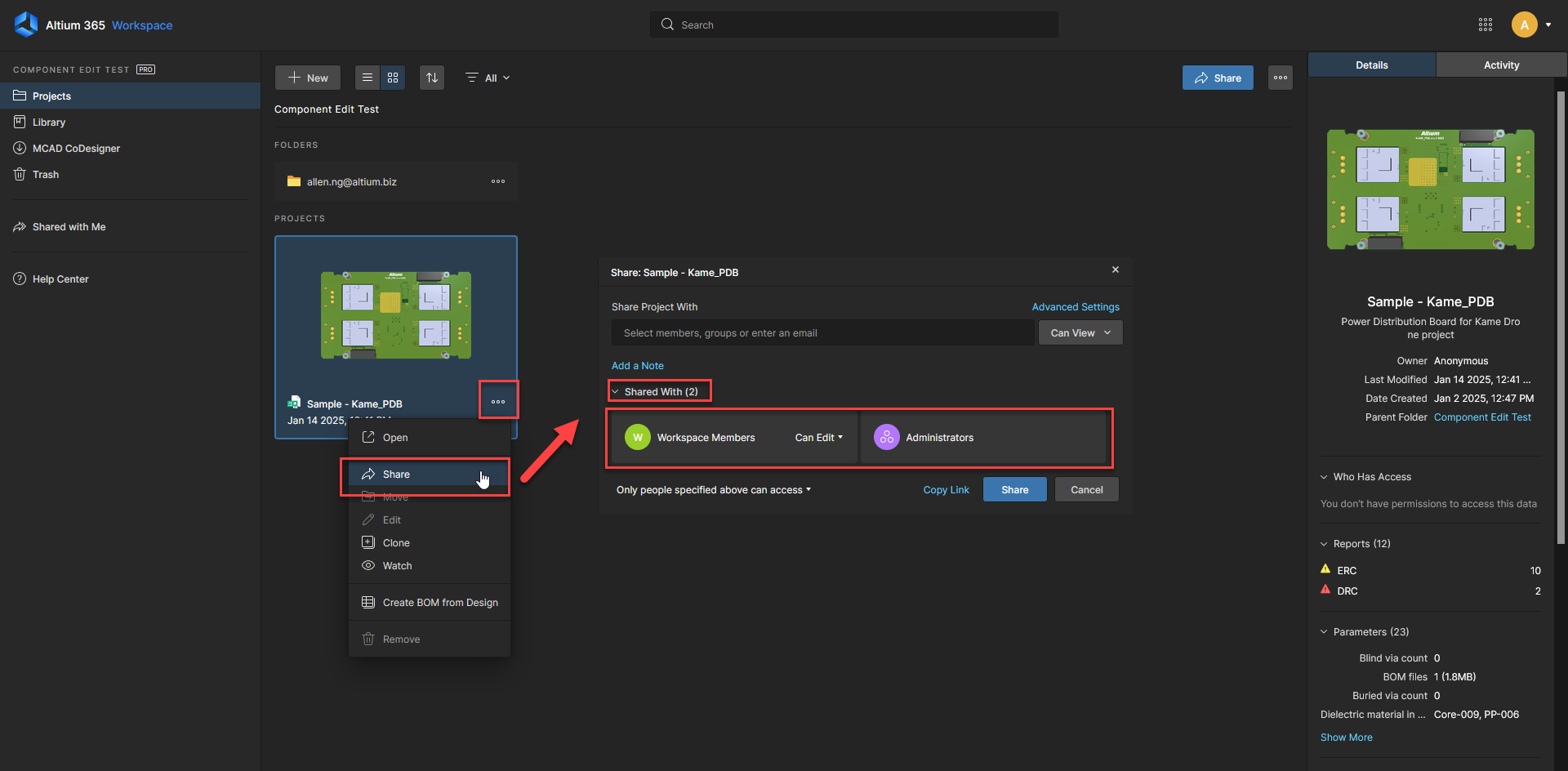
Verify project edit rights:
- Confirm the user has edit rights assigned for the project being released.
- Verify project-level permissions independently from release permissions.
-
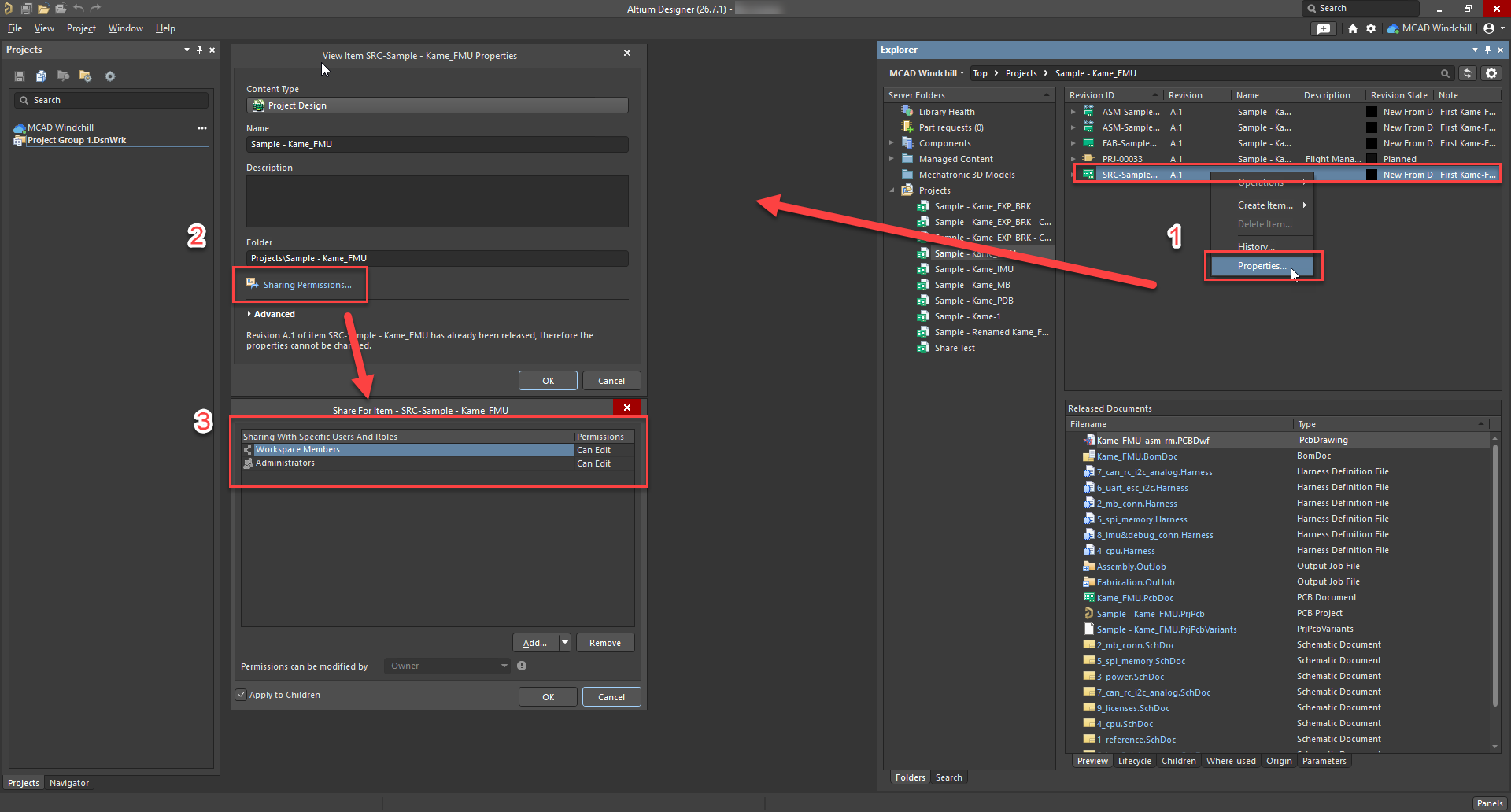
Review SRC item sharing permissions:
- Navigate to Panels » Explorer.
- Switch to Classic View.
- Select the affected SRC item.
- Verify that the user or assigned role has the required sharing permissions, including edit access where necessary.
Additional Notes
- Permission changes may require the user to log out and back in before updates take effect.
- Recently migrated or restored projects may lose inherited permissions and should be reviewed.
- If multiple users experience the issue, review role-based release permissions at the workspace level.
- Operational permissions are managed centrally at the Workspace level and may affect multiple users and projects.
- Ensure permission inheritance is enabled for the project folder in Explorer to avoid inconsistent access.
- After updating permissions, verify sharing settings through Explorer » Properties » Sharing.
- Users assigned to multiple roles may be affected by role conflicts. Review all assigned roles if the issue persists.
- Documenting recommended role configurations for release operations can help prevent recurring issues.