
KB: BOM Publish Fails with Datastore Uniqueness Constraint Violation
 Altium On-Prem Enterprise Server
Solution Details
BOM Publish Stops With Validation Error
During BOM publishing from Altium to a PLM system, the publish process fails with the message “A datastore uniqueness constraint violation has occurred ...”. As a result, the BOM is not created or updated in the PLM system.
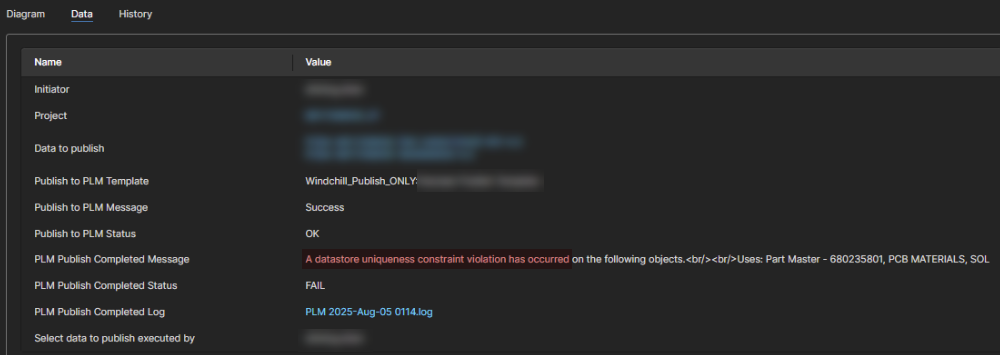
Duplicate Identifiers Detected During Publish
The PLM publish process uses configurable XML templates to map design data and BOM attributes into the PLM system. If multiple BOM entries resolve to the same identifier, the PLM datastore rejects the publish operation.
In multi-channel designs, a single logical circuit is compiled into multiple physical component instances. While the logical designators may remain the same across repeated channels, each compiled physical component instance must have a unique physical designator. If the PLM publish configuration is based on logical designators rather than physical designators, duplicate BOM identifiers can be generated.
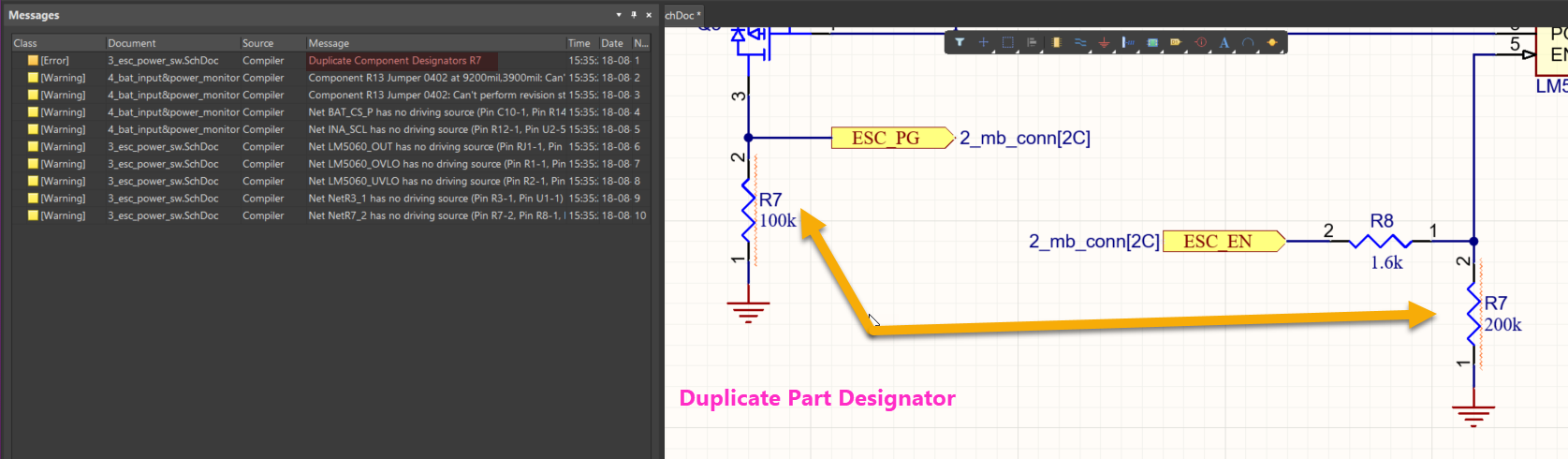
In single-instance (non-multi-channel) designs, the issue is typically caused by duplicate physical component designators within the project.
Select The Appropriate Resolution Method
- For multi-channel designs, update the PLM Publish configuration to use physical component designators instead of logical designators.
- For single-instance (non-multi-channel) designs, identify and correct duplicate physical component designators in the project.
Correct Designators And Republish BOM
-
Determine whether the design is a multi-channel design or a single-instance design.
-
If the design is multi-channel:
- Confirm that compiled components use unique physical designators with channel-specific identifiers such as
R1_1,R1_2,R1_CH1, orR1_CH2. - If the compiled design does not contain unique physical designators, review the project's multichannel naming scheme and designator format settings and adjust them as required.
- Open the compiled view of the project and compare logical and physical designators to verify which identifier is being used.
- Open the PLM Publish Configuration XML file.
- Navigate to the BOM attributes section.
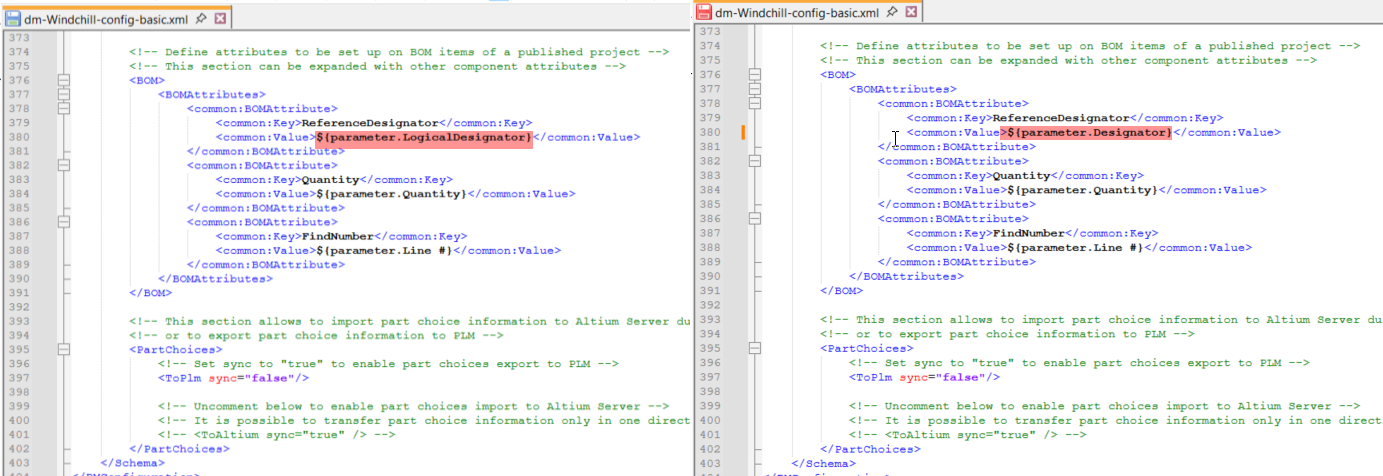
- Locate the attribute currently mapped to the ReferenceDesignator.
- Replace the LogicalDesignator mapping with the physical Designator attribute.
- Save the modified XML file.
- Upload the updated file using PLM Configuration Sync.
- Re-run the BOM publish process.
- Confirm that compiled components use unique physical designators with channel-specific identifiers such as
-
If the design is single-instance:
- Open the project in Altium Designer.
- Select Projects » Project Options.
- Open the Error Reporting tab.
- Under Violations Associated with Components, set Duplicate Part Designators to Error.
- Select OK and close the dialog.
- Compile or validate the project.
- Open the Messages panel.
- Resolve any reported duplicate part designator errors.
- For projects with many duplicate designators, use the schematic annotation tools to automatically assign unique designators where appropriate.
-
As a preventative measure, validate the project and review BOM-related errors before initiating PLM publish.