
KB: Connection Errors During Enterprise Server Access
 Altium On-Prem Enterprise Server
Solution Details
Connection Errors During Enterprise Server Access
When connecting to the Altium On-Prem Enterprise Server (AES), the following errors may occur:
The connection with the server was reset - URL:http://servername:443/vcs/VcsWebServer.asmx
SOAPAction:http://tempuri.org/GetRepositories

AND

The connection with the server was reset - URL:http://servername:443/tc2/WebService.asmx
SOAPAction:http://tempuri.org/GetConfigurations
These errors may occur when attempting to retrieve repository or configuration information from the Enterprise Server.
HTTP and HTTPS Configuration Mismatch
The error indicates that port 443 is being used with HTTP rather than HTTPS, which is an incorrect configuration. This can occur when the IIS site bindings and the settings in LocalVault.ini do not match. If HTTPS is already configured correctly and the issue persists, communication may be blocked by a firewall, antivirus solution, or another security application.
Configuration Areas Requiring Verification
- Verify the Enterprise Server IIS site bindings.
- Verify that the settings in
LocalVault.inimatch the IIS binding configuration. - Confirm that the configured HTTPS port in
LocalVault.inicorresponds to the IIS HTTPS binding. - If configuration settings are correct, investigate firewall, antivirus, or other security software that may be blocking communication.
Update Port Settings and Restart the Server
- Open IIS and review the Enterprise Server site bindings.
- Confirm that HTTPS is configured correctly and that the site is bound to the intended port.
- Open the
LocalVault.inifile. - Verify that the HTTPS port value matches the IIS HTTPS binding.
- If the Enterprise Server binding has been changed to use standard HTTPS port 443, update the corresponding setting in
LocalVault.inifromHttpsPort=9785toHttpsPort=443.
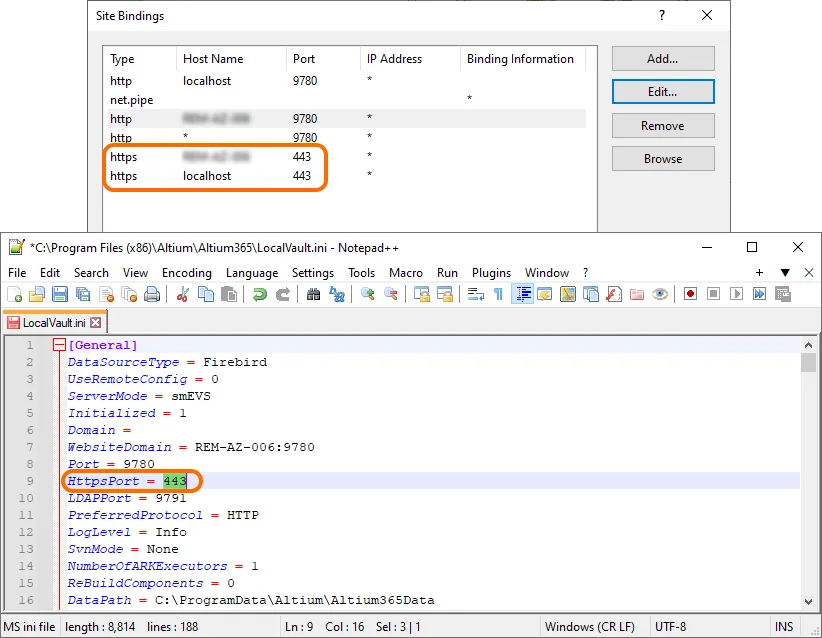
- Save the changes.
- Restart the server computer after updating
LocalVault.ini. - Test the Enterprise Server connection again.
Additional Notes
If HTTPS is configured correctly and the issue continues after verifying IIS bindings and LocalVault.ini, review firewall, antivirus, and other security applications with the IT team to determine whether communication is being blocked.