
KB: ToPLM Component Sync Creates New Component Revision and Resets Lifecycle State to Draft
 Altium On-Prem Enterprise Server
Solution Details
New Draft Revisions Appear After Synchronization
Users may observe that a component configured for ToPLM synchronization only receives a new revision in Altium and its lifecycle state changes to Draft after synchronization.
Primary Key Differences Trigger Synchronization Corrections
This behavior can occur when a mapped primary key attribute, such as a PLM part number or other unique identifier, contains different values in Altium and the PLM system. PLM Integration supports parameter-level ownership and synchronization direction configuration. To maintain data consistency for mapped identifiers and key attributes, the synchronization process may perform a ToAltium update in addition to the expected ToPLM operation. Historical cases have included primary key values containing trailing spaces or manual data entry inconsistencies.
Verify Whether the Lifecycle Change Is Expected
- Compare the affected component revisions to identify which parameter changed.
- If the comparison shows that only the primary key parameter changed, the lifecycle state change is considered expected behavior.
- If additional parameters changed, review the Component Parameter Mapping configuration and verify which system owns the affected attributes.
- Contact Altium Support if the comparison shows unexpected parameter changes or if the cause cannot be identified.
- Consider enabling ToAltium synchronization for primary key attributes to reduce manual synchronization discrepancies.
- Be aware that mapped item properties may be updated independently of normal component release workflows depending on the PLM Integration configuration.
Compare Component Revisions to Identify Changes
- Navigate to Panels » Explorer.
- Search for the component affected by the lifecycle state change.
- Right-click the component and select Navigate To.
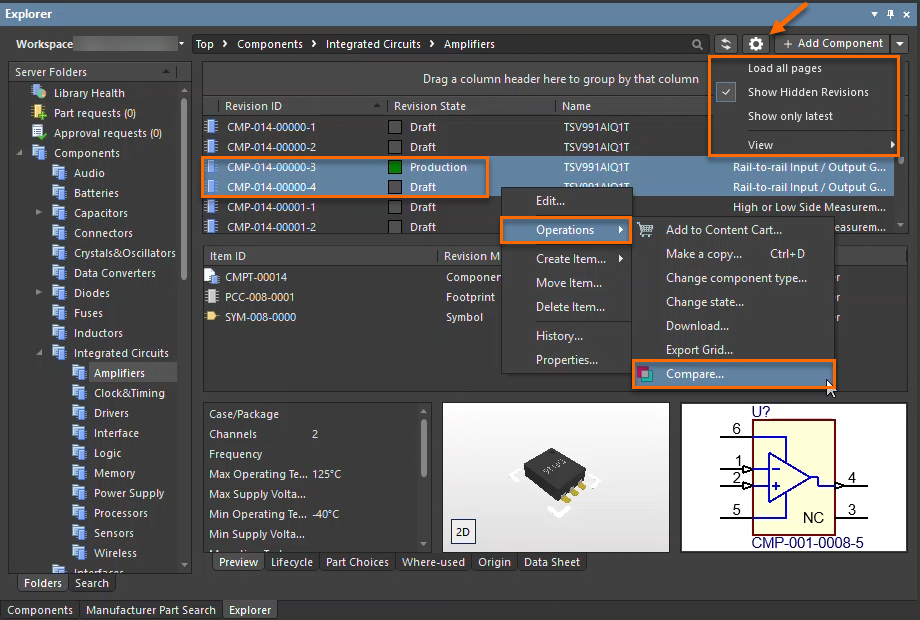
- Configure the Explorer view to Show Hidden Revisions and disable Show Only Latest Revisions.
- Select the latest revision in the Draft state and the previous revision.
- Right-click the selected revisions and choose Operations » Compare.
- Review the comparison results and identify the parameter that changed.
- Confirm whether the highlighted change affects only the primary key parameter.
Additional Notes
If users manually copy and paste primary key values, formatting inconsistencies such as trailing spaces may cause synchronization mismatches and trigger the behavior described in this article.