
风扇教程 - 台式机风扇模式
恭喜您,现在您只需几步就能学会如何创建风扇的模式相关属性。
(1) 添加模式
-
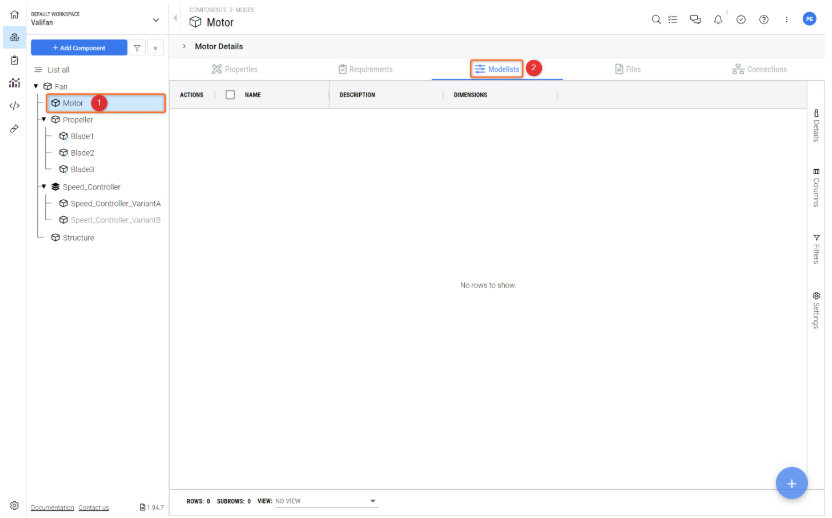
我们的电机可以以 3 种不同的速度运行,这些速度可以用 "模式 "来模拟。因此,要创建这三种模式,请打开
Motor (1) 块。然后-
点击
Modelists(2) 如图所示Creating Modes .
-
-
单击右下角的
+-
插入名称 =
speed_settings(1) 和 ´#´ 模式数 =3(2) -
点击
Create(3)
-
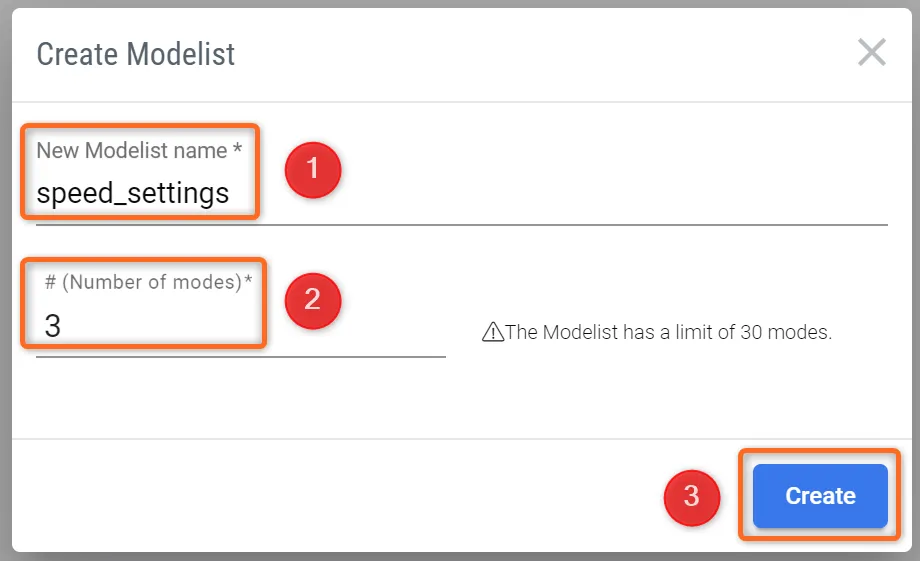 设置模型师 - 在这里您可以决定模型师的名称和模式数量。
-
单击新模型师左侧的箭头
-
重新命名
speed_settings 点击默认名称abc-
a =
ZERO -
b =
LOW -
c =
HIGH
-
-
回到 Valis 页面,点击顶栏中模型师旁边的
Properties -
点击
+Matrix(1) .添加以下属性:-
名称 =
rotational_speeds(2) -
模式参考 =
Motor.speed_settings(3) -
单位 =
rpm(4) -
点击
Create(5)
-
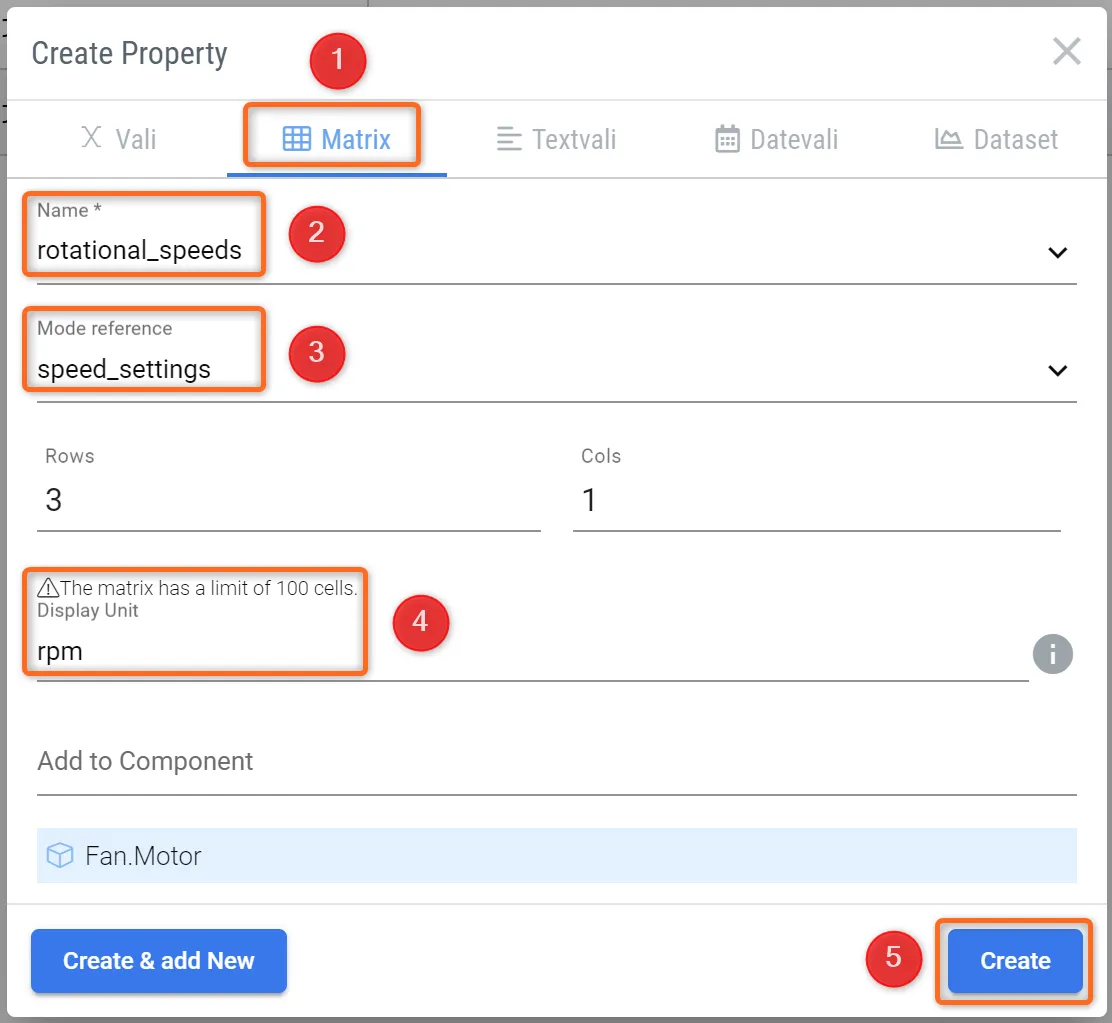 创建与模式相关的矩阵 - 矩阵在 "模式参考 "中与建模师链接。
-
展开 Vali 的属性
rotational_speeds -
更改值(目前为
0-
ZERO -
LOW -
HIGH
-
-
矩阵属性如下图所示
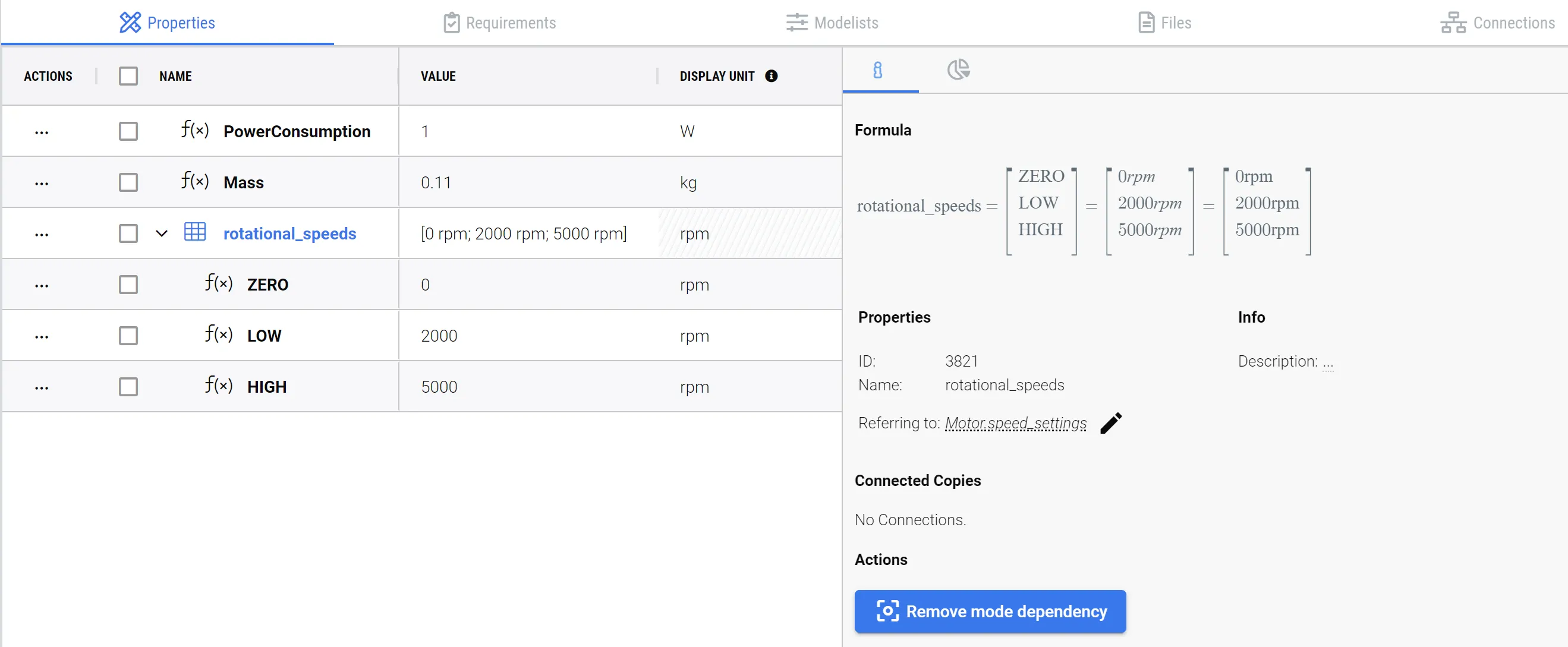 取决于模式的矩阵 - 转速矩阵现在已与转速设置建模器相连。
-
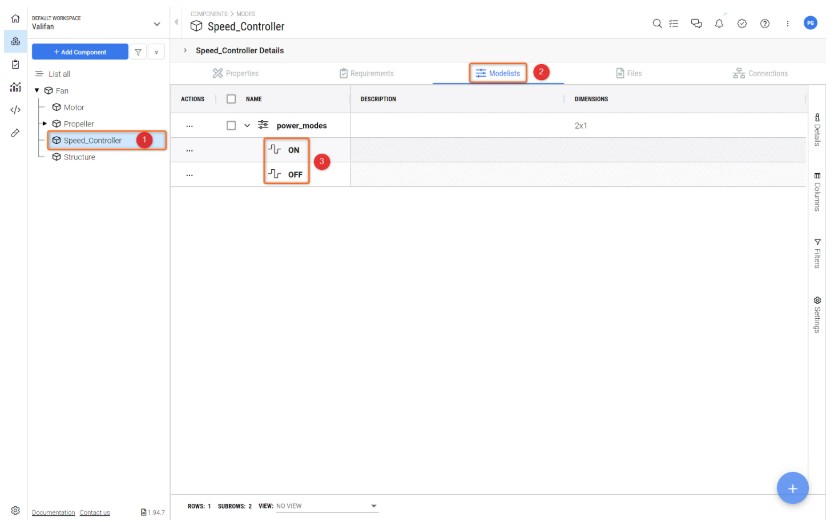
现在为 speed_controller 创建另一种模式:点击 Block Speed_controller
(1) .转到 "建模器 "选项卡(2) .添加一个新的建模器:-
模式名称 =
power_modes -
模式数 = 2
-
-
重新命名字段名称:a =
ONOFF(3)
-
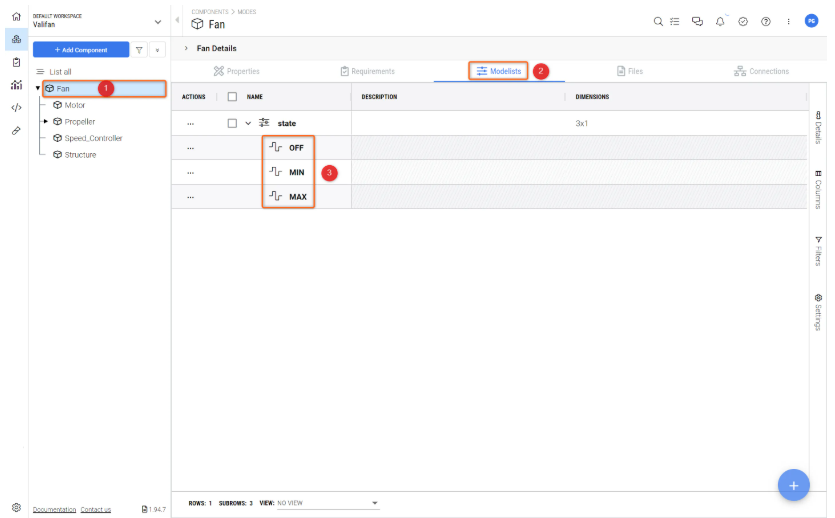
重复这些步骤,为整块风扇添加一个模式
(1) 用:-
模式名称 =
state(2) -
模式数 = 3
-
字段名称
OFFMINMAX(3)
-
(2) 使 Valis 模式取决于
-
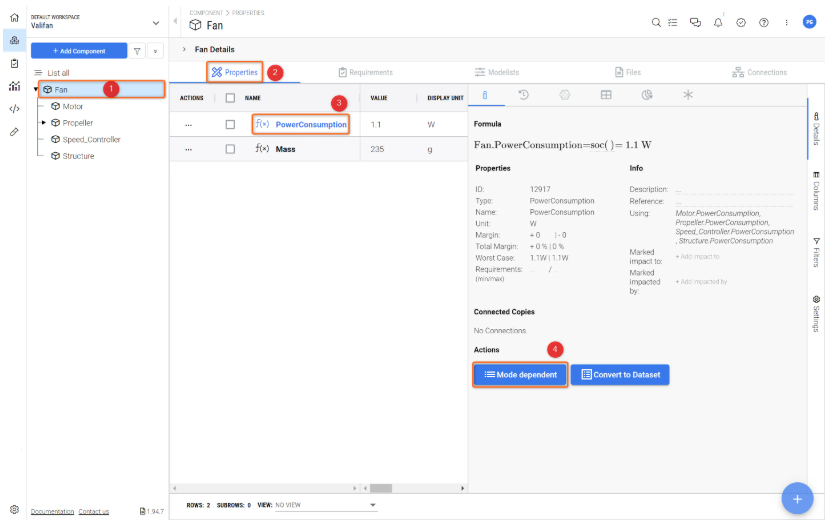
打开区块
Fan(1) 并转到Properties(2) 中的 -
点击瓦利
PowerConsumption (3) 以显示瓦利说明 -
点击按钮
Make mode dependent(4)
-
在弹出窗口中,选择模式 =
Fan.stateUpdate -
对
Motor 和Speed_controller :-
转到
PowerConsumptionMotor, 点击 "使模式依赖于 "并在弹出的Motor.speed_settings -
转到
PowerConsumptionSpeed_controller, 点击 "使模式依赖于 "并在弹出的Speed_controller.power_modes
-
-
然后,更改
Motor 和Speed_controller 在不同模式下的功耗值,如图PowerConsumption Motor 和PowerConsumption Speed_controller . -
Motor :-
ZERO -
LOW -
HIGH
-
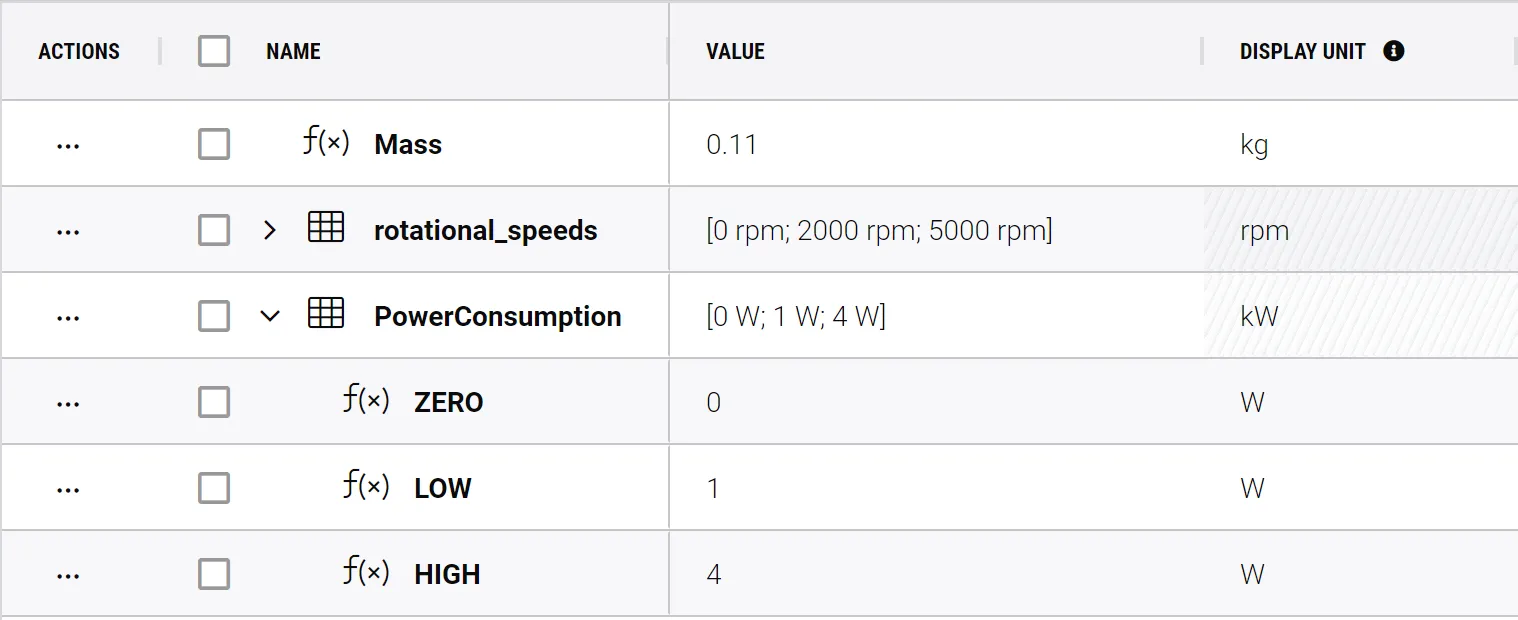 耗电电机
耗电电机-
Speed_controller :-
开启 = 0.1W
-
关闭 = 0W
-
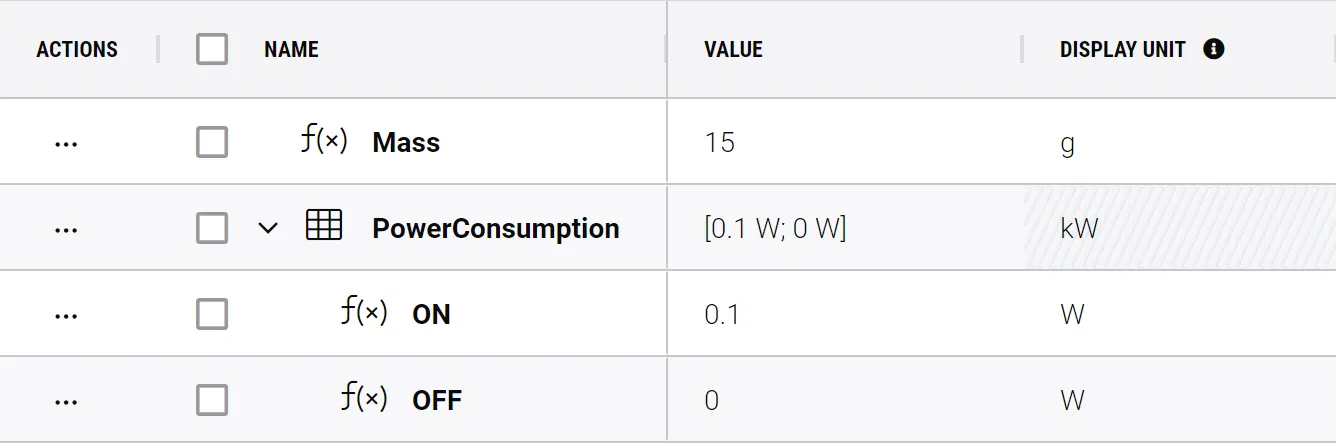 耗电量 速度控制器
(3) 连接模式
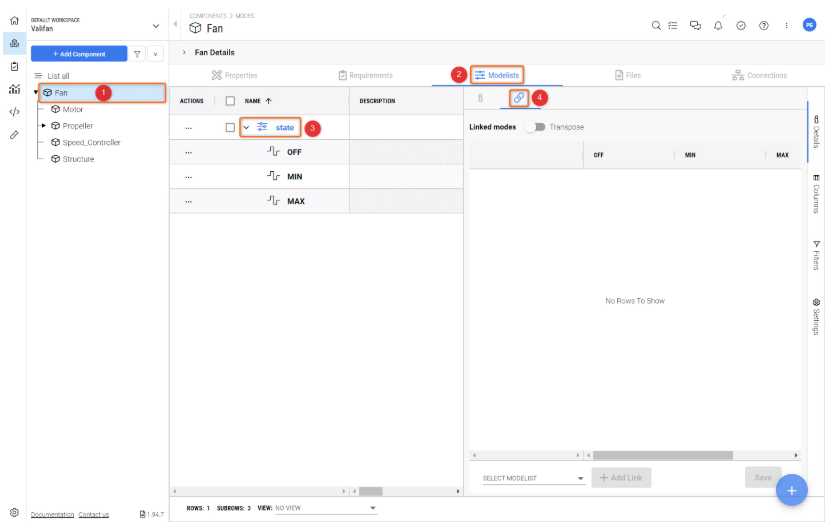
在 Fan-states 和 Motor 和 Speed_controller (之间建立连接(见图 Linking Modes ).
-
转到
Fan 块(1) -
转到
Modelists(2) 选项卡,然后点击模式state(3) -
点击链接符号
(4)
-
点击
Select ModelistSpeed_controller.power_modes+ Add Link -
点击
Select ModelistMotor.speed_settings+ Add Link -
现在选择模式之间的链接,如下所示,别忘了保存:
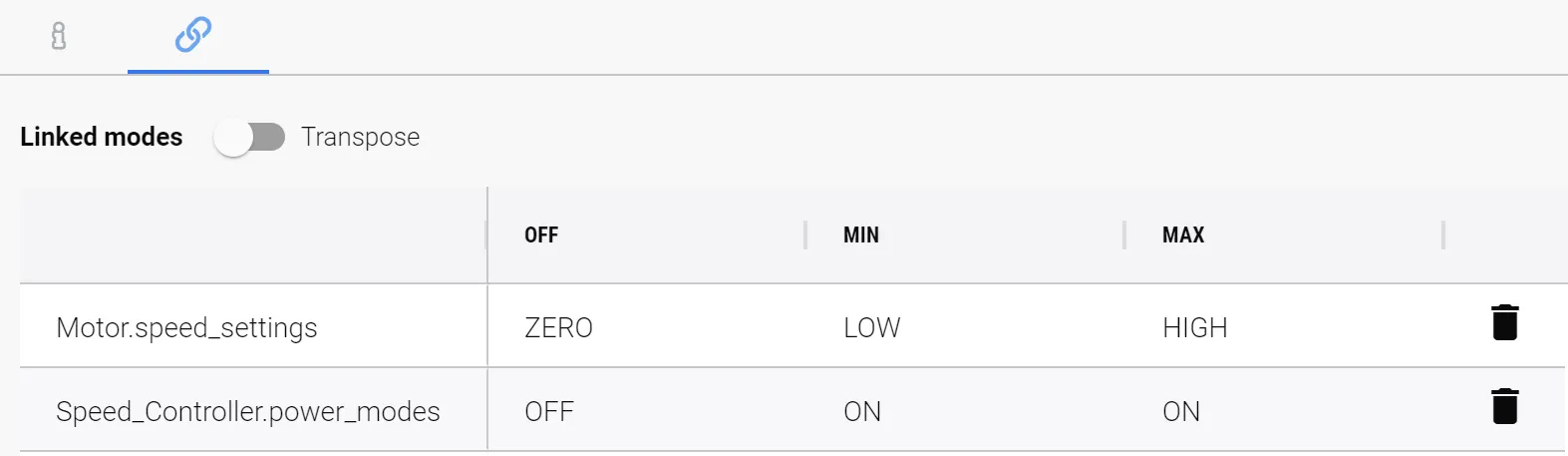 链接的模式及其状态 - 在此您可以设置模式之间的链接方式,以及如何将每个属性添加到主模 式中。
点击风扇区块。转到属性选项卡。在 Requirements & Systems Portal 完成计算后,您可以看到
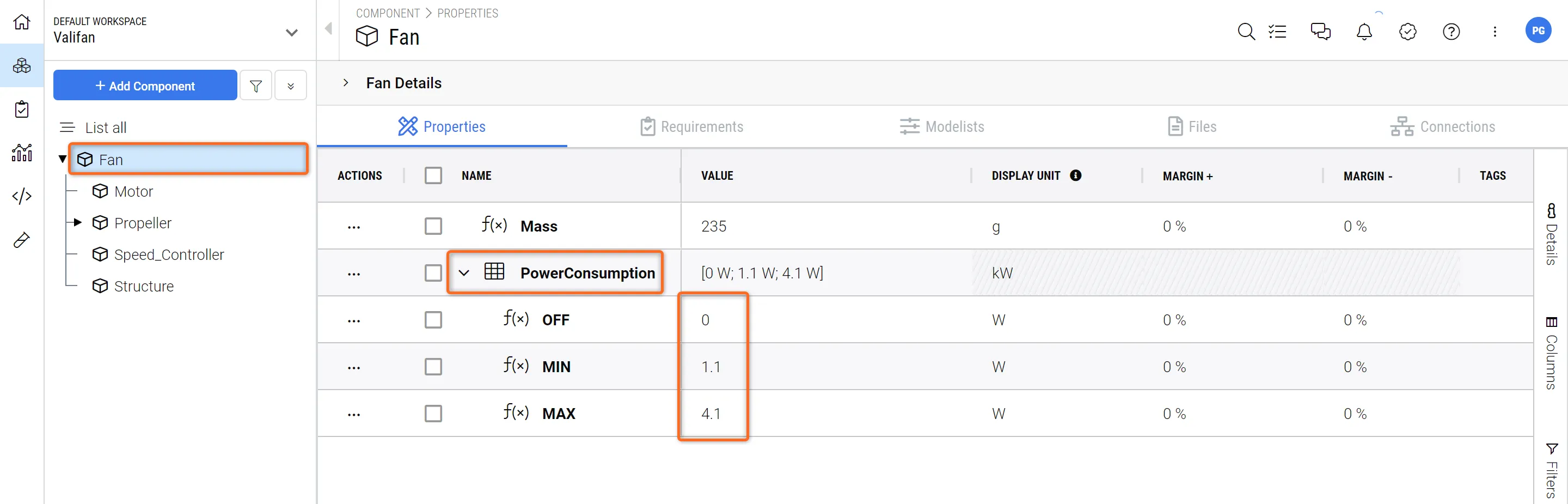 风扇功耗值 - 主要功耗的计算取决于子系统属性。请尝试更改电机和 Speed_controller 上的一些 PowerConsumption 值,以了解其实际效果。
下一步?
恭喜您,现在您对 Requirements & Systems Portal 已经了如指掌!
您可以继续改进您的台式风扇项目。以下是一些想法:
-
创建一个模拟,根据风扇模式计算所产生的空气排量如何?
-
添加太阳能电池板块,使风扇便于携带。你可以让最大转速取决于太阳能电池板的太阳角度。
 AI 翻译
AI 翻译