
KB: HTTP Error When Transferring Components from Altium 365 to GovCloud Workspace Using Content Cart
 A365
A365
Solution Details
HTTP error appears during Content Cart transfer
When using the Content Cart to move components from an Altium 365 Workspace to a GovCloud Workspace, an HTTP error is displayed. The error message commonly references issues such as improper server certificate configuration, HTTPS.sys problems, or security mismatches, which can be confusing and may prompt unnecessary troubleshooting.
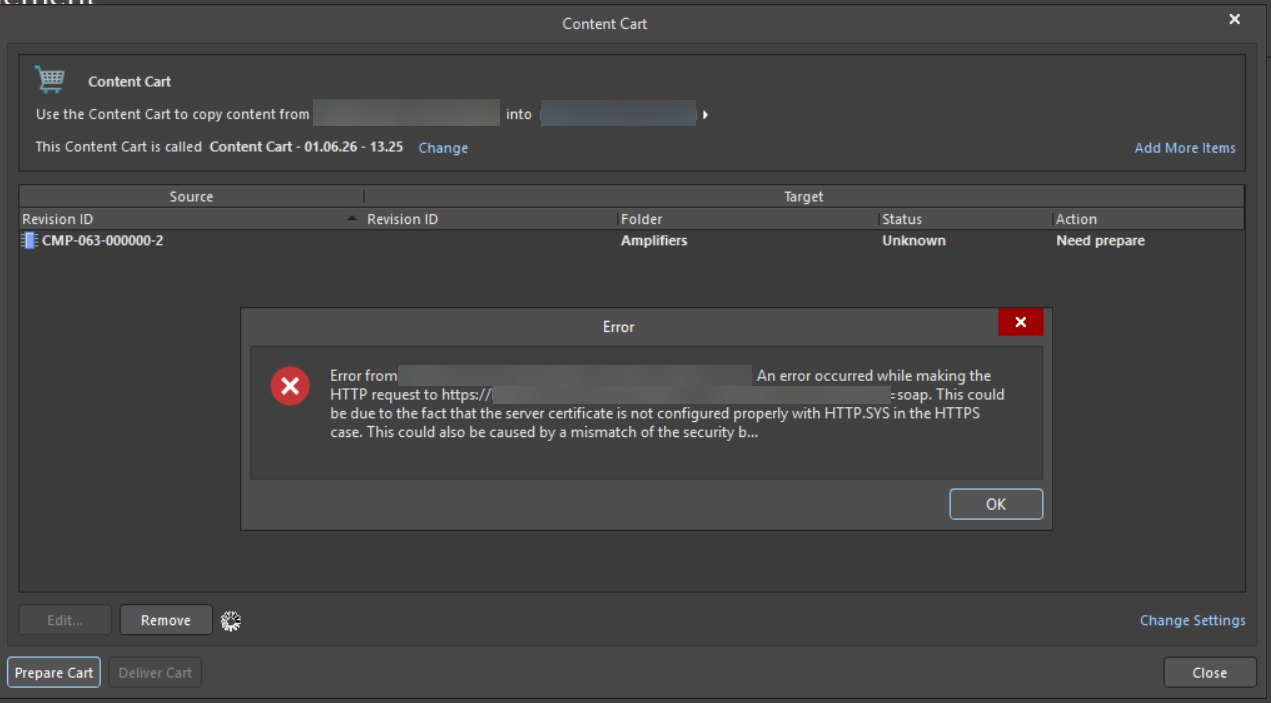 |
| HTTP Error from attempting to use Content Cart to move components from Altium 365 Workspace to GovCloud Workspace |
GovCloud isolation blocks direct transfers
This behavior occurs because GovCloud Workspaces enforce strict isolation requirements that prevent direct, bi-directional data transfers with commercial Altium 365 workspaces. The Content Cart operates as a Data Acquisition Service intended to transfer data only between compatible workspace environments. As a result, cross-environment Content Cart operations are blocked by design. The HTTP error is expected behavior and does not indicate a fault with the user’s network, certificates, or local system configuration.
Use Integrated Library export instead
- Export the required components from the Altium 365 Workspace to an Integrated Library (
*.IntLib). - Import the generated
*.IntLibfile into the GovCloud Workspace.
An Integrated Library (*.IntLib) is a single, portable file that packages all component data—including symbols, models, and parameters—making it suitable for transferring components between isolated environments.
Steps to export components and import into GovCloud
- Connect to the Altium 365 Workspace and open the Explorer panel.
- Select the components to be transferred.
- Right-click and choose Operations » Add to Content Cart... .
- In the Content Cart dialog, set the destination to IntLib file
- Specify a save location and click Deliver Cart to generate the
.*IntLibfile.
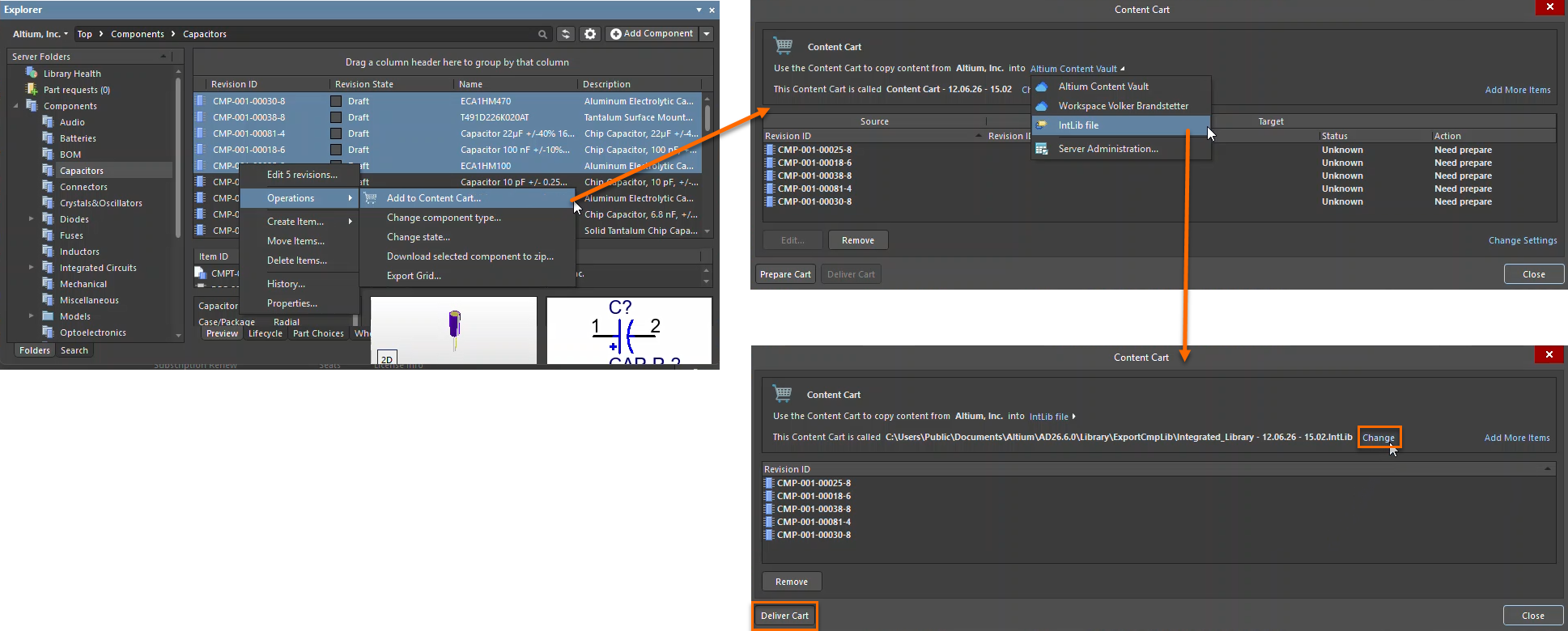 |
| Using Content Cart to save components from Altium 365 Workspace to IntLib file |
- Connect to the GovCloud Workspace.
- Import the
*.IntLibfile into the workspace using the Library Importer
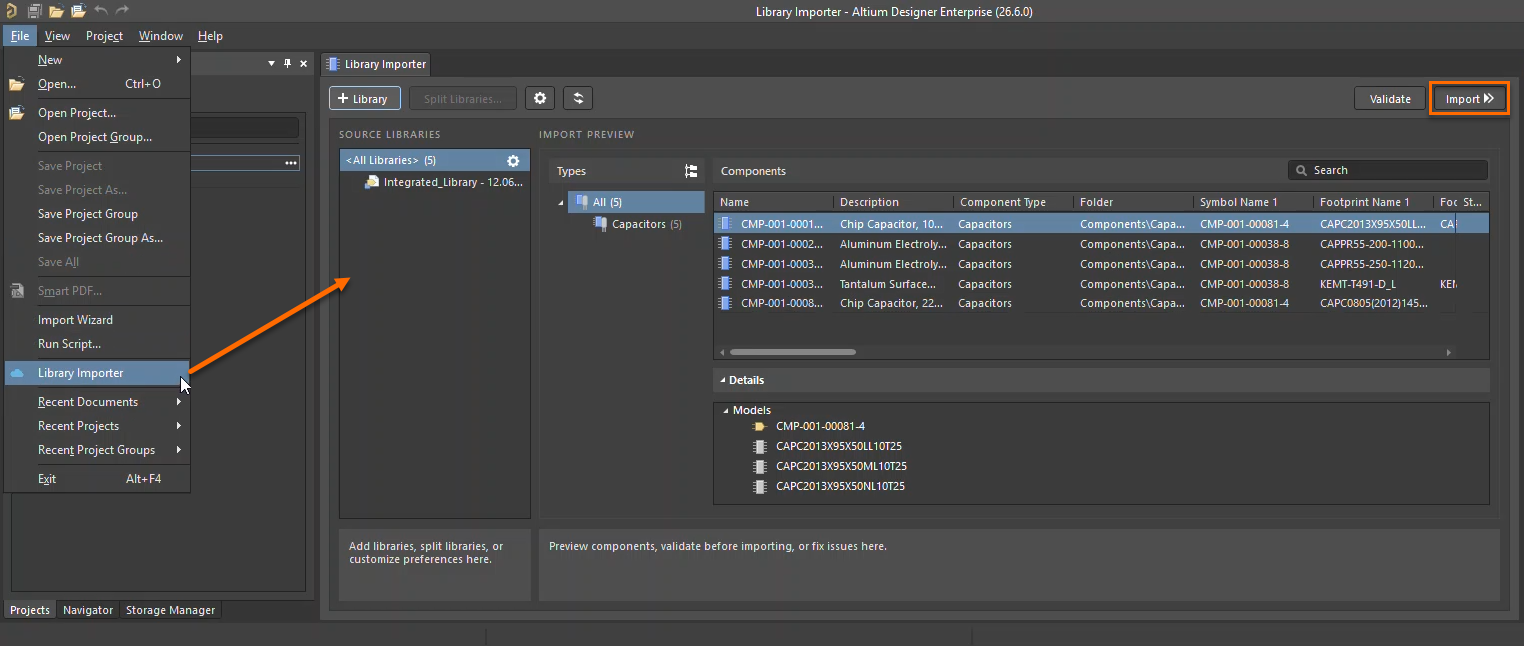 |
| Using the Library Importer to import the components |
- Verify that the imported library appears correctly and that the components are accessible in the GovCloud Workspace.