
KB: Schematic Template cannot be permanently deleted from Trash
 A365
A365
Solution Details
Permanent delete blocked by reference error
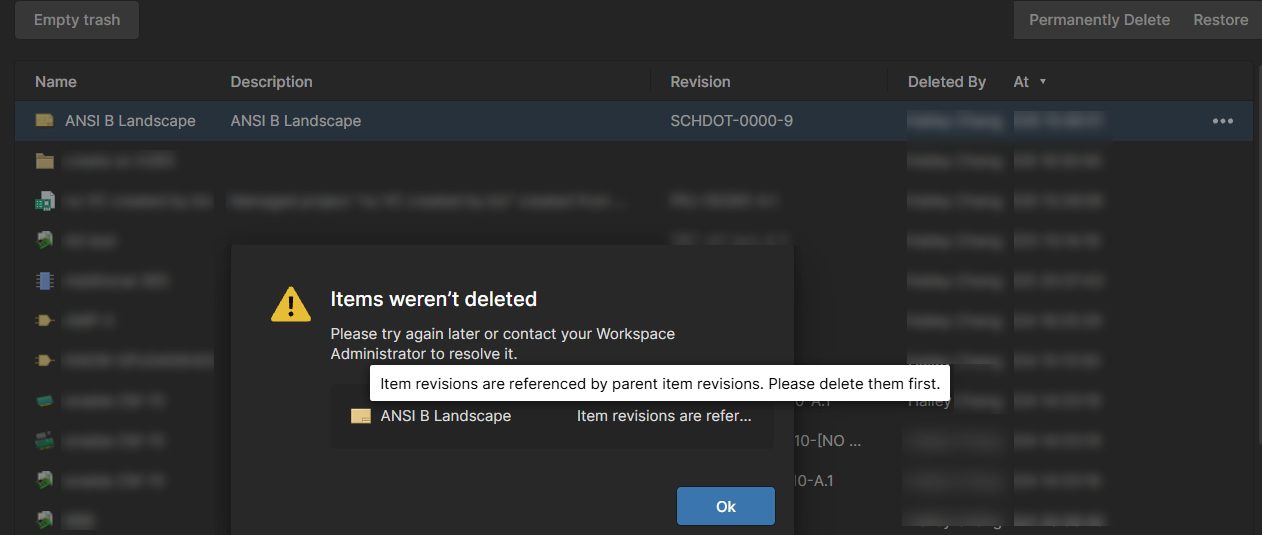
The user attempts to permanently delete a schematic template from the Altium 365 Trash, but the operation fails. The system displays the error message “Item revisions are referenced by parent item revisions. Please delete them first.” This happens even though the schematic template is no longer required and has already been soft-deleted.
Released project data maintains dependencies
This behavior occurs because the schematic template was used in a project that was released. When a project is released, Altium 365 generates managed release items such as SRC, FAB, and ASM data. These released items are stored as separate managed items in the workspace and maintain parent–child relationships to the original design content, including schematic templates. As long as these parent items exist, the referenced template cannot be permanently deleted.
Identify and delete parent release items that used the template
To permanently delete the schematic template, all parent release items that reference it must be deleted first. These include released SRC, FAB, and ASM items associated with projects that used the template.
For schematic templates, the Where-used functionality is not available. As a result, Altium 365 does not provide a direct way to identify which projects used a specific schematic template. In this case, affected projects must be identified manually by reviewing released project data.
- Focus on projects that have been released.
- Download and open the released SRC items associated with those projects.
- Check the released schematic document properties to identify the schematic template that was used.
This approach works because released SRC data is a frozen snapshot of the design at the time of release and still reflects the schematic template that was used.
Note that permanently deleting items from the Trash may require Workspace Administrator permissions.
Delete releases first, then the template
- Open Altium Designer and go to the Explorer panel » Projects.
- Locate the project that previously used the schematic template.
- Delete all released items associated with the project, including SRC, FAB, and ASM data.
- Open the Altium 365 workspace in a web browser and navigate to Trash.
- Permanently delete theses SRC, FAB, and ASM items from the Trash.
- Once all parent release items are permanently deleted, permanently delete the schematic template from the Trash.
Additional Notes
As an alternative to permanently deleting the schematic template (which requires deleting released project data), the template can instead be set to the lifecycle state Obsolete. If, for this lifecycle state, the options Visible in Vaults panels and Allowed to be used in designs are disabled, the schematic template will no longer appear in the Explorer panel and cannot be selected for use in new projects (see Controlling Item Revision Visibility and Applicability). This approach allows the template to be effectively retired without impacting existing released project data.