
KB: Uploading Gerber Files Fails - Fabrication File Content Type Not Assigned
Updated: 二月 12, 2026
 A365
A365
When attempting to upload a Gerber package to a project in an Altium 365 workspace, users may receive the error: “A conflict occurred within the current state of the target resource. Items of the ‘Fabrication File’ Content Type are restricted to view-only because the Content Type is not assigned to a Lifecycle.” The issue is caused by the Fabrication File Content Type not being correctly assigned to the required Lifecycle definition. The Content Type assignment for Fabrication File cannot be verified or adjusted directly in Altium 365 because this Content Type is not visible there; it must be checked and configured from within Altium Designer instead.
Solution Details
Gerber File Upload Failure in Altium 365
When uploading a Gerber package to a project in the Altium 365 workspace, the upload fails and the following error appears:
“A conflict occured within the current state of the target resource. Items of the ‘Fabrication File’
Content Type are restricted to view-only because the Content Type is not assigned to a Lifecycle.”
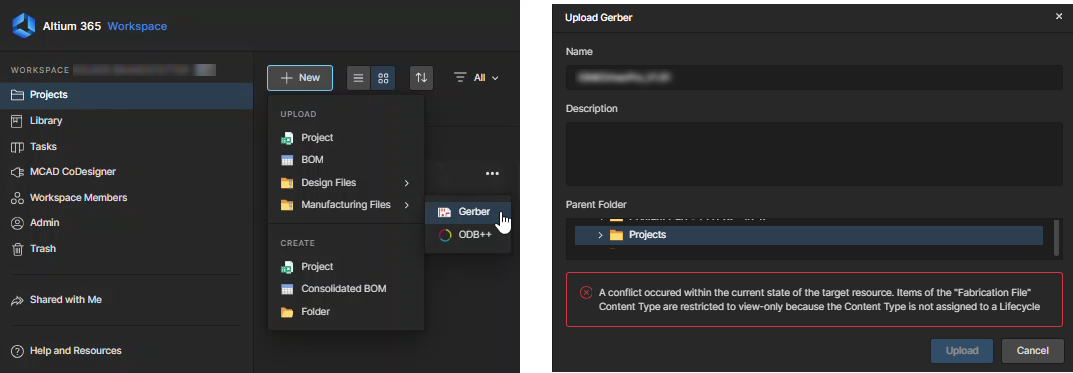
Root Cause: Fabrication File Content Type Not Properly Assigned
This issue occurs because the Fabrication File Content Type is not actually assigned to the required Lifecycle definition using the expected naming scheme, even if it appears configured in the Lifecycle page. As a result:
- Items of the Fabrication File Content Type are treated as view-only.
- Altium 365 blocks Gerber uploads of this type and returns a 409 conflict error.
- This cannot be resolved from Altium 365 alone because the Fabrication File Content Type is not visible in the Altium 365 interface and must instead be managed from Altium Designer.
Step-by-Step: Assigning the Fabrication File Content Type
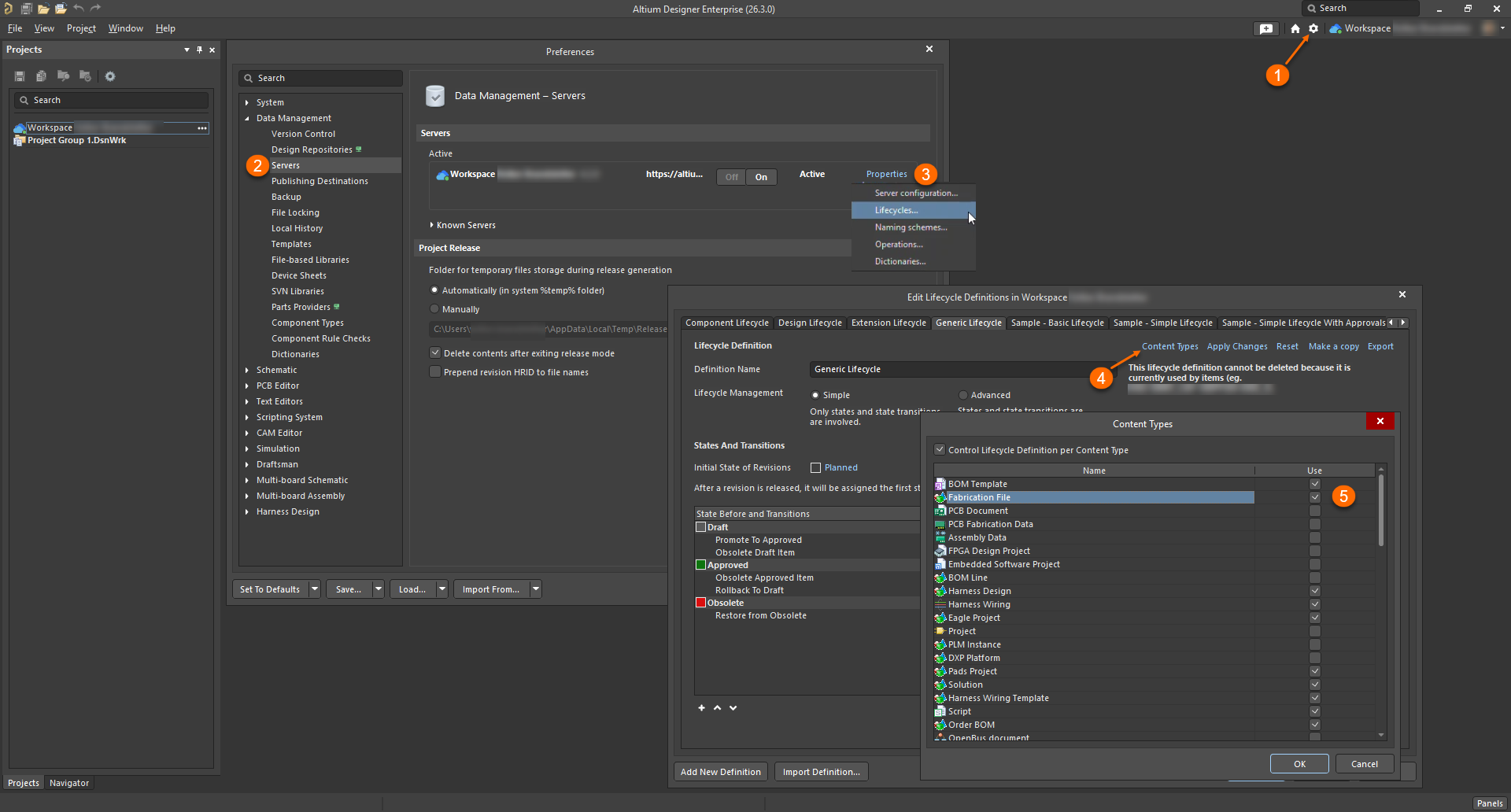
- Open Preferences
- In Altium Designer, open Preferences.
- Navigate to Data Management » Servers.
- Select the Workspace server
- In the Server list, locate your Workspace entry.
- Open Workspace Properties
- Click the Properties button for the Workspace.
- From the context menu, select Lifecycles....
- Open Content Types
- In the Edit Lifecycle Definitions in Workspace dialog:
- Select the relevant Lifecycle Definition (shown as Generic Lifecycle in the screenshot).
- Click Content Types.
- In the Edit Lifecycle Definitions in Workspace dialog:
- Assign the Fabrication File Content Type
- In the Content Types dialog:
- Locate Fabrication File in the list.
- Enable (check) the Fabrication File for the content type.
- Click OK to confirm.
- In the Content Types dialog:
Retry Gerber Upload in Altium 365
The Fabrication File content type is now assigned to the selected Lifecycle definition in the Workspace.
- Return to Altium 365 and attempt to upload the Gerber package again to the project.
- If the Content Type is correctly assigned, the conflict error should no longer appear and the upload should complete successfully.