
KB: DRC Report Cannot Be Opened Due to Missing or Inaccessible Templates
Updated: 四月 28, 2026
 Altium Designer
Users may encounter a “Your file couldn’t be accessed” or ERR_FILE_NOT_FOUND error when trying to open a Design Rule Check (DRC) report in Altium Designer. This occurs when the report template files defined in the PCB Editor Preferences are missing, corrupted, incorrectly referenced, or inaccessible. Long file paths and permission restrictions can also prevent the application from generating or opening the DRC report. Restoring valid template files, correcting the preference paths, shortening directory paths, or adjusting permissions typically resolves the issue.
Solution Details
DRC report fails to open
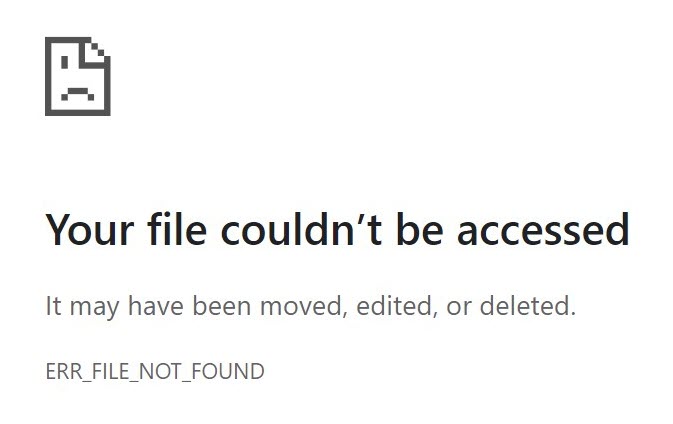
After installing or updating Altium Designer, the DRC report may not open. When attempting to access the generated report, the browser displays:
“Your file couldn't be accessed. It may have been moved, edited or deleted. ERR_FILE_NOT_FOUND.”
This indicates that Altium Designer could not locate the XML/XSL template files required to generate the report.
Incorrect template paths or blocked file access
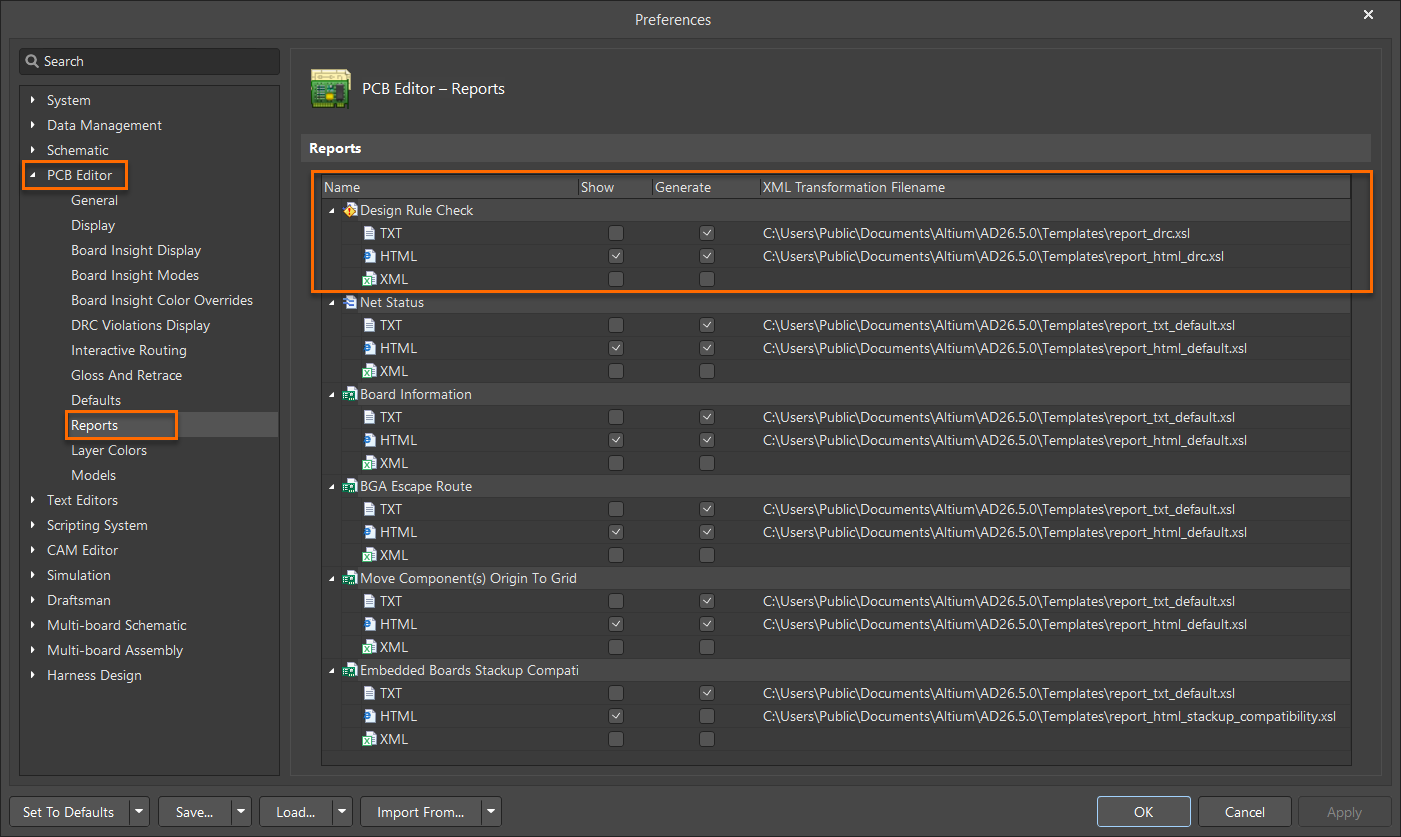
This issue is caused by incorrect or inaccessible paths defined under Tools » Preferences » PCB Editor » Reports. Additional triggers include:
- Missing or corrupted .xsl report template files
- Preference paths pointing to invalid directories
- Windows long‑path limitations
- Permissions preventing file read/write operations
Restore templates and correct report configuration
- Restore or re-add missing/corrupted DRC report template files.
- Verify that the Preferences paths point to valid template directories.
- Shorten file paths if they exceed Windows path length limits.
- Restart Altium Designer after making corrections.
- Optionally run the application with administrative privileges.
Update preferences and replace missing templates
- Go to Tools » Preferences » PCB Editor » Reports.
- Under Design Rule Check reports, ensure the required report formats are enabled.
- Verify that the following template files exist in the referenced folder:
C:\Users\Public\Documents\Altium\ADxxxx\Templates\report_drc.xslC:\Users\Public\Documents\Altium\ADxxxx\Templates\report_html_drc.xsl
- If files are missing or corrupted, copy working versions from another system and place them in the same directory.
- If the path is too long, rename or shorten folder names to reduce path length.
- Restart Altium Designer.
- Re-run the DRC report.
- (Optional) Run Altium Designer as Administrator to avoid permissions issues.
Additional Notes
- Windows path length limitations often cause silent output failures.
- Using consistent template paths across installations reduces the chance of recurrence.
- Replacing templates from a functional system is a quick remediation method.