
KB: Export Workspace Library Components to Access Database
Updated: 十一月 18, 2025
 Altium Designer
To export part numbers and component data from a Workspace Library (managed libraries stored in a connected Workspace) into an Excel-compatible format, users must follow a multi-step process using Altium Designer. This involves collecting components via the Content Cart, generating an Integrated Library (IntLib), and converting it into a Database Library (DbLib) linked to an Access database. The resulting Access file contains all component parameters in a structured format, suitable for reporting or integration with external systems.
Solution Details
Export Workspace Library Components to Access Database
Extracting Component Data from Managed Libraries
Users need to export part numbers and component data from a Workspace Library (managed libraries stored in a connected Workspace) into an Excel spreadsheet or Access database format. Altium Designer does not provide a direct export to Excel, but the data can be extracted by converting the library into a database-linked format. To extract this data, users must convert the library into an Integrated Library (IntLib), then import it into a Database Library (DbLib) linked to an Access database.
Solution Overview
Follow these steps to export component data:
- Use the Content Cart to collect all components.
- Deliver the cart as an Integrated Library (IntLib).
- Create a new Database Library (DbLib).
- Import the IntLib into the DbLib and link it to a new Access database.
Step-by-Step Instructions
- While in the Explorer panel, choose your Components Folder or select in the Search tab, select all components in your workspace.
- Right-click and choose Operations » Add to Content Cart.
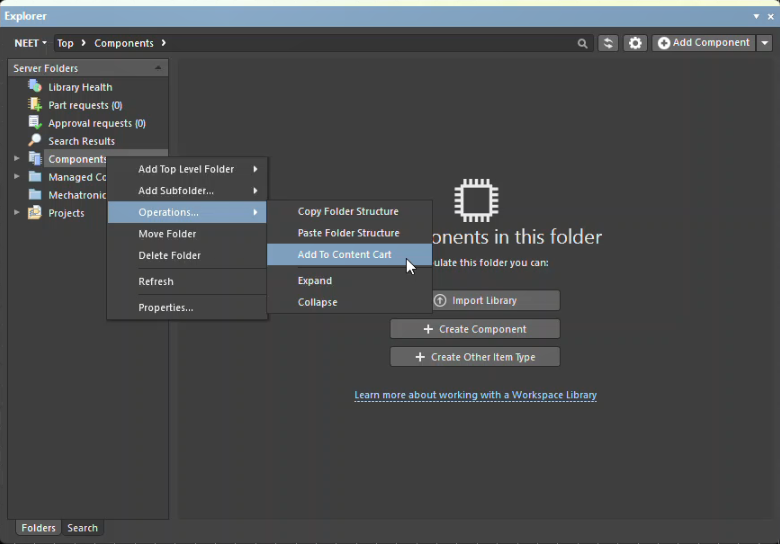
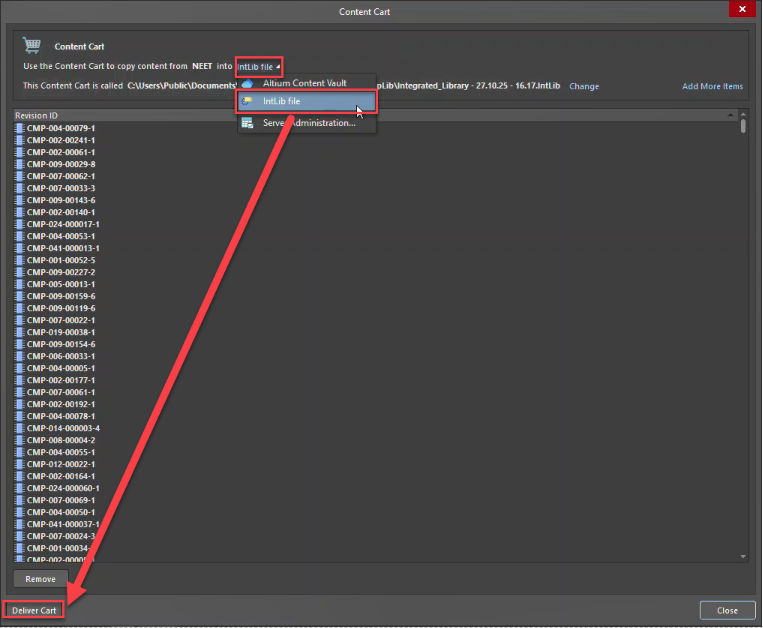
- Verify that all components appear in the Content Cart dialog.
- Change the destination to IntLib and choose a location to save it.
- Select Deliver Cart. This may take up to 30 minutes depending on the number of components.
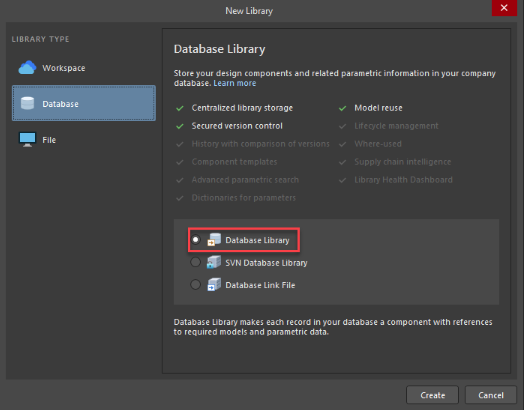
- Go to File » New » Library, select Database, choose Database Library, and click Create.
- In the Projects panel, open the new DbLib file.
- Select Tools » Import From Integrated Library.
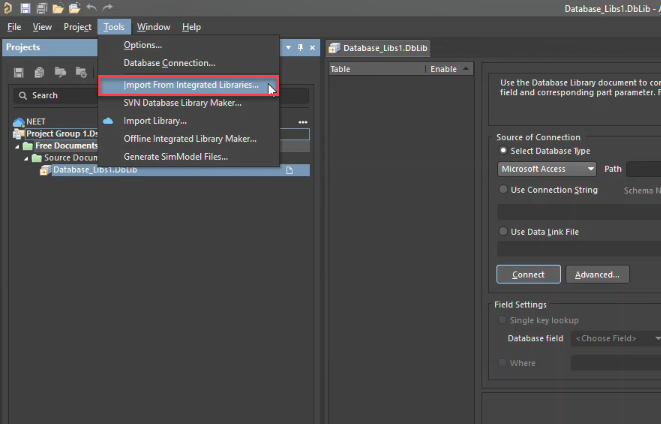
- Choose New Access Database and specify a location for the Access file.
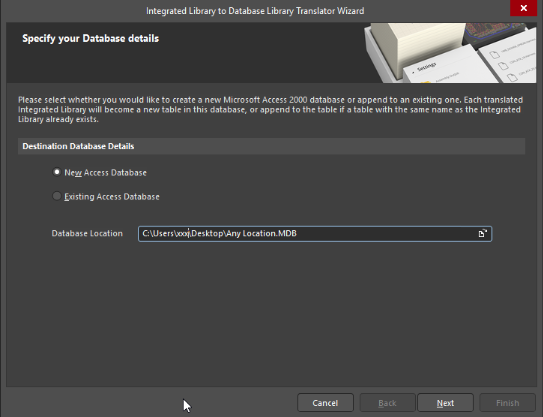
- Specify a location for the DbLib file (this can be arbitrary).
- Click Add and select the IntLib file generated earlier.
- Click Next to complete the import.
Altium will generate a DbLib file linked to the Access database. The Access file will contain a table with all component parameters.
Additional Notes
- This method provides a structured export of component data suitable for reporting or integration.
- Ensure you have write permissions for the destination folders.
- Large libraries may take longer to process; allow sufficient time for the export.