
KB: How to Link Multi-Part Components as a Single Entity and Avoid Separate Annotation
Updated: 十月 16, 2026
 Altium Designer
When placing multi-part components in a schematic, each part may be annotated independently based on its placement location. This occurs when the annotation process cannot identify the parts as belonging to the same logical component. To ensure all parts of a multi-part component receive the same designator and are treated as a single entity during annotation, assign a common PartId parameter value to each part and enable the PartId matching option during schematic annotation.
Solution Details
Multi-Part Components Receive Different Designators
Multi-part components may receive separate designators during annotation, causing individual parts of the same logical component to be treated as separate components within the schematic.
Annotation Cannot Identify Related Parts
By default, some component placement methods do not automatically link the parts of a multi-part component. Without a shared identifier, the annotation process treats each part as a separate entity and assigns independent designators.
Assign a Shared Component Identifier
- Assign the same
PartIdparameter value to every part of the multi-part component. - Enable PartId in the annotation matching options so all parts are recognized as a single component during annotation.
Configure and Run Schematic Annotation
- Open the schematic document and locate the multi-part components.
- Double-click each part to open its properties.
- Navigate to the Parameters section in the Properties Panel.
- Click Add Parameter.
- Enter Parameter Name:
PartId. - Enter a shared value for all parts belonging to the same component.
Example:PartId = 1for all parts of a single multi-part component.
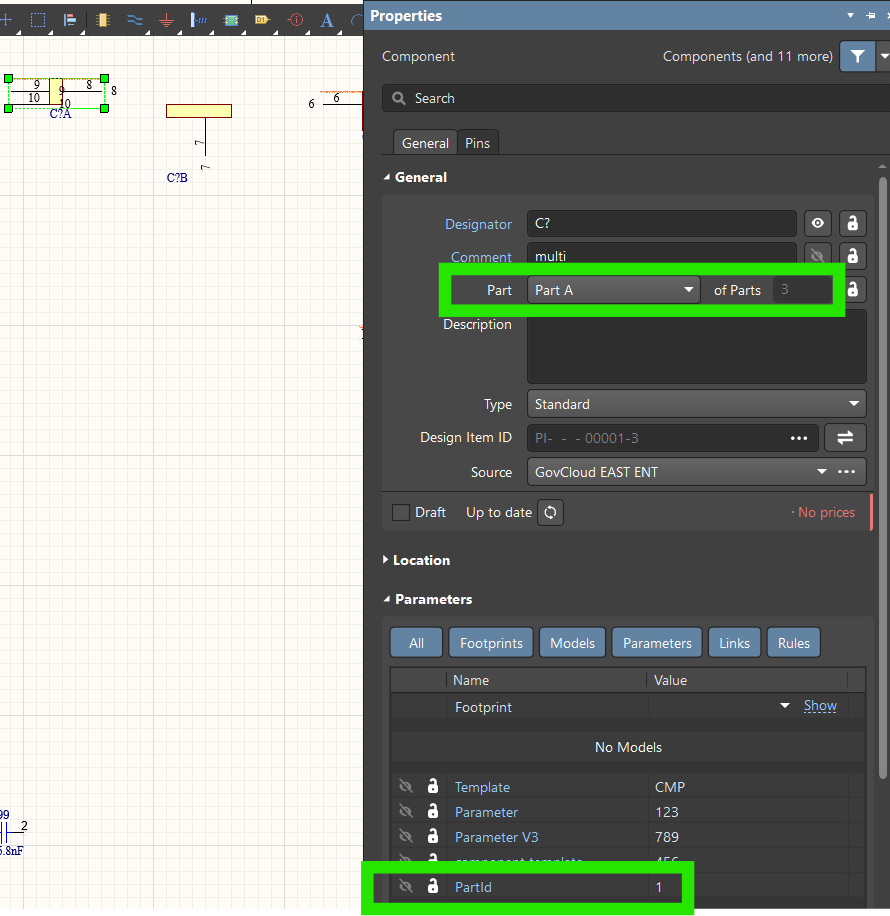
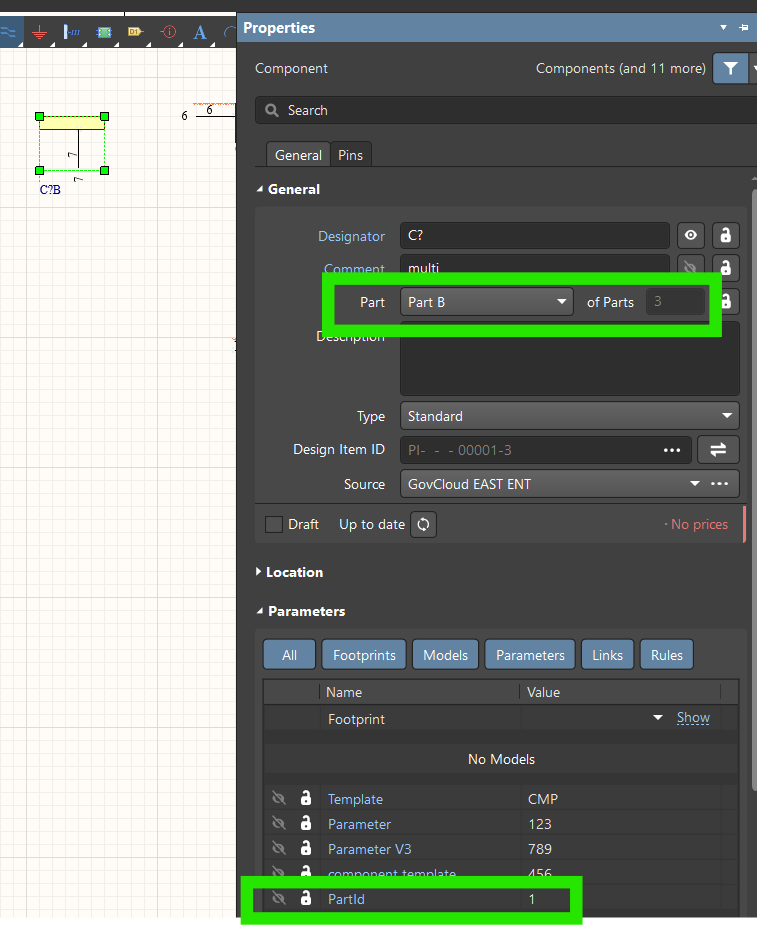
- Select Tools » Annotate Schematic.
- Enable PartId in the matching options section.
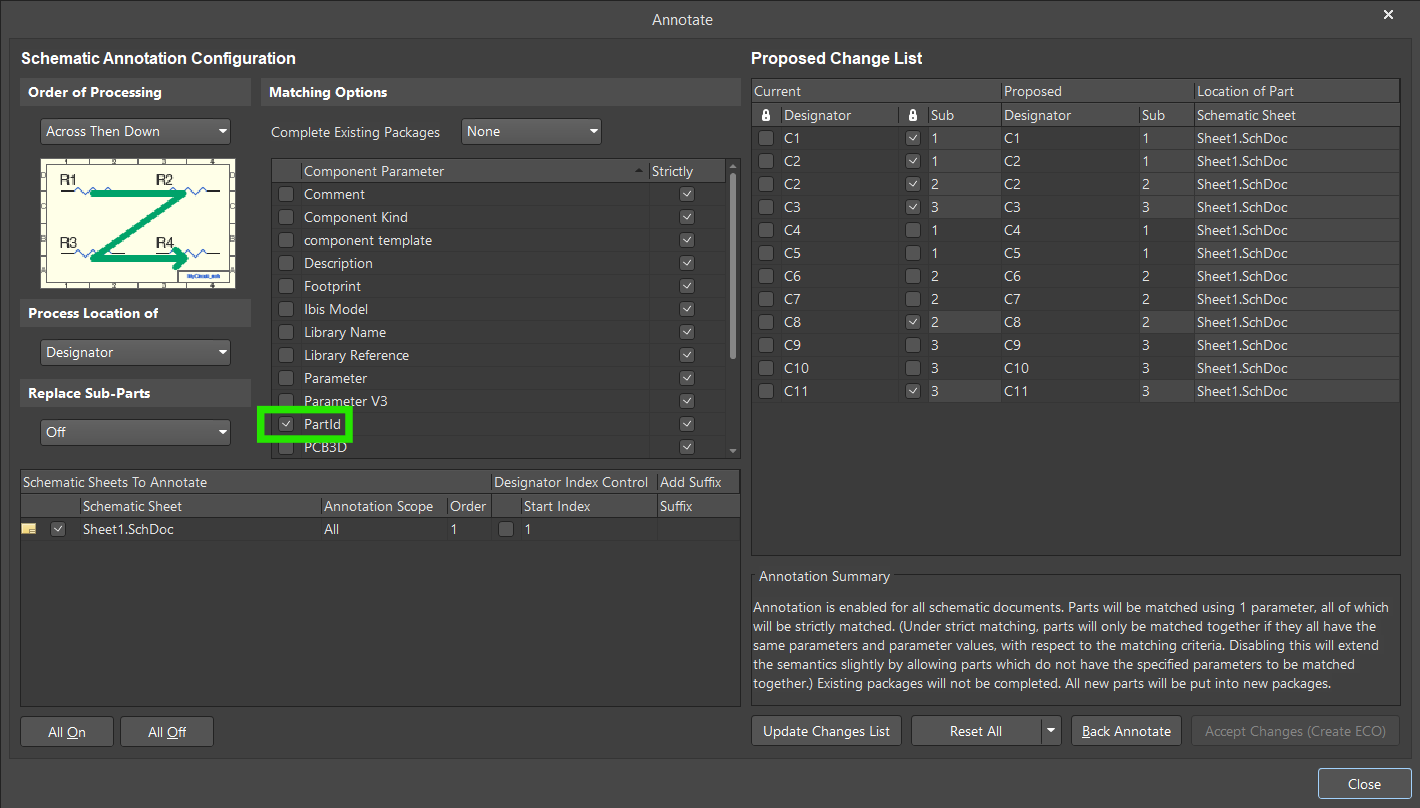
- Enable the appropriate Lock settings for values that should not change, then click Reset All.
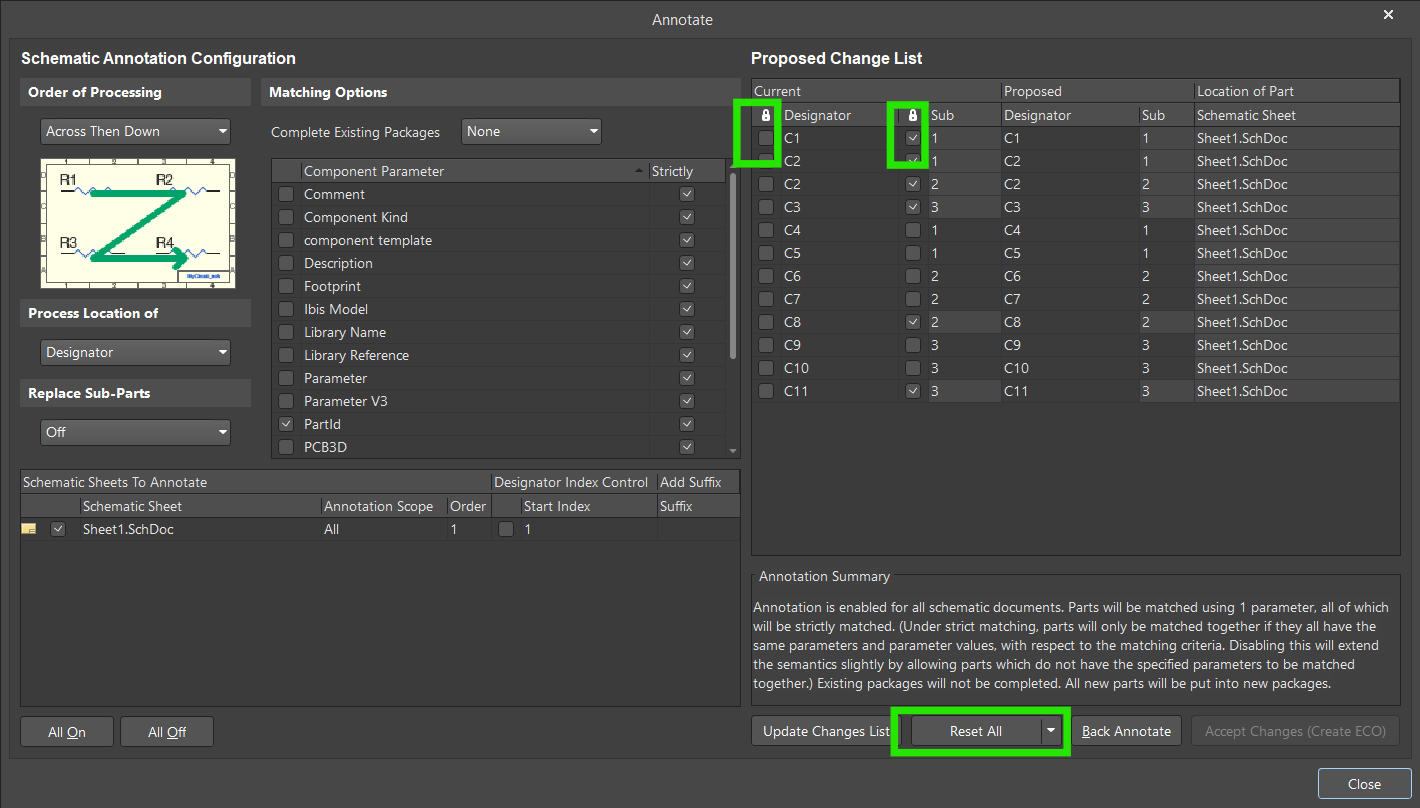
- Click Update Changes List » Accept Changes (Create ECO) » Execute Changes » Close.
Additional Notes
- If components are placed using Explorer panel: Right-click » Place, the
PartIdparameter is added automatically. - If components are placed using Components panel: Right-click » Place, the
PartIdparameter is not added automatically. - If components are placed by drag-and-drop from either the Explorer panel or the Components panel, the
PartIdparameter is not added automatically and must be assigned manually.