
KB: Retrieving Component Data When Creating a New Component
Updated: 十月 23, 2025
 Altium Designer
When creating a new component in the Component Editor, users can retrieve component data using the Part Number as a reference. There are three primary methods: Entering the Part Number directly in the Name field, Part Choice, and Manufacturer Part Search This article explains each method and provides step-by-step instructions to ensure accurate component parameter import during the creation process.
Solution Details
Retrieving Component Data When Creating a New Component
Overview of Methods
To retrieve component data when creating a new component, you can use one of the following methods
- Method A: Enter the part number in the Name field.
- Method B: Use the Part Choice feature in the Component Editor Window.
- Method C: Use the Manufacturer Part Search panel to create a component.
How to Do It
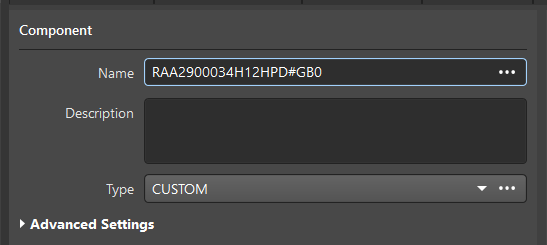
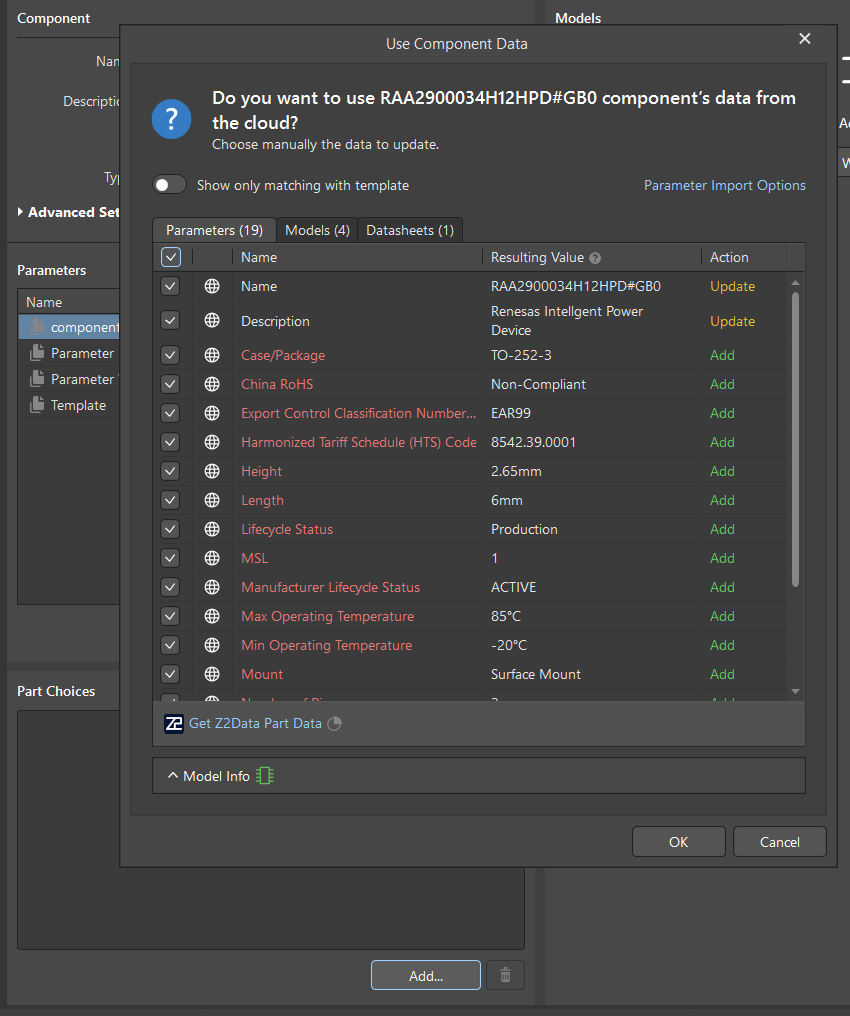
Method A: Enter Part Number in Name Field
- In the Component Editor Window, enter the part number in the Name field.
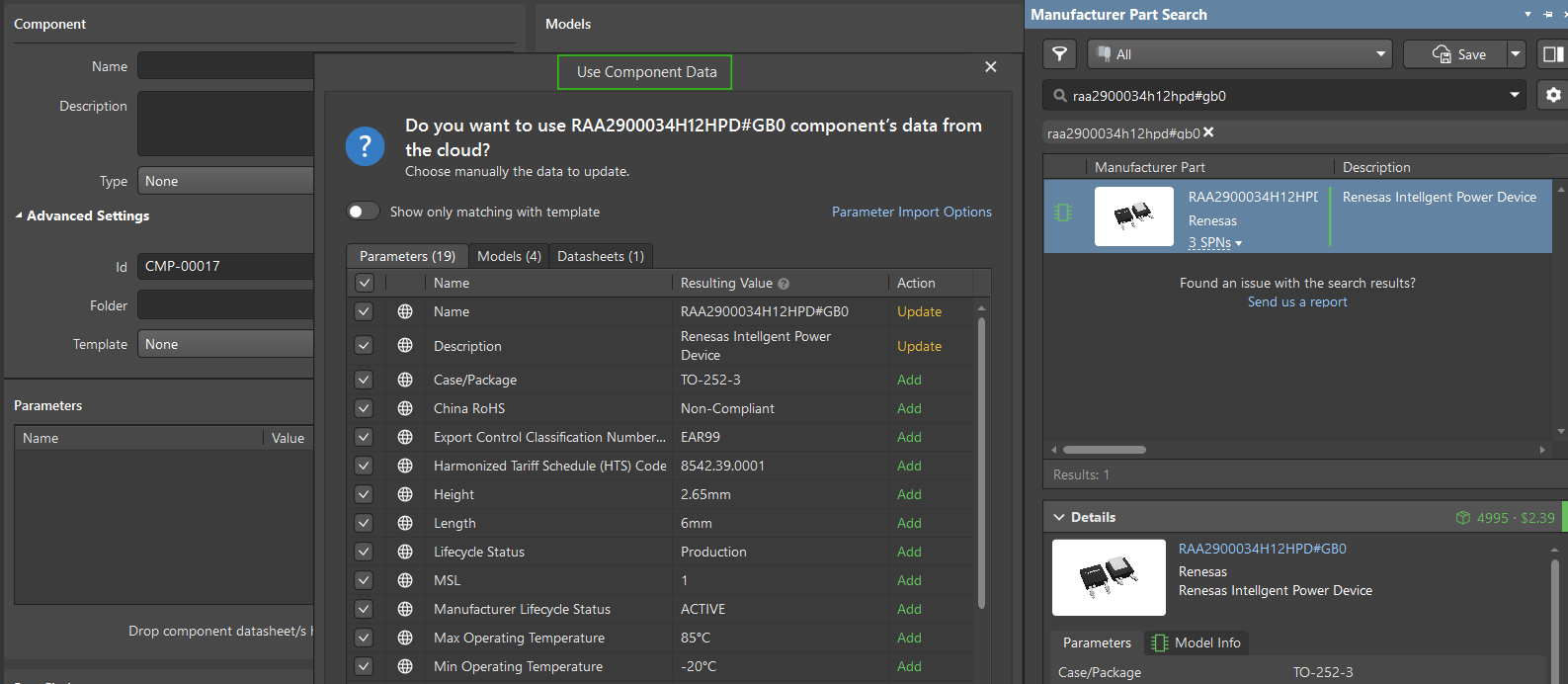
- The Use Component Data window should open and display parameters.
Method B: Use the Part Choice feature in the Component Editor Window.
- Open the Component Editor Window.
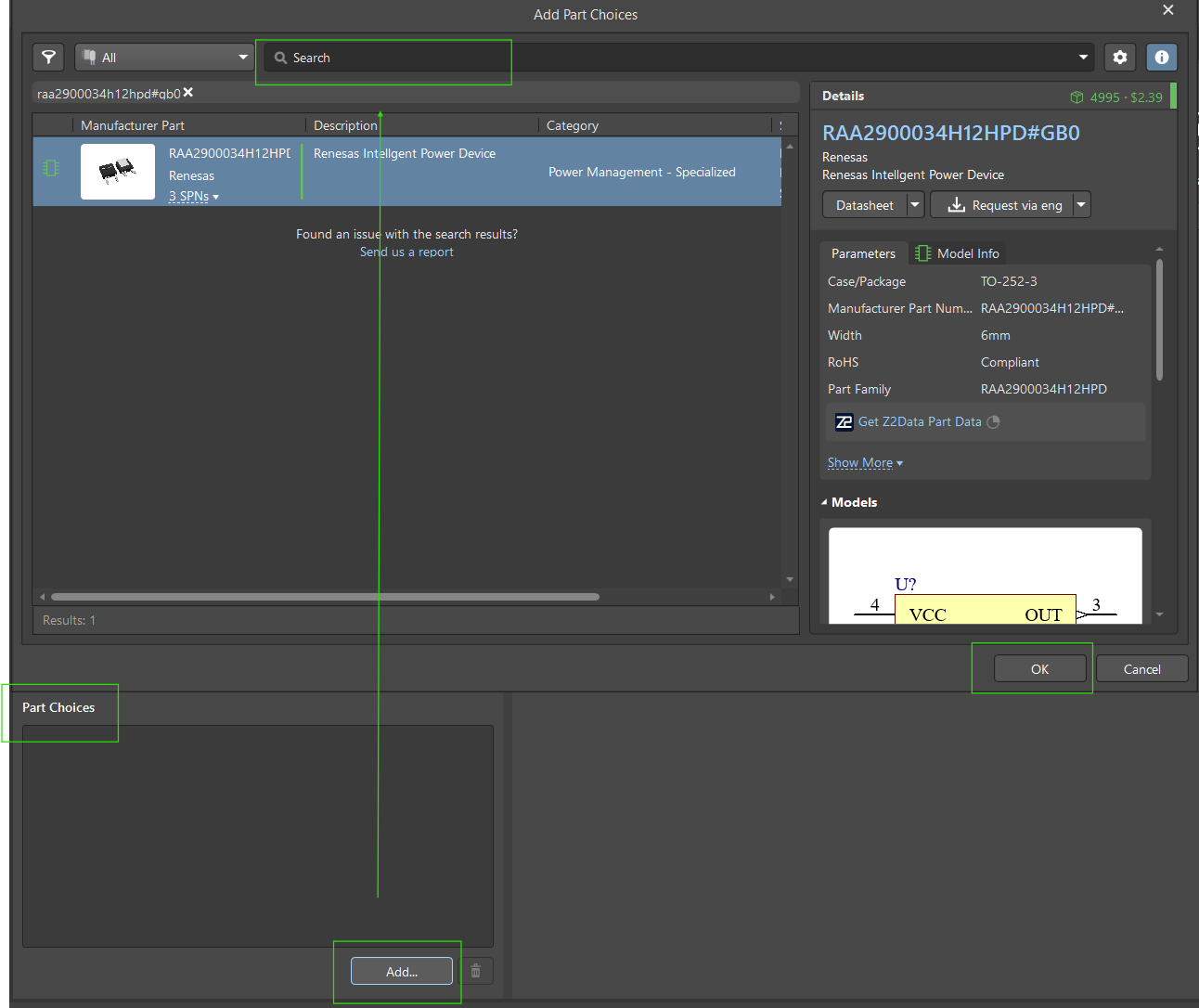
- Navigate to Part Choice.
- Add the desired part number as a part choice.
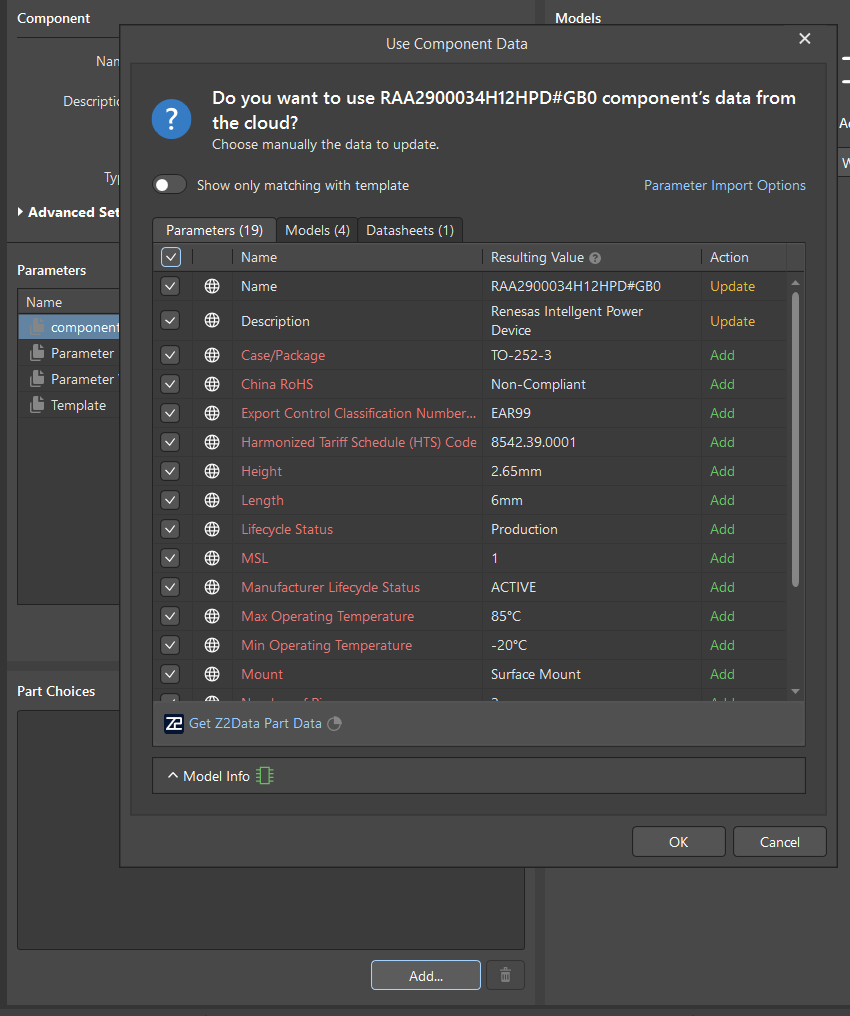
- The Use Component Data window will appear, displaying available parameters.
- (Optional) Delete the part choice after importing the parameters.
Method C: Use Manufacturer Part Search Panel
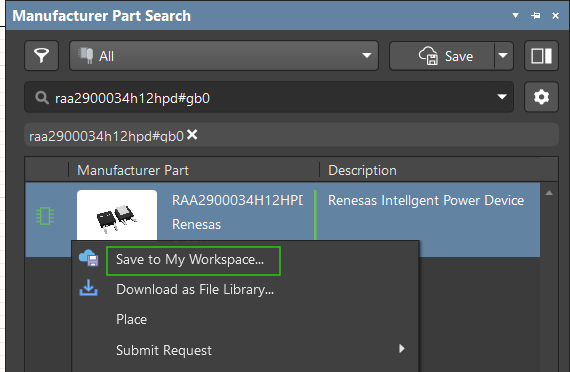
- Go to Panels » Manufacturer Part Search.
- Enter the desired part number.
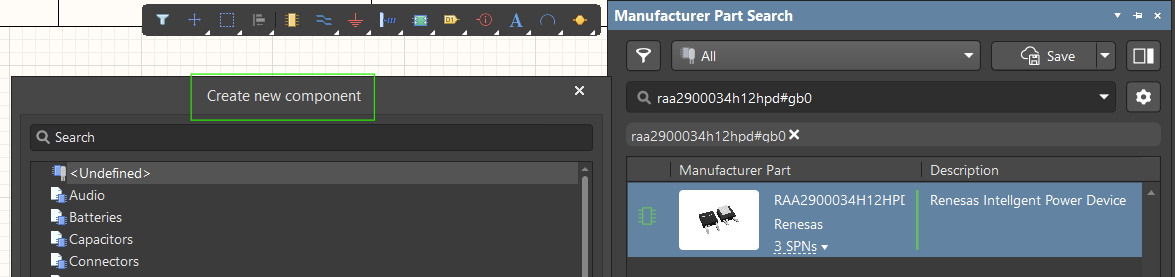
- Right-click the result and select Save to my workspace.
- In the Create New Component window, select the desired Type, then click OK.
- The Component Editor Window and Use Component Data window will open, showing the available parameters.
Additional Notes
- All three methods are valid; choose based on your workflow preference.