
KB: Workspace Component are 'Up to date' despite local parameter changes
 Altium Designer
Solution Details
Library values differ from schematic parameters
Placed components in the schematic appear to be out of sync with the workspace library. In the Component Properties panel, one or more parameters differ from the values defined in the managed library component, indicating that the parameters were manually edited at the schematic level. Despite this mismatch, Altium Designer still shows the component status as Up to date, and clicking Update to the Latest Revision does not restore the expected values.
Version control ignores local schematic edits
Workspace‑managed components are governed by version control. Although parameters can be added, changed, or removed locally in the schematic, these edits are treated as temporary overrides and do not create a new component revision. Because they are excluded from revision comparison, local schematic edits do not trigger an “Out of date” state. The Update to the Latest Revision function only responds to server‑side changes made to the workspace component and released as a new revision, not to local schematic‑level modifications.
Force synchronization from the managed library
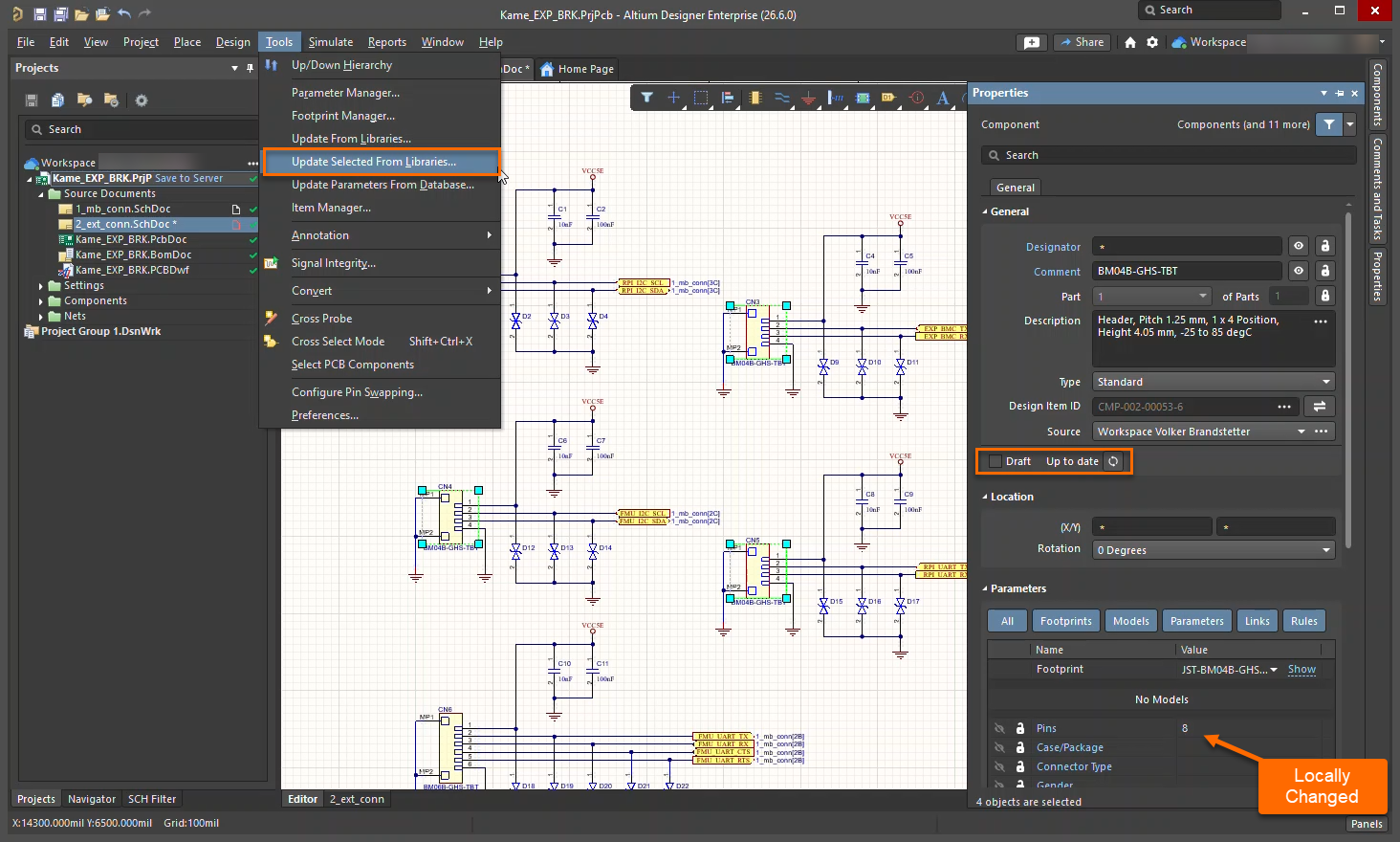
- Use Tools » Update Selected From Libraries... to force placed components to match their workspace‑managed source and discard any local parameter overrides.
If a component truly requires parameter changes, those edits must be made directly in the workspace component definition and released as a new revision. Manual editing of parameters on workspace‑managed components should be avoided.
Update selected components from libraries
- Select the affected components in the schematic.
- Open the Tools menu.
- Choose Update Selected From Libraries...
- Review the proposed Actions and Options in the Update From Library dialog and select the appropriate Settings.
- Apply the updates to overwrite local edits with the workspace‑managed values.
Additional Notes
- Local schematic‑level modifications are intentionally ignored during revision checks to maintain data integrity and consistency across the workspace.
- To introduce permanent parameter changes, edit the workspace component and release a new revision.
- Avoid manually editing parameters of workspace‑managed components to prevent synchronization confusion.