
Valify-Anforderungen
Die Funktion Valify analysiert den Anforderungstext auf quantifizierbare Eigenschaften, um diese in Valis umzuwandeln. Ziel ist es, die Parametrisierung von Anforderungen zu erleichtern, indem automatisch neue Valis erstellt werden, die anschließend für verschiedene Zwecke verwendet werden können. Dadurch werden der Aufwand und die Fehlerwahrscheinlichkeit reduziert, die mit dieser manuellen Parametrisierungsarbeit verbunden sind.
So sieht es aus:
Valify – Wandeln Sie Ihre textbasierten Werte und Einheiten in Measures of Performance (Parameter) um, auf die Sie im gesamten Requirements & Systems Portal verweisen können.
Zugriff
Der Valify-Prozess kann derzeit an fünf verschiedenen Stellen innerhalb des Requirements Module gestartet werden:
-
ValiAssistant-Aktionsschaltfläche in der oberen Leiste
-
ValiAssistant-Aktionsschaltfläche in jeder Zeile der Anforderungstabelle
-
ValiAssistant-Aktionsschaltfläche im Verbindungsdiagramm
-
Im letzten Schritt des Import-Assistenten
-
Das Fenster „Anforderung erstellen“
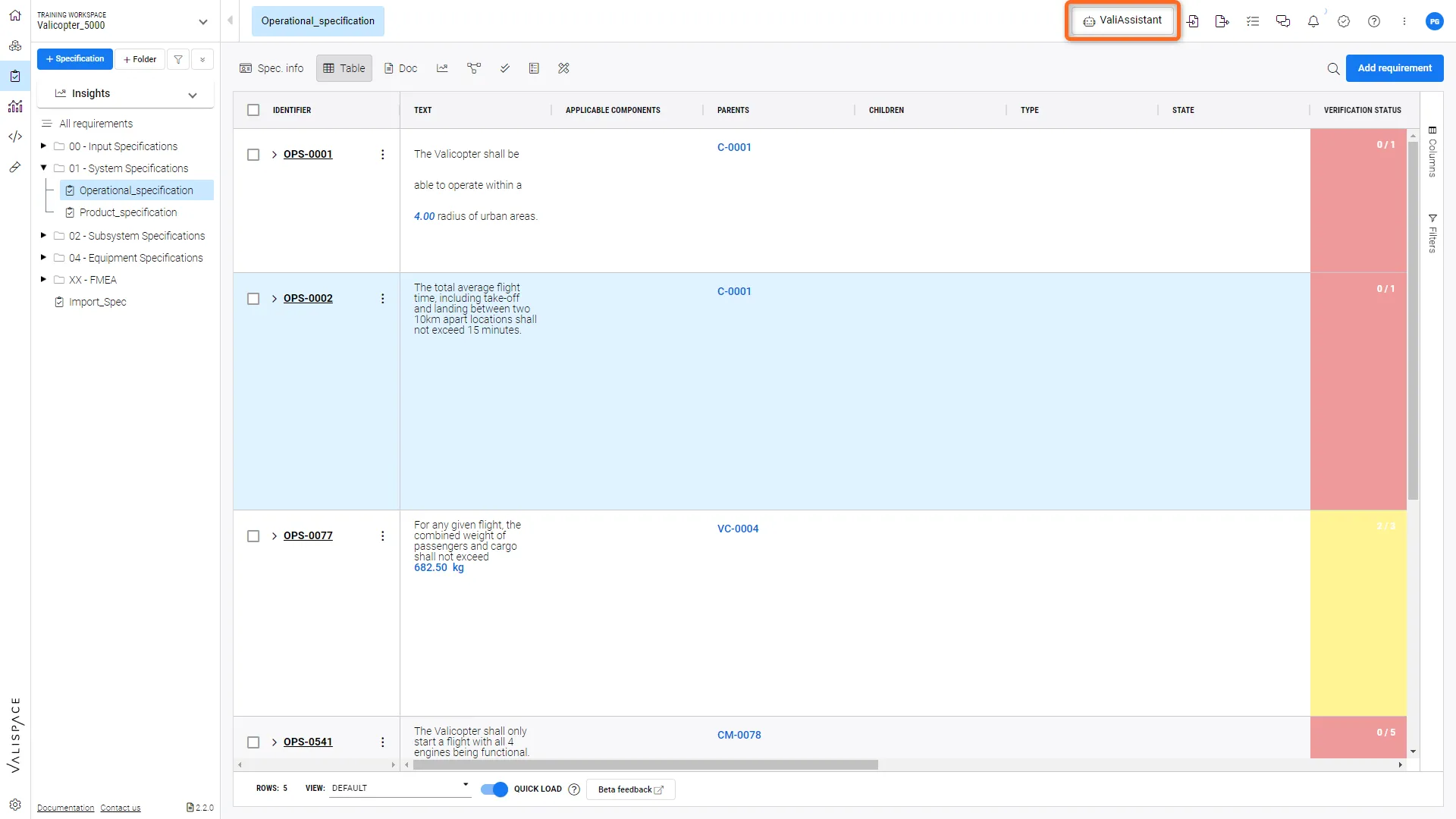 Ort 1: ValiAssistant-Aktionsschaltfläche in der oberen Leiste – Führt Sie zum ValiAssistant-Menü
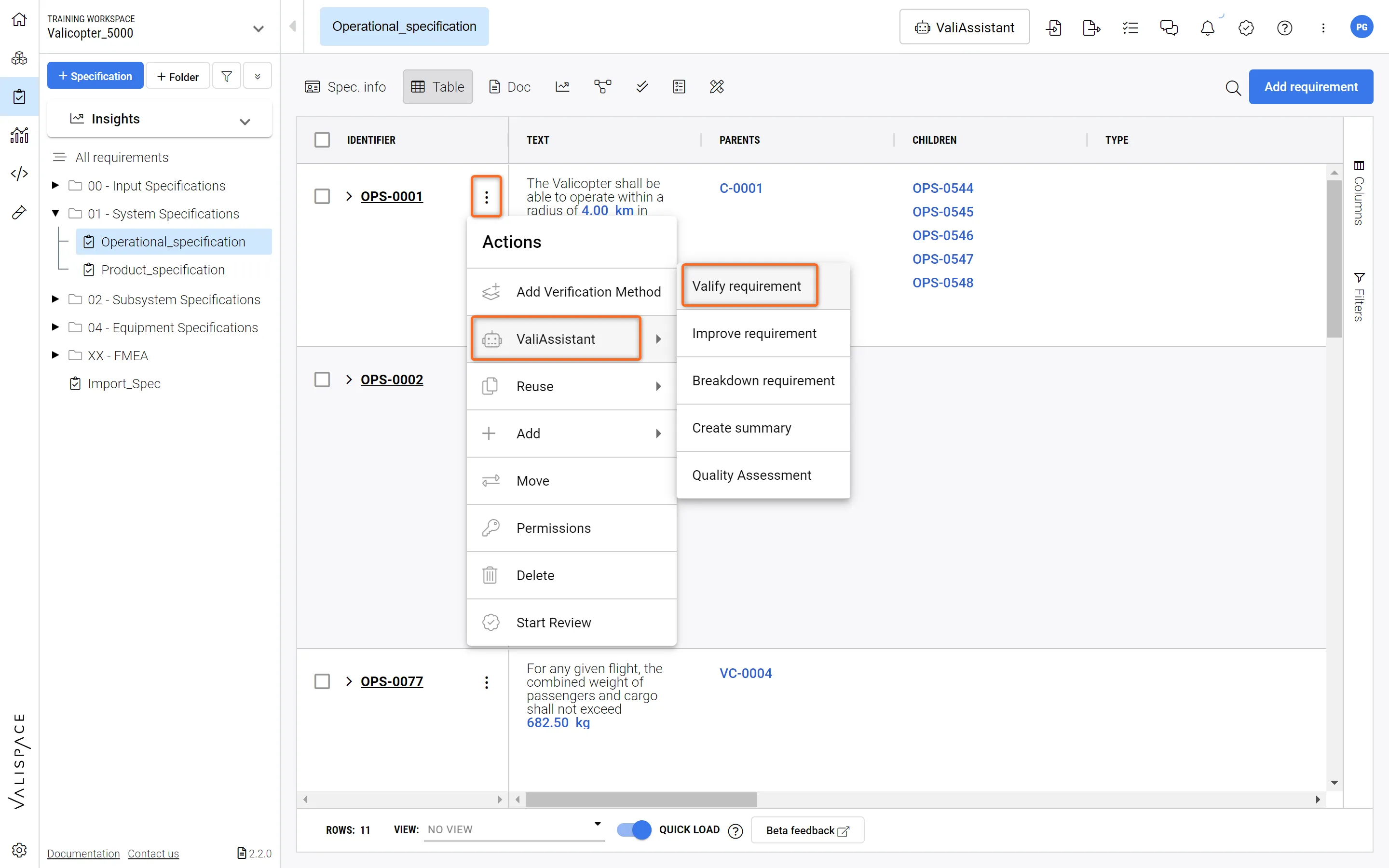 Ort 2: ValiAssistant-Schnellaktionsschaltfläche in der Spalte „Aktionen“ einer beliebigen Anforderung in der Anforderungstabelle – Dropdown-Verknüpfung zu den ValiAssistant-Optionen
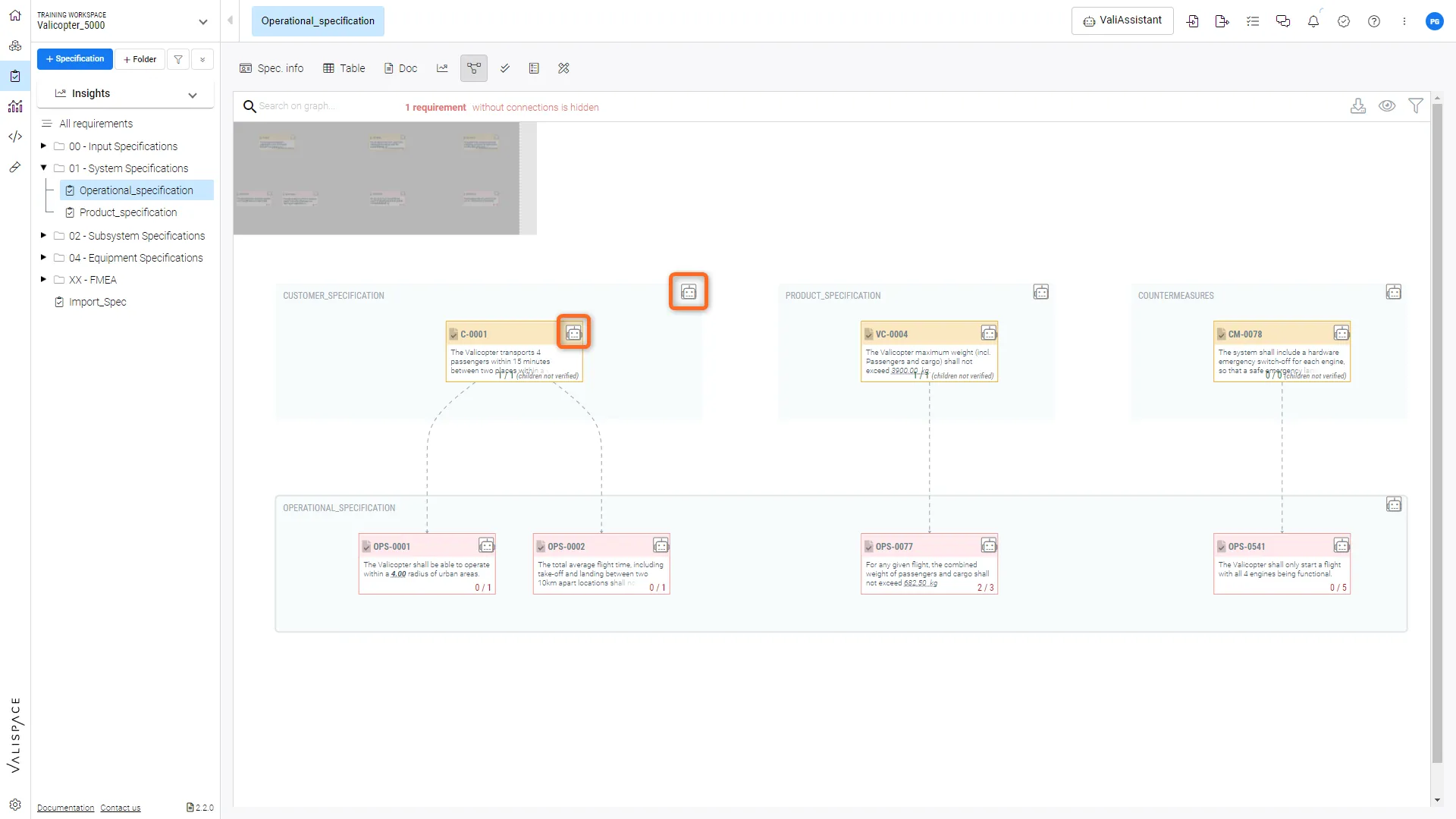 Ort 3: ValiAssistant-Schnellaktionsschaltfläche im Verbindungsdiagramm – Dropdown-Verknüpfung zu den ValiAssistant-Optionen
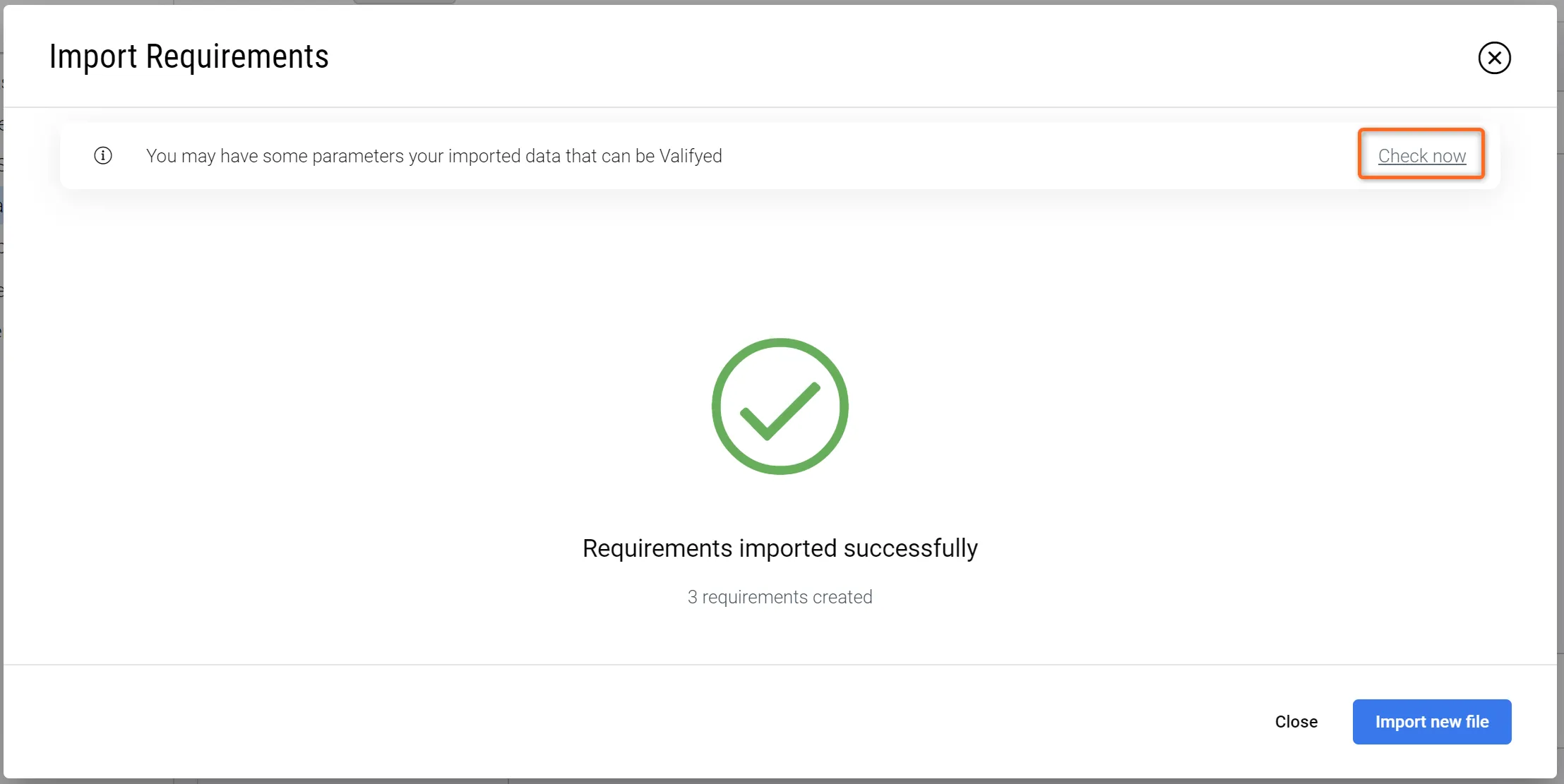 Ort 4: Abschlussseite des Import-Assistenten – Der letzte Schritt im Importprozess für Anforderungen.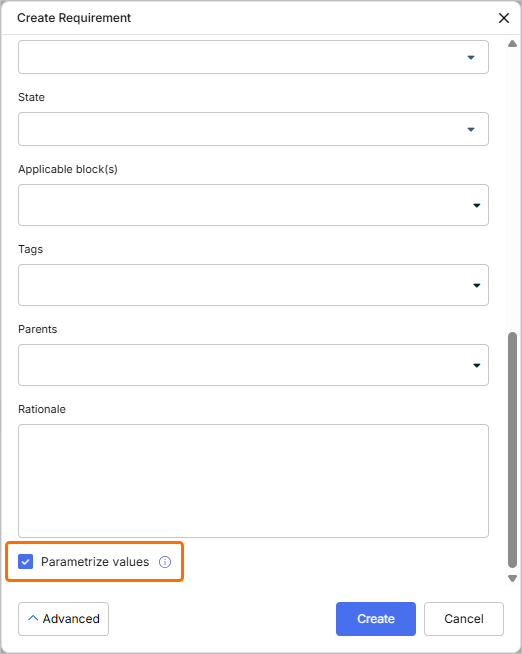
Ort 5: Fenster „Anforderung erstellen“ – die Parametrize values Option am unteren Rand des Fensters (klicken Sie auf die Schaltfläche Advanced, um auf die Option zuzugreifen)
 klicken, um Details zum Valifying-Prozess anzuzeigen
 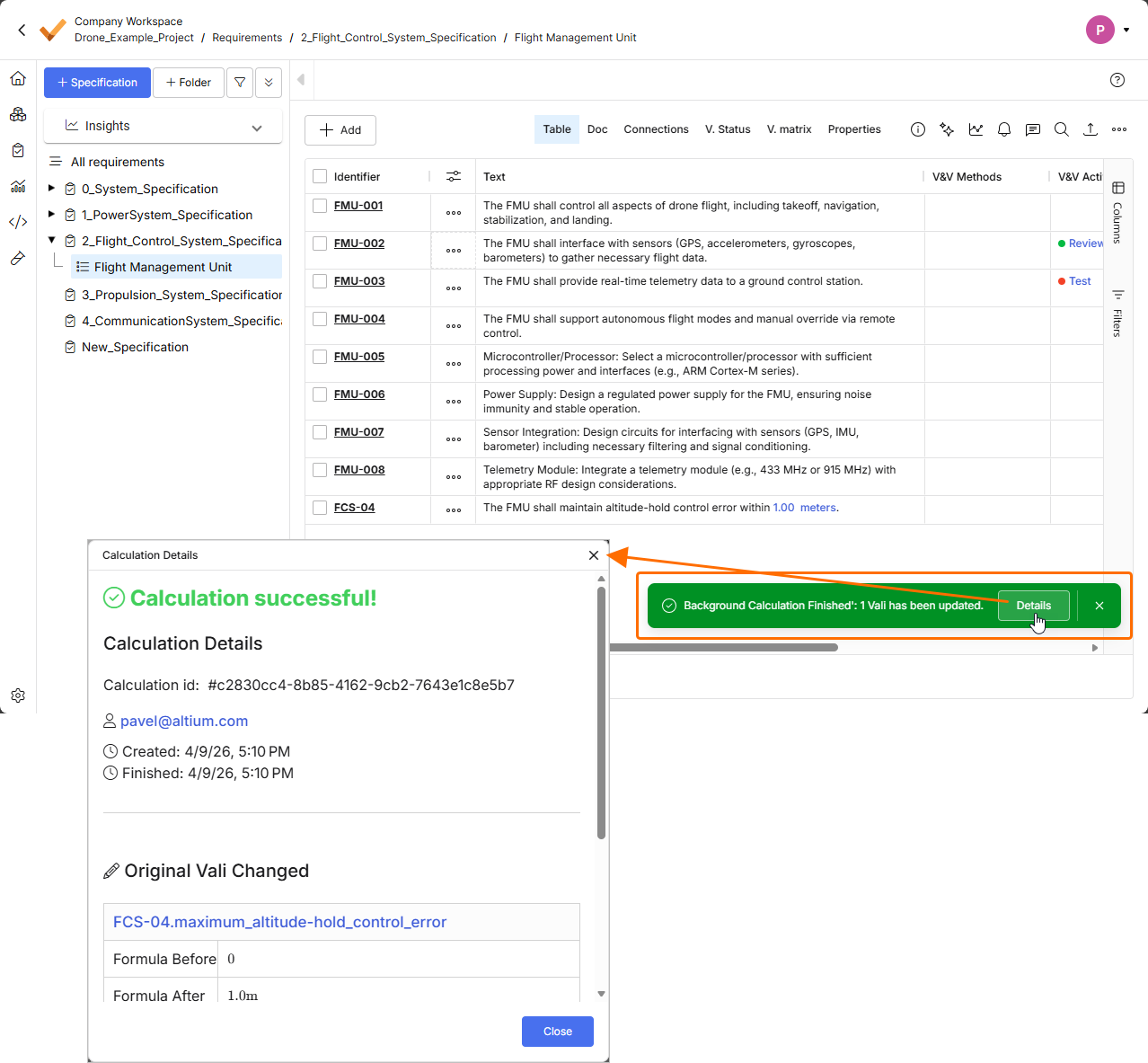 ).
).Schritte zum Valify
Valify besteht aus drei Hauptphasen: „Vorladen“, „Laden & Info“ und „Valifizieren“. Diese Phasen werden unten näher beschrieben.
1 – Vorladen
Nach dem Start von Valify wird der Benutzer darüber informiert, wie viele Anforderungen genau durch den Valify-Prozess geprüft werden, und kann entscheiden, ob er fortfahren möchte.
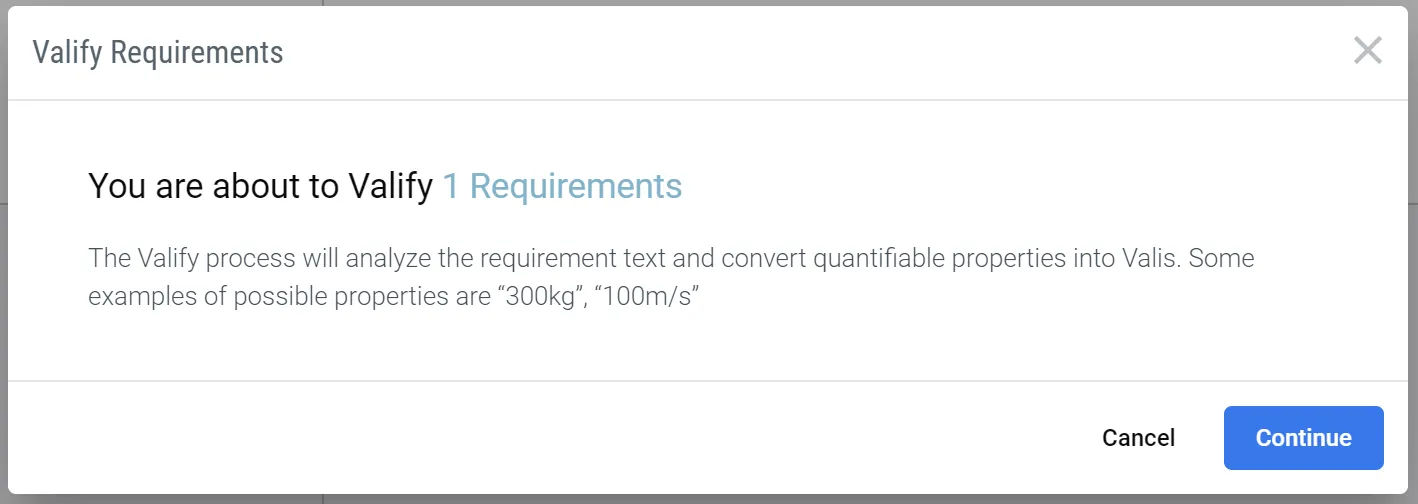 Vorladen – Information darüber, wie viele Anforderungen valifiziert werden
2 – Laden & Info
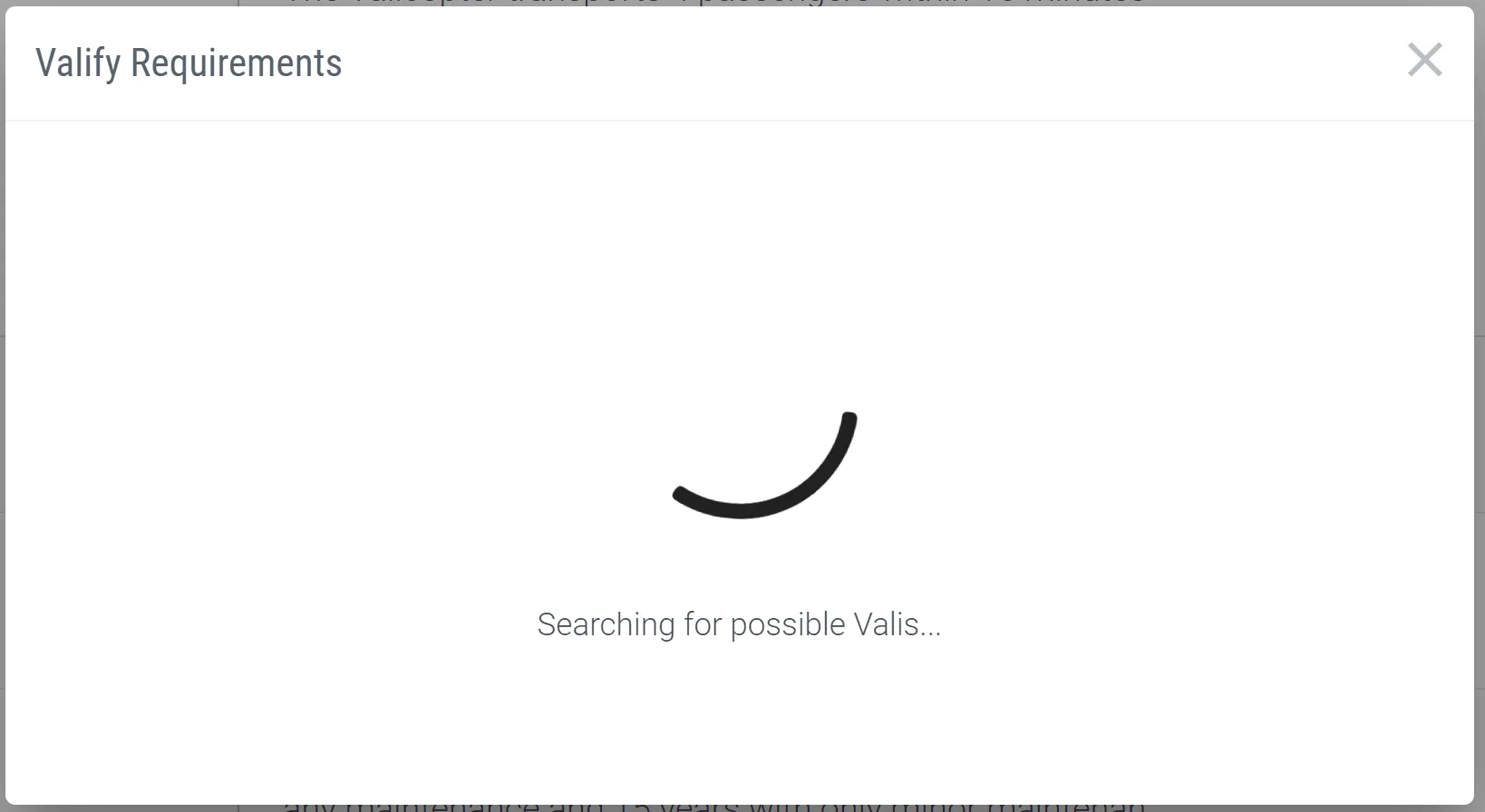
Nach der Bestätigung für Valify wird dem Benutzer ein Ladebildschirm angezeigt, während Requirements & Systems Portal die ausgewählten Anforderungen nach möglichen Valis durchsucht.
Wenn keine möglichen Valis gefunden werden, informiert eine Warnmeldung den Benutzer über dieses Ergebnis, und der Valify-Prozess wird beendet.
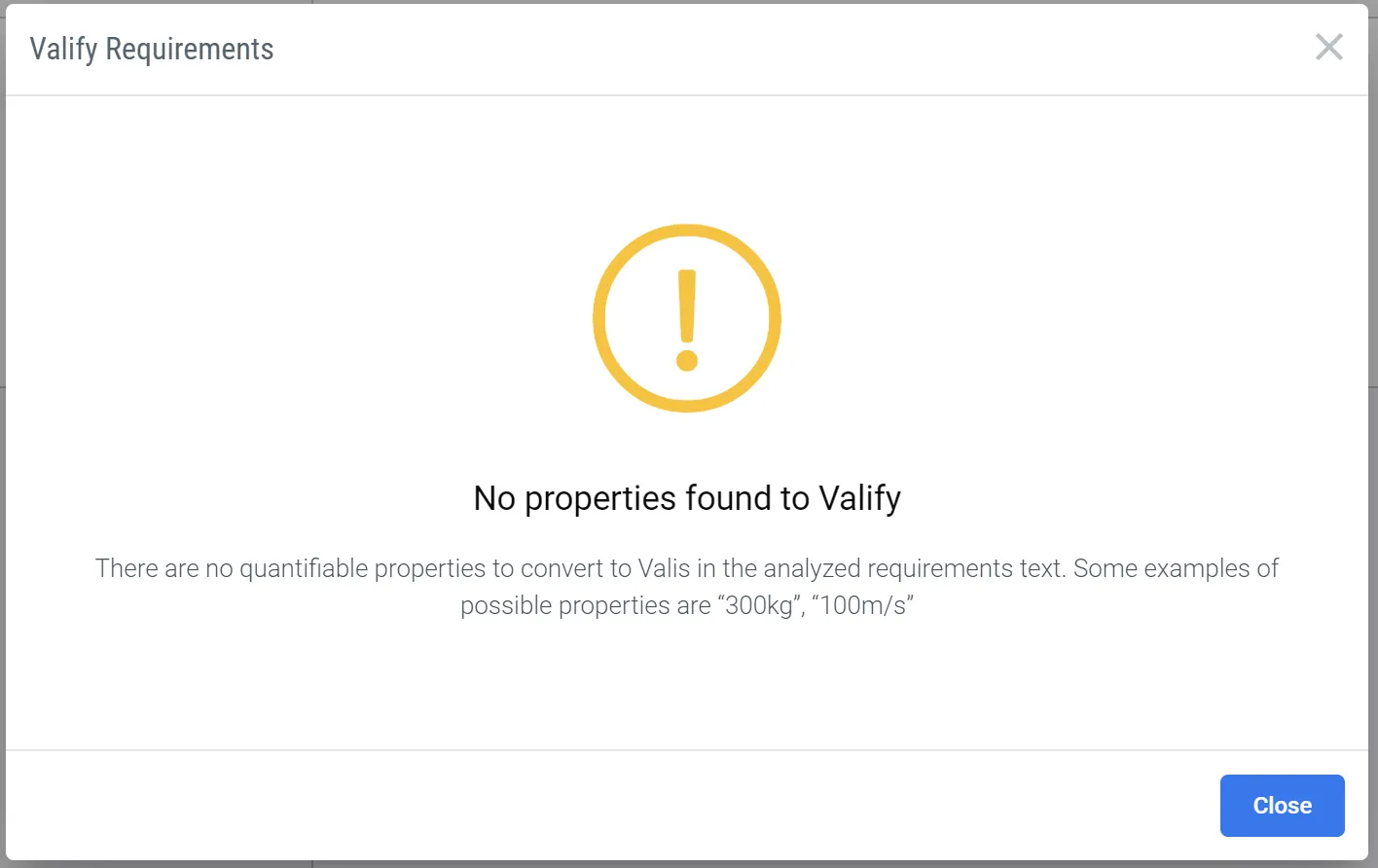 Meldung „Keine Valis gefunden“
Falls potenzielle Valis gefunden werden, erhält der Benutzer Informationen darüber, wie viele Valis in wie vielen Anforderungen gefunden wurden, sodass er entscheiden kann, ob er mit dem Valify-Prozess fortfahren oder ihn abbrechen möchte.
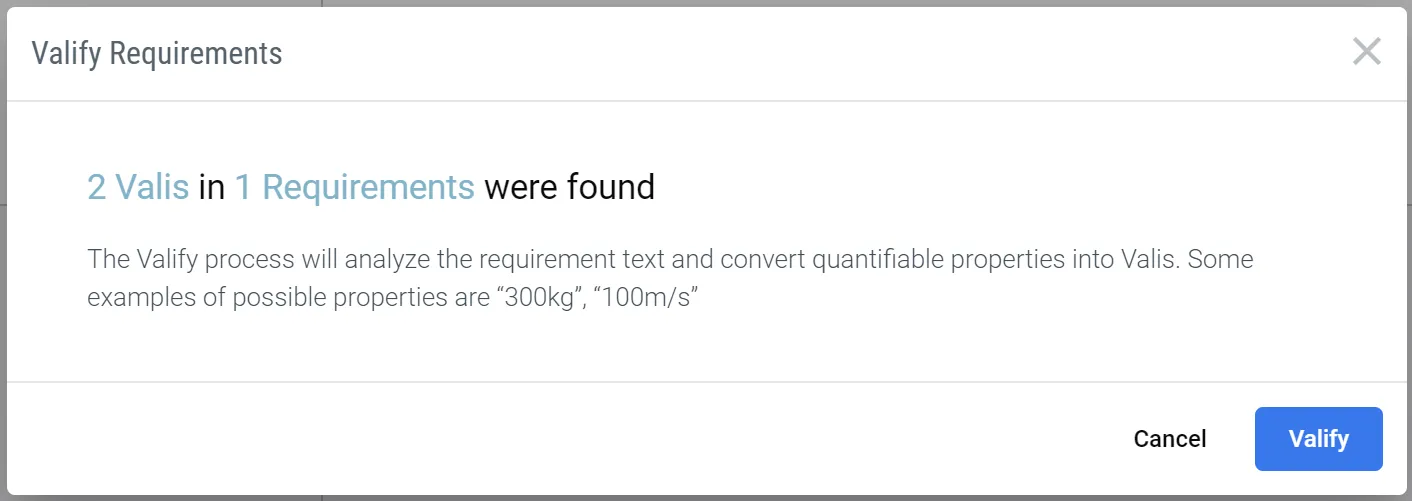 Informationen darüber, wie viele Valis gefunden wurden.
3 – Valifizieren
Wenn die Entscheidung für Valify fällt, wird dem Benutzer ein Ladebildschirm angezeigt, während Requirements & Systems Portal die Valis erstellt und die Anforderungen aktualisiert.
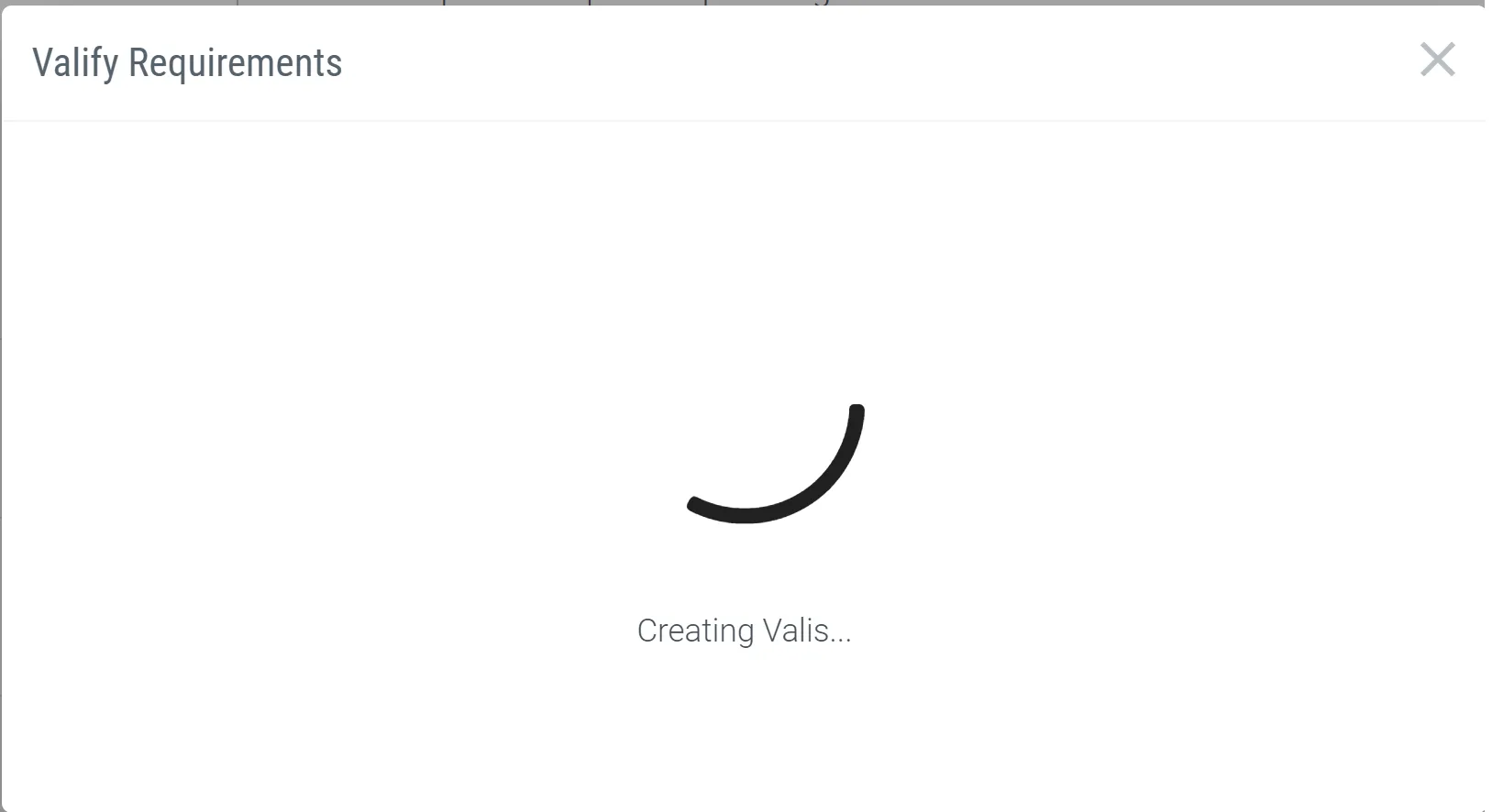
Wenn die Erstellung der Valis erfolgreich ist, informiert Requirements & Systems Portal den Benutzer darüber, wie viele Valis in wie vielen Anforderungen erstellt wurden, und schließt damit die automatische Vali-Erstellung mit Valify ab.
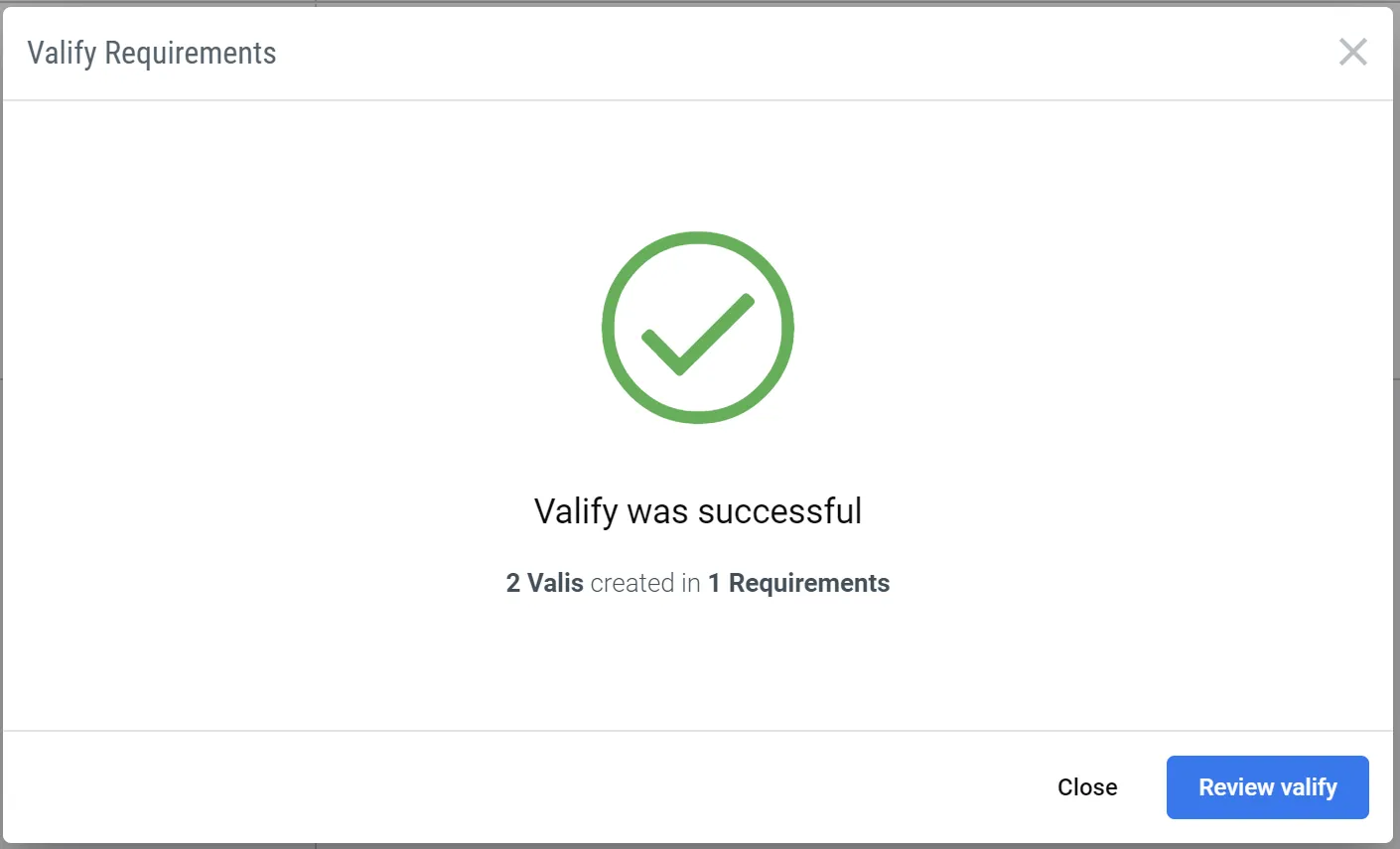 Valify abgeschlossen – Bestätigungsmeldung für Valify
Die erstellten Valis erhalten eine Namenskonvention, die auf dem Bezeichner der Anforderung basiert. Der Benutzer kann jederzeit mit der Maus auf das Vali zeigen und das Stiftsymbol auswählen, um den Namen, den Wert, die Anzeigeeinheit oder die Anzahl der anzuzeigenden Dezimalstellen zu ändern. Es ist sinnvoll, den Namen in einen aussagekräftigeren Namen zu ändern, damit später leichter darauf verwiesen werden kann.
 KI-lokalisiert