This dialog allows you to specify preferred routing directions for all enabled signal layers (defined in the layer stack).
Access
The dialog is accessed from the PCB Editor from the Situs Routing Strategies dialog by clicking the Edit Layer Directions button.
The Situs Routing Strategies dialog is accessed using either the Tools | AutoRoute |» Setup command, or the Tools | AutoRoute |» All command, from the main menus.
Options/Controls
The dialog presents a grid listing each signal layer as defined in the layer stack. Each layer is presented in terms of the following:
Layer - the name of the signal layer.
Current Setting - the currently chosen preferred routing direction for the layer. This field is editable. Click in the field then use the drop-down to choose from the following direction settings: Not Used, Horizontal, Vertical, Any, 1 O'Clock, 2 O'Clock, 4 O'Clock, 5 O'Clock, 45 Up, 45 Down, Fan Out, and Automatic.
Choose appropriate layer directions to suit the flow of the connection lines. The Autorouter uses topological mapping to define routing paths so it is not constrained to route in only the horizontal or vertical direction. Typically it is best to have outer layers as Horizontal and Vertical. If, however, the design consists of a multi-layer board with a large number of connections at a '2 O'Clock' angle, then set one or more internal layers to have this as the preferred routing direction.
Actual Direction - the direction for routing that the Autorouter is actually using. This field is read-only. It will follow the preferred routing direction chosen for the layer in the Current Setting field unless Automatic is chosen, in which case it will calculate the best direction to be used based on the defined routing directions for other layers.
Avoid using the Any direction option on multi-layered boards. The Autorouter will usually attempt to route a connection on the layer whose direction most closely matches it, so a layer marked as 'any direction' becomes the layer of last resort. The Any direction option is typically only used on single-sided boards.
The Layer Patterns pass in a routing strategy makes use of preferred routing direction information and choosing the right direction can make a significant difference to routing performance in terms of both time and quality.
Note that when angled layers are being used, there is no requirement that they have a partner layer running at 90 degrees to this layer since the router will typically route horizontally or vertically if it needs to avoid an obstacle on an angled layer.

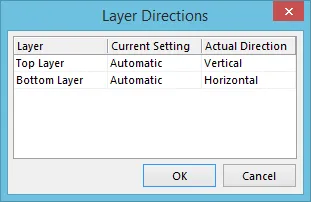 The Layer Directions dialog
 » Setup command, or the Tools | AutoRoute |