
Configuration and Options
The BOM Portal interface provides options and features that allow you to set up the system to match your specific needs for the current Managed BOM. These include configuring the sourced supplier data to your company's requirements, and working with the BOM listing in a manner that suits your processes.
BOM Settings
The BOM Settings window, opened from the BOM Settings option in the main  menu, allows you to configure which parts Suppliers and Library Component parameters are enabled for the current Managed BOM, change how Issues are reported, and also specify the production run, preferred packaging type, the currency and global region used for cost estimates, and proposed BOM completion date.

Target Price
Target Price parametric data allows the addition of a desired maximum unit price figure to each part item in an ActiveBOM document or a Workspace Managed BOM. This feature assists the overall supply chain risk assessment by raising a Target price missed Issue if the item’s supplier Unit Price is greater than the Target Price. 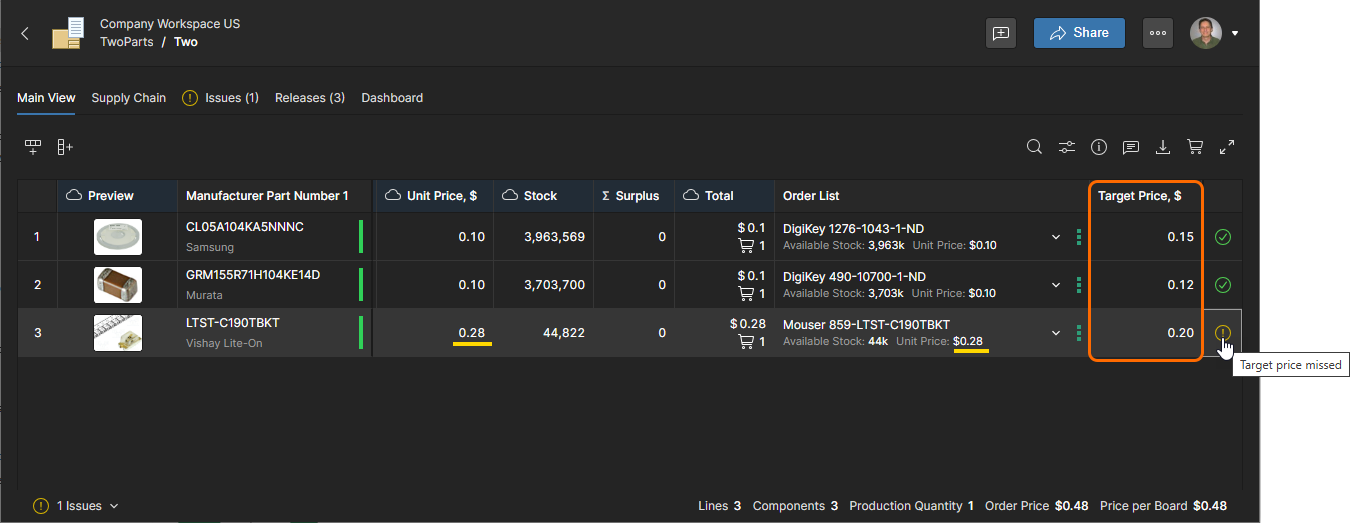
The Target Price dataset is available in a Managed BOM if it was included in the BOM’s source, such as the Project (with ActiveBOM) it was created from or the BOM data file that was uploaded. If not available, a Target Price column can be added manually and the parameters remapped, however, this process is automated when the Target Price option is enabled as described below.

When the BOM Settings Target Price option is enabled:
-
The Managed BOM’s Set Target Price to Actual Price command is available and can be applied to individual or all BOM Item entries. This command propagates an item’s current supplier
Unit Priceto the item'sTarget Priceentry, which in turn means that a Target price missed warning will be generated if a subsequent supplier solution represents a higher price. -
If not already visible in the Managed BOM, the Target Price column data is exposed.
-
If the Managed BOM does not include
Target Priceparametric data, it is automatically created as blank entries of the correct data type (Money) and its column data is exposed in the BOM view.
When the BOM Settings Target Price option is disabled, the Set Target Price to Actual Price command options are no longer available and the Target Price column is hidden.
Order List
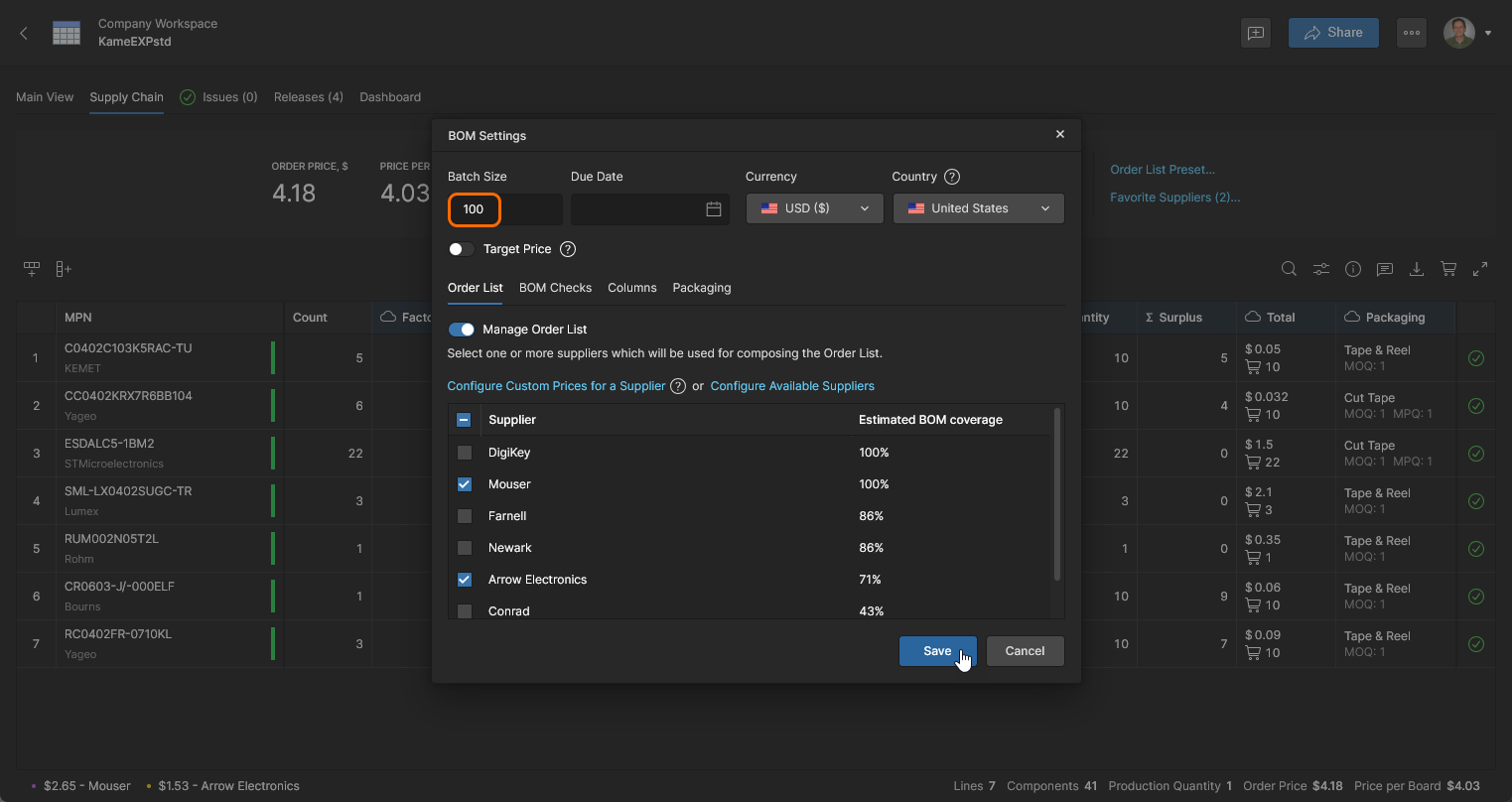
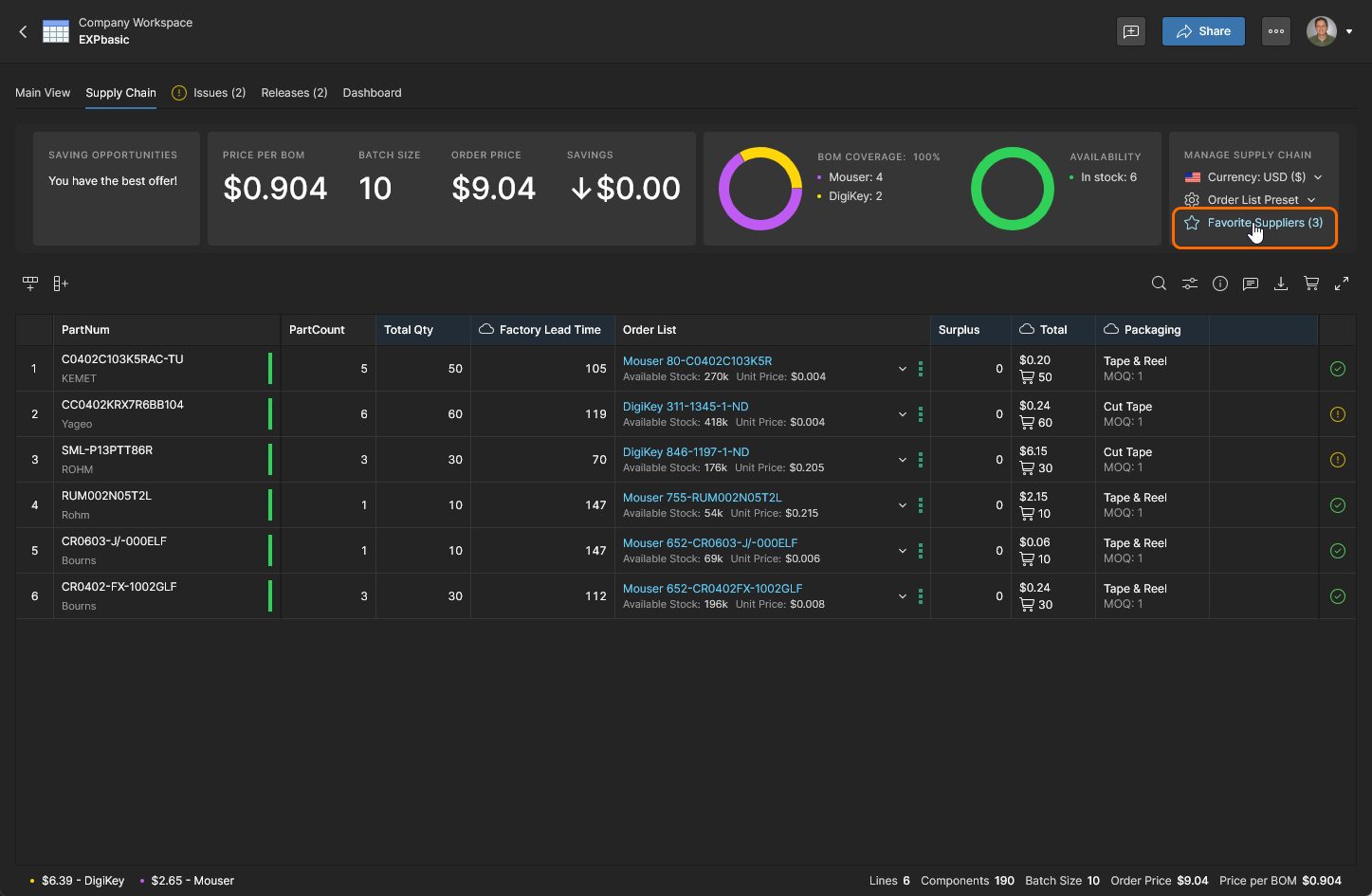
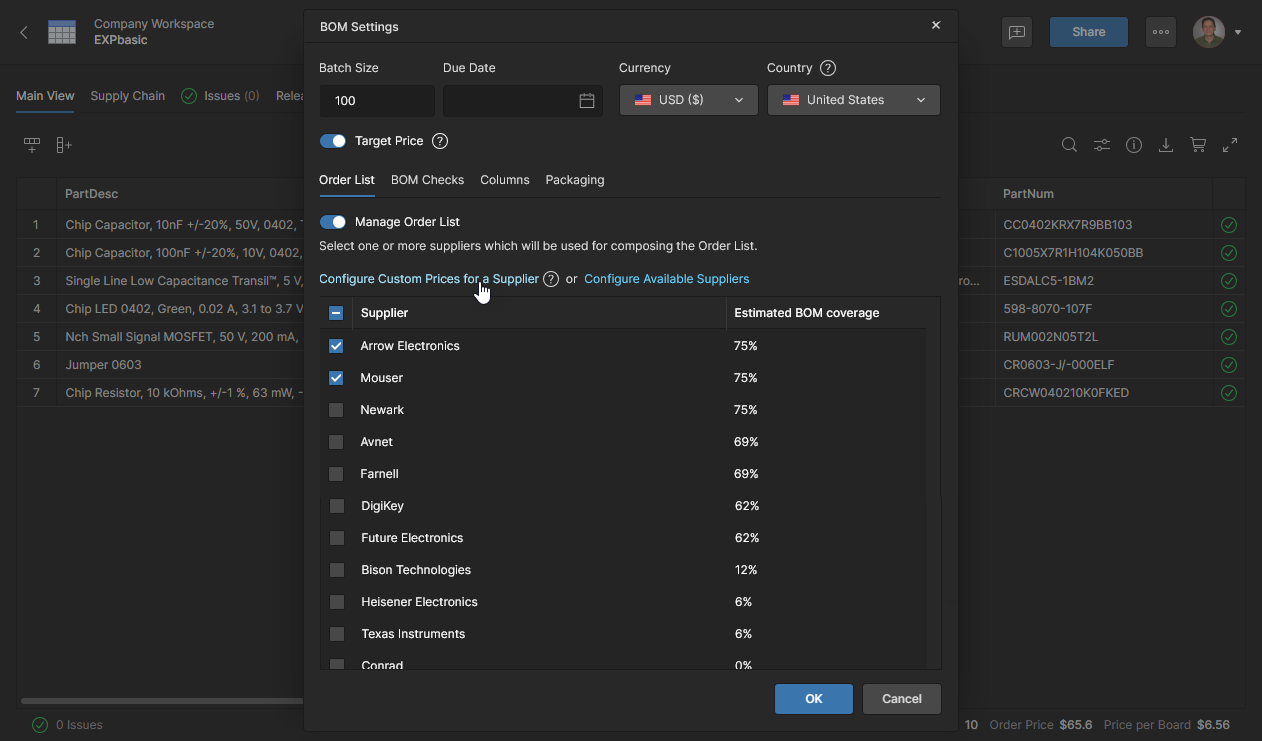
Select the Order List tab in BOM Settings window to enable/disable parts Suppliers, whose availability is determined by the Part Source settings in the Workspace Admin – Part Providers page. The BOM Settings window is also available from the Favorite Suppliers link in the Supply Chain view.

Revise the Order List purchasing solutions in your BOM parts list by changing the supplier options in the BOM Settings window, accessed from the Favorite Suppliers option or the upper menu



Supplier Priority
The BOM Settings window also allows Priority levels to be assigned to supplier entries, which will rank and determine the preferred parts providers for all BOM entries. A prioritized supplier is used only when a suitable purchasing solution (or ‘offer’) is available. The BOM entry will otherwise use the best offer from other enabled suppliers – the behavior of the default Auto mode. Supplier Priority settings are available under the Order List tab in the BOM Settings window that can be accessed from the upper menu, or in the Supply Chain view, from the Favorite Suppliers option.
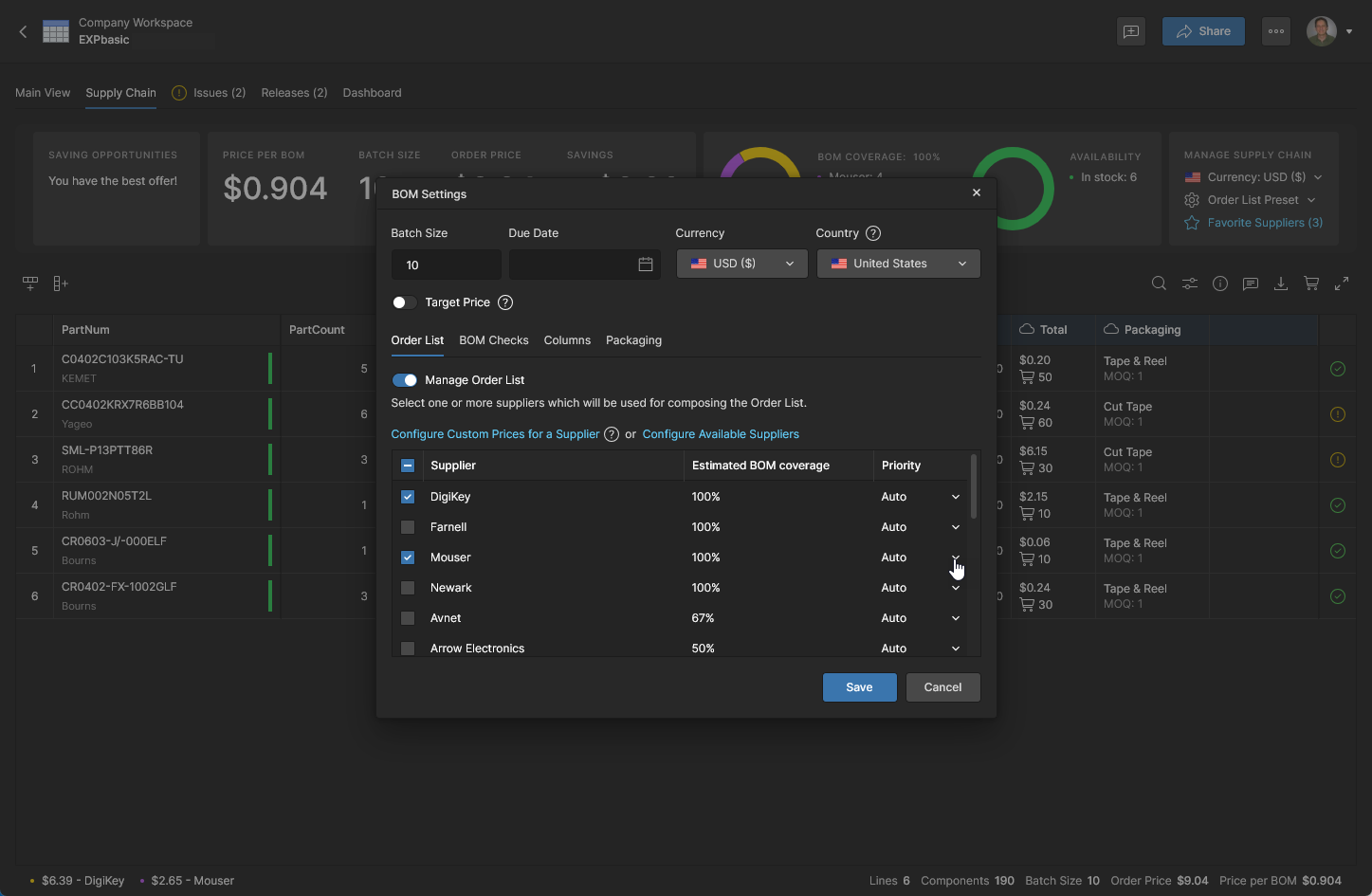
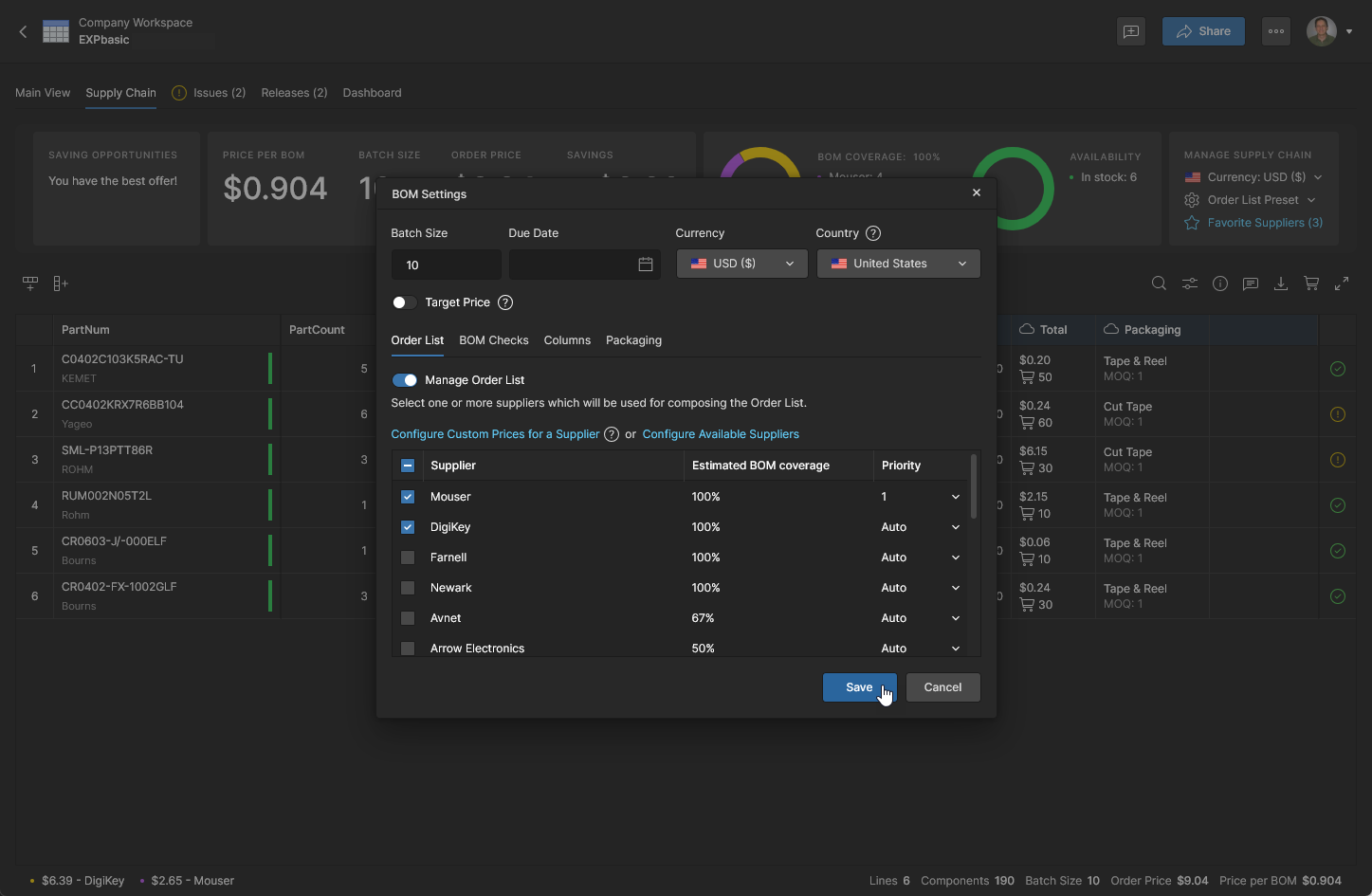
A supplier’s priority level can be set within a range of 1 through to 4. More than one supplier can be set to the same priority level. Click  to confirm the change.
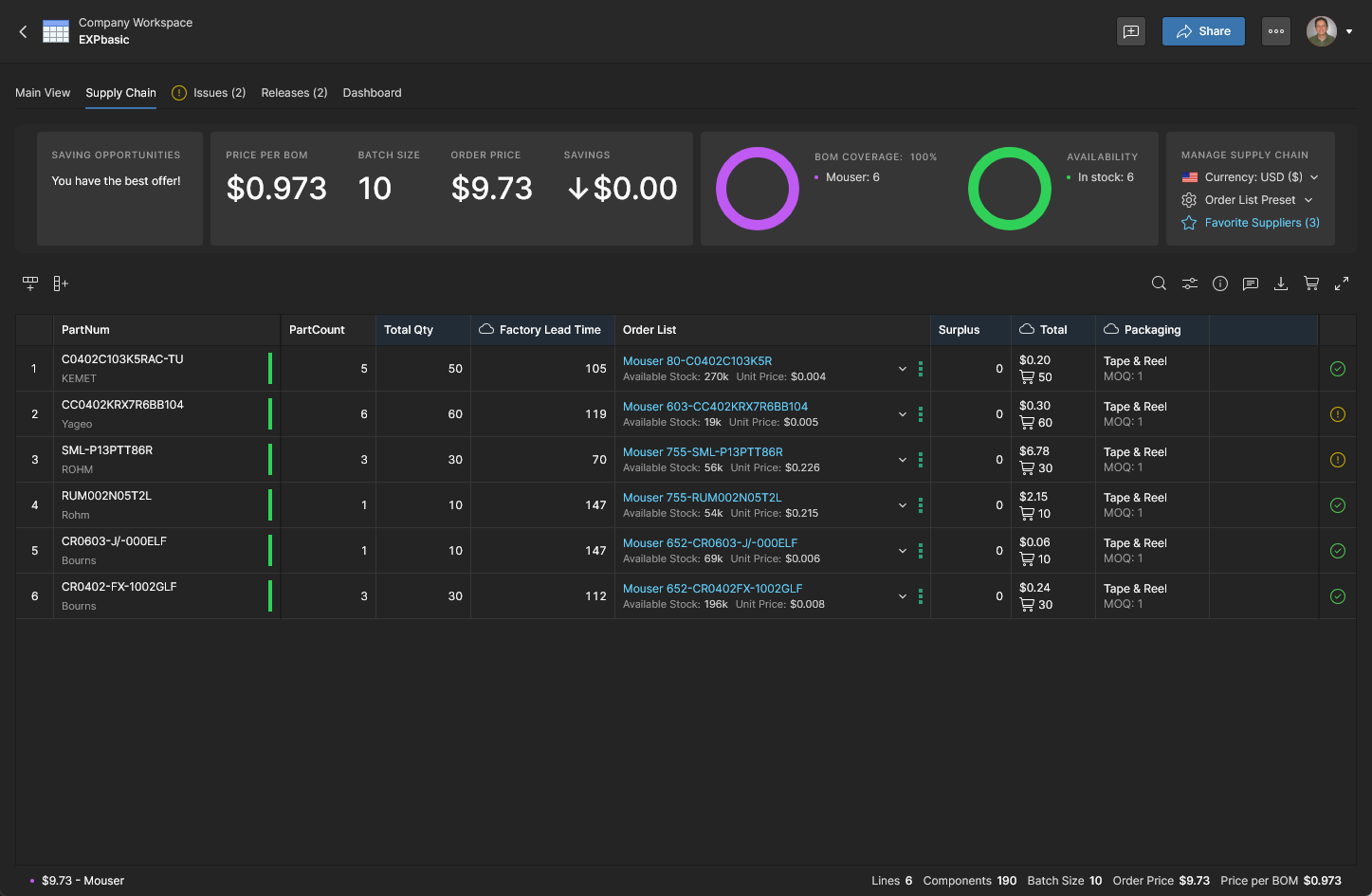
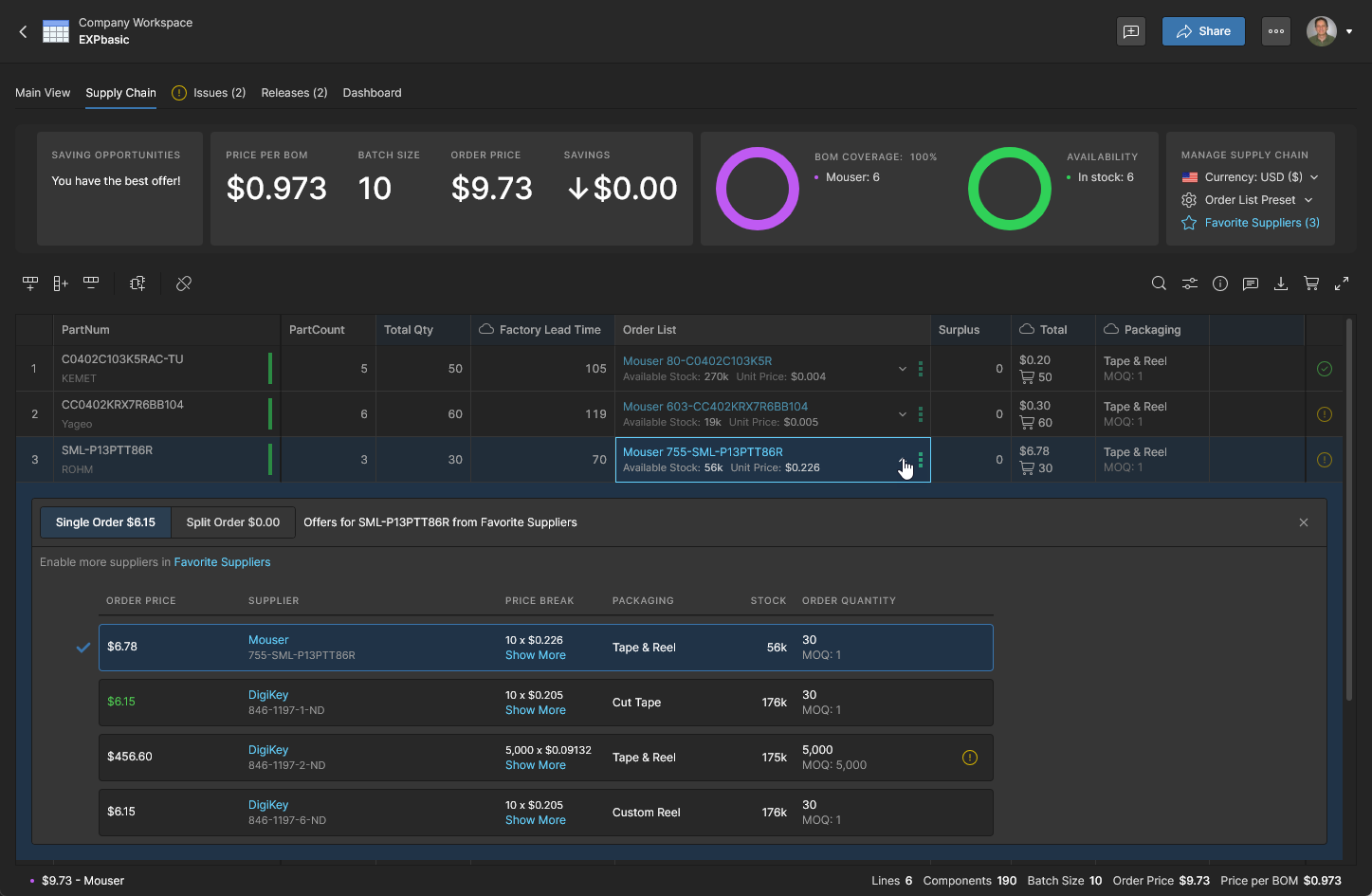
The ability to prioritize parts suppliers is particularly useful when:
-
a Custom Pricing arrangement (see below) is in place with a specific, and therefore highly preferred, parts supplier.
-
your organization requires the use of approved parts suppliers wherever possible.
-
a local inventory of parts is made available to the BOM Portal as a Custom Parts Provider.
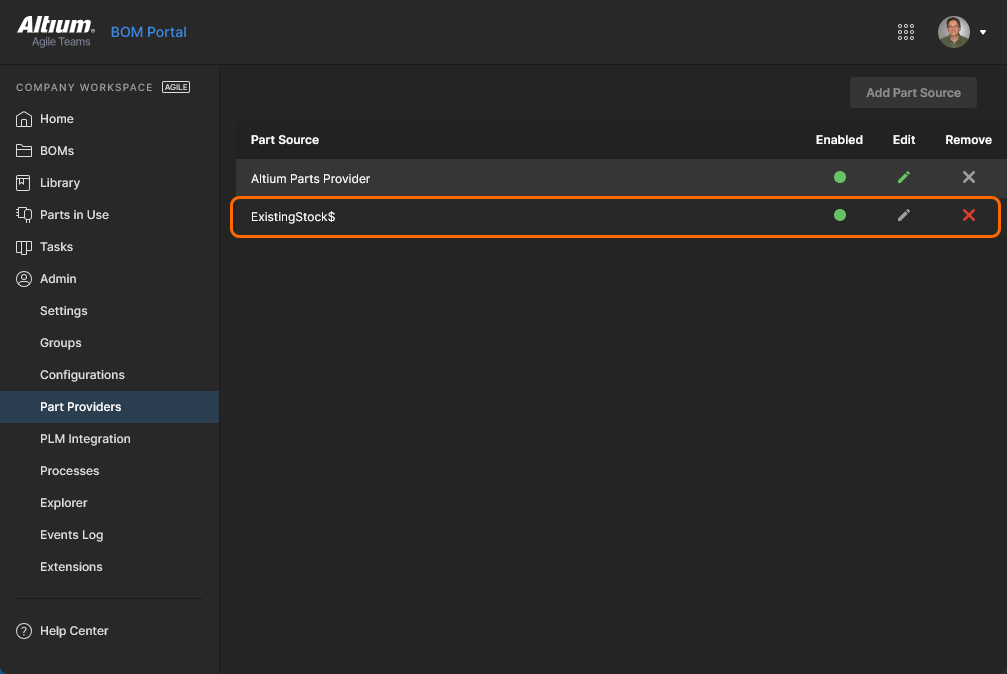
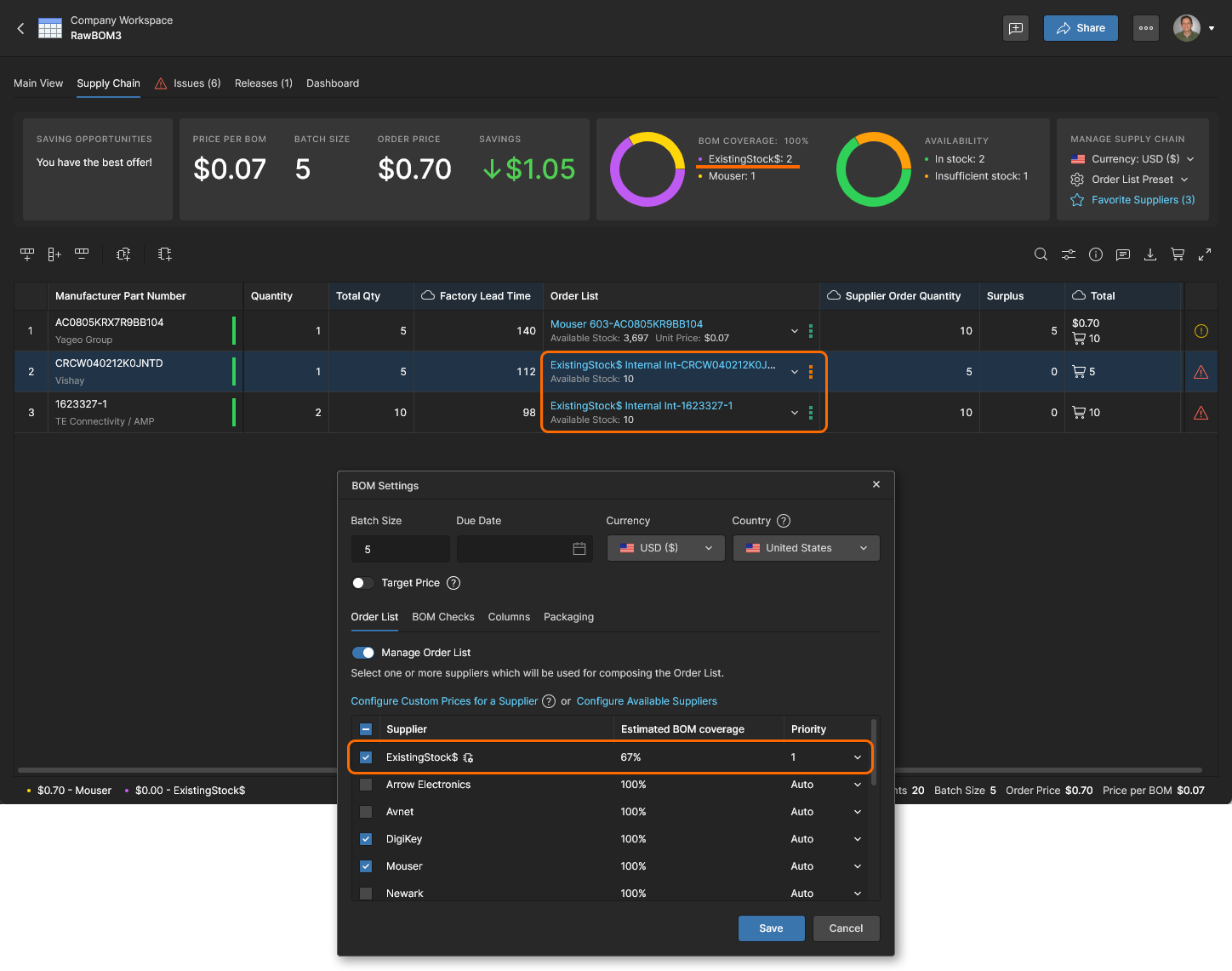 On-hand company parts stock made available as a priority to the BOM Portal through an enabled Custom Parts Provider, which is sourced from a company database or enterprise system (PLM, ERP, etc).
Custom Pricing
If your company has a special account pricing arrangement with a supplier, the BOM Portal can accommodate this through the Configure Custom Prices for a Supplier option in the BOM Settings window (access requires administrator privileges). When configured, the supplier’s pricing data used in a Managed BOM will reflect the pricing arrangement associated with your company’s supplier account.
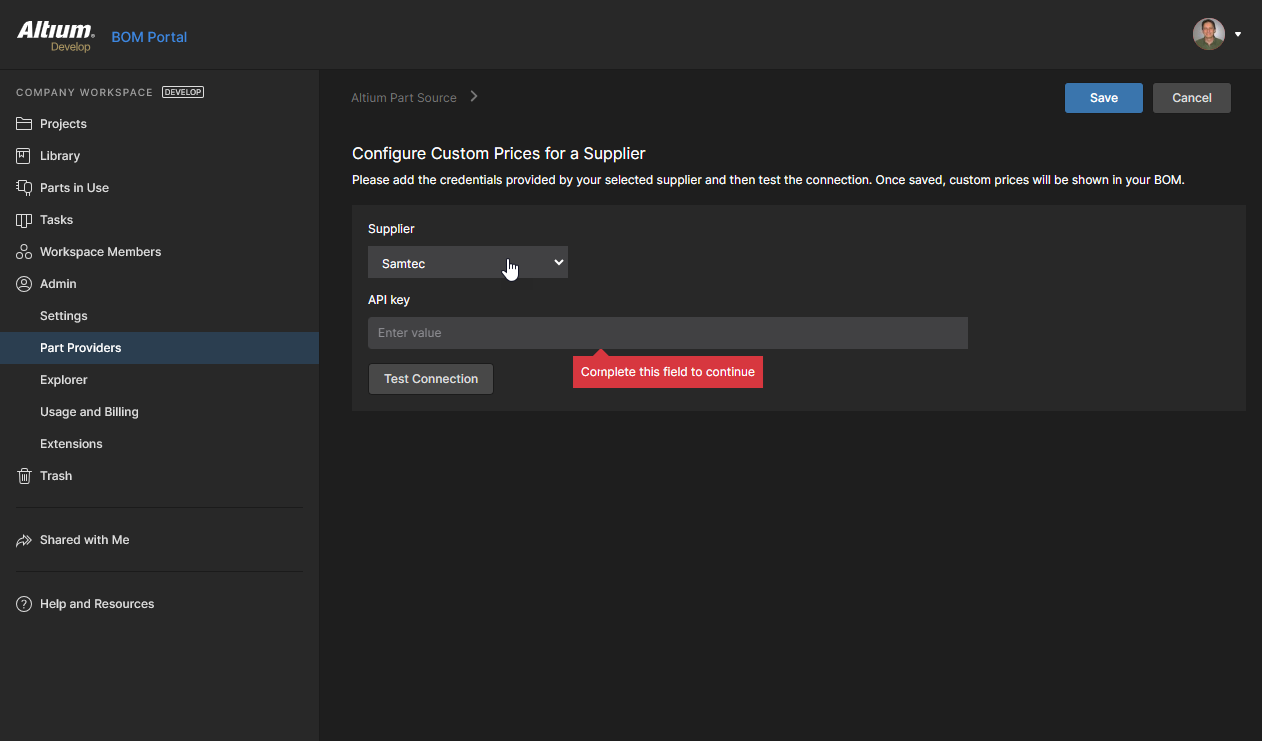
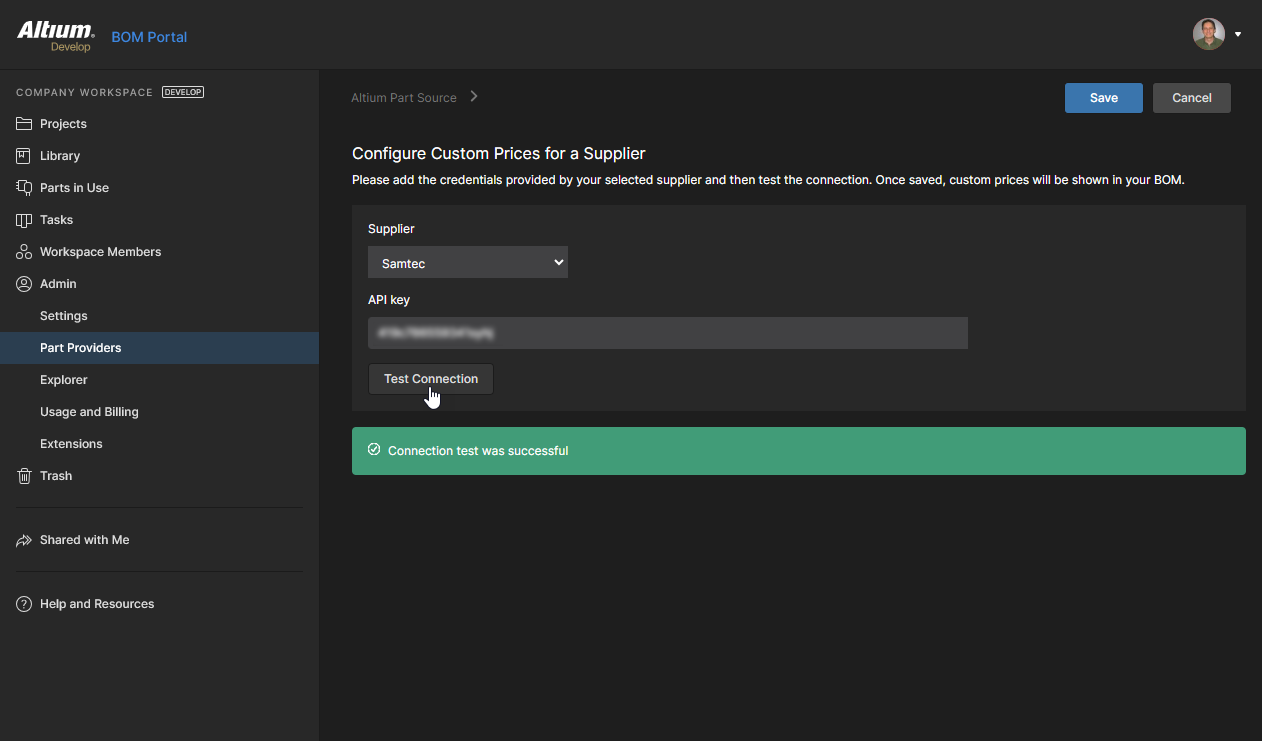
Test the supplier account connection ( ), and assuming success, confirm the setup (
 ). The custom prices for that supplier will then appear in your Managed BOMs when parts from the supplier are used.
BOM Checks
Select the BOM Checks tab in BOM Settings window to view and customize how BOM line Issues are reported in the current document. Each type of BOM validity check can be changed to report at any of the available levels – including the option to ignore a check (No Report). An updated reporting level and its associated icon will then show in the BOM document when the matching issue is encountered.

Issues with Managed BOM line items are flagged in the right-most column by icons that correspond to a Warning, Error, or Fatal Error. Hover over an icon to view its status meaning, or click to see more information. 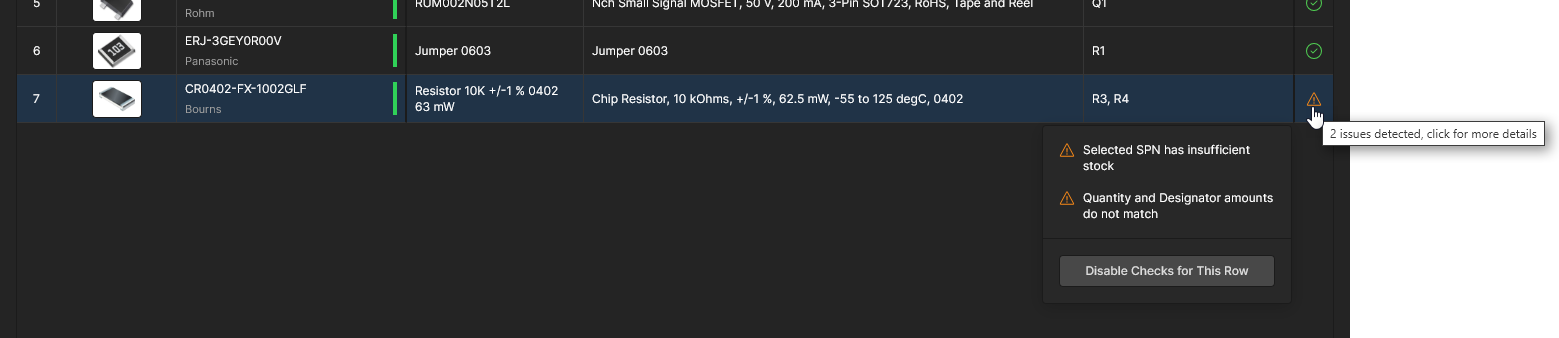


After confirmation with the button, the updated report levels will apply to all Managed BOMs. You can use the Reset to Default option to restore all checks to their default Report Level settings.

Library Columns
Select the Columns tab in the BOM Settings window to add any of the available component library or cloud-based parameters to the Managed BOM as data columns. The BOM Settings window is also available from the Manage Columns link in the Column display preferences menu ( ).
).
This list is populated with all available parameters from both the Component Library and sourced cloud data for this BOM document. It allows the inclusion of specific or custom component parameter data columns as needed in your BOM. Once those parameters have been enabled, the visibility of their related BOM columns can be controlled from the Column display preferences menu.

Open the BOM Settings window from the menu to access the Columns parameter list.


The newly enabled parameters will be included in the Managed BOM as data columns. If needed, relocate a column by dragging its header to a new position. 

In the same way as other columns, manage the visibility of added columns from the Column display preferences menu (). Entries can be dragged and dropped to a new location to reorder columns, and the Manage Columns link opens the Columns tab directly.
Supplier Order Presets
Related information: BOM Order Savings
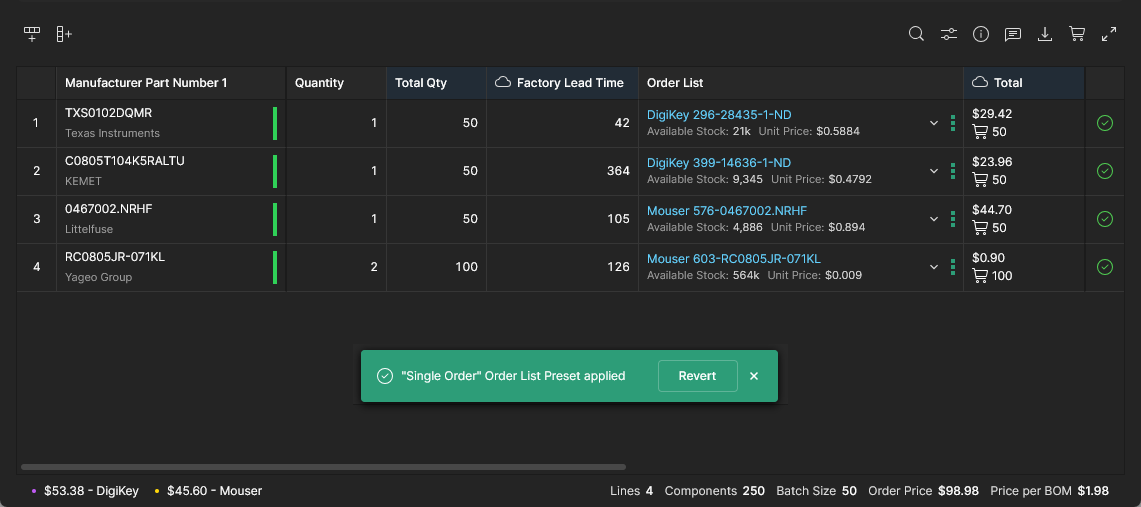
Use a BOM’s Order List Preset menu in the Supply Chain view to change the criteria that determine which supplier parts will be used for the BOM’s purchasing Order List entries.
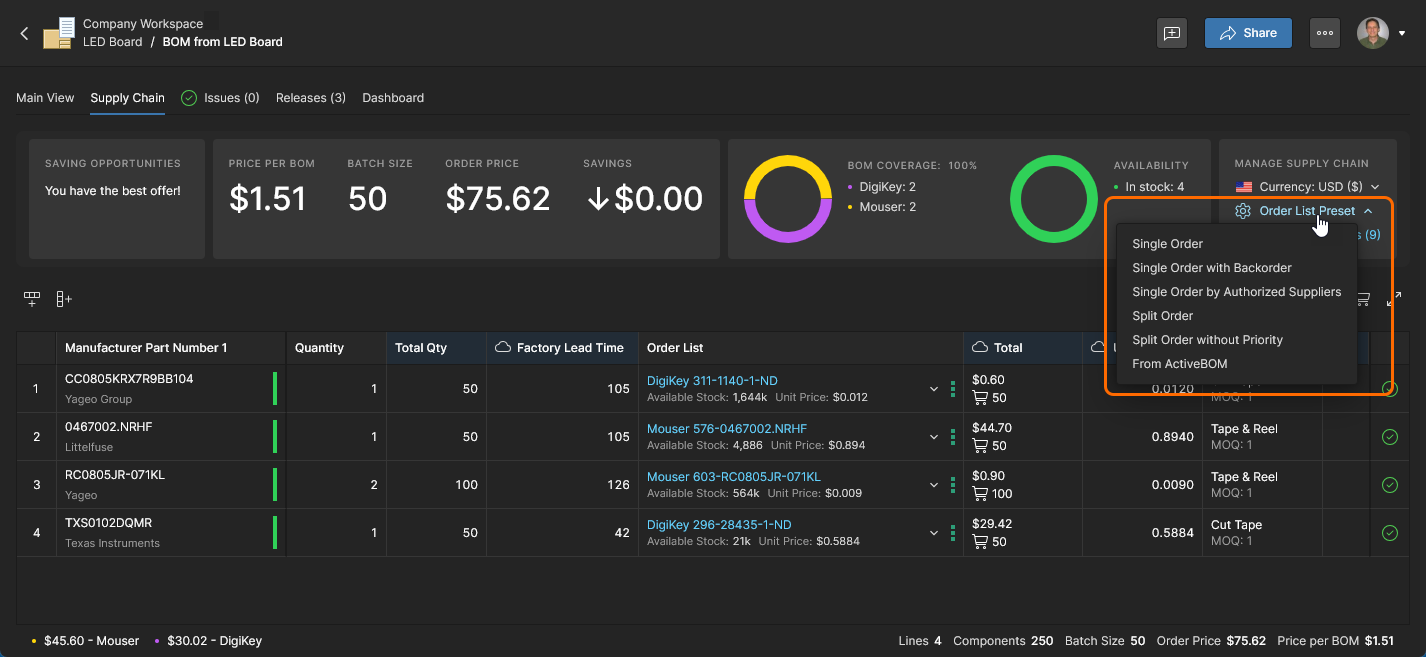
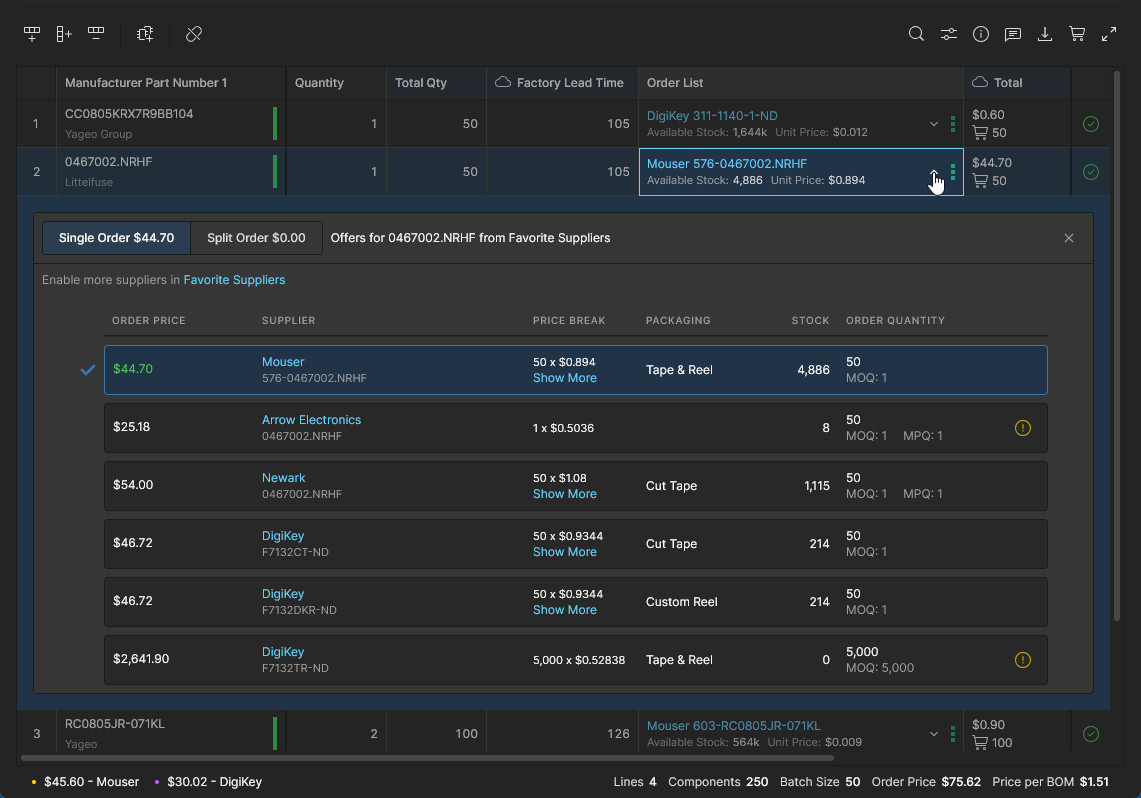
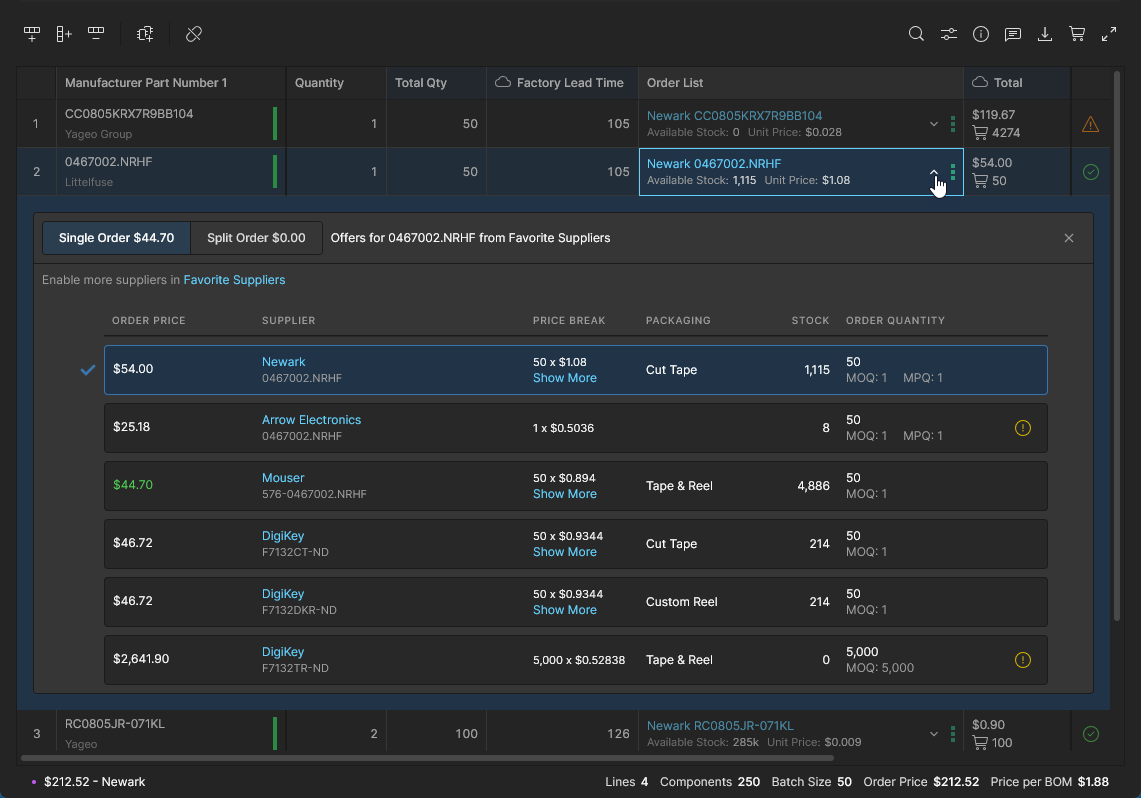
By default, the Order List is populated by the lowest cost option available from the enabled Suppliers, but within the constraints of parts supply factors such as stock levels and minimum order quantities.This standard arrangement is considered a Single Order procurement list, where BOM entries include a single supplier solution, as opposed to a Split Order list where BOM entries can include multiple supplier solutions (see below).
The Order List Preset options provide several ways to control how supplier offers are used for standard (Single Order) BOMs:
-
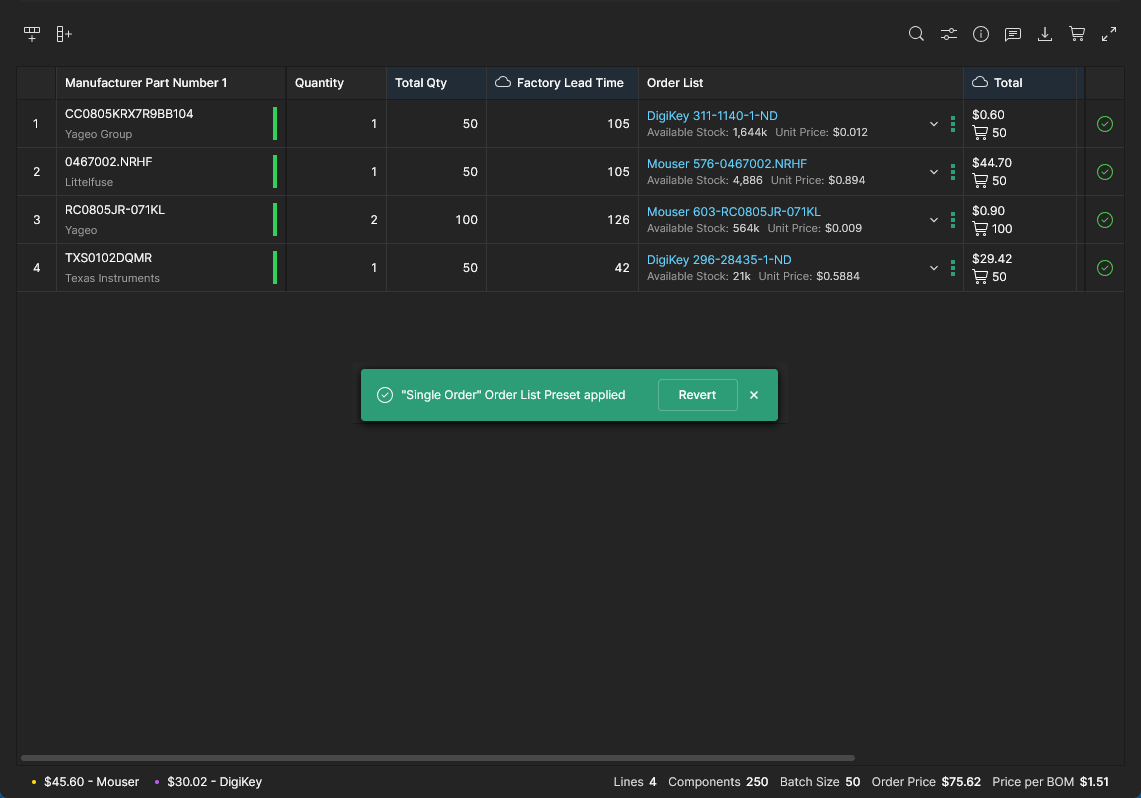
Single Order – the lowest cost supplier offer with sufficient stock is used. Any suppliers set to a high priority are favored where possible. Select this option to revert the Order List supplier offers to the default condition.
-
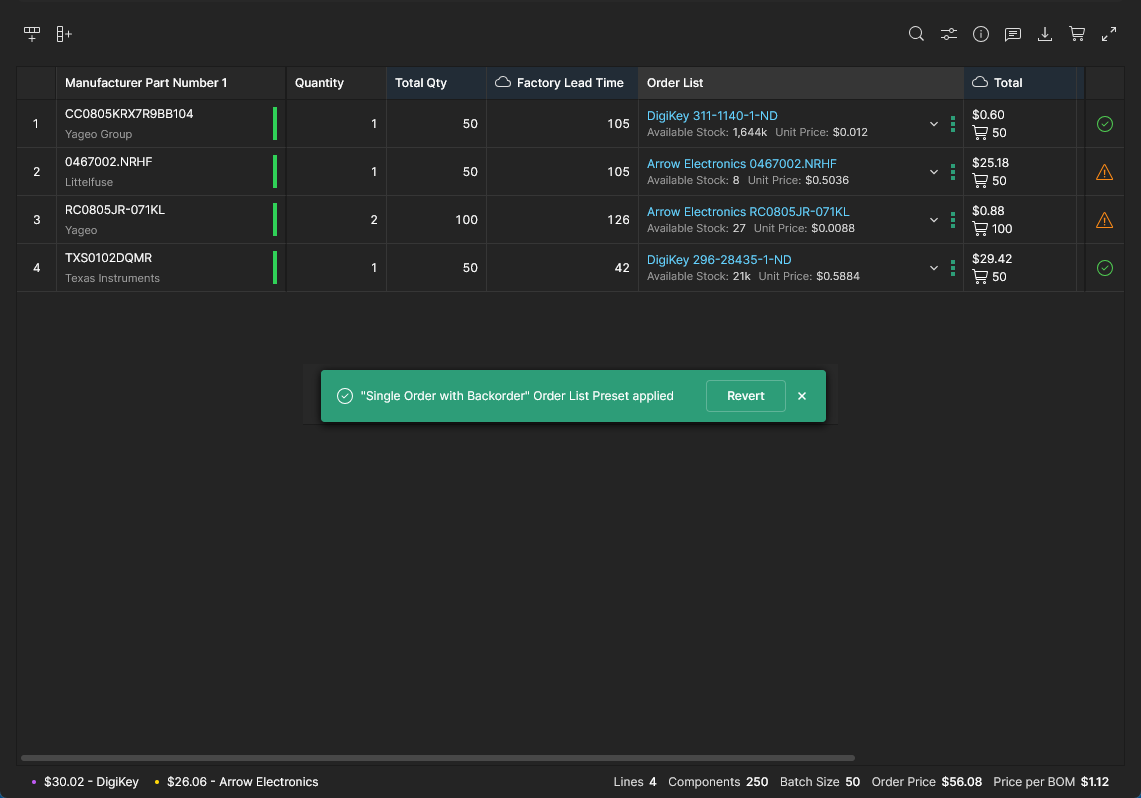
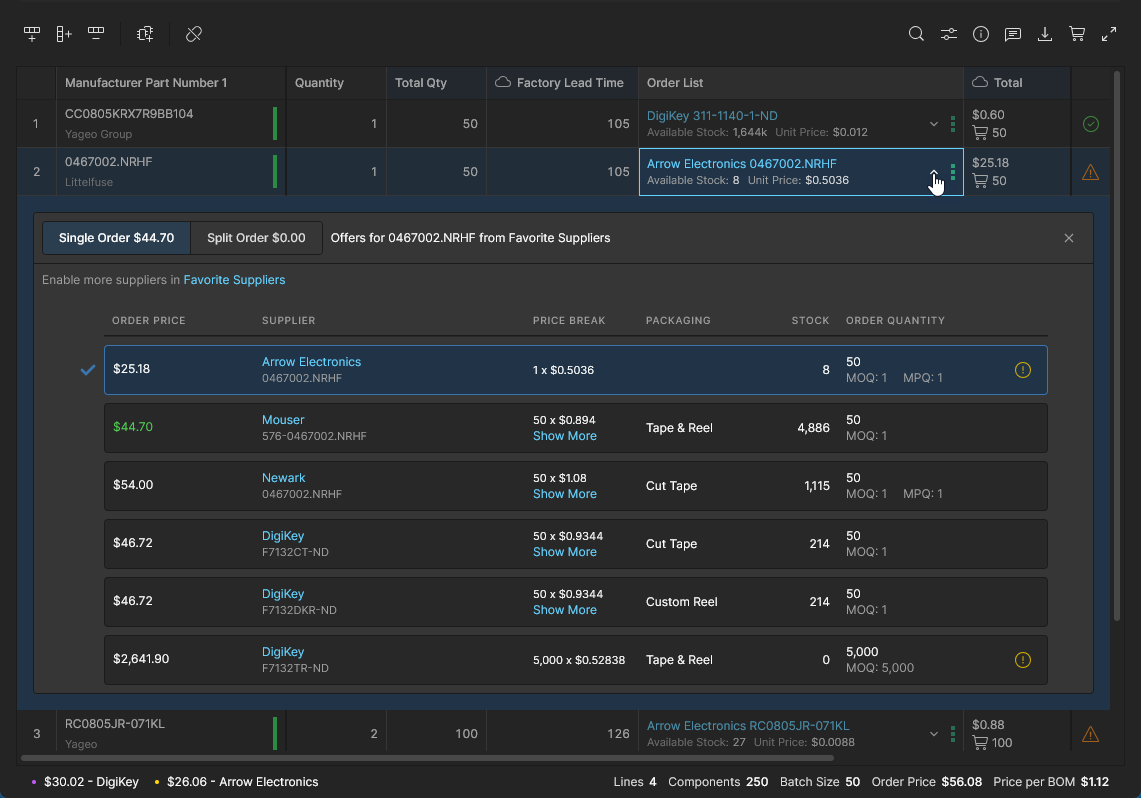
Single Order with Backorder – the lowest cost offer is used regardless of stock levels. Useful for securing the lowest possible BOM order cost where time constraints are not a factor. The BOM parts can remain on order until available.
-
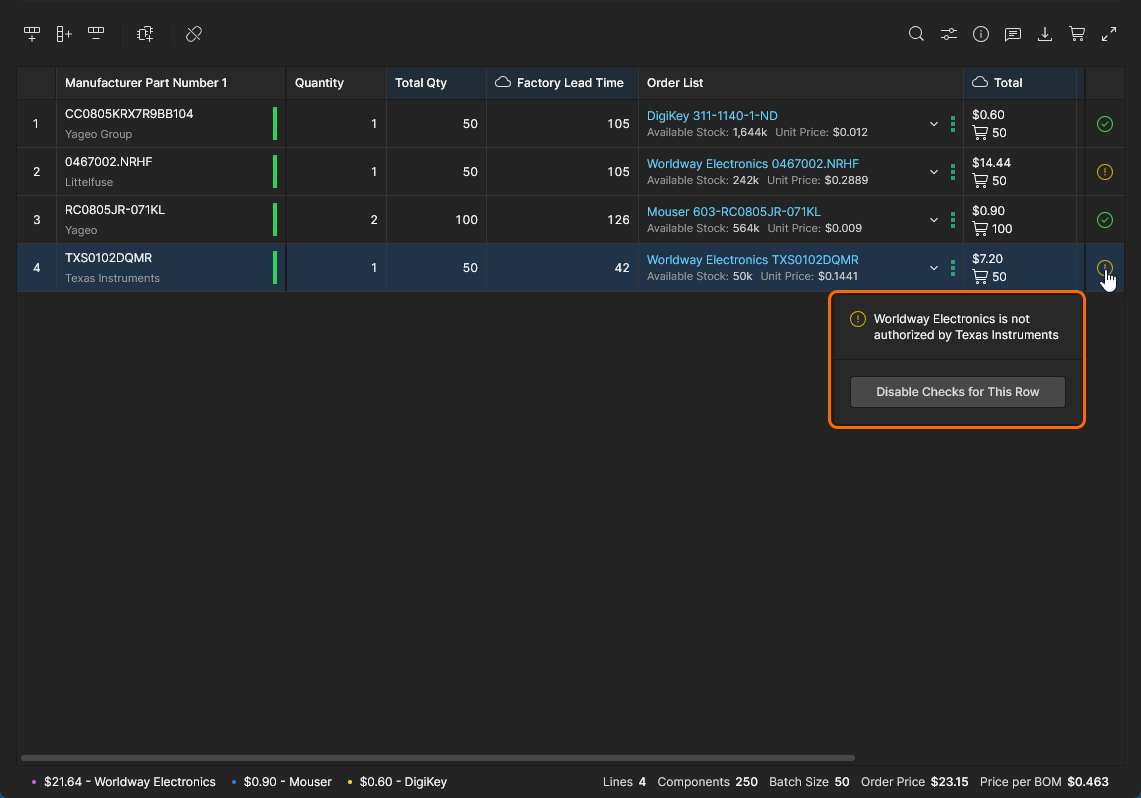
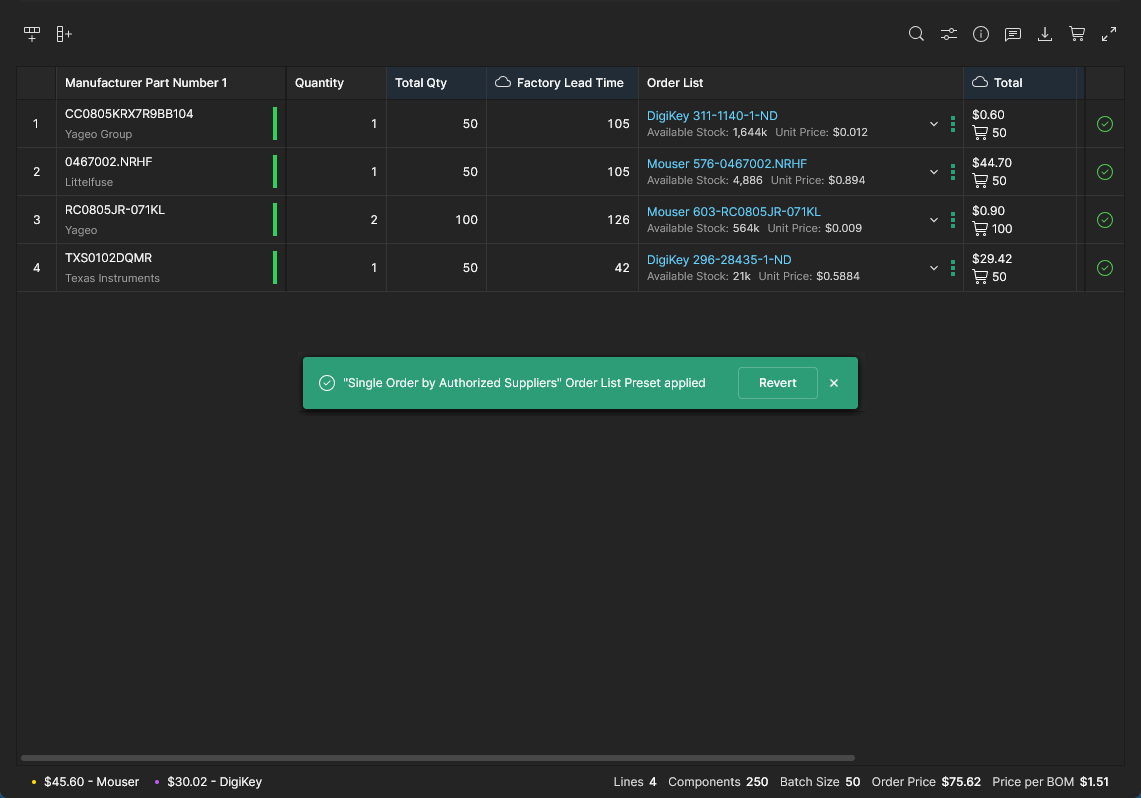
Single Order by Authorized Suppliers – the lowest cost offer only from authorized suppliers or distributors is used. Authorized suppliers are defined by Octopart’s Classification scheme.
-
All by <supplier> - uses the best offer from the specified supplier only, wherever possible.
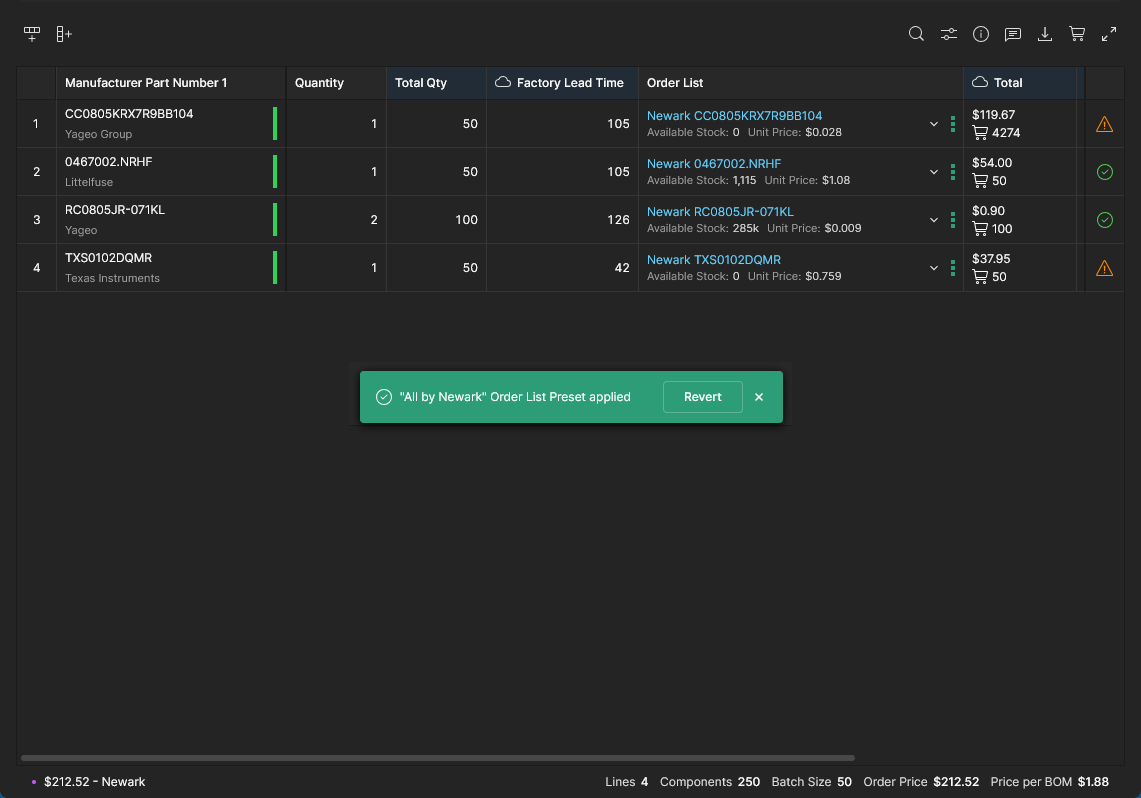
The All by <supplier> preset (
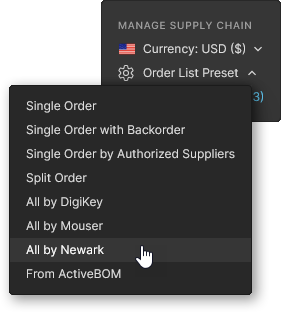 ) will attempt to use purchasing solutions from the specified supplier exclusively, within the bounds of available stock levels.
-
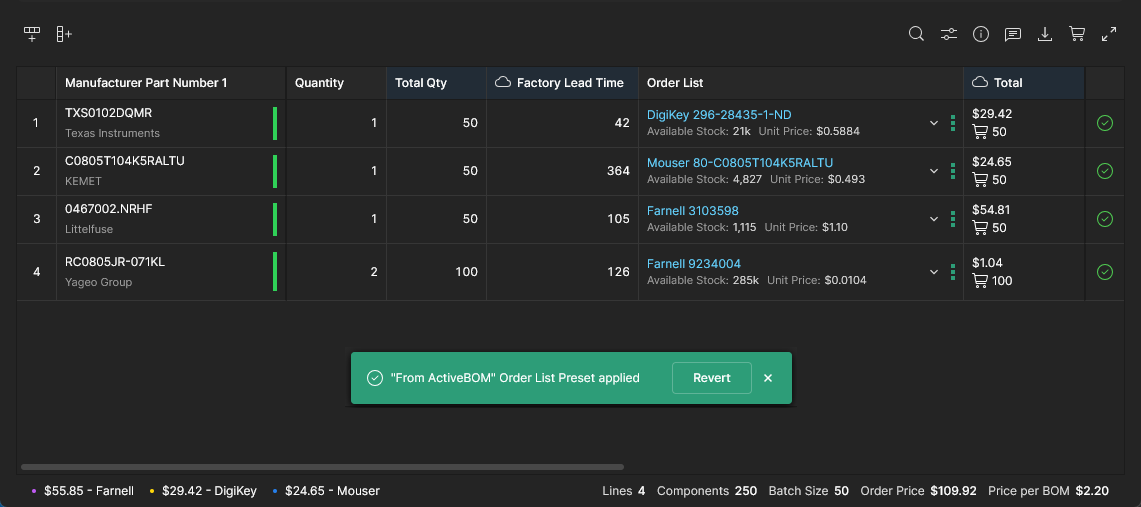
From ActiveBOM - uses the best offer while preferring the Suppliers specified in the project’s BOM document. Note that this option is available when the BOM has been created from a Workspace Project and the project includes an AtiveBOM document.
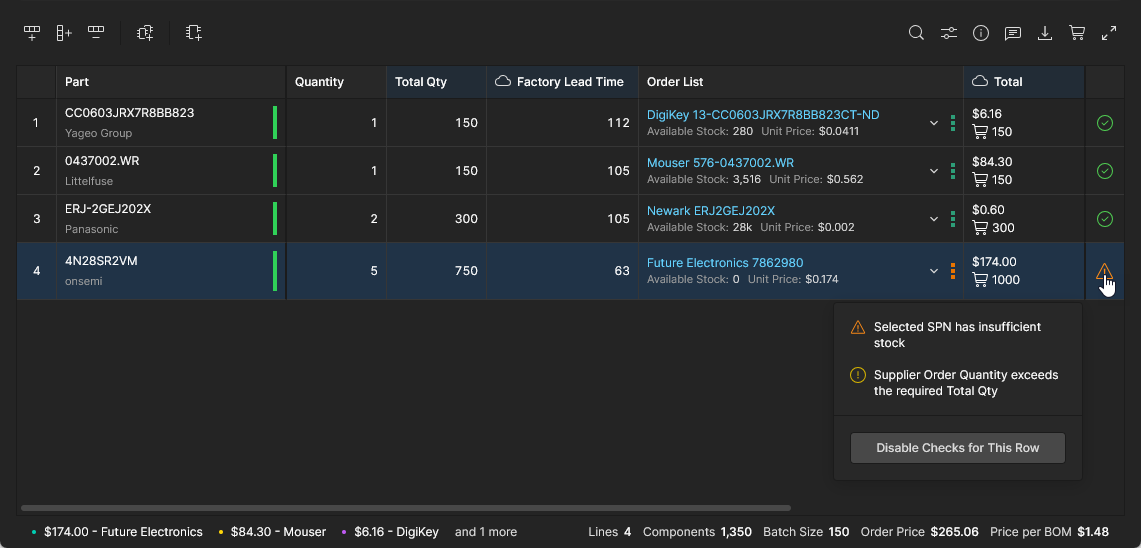
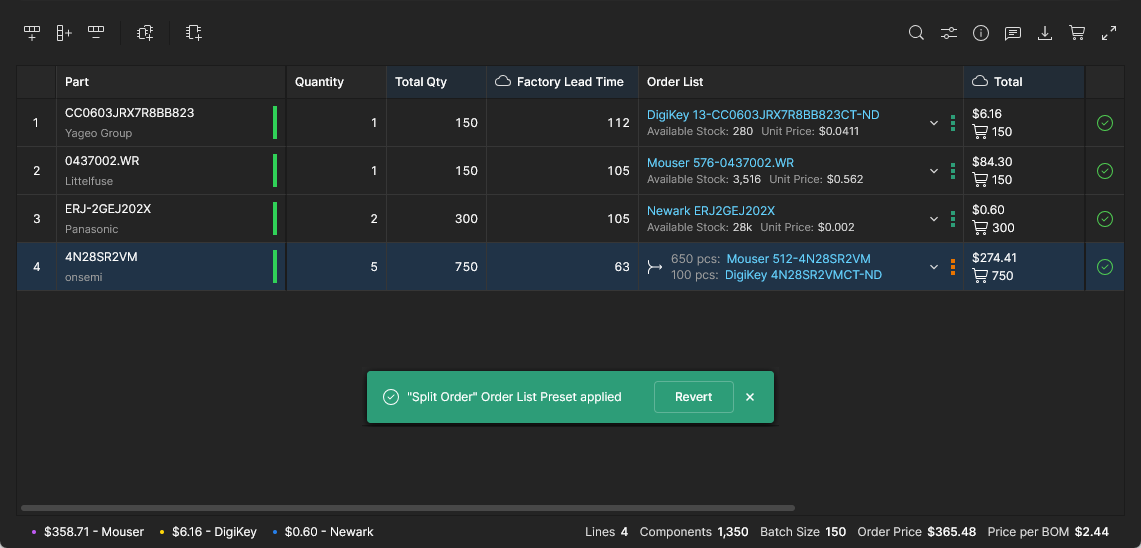
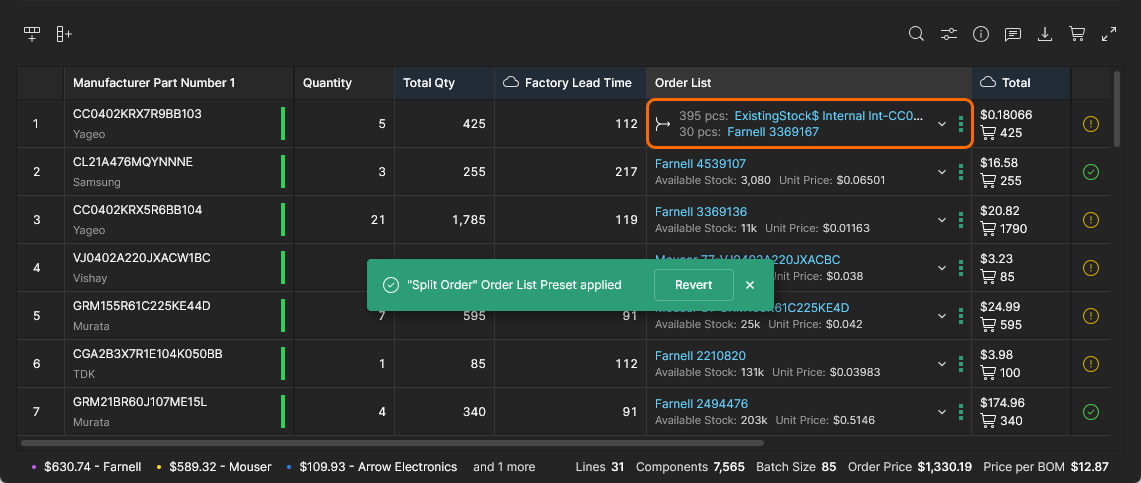
Split Orders are an enhanced procurement arrangement where more than one supplier offer is used in a BOM line Order List to realize a lower cost purchasing solution, or to fulfill an order quantity where supplier stock is limited.
See BOM Order Savings for more information on Split Orders and other cost reduction options.
The Order List Preset options provide choices of how possible Split Orders are applied:
-
Split Order – more than one supplier offer is applied to a BOM line Order List if this yields a cost or stock completion advantage.
-
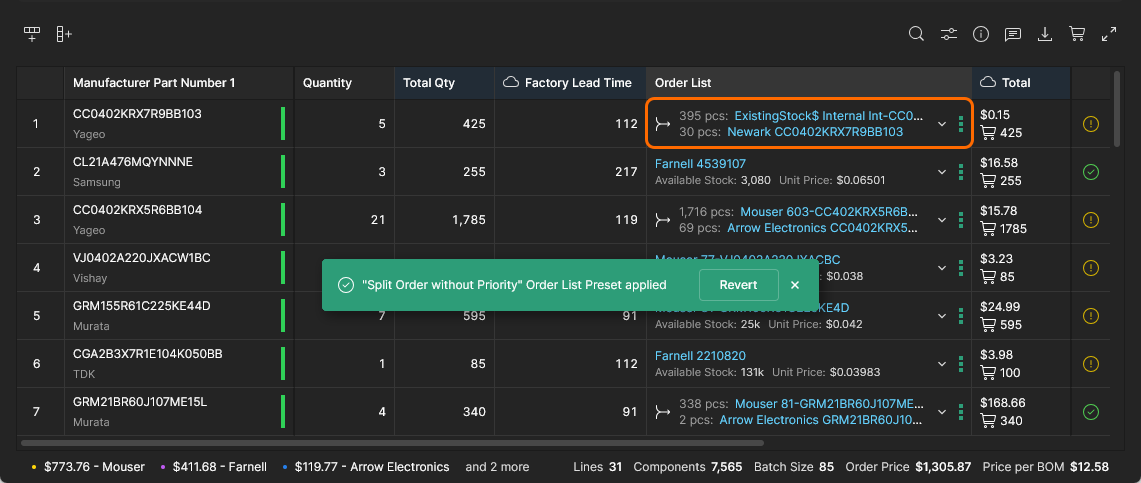
Split Order without Priority – more than one supplier offer is applied to a BOM line Order List (a Split Order) if this yields a cost or stock completion advantage, but without respecting Supplier Priority settings – the current supplier preferences are disregarded.
Packaging
Select the Packaging tab in the BOM Settings window to specify the preferred and allowable component packaging types used in the BOM Portal’s automated Order List. The settings will affect the list’s generated supplier solutions, and can be adjusted to suit company component packaging requirements such as manufacturing processes and storage preferences.
When the packaging type priority option is enabled, the window is populated with a Configure Packaging Priority list of all available types. The list entries can be disabled/enabled and manually reordered to determine their descending priority.


When the window settings are saved (), the rearranged package type list will change the automated type selection priority to comply with the Configure Packaging Priority list.


List View Features
Additional options are provided for working with the BOM listing and its included line items:
-
 Search: Locate and highlight BOM data text that matches the entered search string (case insensitive).

-
Column Preferences: Enable/disable the display of parameter columns. Drag and drop entries to re-order the displayed columns – note that a pinned column cannot be moved in the order. Also included are additional options to toggle All Columns on or off (except those pinned) and disable/enable part Compliance columns (RoHS, REACH, etc).
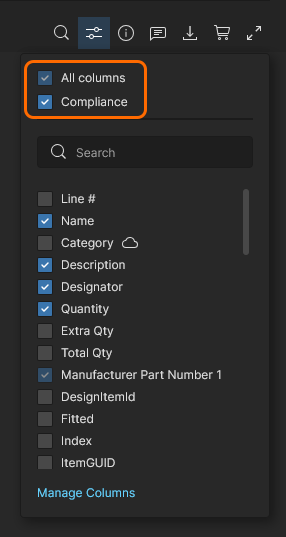 The menu’s Manage Columns link opens the Columns tab in the BOM Settings window, where you can manage the availability of BOM parameter columns.
Info Pane
-
 Information (Info) pane: View full details of the currently selected BOM or advanced search Item based on three tabbed views.
-
Part data tab – includes a summary of the part information and stock/pricing, its parameters, and downloadable datasheets (References).
-
Library data tab – available when the part is linked to a Workspace Library component. Shows the component's information such as its Name (click to navigate to Octopart data), the library ID Reference (click to navigate to component Library entry), parameters, Part Choices and Where Used information (click an entry to open that project/BOM). The Part Choice used for the BOM line's
Manufacturer Part Number(MPN) is indicated by the In Use tag ( ).
).
-
Alternates tab – a confidence-rated list of all available part alternatives for the selected BOM line. The tab's included data tiles are grouped as:
-
• Manually Added alternates - existing alternates specifically added using the Add Alternate option or those sourced from an imported BOM (indicated in the pane by Alternate tags;
 ). An Alternate part also can be added to the current BOM line by selecting Add as Alternate from an available entry in the pane’s Alternates tab listing – available entries are those in both the Part Choices for Primary and Suggested Alternates for Primary groups.
-
• Part Choices for Primary - available when a Library component (including its Part Choices list) is associated with the BOM line. The entries represent the component's available Part Choices (
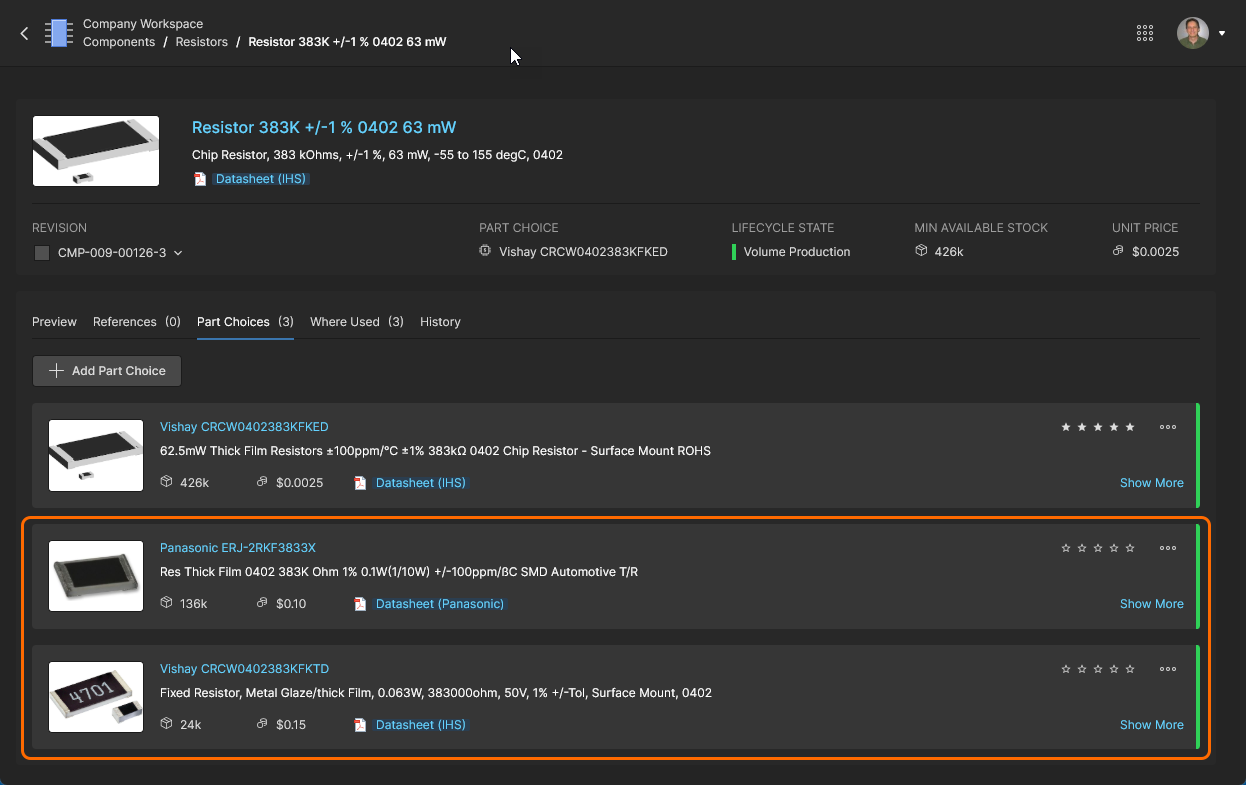 ), which will exclude one that is currently applied to the BOM line (the Primary part).
-
• Suggested Alternates for Primary - alternative parts listing provided by the Workspace's parts data resources (IHS Markit, SiliconExpert, etc).
The Alternates tab provides additional options for managing Alternate part entries in the Managed BOM, such as removing an applied Alternate entry (
) from the currently selected BOM item, and promoting an applied Alternate entry to be the BOM line's used part (MPN) – the previous Primary part is demoted to be an Alternate entry.  Also, an Alternate part in the Suggested Alternates for Primary list can be added as one of the Primary component’s Part Choices using its entry’s Add to Part Choices option.
-
-


The Info pane also offers a parametric comparison mode that is invoked when two search results entries are selected – use Crtl+Click to choose the additional entry. Parameter differences between the parts are highlighted in red, with data in common and respective Reference information (such as datasheets) shown below.
 Select two component search results entries to view their parametric differences in the Info pane.
-
 Comments: Like other Workspace data viewers, the BOM Portal interface supports document Commenting. BOM comment notes are added to line entries from the Comments and Tasks pane, can be associated with a mentioned user, and assigned to a user as a Task. Open the Comments and Tasks pane and follow the prompts to place a Comment.

Open or close the Comments and Tasks pane using the
icon.


Use the resulting placement cursor (
 ) to select a BOM line for commenting.


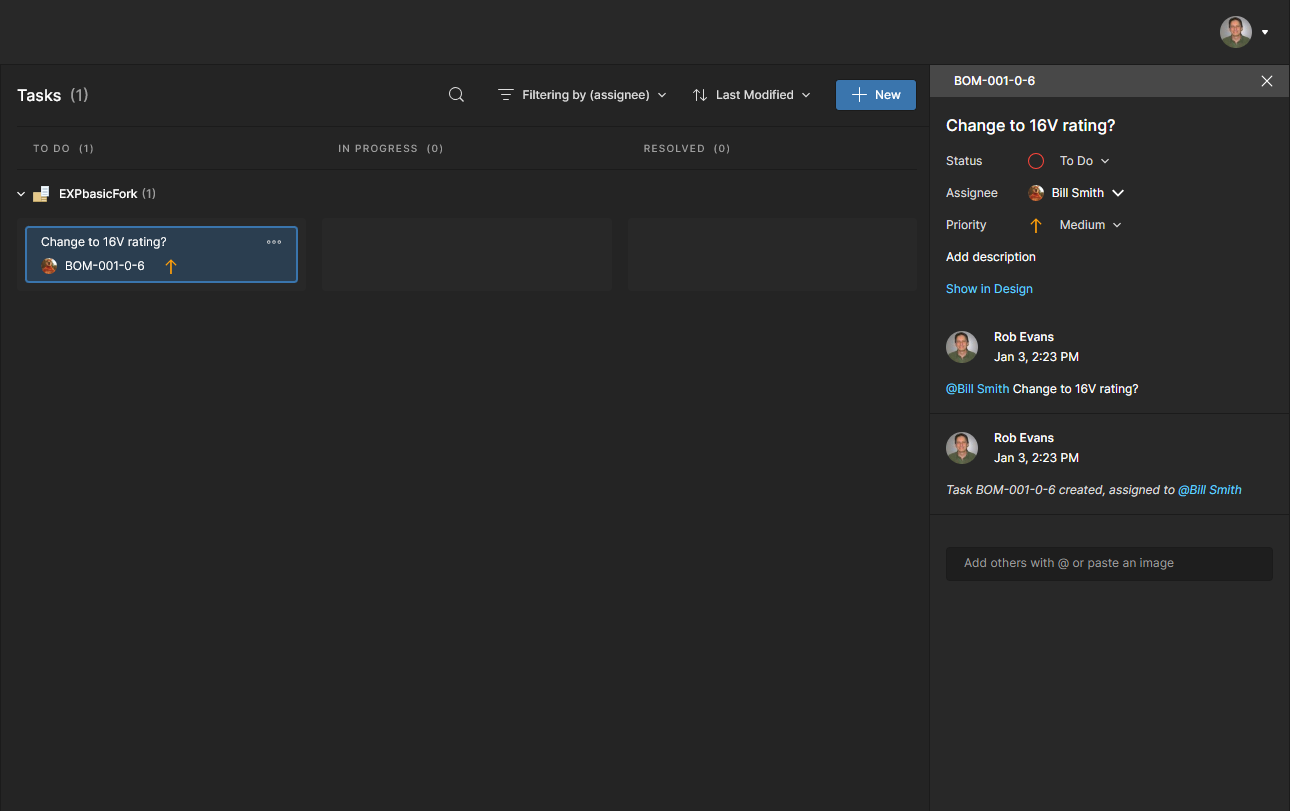
See Web Viewer Commenting for more information on working with Comments.
See Working With Tasks for more information on Comment-related Tasks.

-
 Download: Save the complete BOM listing with or without a BOM Template, or save a sub-set of the listing based on a specific Supplier in your purchasing Order List. Files are saved to the browser's default location in CSV format (
*.csv), or when a Template is selected, in Excel (*.xlsx) format.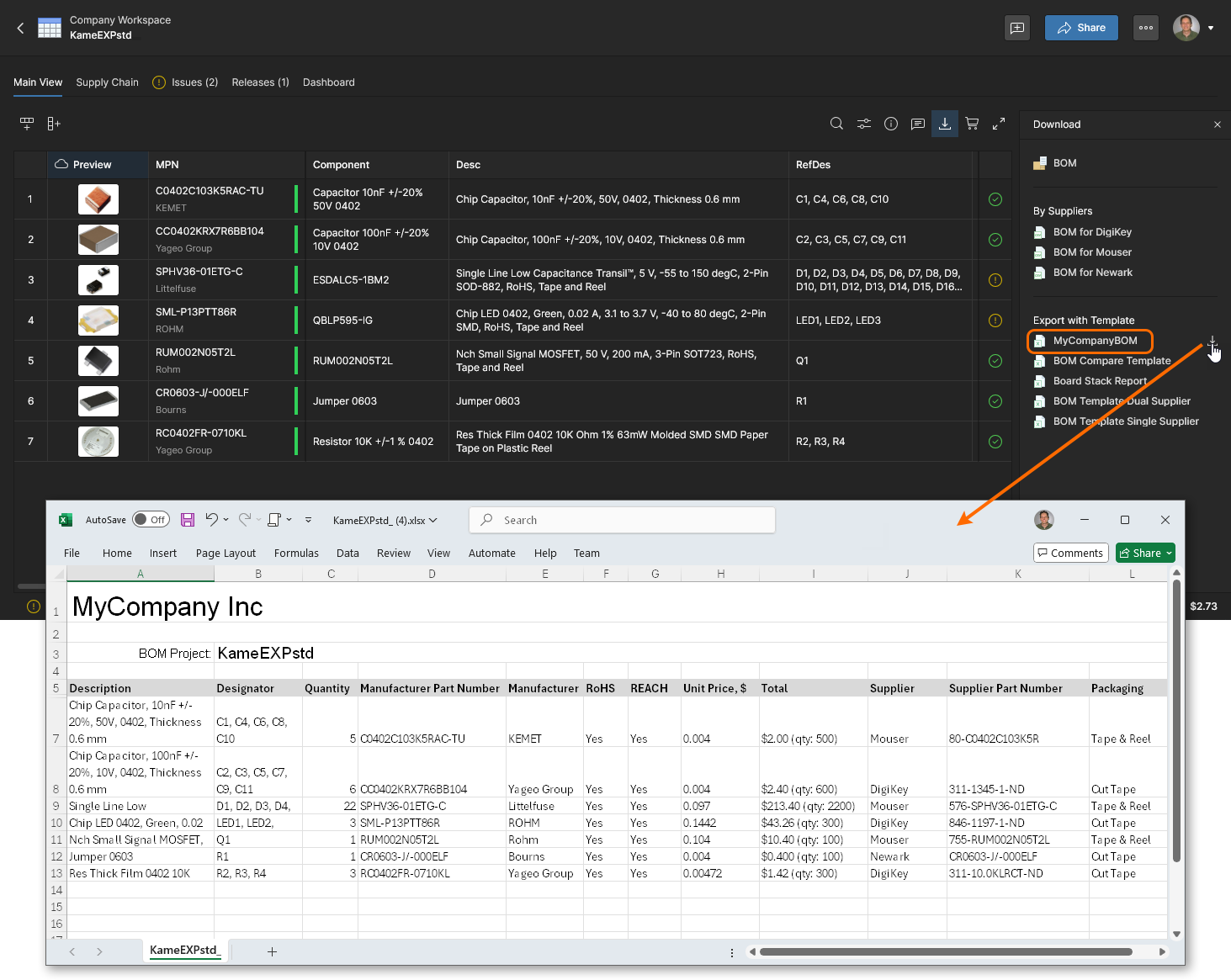

These files are the work-in-progress BOM listings, whereas the BOM can be formally released as a new revision through the BOM Portal's Releases feature and then downloaded from there.
-
 Octocart: Opens the Buy with Octocart pane, which applies the current BOM Order List to generate virtual shopping carts for the individual parts suppliers. The supplier purchasing entries harness Octopart’s component data resources to automatically load the supplier’s web-based shopping cart when the
  (or
(or  ) button is selected. Note that the BOM's Total column data summarizes the part’s order in terms of total cost and Order Quantity, where the latter is the sum of the required Quantity and any Surplus.

-
 Full Screen: Display the interface UI using the browser full-screen mode.
BOM Data Order and Filtering
You can reorder the BOM line items by a specific parameter column using its ascending/descending header options, and also apply column data filtering to restrict line items by specified value entries:
Order BOM line items by a specific set of data by toggling the arrow option in the header of that data column. Click a column header’s  icon to reorder the BOM listing in ascending order by that dataset, click again for the descending data order, and click once more to remove the BOM order defined by that column data – this is indicated by the icon reverting to its default gray color.


 You can use the individual
 Use a column’s filter option ( ) to constrain the visible BOM line items to those that match the drop-down menu’s checked items or numeric span. This is particularly useful for isolating BOM line items that include parts with problematic Manufacturer Lifecycles (such as
 Not for New Designs or Obsolete) or inadequate RoHS/REACH Compliance (such as No or Blanks). Note that the All option toggles all checkboxes on/off.

A number of columns that include composite data, such as Manufacturer Part Number, Order List, and Total allow the selection of their sub-parameters for applying a filter. Manufacturer Part Number for example, provides the sub-filter choices of Part Number, Manufacturer and Lifecycle, all of which are included in the column data cells.

List Structure Features
The BOM item grid itself can be manipulated using the additional options available at the upper-left of the listing:
-
 Add Row: Add another line item row to the end of the BOM listing, which allows you to manually include another BOM part item entry. Enter (or search for and select) a new part reference in the
 Manufacturer Part Numbercell, and then populate theCountandDesignatorcells to complete the process. When updating a cell value, pressEnterto confirm the change. -
 Add Column: Add a parameter data column into the existing BOM list, which allows predetermined types of data to be included with each line item (
 ). Use the Column Preferences option to change its order position.
-
 Delete Row: Completely remove the currently selected line item row.
-
 Delete Column: Completely remove a column. Column deletion is available when its header is selected, and only for a dataset that is not mapped as a BOM parameter -- such as a column you have manually added, for example.
-
 Hide Column: Remove a parameter column from the displayed BOM list – available when a column header is selected. Equivalent to disabling a column entry in the Column Preferences menu.
-
 Rename Column: Change the
 Titleof a column in the Update Column window – available when a column header is selected. -
 Update to Latest Revision: Refresh a BOM data entry to update a Workspace component part reference that is flagged as Out of Date. You can update all BOM components marked as Out of Date with the Update Component Revisions command.
-
 Unlink From Component: Disconnect the link between the selected BOM line manufacturer part and a Workspace component that has a matching Part Choice entry – available when a BOM to Workspace library link has been established.
-
 Add Alternate: Adds a blank item row below the currently selected row. Enter a suitable
 Manufacturer Part Numberor choose from the drop-down options to complete the alternative component item entry. Note that an alternate also can be manually added by selecting a part entry in the Info pane’s Alternates tab view, or alternates added to all BOM parts automatically using the Autofill Alternates feature. -
 Create Library Component: Creates a component entry based on parameters from the currently selected BOM item line. Once the process is confirmed in the Create Library Component window, the new Workspace library component is created and also linked to the current BOM line entry. Available when the BOM component complies with the requirements but is not yet linked to a Workspace component.
A number of the above options are also available from the right-click context menu, which includes the following additional options:
-

 Copy and Paste: Standard copy/paste operations that act on the currently selected text/area (including column data when its header is selected).
-
 Add to Part Choices: For a selected Alternate BOM line, add this component as a Part Choice entry for the associated Primary component – which must be a Workspace Library part.
 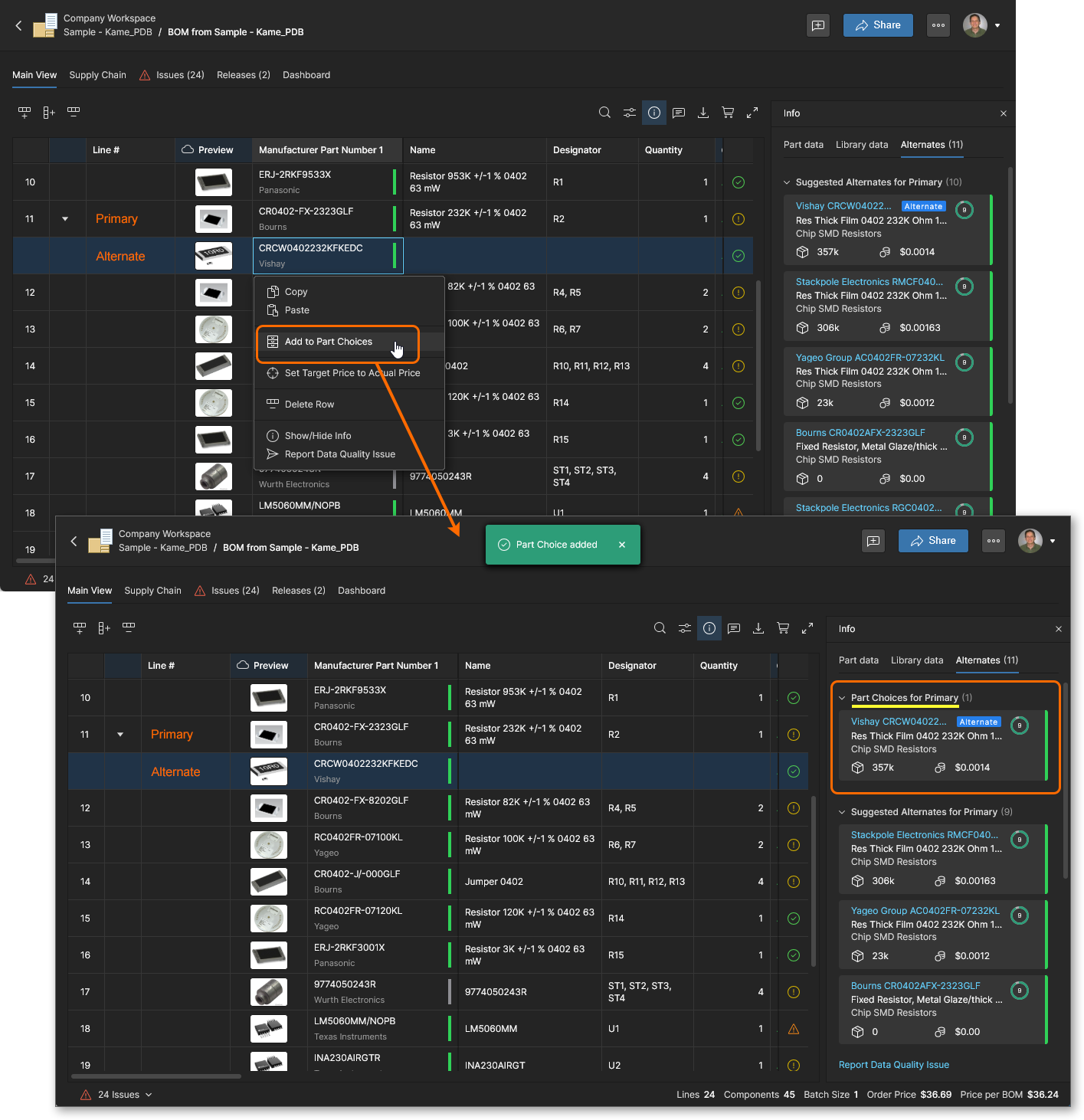 This is equivalent to the Add to Part Choices option in the Info pane.
-
 Disable/Enable Checks for This Row (also available by clicking the Issue icon): Prevent this row’s component part data from being included in the BOM health check process, as reported by the Issues view and related icons (for example;
  ). A part that has been excluded from the checks will present the ignored icon (
 ) and not be included in the Issues listing, regardless of any potential problems.
-
 Lock MPN for This Row: Prevents the Part Alternates Savings Opportunity from being available for this BOM line – remove the lock using the same right-click option. When enabled (Locked), it acts to preserve the row’s existing manufacturer part entry (MFR/MPN) when the Parts Alternates Savings Opportunity is applied to the BOM.
 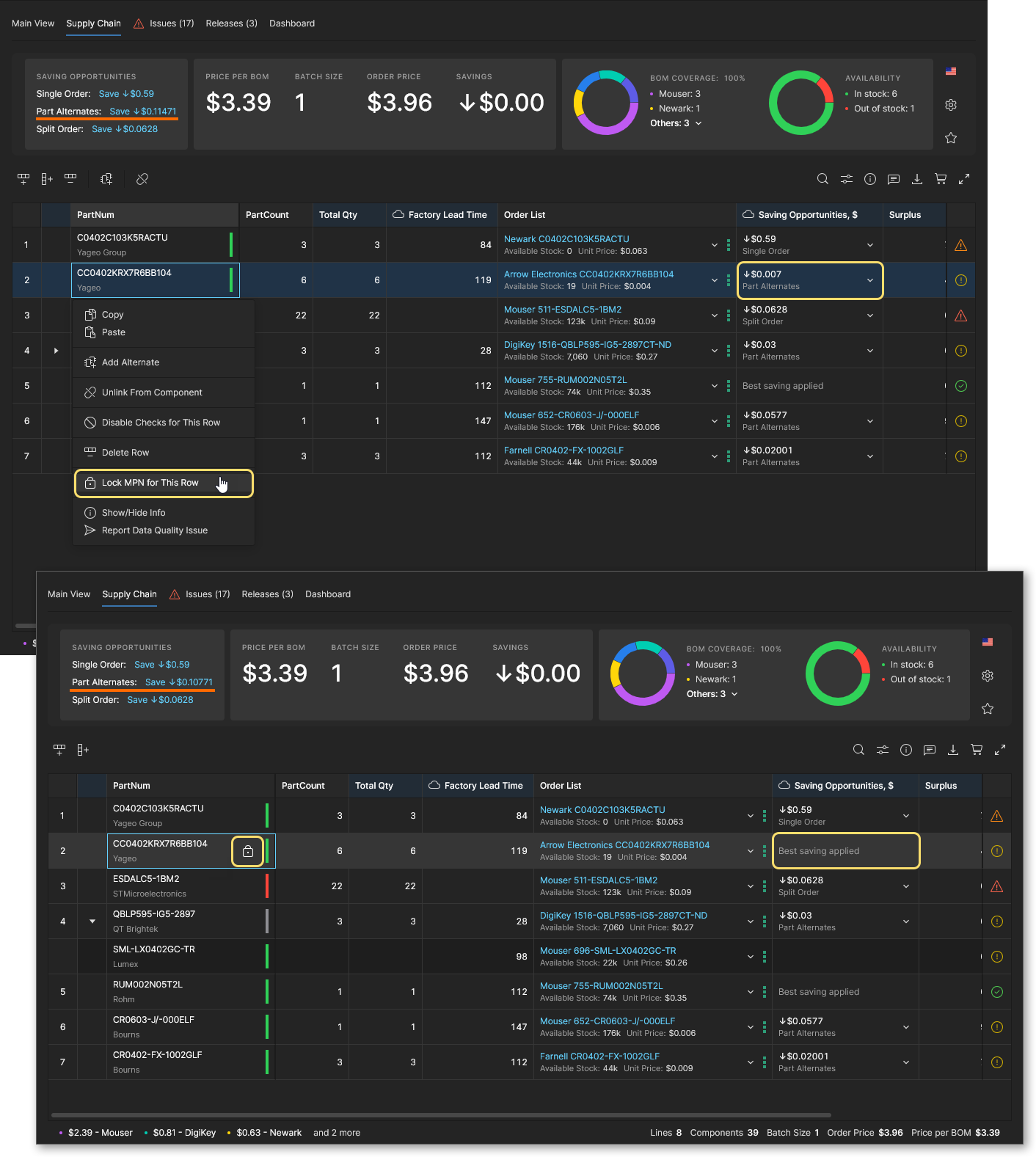 Note that the other Savings Opportunities (Single Order and Split Order) do not change the manufacturer part when applied.
-
 Set Target Price to Actual Price: Force the
 Target Priceparameter entry in a BOM item row to adopt theUnit Priceof the current supplier solution, as defined by the Order List entry. This change can be invoked for all BOM item entries with the Set Price to Actual Price command available from the upper menu. Note that both commands are available only when the Target Price option is enabled in BOM Settings.
-
Show/Hide Info: Toggle the Information pane view of data that applies to the currently selected row (line item). Equivalent to toggling the pane with the main icon, as detailed above.
-
 Pin/Unpin Column: Toggle the pinning of a column in the listing view – available when a column header is selected. A pinned column is moved to the left, and will then remain there as the view is horizontally scrolled.
Autofill Alternates
The BOM Portal caters for the concept of alternative part options (Alternates) that are associated with a particular BOM line entry. Alternate parts may have been included in an uploaded BOM file, or can be specifically added to a BOM entry with the Add Alternate or Add as Alternate features. In terms of part options, the BOM Portal also offers Library component Part Choices and Suggested Alternates (drawn from its connected data sources) that can be selected through the BOM part search features ( ). Note that Part Choices are available when a BOM entry is linked to a Workspace component.
All of these component part alternatives are brought together for viewing under the Alternates tab in the Info pane as Manually Added, Part Choice List for Primary (if available) and Suggested Alternates for Primary sections. To automatically populate the BOM document with alternate parts drawn from these resources select the Autofill Alternates option from the main dropdown menu, and then in the Autofill Alternates window, enter the number of alternates you wish to add to each BOM entry and if the additions are restricted to Part Choices only.


Open the Autofill Alternates window from the main menu () and specify the number of alternate parts to be added to each BOM line entry. Note that the availability of Alternate parts for a BOM line entry can be viewed in the Info pane.


When choosing to populate Alternate entries with Part Choices only, where the Add alternates from data providers option remains unchecked, the BOM Portal will attempt to add the requested number of entries from the available Part Choices. A warning window is presented if there are insufficient Part Choices available for a particular BOM line part. Note that since one of a component’s Part Choice entries is likely used as the ‘primary’ Manufacturer Part Number (MPN) there is one less available for Alternate part additions.


Autofill Extra Quantity
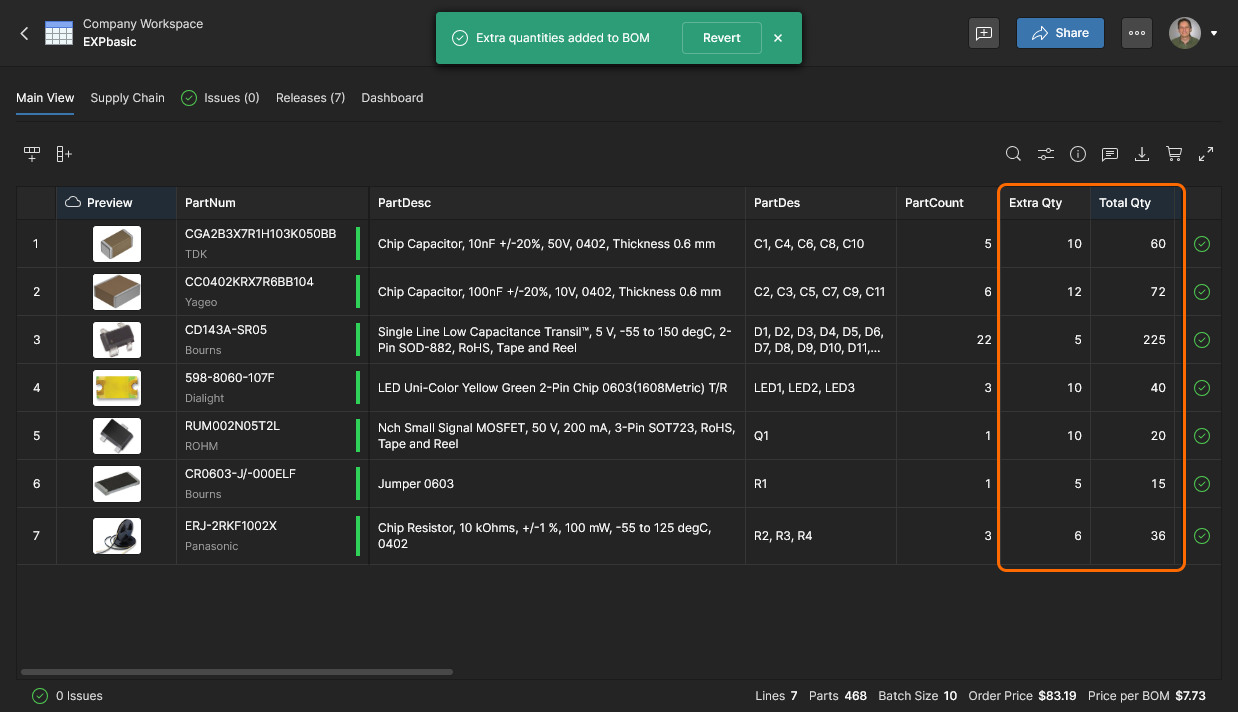
The BOM Portal’s Autofill Extra Quantity feature provides a convenient, automated way to optimize component purchasing numbers based on production considerations such as SMT machine setup wastage, typical assembly attrition, and additional parts stock requirements.
Additional BOM quantities are automatically calculated as a percentage of the required production quantity or as a specific number increase. The extra quantities can be applied to passive devices (resistors, capacitors, etc) by case/package style, or to other specific part categories based on their Component Type. In both cases the extra quantity entries can be added automatically (Add Rules) or individually (Add the first one, and then by selecting the icon.)
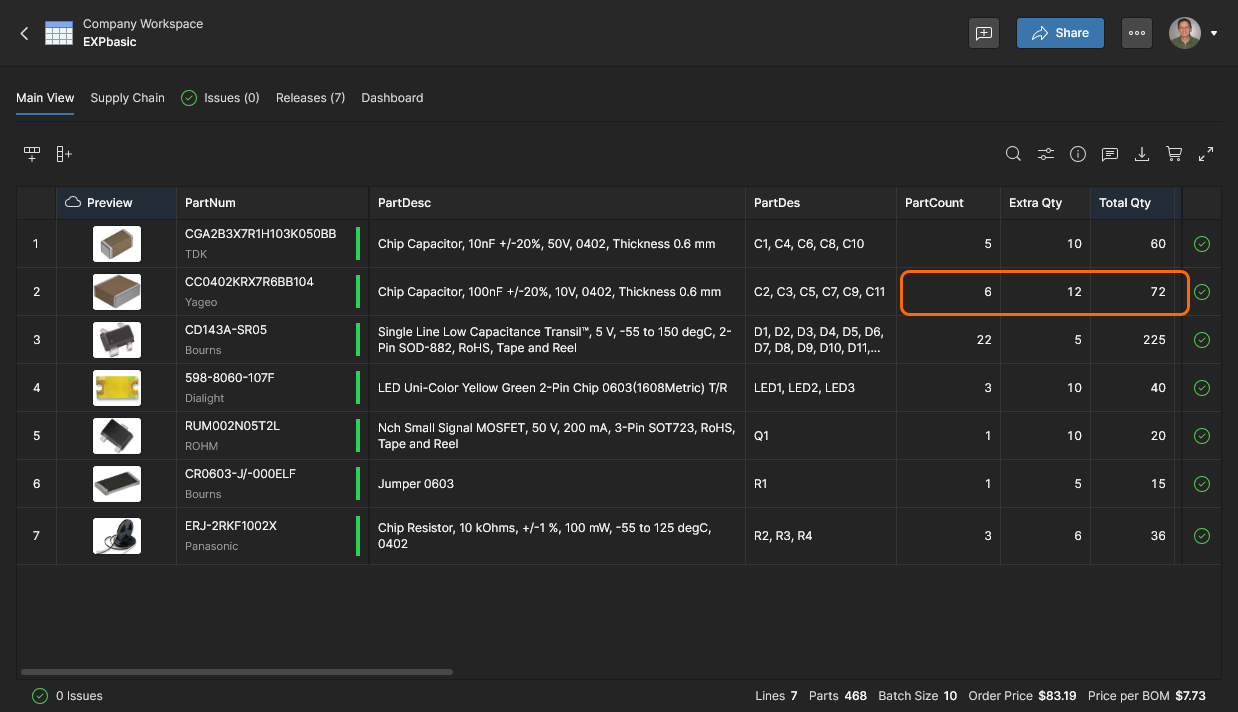
Note that the Extra Qty and Total Qty BOM columns are enabled in this example, and the BOM production run (Batch Size) has been set to 10 units. A BOM line’s total quantity figure (Total Qty) equates to the number of BOM parts (Quantity) multiplied by the BOM production quantity (Batch Size), plus any additional part quantities (Extra Qty).
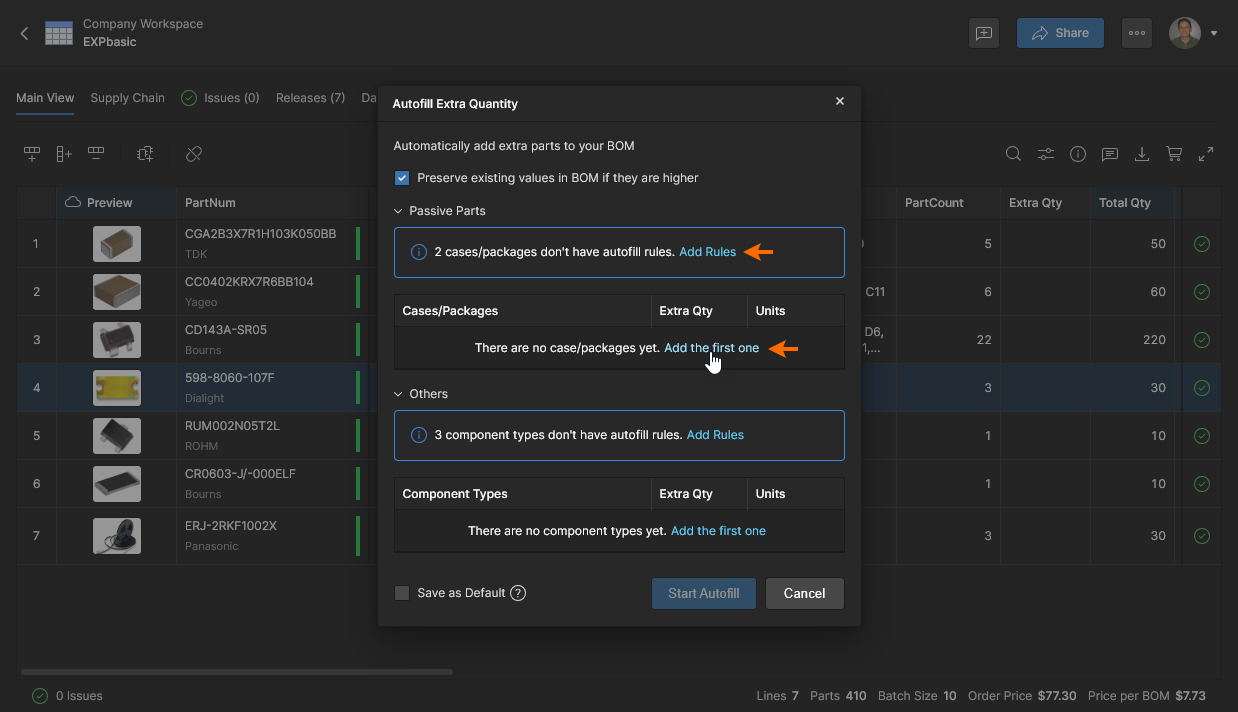
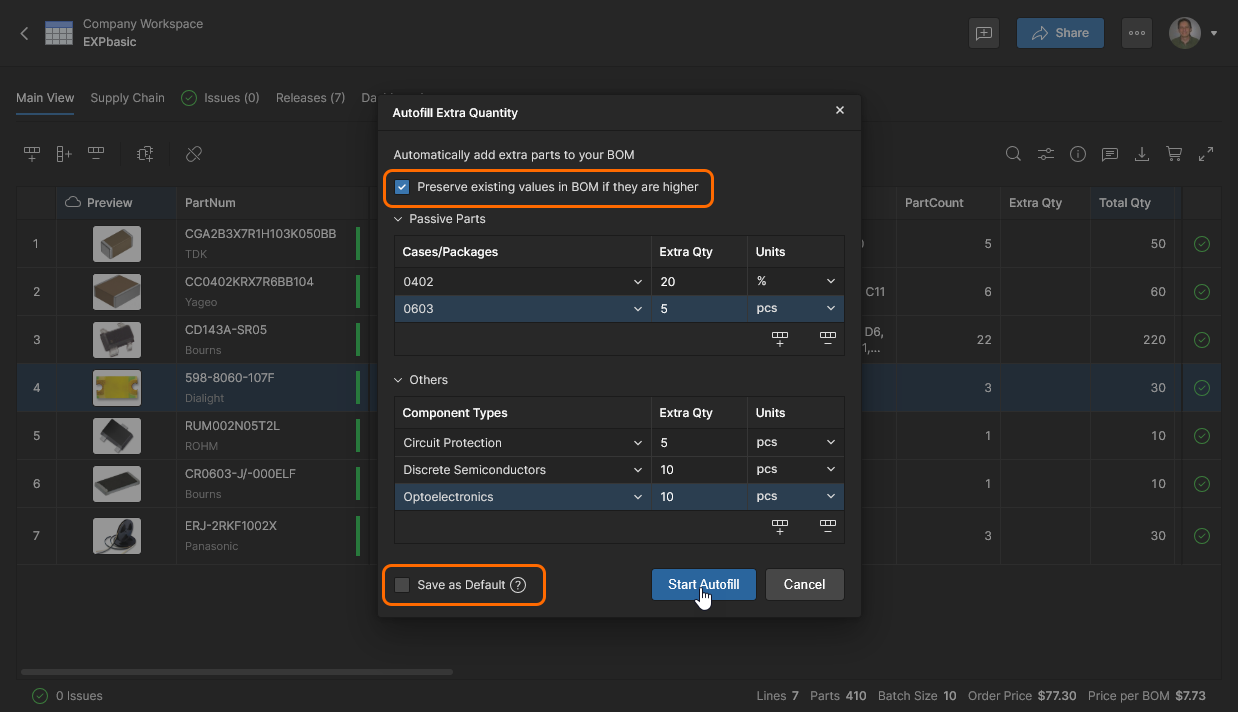
Choose the Autofill Extra Quantity option from the upper menu to configure the automated application of extra part quantities for passive or other component types. In this example, the manual Add the first one option is initially used – alternatively, select the Add Rule option to automatically add detected Passive part entries.
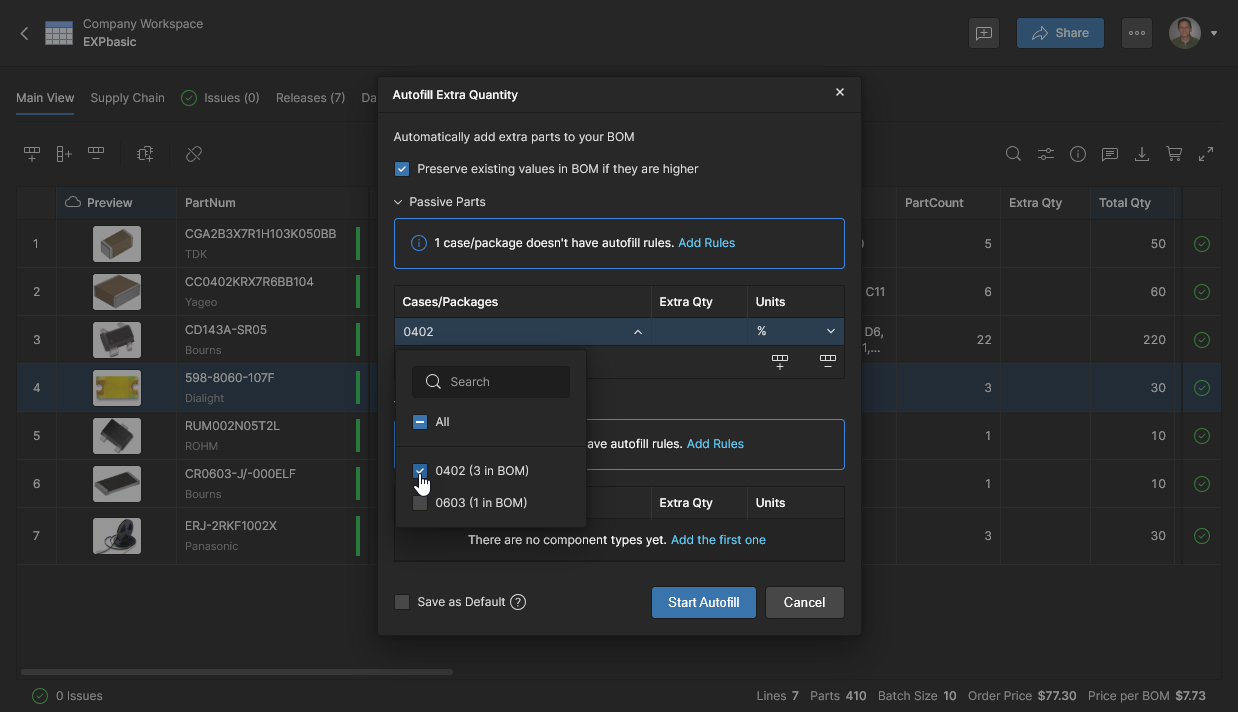
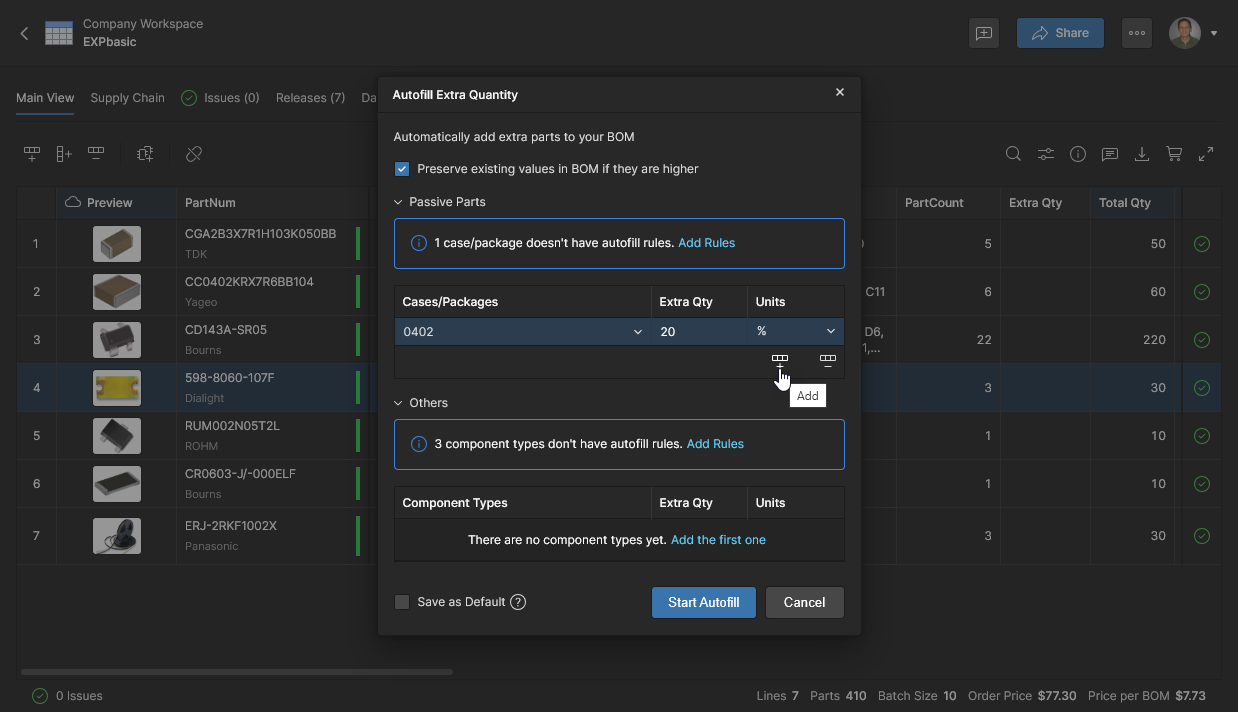
Add more part entries using the icon. Multiple extra quantity rules can be added by selecting more package types from the Case/Package menu and specifying a number (pcs) or percentage (%) increase. The drop-down menu choices for passive devices are constrained to those parts present in the current BOM document.
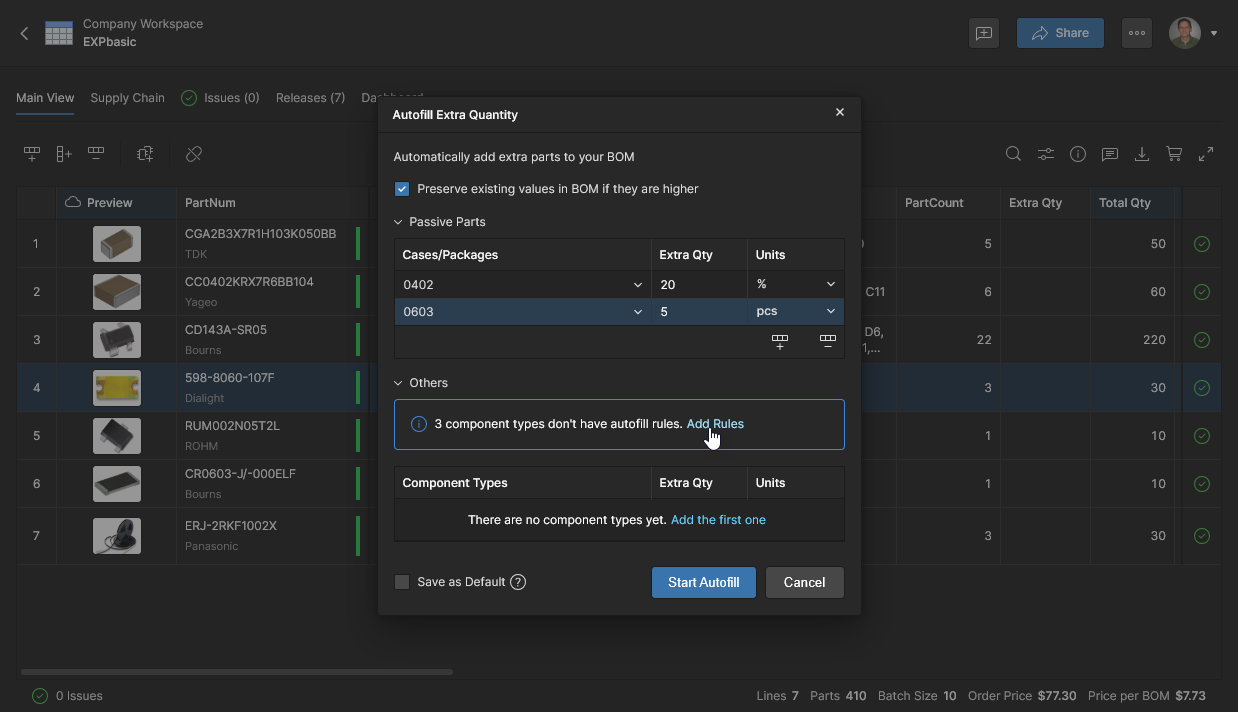
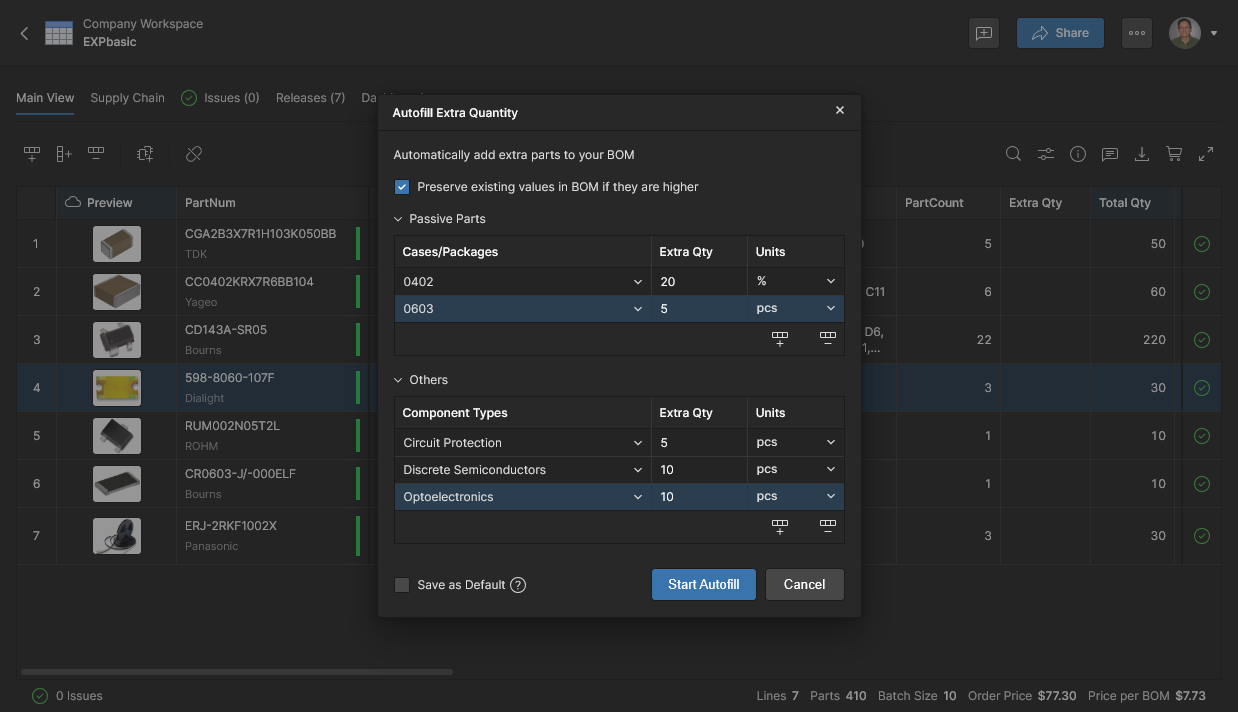
The completed Extra Quantity configuration with addition rules applied to both passive and other part types. Use the icon command to remove a selected entry.
Edit, Move and Clone
The BOM Portal allows management of the BOM document itself via the Edit, Move and Clone options available from the upper menu. 
-
Edit – access and edit the Name and Description of the current BOM document. Click
 to accept any changes.

-
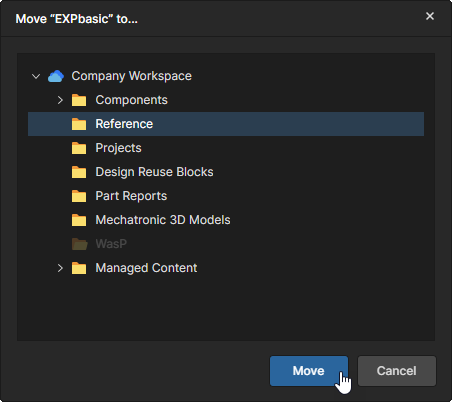
Move – relocate the BOM project document to an alternative Workspace parent folder. Choose the target folder (the current folder is dimmed) and then the
 button to confirm. Note that a moved BOM document adheres to the Workspace’s permission inheritance scheme. See Moving a Project for more information.
-
Clone – create a copy of the current BOM document. Accept or edit the cloned document Name, and optionally, add a Description and specify a different parent folder (from the Change option under Advanced settings) – click
 to confirm. When a different target folder is specified, the document will be subject to the Workspace’s permission inheritance scheme.

