Workspace Components Integration
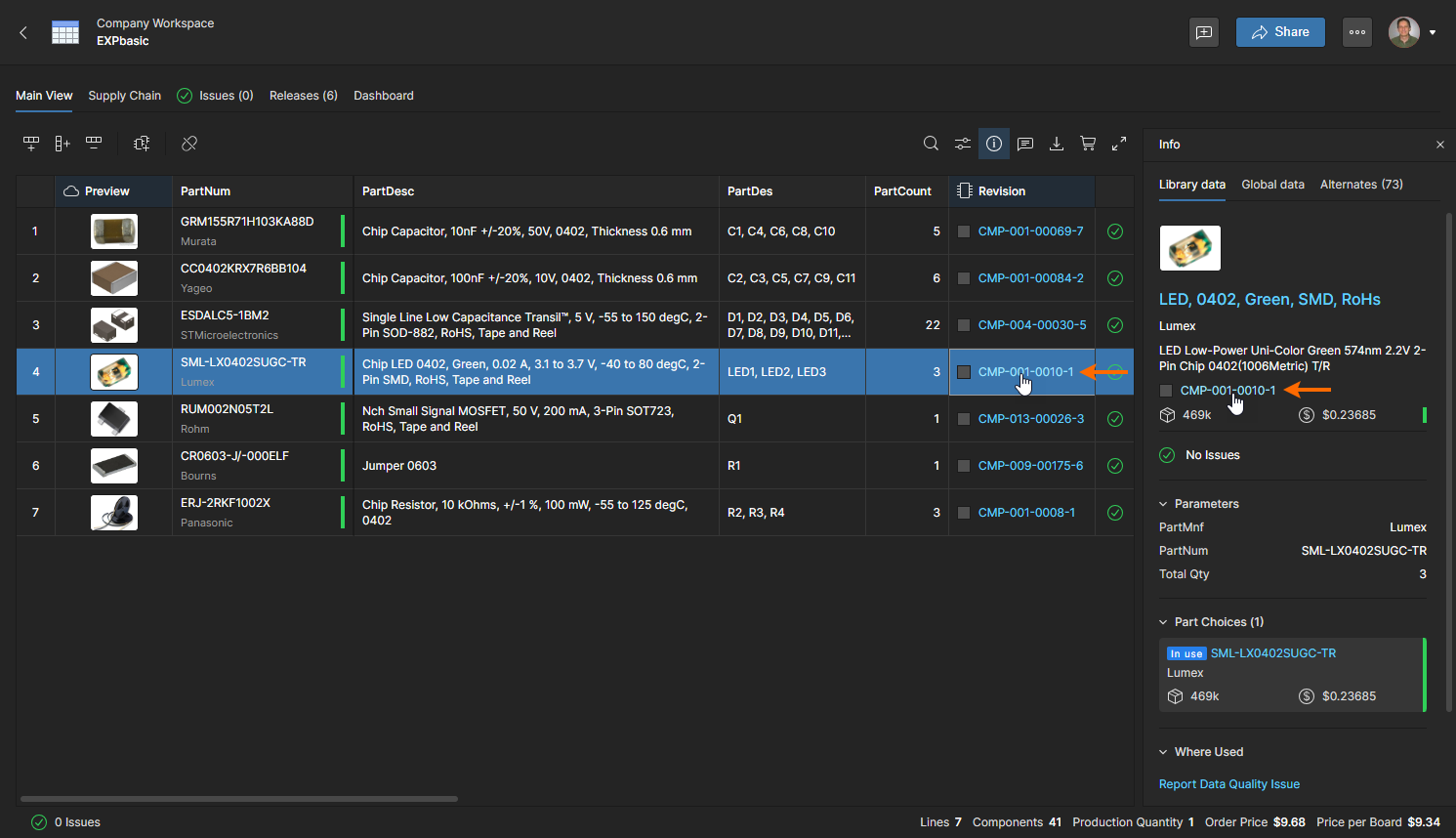
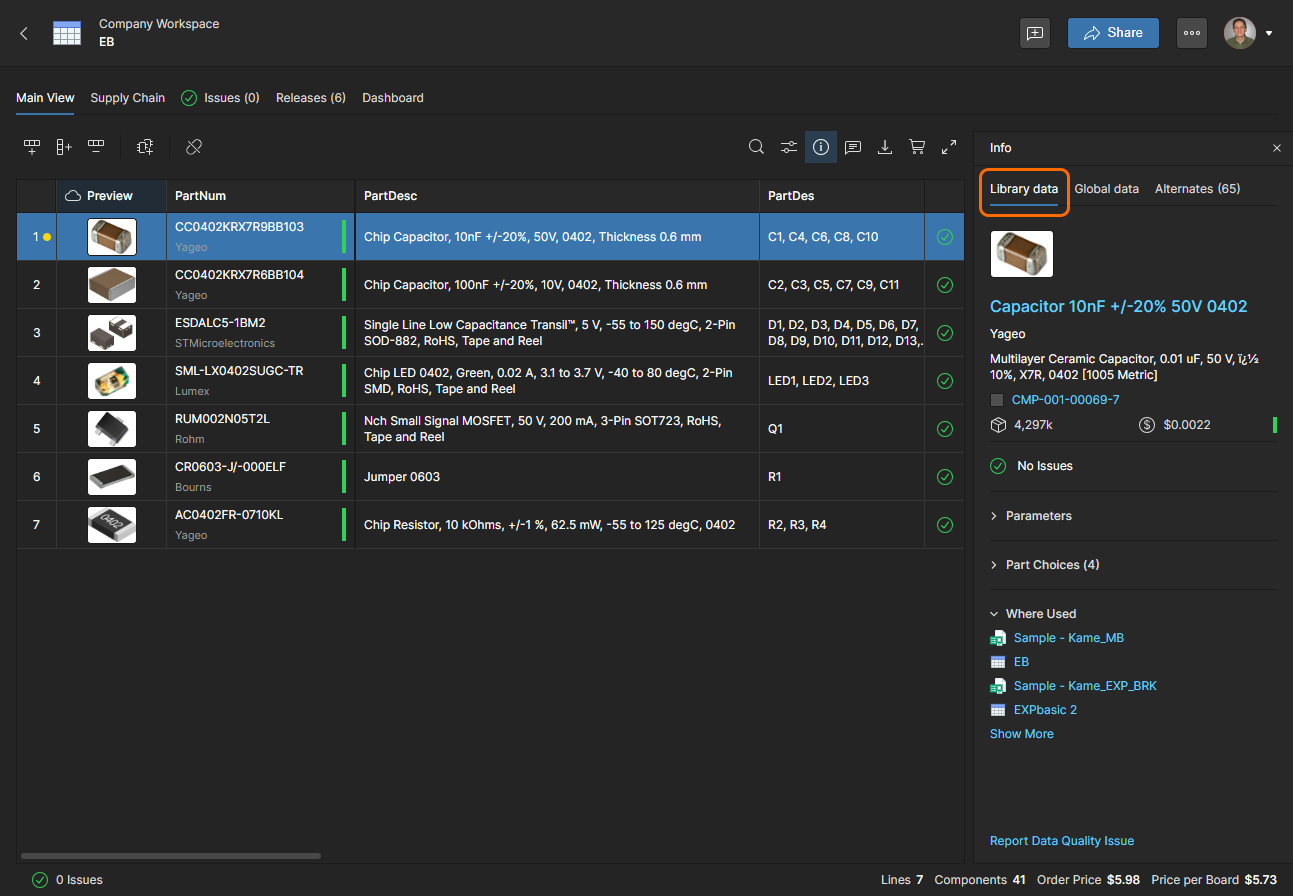
The BOM Portal will automatically create a link between a BOM line item and a Workspace component where the latter has the Manufacturer Part Number as a valid Part Choice entry. In this case the Info pane presents an additional Library Data tab view that shows the Workspace component's information (Parameters, Part Choices, etc). Also included is a Where Used section which lists Workspace projects that include the selected component – click on an entry in the list to open that project in the Web Viewer.
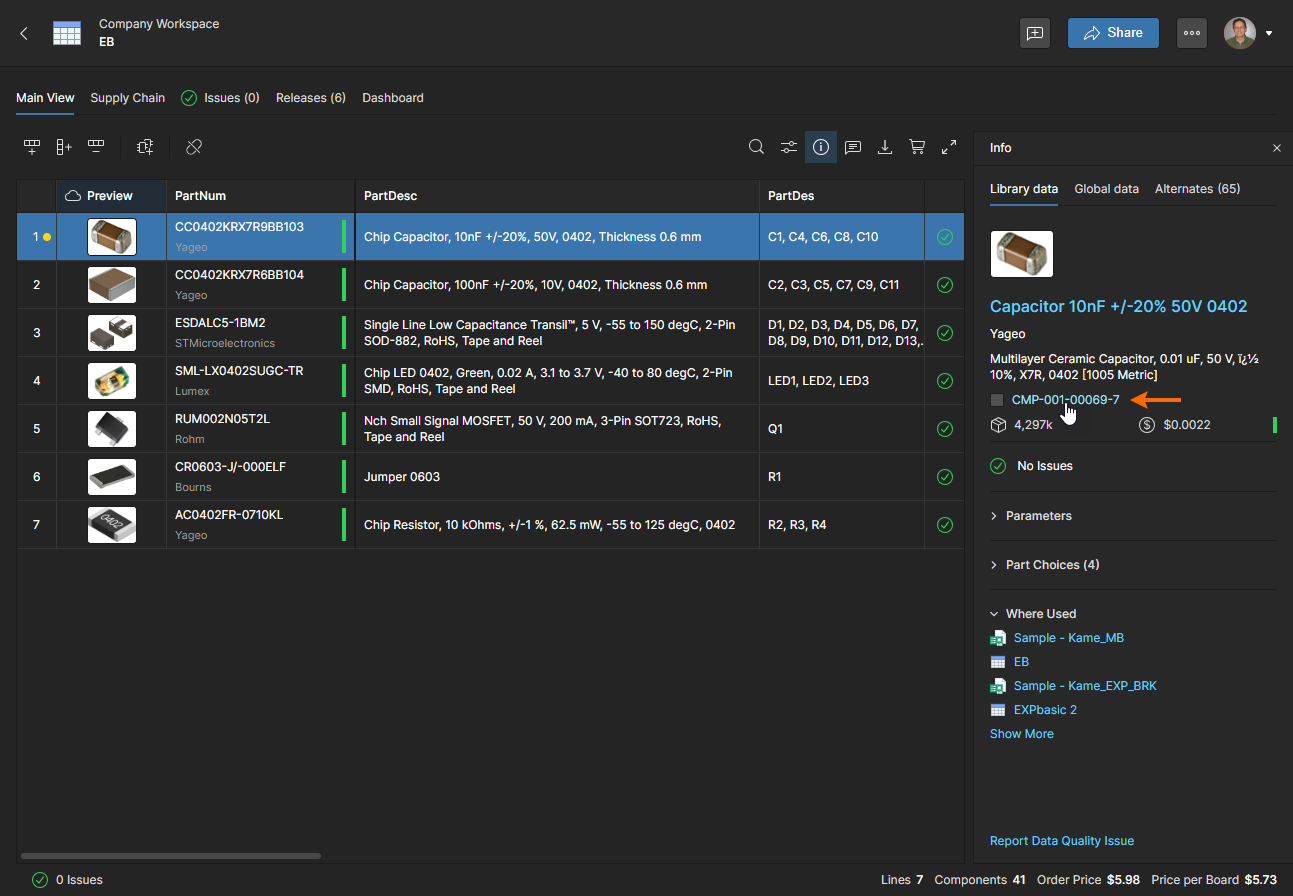
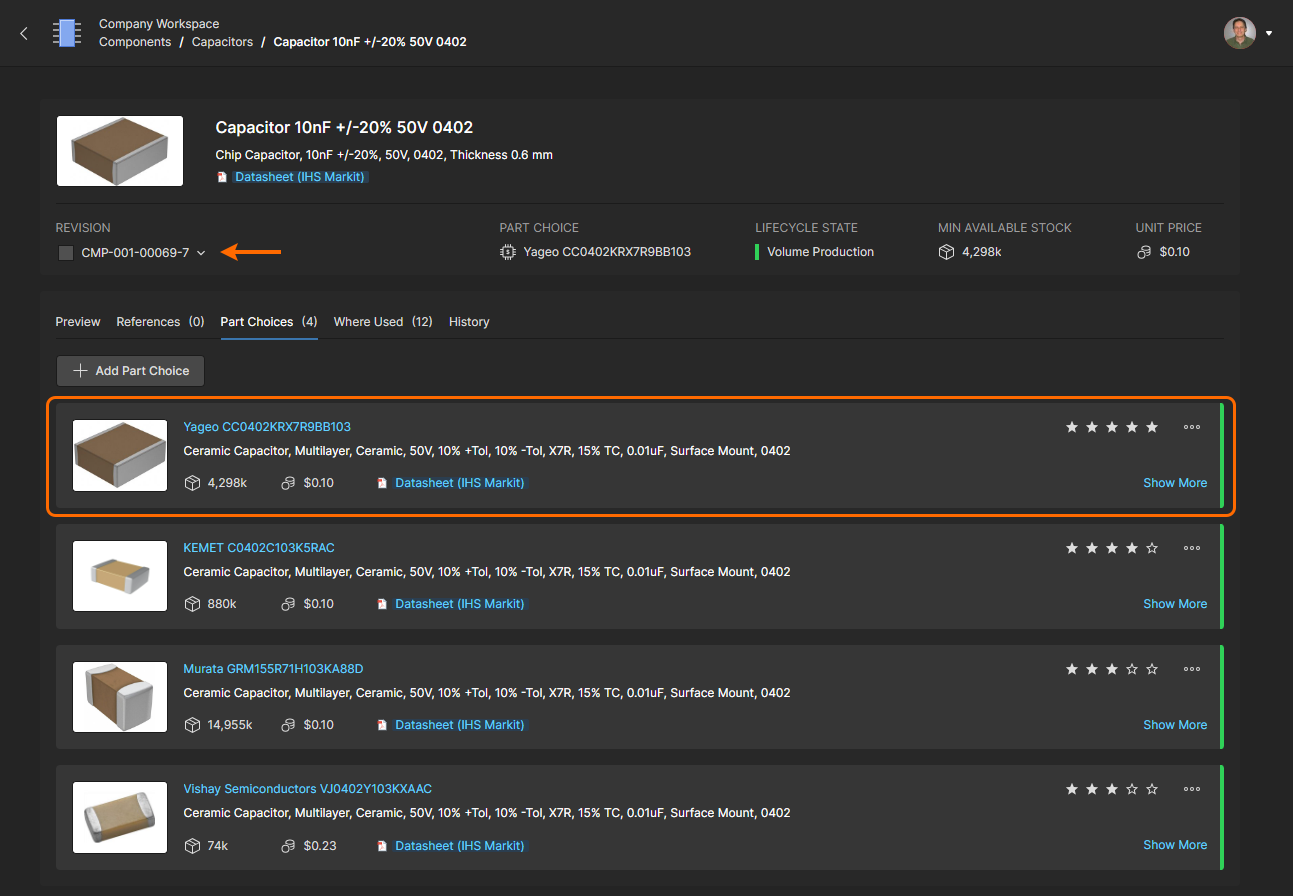
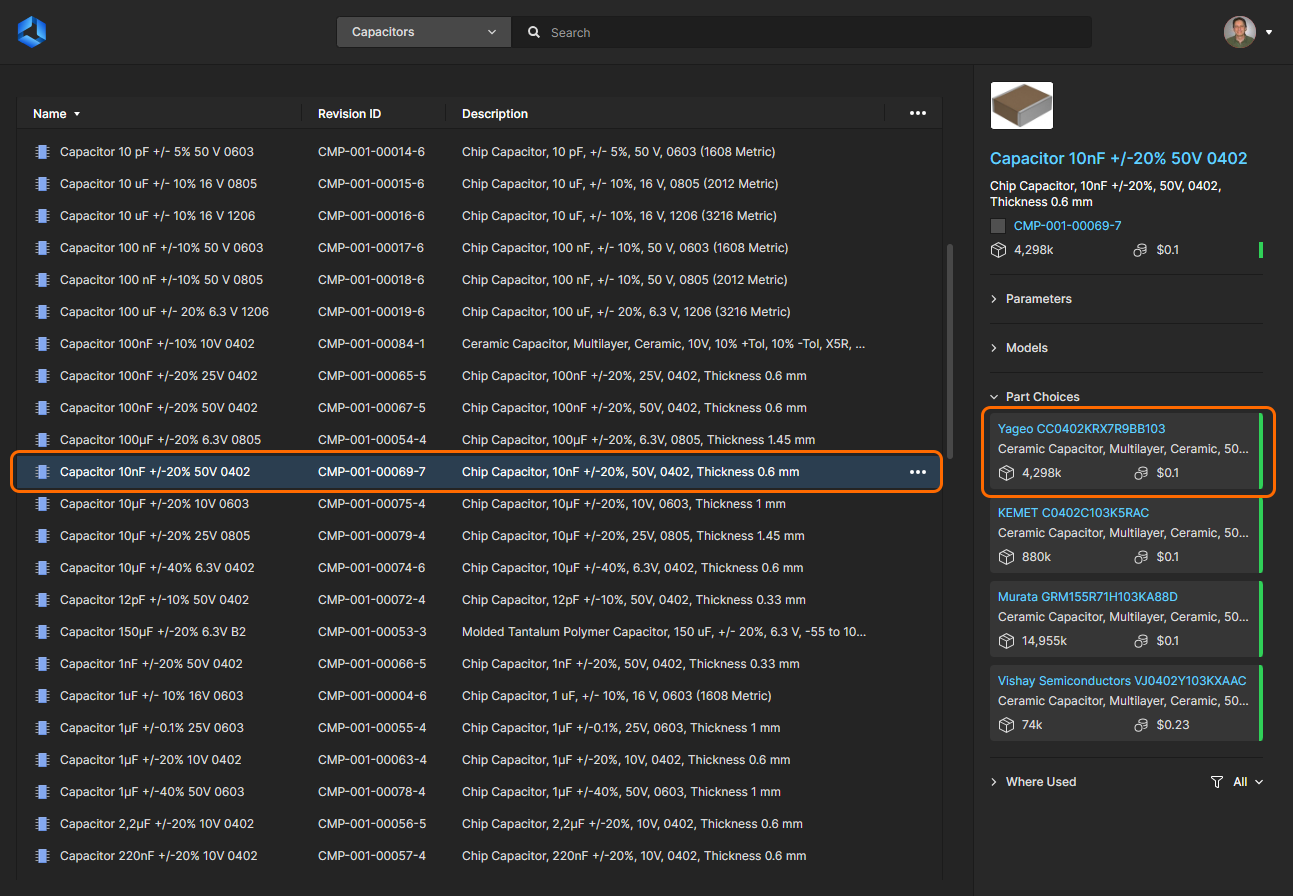
 option if you wish to remove the existing link between a BOM line part and its associated Workspace component. The icon will change to a re-link option
  )
) icon indicate that an existing Workspace component has this Manufacturer Part entry as a Part Choice – and if applicable, will be linked to the BOM when used.
Out of Date Component Revision
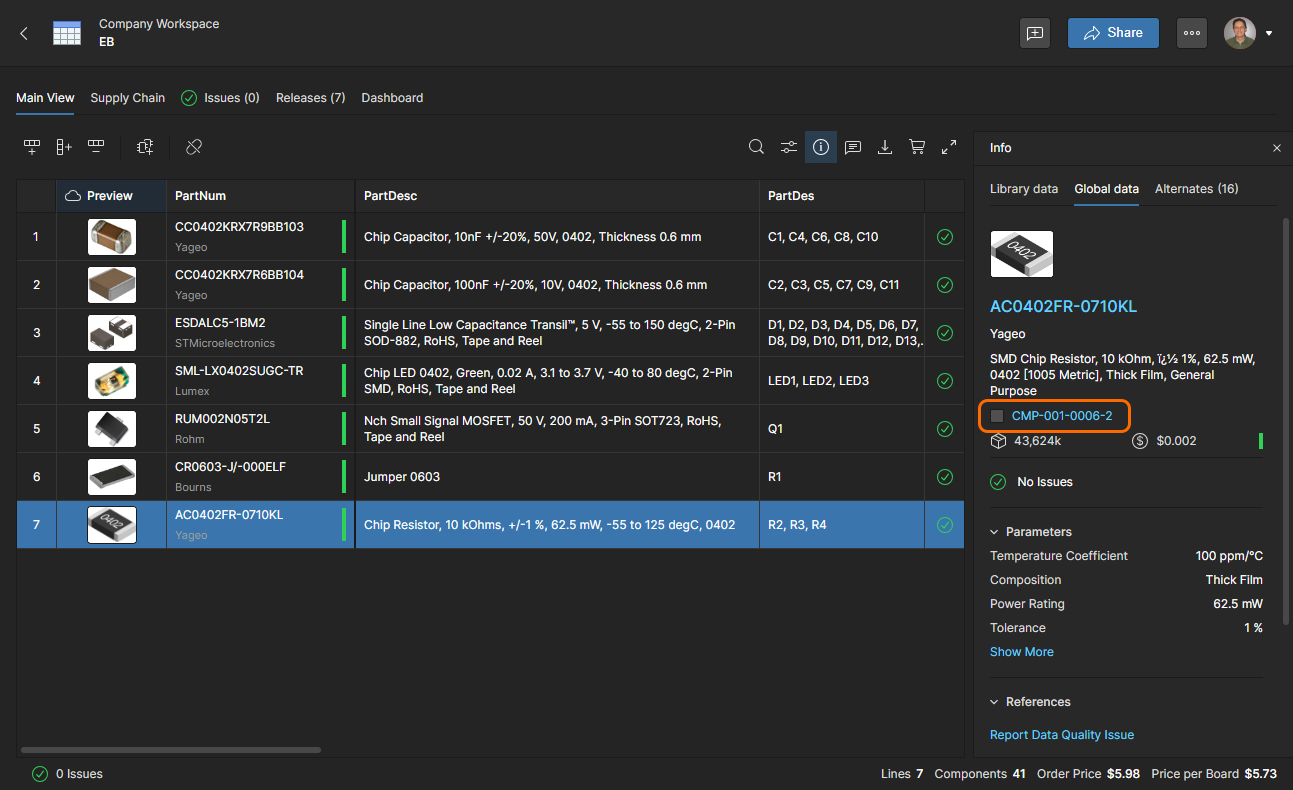
A BOM line entry will be flagged as Out of Date if the linked Workspace component has been updated since the BOM link was established. This issue is resolved by updating the link to the latest revision of that Workspace component – select the BOM line and use the  button to update the revision.
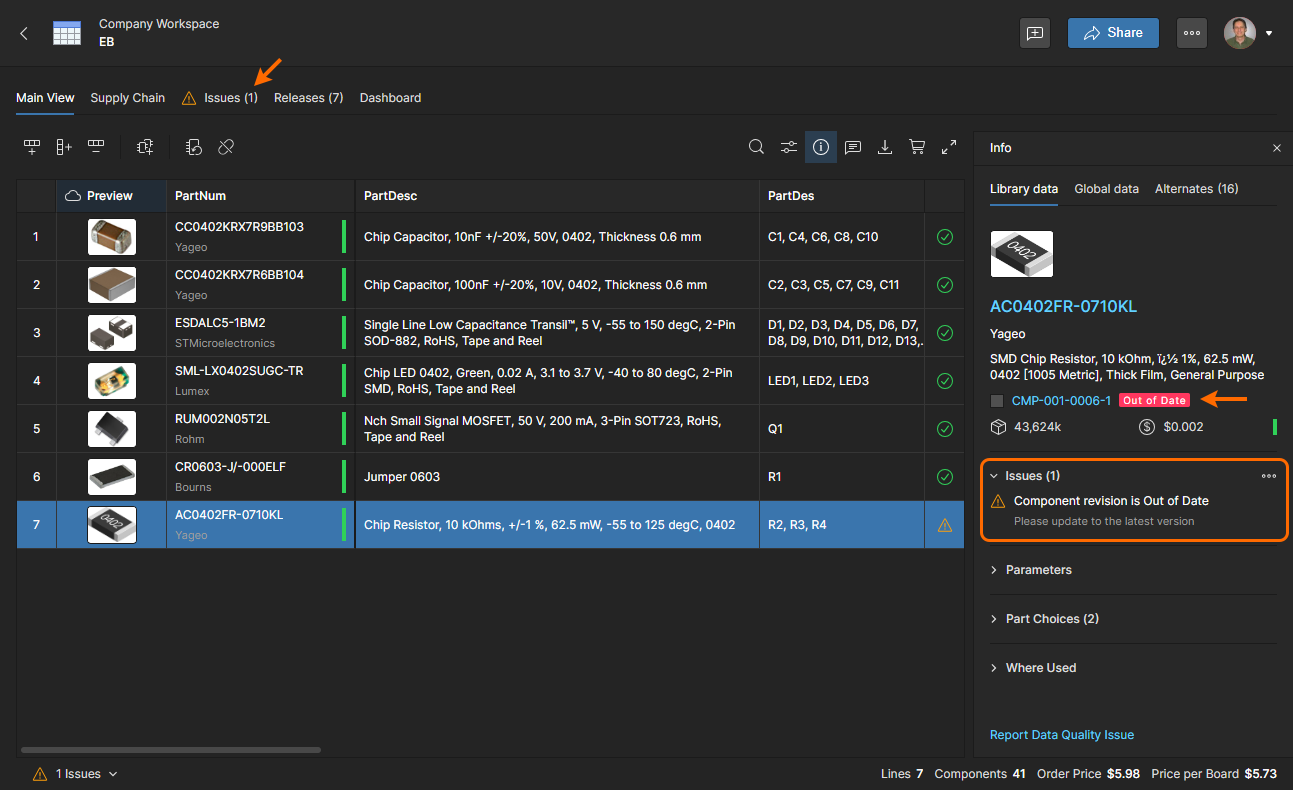
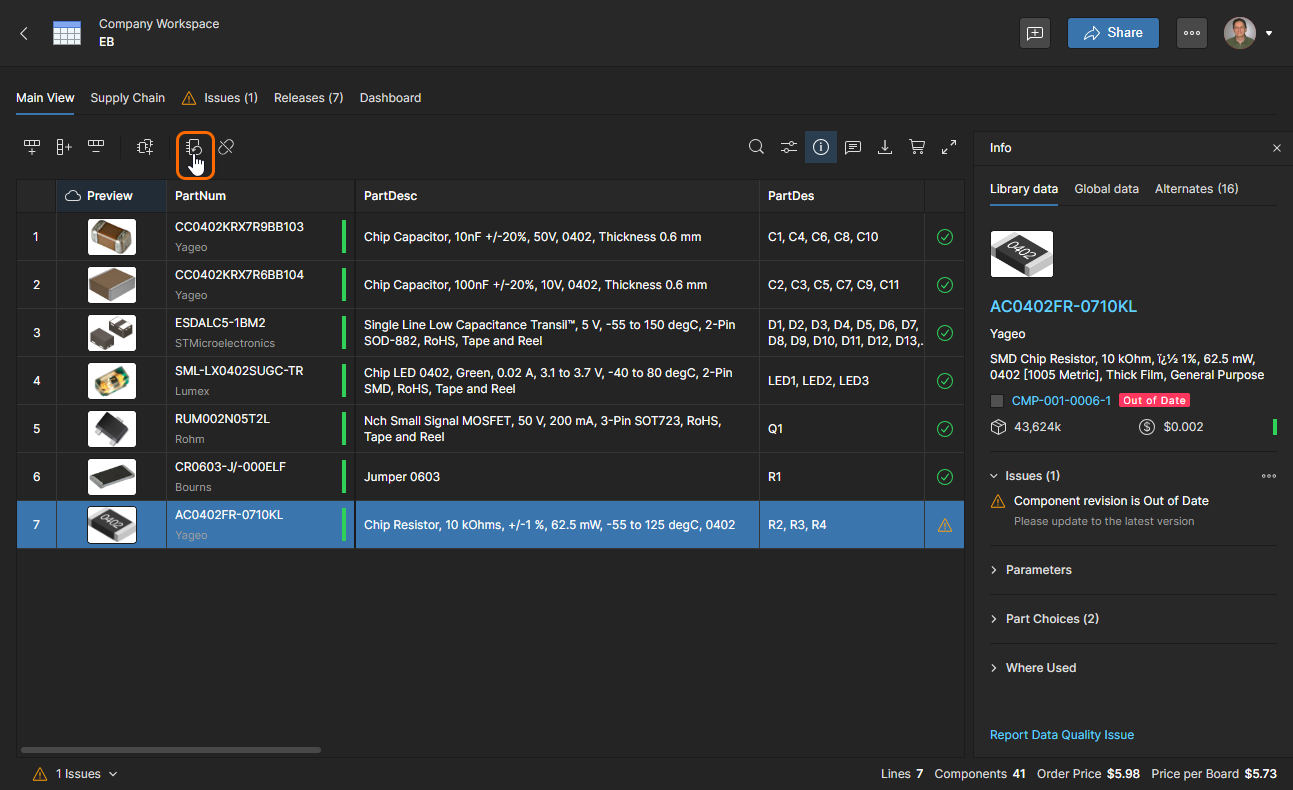
To resolve the Out of Date issue, select the BOM line of concern and click the Update Component Revision button () to invoke a component link refresh.
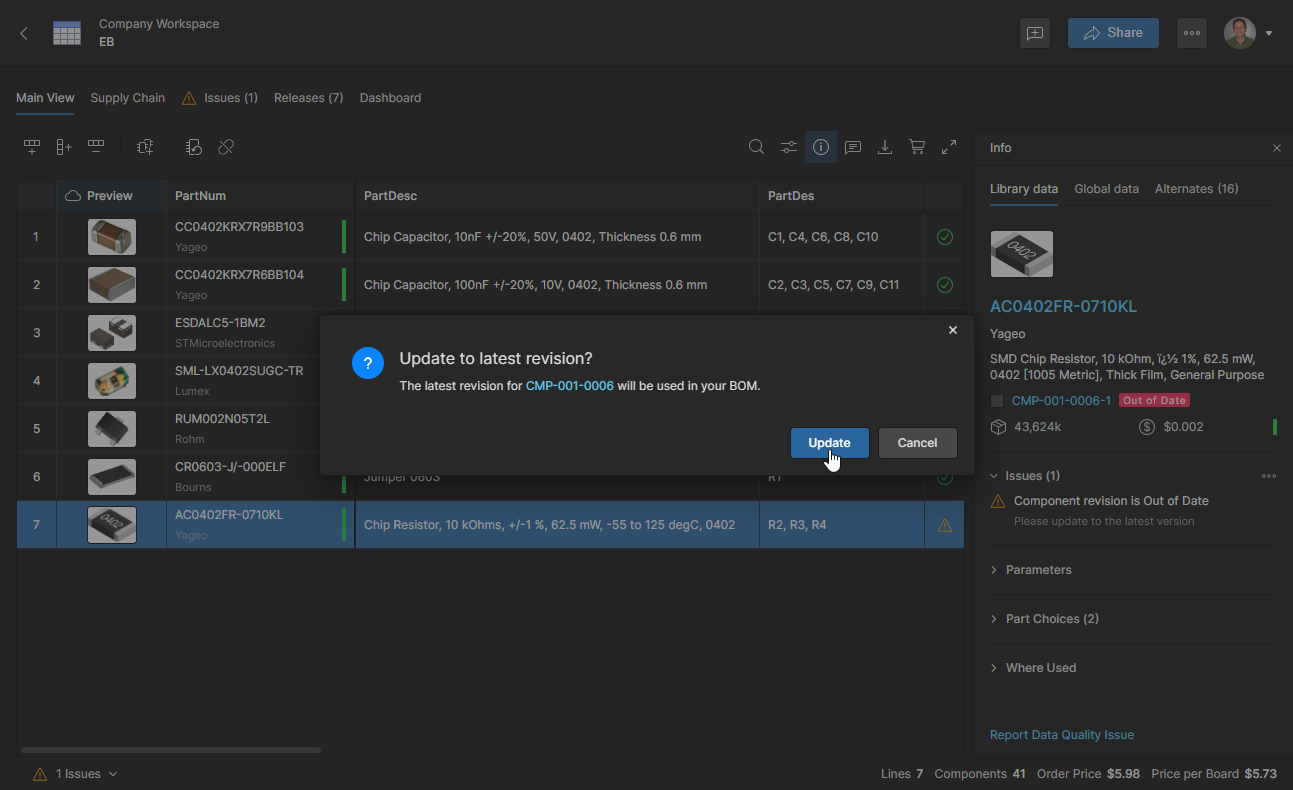
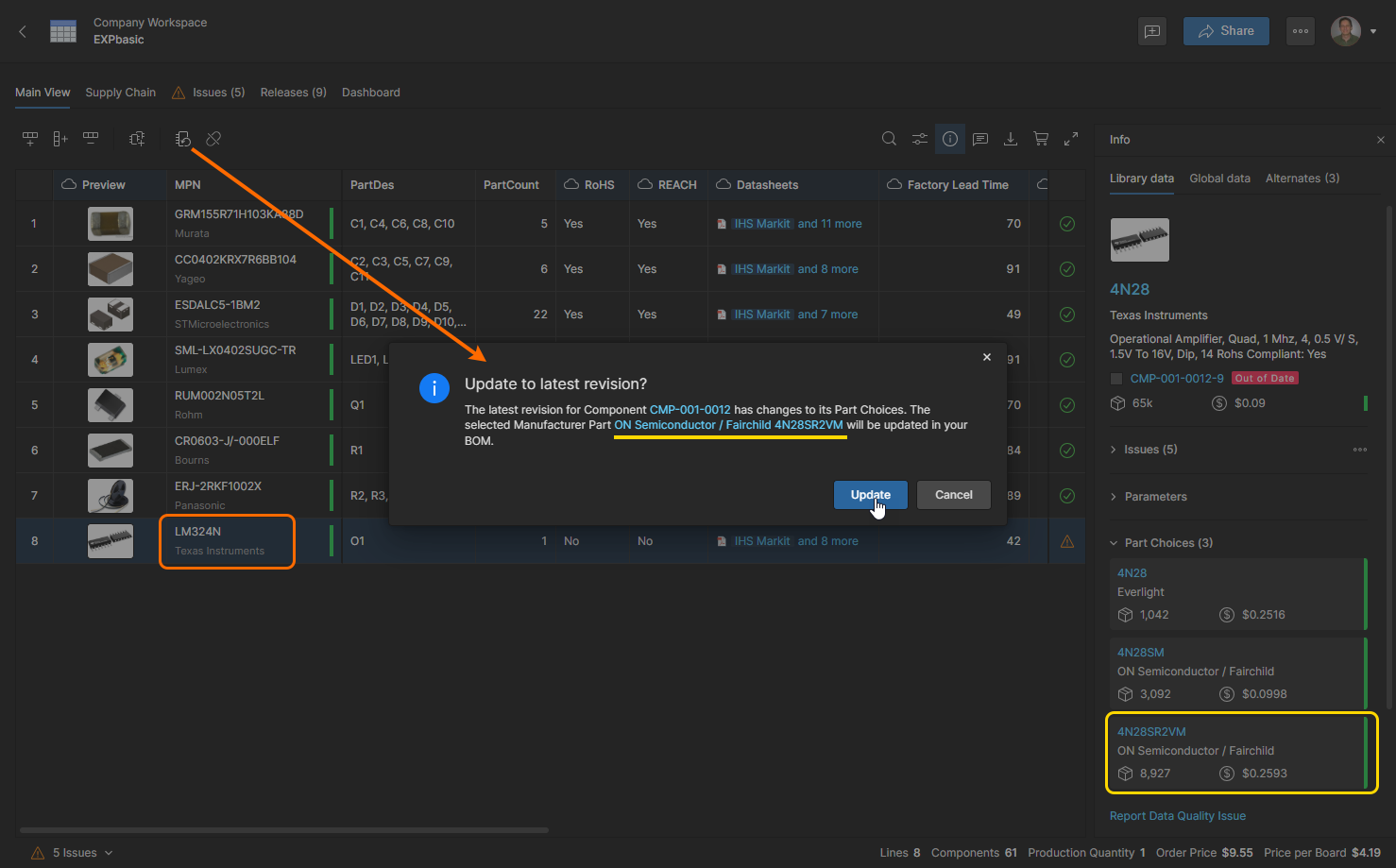
If the Part Choice currently used by the BOM item is no longer available in the new component revision, it will be replaced by the most optimal Part Choice available in the new revision. This automatic selection is based on rank, manufacturer lifecycle, unit price, and availability.
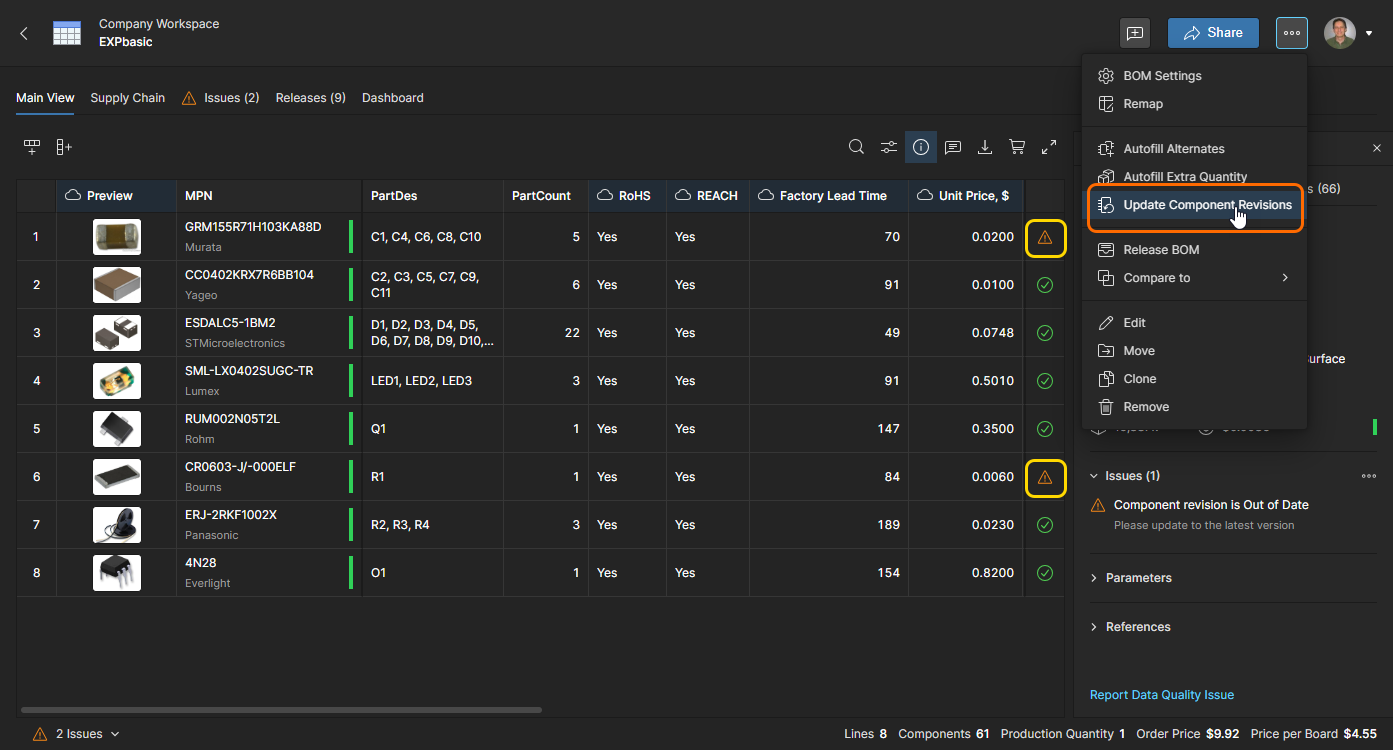
Use the Update Component Revisions command to update all BOM components with an Out of Date issue in one action.
Internal Part Number Linking
As outlined above, the link between a BOM line item and a suitable Workspace component is established where the BOM item’s Manufacturer Part Number is matched to a Component’s associated Part Choice entry – the linking parameter itself is the Item ID, for example CMP-001-0002 in the image below. A Managed BOM also might include special Internal Part Number parameters entries for identifying company parts, as required by an organization’s internal PLM or ERP systems for example. In this case an administrator can configure the Workspace to use any available part parameter – such as IPN – as the primary synchronization link. See the Admin-Settings-Components page for more information.
When the Workspace has been configured to use a primary synchronization parameter other than the default Item ID, a Managed BOM can be mapped to use this parameter for BOM Item to Component linking by using the Remap option ( ) to choose the desired parameter column as the Internal Part Number.
 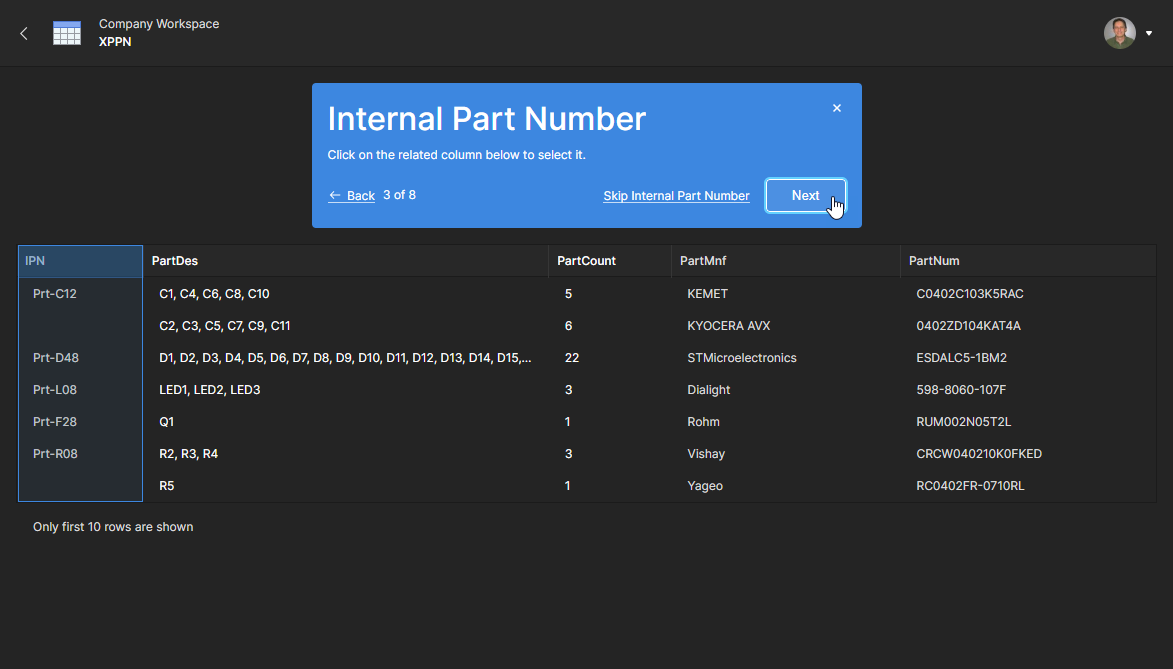 Once this is established, the system will link the BOM line items with Workspace components based on that designated Internal Part Number parameter.
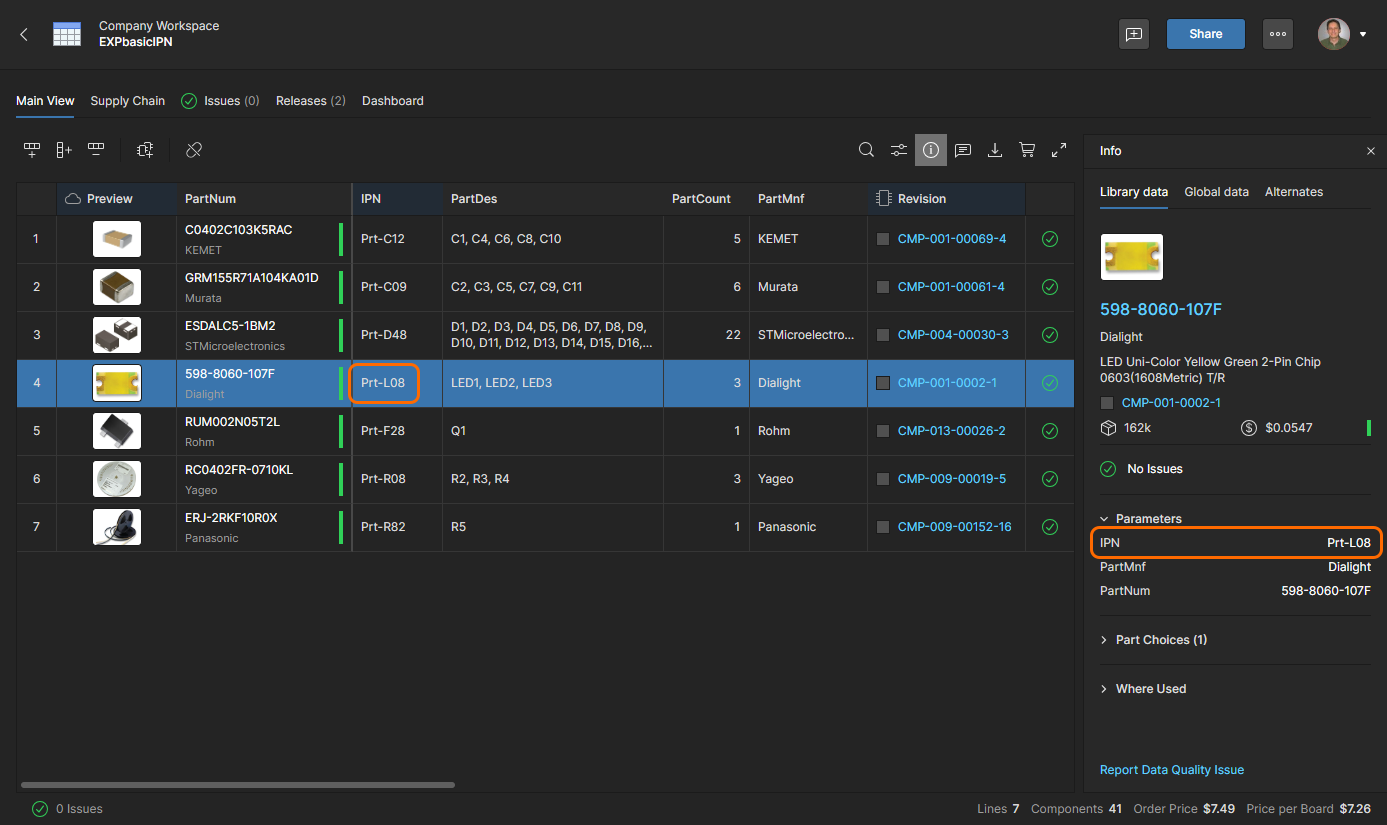 Where Internal Part Numbers (IPN parameters) are included in a BOM, these become the primary key for linking to a Workspace component.
Normally, the BOM Portal will always attempt to link a BOM entry with a Workspace Component based on a match between the BOM line Manufacturer Part Number (MPN) and a Workplace Component Part Choice entry. 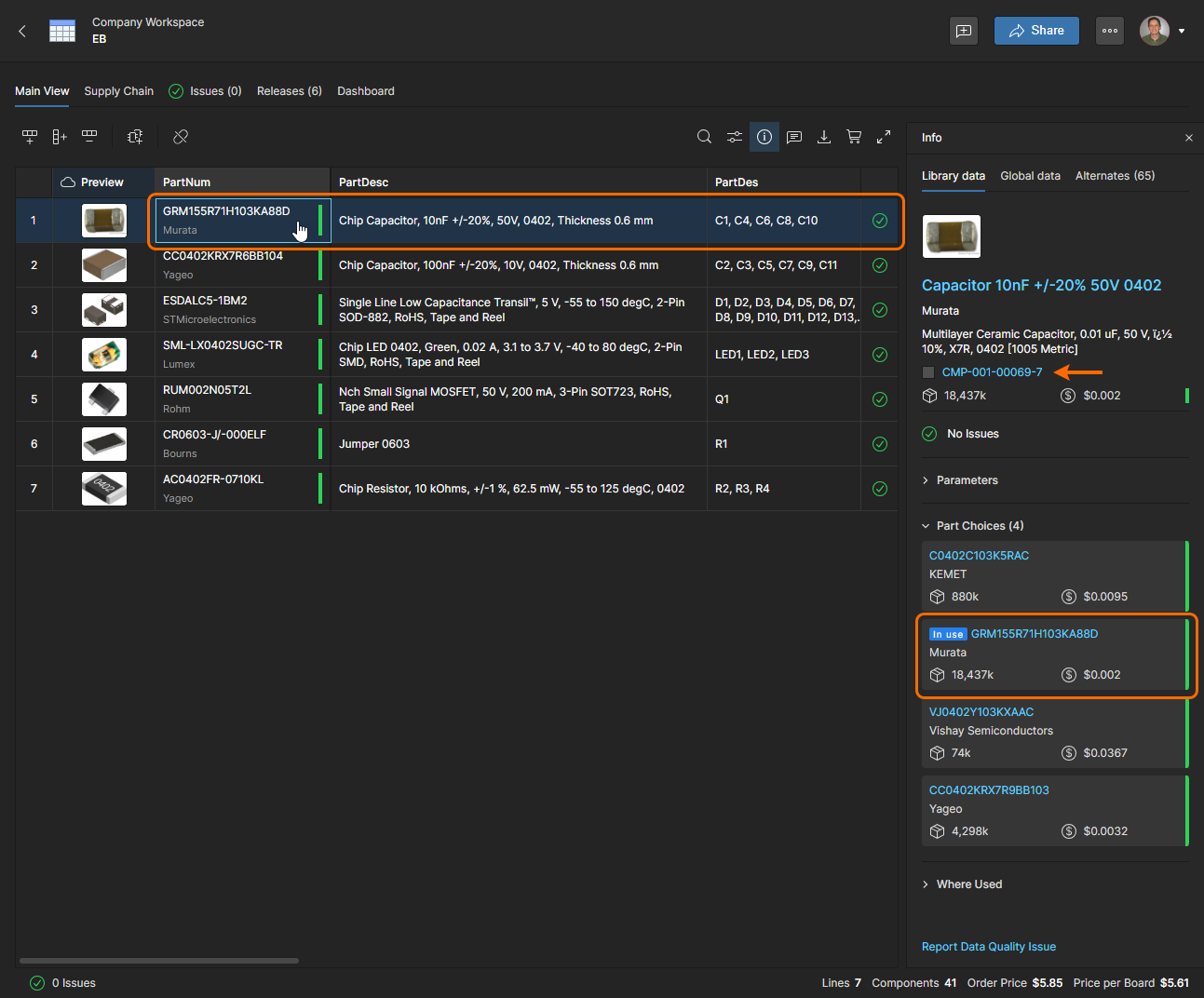 This behavior is overruled where a BOM entry and Workspace Component have matching Internal Part Number parameters (as detailed above) – the link then becomes the designated primary key, rather than the MPN to Part Choice relationship (see above image).
 .
.
Note that the following conditions apply:
-
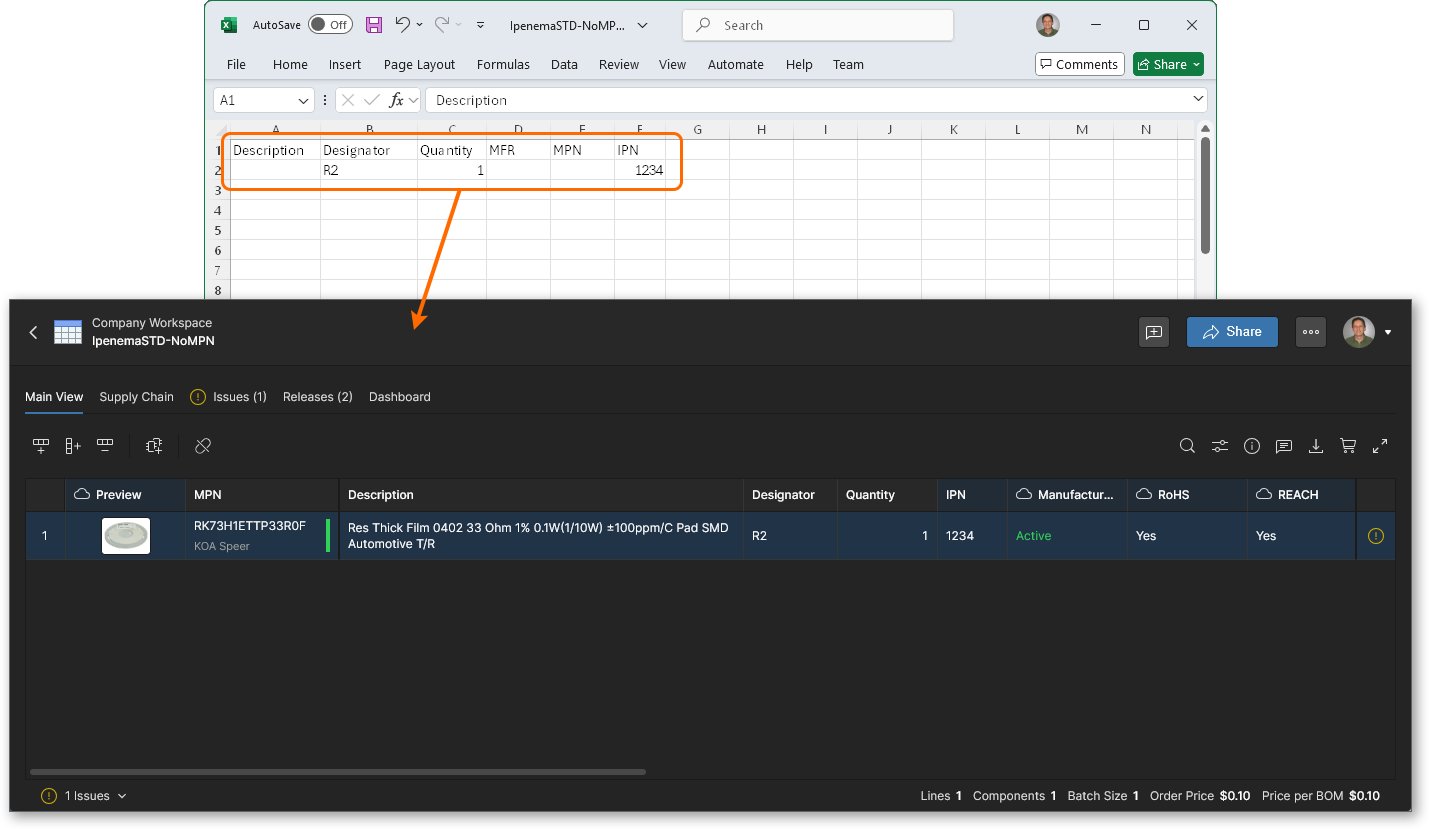
If either the Workspace Component or BOM entry does not have a configured Internal Part Number parameter, or its value is blank, the system establishes the usual MPN to Part Choice linking - based on the
Item IDsystem parameter. -
If the associated Workspace Component and BOM entry have mismatched Internal Part Number values, and another direct match is not found, then a Component to BOM link is not established.
-
Where a Workspace Component and BOM item are successfully linked by matched Internal Part Number parameters but the BOM entry’s
MPNdoes not match any of the Component’s Part Choices, then a related warning Issue is generated: 'Part Choices for the Managed Component do not include this Part Number'.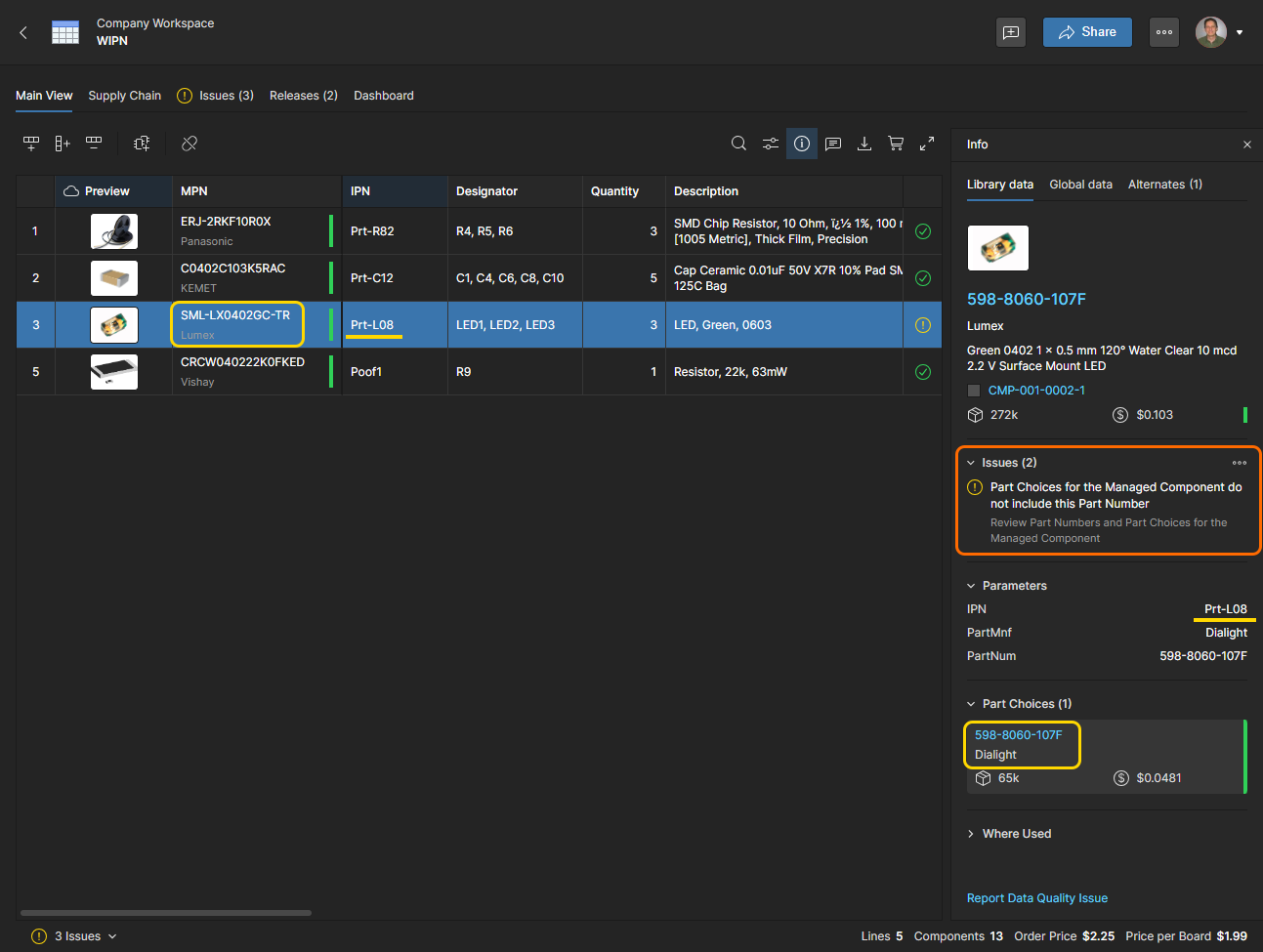
Create Component From BOM
Workspace components can be created from a BOM line item, based on the referenced Manufacturer Part Number. This applies to BOM component entries that are not already linked to an existing Workspace component through Part Choices, and in practice, allows you to create Workspace library components for all manufacturer part items in an imported BOM.
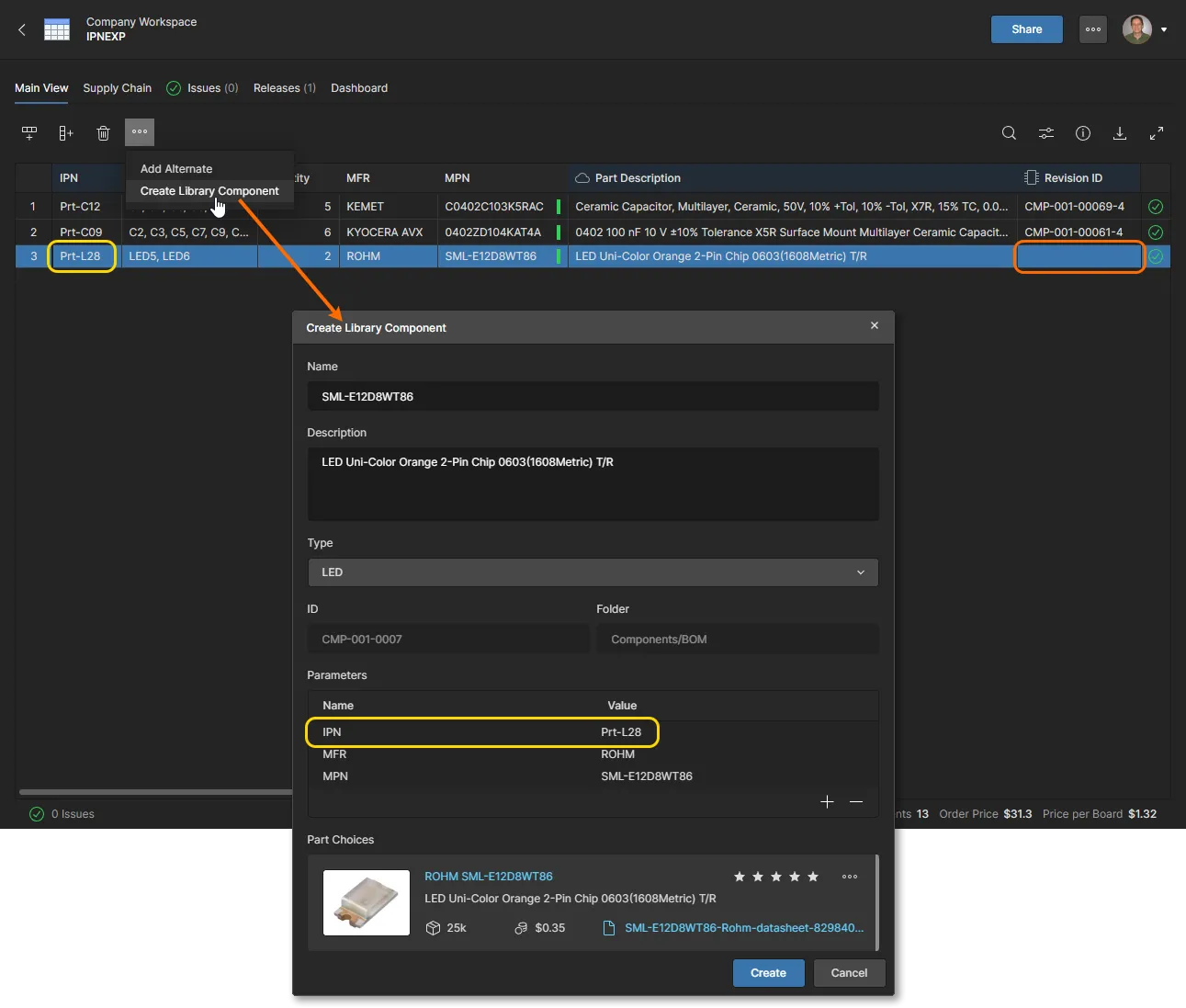
To add a new Workspace component based on the selected BOM line item, click the  button, edit the new component information in the Create Component window, and then confirm the changes. The resulting Workspace library component is based on data drawn from Altium's component information resources, will be created in a
 Components/BOM/<Component Type> folder, and listed on the Components page under its assigned Type category.
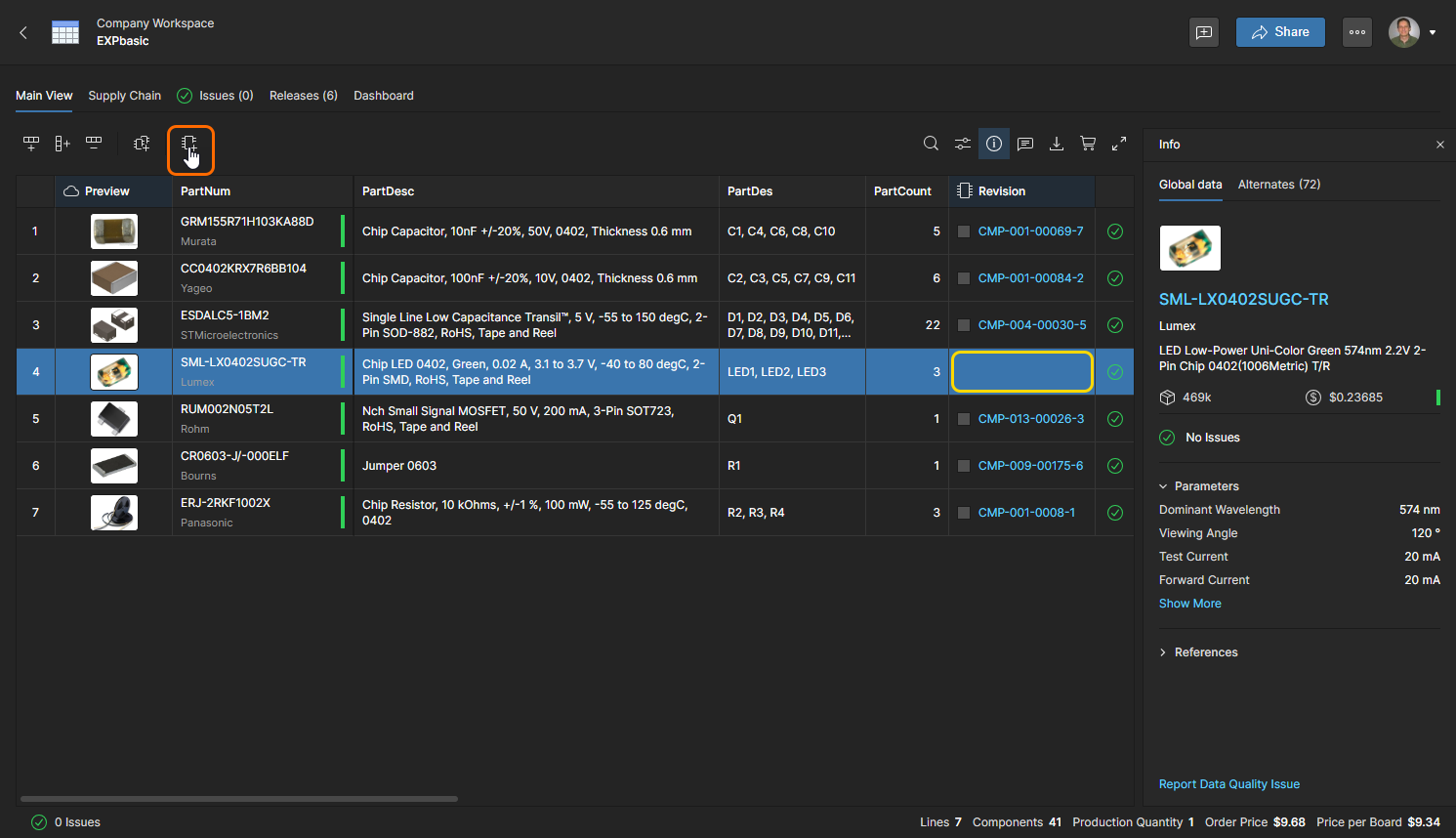
Use the button option to create and add a new component to the Workspace from the manufacturer part reference in the selected BOM line item. Note that the BOM component part is not currently associated with an existing Workspace library component.
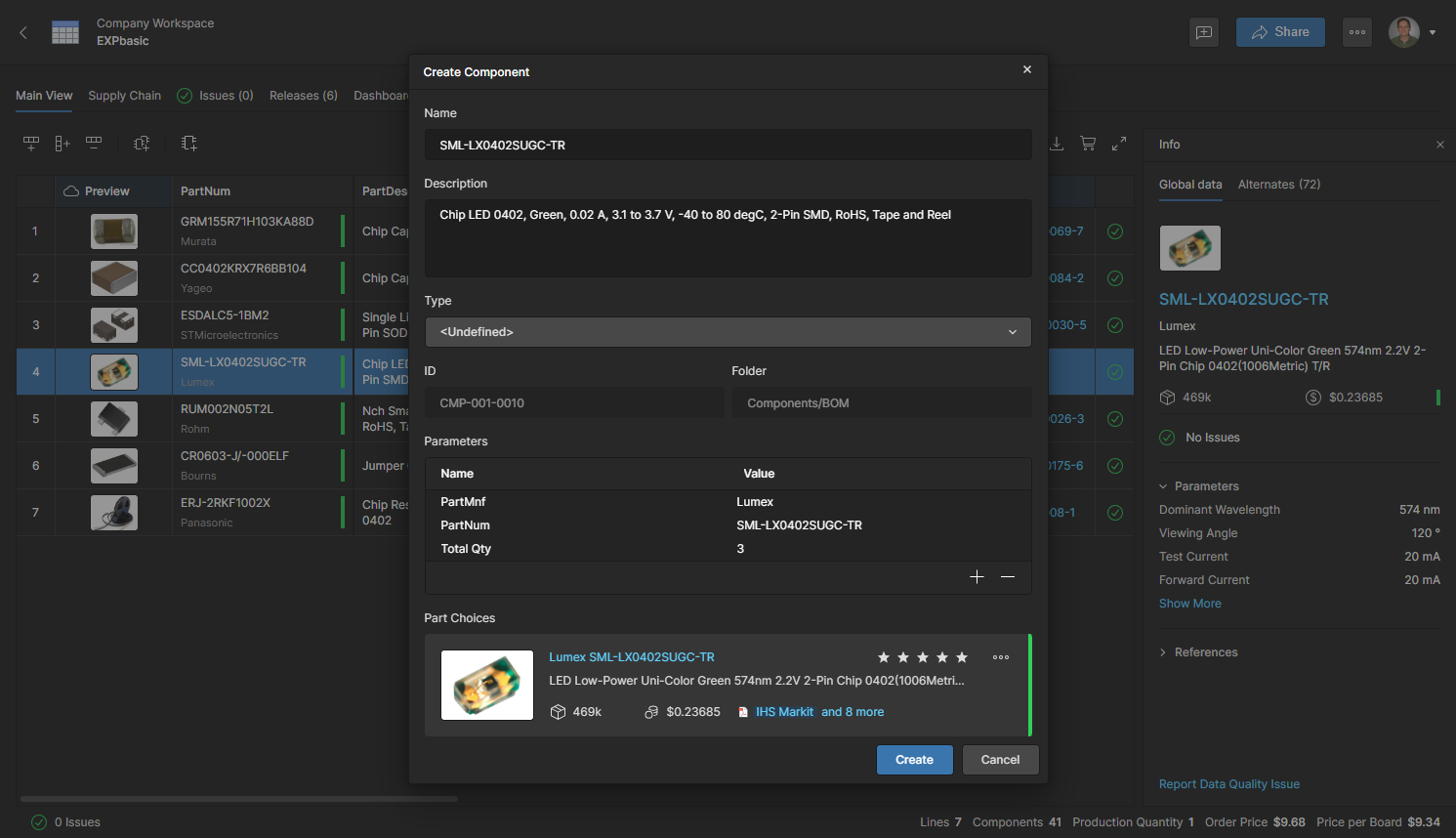
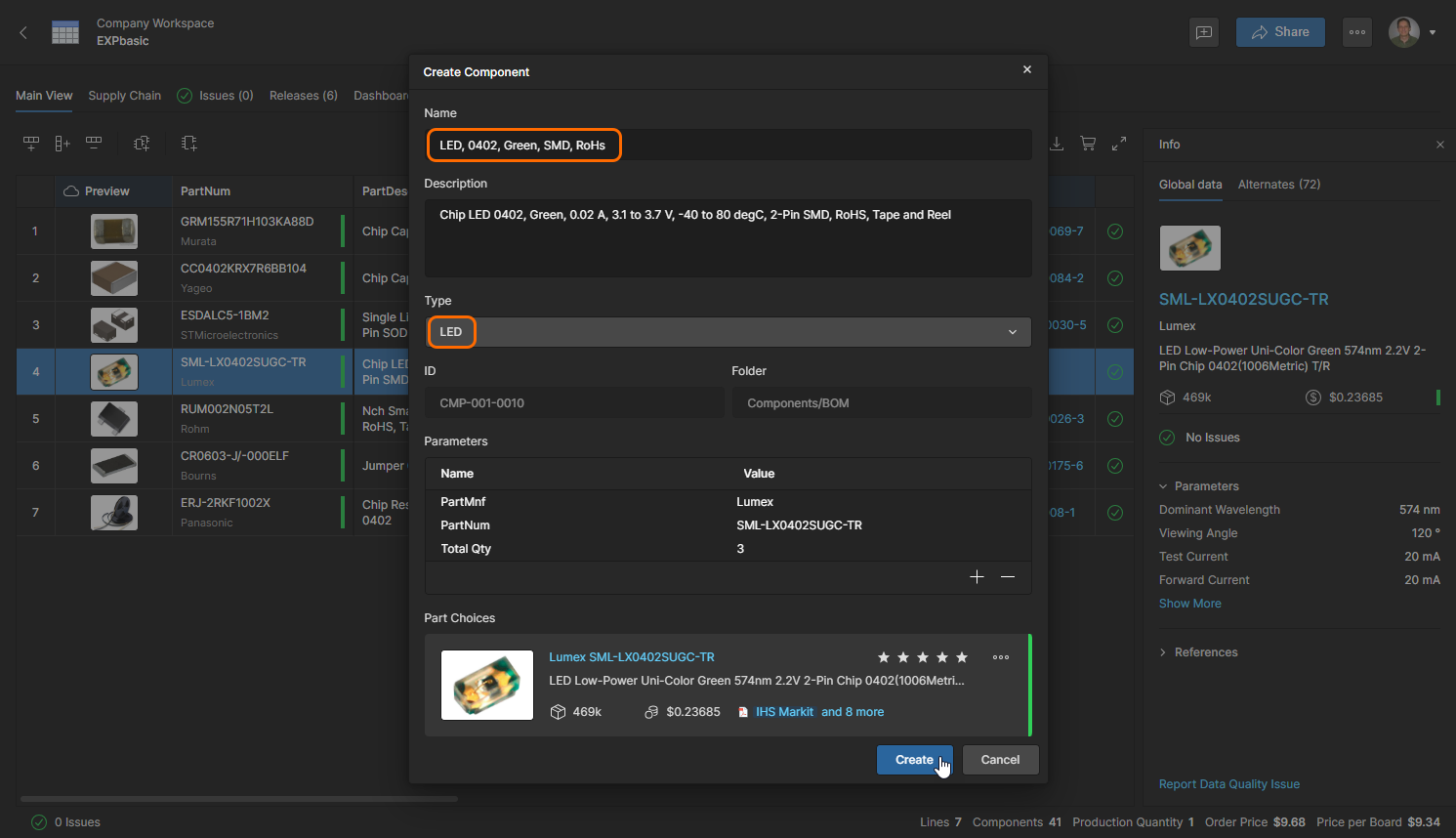
Edit the Name to distinguish the new component from the Part Choice (and Part Number), and select an appropriate component type from the Type drop-down menu options. You also can update the Description, add/remove component Parameters, and manage the Part Choices (add/remove, etc). Click  to confirm the changes and create the new component.