Electronic System Design
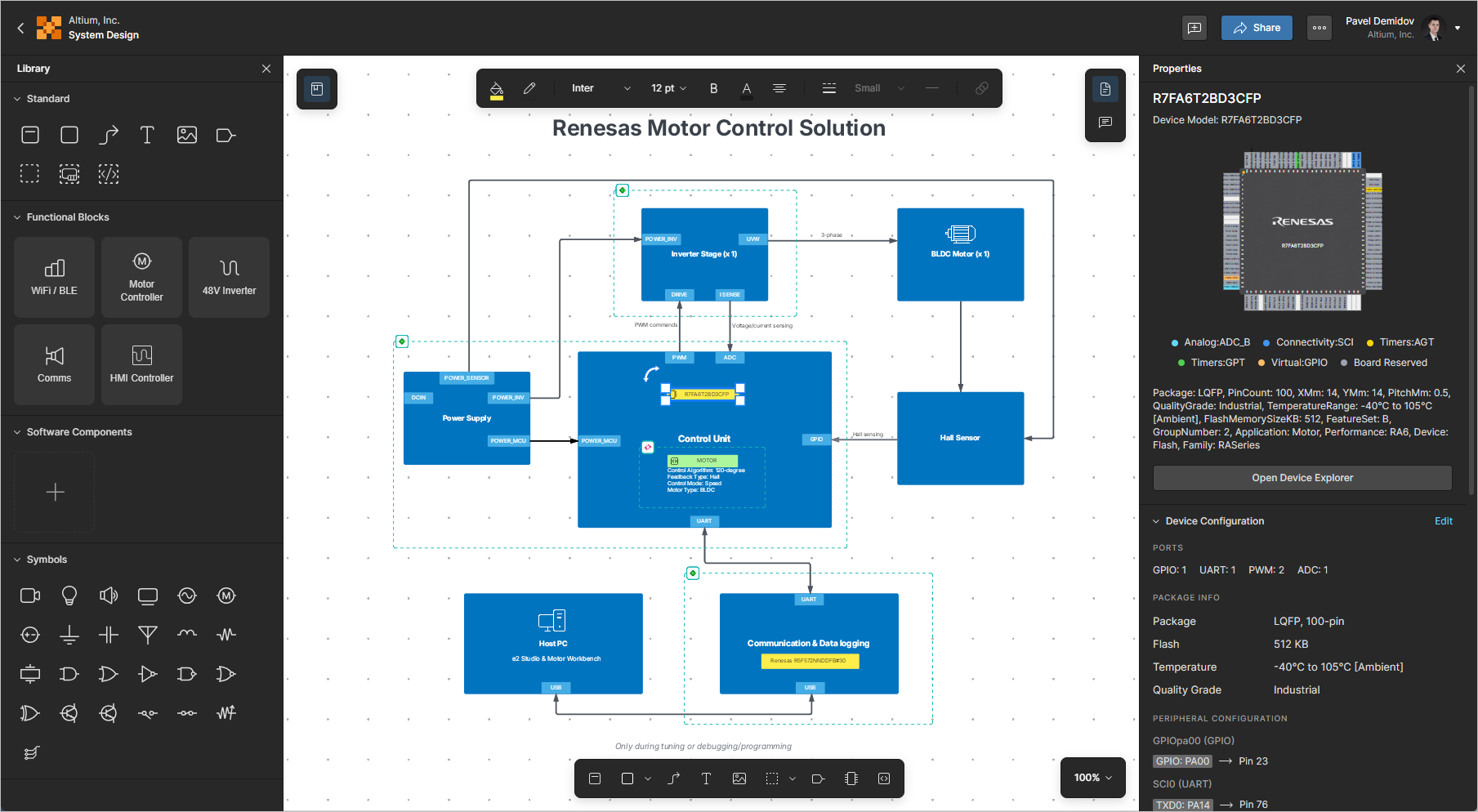
In early stages of electronic designs, it is important to define the design on the conceptual/functional level. This initial step serves as a crucial foundation for the entire development process, providing a high-level overview of the system's architecture and its primary elements. A well-crafted block diagram clarifies the major functional units of the electronic system and illustrates their interconnections. It helps in visualizing how different parts of the design will interact, without getting bogged down in the intricate details of individual part implementations. This abstraction allows you to focus on the system's overall behavior and relationships between modules, ensuring that all essential functionalities are accounted for and that the system's architecture aligns with the design requirements.
An Electronic System Design (ESD) document allows you to design system-level block diagrams and collaborate with your stakeholders.
Creating a New ESD Document
A new ESD document can be created as part of a solution that resides in your Renesas 365 Workspace. On the detailed page of a solution, click the  button at the top right and select System Design from the menu that appears to open the Create ESD window.
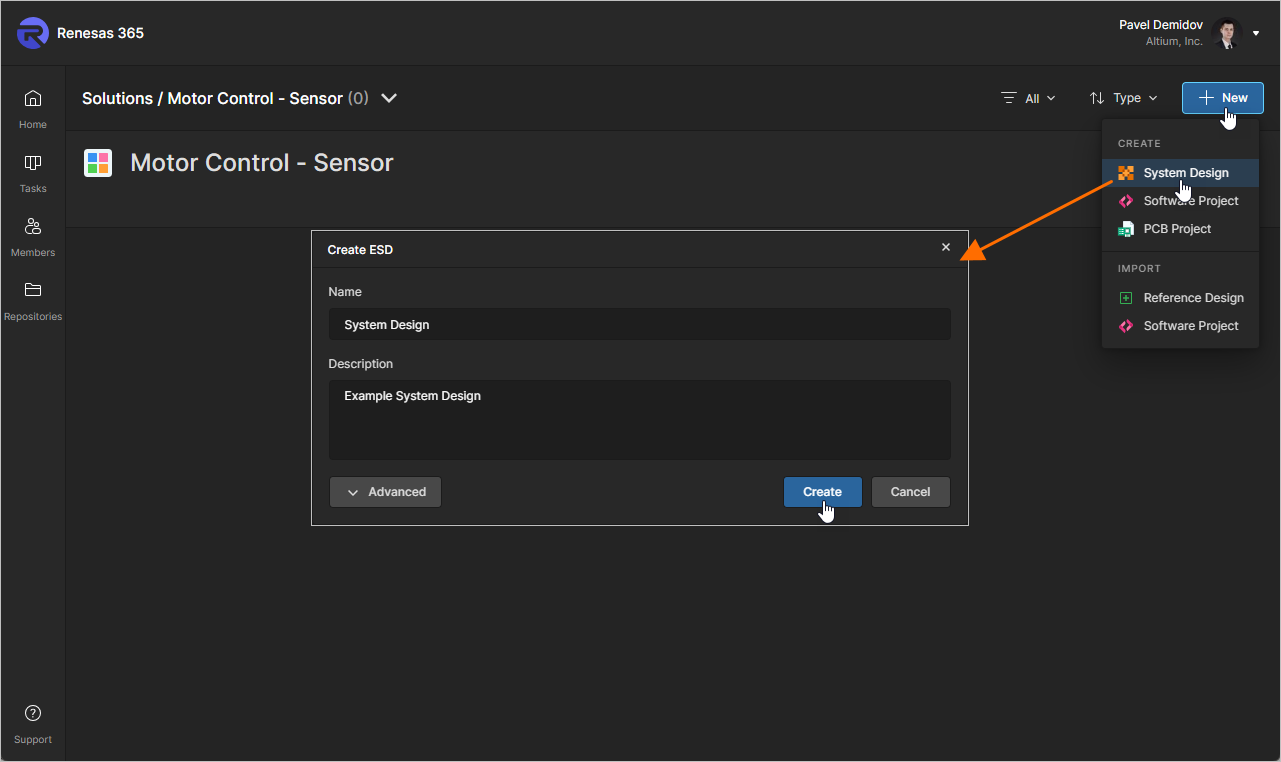
The window will initially be presented in a simplified view, with the following fields:
-
Name – enter the required name for the ESD document.
-
Description – enter an optional description for the ESD document.
To access more controls, click the  button. The Parent Folder field will present. Use this field to specify where the ESD document is to be created within the Workspace's folder structure. By default, this is the Projects folder. Click the Change link at the right of the field to access the folder structure for the Workspace, from which to select an alternate folder to store the document (
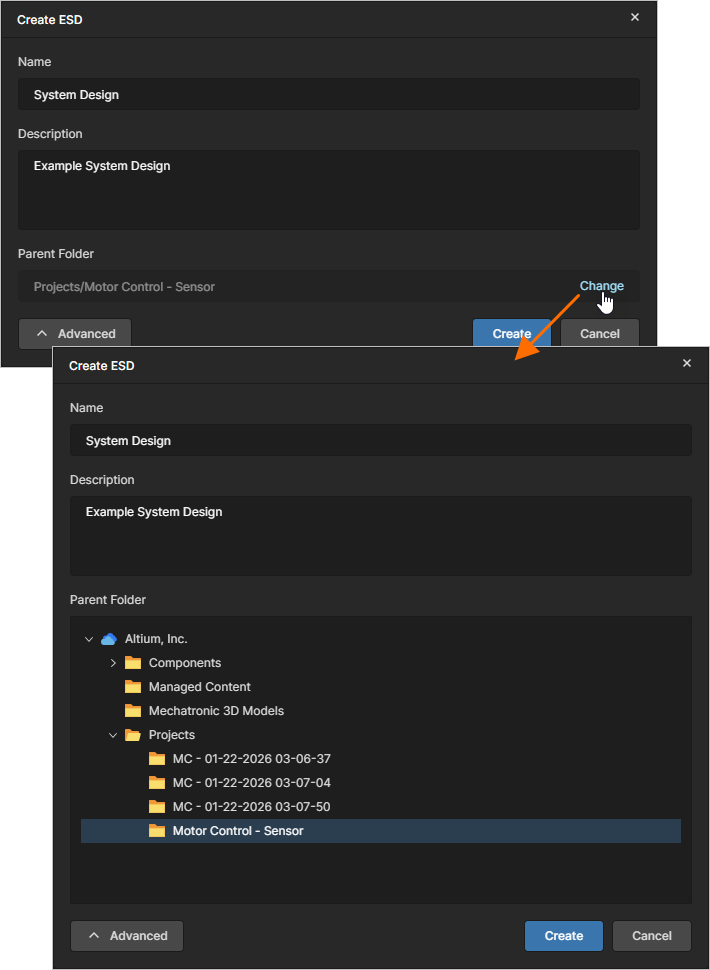 ).
).
After defining the new ESD document as required, click  . You will come back to the solution's detailed page, where you will now see a tile for the newly created ESD document.
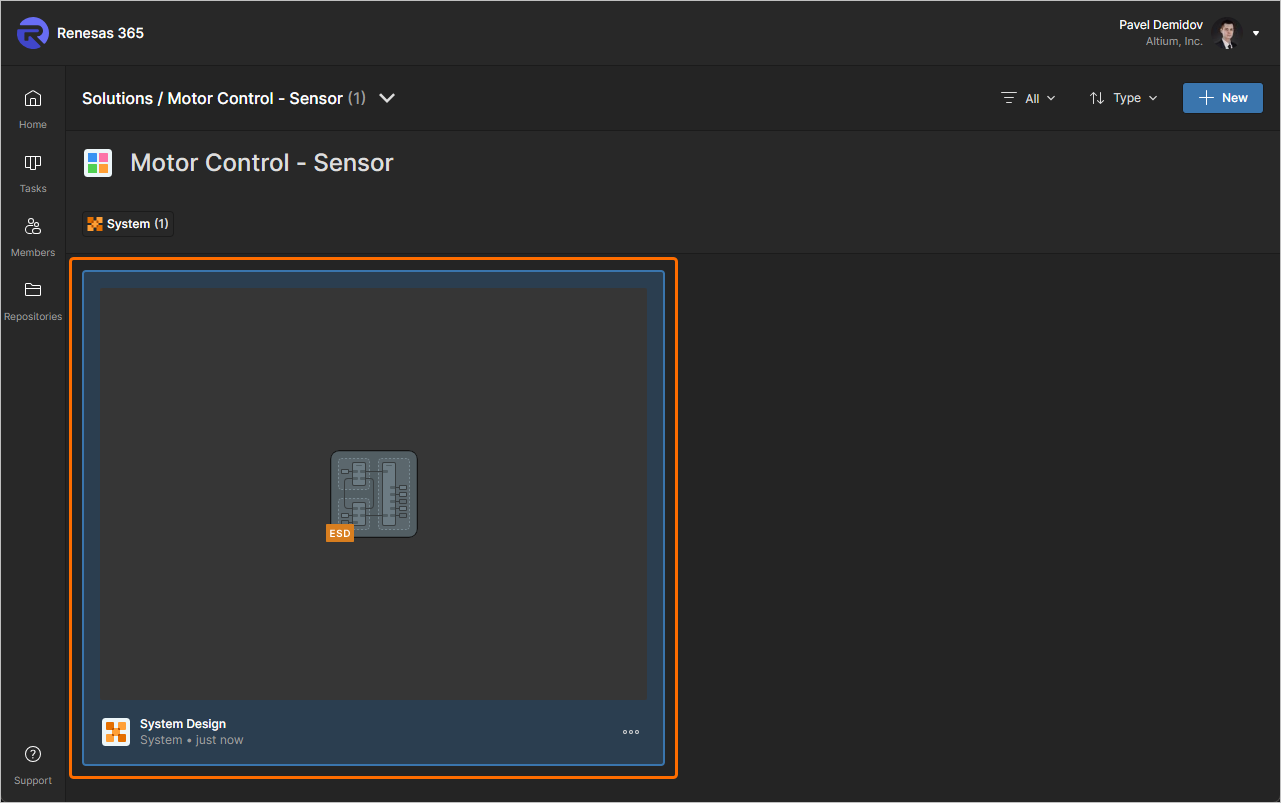
To open an ESD document, click its name within its tile or click the  button and select Open from the menu that appears. Alternatively, double-click directly on the required ESD document tile.
Defining an ESD Document
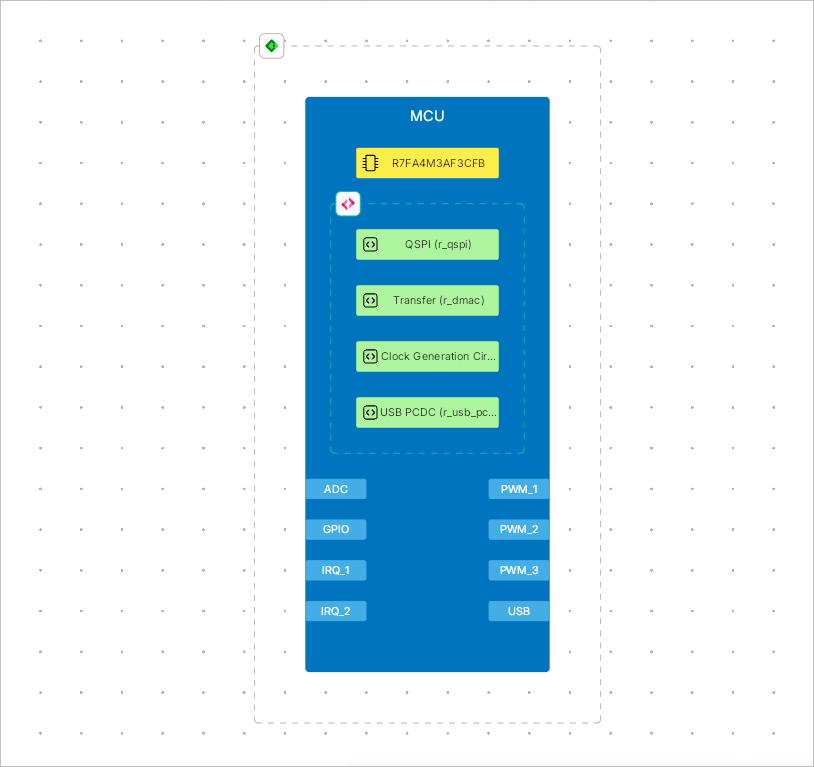
In an ESD document, specific functions, operations, or devices (such as signal processing or MPU) are represented by functional blocks. From the perspective of its structure and visual representation, a functional block is a container that can include a graphical shape/image (with label), key component(s) of the function represented by hardware/software object(s), ports, and other blocks. Ports can be used to represent interfaces of a functional block (for example, the I2C interface of an MPU) and connection lines between functional blocks (placed directly between blocks or their ports) represent interconnections (for example, signals flowing between interfaces of different devices).
Placing and Editing Commonality
Use the following collapsible sections to learn more about working in the ESD document editor.
Controlling the View of the Document
Browsing controls for the main viewing area are as follows:
-
Right-Click, Hold&Dragto pan document. -
Mouse Wheelto scroll vertically. -
Shift+Mouse Wheelto scroll vertically. -
Ctrl+Mouse Wheelto zoom in/out.
Selecting Objects
An object placed in an ESD document must be selected before performing an operation on it, such as editing its location or size, performing a clipboard operation (cut/copy) or removal, etc.
In the most basic case, you can select an individual design object by hovering the cursor over it and clicking. Once selected, certain design objects can be changed graphically with respect to their size and/or shape. The object will become selected and editing handles will be shown at various editing points around the object. To change the shape and/or size of the object, click and drag an editing handle. The exact nature of the change will depend on the object you are editing.
Click away from a selected object or press Esc to deselect it.
Note that selection with clicking is not cumulative. The selected object deselects when you click on another object. To select multiple objects, hold the Shift key then sequentially click the objects you want selected or deselected. In other words, the Shift+Click shortcut changes the selection status of the object currently under the cursor without affecting the status of other objects.
To select a number of objects located in a specific area of the design document, you can use a selection rectangle. Click and Hold away from objects in the corner of the imaginary rectangle enclosing the objects to be selected then drag to the opposite corner of this rectangle. All visible objects that are within the selection rectangle and those that touch the selection rectangle will be selected.
To select all objects in the ESD document, you can also use the Ctrl+A shortcut.
Using Cut/Copy and Paste
You can cut/copy and paste objects within or between ESD documents. Select the object(s) you want to cut/copy, right-click in the design space and select the Cut (shortcut: Ctrl+X) / Copy (shortcut: Ctrl+C) command from the context menu. To place the last cut/copied content into the document, right-click within the design space and choose the Paste command from the context menu (shortcut: Ctrl+V).
Arranging Objects
Objects placed in an ESD document are automatically stacked in layers. Each object is on a different layer depending on the creation order and, therefore, it is possible to place objects so that they overlap. The objects created or added recently are always on the top layer.
Using the following commands of the Arrange sub-menu of the right-click menu, you move an object in an overlapping object stack of which that object is a part:
-
Bring to Front (
Ctrl+Alt+]) / Send to Back (Ctrl+Alt+[) – move an object that is part of a stack of overlapping objects to the front/back of all other objects in that stack. After launching the command, click the object that you want to move. The object will be moved to the top/bottom of the stack in front of / behind all overlapping objects without changing its x or y coordinates. -
Bring Forward (
Ctrl+]) / Send Backward (Ctrl+[) – move one object in front of / behind another object in a stack of overlapping objects. After launching the command, click the object that you want to move, then click a 'target' object that you wish to move the first object in front of / behind. The first object will be moved in front of / behind this target object without changing its x or y coordinates.
Aligning Objects
To place objects precisely in the design space and align them vertically and/or horizontally with other objects, indicator lines appear when you place or drag an object (or group of objects) and it is aligned with other objects in the document. Also, arrows appear when the object(s) are being placed/dragged to match the distribution of placed objects nearby.
You can also align objects using an alignment command. To do this, select all objects you wish to involve in the alignment, right-click on a selected object, then select the required command from the Align menu.
-
The Align Left / Align Right / Align Top / Align Bottom command enables you to align selected design objects by their left/right/top/bottom edges, respectively. After launching the command, the left/right/top/bottom edge of the left/right/top/bottom-most object is used as a reference, and all other objects in the selection will be moved left/right/up/down, so that their left edges are aligned with this reference.
-
The Align Horizontal Centers / Align Vertical Centers command enables you to place selected objects in a single column/row, aligned by their horizontal/vertical centers. After launching the command, the objects in the selection will be moved horizontally/vertically to form a single column/row, aligned by their horizontal/vertical centers. The vertical center line for the column is the mid-point between the left-most and right-most objects in the selection; the horizontal center line for the row is the mid-point between the top-most and bottom-most objects in the selection.
-
The Distribute Horizontally / Distribute Vertically command allows you to make the horizontal/vertical spacing of a selection of objects equal. After launching the command, the left-most and right-most / top-most and bottom-most objects in the selection will remain fixed in their positions, with all other objects spaced equally between them. The vertical/horizontal position of the objects is not changed.
Matching Object Size
While the size of a placed object can be adjusted manually when the object is selected, you can apply the width and/or height of one object to other placed objects so that their sizes match. To do this, select the objects which size you would like to match (functional blocks, ports, hardware components, software components, rectangles, ellipses, texts, and/or images), right-click the reference object and select the required command from the Match size context menu to apply the width (Width), height (Height), or both (Both width and height) of the reference object to other objects in the selection.
Grouping Objects
Objects placed in an ESD document can be grouped together. When grouped, you are able to quickly select/deselect all group members and move them all when a single member of the group is moved.
To group currently selected objects, right-click in the design space and choose the Group command from the context menu. A group will be created, with the selected objects as its members.
To break (dissolve) a group, right-click an object that is a member of the group and choose the Ungroup command from the context menu.
Changing Object Style
When one or more objects are selected in the ESD document, you can change their style (visual representation in the design space) using controls in the top toolbar:
-
Font settings – use these controls to configure the font (font family, font size, bold/italic/underline attributes, text color and alignment) of the selected object(s) that include text – functional blocks, ports, components, and texts.
-
Color – use these controls to configure the fill color (where applicable) and outline color of the selected object(s).
-
Line – use these controls to configure the line style and line weight of the selected object(s). This applies to line-type objects (connection line and polyline) and the outline of other objects.

To quickly apply the style from one object to another, you can select the object whose style you want to copy, right-click in the design space and select the Copy Style command from the context menu (shortcut: Ctrl+Alt+C). To apply the copied style to one or more objects, select these objects, right-click the selection, and choose the Paste Style command from the context menu (shortcut: Ctrl+Alt+V).
You can also right-click on an object and select the Set Default Style command from the context menu. The style of this object will be applied when placing subsequent objects of the same type.
Placed objects can be moved by selecting and dragging. Individual nodes can also be selected and moved to change the object's shape and/or size.
Undoing and Redoing Operations
Use the Ctrl+Z and Ctrl+Y shortcuts to restore the ESD document to its state previous to the last operation and to restore changes made by the undo feature in the document, respectively.
Object Locking
Use commands of the Lock/Unlock submenu of an object's right-click menu to lock/unlock its size and position and/or content.
-
Lock / Unlock – use this command to lock/unlock the size and position of the object (so they cannot be changed graphically; an object with size and position locked also cannot be deleted), its style (i.e., its graphical appearance), and its content (e.g., the text of a functional block).
-
Lock size and position / Unlock size and position – use this command to lock/unlock the size and position of the object only.
-
Lock style / Unlock style – use this command to lock/unlock the style of the object only.
-
Lock content / Unlock content – use this command to lock/unlock the content of the object only.
If an object is fully locked (i.e., its size and position, style, and content are locked), a red dotted line will be shown around the object when it is selected. If some but not all aspects of an object are locked (i.e., its style only is locked), a yellow dotted line will be shown around the object when it is selected.
Accessing Object Properties
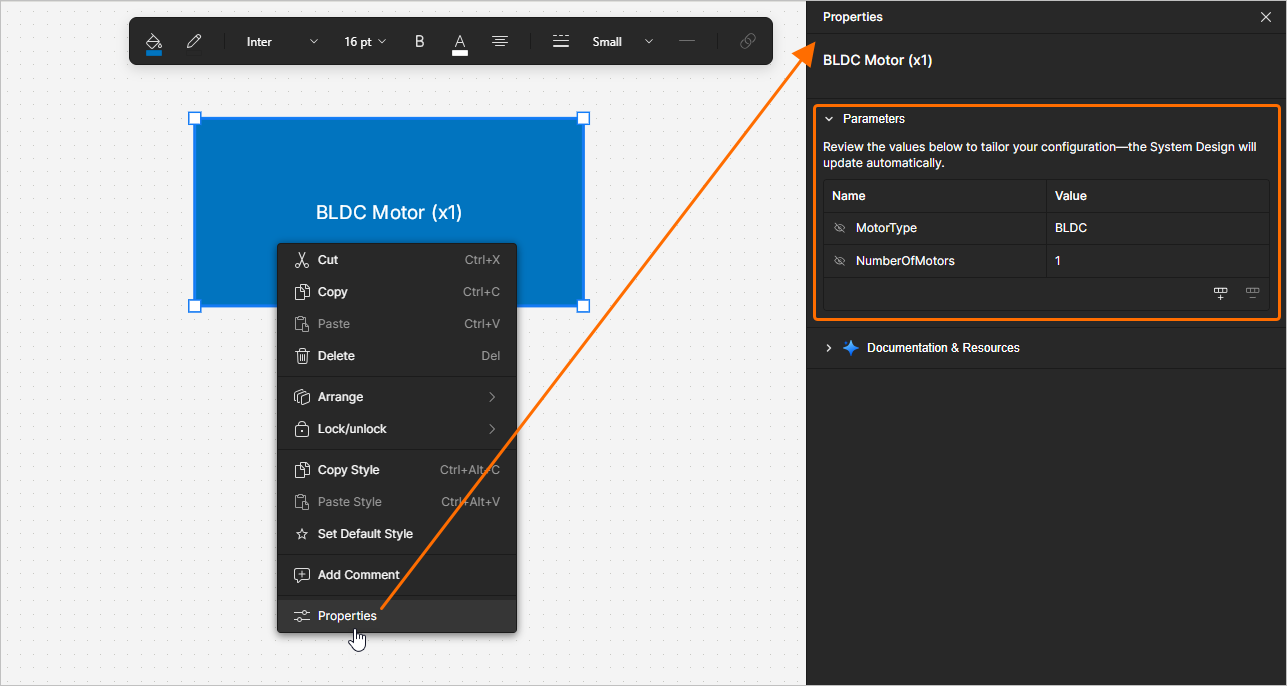
You can access properties of a placed object by selecting it in the design space and clicking the  button at the top right to open the Properties pane. Alternatively, right-click a placed object and select the Properties command from the menu that appears.
When no object is selected in the design space, the Properties pane shows properties of the ESD document itself.
The Parameters region of the Properties pane allows you to manage parameters of the selected object (functional block, hardware component, software component, port, or connection) or, when no object is selected, to the ESD document itself. In the Properties pane that opens, use  and
and  buttons to add and remove parameters, respectively. Click a parameter's name or value to edit it.
The Documentation & Resources region of the Properties pane provides an automatically formed list of links to resources (Renesas documentation, PDFs) related to the solution and its elements.
Special Strings
While texts (text objects, names of functional blocks, etc.) can be used to display static, user-defined text in the ESD document, they can also be used as placeholders for document and object parameters. To use a special string in an ESD document, include a parameter name in the text of an object. Special strings are characterized by the prefix = (e.g., =ControlAlgorithm, =MotorType, etc.).
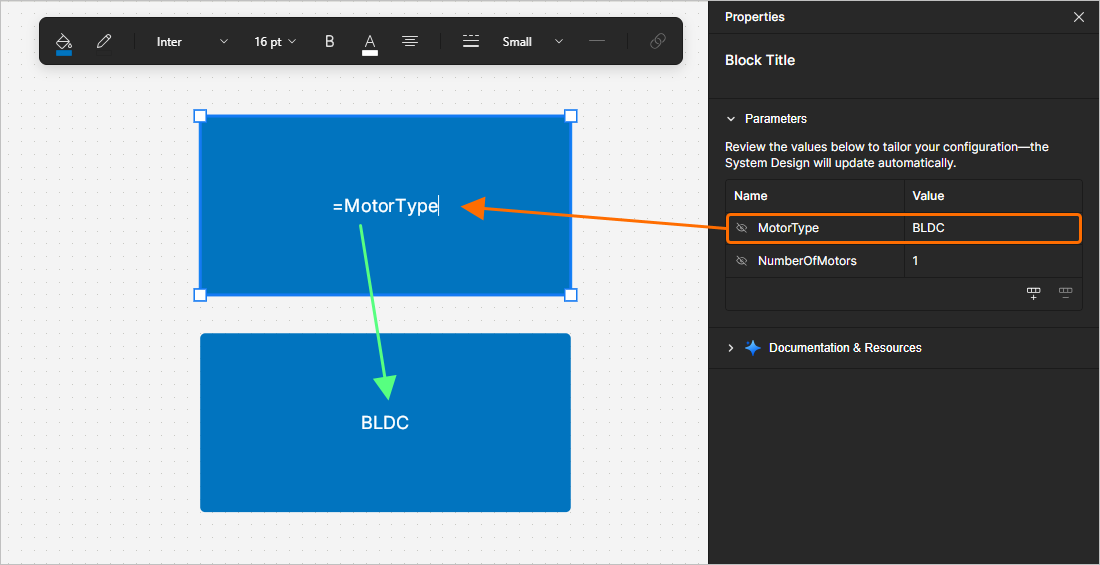
Multiple special strings, along with regular text (fixed strings), can be concatenated into a single text string, according to the following rules:
| Element | Function | Example |
|---|---|---|
= (equals) |
Indicates that the following string is an expression that must be interpreted. | =MotorType (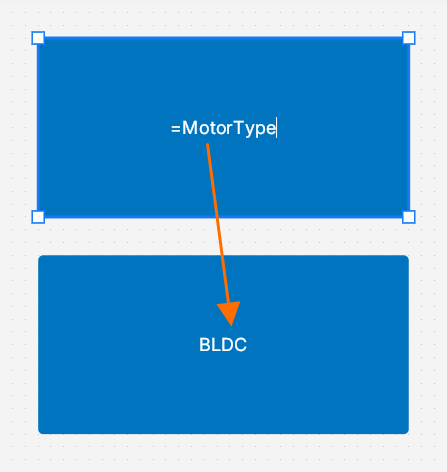 ) ) |
+ (plus) |
Used to concatenate the special string and fixed string elements required in the string. | =MotorType + NumberOfMotors (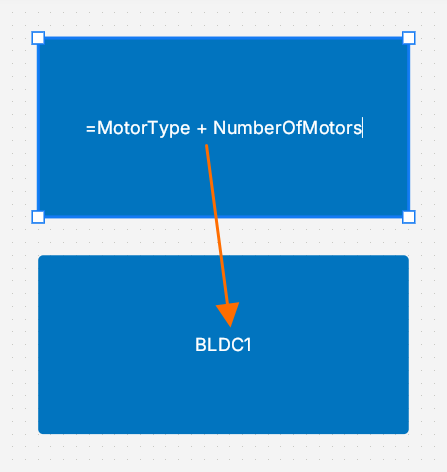 ) ) |
' ' (single quotes) |
Used to include a fixed string anywhere within the required string. | =MotorType + ' Motor (x' + NumberOfMotors + ')' (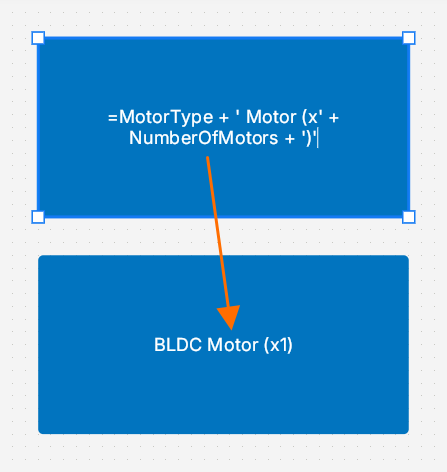 ) ) |
Placing and Configuring Functional Blocks
To place a new functional block in an ESD document, click the  button in the bottom toolbar (alternatively, use the button in the Standard region of the Library pane). Click and hold in the design space to anchor the first corner of the functional block's rectangle, then move the cursor to adjust the size of the rectangle and then release the left mouse button to complete placement. Alternatively, click in the design space to place a functional block of the default size. To change the name of a functional block, double-click the functional block, type the required name and press
 Enter or click outside the functional block.
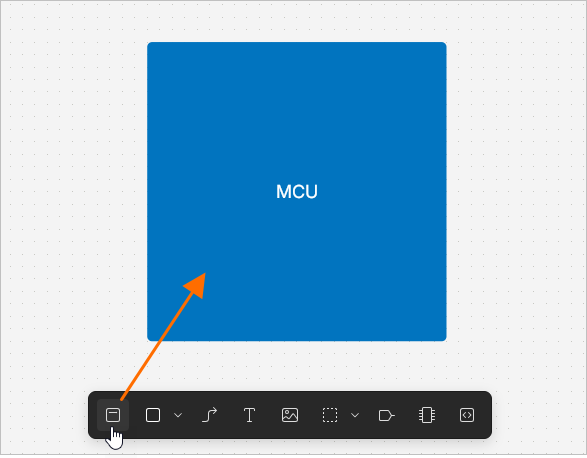
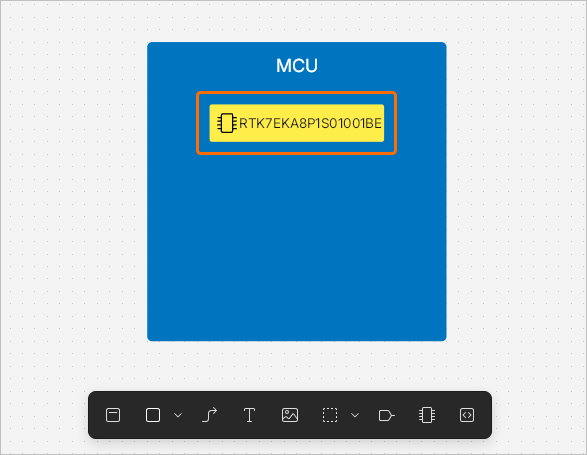
To add a hardware component to a functional block, click the  button in the bottom toolbar. The cursor will change to a crosshair, with a component preview attached to it. Click within the boundaries of a functional block to place the component. Double-click a placed component and use the search bar in the pop-up window that opens to search for a component. Select a component in the list of search results, and the name of this component will appear within the graphic of the functional block.
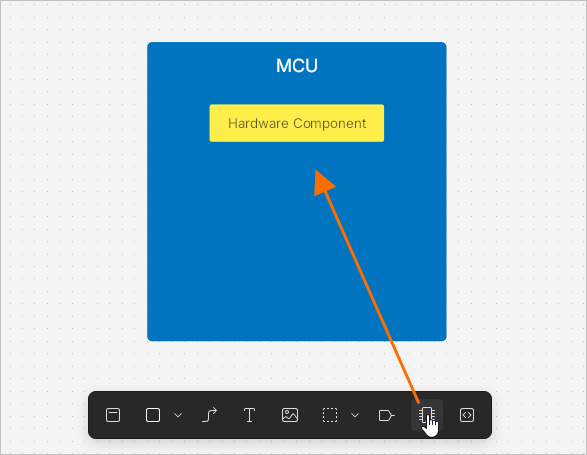
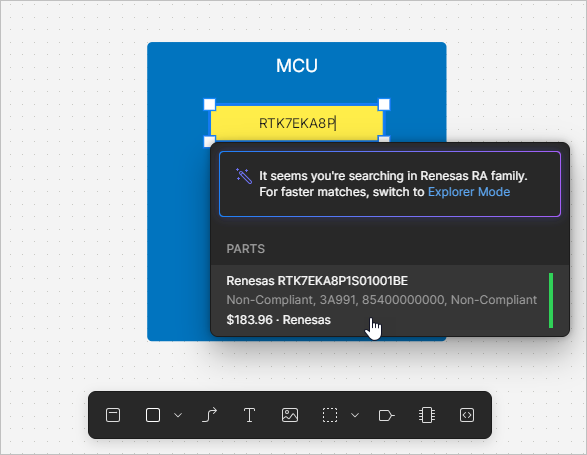
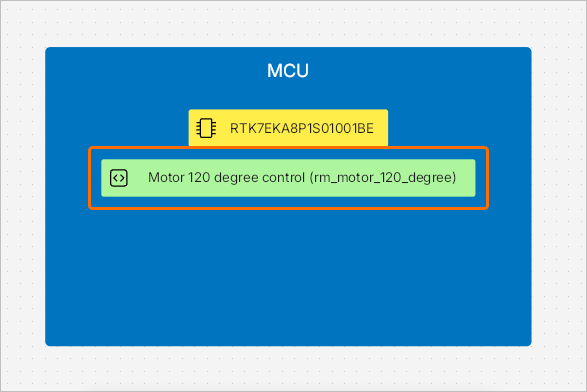
 button in the bottom toolbar.
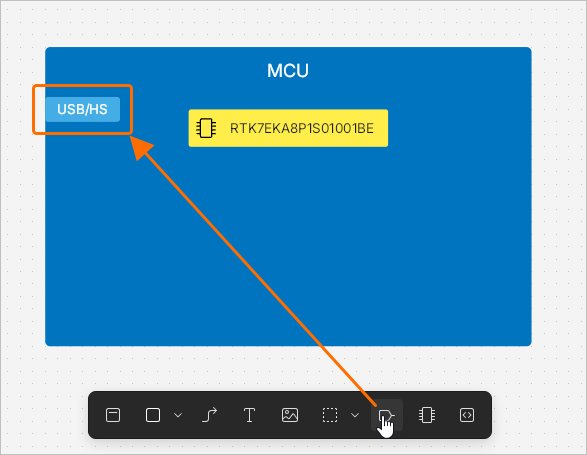
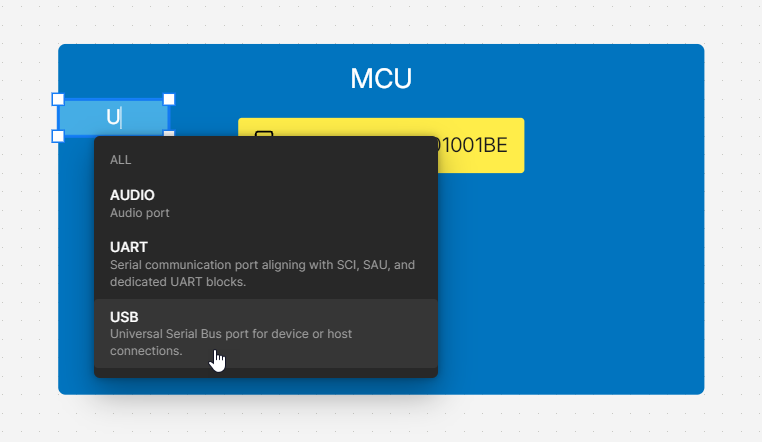
To place a port within a functional block, click the  button in the bottom toolbar (alternatively, use the button in the Standard region of the Library pane). The cursor will change to a crosshair, with a default port attached to it. Click within the boundaries of a functional block to place the port. You can also click outside a functional block – in this case, a new default functional block will be created automatically. To change the name of a port, double-click the port, type the required name and press
 Enter or click outside the port.
 ).
).Using the RA Explorer
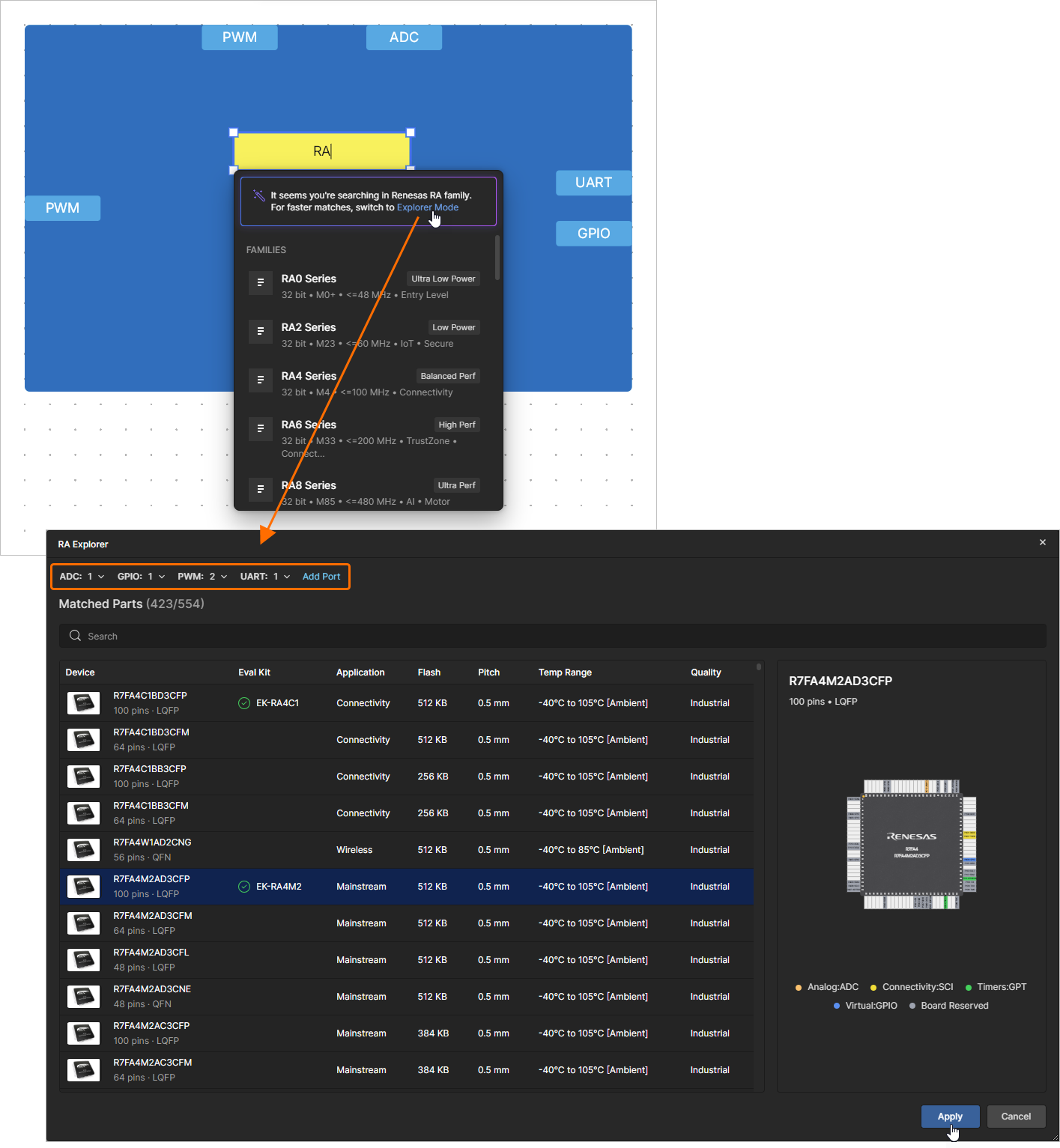
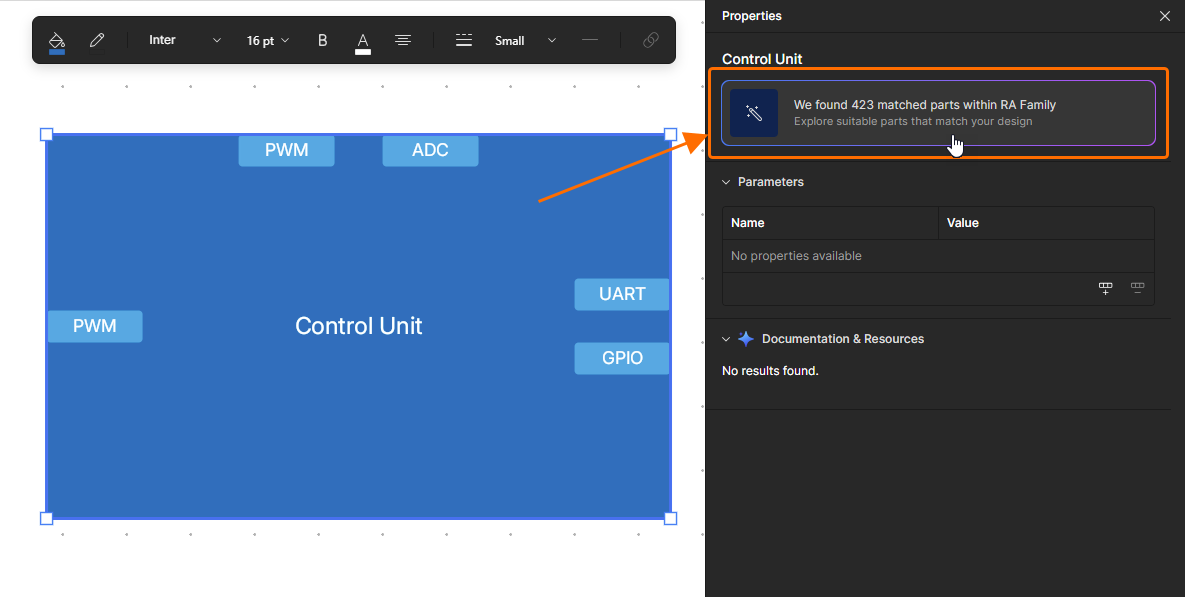
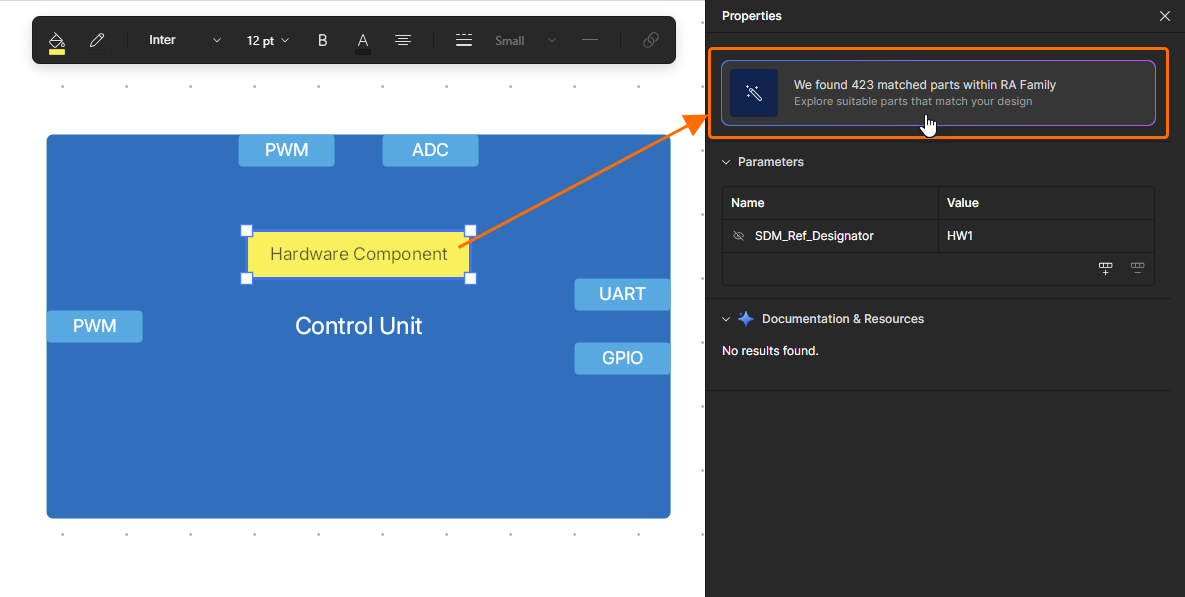
When searching for an MCU of the Renesas RA family, you can use the RA Explorer window to find the required component. Type RA or Renesas in the search bar after placing a hardware component and use the Explorer Mode link at the top of the pop-up to open the window where a list of suitable components will be presented. By default, the list will be constrained based on ports placed in the functional block. The current list of ports is shown at the top of the window. You can add ports of other types using the Add Port control and edit the required number of ports of each type using drop-downs. Click the required component in the list to select it and show its pin map in the right-hand side of the window. Click the  button when the required component is selected to apply it to the hardware component object.
 )
) )
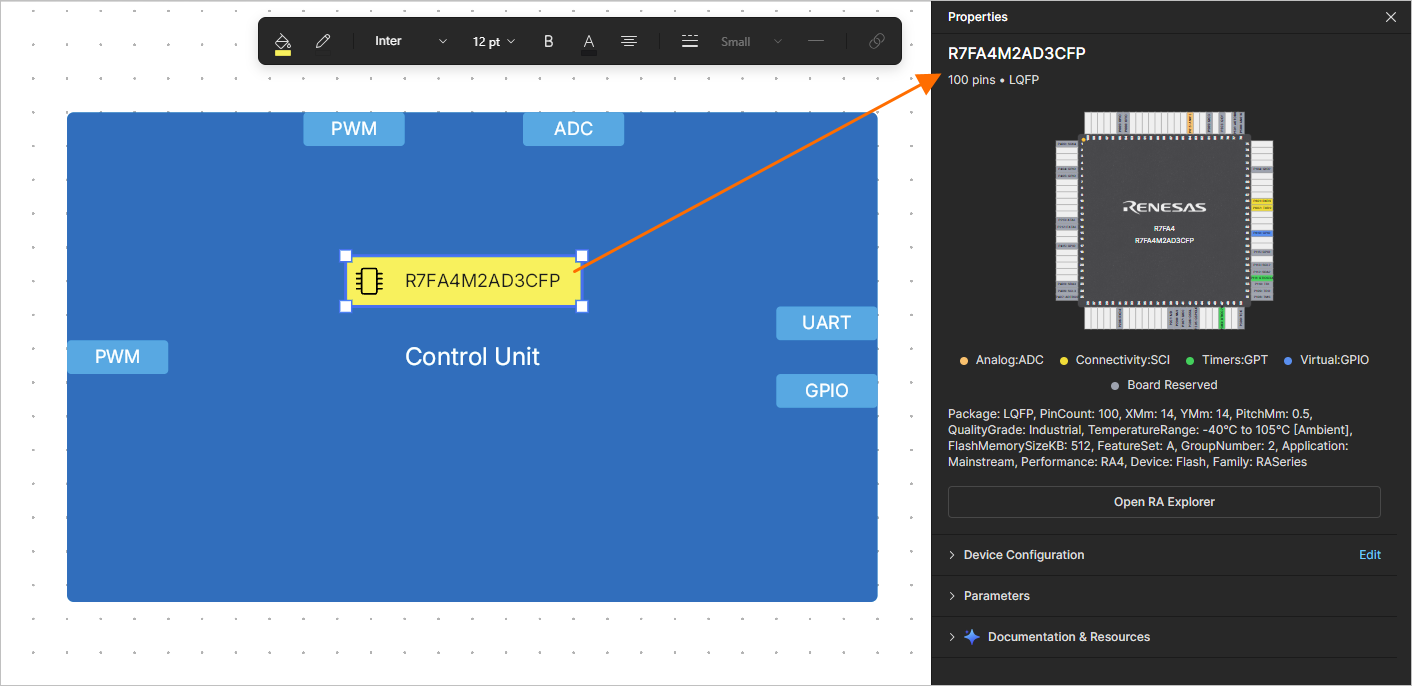
)Once an RA MCU is applied to the hardware component object, select it and open the Properties pane to explore its properties. You can click the  button to open the RA Explorer window and select another MCU if required.
Using the Device Configuration
The Device Configuration functionality allows you to browse and manage ports, package info, peripherals, and pin assignments of a hardware component. When a hardware component is selected, expand the Device Configuration region of the Properties pane to see details of the current device configuration.
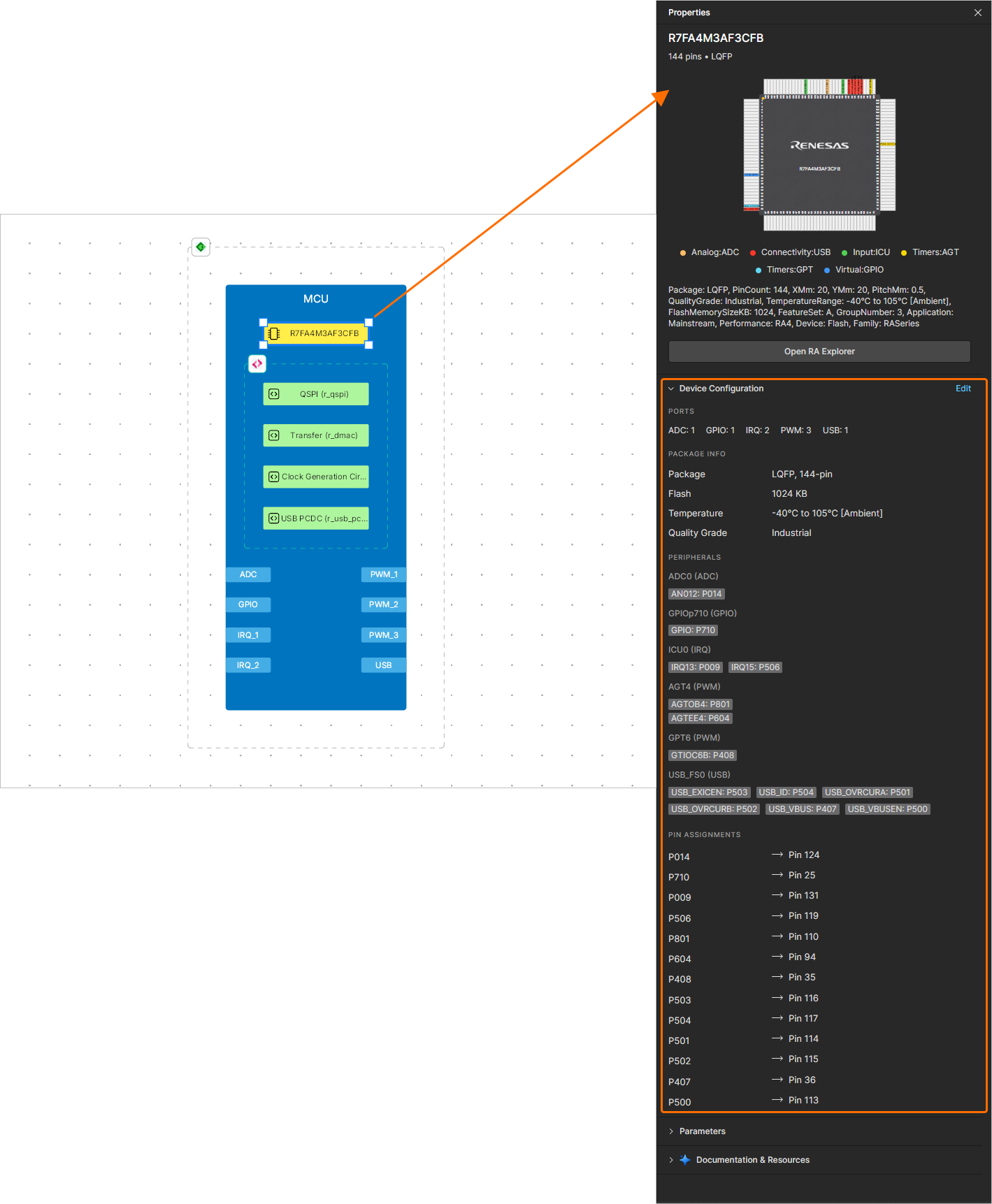
Click the Edit control at the right of the Device Configuration region heading to open the Device Configuration window.
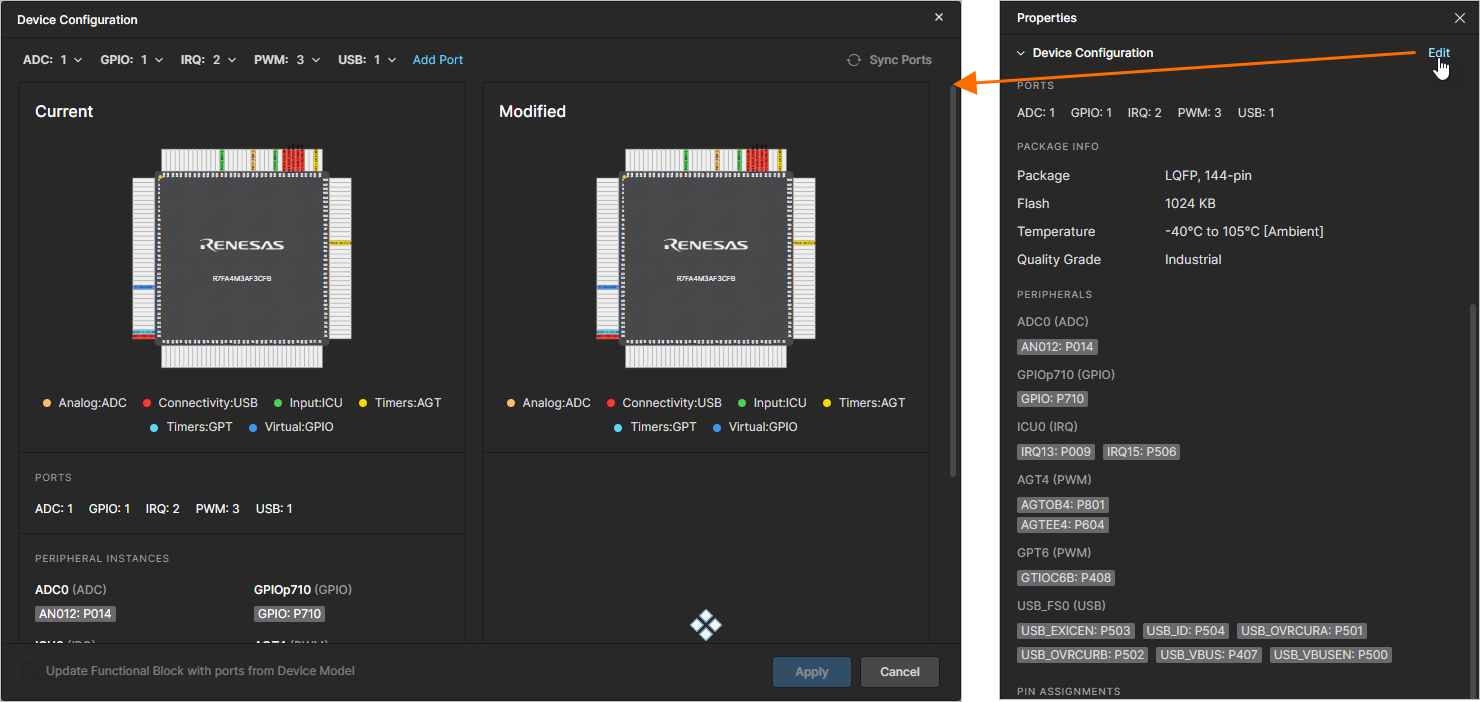
The current list of ports assigned to the hardware component is shown at the top of the window, and the current device configuration is shown on its left-hand side. You can add ports of other types using the Add Port control and edit the required number of ports of each type using drop-downs, and changes to the device configuration will be shown on the right-hand side of the window.
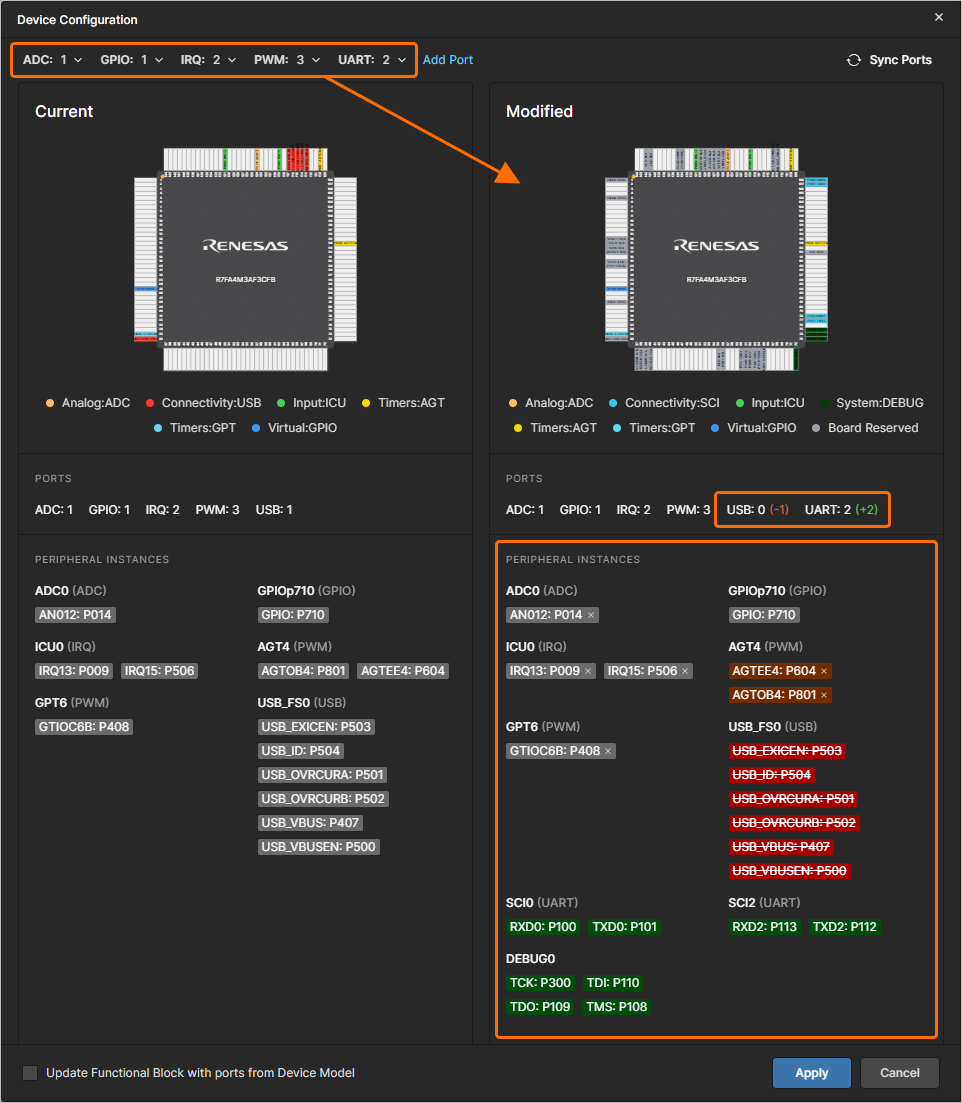
You can also delete a port by clicking x at the right of the corresponding entry in the Modified region of the window.
If the ports assigned to the hardware component do not match the ports in the functional block (in type and/or quantity), a notification is displayed in the Device Configuration region of the component's Properties pane. The component is also highlighted with an orange dot and an orange border in the design space. To resolve the difference, you can use the  control in the Device Configuration window, and the software will assign ports to the hardware component according to the functional block's ports.
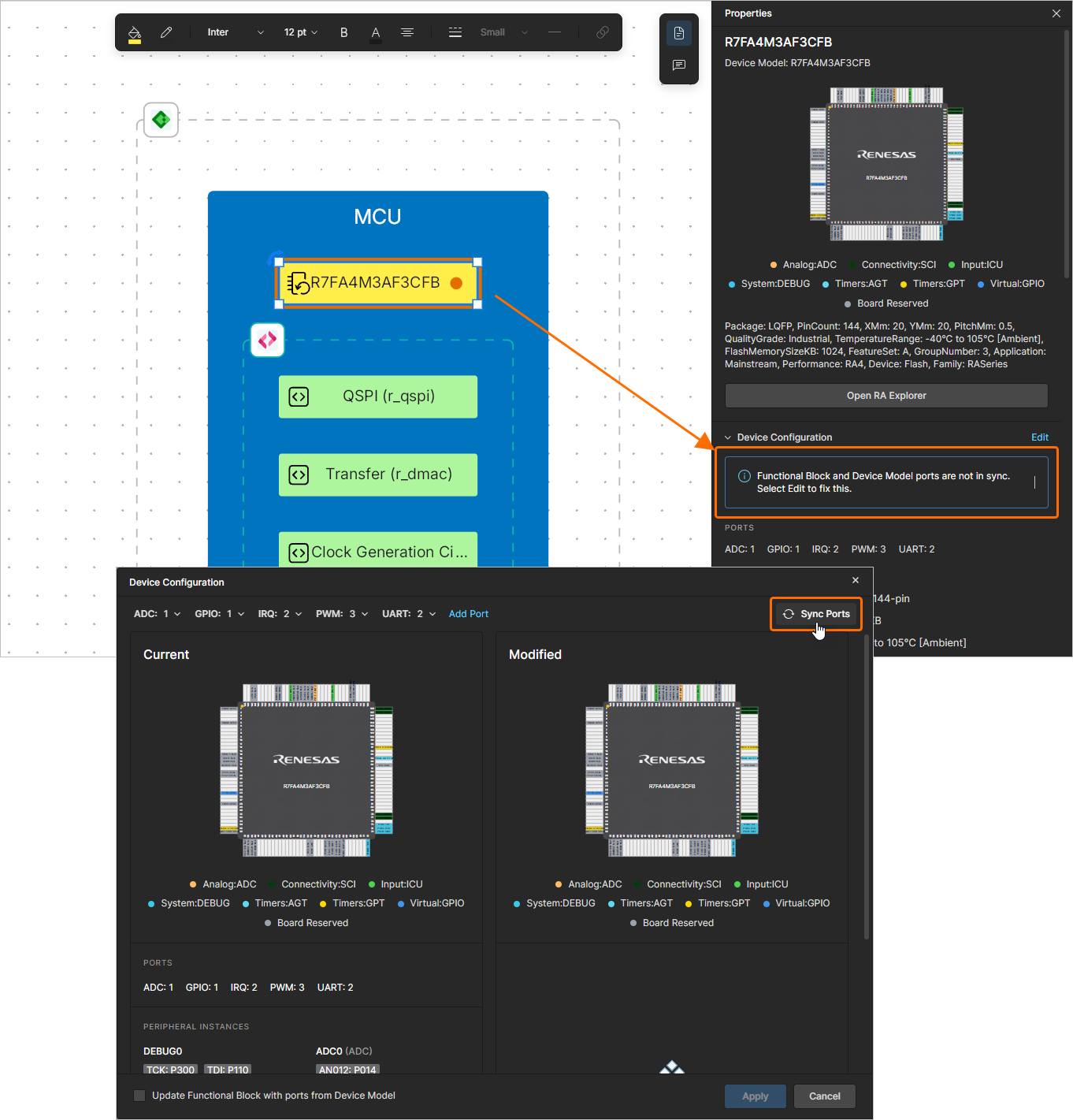
Alternatively, if you would like to update the functional block's ports according to the ports assigned to the hardware component, enable the Update Functional Block with ports from Device Model option at the bottom left of the window.
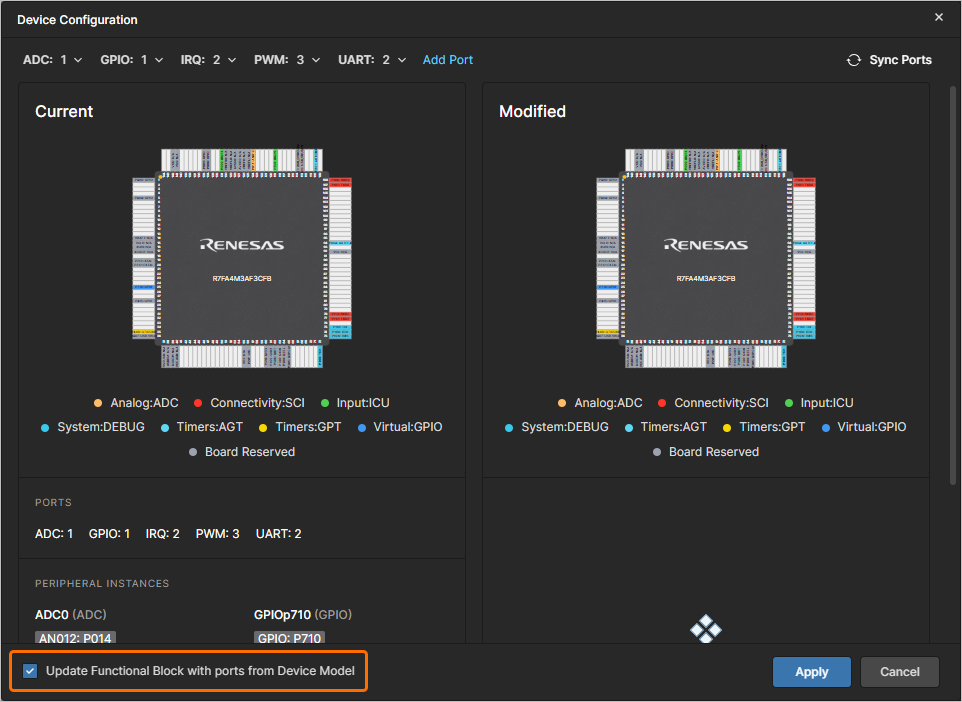
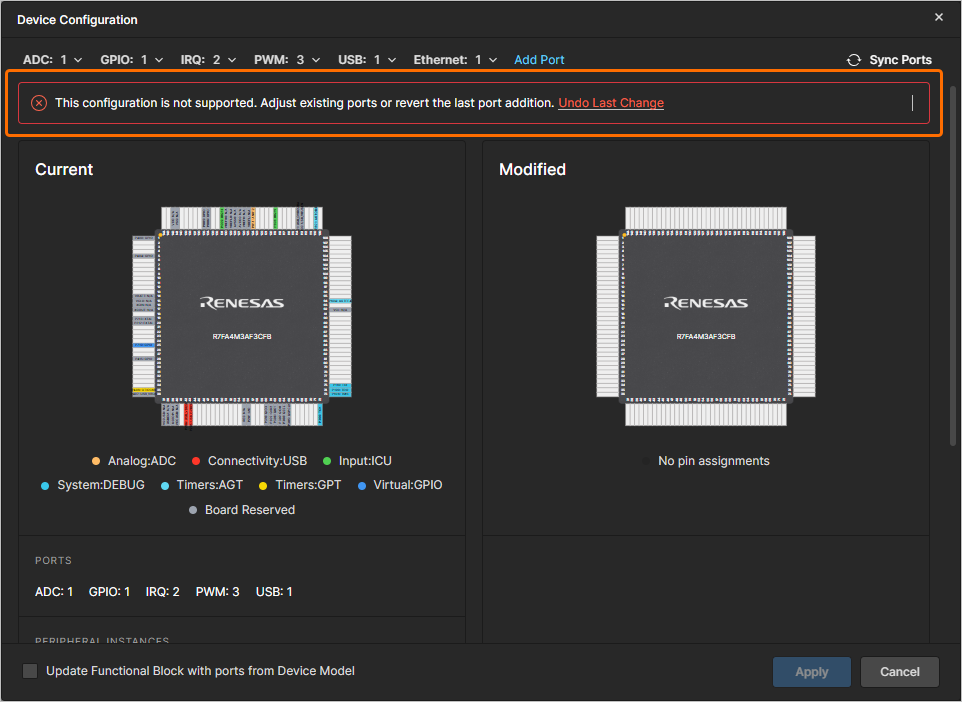
If the modified device configuration is not supported, a message notifying about that will be shown at the top of the Device Configuration window (and you will not be able to apply the changes). Change the set of ports manually or use the Undo Last Change control in the message banner to revert the latest changes made in the window.
When the required changes to the device configuration are made, click the  button to apply them to the hardware component.
Connecting Functional Blocks
A connection line can start and end at a functional block's boundary, a port's boundary, a rectangle's boundary, an image's boundary, another connection line, or free place in the ESD document. To place a connection line, click the  button in the bottom toolbar (alternatively, use the button in the Standard region of the Library pane). Click the point at which you want to start the connection line. Position the cursor, then click to anchor a series of vertex points that define the shape of the connection line. Note that the connection line will automatically avoid crossing functional blocks. Right-click to finish placing a connection line in the free space of the document. After placing a vertex on a functional block, port, or placed connection, placement of the current connection is finished automatically.
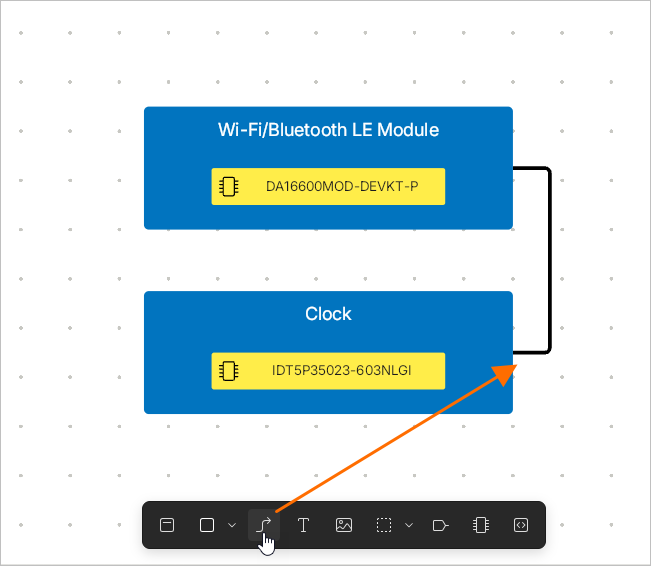
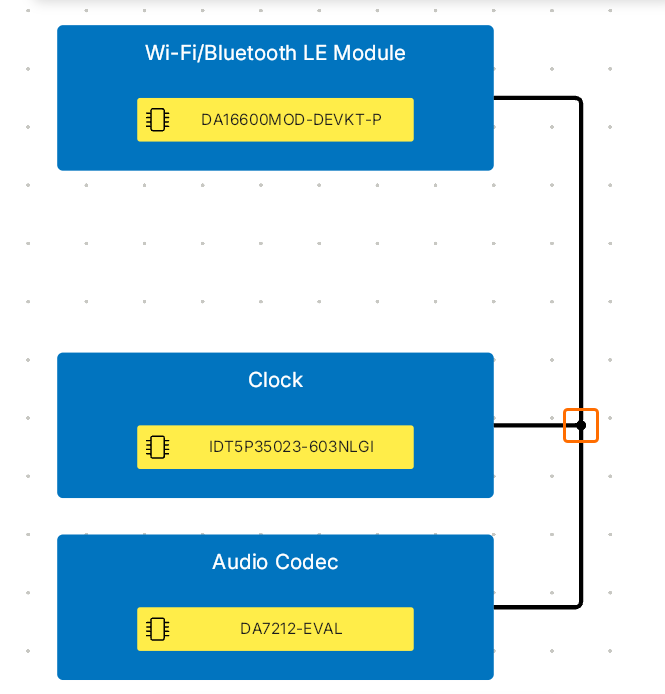 ).
).When a placed connection line is selected, the following editing handles are available.
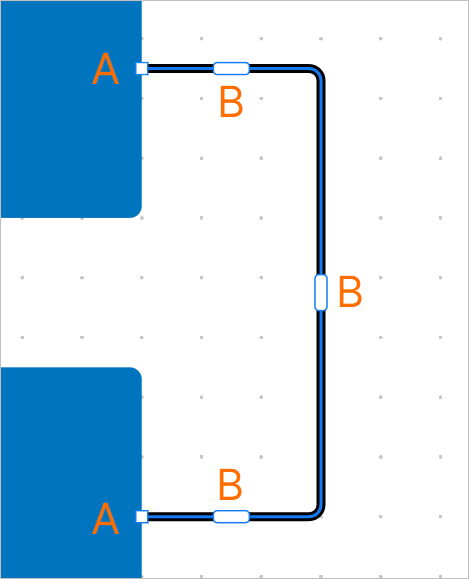
-
Click and drag A to reposition the end points of the connection line.
-
Click and drag B to reposition the segment of the connection line. The end points will remain anchored.
Either or both ends (source and target) of a connection line can be rendered with or without an arrow. When the connection line is selected, click the  button in the top toolbar and select the required style from the pop-up menu that appears.
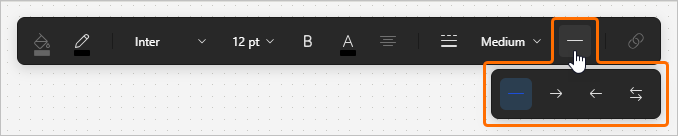
Define a placed connection line's designator by double-clicking the connection line and entering the required designator. When a designator is selected, use the handle at the top right to rotate it (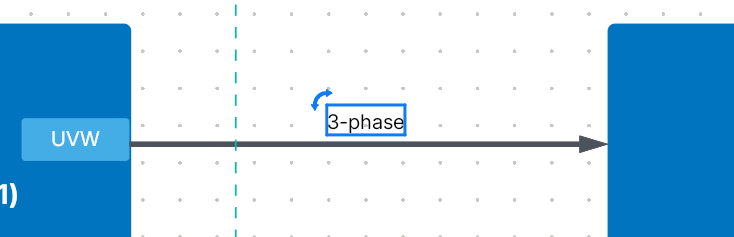 ).
).
You can pin a segment of a connection line by dragging the segment's editing handle or right-clicking the segment and selecting Pin Segment from the menu that appears. The editing handle of a pinned segment is rendered with blue filling (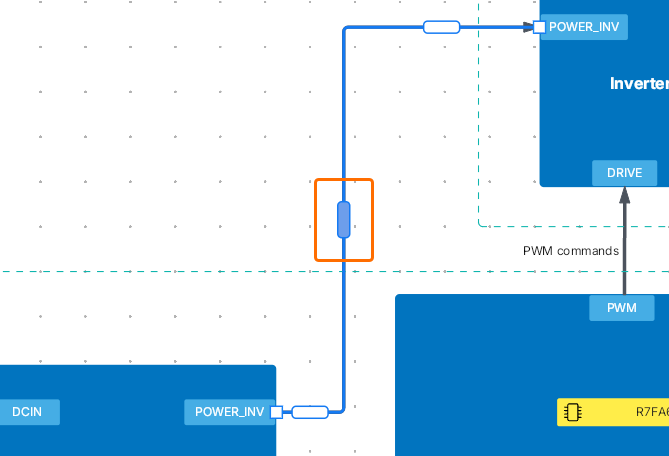 ). The current horizontal or vertical position of a pinned segment remains unchanged when other segments of the connection line are moved. To unpin a pinned segment, select Unpin Segment from the segment's right-click menu.
Placing Blankets
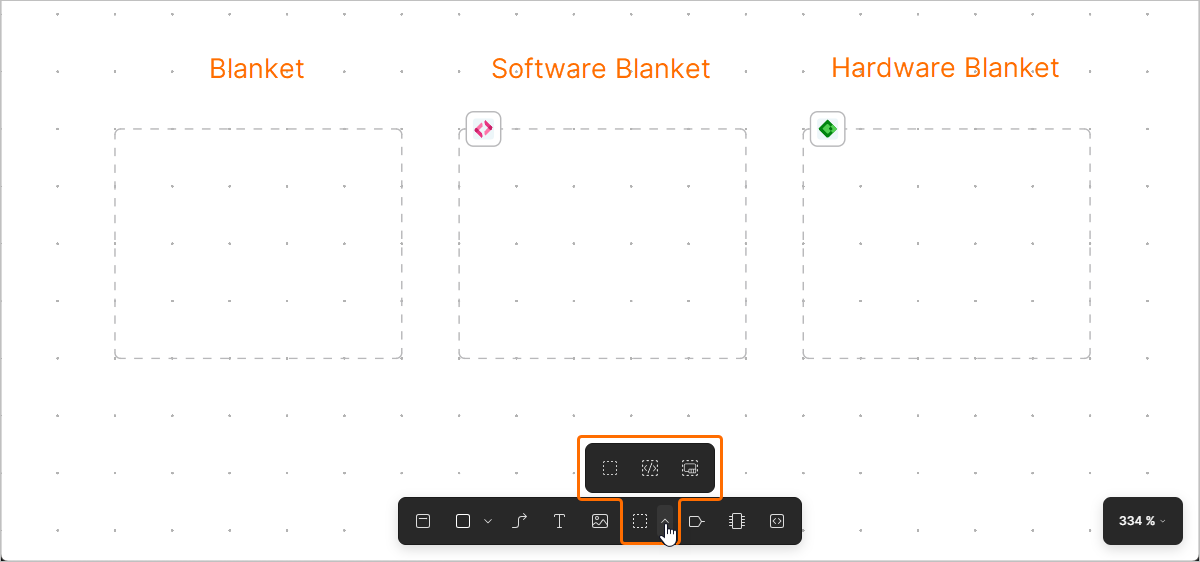
The ESD document editor allows you to place blanket objects into an ESD document to further document your system design. Hardware and software blankets can also be linked to a PCB or software project, respectively, to provide you with the context of a particular portion of your system design right in the ESD document.
Use the blanket object menu in the bottom toolbar to place a blanket ( ), hardware blanket (
 ), or software blanket (
 ) (alternatively, use the buttons in the Standard region of the Library pane).
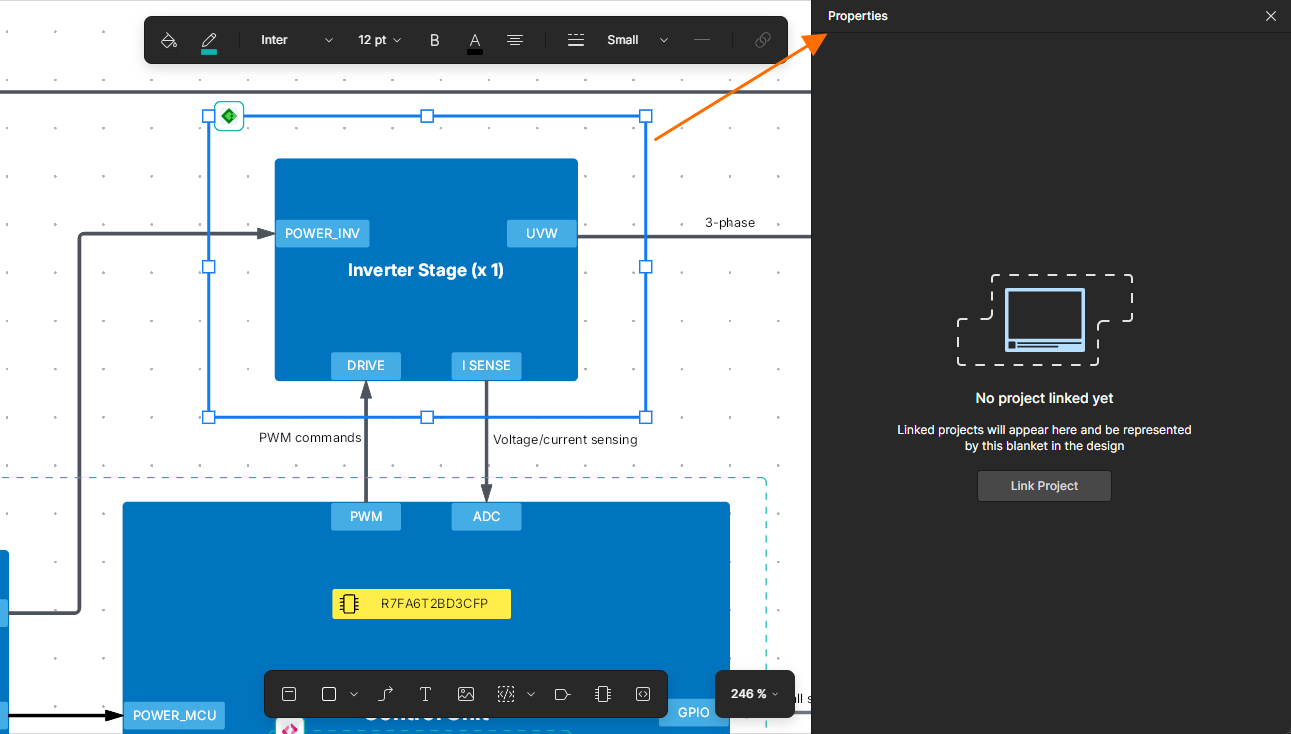
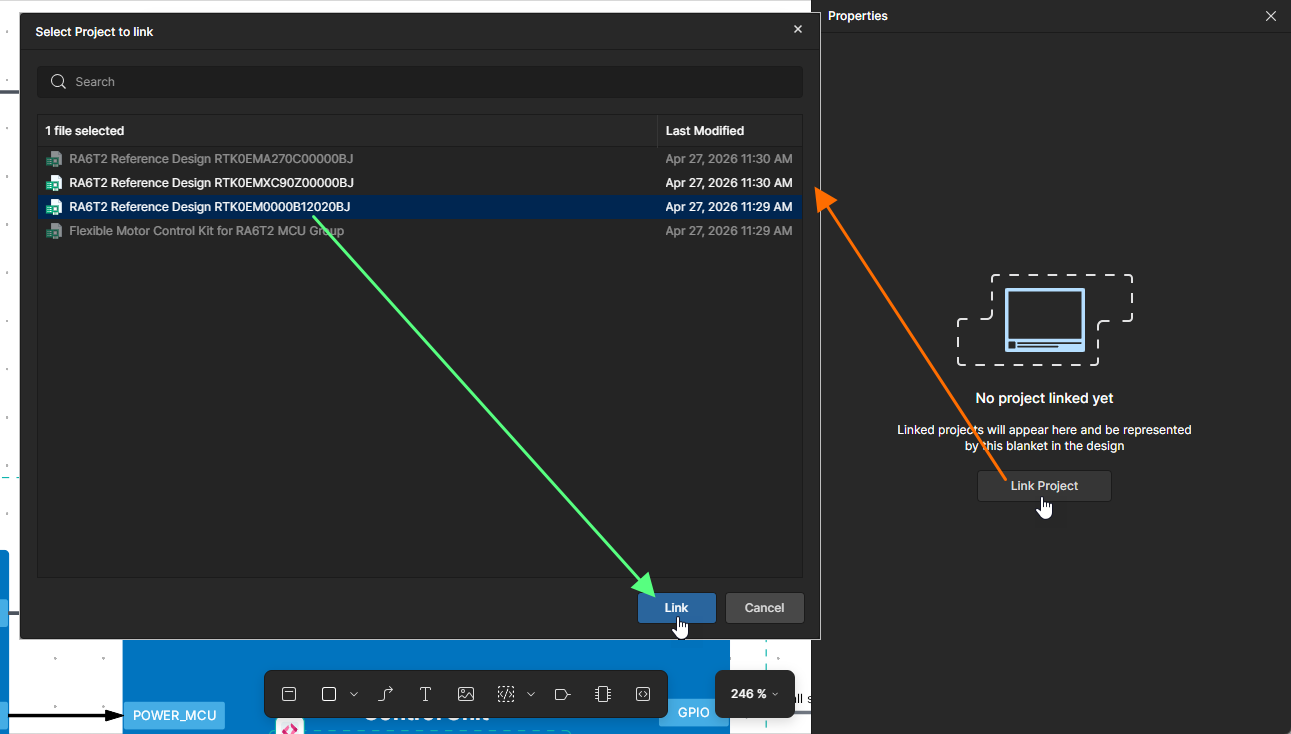
To link a hardware blanket to a PCB project or software blanket to a software project, select the blanket in the design space and click the  button in the Properties pane. The Select Project to link window listing hardware/software projects linked to the solution will open. Select a project to be linked to the blanket and click the
  button. Information about the linked project will appear in the Properties pane. Click the
  button to open the linked project in a new browser tab.
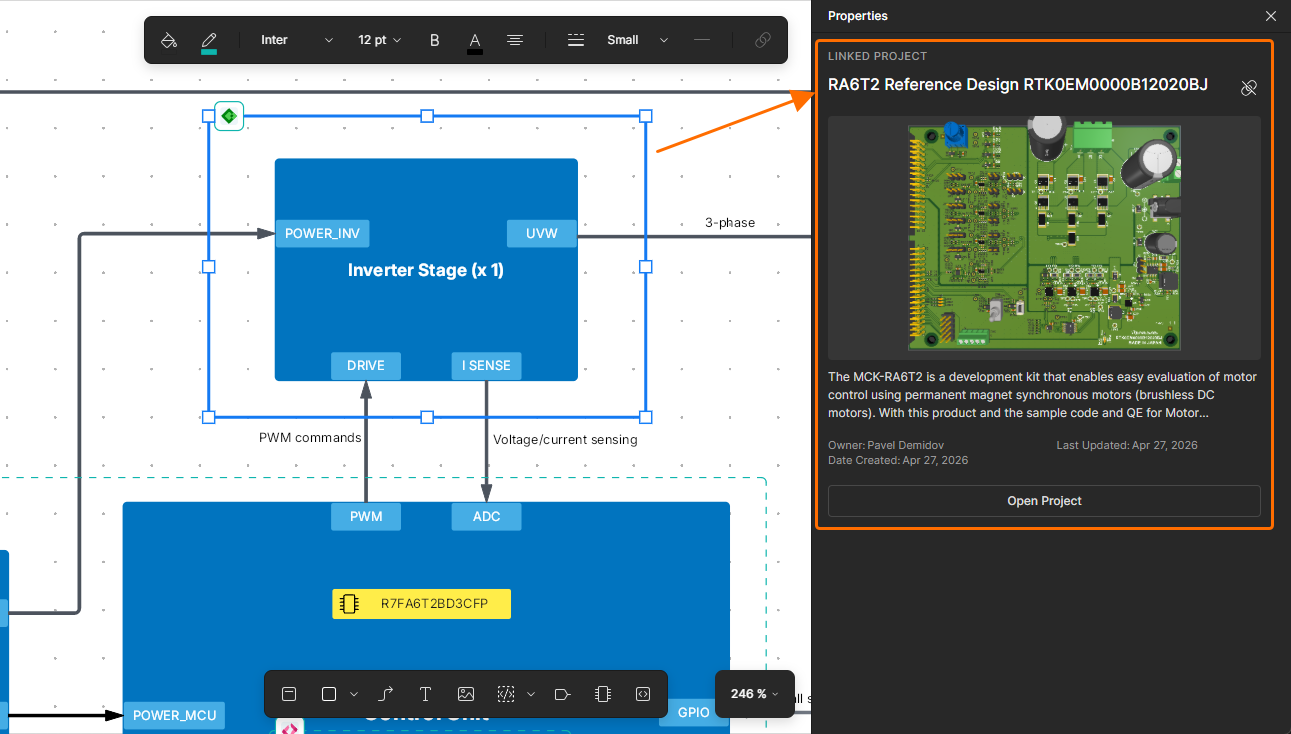
 button at the top right of the blanket's Properties pane.
Generating a Board Support Package
For a software blanket, you can generate a BSP (board support package). Click the  button in the software blanket properties.
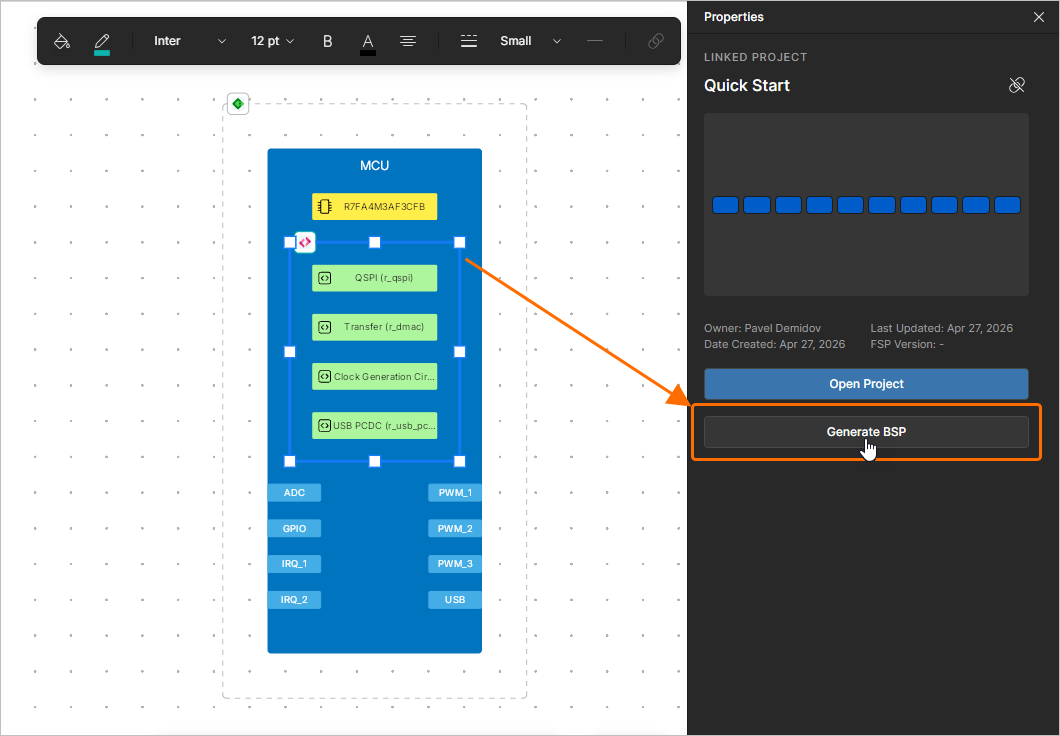
The solution’s SDM will automatically be pushed (learn more), and changes will be applied to the linked software project or, if one does not exist yet, a new software project will be created first.
If a reference design has been imported to a solution (learn more) and a hardware blanket linked to this reference design is placed around the functional block where the software blanket resides, the eval kit context will be captured when generating the BSP. The boardName will be added to the device model, and it will be used for software generation to produce a configuration compatible with the given eval kit board.
Placing Text
The ESD document editor provides the ability to place text strings. Optionally, links can be added to text strings.
To place a text string, click the  icon in the bottom toolbar (alternatively, use the button in the Standard region of the Library pane).
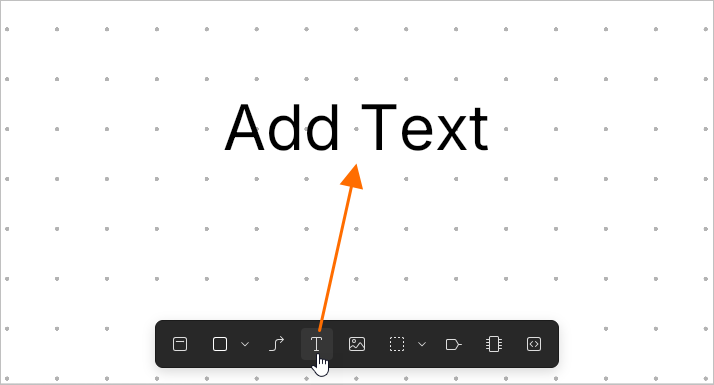
To edit a placed text string, double-click it, enter the required text and press Enter or click outside the text object.
To add a link to a placed text, first select the required text object and then click the  button in the top toolbar. In the pop-up field that appear, type the required URL and press
 Enter.
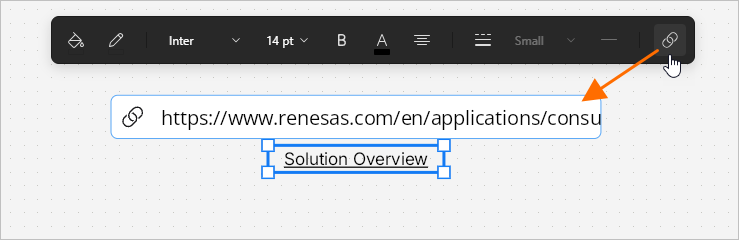
The added link can be accessed by hovering the cursor over the text object and then clicking the link in the pop-up that appears.
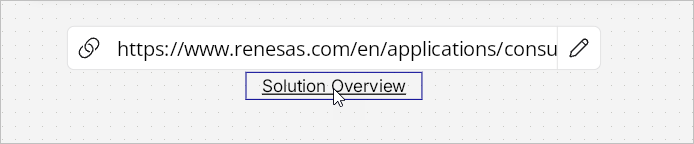
To edit the link, click the  button in the pop-up, change the URL as required, and press
 Enter or click the  button to remove the link from the text object.
Placing Graphical Objects
The ESD document editor provides a range of graphical element tools that can be used to place basic, free-form drawing elements in an ESD document:
-
Rectangle (
 )
)
-
Ellipse (
 )
)
-
Line (
 )
)
-
Image (
 )
)
Use the graphical object menu in the bottom toolbar to place the required object (alternatively, use the buttons in the Standard region of the Library pane).
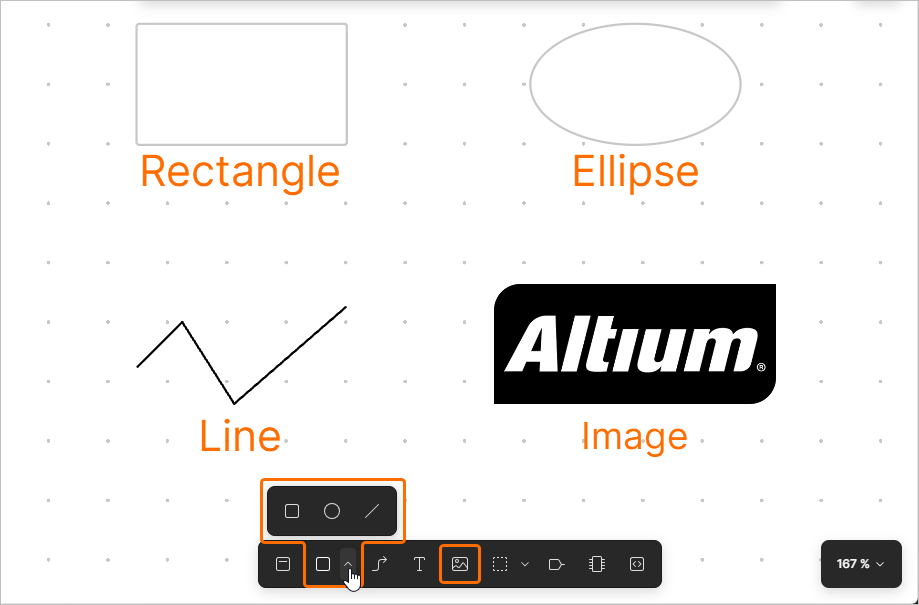
After selecting the required command from the menu, place a graphic element by clicking and dragging in the design space to position and determine its size, such as the distance between opposite vertices for a rectangle. For a polyline, click to position its first vertex and then again to place following vertices, therefore determining its shape.
Placed graphical objects can be moved by selecting and dragging. Individual nodes can also be selected and moved.
Placing Objects from Library
The ESD document editor also provides the ability to place commonly used elements from the library available from the Library pane. To access it, click the  button at the top left of the design space.
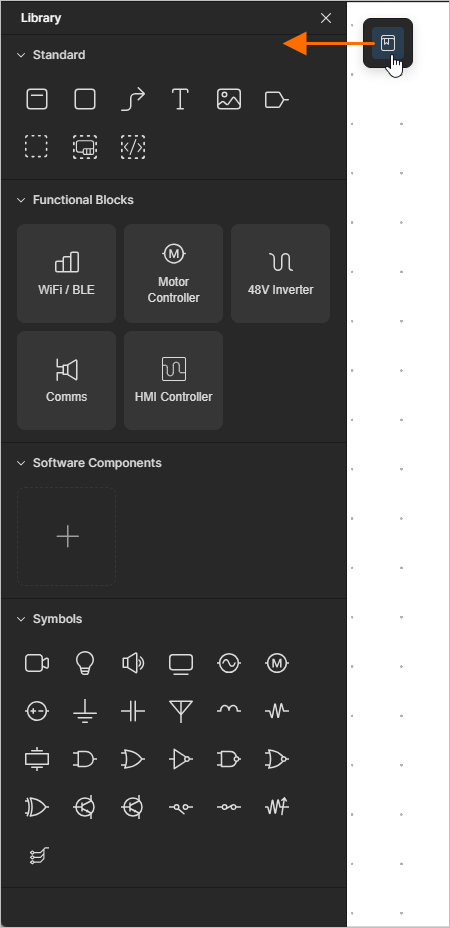
The pane includes the following regions:
-
Standard – use buttons available in this region to place basic objects (a functional block, connection line, etc.).
-
Hardware Blocks – use buttons available in this region to place a functional block with a predefined name.
-
Software Components – use buttons available in this region to place a software component with a predefined name.
To add a software component to this region, click the + button. The Software Components window that opens will show the current list of software components. Click the
 button to open the Create Component window and enter the component name (how it will be shown in the Library pane) in the Component name field and select the required component using the FSP specification field. Click the
  button to add the configured component to the list in the Software Components window and enable its visibility icon (
 ) to make it available in the Library pane.
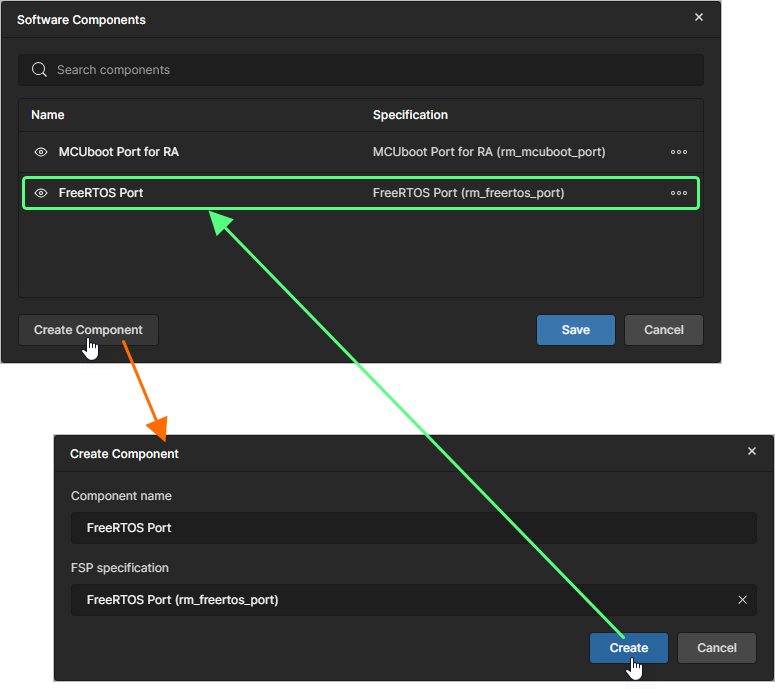
Use the
 button commands to manage the corresponding software component:
-
Edit – select to open the Edit Component window using which you can edit the component's Component name and/or FSP specification.
-
Remove – select to remove the component from the list (and hence, from the Library pane if the component was made visible there).
To hide a software component from the Library pane, either disable its visibility in the Software Components window (
 ) or right-click the component's button in the Library pane and select Remove.
-
-
Symbols – use buttons available in this region to place a predefined image object.
Click the icon of the required object in the Library pane to place it in the document.
Pushing and Pulling SDM
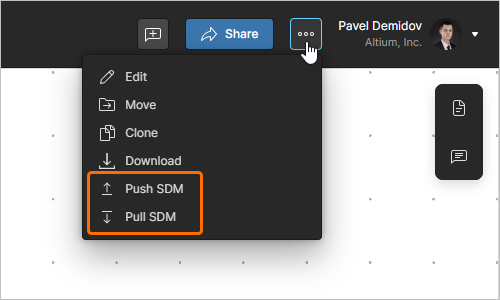
To keep all aspects of the solution synchronized with each other, the ESD editor provides the ability to push and pull the solution's System Data Model (SDM). To do this, use corresponding commands of the  button menu at the top right of an ESD document.
-
Push SDM – use this command to push the SDM from the ESD document. The solution's SDM will be synchronized with changes made in the ESD document, and these changes can then be pulled to other domains, such as the hardware projects in Altium Designer (learn more) and software projects in e2 studio.
-
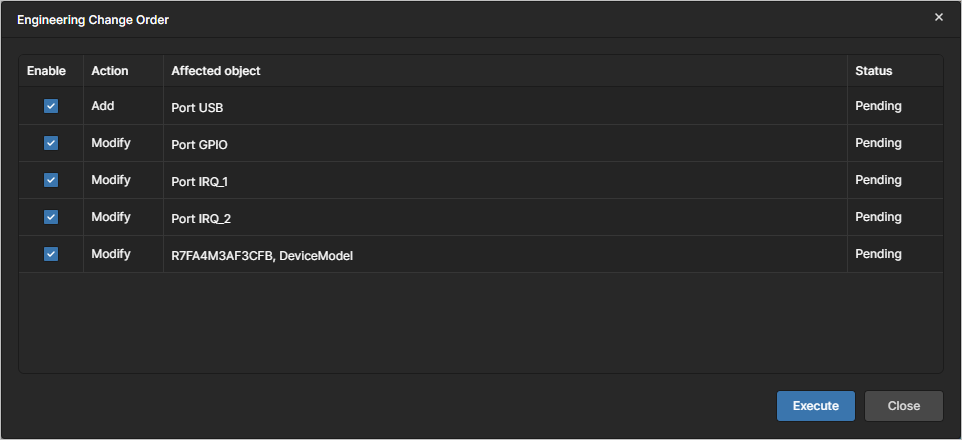
Pull SDM – use this command to pull the SDM to the ESD document. If there are changes to be applied to the ESD document to synchronize it with the solution's SDM, the Engineering Change Order window will open. Select the changes you want to apply to the ESD document using checkboxes in the Enabled column and then click the
 button.
Managing an ESD Document
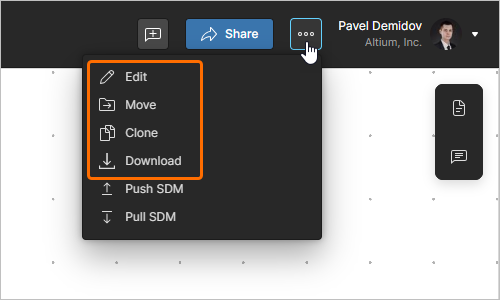
Other commands of the button menu allows you to manage the document.
-
Settings – use this command to access the Edit Project window that provides the controls to change the ESD document's Name and Description (
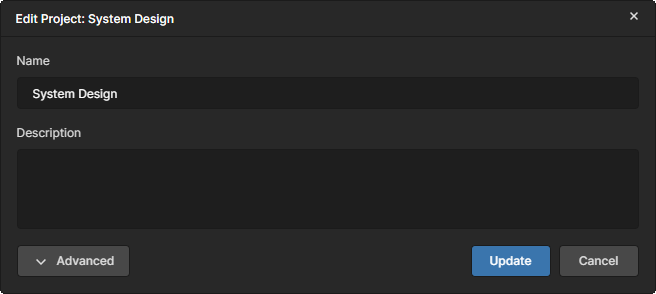 ). Click the
  button to access the Parent Folder field and Workspace Parameters. The Parent Folder field is non-editable, providing information only. To change the parent folder, you need to use the Move command. Click the
  button to confirm any changes you have made.
-
Move – use this command to access the Move to window that provides the controls to move (relocate) the ESD document under a different parent folder within the Workspace folder structure (
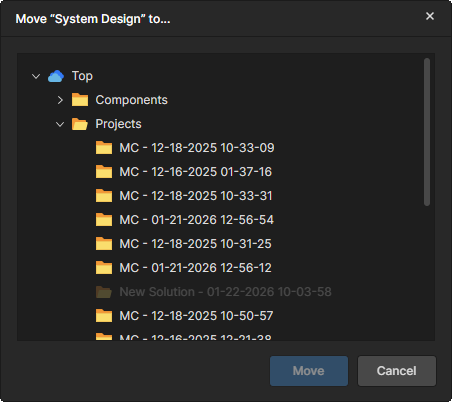 ). Use the window to choose the new parent folder. Click the
  button to effect the move.
-
Clone – use this command to access the Clone - ESD window that provides the controls to make an identical copy of the ESD document (
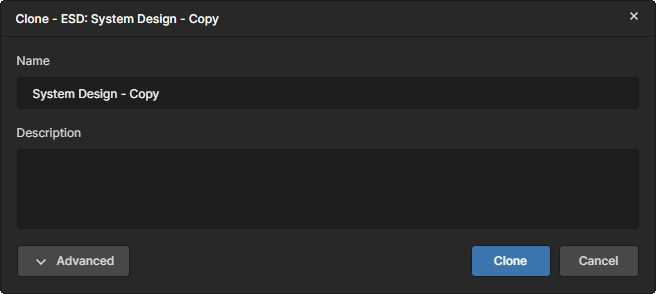 ). Use the window to specify a name for the ESD document and an optional description. By default, the original document name will be used with the suffix
 – Copy.Click the
button to access the Parent Folder field. By default, this will be set to the folder in which the original document is located. Click the Change link at the right of the field to access the Workspace folder structure for the Workspace, from which to select an alternate folder in which to store the cloned document.
After setting the fields as required, click the
 button, and the original document will be cloned (duplicated). The created copy of the ESD document can then be linked to the required solution from the detailed page of that solution in the Renesas 365 Workspace – learn more.
-
Download – use this command to download the ESD document as a
*.jsonfile.
Commenting
The ESD document editor supports commenting of your ESD documents. A comment is a user-added note that is assigned to a specific point, object, or area and may be replied to by other users. Comments promote collaboration between users without altering the shared data itself, because comments are stored by the Workspace independently of that data. You can mention one or more people or groups in the comment. A comment also can be assigned to a Workspace member.
Comments are posted, replied to, and managed directly within the document's design space using a contextual commenting window. Comments are also presented on the Comments and Tasks pane, which is presented on the right-hand side and provides more of an overview/navigational instrument, rather than the operational interface.
 button at the top right of the ESD document to toggle the display of the Comments and Tasks pane.
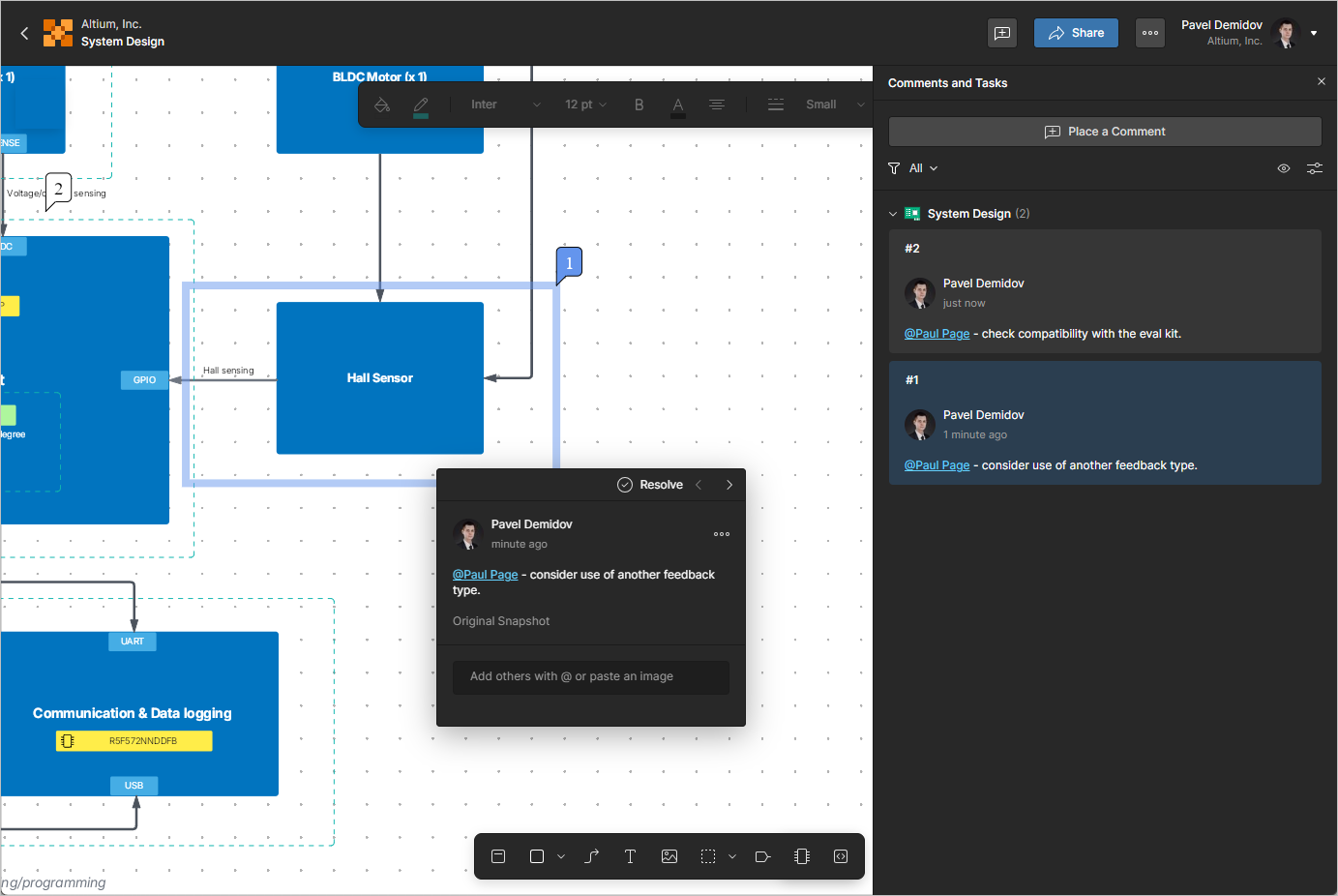
To place a comment, use the  button in the toolbar at the top right of the ESD document, the Add Comment command from the right-click menu of the document's design space, or the
  button in the Comments and Tasks pane.
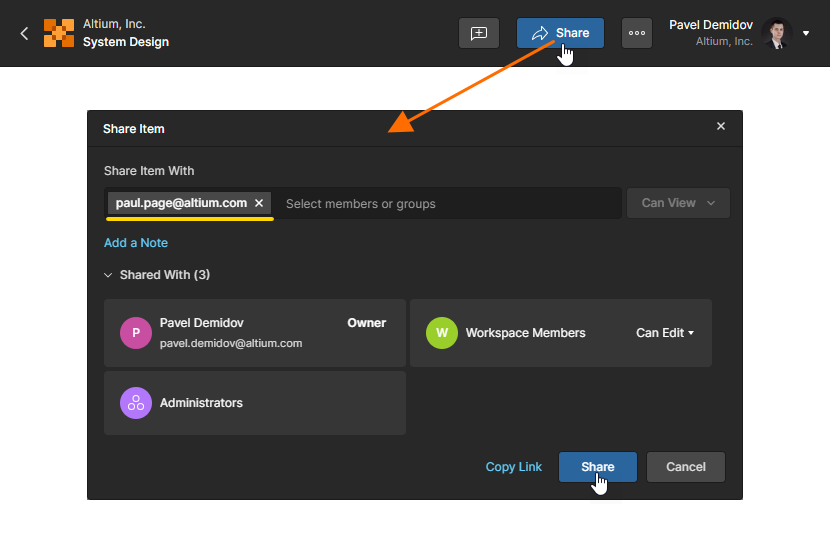
Sharing an ESD Document
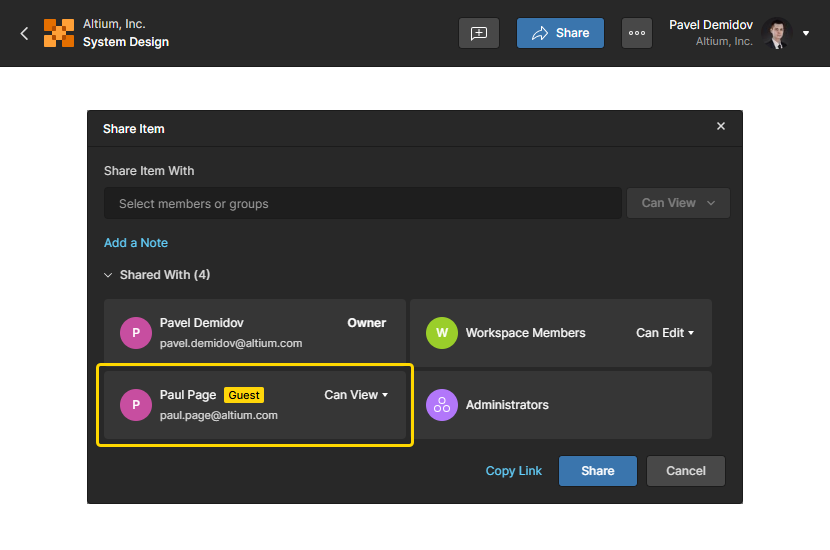
An ESD document can be shared with view permissions to those outside of your Workspace. Click the  button at the top right of the ESD document to open the Share Item window. Select the Share Item With field to access and enter the full email address of the user. The user will have Guest-level access to the shared ESD document through their own Workspace or Personal Space.