Parts in Use
Related information: BOM Portal, Workspace Components
The BOM Portal's Parts in Use page provides an aggregated overview of all manufacturer parts that are currently used in Workspace Projects and Managed BOMs. The listing is populated with key parameter columns (including external sources such as SiliconExpert parameters if available) for each manufacturer part item, and includes active Used In links to the referenced BOM documents. The page allows you to quickly view all manufacturer part references (component Part Choices) that are applied in design BOMs while checking for active issues such as inappropriate Lifecycles, lack of standards compliance, or an extended manufacturing lead time. Note that the current report view can be saved as a CSV file using the download function ( ).
).
 icons) are included if this feature is
  icons.
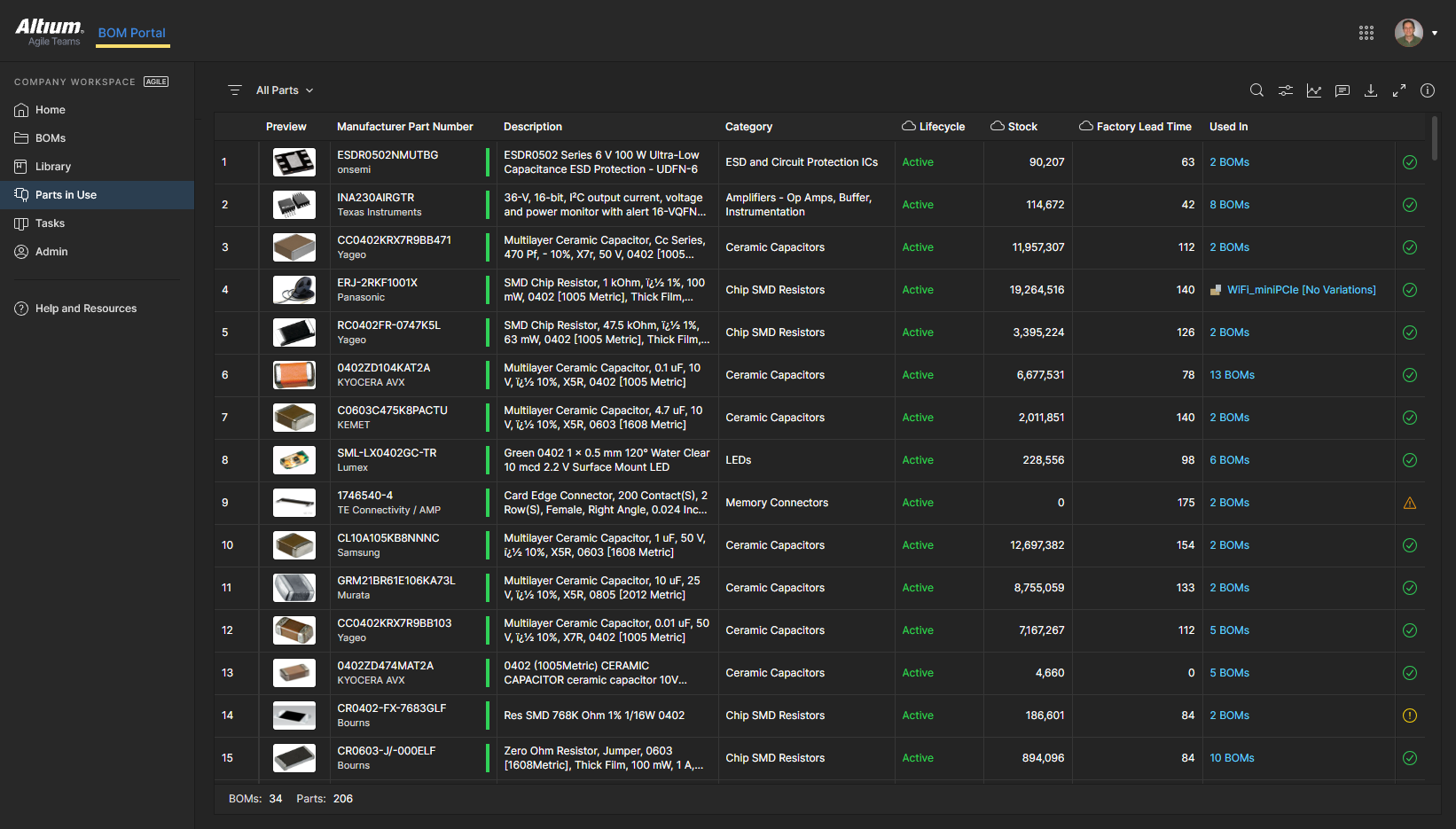
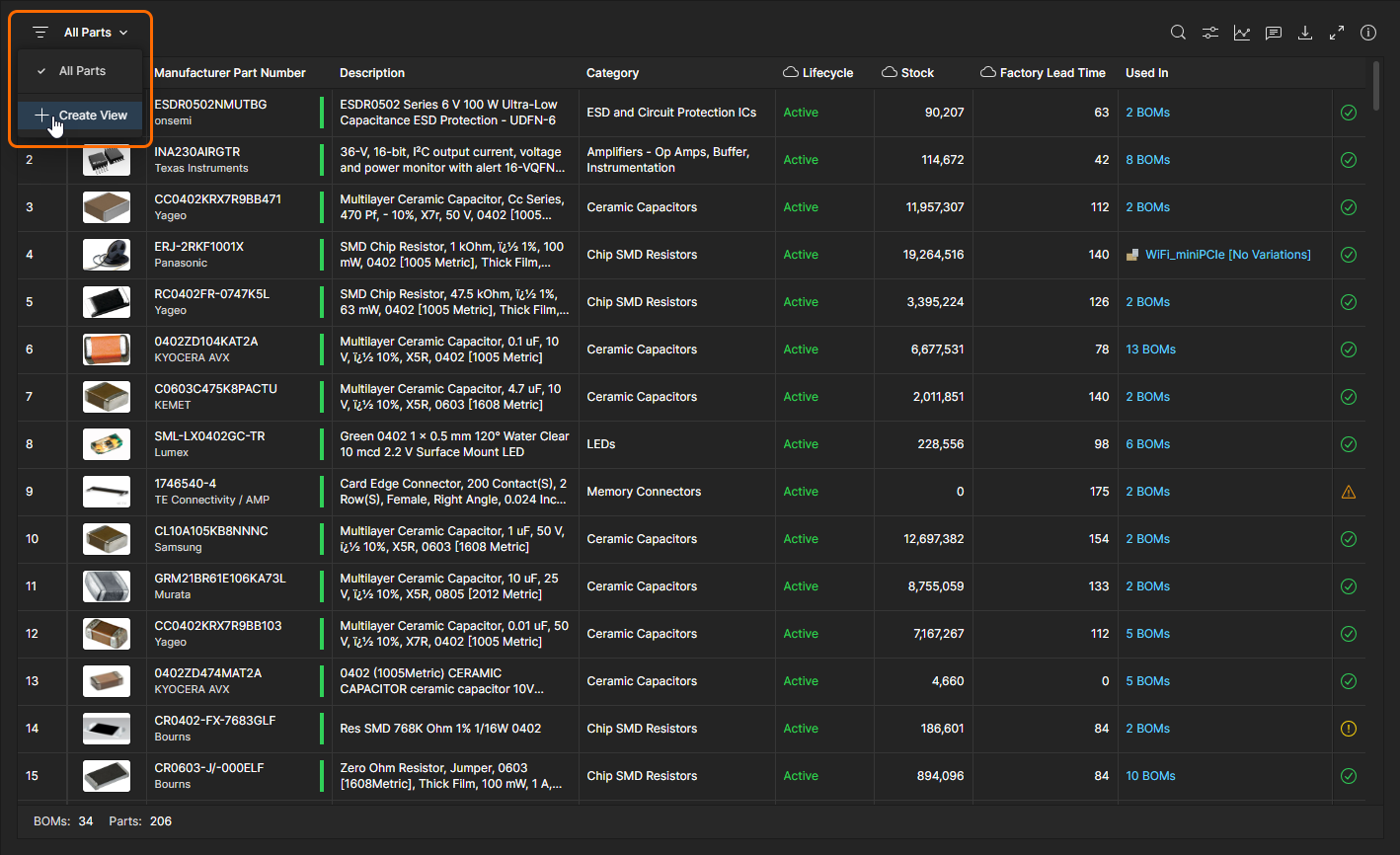
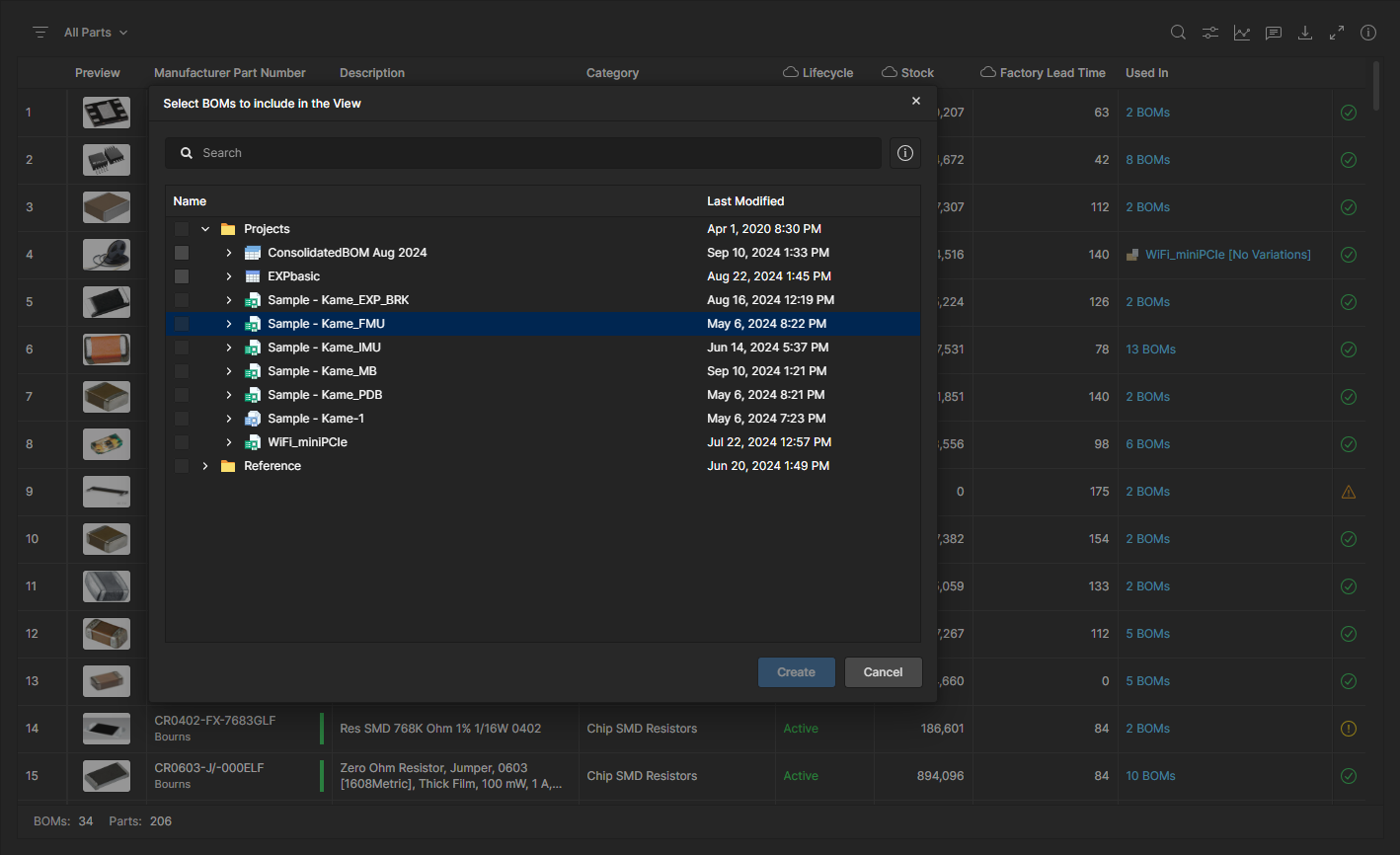
All Workspace Project and Managed BOM sources are included in the listing by default, as indicated by the view options menu above the list (All Parts). Select this menu to choose other available views, or the Create View option to select a new set of BOM data sources in the Select BOMs to Include in the View dialog window.
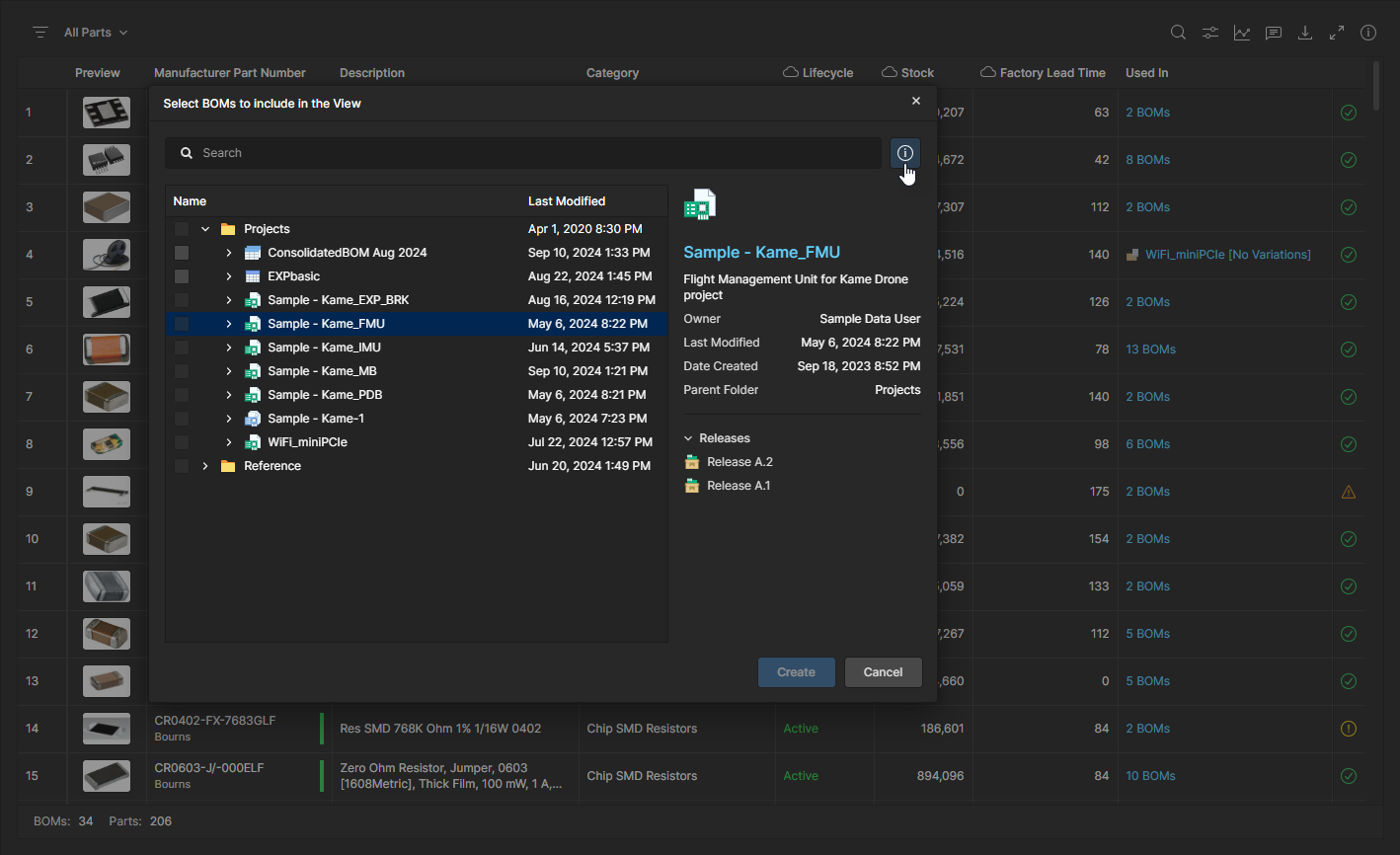
Optional: Open the window's side Properties pane ( ) to see more information on the currently selected BOM data source.
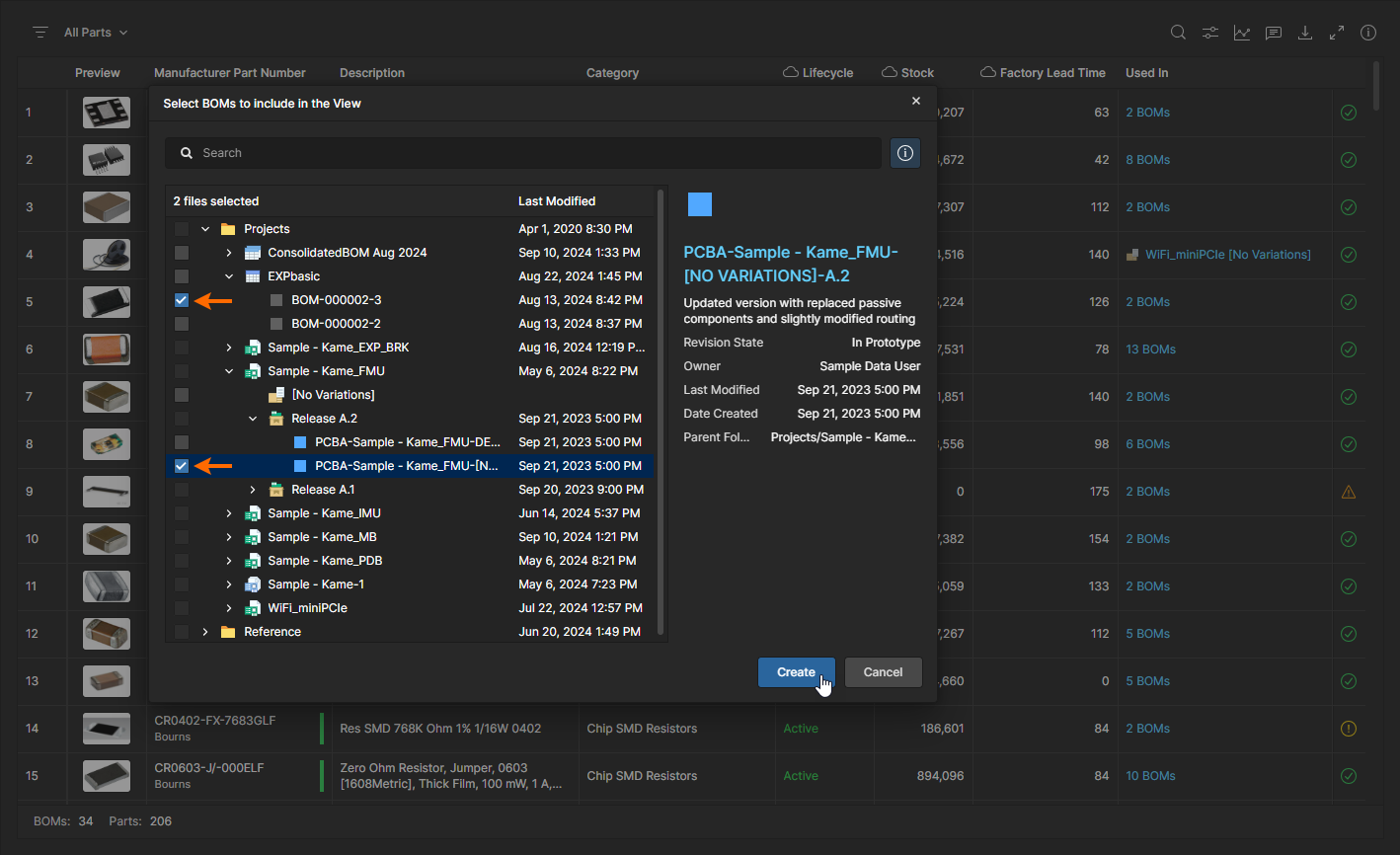
Expand the list hierarchy to view and select the desired BOM data sources, which include Design Project Variants and Release files, and Managed BOMs and their Releases. Confirm the selections with the  button.
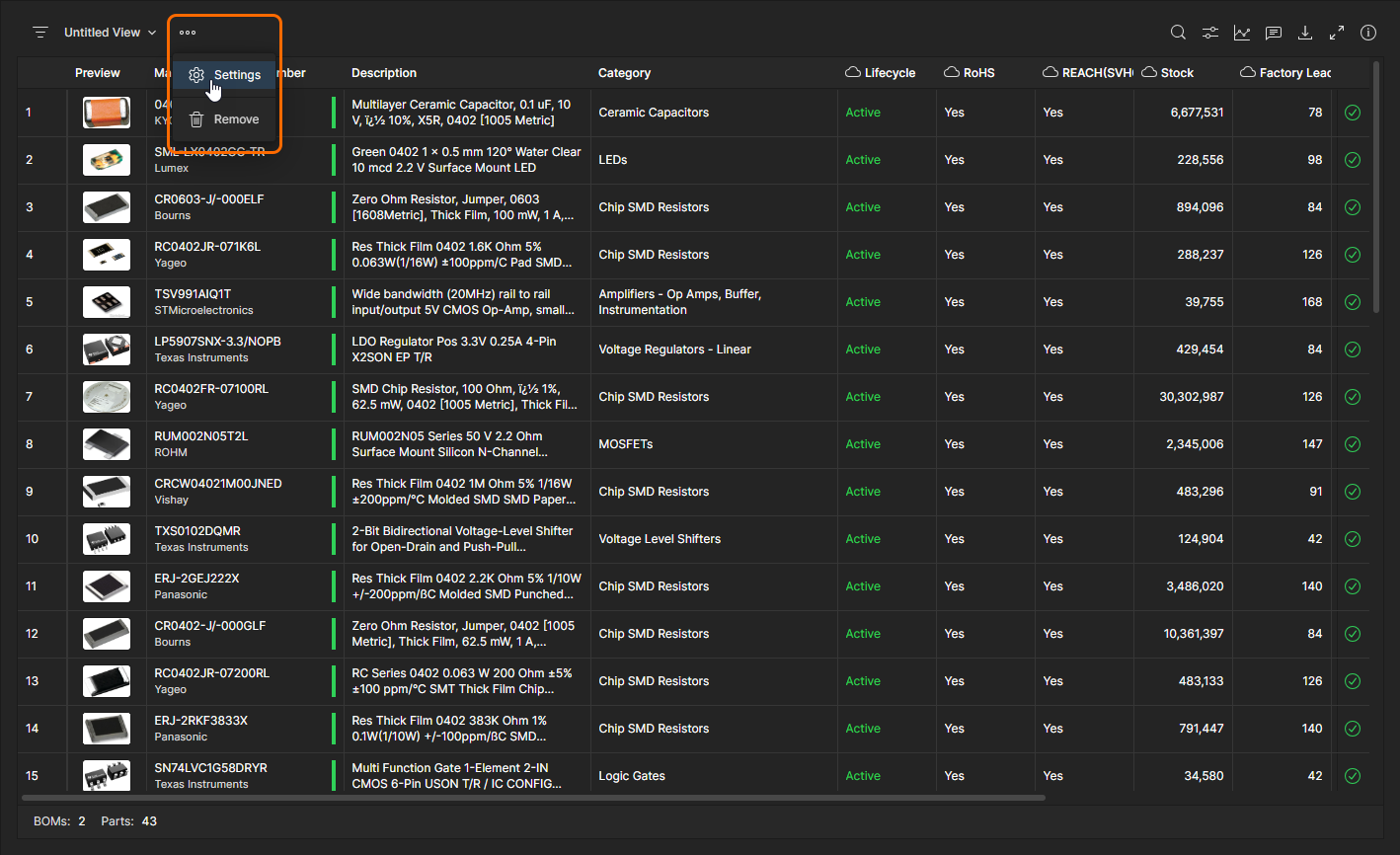
The newly created View will include only those parts from the selected BOM sources – note the revised BOM/Parts count in the lower margin. Select the Settings option from the  menu to rename the view.
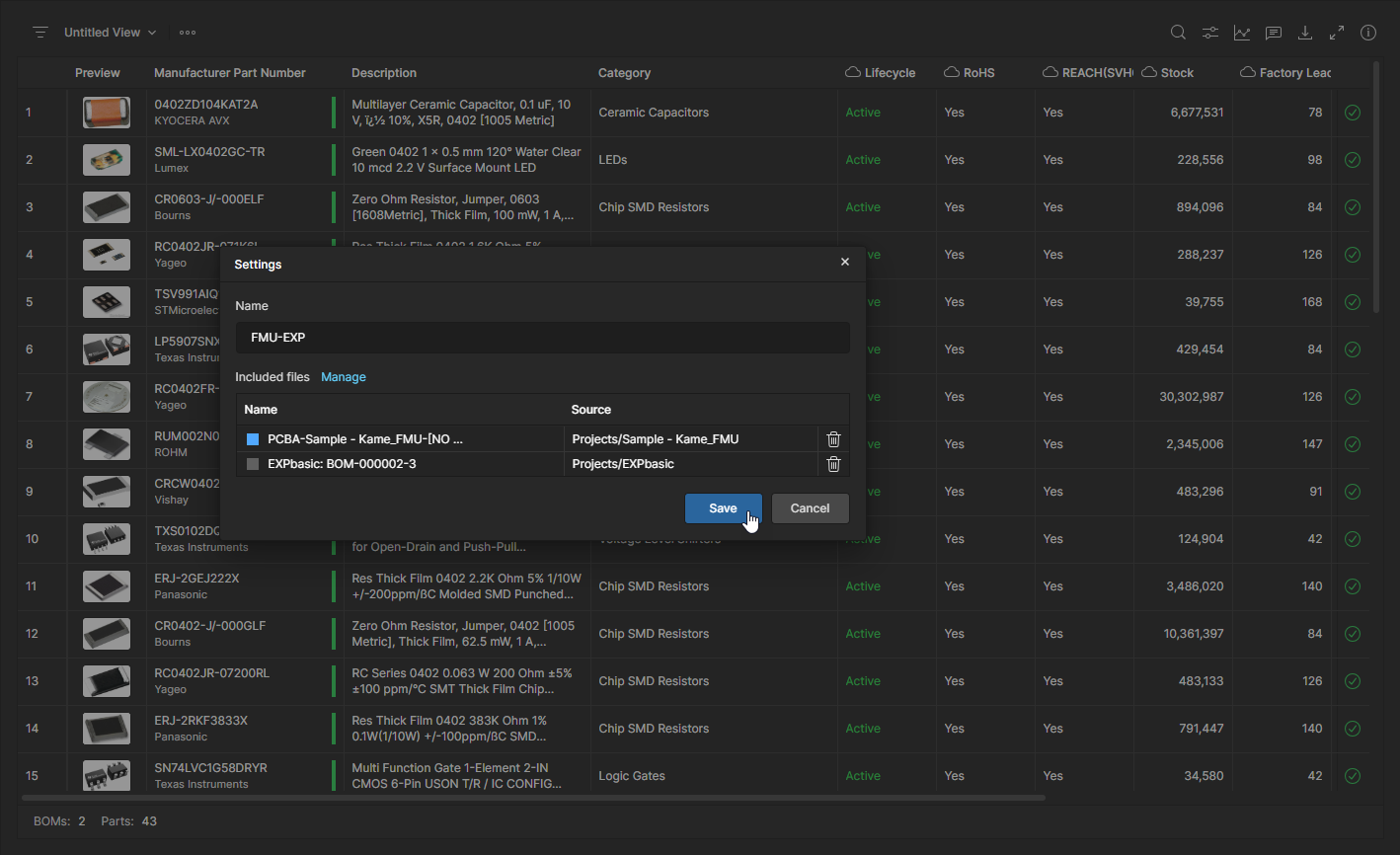
Along with the option to rename the current view (Name), the Settings window allows the removal of a current BOM data source ( ) and the option to add more sources through the Select BOMs to include in View window opened from the Manage option.
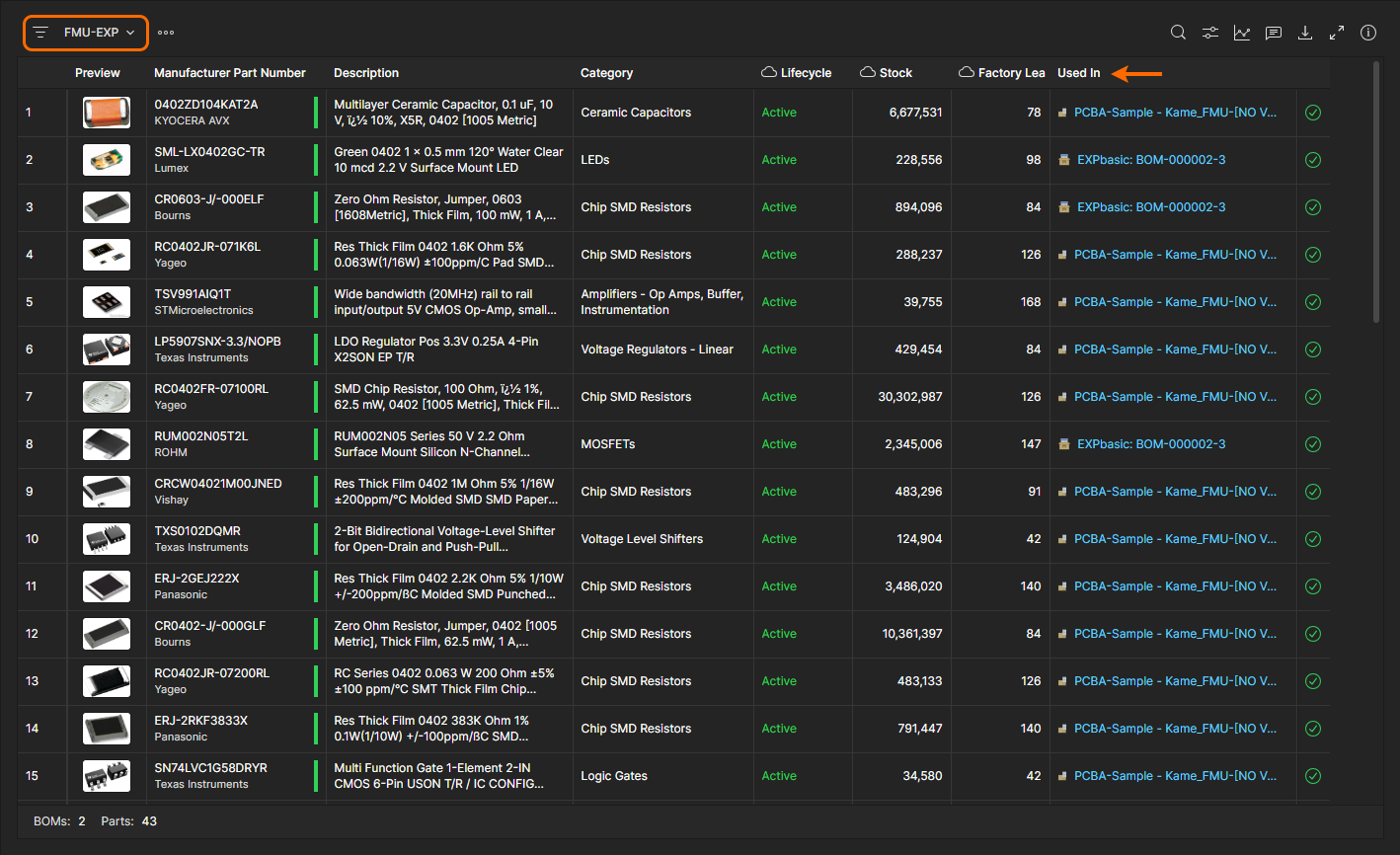
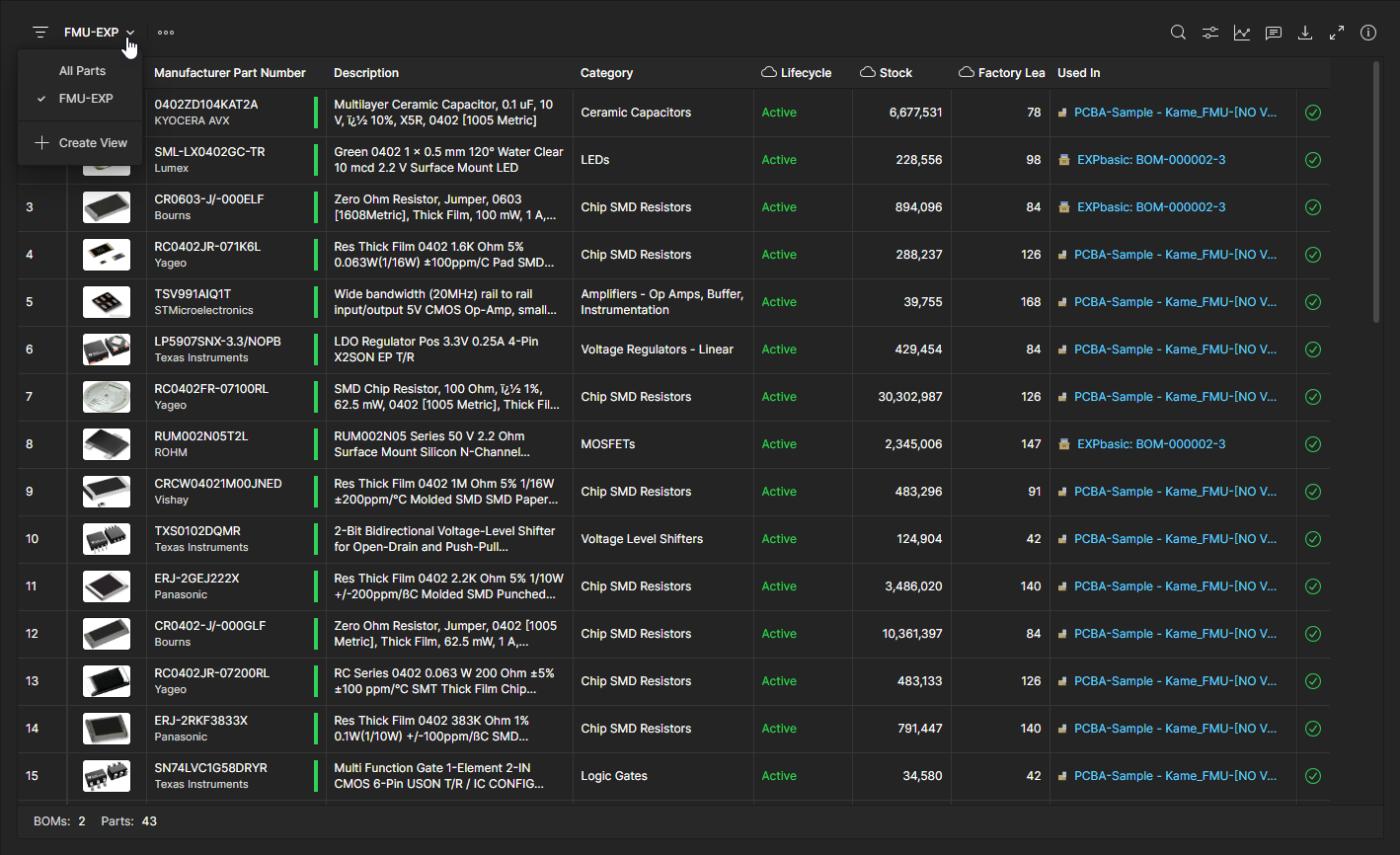
Use the view Name drop-down menu to change between viewing all available BOM parts and those filtered by custom views. Note that the current BOM view can be removed to Trash with the menu’s Remove option.
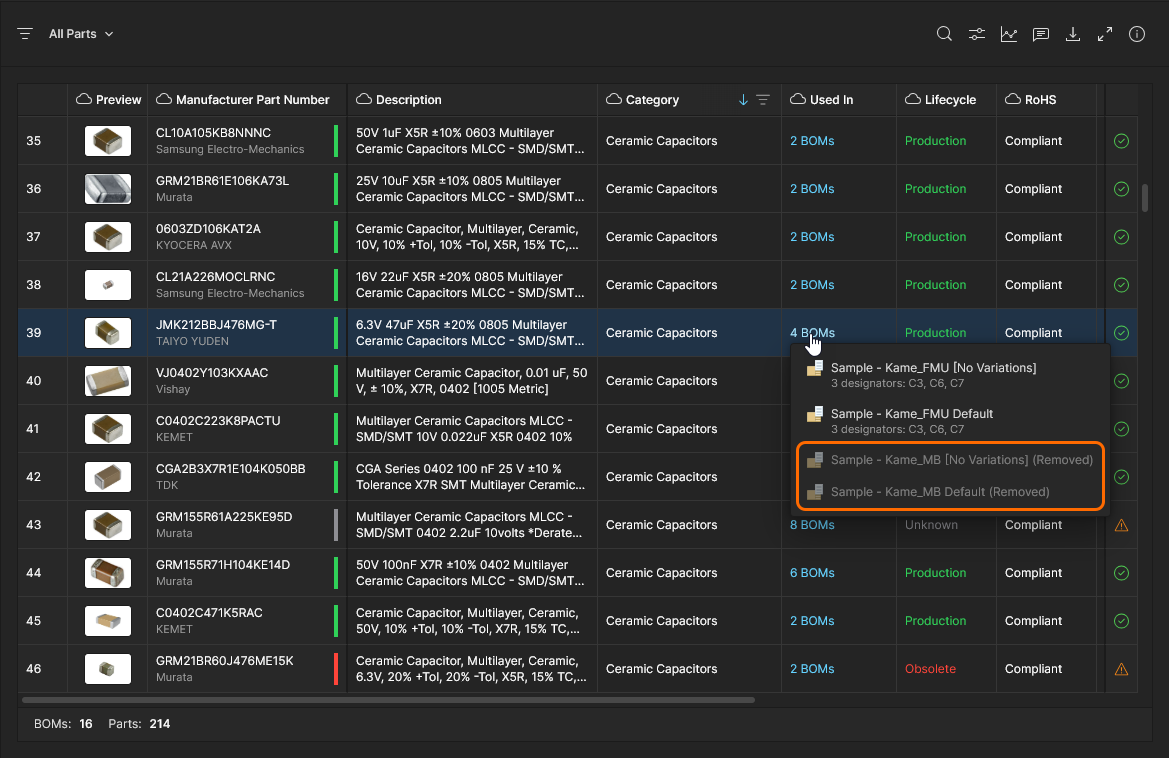
The listing's Used In column includes the associated BOM source name(s) where the part is currently used. This includes usage in Design Projects or Managed BOMs, or any of their Releases:
-
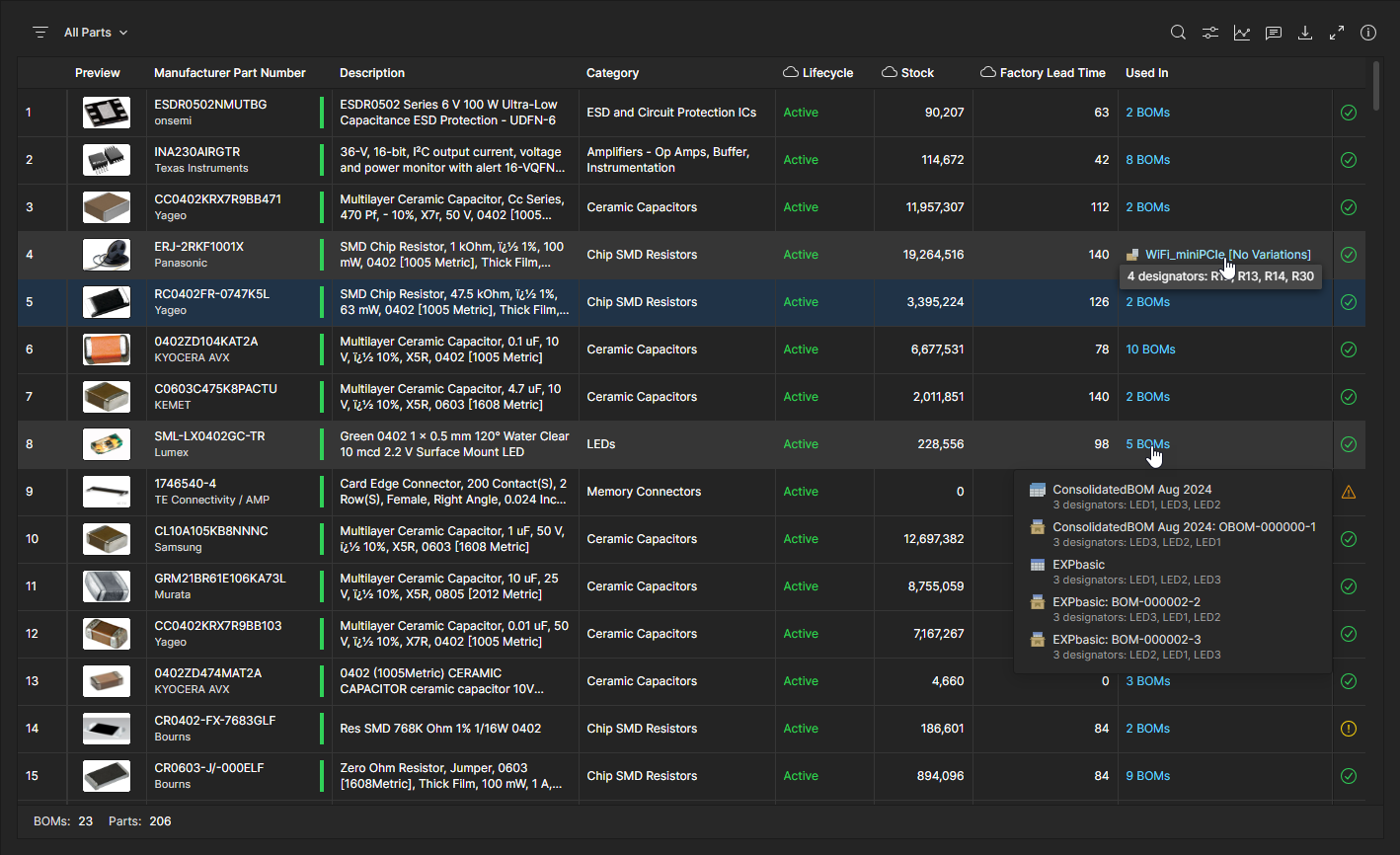
Where the part is used in a single BOM entity, hover over its name to view the related part designators. Click the entry to open the source in a new browser tab.
-
Where the part is used in multiple BOM entities, click the entry to view all the BOM sources with their related designators. Click on a source name to open it in a new browser tab.
 )
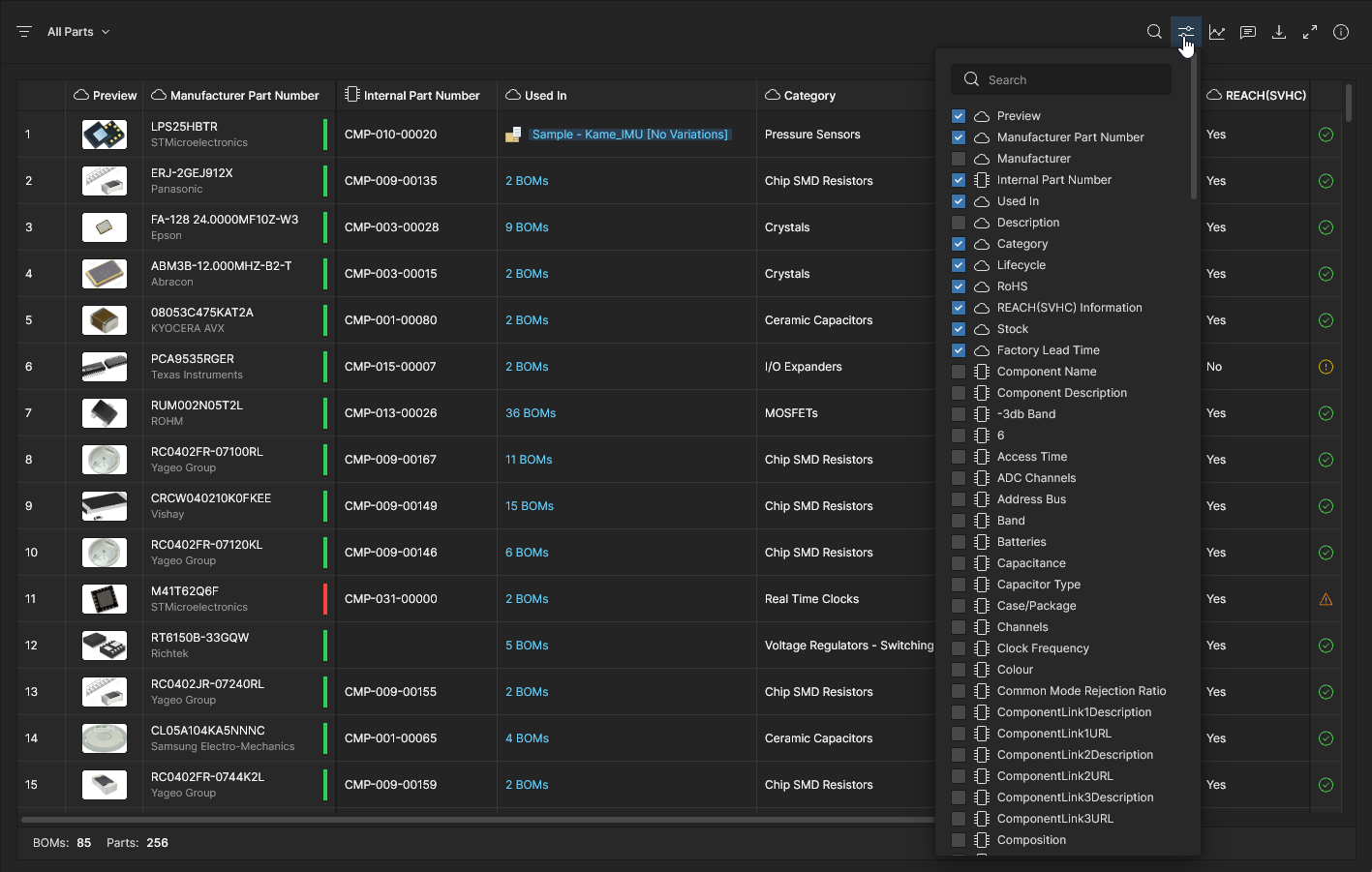
)Along with the default set of parts data columns, the Parts in Use listing includes specialized columns such as the component type Category to assist sorting (see below) and the Internal Part Number of an associated Library Component (where applicable). Use the Column Display Preferences option ( ) to configure and order the displayed parameter columns
– note that cloud and library parameters are indicated by their associated icons (
) to configure and order the displayed parameter columns
– note that cloud and library parameters are indicated by their associated icons ( and
and  ).
).
Parts Usage Analytics
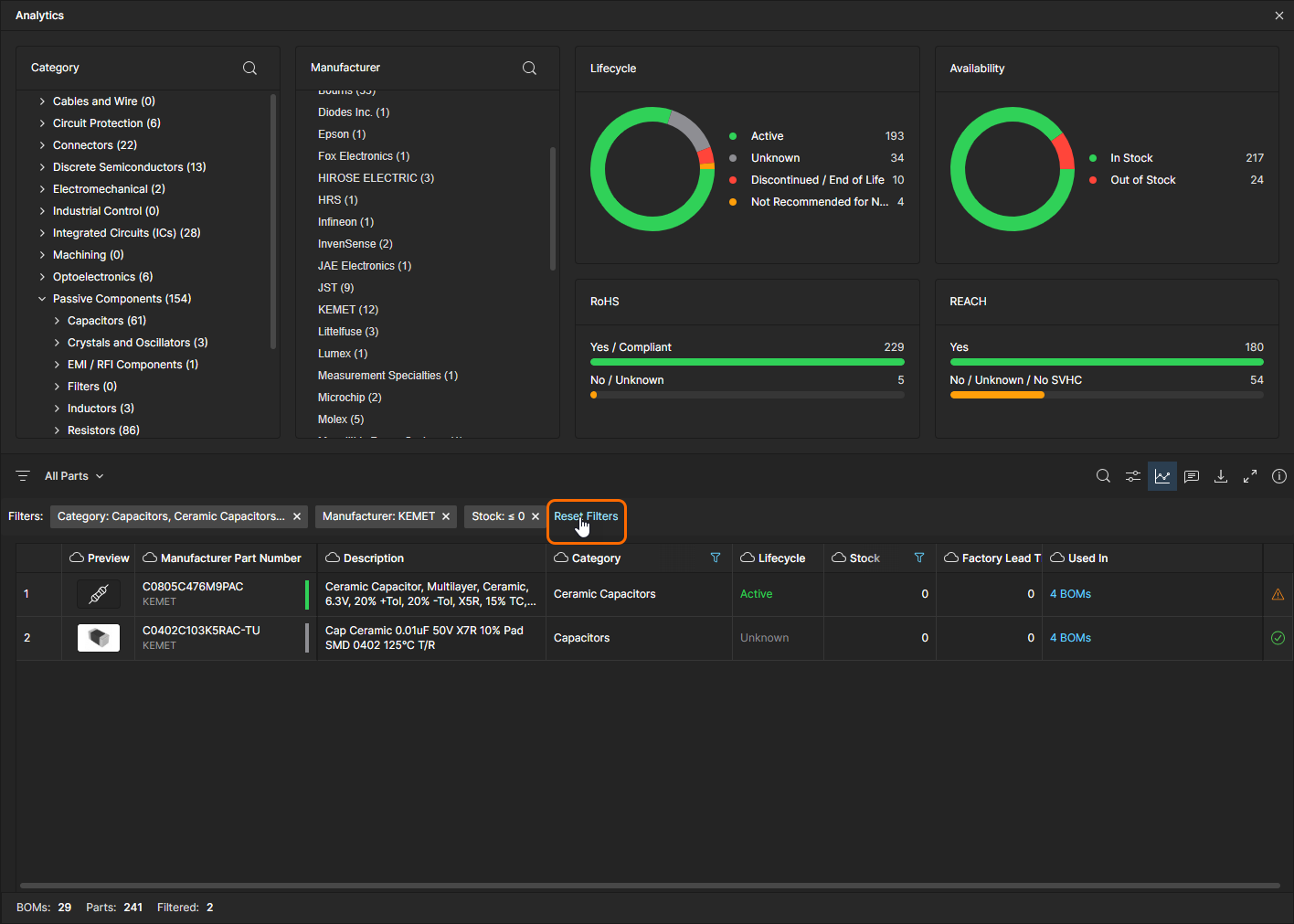
Further insight into the current parts usage is provided by the Analytics summary information. This feature, opened from the listing’s  icon, populates the upper page area with notated group listings and graphic indicators representing key parametric measurement data for the current Parts in Use view. The analytics data will dynamically change as different custom views, with different BOM content configurations, are selected.
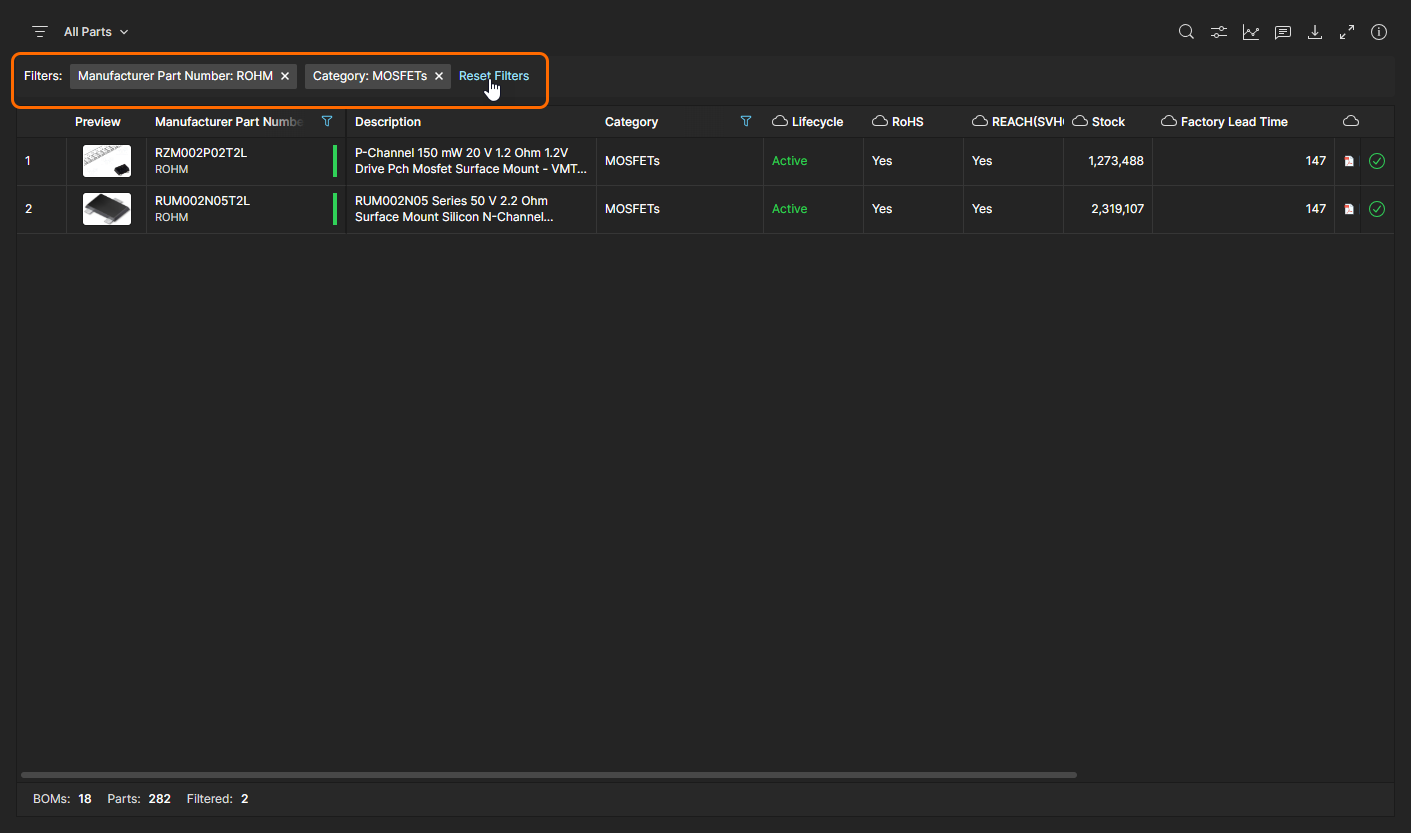
The Analytics data also interacts with the Parts in Use list by filtering its content. Navigate to and select a specific component Category (Component Type) or part Manufacturer to constrain the list to matching items, or click on a pie graph section, its label or a bar-graph item to filter the list to entries matching that parametric data – note that multiple filters can be applied (in an AND relationship). Deselect a parametric filter by clicking on it again, by closing its entry in the Filters area above the list, or by removing all applied filters with the Reset Filters option.
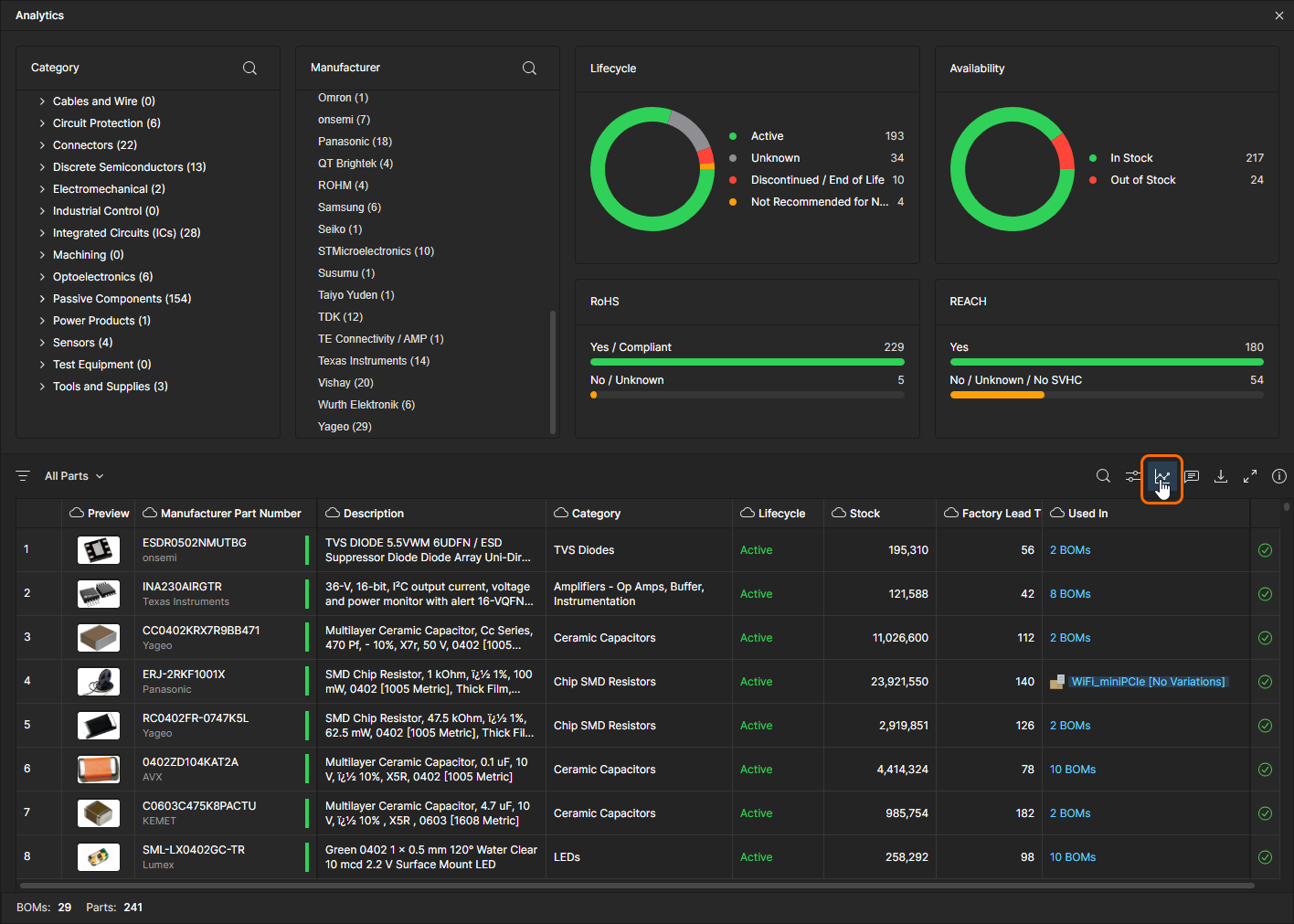
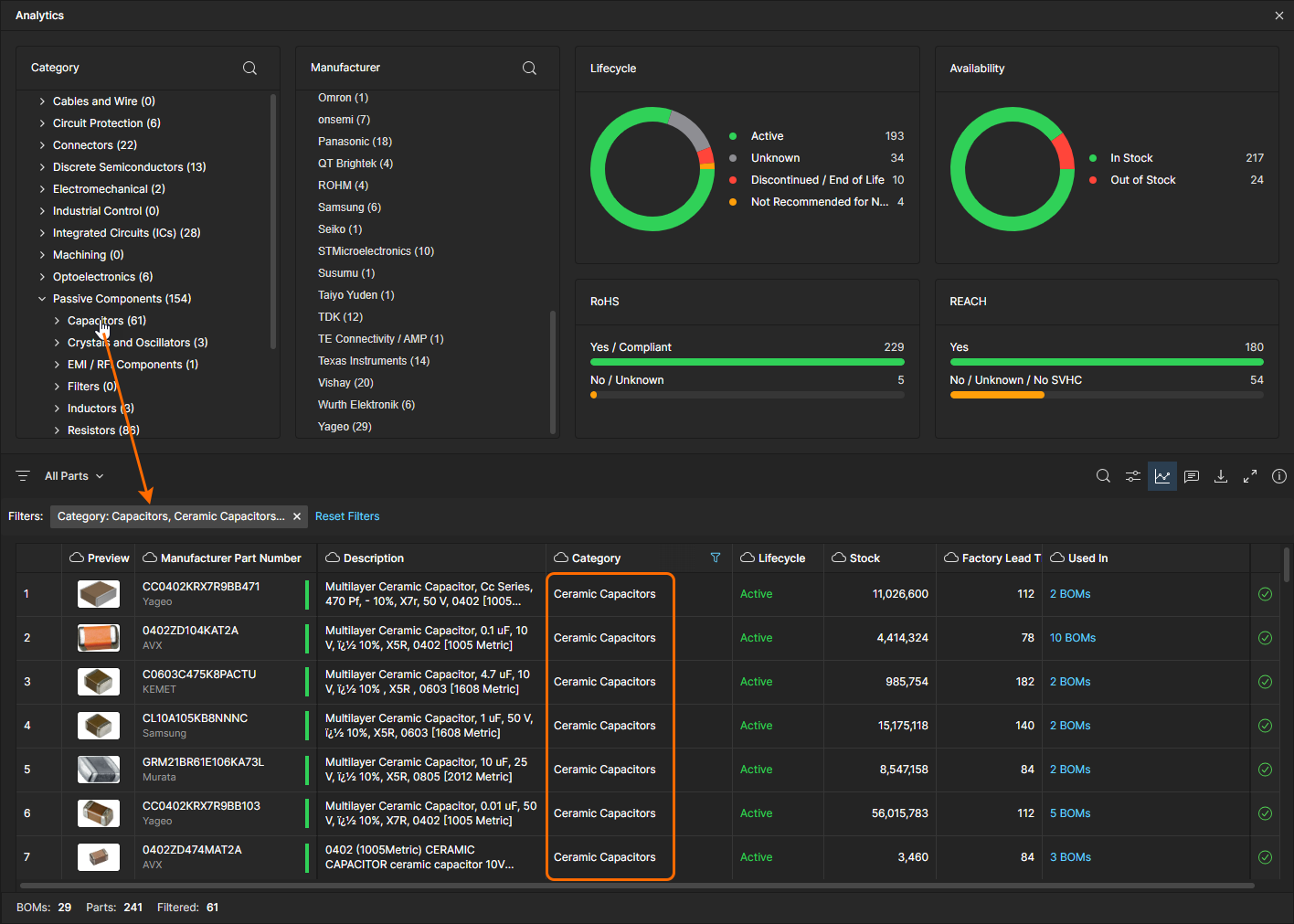
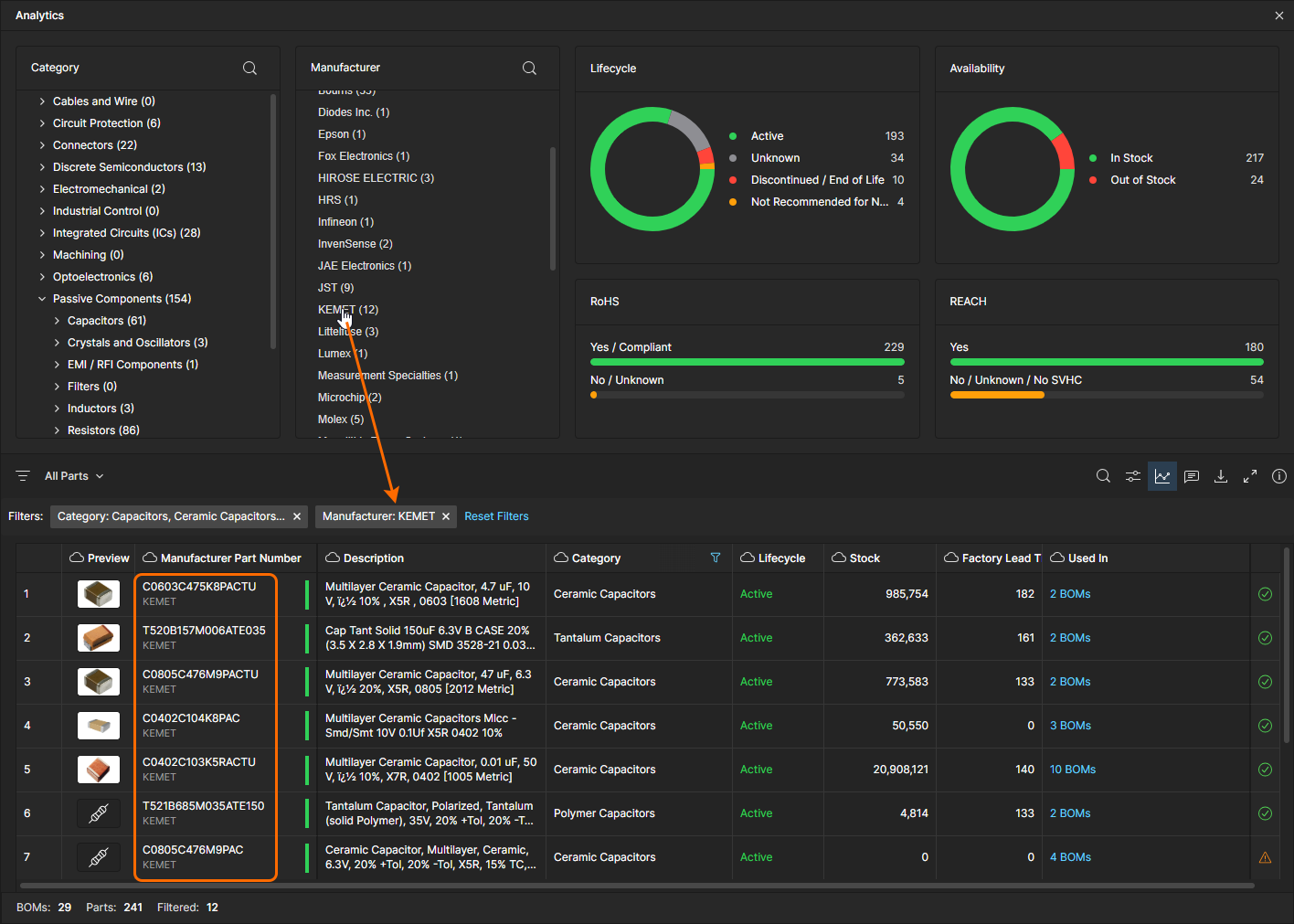
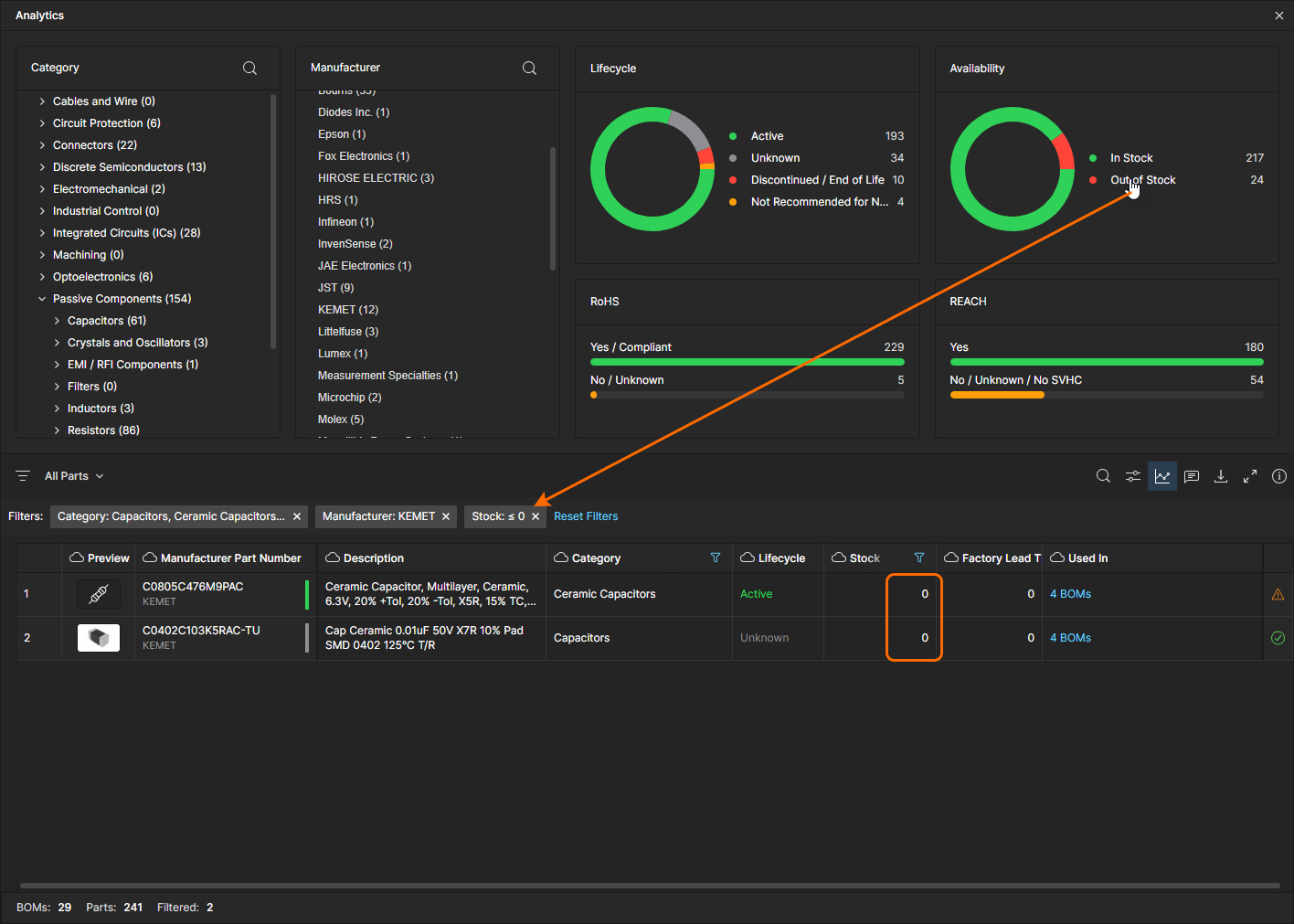
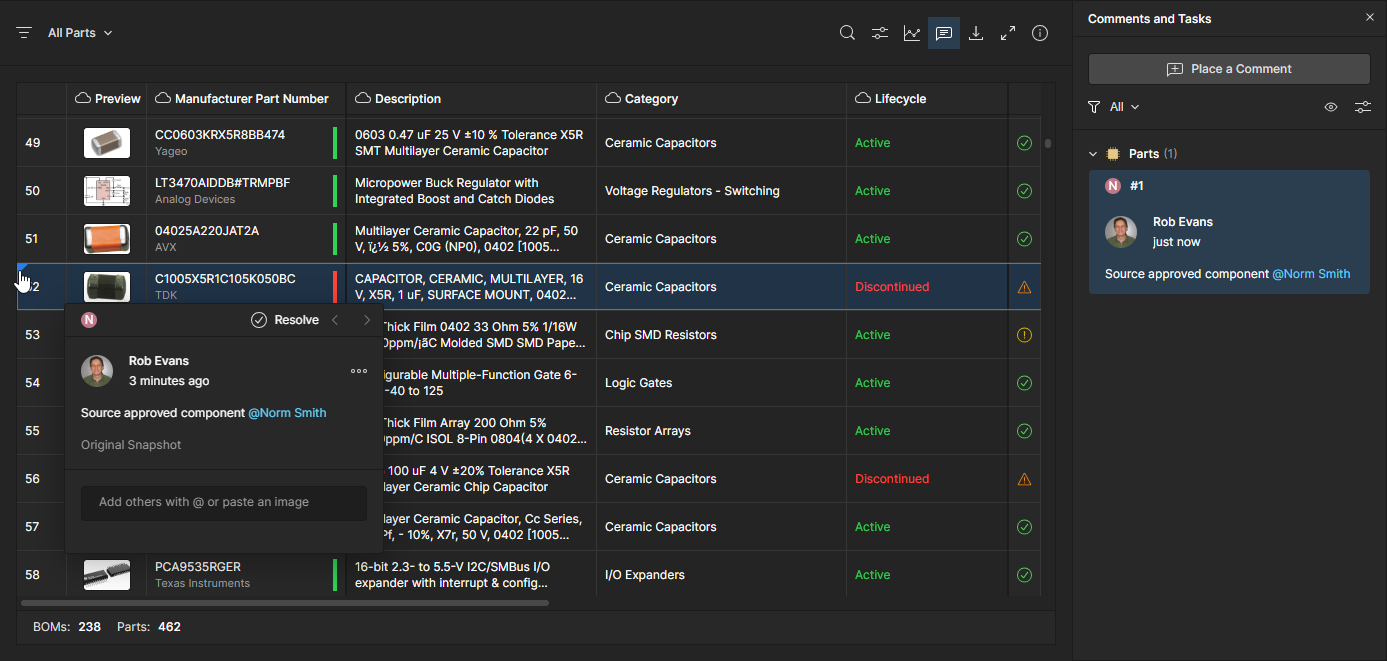
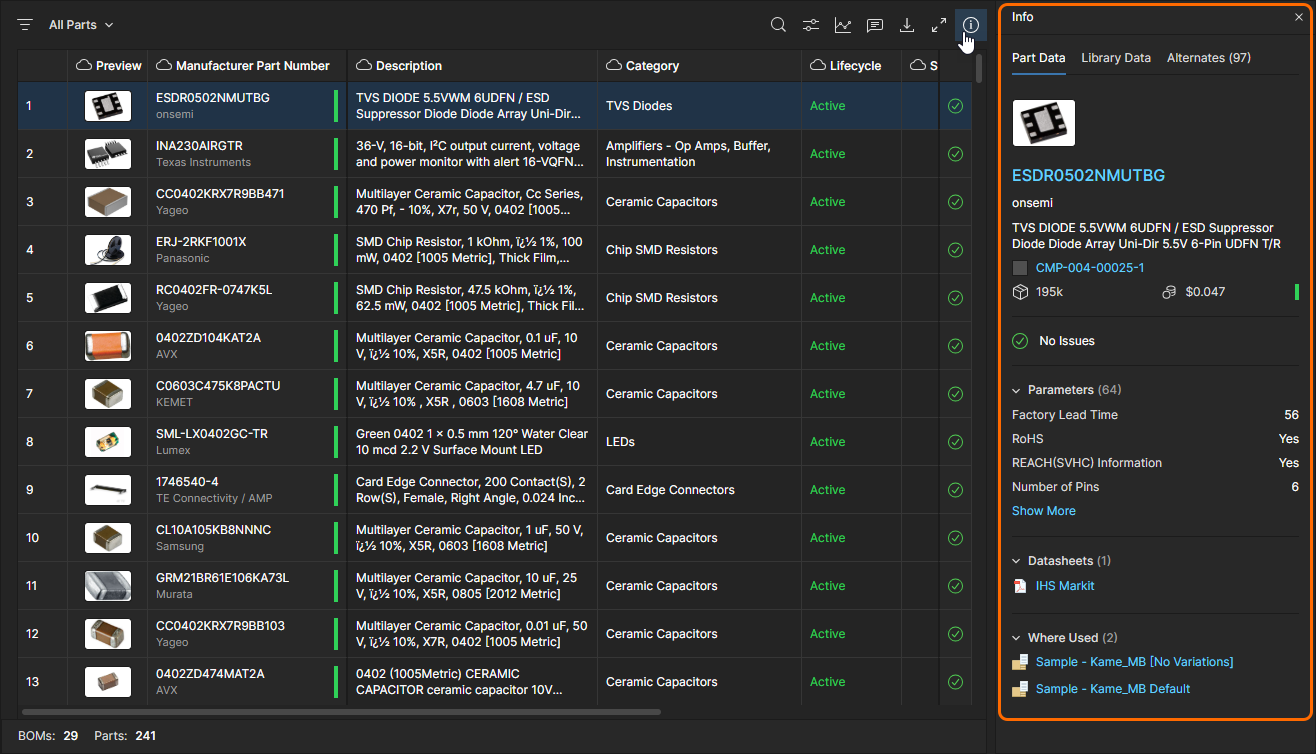 See the
  )
)
Parts List Features
The Parts in Use interface offers a range of features for locating the information you need for assessing and auditing parts usage. These include column ordering, keyword searches and advanced column filters. When used in combination, the features offer a high degree of control over which entries are included in the Parts in Use report and how they are presented:
-
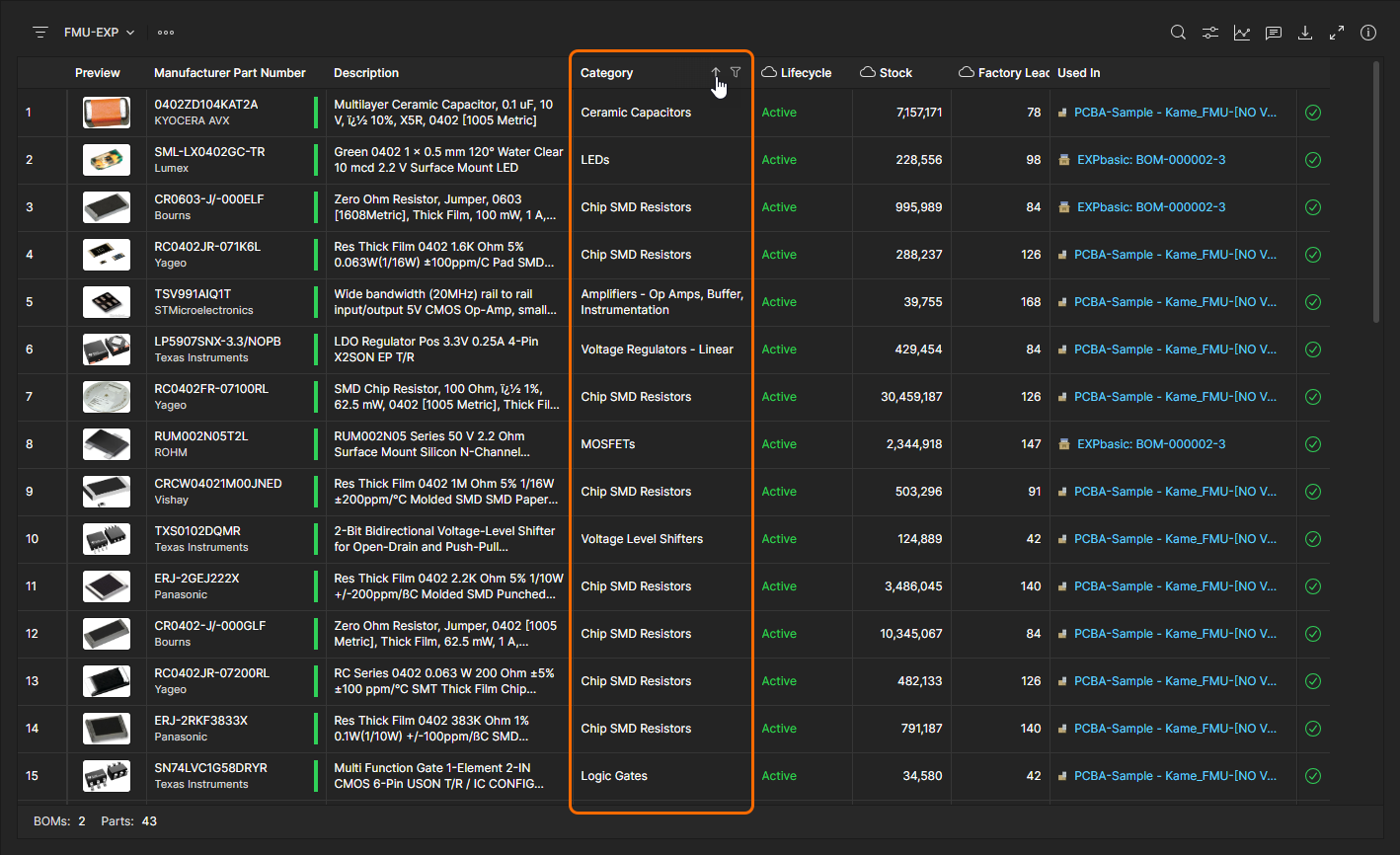
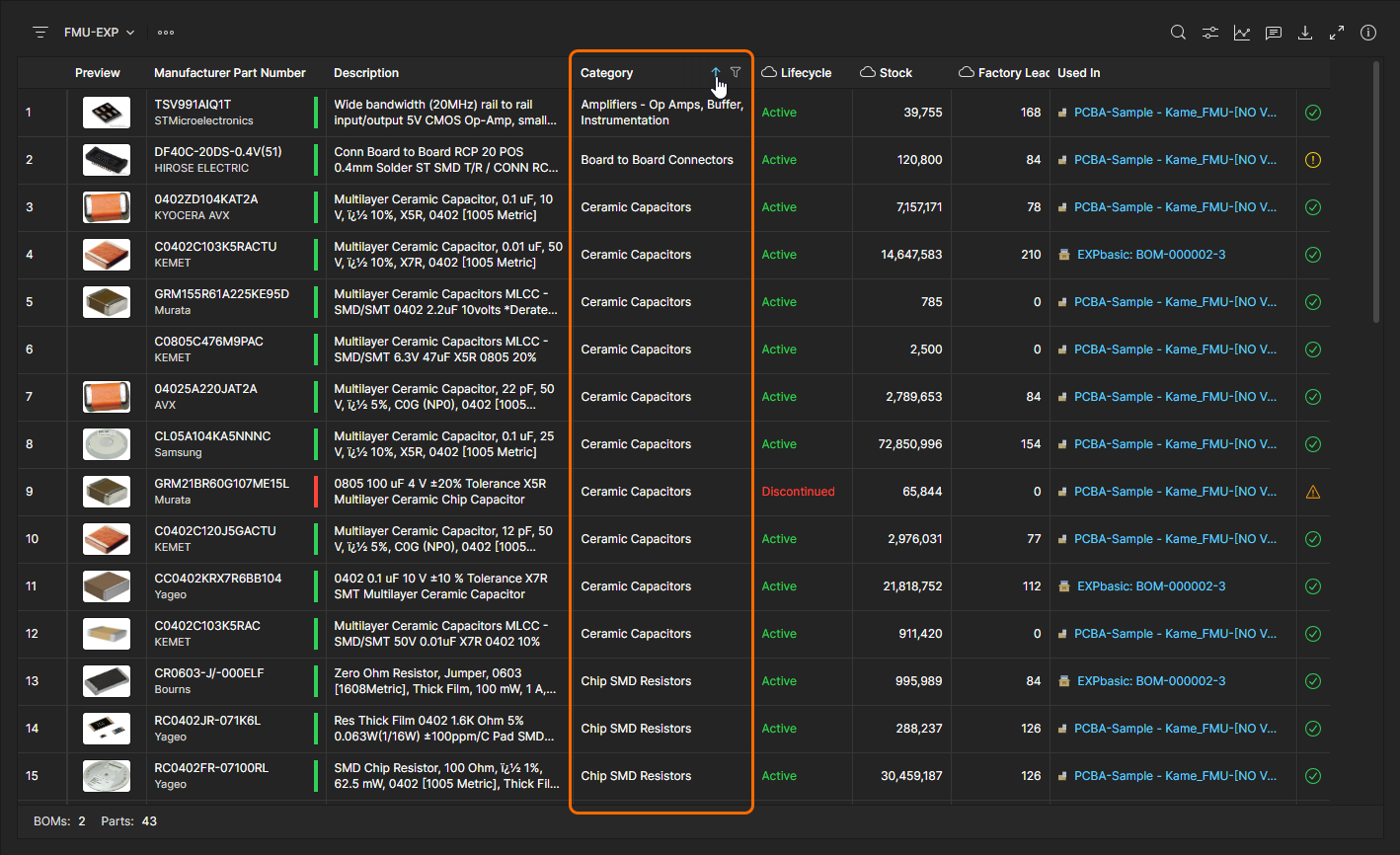
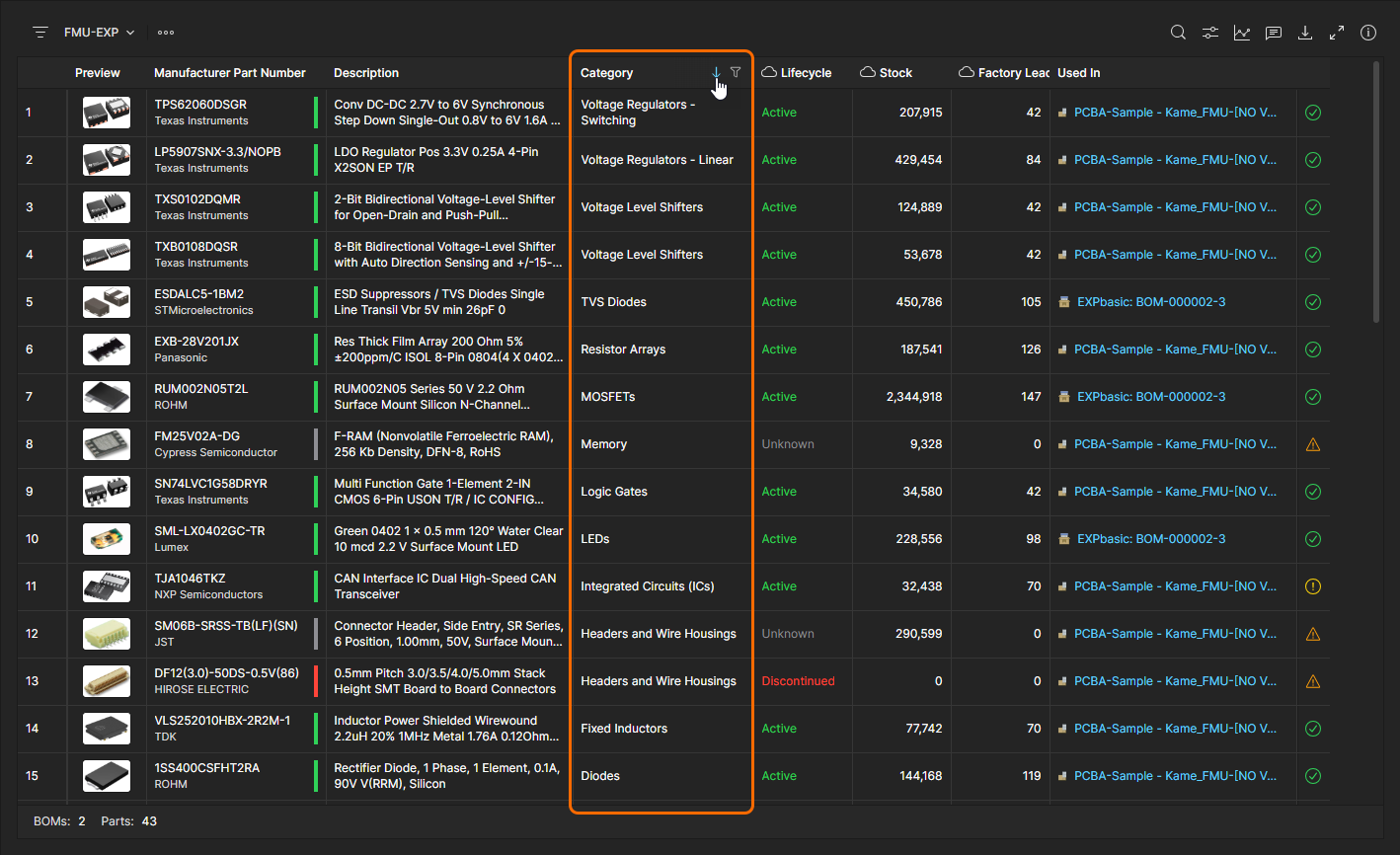
List order - Order the Parts in Use list entries by a specific set of parametric data by toggling the arrow option in that data column’s header. Click a header’s
 icon to reorder the parts list in ascending order by that dataset, click again for the descending data order, and click once more to remove the list order defined by that column data.
-
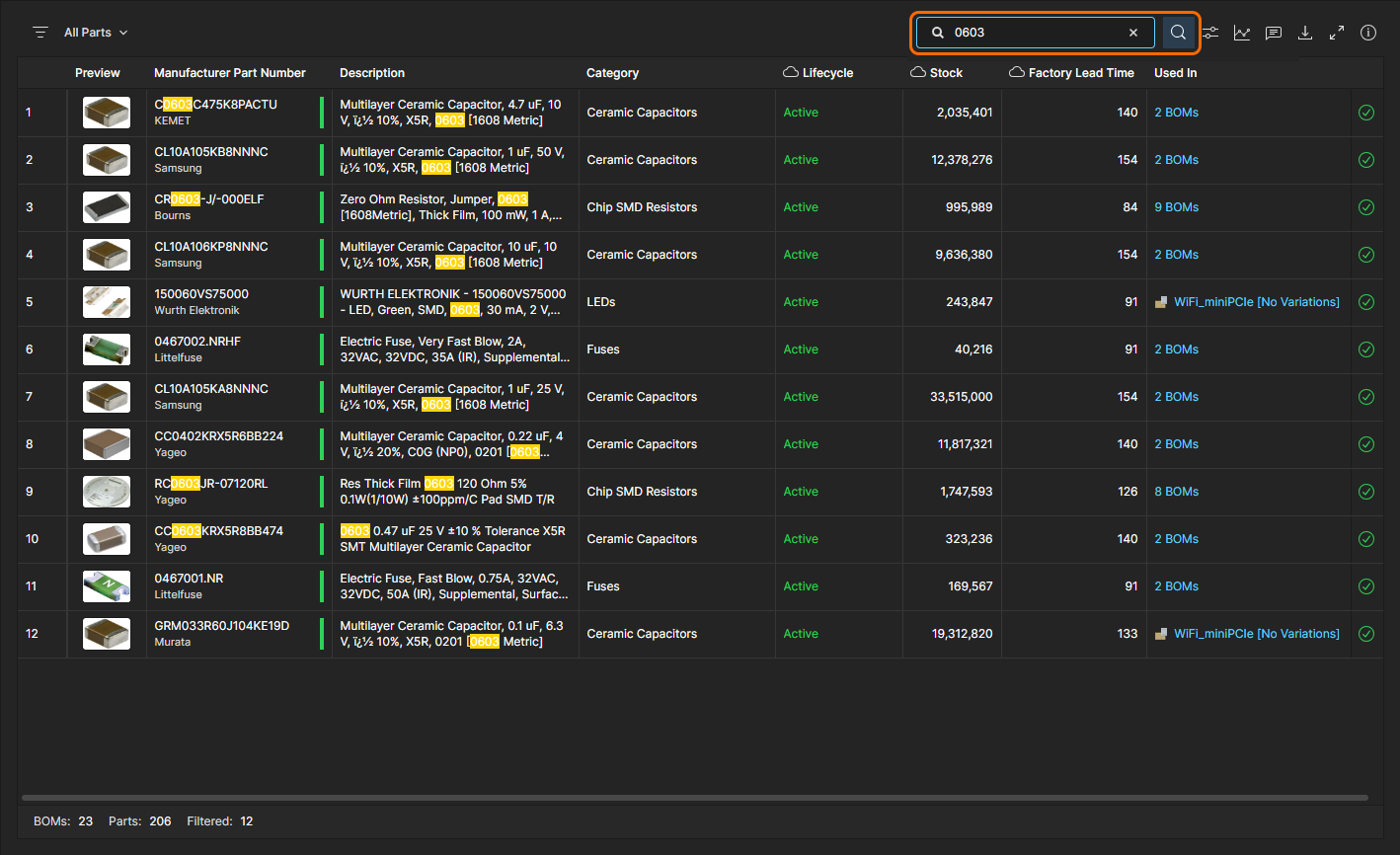
Search – Limit the parts list entries to those that include keywords entered in the Search field, which is opened (and closed) with the
 icon. The search is case-insensitive, includes all part parameter columns (except
Used in), and highlights the found search terms in the listed results.
-
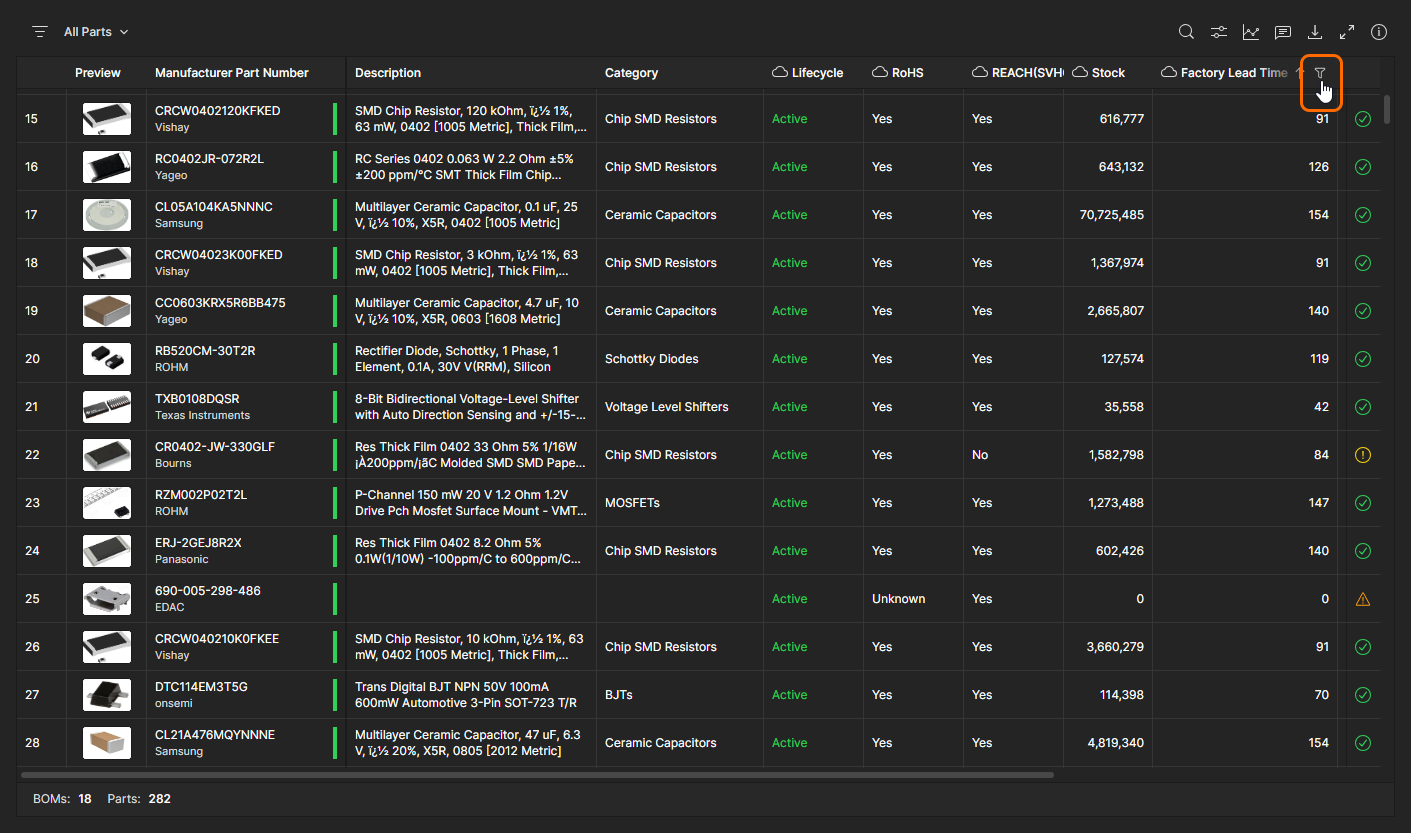
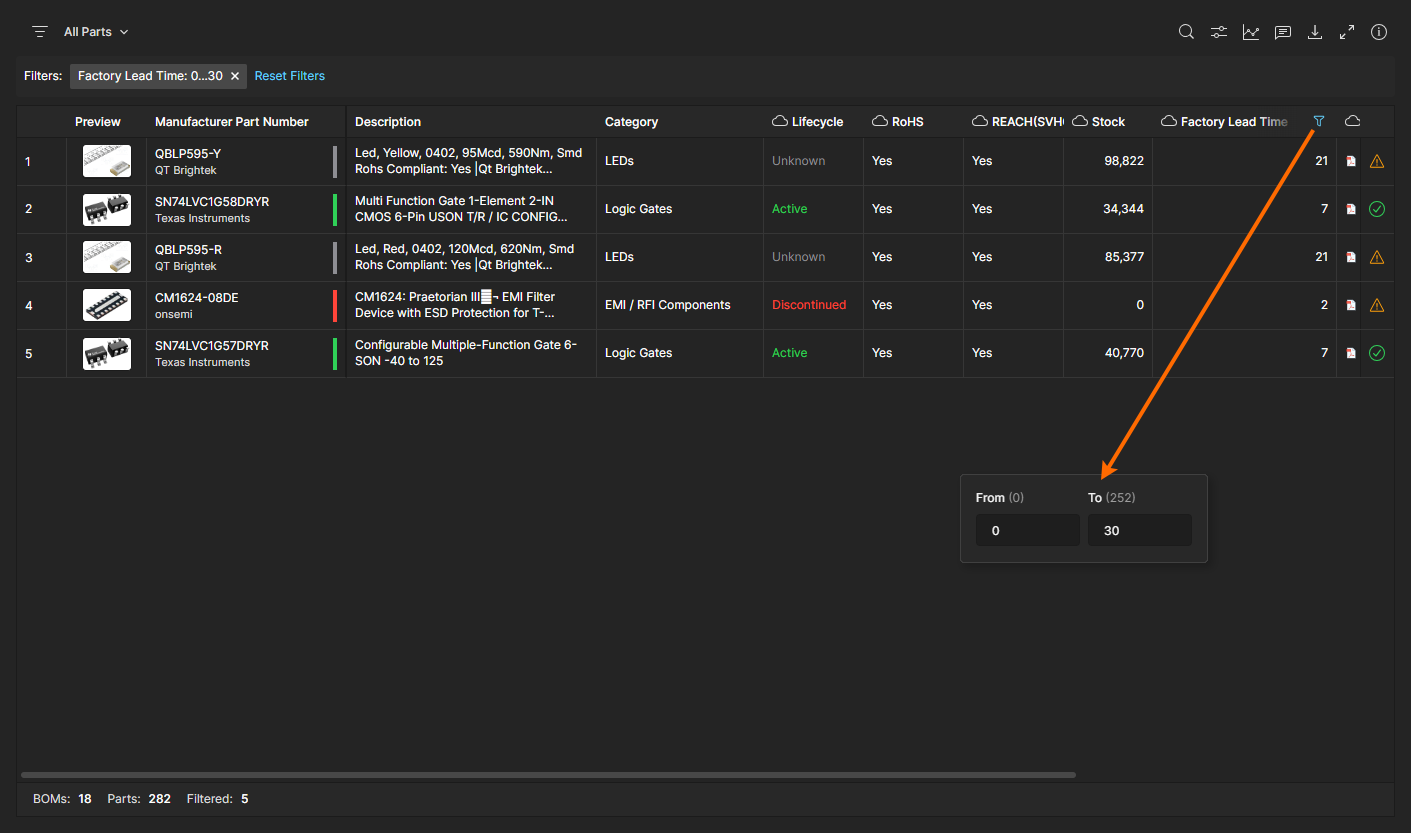
Column Filters – Constrain the parts list to entries that satisfy specific parameter data requirements set by column Filters. A Filter is configured in a column header’s
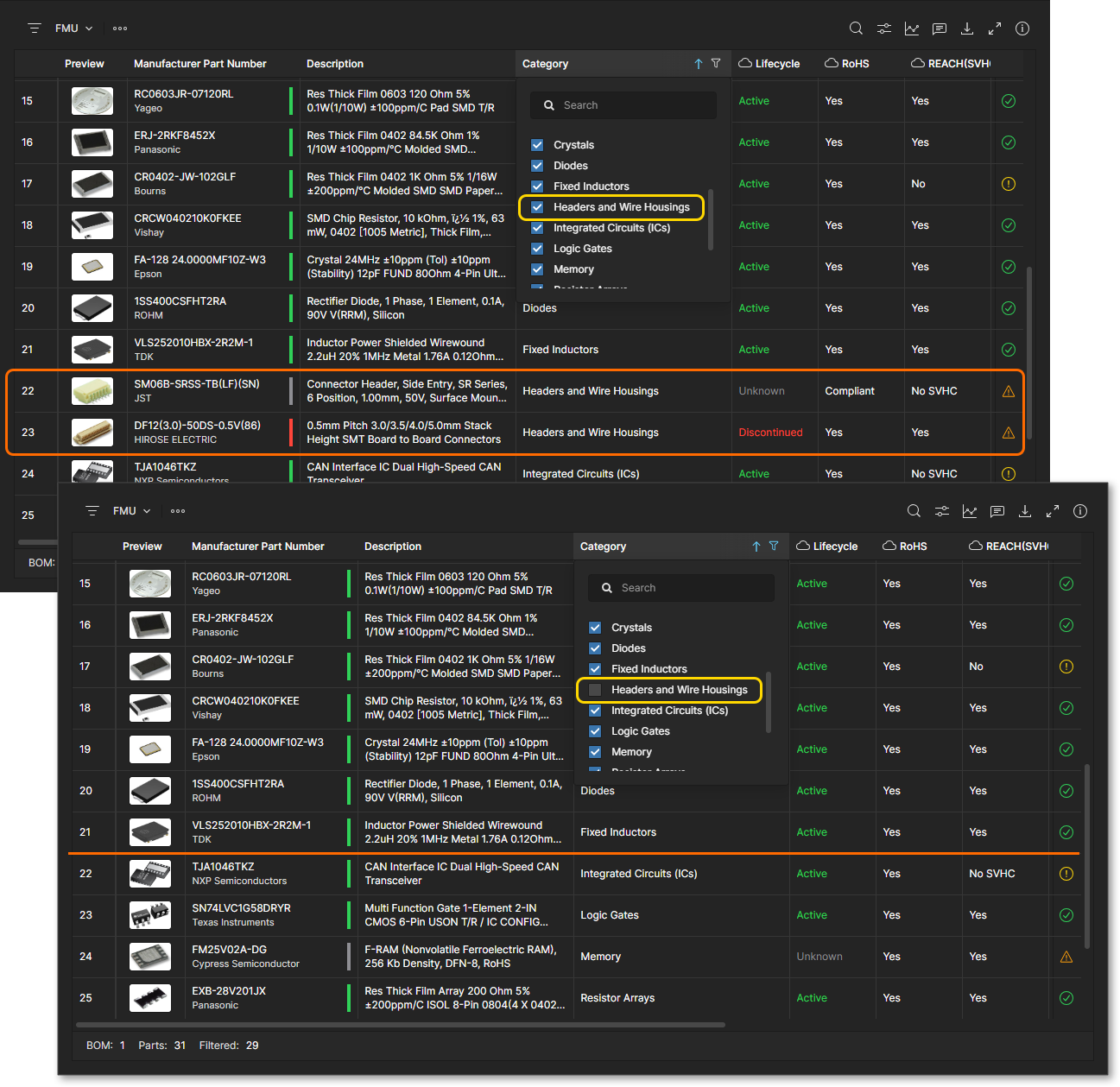
 drop-down menu by checking one or more of the available parameter values, or for numeric parameters, by setting a From/To number range. Use the All option to toggle all checkboxes on/off, the Blank option (if available) to disable/enable entries where a value is not included, and the Search field to locate a specific value option. Note that multiple Filters can be enabled to tightly curate the report results.
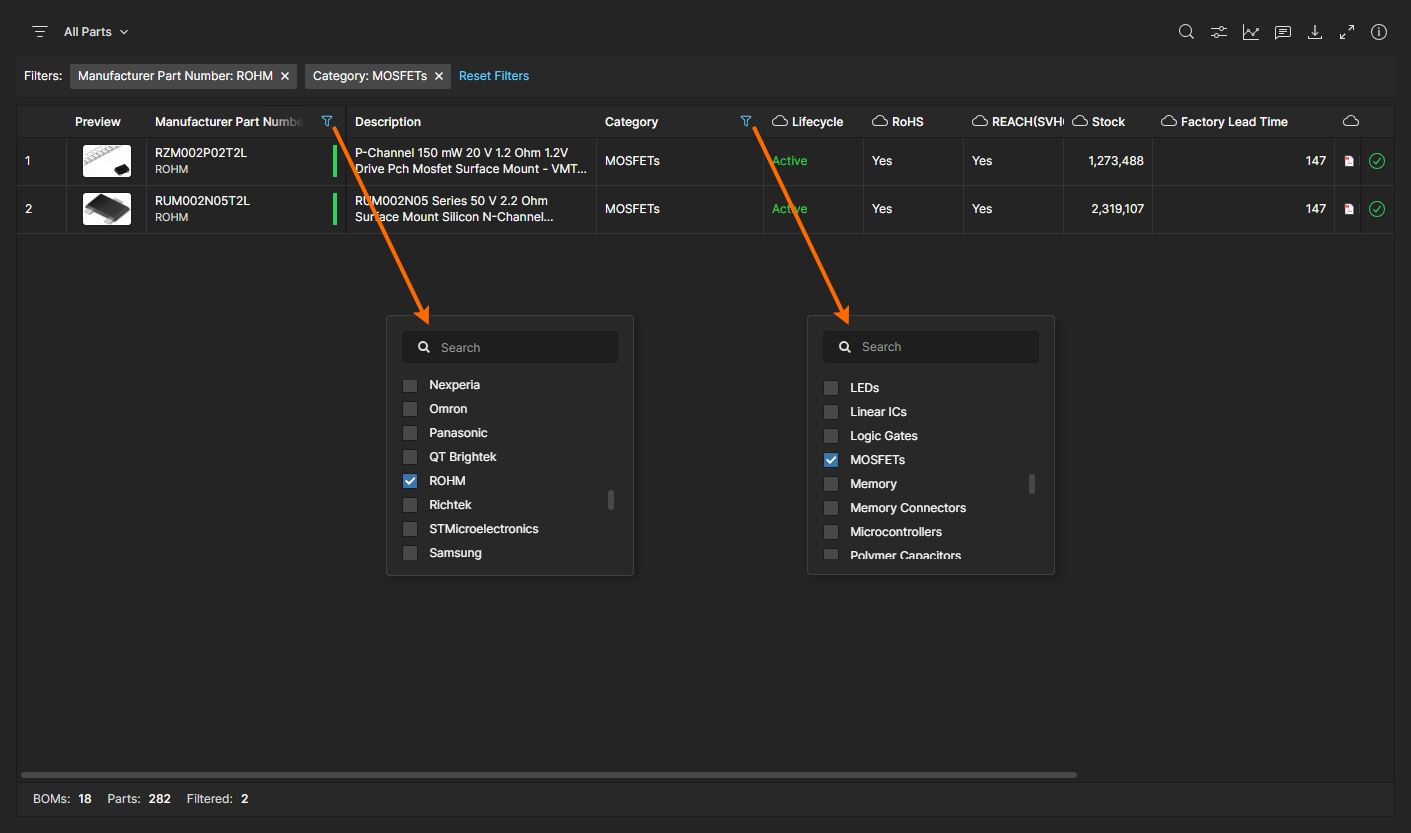
Configure parameter data based filters from the related column’s menu. A filter will constrain the Parts in Use list to entries that satisfy the parameter value(s) defined in the filter's menu, along with the cumulative constraints applied by any other active filters.