Working with Requirements
Altium's Requirements Portal is a requirements management tool purpose-built for electronic systems development. It enables the live exchange of formalized Requirements instances across your design projects, linking structured specifications to design data and verification activities.
The system Requirements, as created in Requirements Portal, can be placed as active instances on your design documents, referenced as Tasks, and ultimately marked as Verified to confirm requirement compliance.
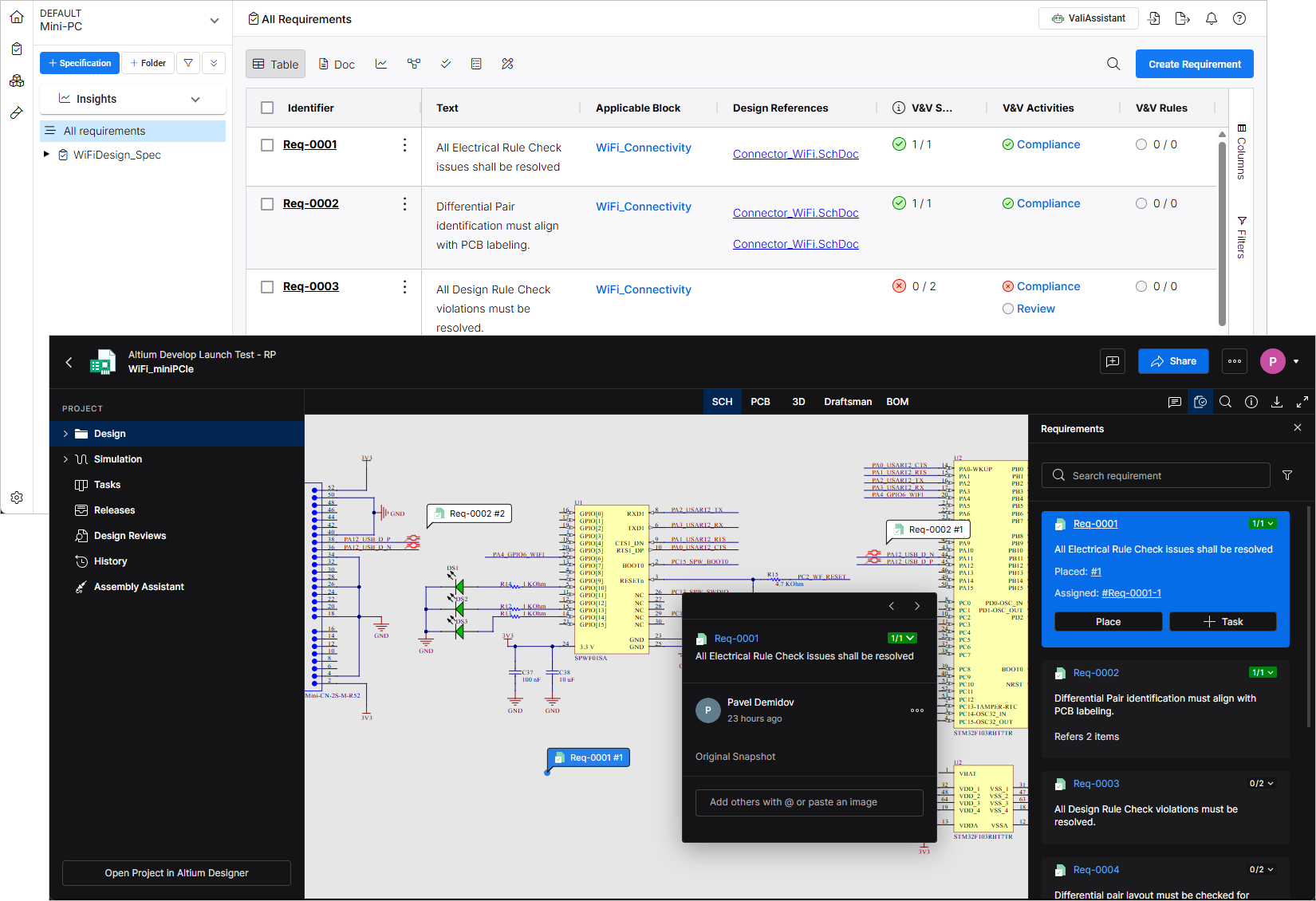
Before working with Requirements in a Workspace design project, it needs to be linked to a suitable Block in Requirements Portal. Requirements are created in or imported to Requirements Portal, where they are organized into Specifications. Individual Requirements or entire Specifications can then be linked to a Block. Blocks represent parts of your overall system, such as a PCB or functional unit, a Project in Requirements Portal. Once a Block is linked, the Requirements become available in the corresponding design project.
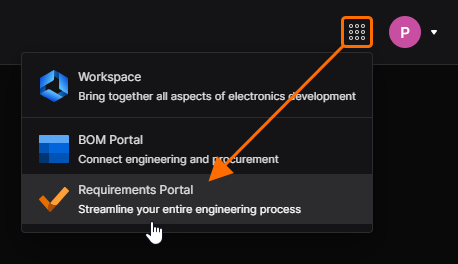
You can access the interface of Requirements Portal from your Workspace by selecting its entry from the ‘nine dots’ menu ( ) at the top right of the Workspace interface (
 ).
).
Basic Requirements Portal Setup
To start using Requirements, you first need to create a Project in Requirements Portal and define one or more Blocks representing functional units like PCB modules. By default, the system creates a Block and a Specification with the same name as the Project to streamline setup. You can edit or replace these default entries at any time to match your preferred structure.
New Projects can be created from any module by clicking on the name of your current project and selecting Create New Project. New Blocks are created in the Blocks module ( ).
).
Reference documentation: Project Module
Reference documentation: Creating a Block
Creating Requirements and Linking them to Blocks
A Block to be linked to a design project must be set to the Electronics type, which will then offer an additional Altium Link option for selecting a corresponding design project. The project link can be selected from the drop-down menu at this stage or established later from within the Workspace (related information). When a link is established, the Workspace design project's preview image and its parameter data are imported – the latter is available under the view's Properties tab (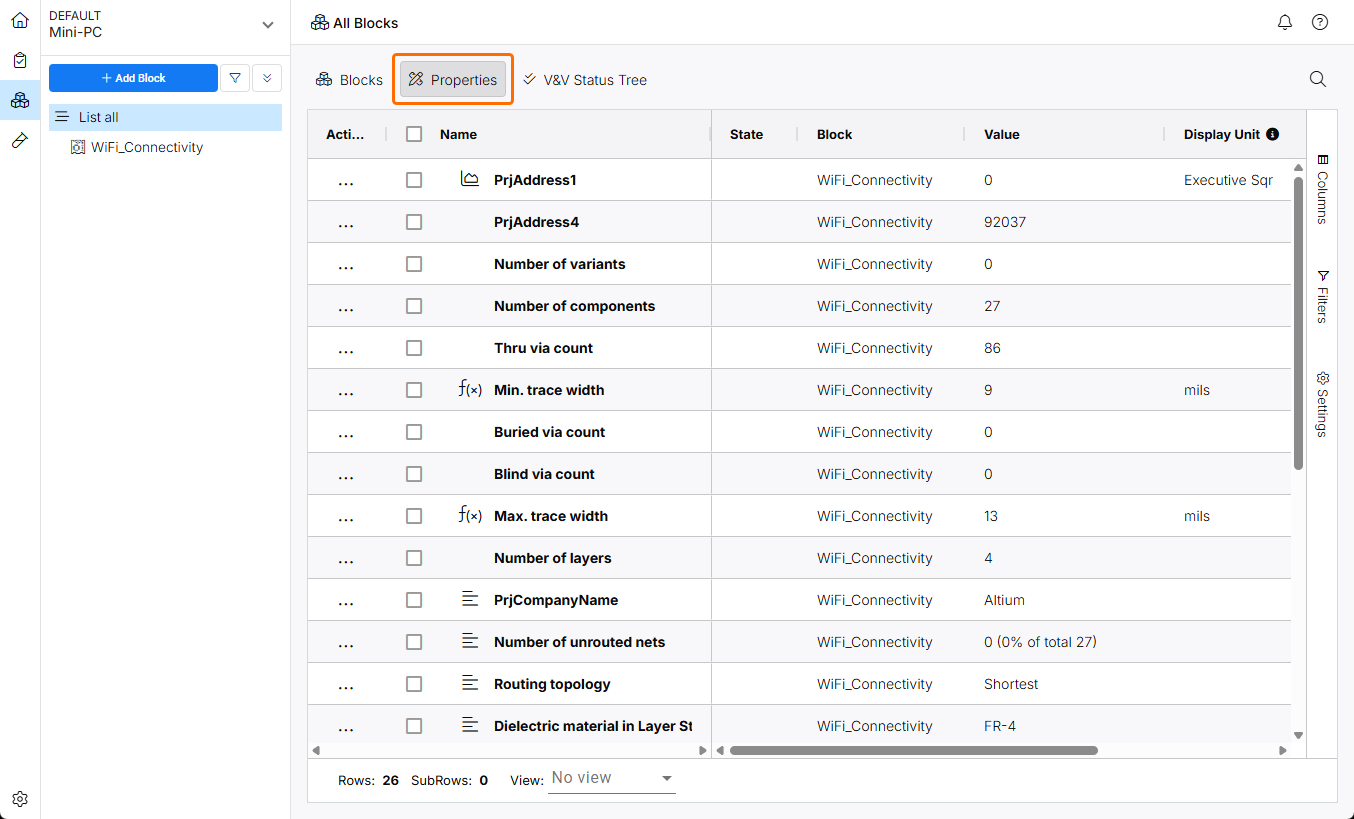 ).
).
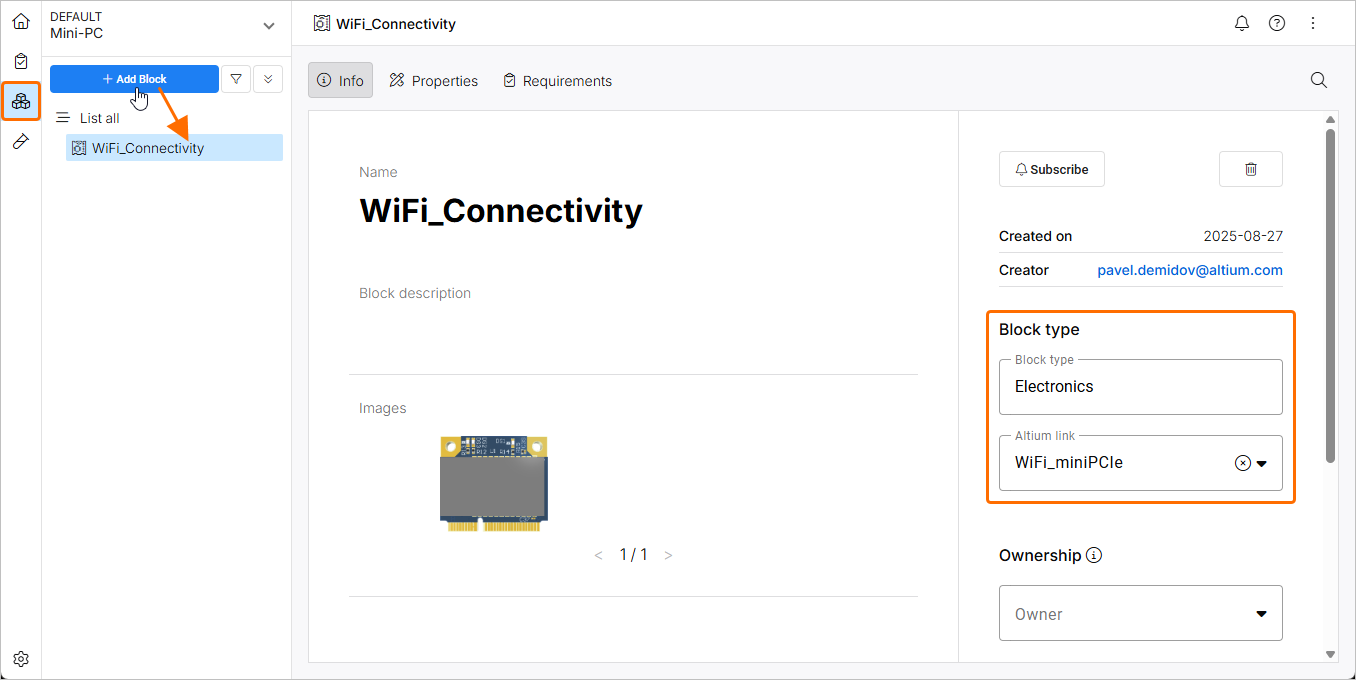
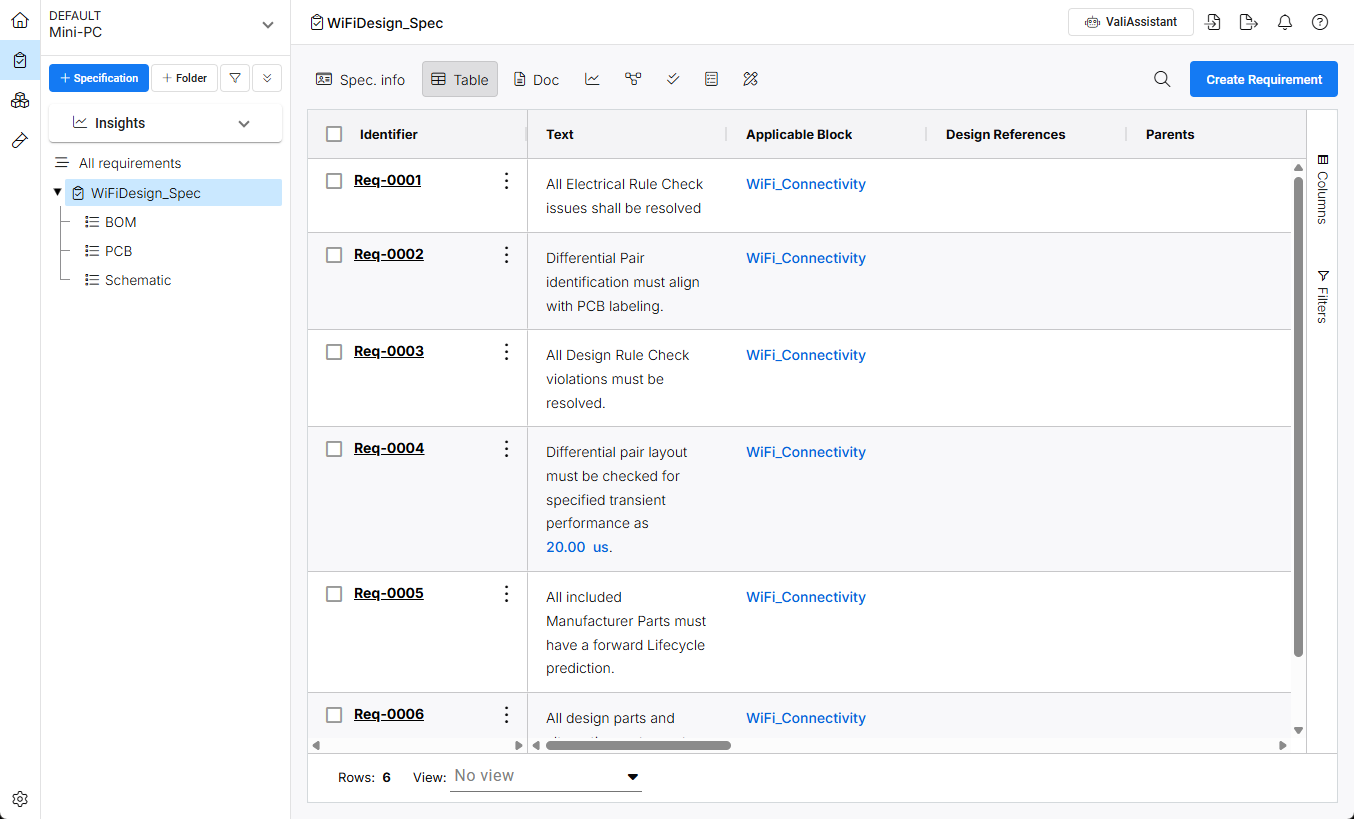
Requirements that will be accessible in your Workspace are attached to Specifications associated with Blocks. A created Specification can include sub-sections (Sections) for attaching Requirements that apply to specific parts of the system design. Sections allow to further group Requirements by functional area.
Reference documentation: Create Specifications
Reference documentation: Creating Requirements
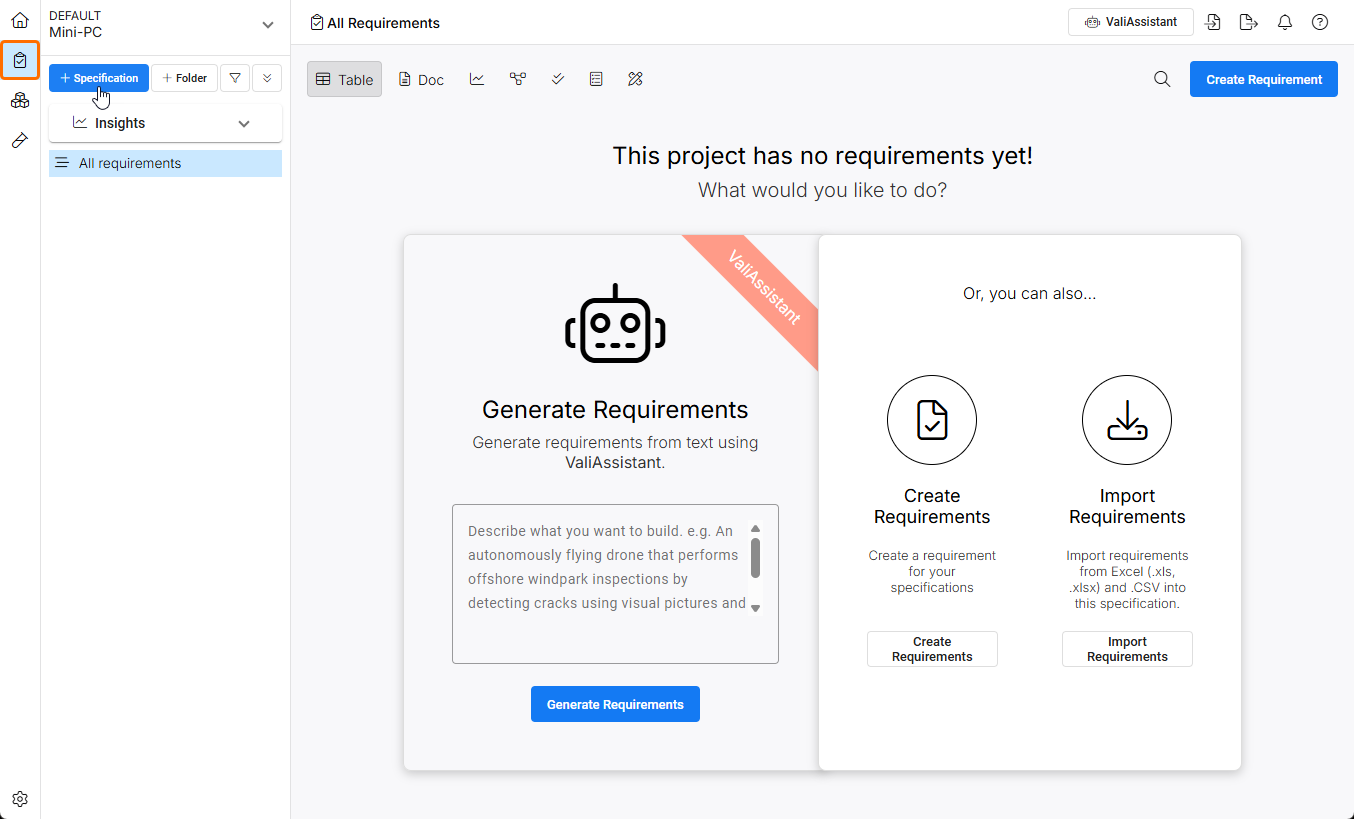
Use commands in the Requirements Module ( ) to create a new Specification. Requirements will be attached to this Specification and its (optional) sub-sections.
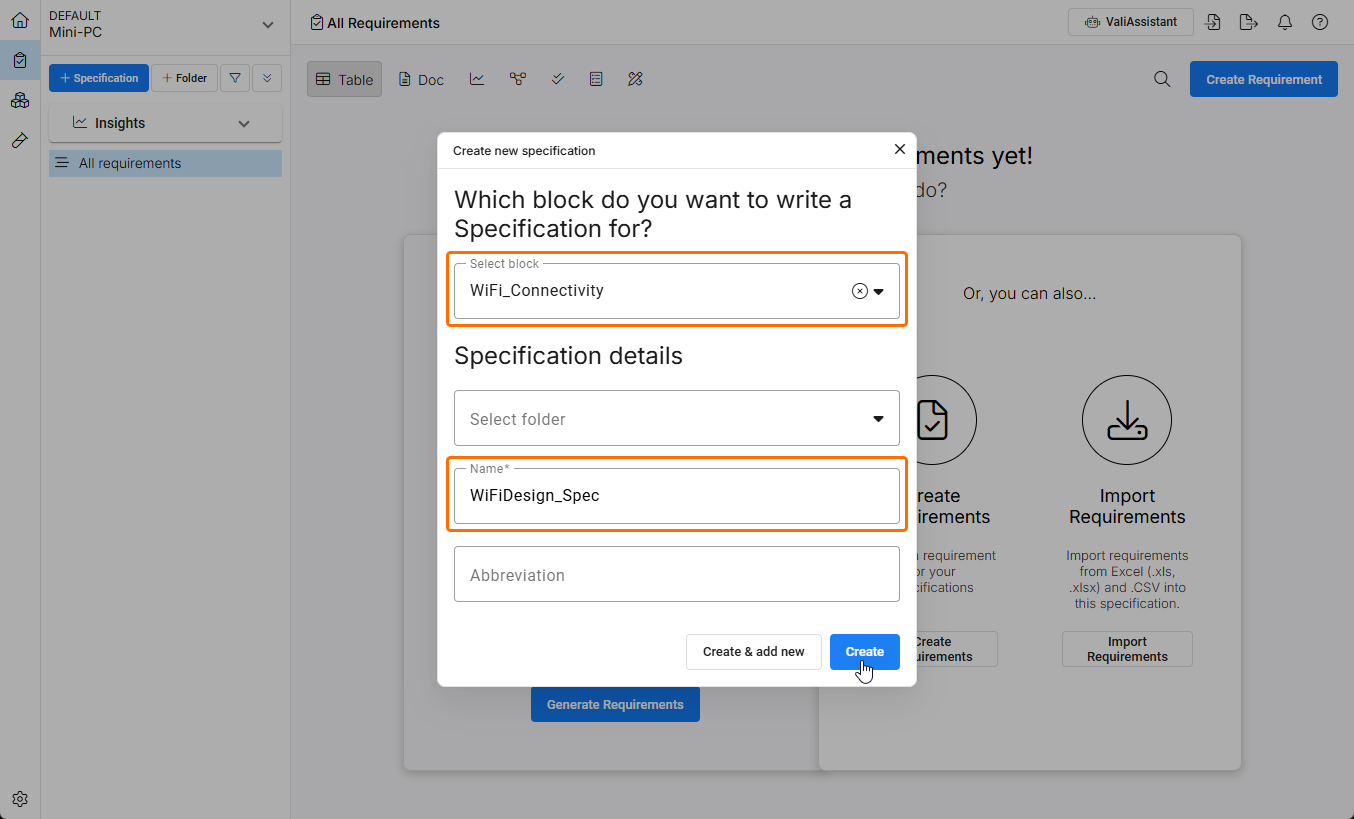
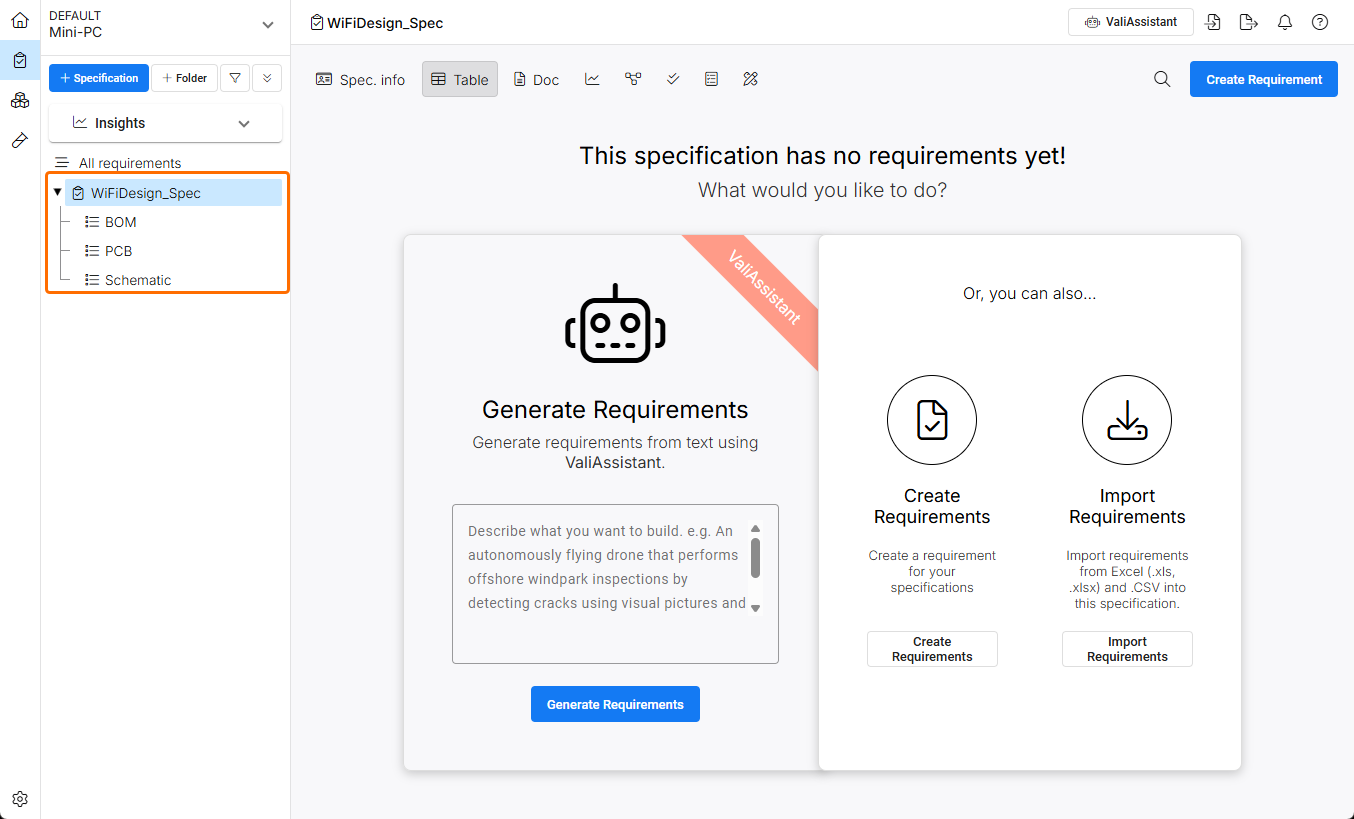
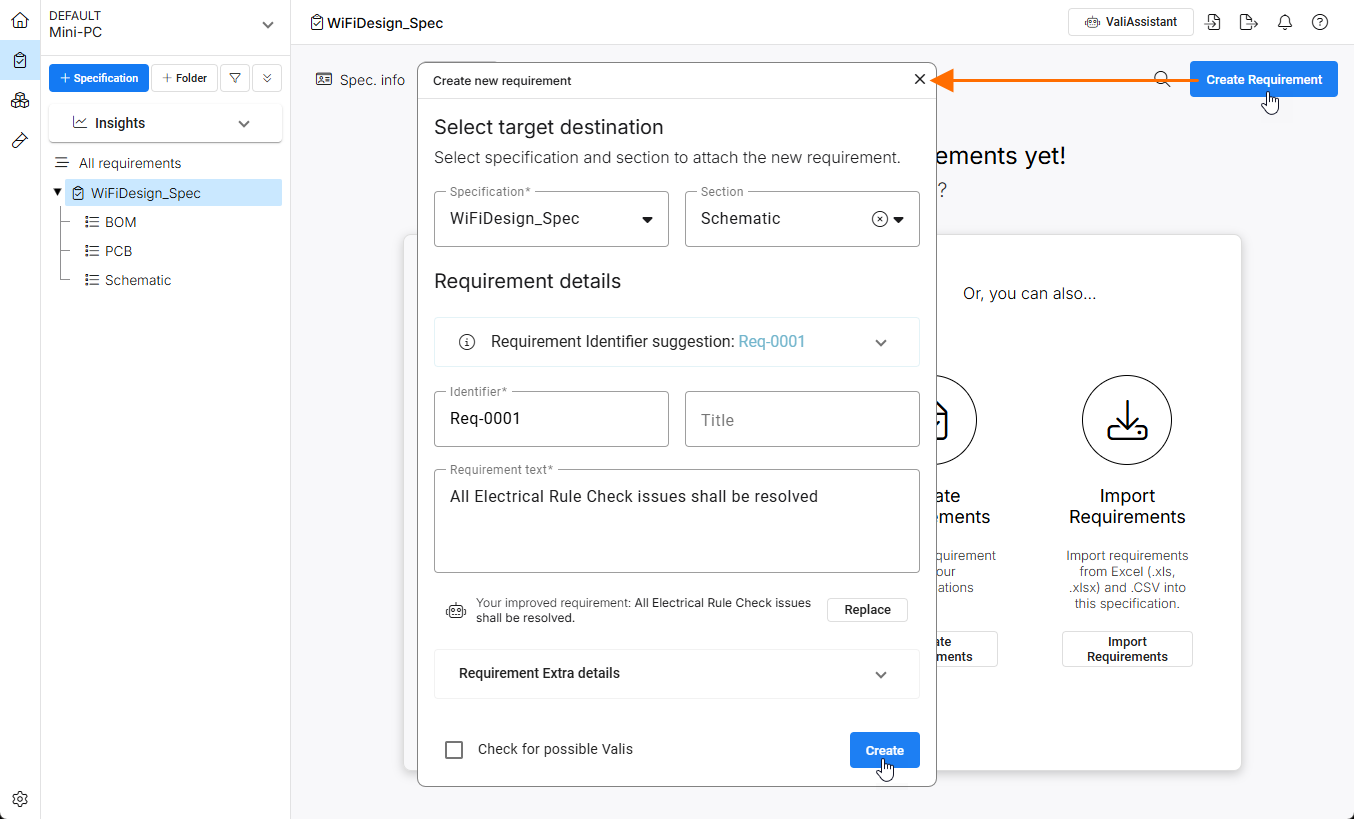
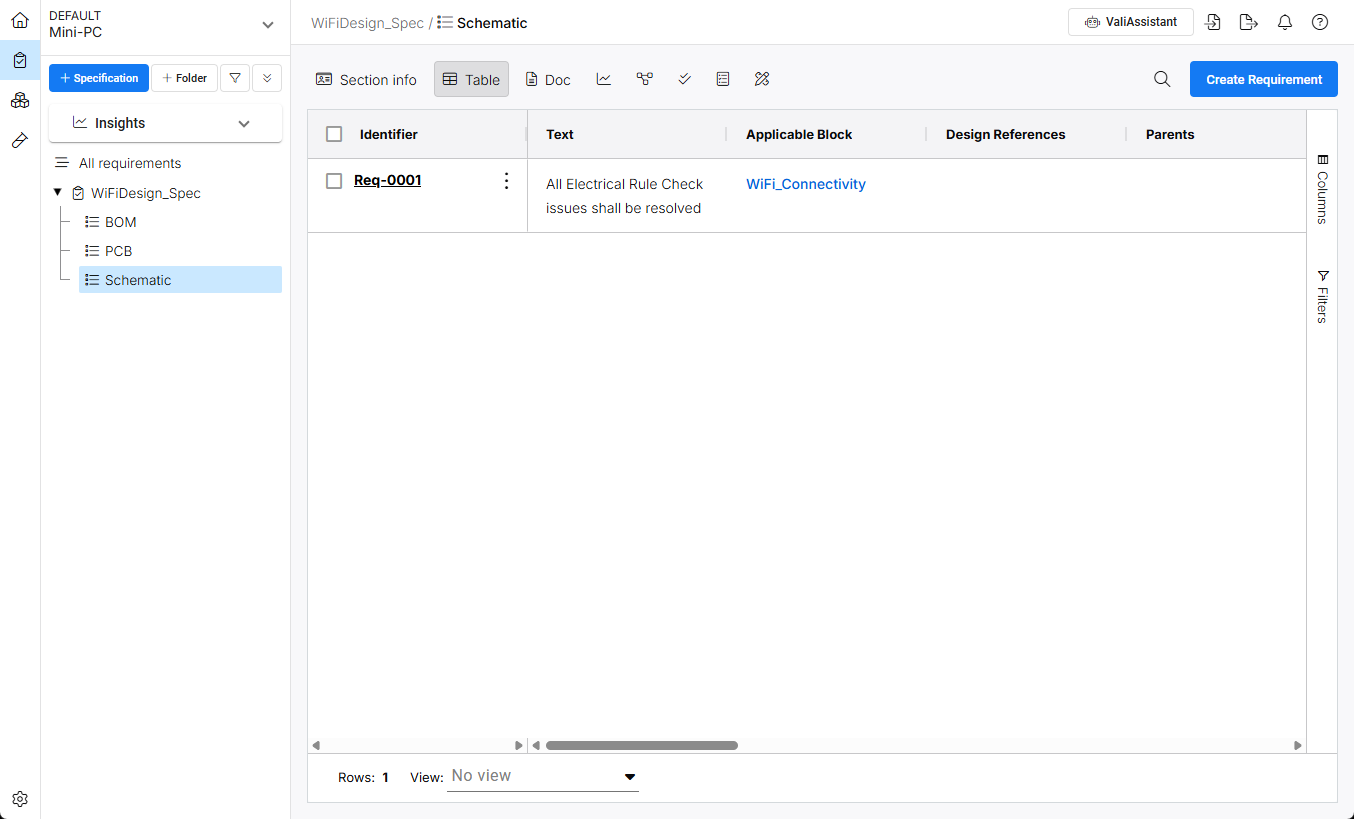
Use provided options to manually create a Requirement for the Specification or Section, import requirements from a spreadsheet, or generate requirements using the AI-assisted based on information you provide. A manually created Requirement will automatically target the currently selected Specification/Section and choose the next available Requirement Identifier. Enter the Requirement text information and confirm all settings with the  button.
Linking Requirements to V&V Activities
The ability to verify Requirements is managed through Verification and Validation (V&V) Activities that are created in Requirements Portal's Verifications & Validations Module ( ). A V&V Activity is linked to a Requirement so that its verification state (such as
 Not Verified, Verified, Skipped, etc.) can be specified in the design project (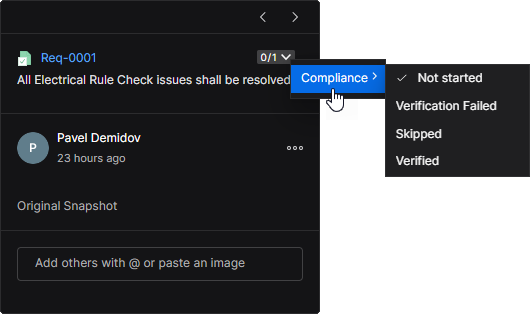 ).
).
Reference Documentation: Verification & Validation Module
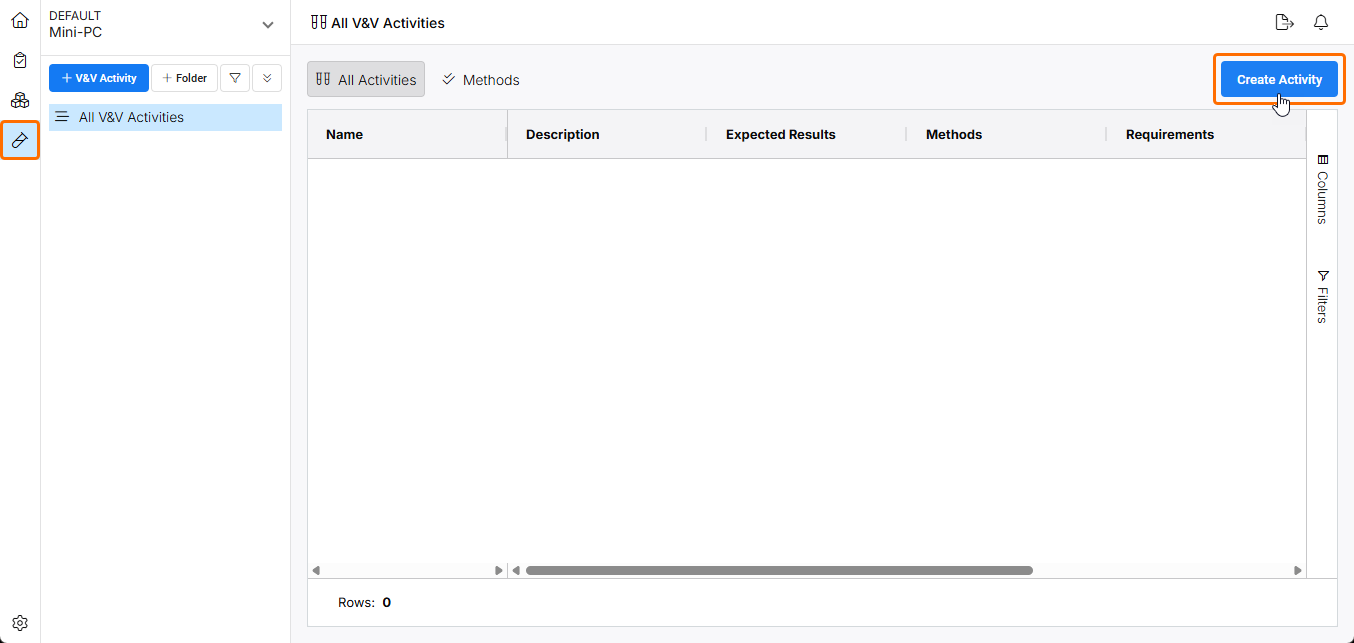
V&V Activities that will be applied to Requirements are created from the  button command in the Verifications and Validations Module of Requirements Portal.
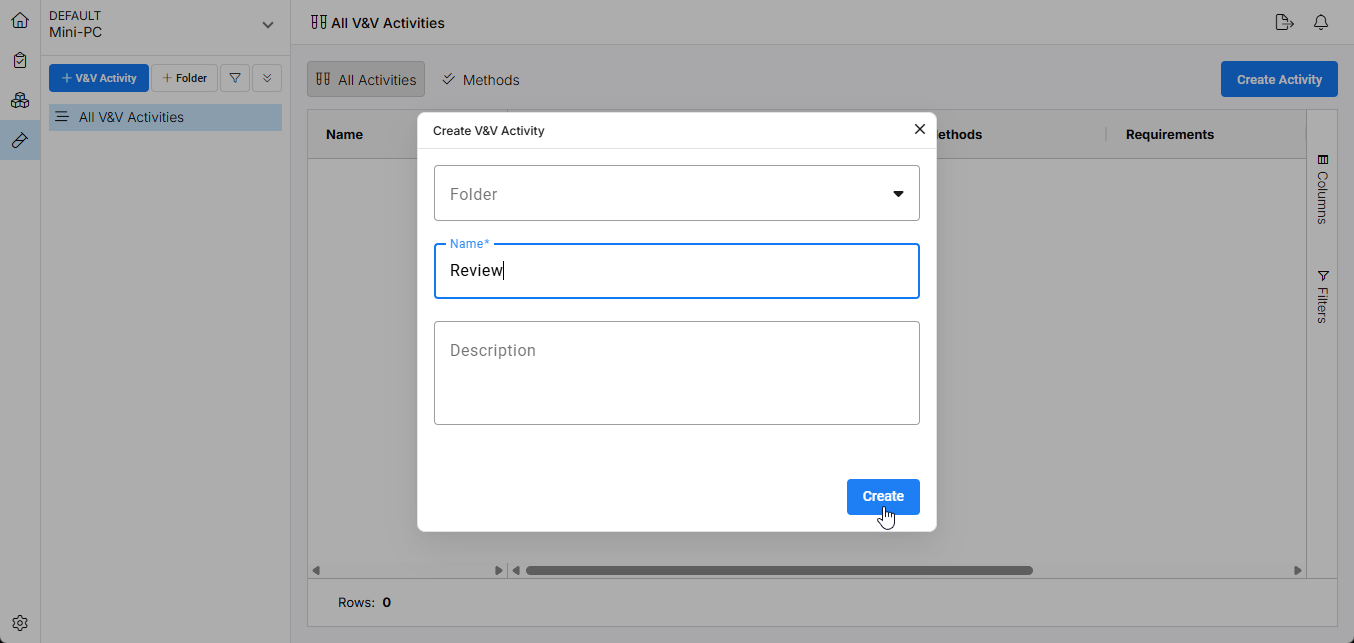
In the following Create V&V Activity window, name the activity to be created and confirm with the  button.
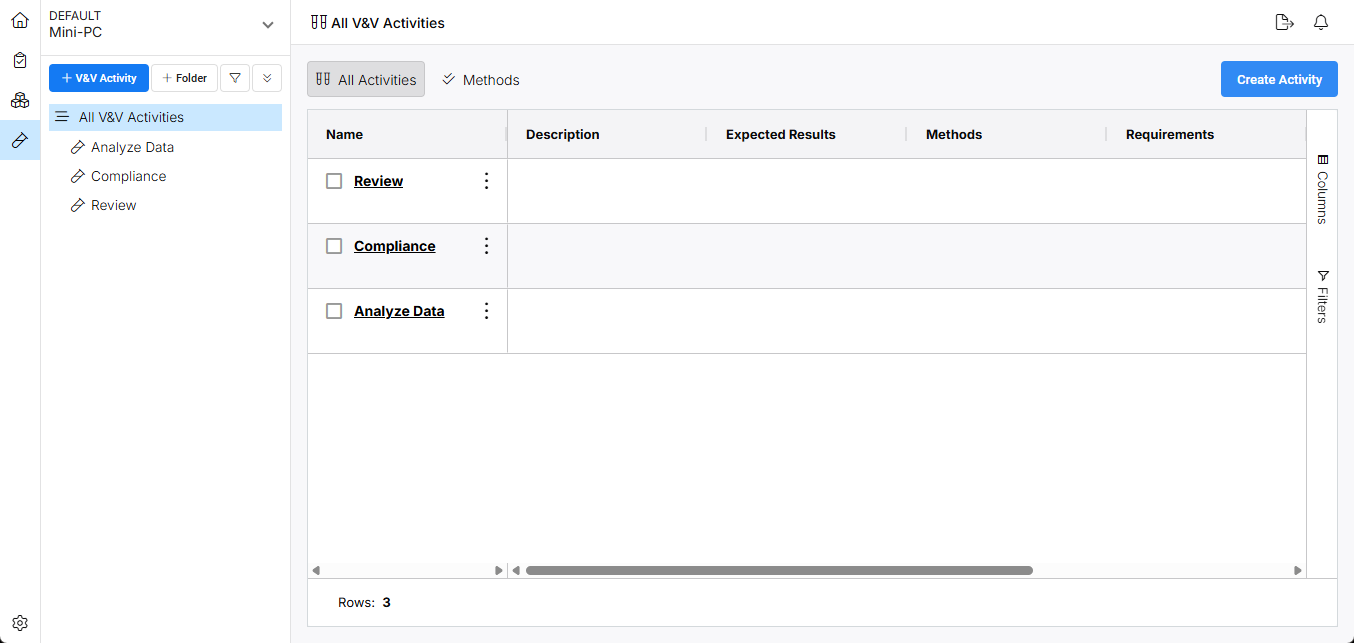
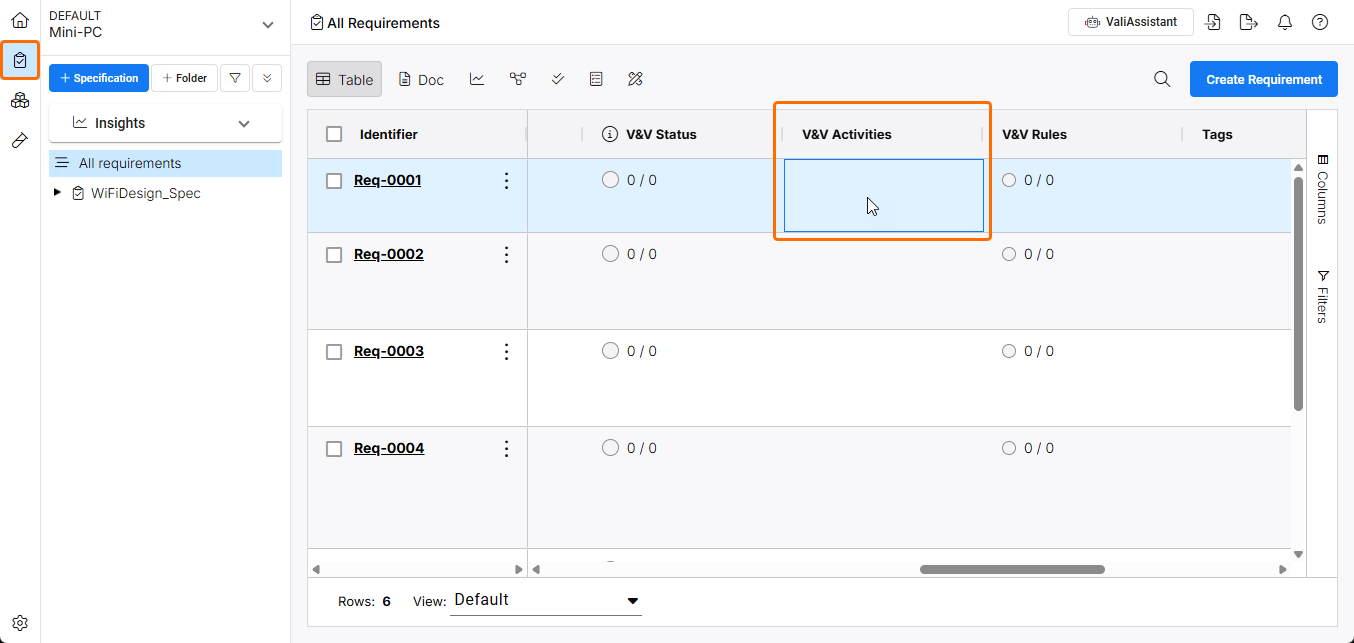
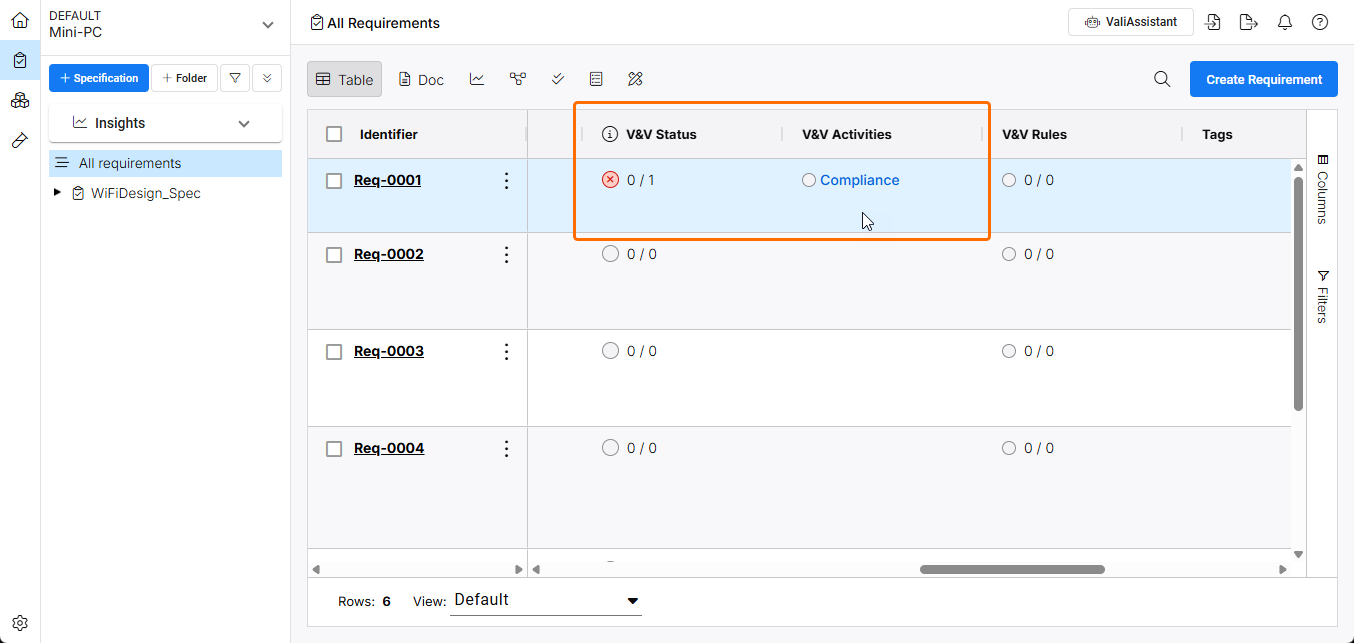
Back in the Requirements Module ( ), V&V Activities are applied to a Requirements entry by first double-clicking in its V&V Activities cell.
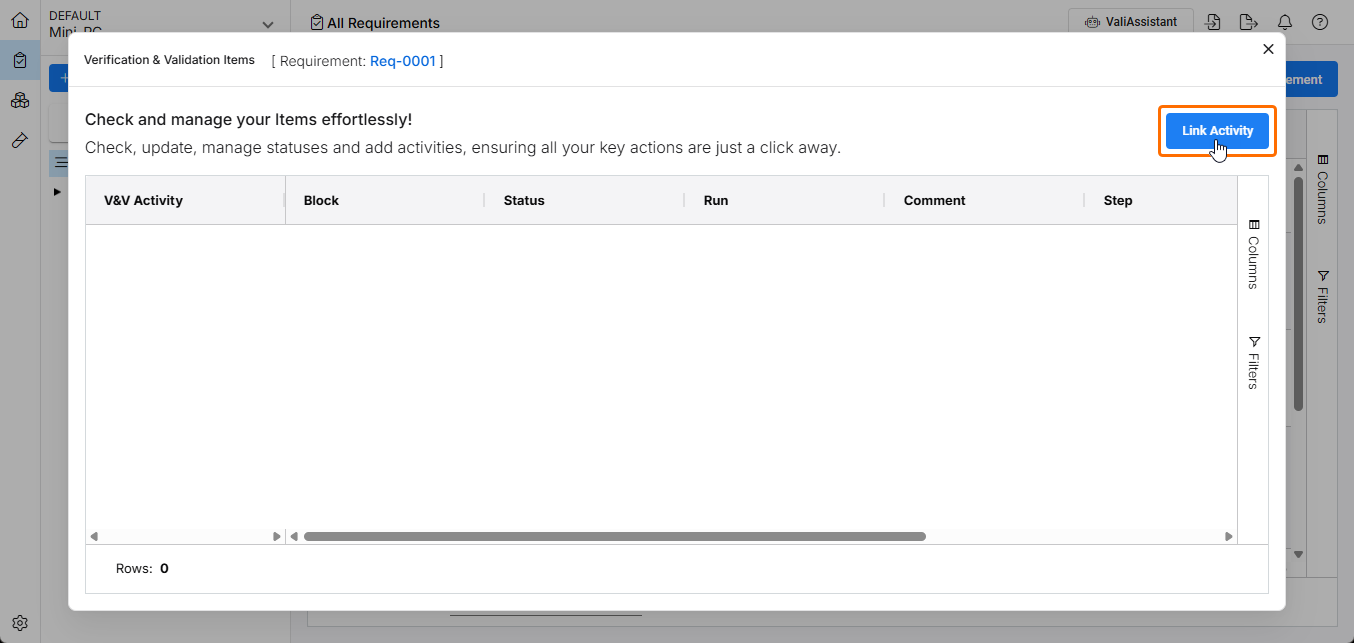
In the following Verification & Validation Items window, click the  button to access the available V&V Activity choices.
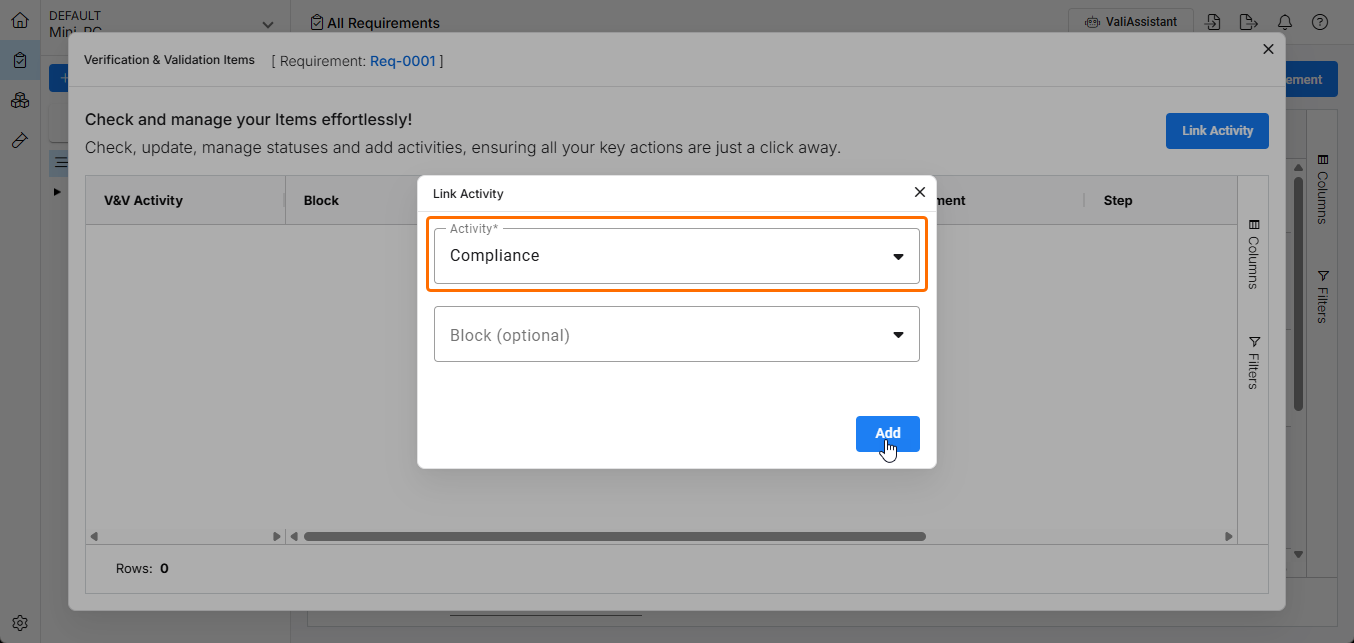
Choose a suitable V&V Activity from the Activity drop-down menu in the Link Activity window and select  to confirm.
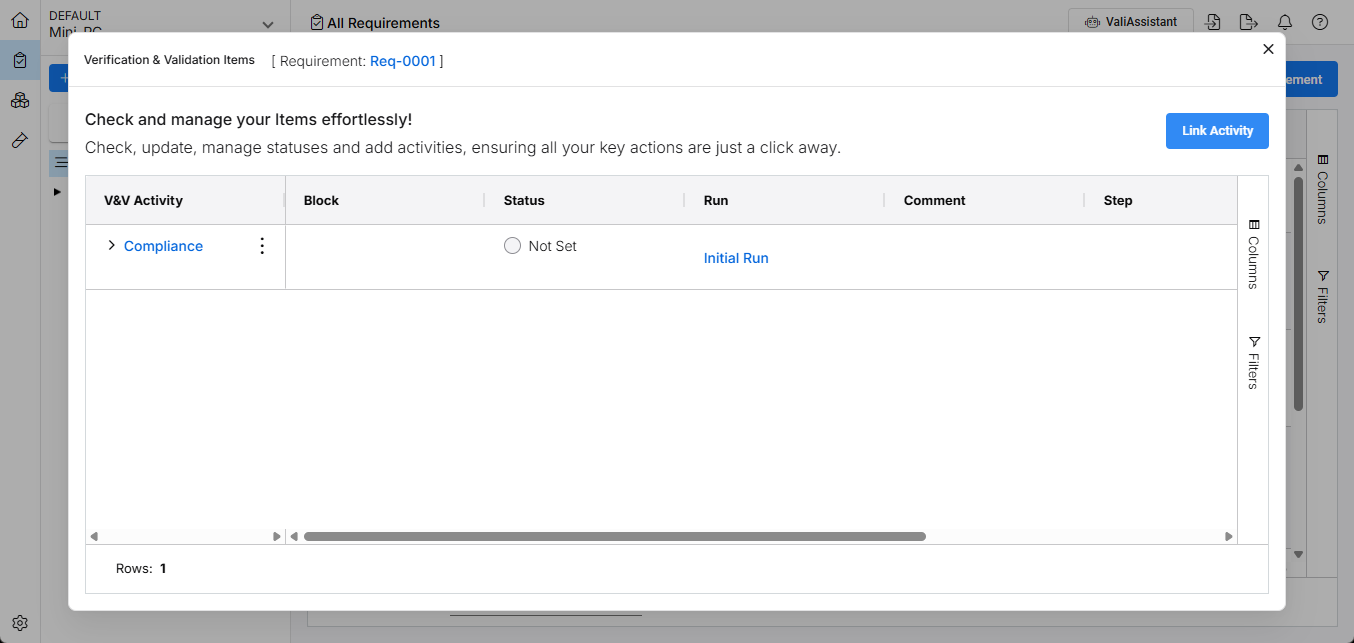
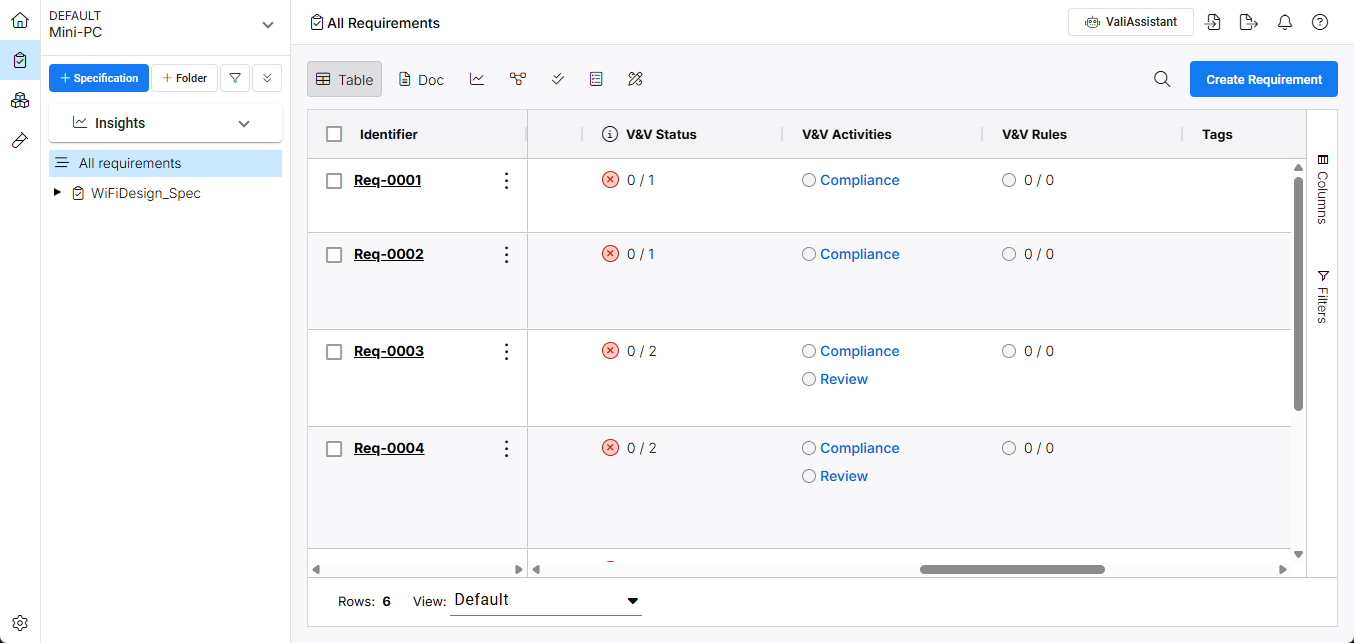
The selected Activity is added to the Verification & Validation Items list. If needed, use the button again to add another V&V Activity for the currently selected Requirement.
Linking Requirements to a Design Project
When the various Requirements Portal elements have been set up for your design project (see the above section), the project needs to be linked to Requirements Portal’s related Block, so its Requirements are available in the Workspace design view. This connection enables real-time access to Requirements from within your design project. This link can be specified in two ways:
-
From Requirements Portal – open the relevant Block, change its type to
Electronicsand use the Altium Link field to select the target design project – see above section for details. -
From the Workspace – open the design project’s Edit Project window in your Workspace and select the corresponding Block in the Requirements field which is listed under the Advanced section.
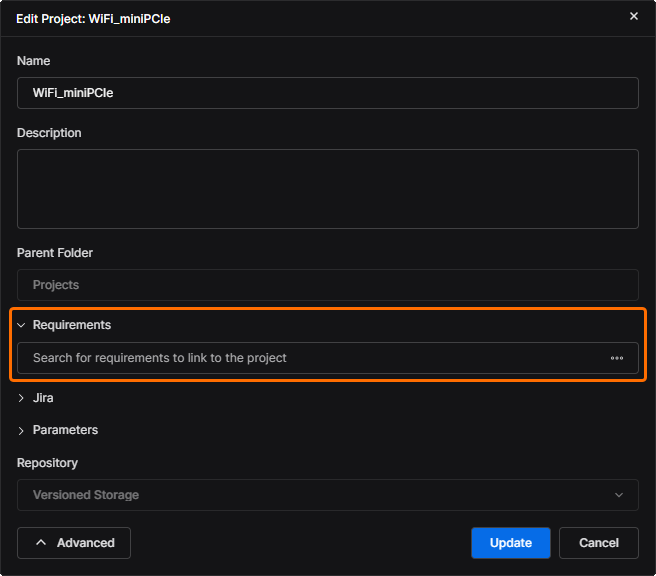
The link between the design Project and a corresponding Requirements Block is entered or selected in the Edit Project window’s Requirements field, found under the Advanced settings (
 ).
).
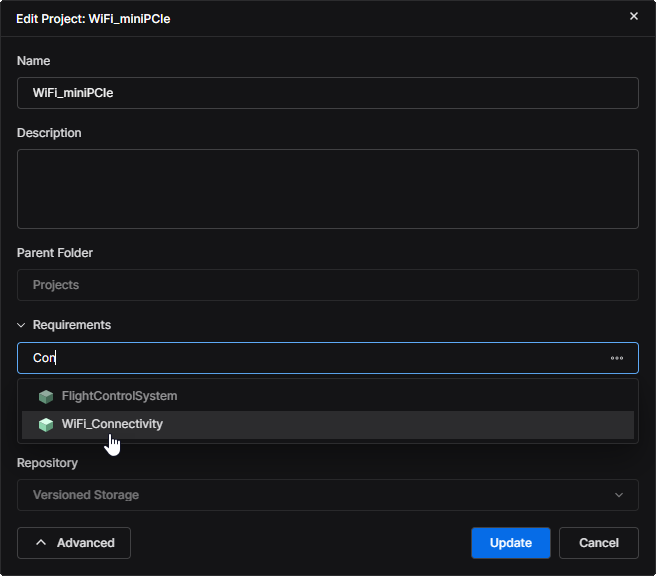
Begin typing a known Block name in the field to view and select from a list of matching Block entries. Once selected, click
 to confirm the setting. Alternatively, select the field's associated
  option to browse and choose from all available project Blocks.
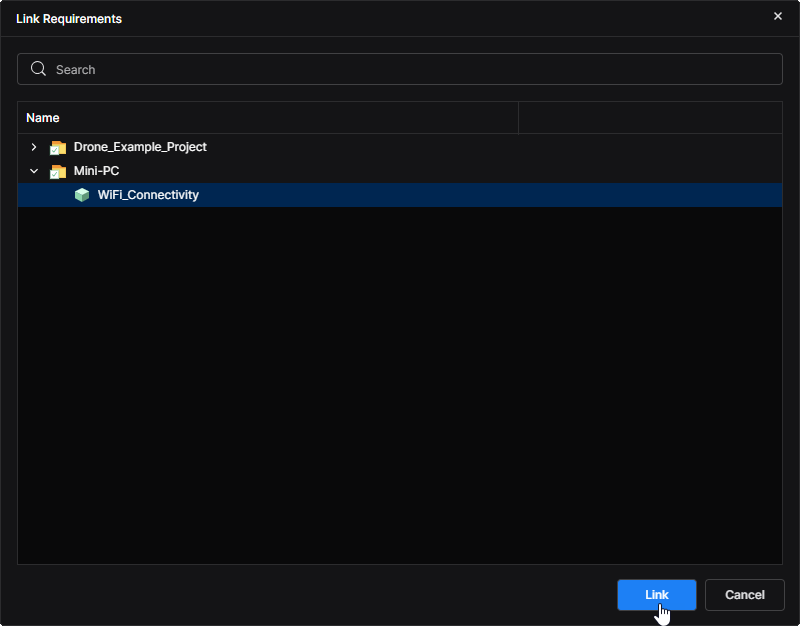
The
menu opens the Link Requirements window, which includes a hierarchical list of all available Requirements Projects and their corresponding Blocks – incompatible Blocks (whose type has not been set to Electronics, shown in gray) cannot be selected. Navigate to and select a suitable Block entry and click to confirm.
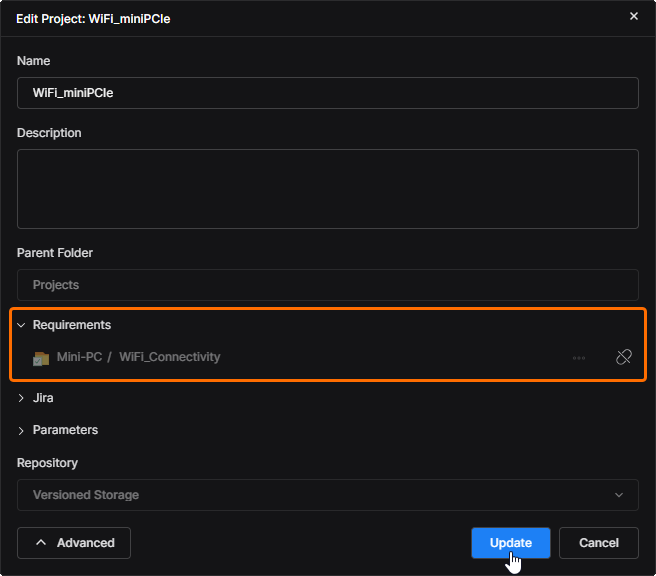
The Edit Project window’s Requirements field will include the specified Project-Block mapping link as a read-only entry. Click
to confirm the setting. The current Project-Block mapping can be removed at any time using the  button.
Workspace Requirements Access
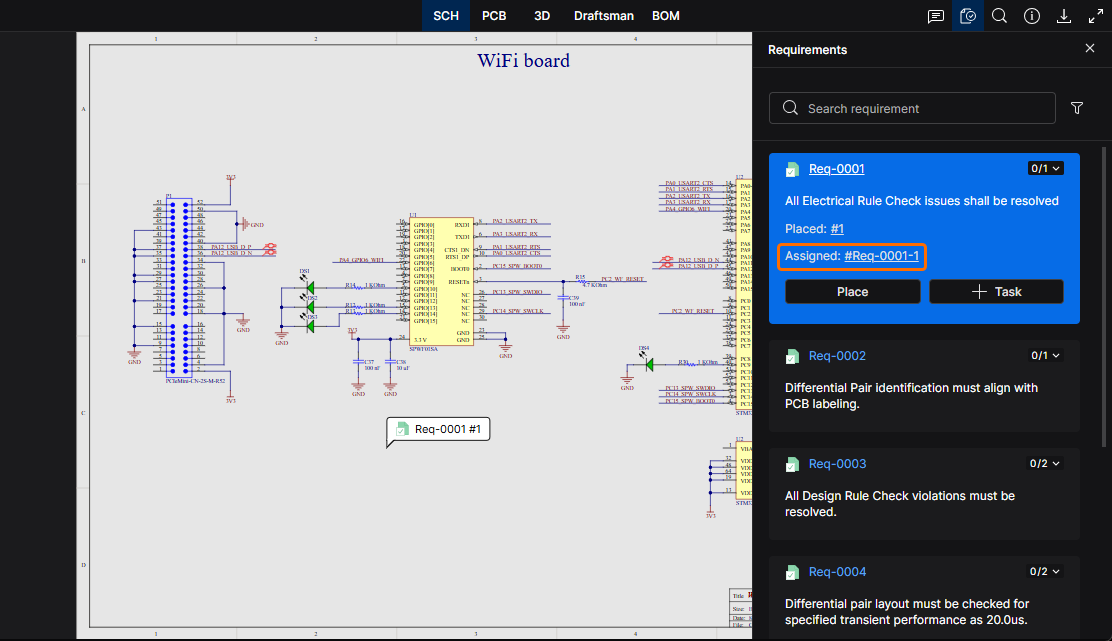
Within the linked project’s design view, Requirements from Requirements Portal are available from the document view’s Requirements pane, opened from the upper  icon. This lists all available Requirements, where a selected Requirements tile shows its information, a link to its instance in Requirements Portal, and the Validation settings. Use the
  command to create a reference instance in the current document, and the
  command to create a general Task assigned to a specified Workspace member.
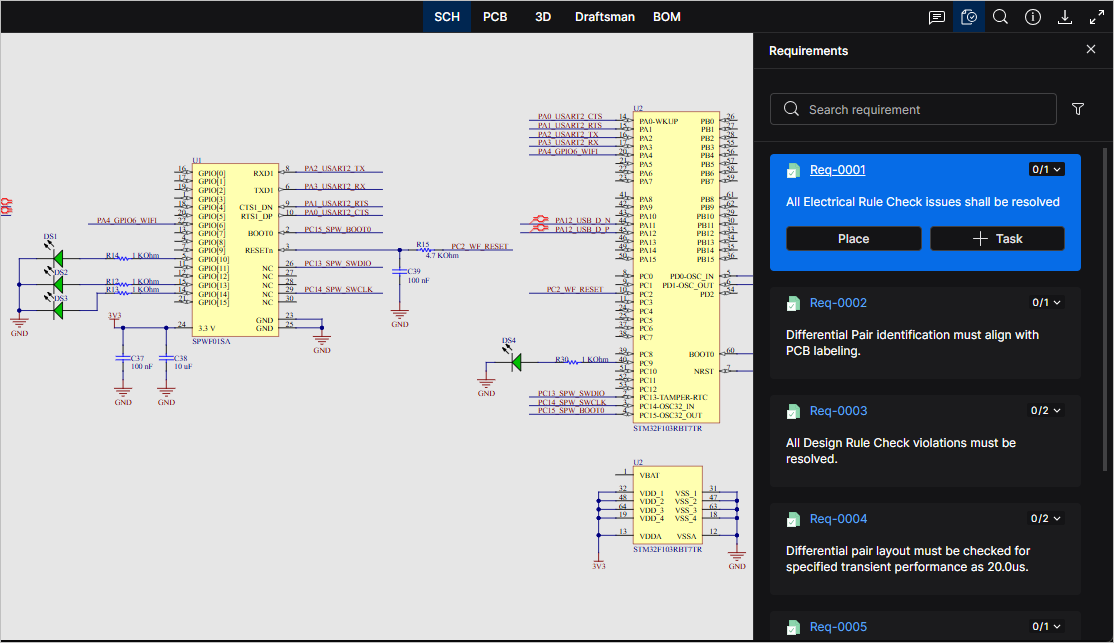
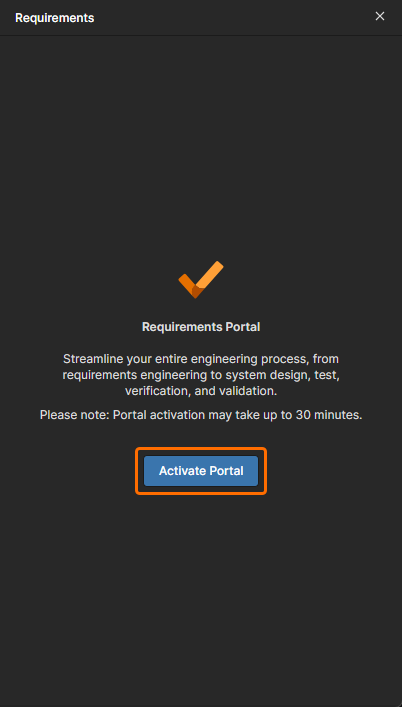 ).
).Placing a Requirement
A Requirement is placed in the current document using the same process as placing a Comment on a point, object (such as a component or line/trace), or a specified area – see Placing a Comment for detailed information. The Requirement Identifier link (Req-0001 here) in both the Requirements pane and requirement window opens that Requirement entry in Requirements Portal.
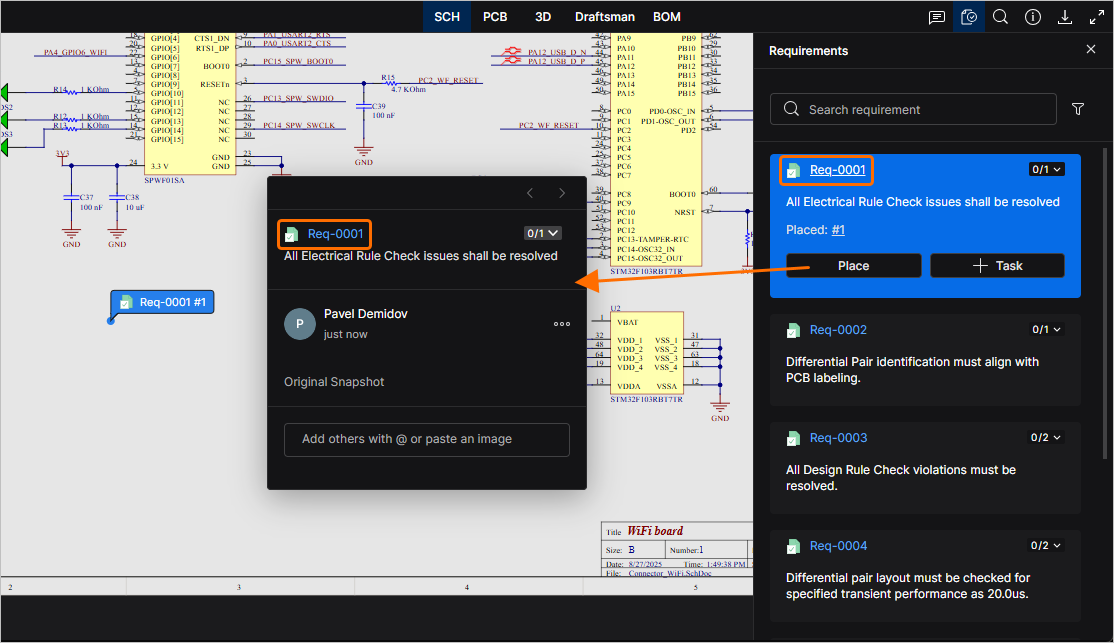
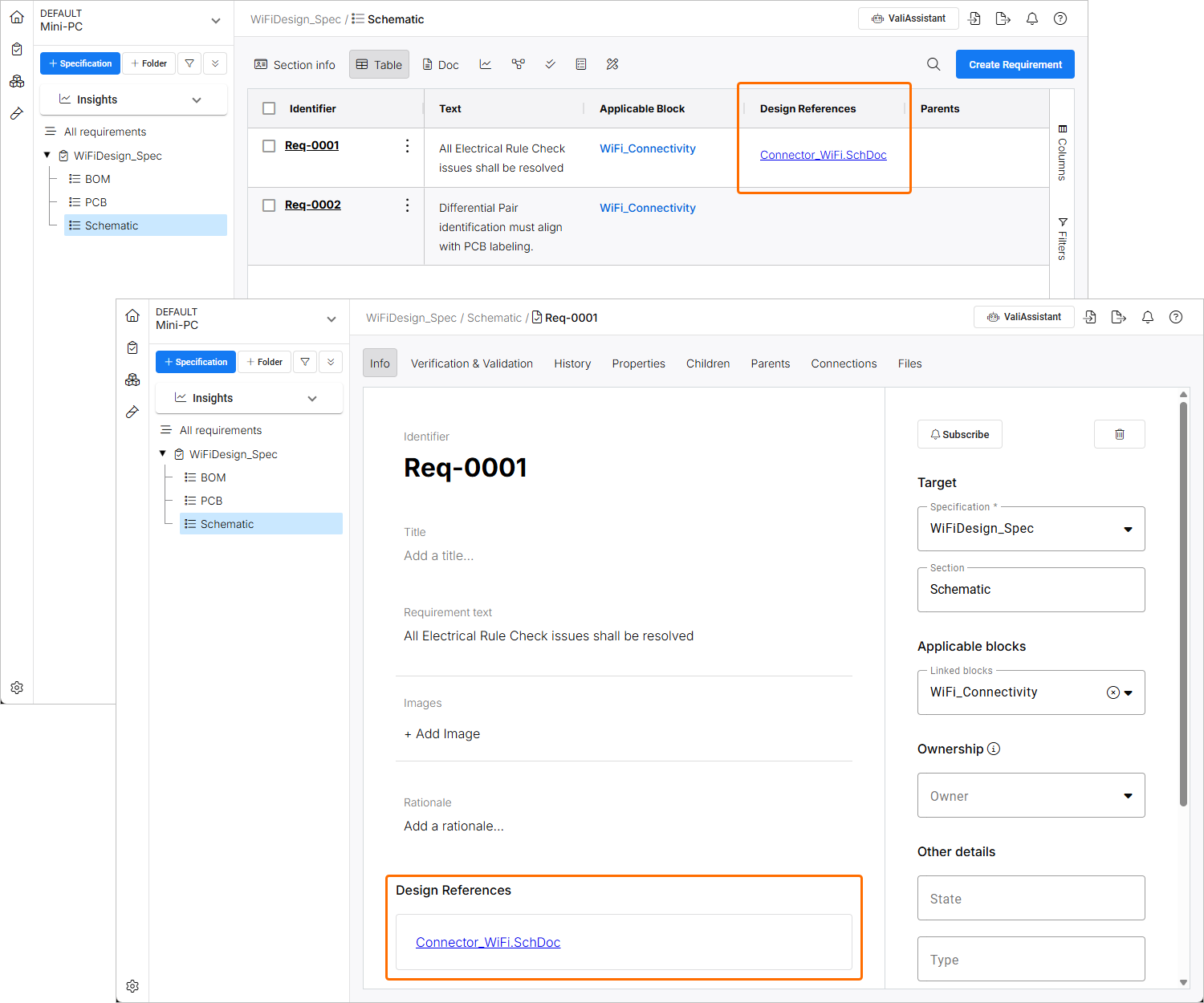 ).
).Creating a Requirement Task
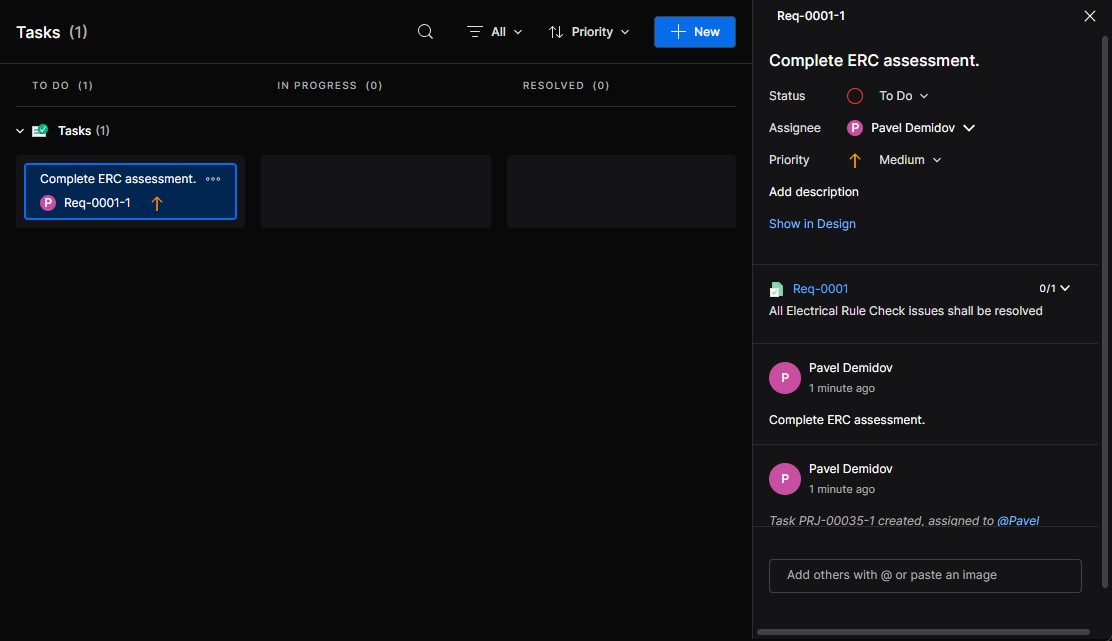
An actionable Workspace Task is created for a Requirement by selecting the entry's option in the Requirements pane, and then assigning a Workspace Member to the Task, entering a Task description and confirming with the  button. Requirement tasks are accessed and progressed through the Web Viewer Tasks page.
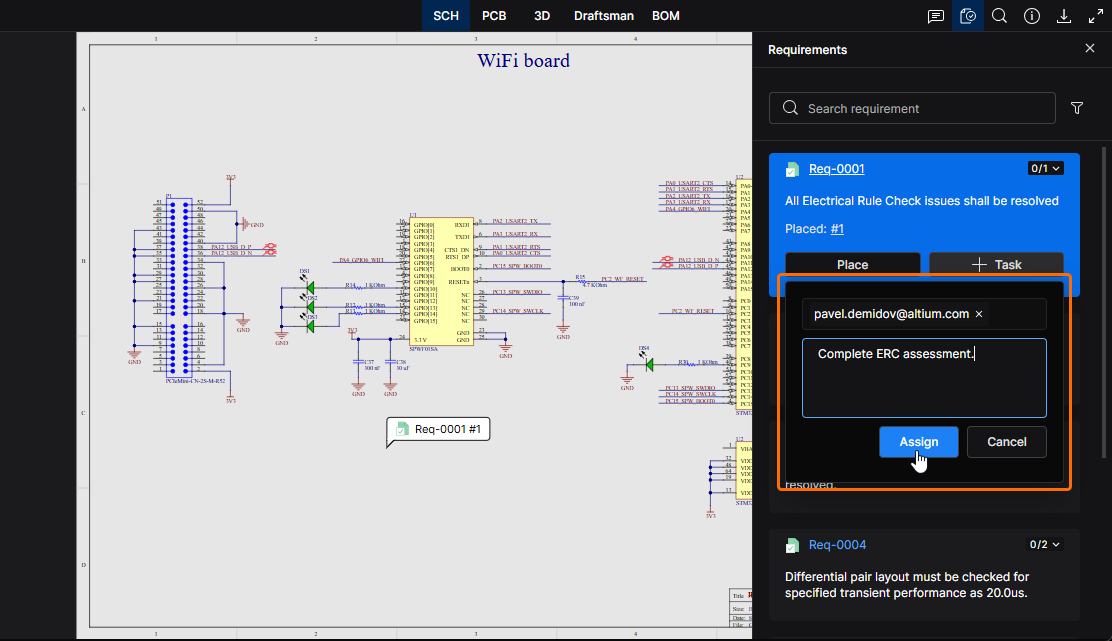
A Workspace Task related to a selected Requirement is created from the button. The Task is assigned to a Workspace Member as a requested action.
Updating the Verification Status of a Requirement
The Verification status of a Requirement can be set from the verification menu item ( ) available in its Requirements pane entry and the document requirement window. The menu offers the options (e.g.,
 Verified, Not Verified, or Skipped) defined by the Verification and Validation Activity associated with the Requirement in Requirements Portal.
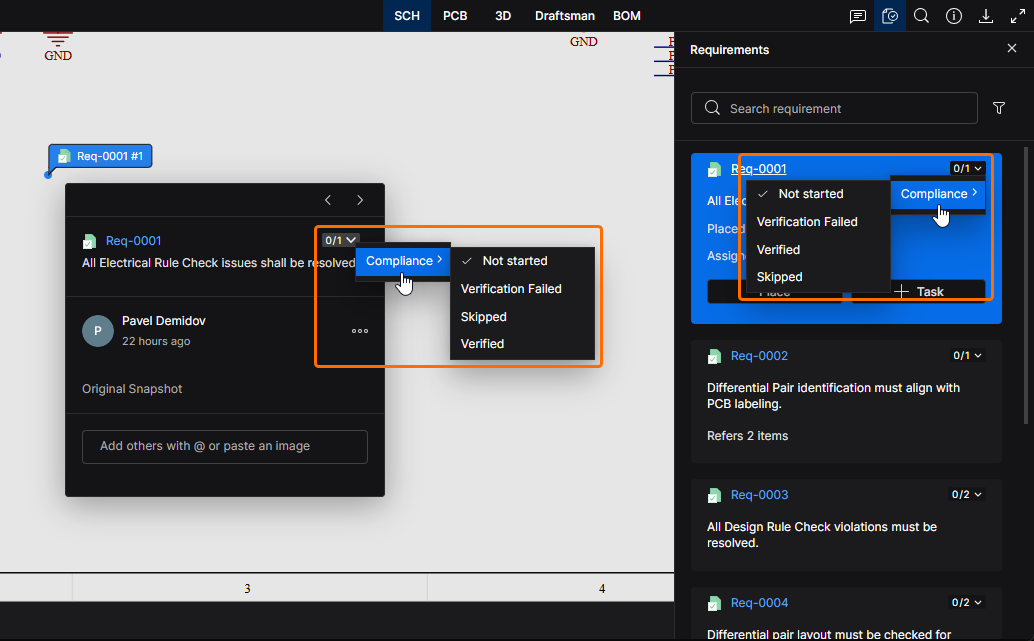
Select a verification activity associated with the Requirement from the verification menu item () in the requirement window or Requirements pane. The menu label indicates the number of verifications completed from the number of verifications associated with the Requirement – here; 0 of 1.
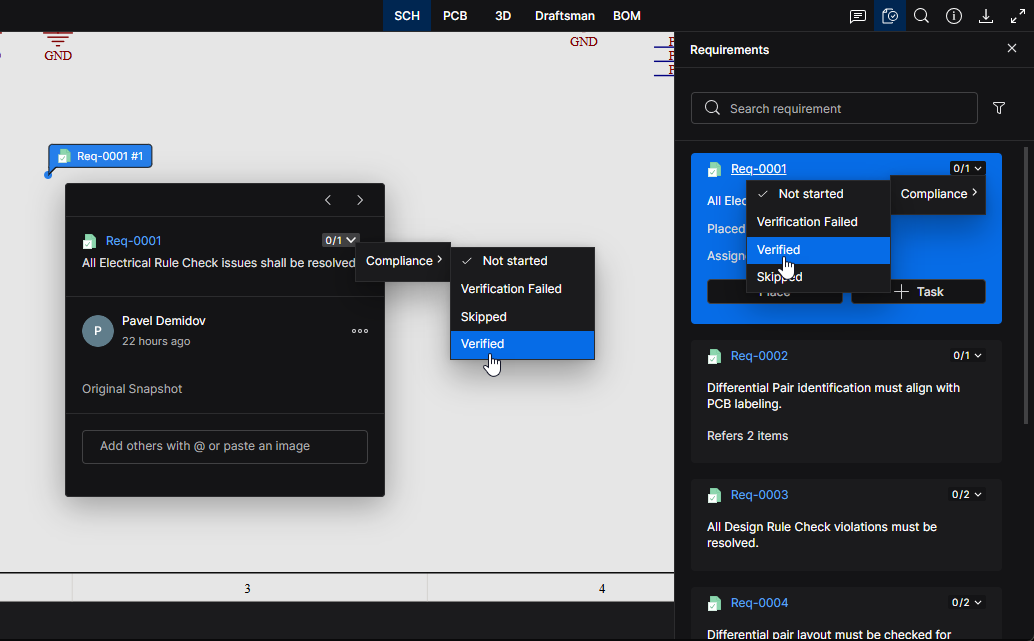
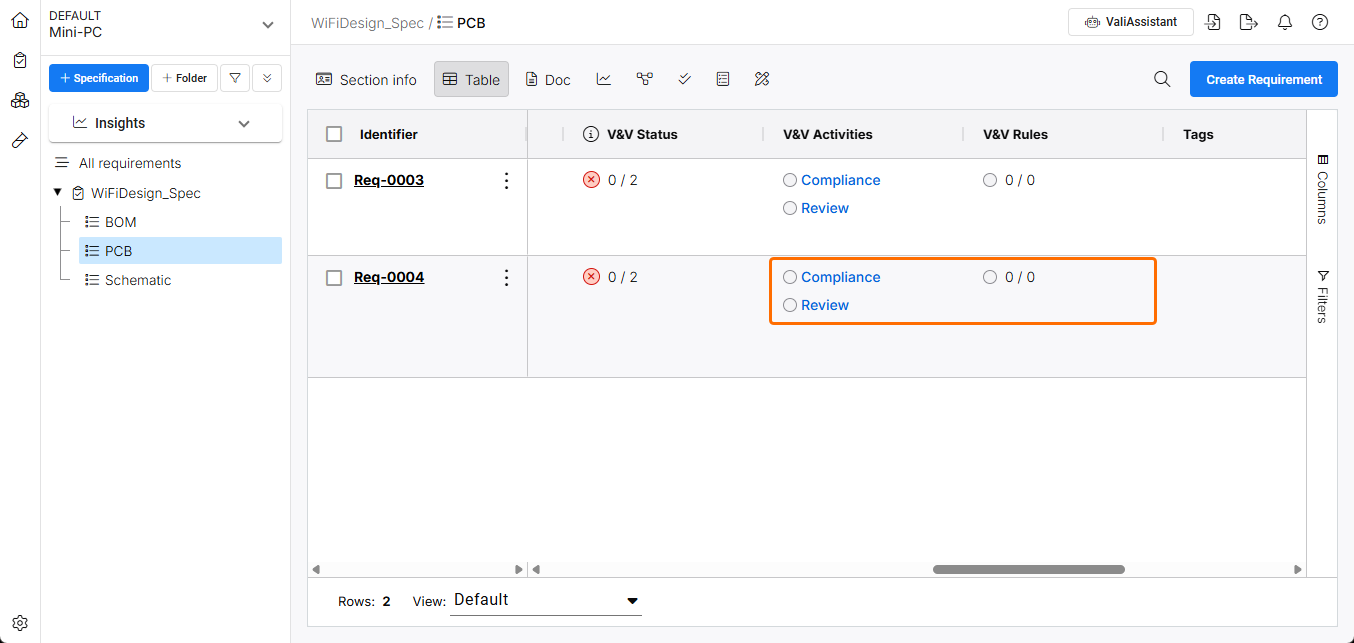
Choose a status setting for the verification activity. Note that multiple activities can be associated with a Requirement, where each is presented with its own status menu options (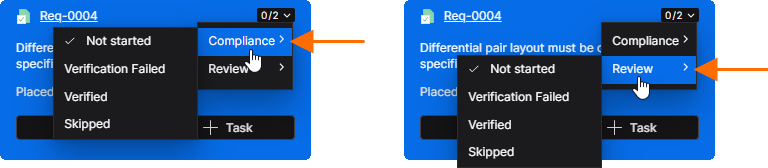 ). These are shown in the Requirements Portal entry as multiple V&V Activities (
 ).
).
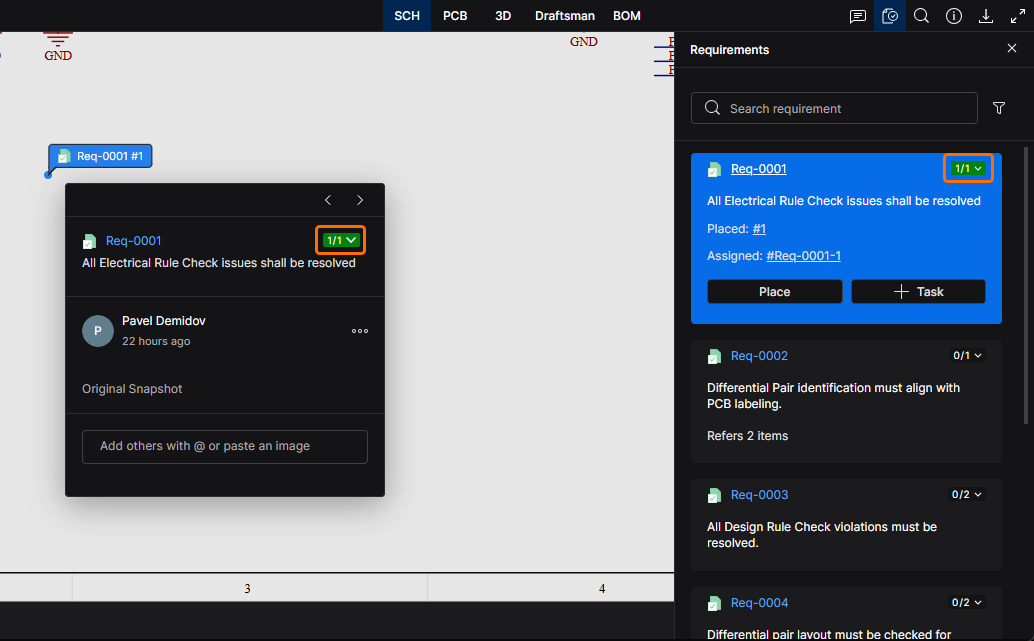
The Requirement’s verification status is now set to 1 of 1 because the Verified option was selected. The Requirement entry in Requirements Portal also will show this verified state (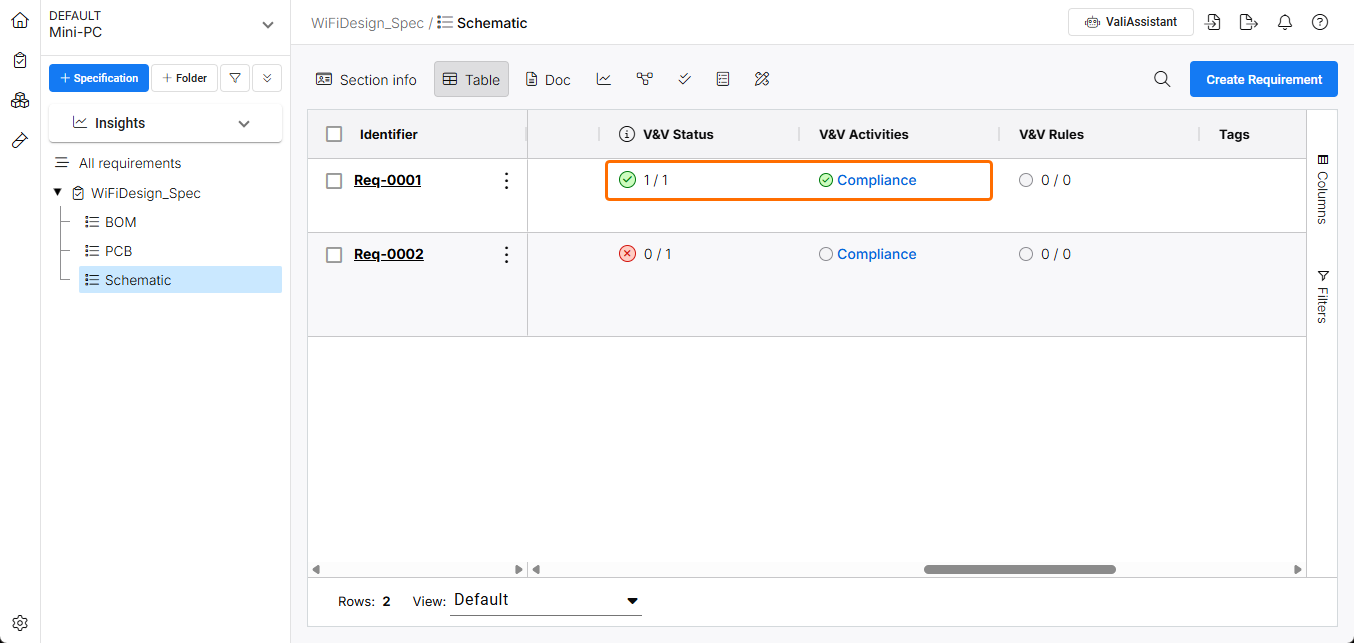 ).
).
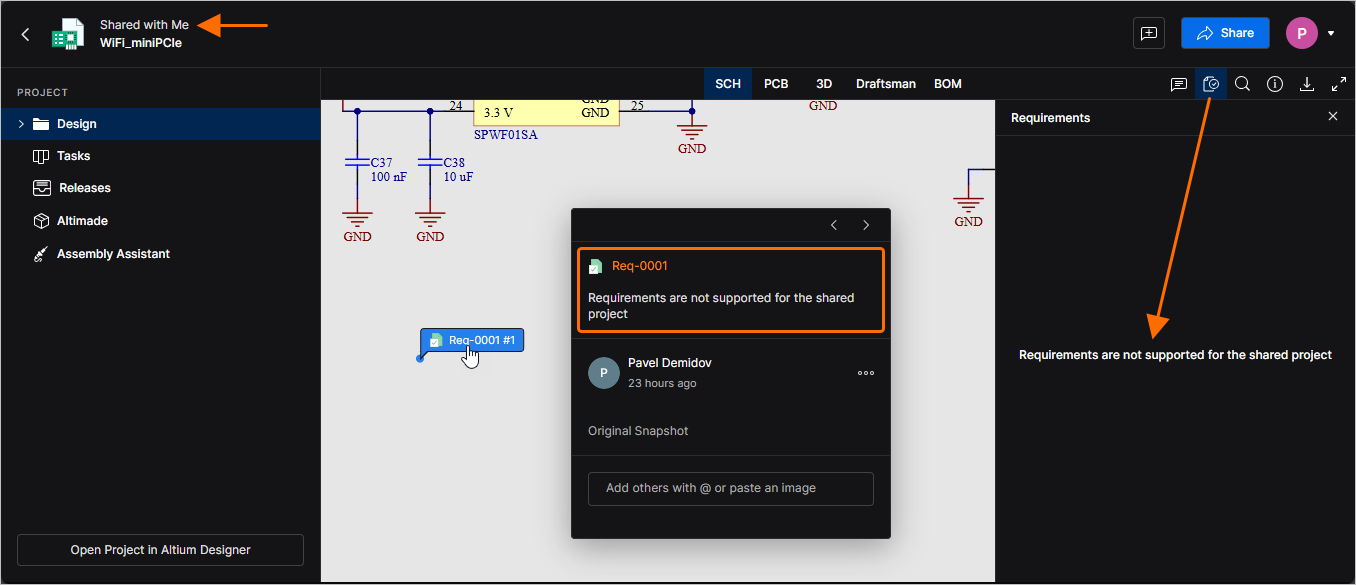
Note that Workspace Guests (users who are not Workspace members but have been granted shared access to the project) cannot work with the associated Requirements. When Guests access the shared project through the Shared with Me view in their Personal Space or another Workspace, requirements information is not available in the Requirements pane or any placed Requirements.