Requirements Portal is under continuous development. This page outlines new features and enhancements made to the application in key updates.
Update - 29 May 2026
AI agents provide substantial advantages for engineering tasks like requirements capturing by significantly enhancing efficiency and automating complex, repetitive workflows. In Requirements Portal, the Engineering Assistant functionality is now available. It leverages AI technologies to provide you with fast, automated review tool for your requirements that allows you to ask questions about requirements in your current project in free-form, natural language and get quick answers without manually filtering or searching through the requirements, for example:
-
How many requirements are not verified?
-
Are there any engineering gaps in these requirements?
-
Show me all requirements about the power supply.
-
Which requirements need to be taken into account for PCB design?
-
Do any requirements conflict with each other?
-
Give me an overview of all battery-related requirements.
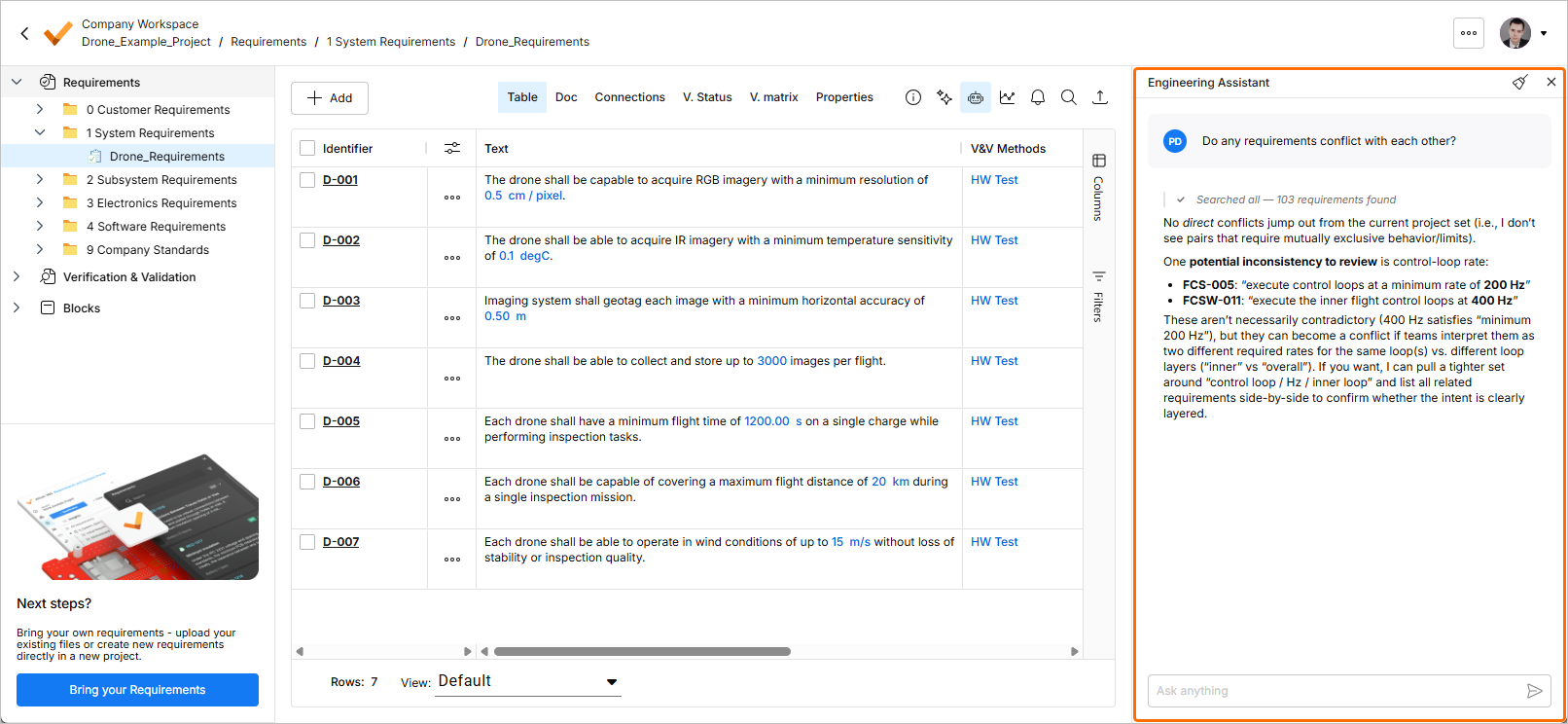
Note that currently, the Engineering Assistant does not modify, create, or delete requirements or any other project data. All interactions are analytical/Q&A in nature.
In future updates, the functionality will be enhanced for the ability perform changes based on your requests. Contact us to provide feedback or know more about the Engineering Assistant.
For more information, refer to the Agentic Engineering page.
Update - 13 May 2026
Key Highlights
This release includes bug fixes to enhance the overall functionality and user experience.
Update - 27 April 2026
Key Highlights
This release includes bug fixes to enhance the overall functionality and user experience.
Update - 14 April 2026
Key Highlights
Requirements Verification Improvements
-
For requirements that have no assigned V&V activities, you now have the ability to manually define their V&V status. Double-click the requirement's V&V Status cell and select either Verified or Not Verified from the menu that appears.
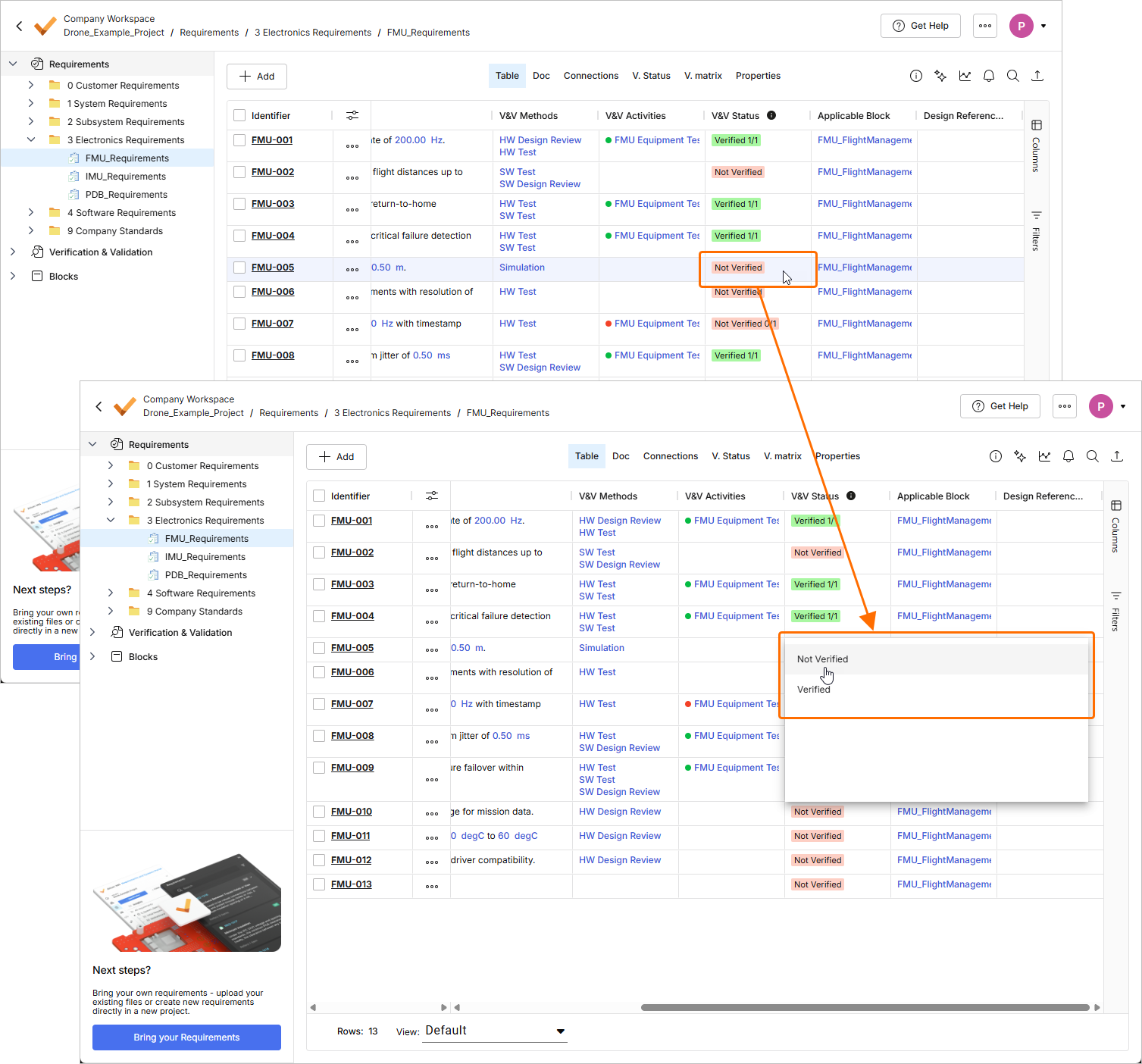
The V&V status of requirements that have linked V&V activities is set based on the status of these activities.
Additionally, V&V rules no longer affect the V&V Status of requirements.
For more information about requirements verification, refer to the Flow 4: Manual and Rules Verification Flow page.
-
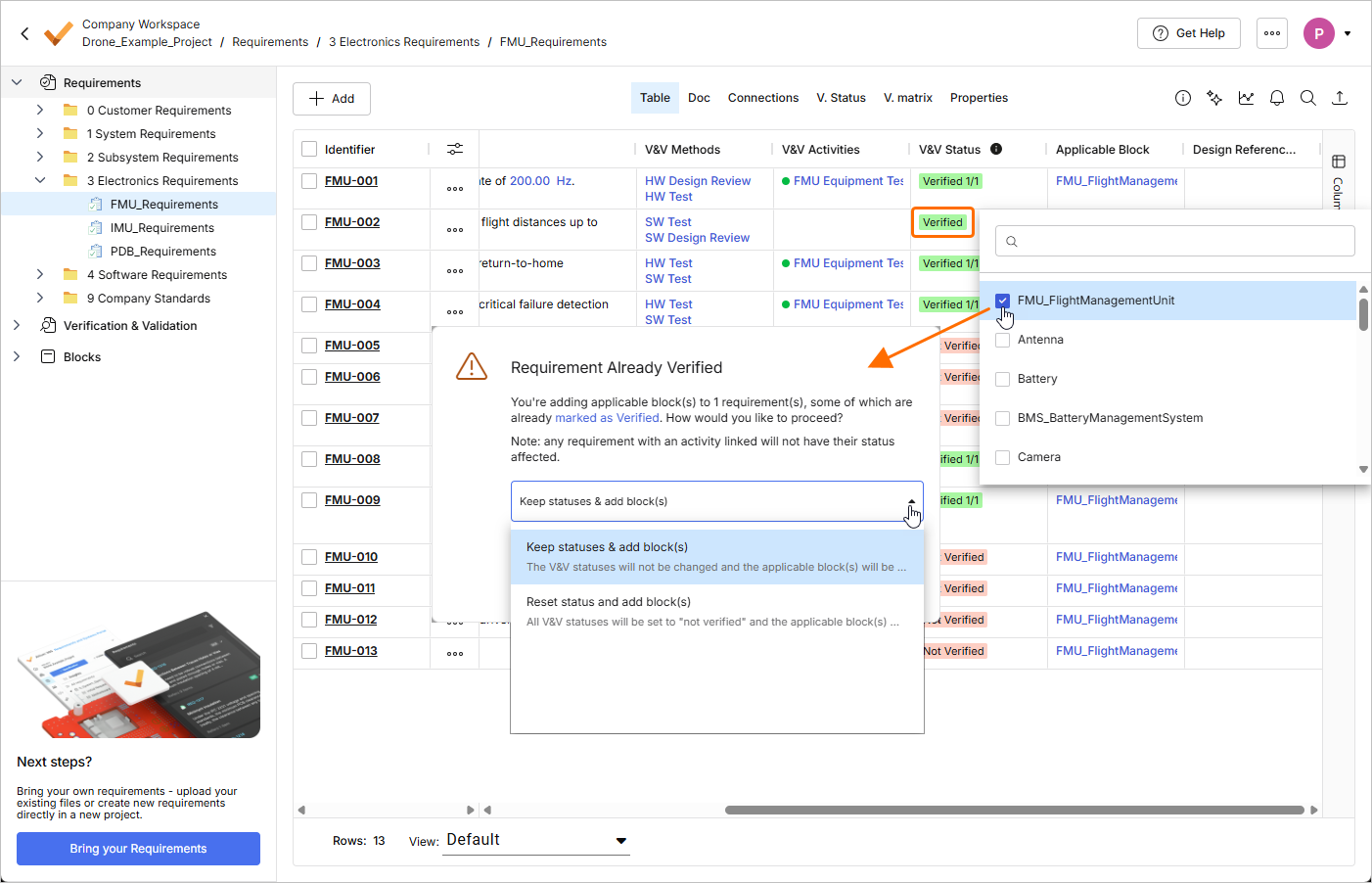
When adding an applicable block to a requirement which V&V Status was manually set to Verified, you will now get a warning that the requirement was already verified. Use the warning window to choose either to keep the V&V status of the requirement or reset the status (set it to Not Verified) while adding the block.
For more information about available requirement fields, refer to the Requirement Fields page.
-
When you copy requirements using the Custom Copy method and some of the requirement being copied have assigned V&V activities, a warning is now shown next to the V&V Status field of the Reuse Requirements window at the Select Fields to Copy & Synchronize stage.
If all requirements being copied have assigned V&V activities, it will be not possible to select the V&V Status field as a field to be copied.
For more information about the Custom Copy feature, refer to the Reuse Requirements page.
Requirements Creation Improvements
-
The Create Requirement window has been improved to provide a more straightforward process of creating a requirement. When the window is initially accessed, it is presented in a simple form, with the Identifier and Text fields only. Click the  button at the bottom of the window to access other fields, such as Specification, Section, etc.
-
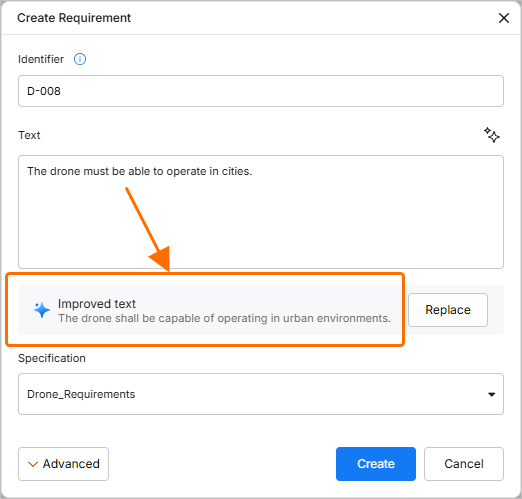
ValiAssistant now suggests improvements to the requirement text entered in the Text field of the Create Requirement window while you type the text (the process starts when you stop typing for three seconds). Alternatively, click the  button at the top right of the field to start the process manually.
-
When you manually create a requirement and select to check it for possible valis (by enabling the Parametrize values option in the Create Requirement window), the process of valifying the requirement is now performed in the background. After clicking the  button in the Create Requirement window, the requirement is now created immediately, without showing further windows related to the valifying process. Once the requirement is valified, you can click the
  button in the pop-up that appear at the bottom right of the page for details about the valifying process.
For more information about creating requirements, refer to the Creating Requirements page.
Other Improvements
-
In the Select Requirements window used to assign requirements to a block (accessed by clicking the  button in the Requirements view of a block in the Blocks module), you now have the ability to select columns to be displayed in the window (Columns) and the ability to filter the content of the window based on requirements' Identifier, Text, and Specification.

For more information about the Blocks module, refer to the Blocks Module page.
-
To provide consistency with entities related to Verification & Validation, the Methods field has been renamed to V&V Methods in all places of Requirements Portal. Some examples of these places are shown below.
For more information about the Verification & Validation Module, refer to the Verification & Validation Module page.
Update - 31 March 2026
Key Highlights
This release includes bug fixes to enhance the overall functionality and user experience.
Update - 23 March 2026
Key Highlights
-
A new Home page has been introduced in Requirements Portal in this release. The page provides access to existing projects, which target requirements management, and also provides the ability to create a new project.
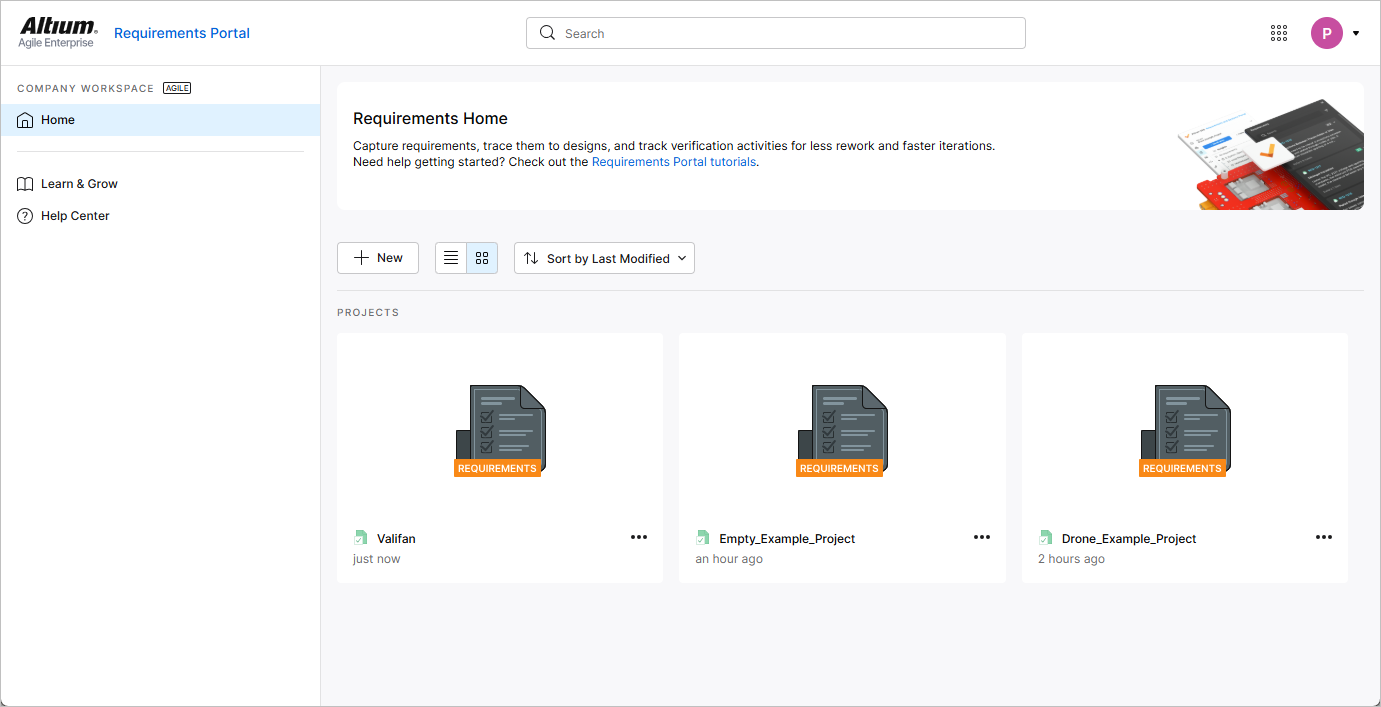
The Home page opens when accessing Requirements Portal using the nine-dot menu at the top right of the Workspace's browser-based interface.
For more information, refer to the Project Module page.
-
When creating a new requirement while the Requirements entry is selected in the project tree (i.e., no specific specification is currently selected), a default specification (the first specification in alphabetical order) is now selected in the Specification field of the Create new requirement window.
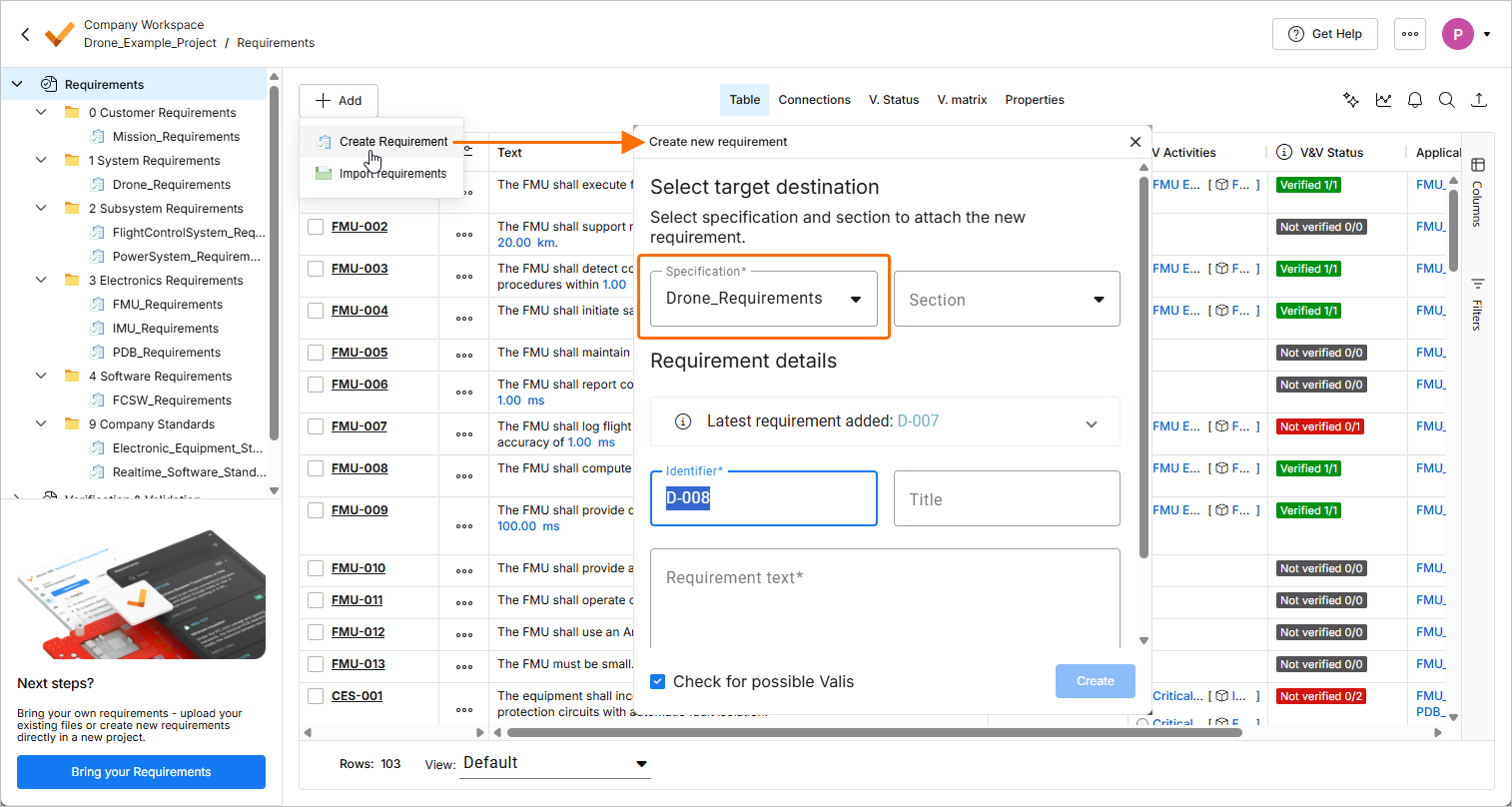
If the project has a single specification, it will be selected.
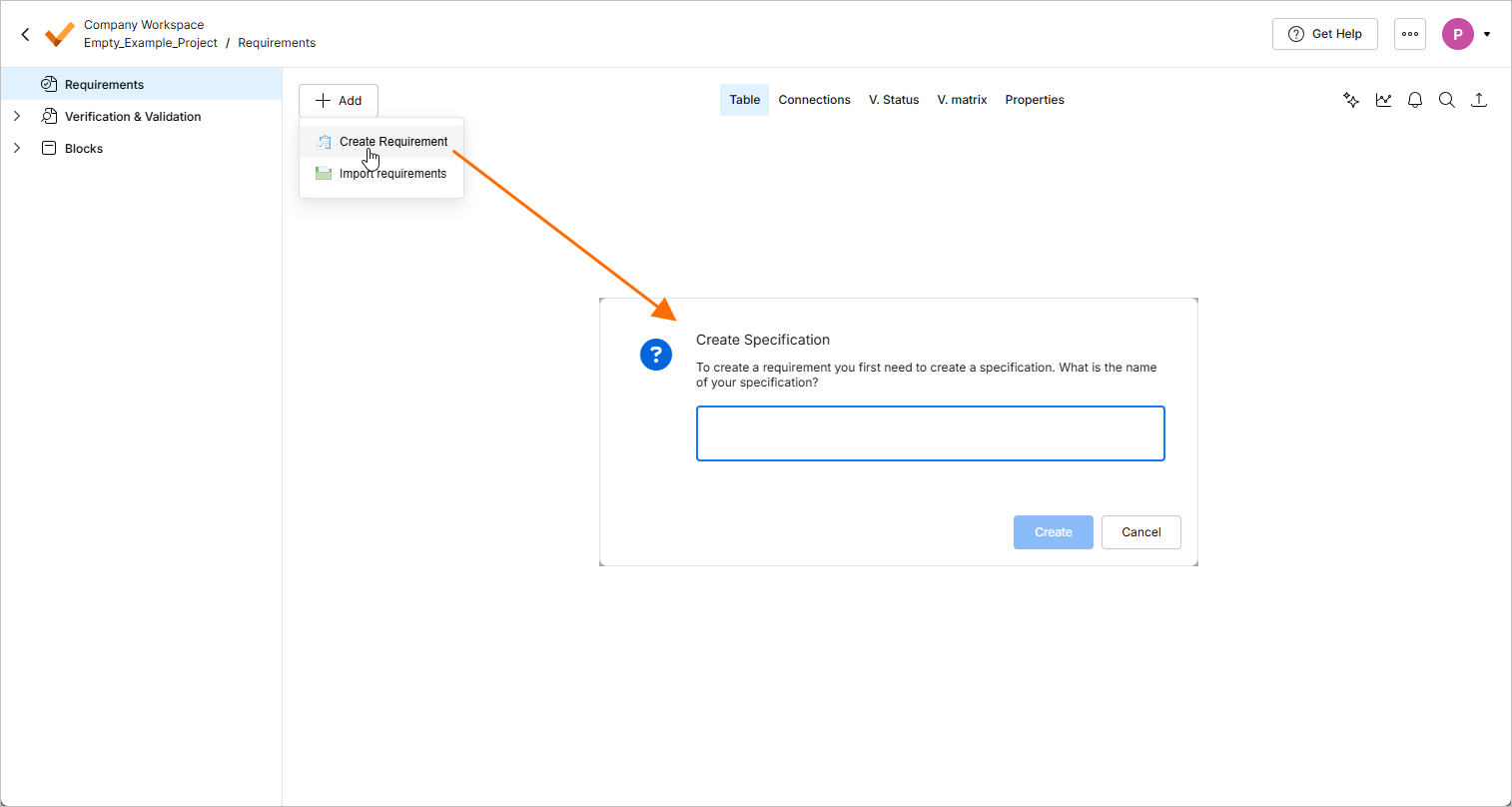
If the project has no specification, an attempt to create a requirement will open the Create Specification window using which you can create a specification first.
For more information about creating requirements, refer to the Creating Requirements page.
-
It is now possible to export a table in the Statuses and Procedures views of a run in the Verification & Validation module. Use the Export sub-menu of the view's right-click menu to export the table to a file of the *.csv, *.xlsx, or *.xml format.
For more information about the Verification & Validation module, refer to the Verification & Validation Module page.
-
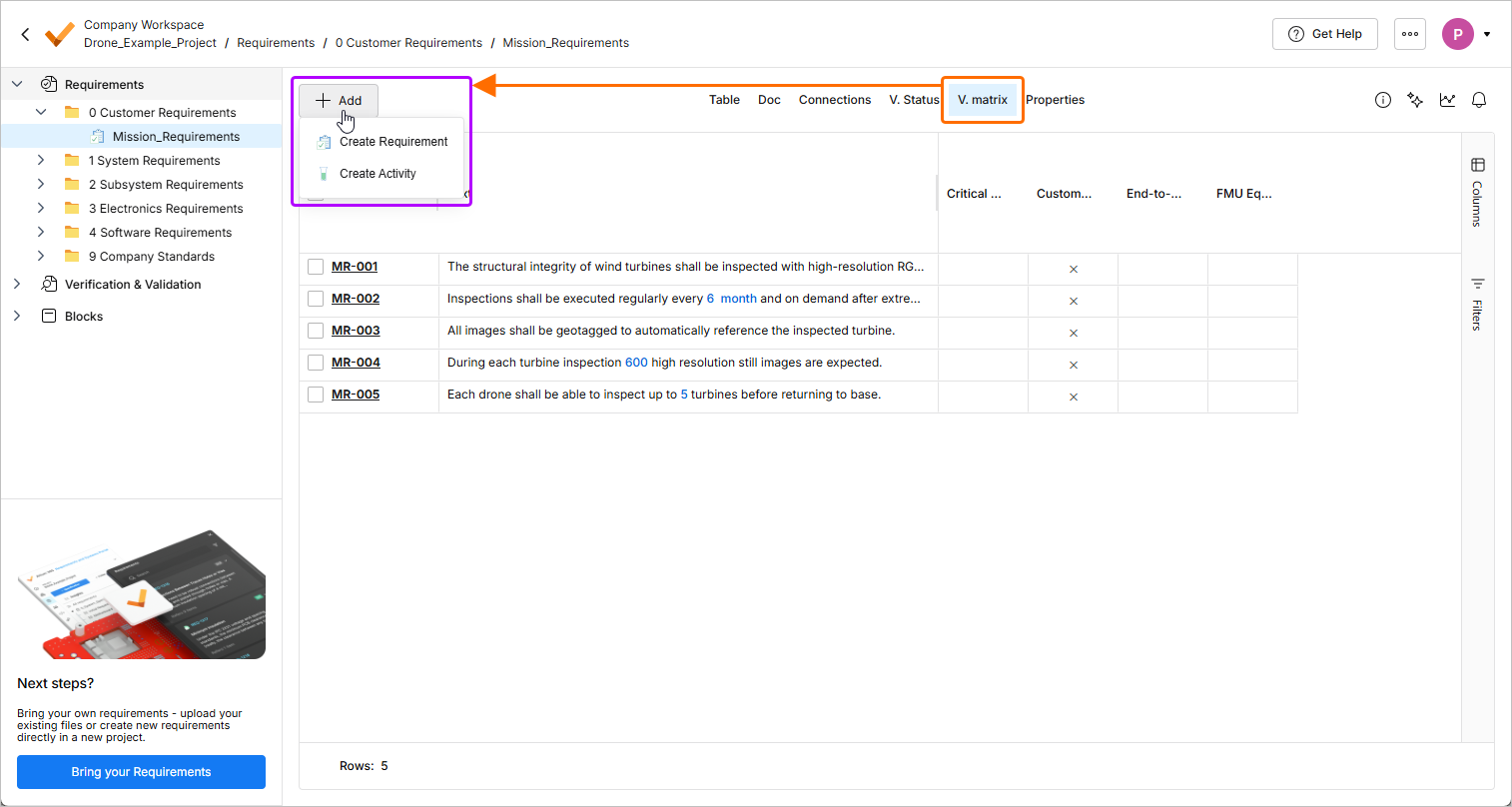
In the V. matrix view of requirements, the activity creation action is now available in the  button menu. The requirement import action has been removed from the menu.
-
If Requirements Portal is not activated yet for a Workspace, it is now possible to start the activation process from the Requirements pane when viewing a design project in the Web Viewer.
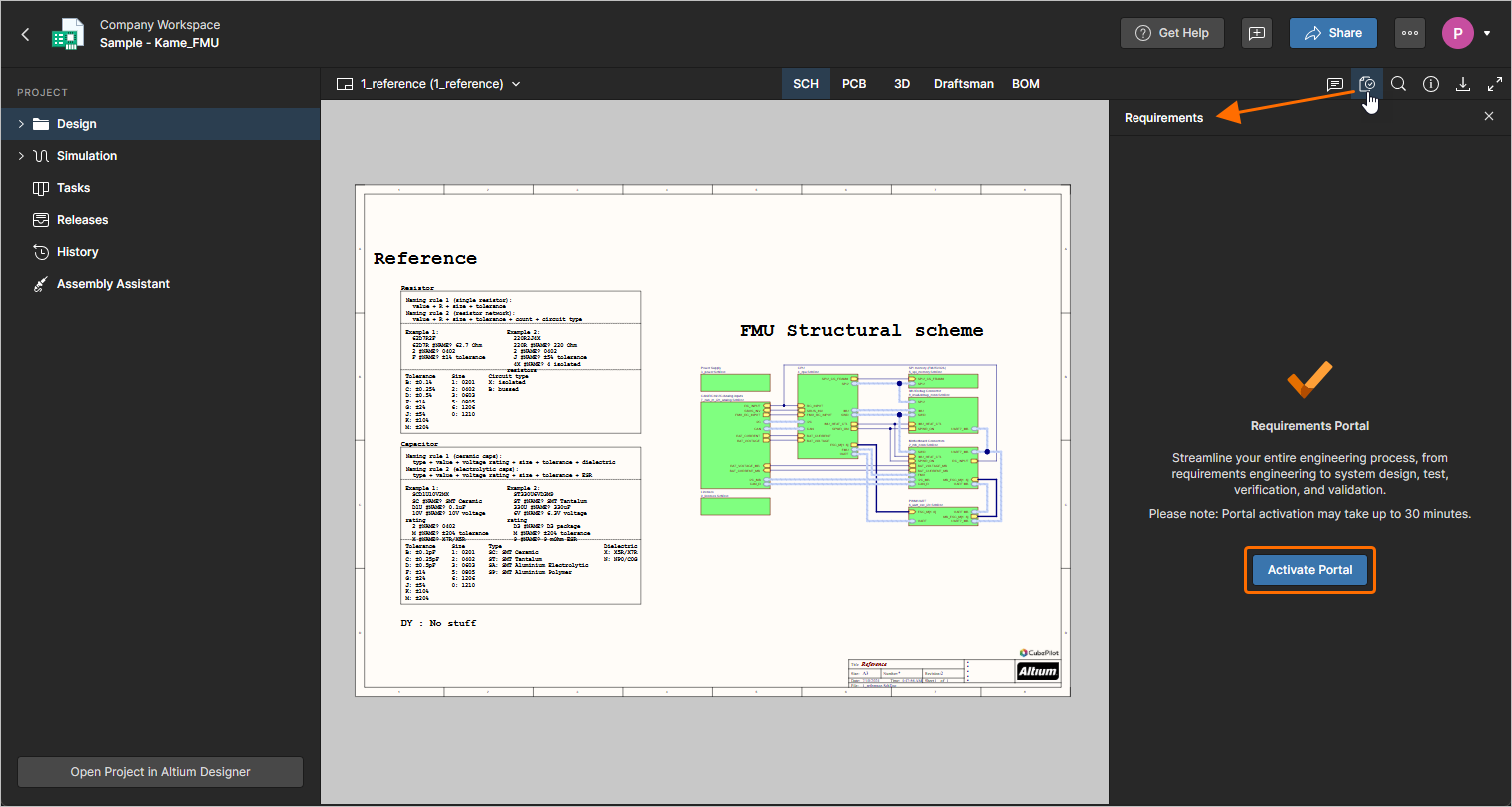
For more information about working with requirements in the context of a design project, refer to the Working with Requirements page.
-
Performance of the AI importer has been improved for long (more than three pages) documents by parallelizing extraction of sections.
For more information about the AI importer, refer to the Import Requirements page.
-
Fixed an issue when formatted text (that uses bullet points, italics, etc.) in custom columns was displayed incorrectly in exported documents.
For more information, refer to the Document Export Custom Templates page.
Update - 3 March 2026
Key Highlights
-
In order to consolidate the user interface of Requirements Portal with other elements of Altium Platform, a number of UI changes have been implemented in this release:
-
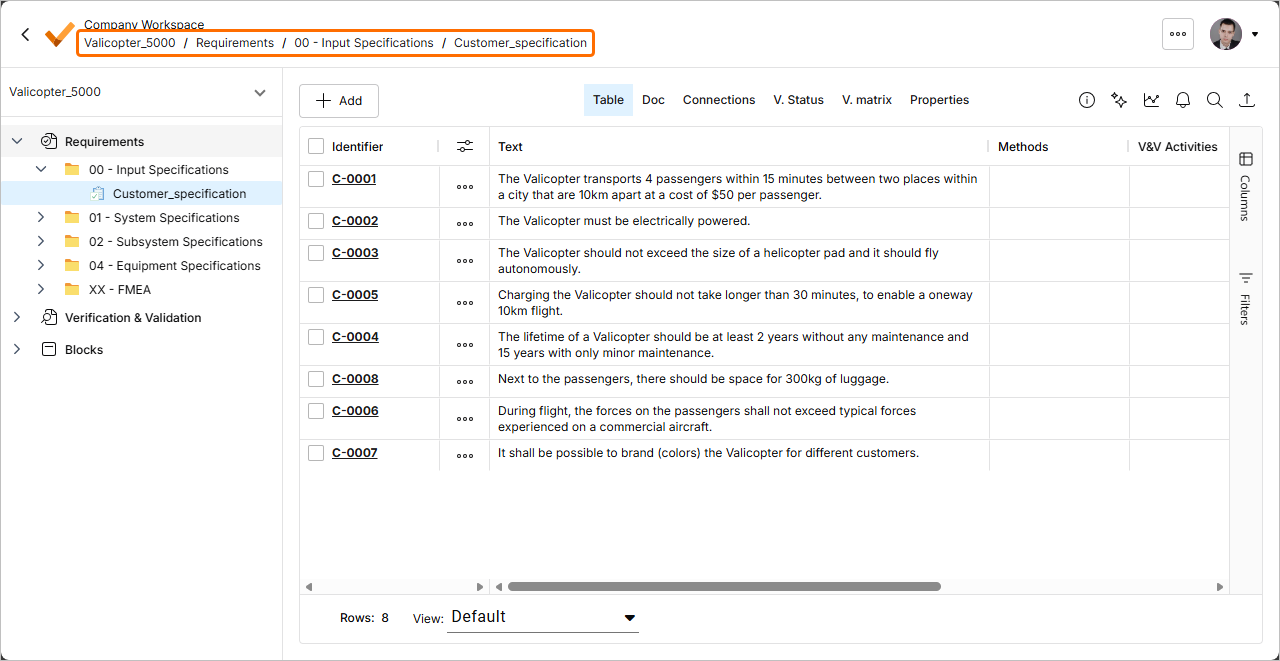
Breadcrumbs are now available at the top left of the page, under the name of the Workspace.
-
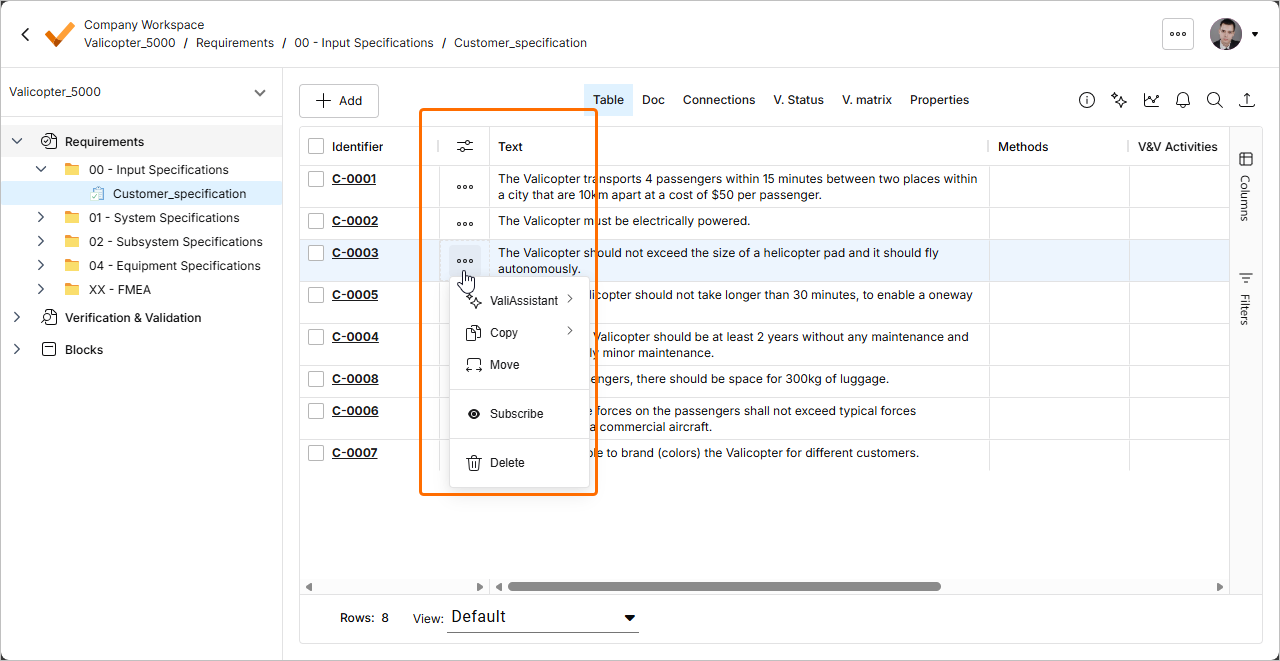
In the Table view of requirements, the menu of requirement actions is now available by clicking the  button in a dedicated column (
 ).
).
-
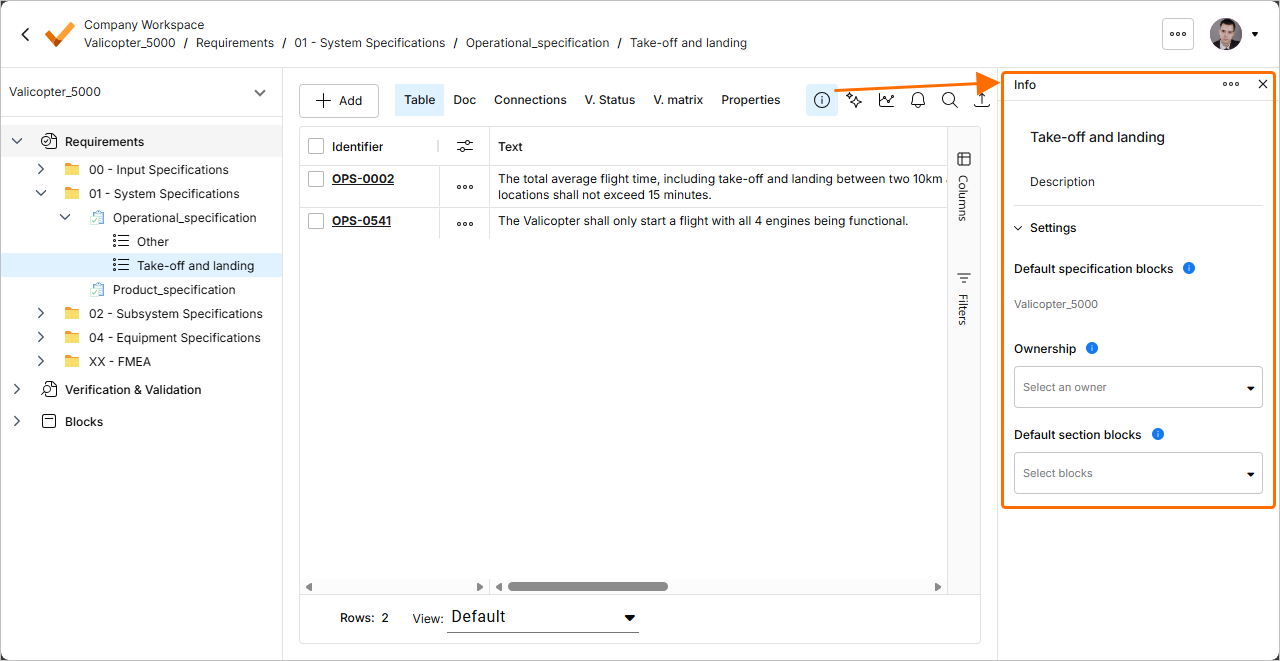
A new Info pane has been implemented for specification sections. The pane substitutes a separate Section info view and therefore, allows displaying and modifying specification section details without leaving the currently selected view (such as Table or Doc). When a specification section is selected in the Requirements Module, click the  button at the top right of the page to access the pane.
-
The AI importer has been enhanced in this release.
-
The importer now recognizes the content between the document title and the first heading as a requirement.
-
The owner of imported requirements is now assigned not only based on the user's first and last name, but also the email.
For more information about the AI importer, refer to the Import Requirements page.
Update - 18 February 2026
Key Highlights
-
A new Info pane has been implemented for specifications. The pane substitutes a separate Spec. info view and therefore, allows displaying and modifying specification details without leaving the currently selected view (such as Table or Doc). When a specification is selected in the Requirements Module, click the button at the top right of the page to access the pane.
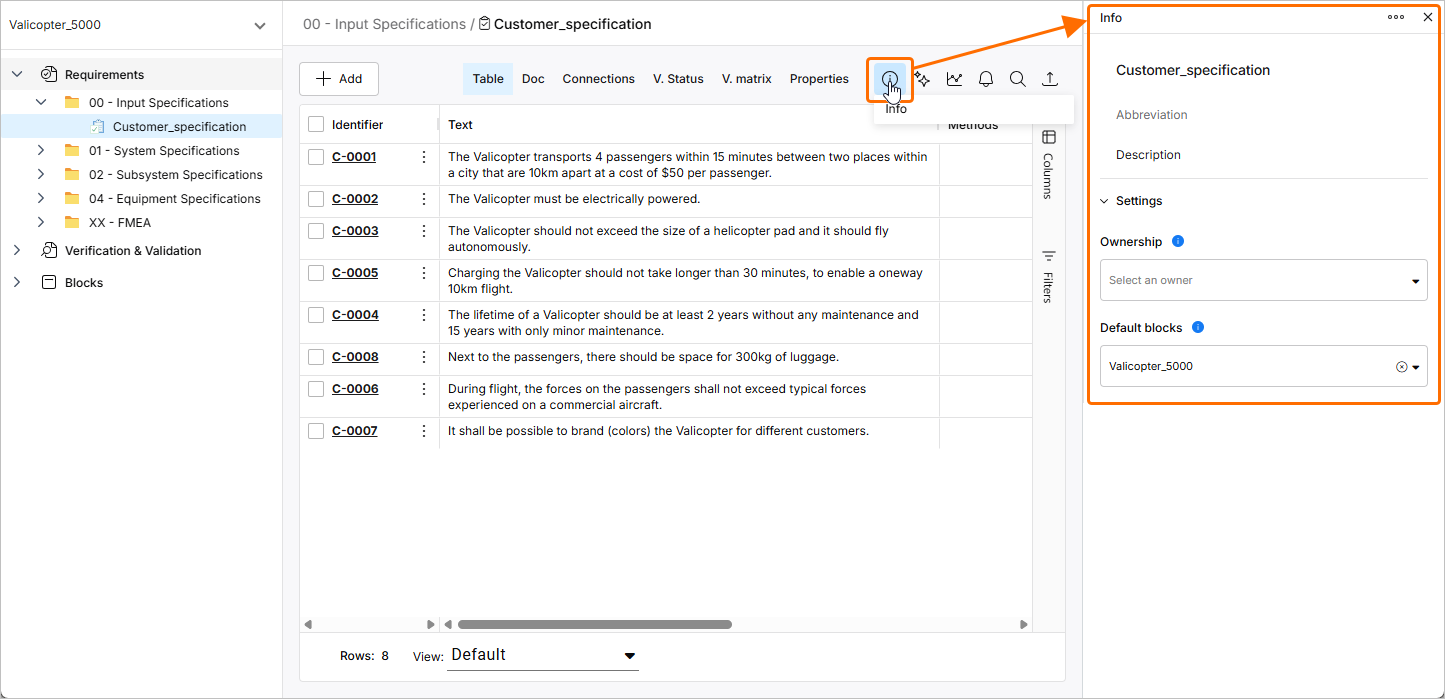
For more information about specifications, refer to the Create Specifications page.
-
The AI importer has been enhanced in this release:
-
The AI extractor has been improved to better handle bullet points and line breaks.
-
The title of the file being imported is no longer present in a section or subsection in the hierarchical structure of requirements.
For more information about the AI importer, refer to the Import Requirements page.
Update - 2 February 2026
Key Highlights
In this release, the process for creating and importing requirements has been updated. To perform either of these actions, navigate to the Requirements Module, click the  button, and then select either Create Requirement or Import Requirements from the menu that appears.
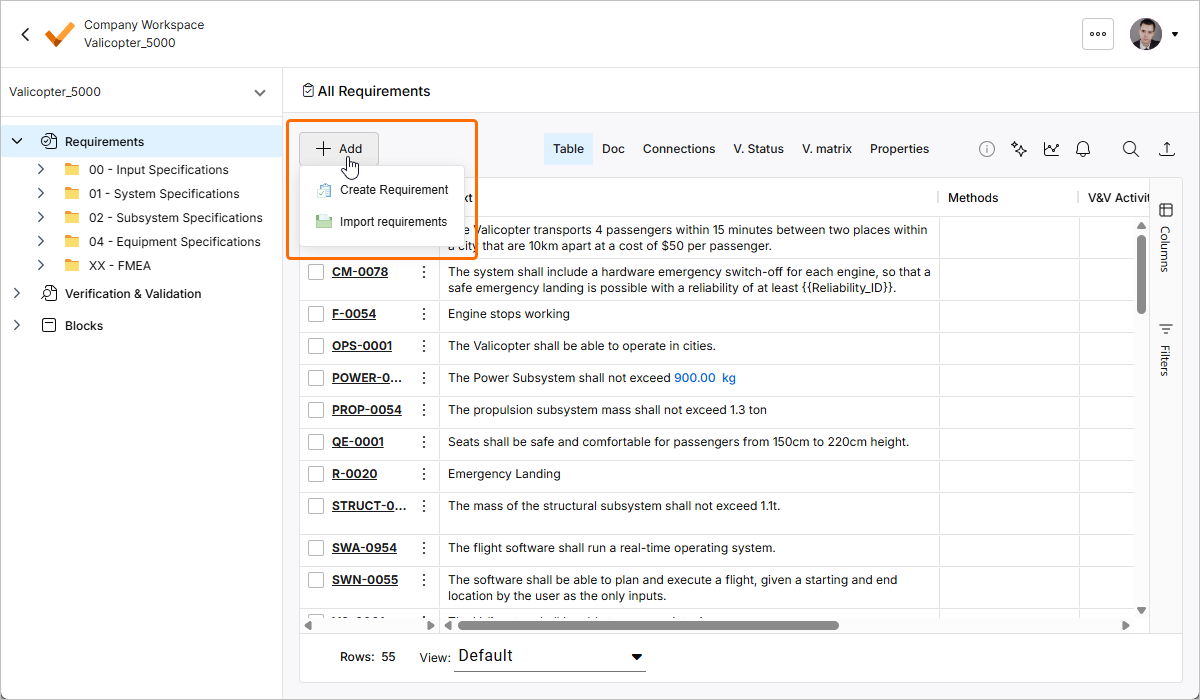
For more information, refer to the Creating Requirements and Import Requirements pages.
Update - 22 January 2026
Key Highlights
This release includes bug fixes to enhance the overall functionality and user experience.
Update - 7 January 2026
Key Highlights
Requirements engineering often begins with drafting of stakeholder requirements in documents like PDFs and Excel spreadsheets where data is not well structured. Extracting requirement data manually from these unstructured documents might be labor-intensive and error-prone, and in order to expedite the process of capturing requirements in Requirements Portal, you can leverage AI capabilities to import requirements from unstructured PDF, Excel, Word, and CSV files using a new AI-assisted Importer.
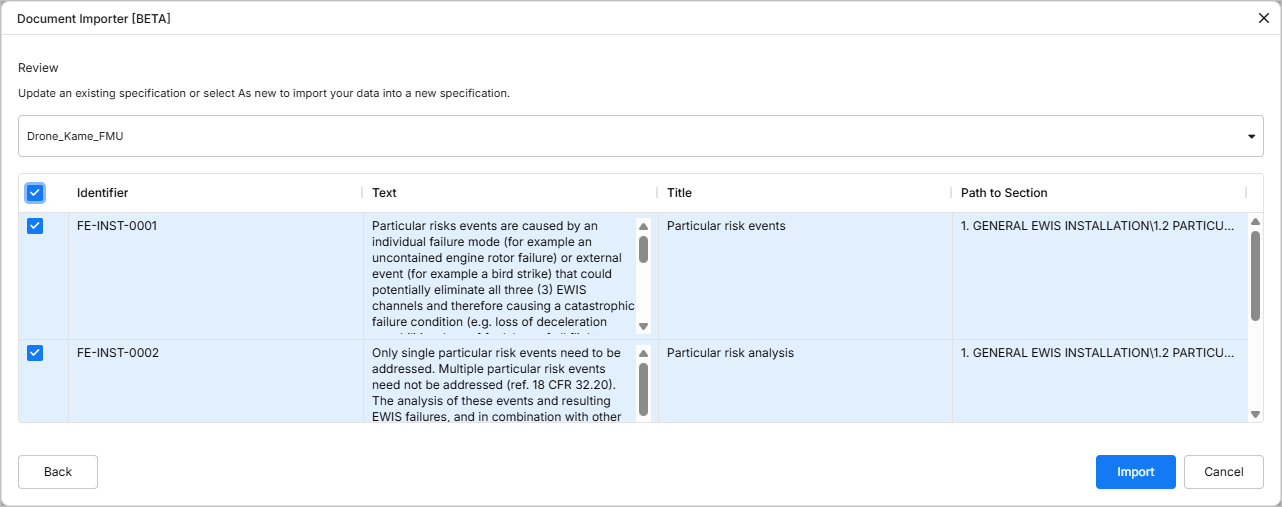
The AI-assisted Importer functionality is currently in Beta.
For more information, refer to the Import Requirements page.
Update - 17 December 2025
Key Highlights
This release includes bug fixes to enhance the overall functionality and user experience.
Update - 24 November 2025
Key Highlights
This release includes bug fixes to enhance the overall functionality and user experience.
Update - 12 November 2025
Key Highlights
In order to align the UI of Requirements Portal with other parts of the Workspace's browser-based interface, the following changes have been implemented:
-
A new left-hand pane has been introduced. The pane allows access to different modules of the Requirements Portal and corresponding elements (specifications, V&V activities, blocks, etc.) of the currently selected project.
-
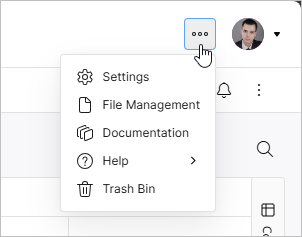
A new top bar has been introduced. From the  icon menu of the top bar, you can access Requirements Portal's Settings, the File Management view, Documentation, Help resources, and the Trash Bin.
-
The display of controls used to switch between different views in modules has been updated.
Update - 14 October 2025
Key Highlights
This release includes bug fixes to enhance the overall functionality and user experience.
Update - 30 September 2025
Key Highlights
When creating a new folder for specifications in the Requirements Module, the folder now appears in the tree at the left-hand side immediately after creation, without the need for refreshing the page.
For more information about folders, refer to the Grouping Requirements page.
