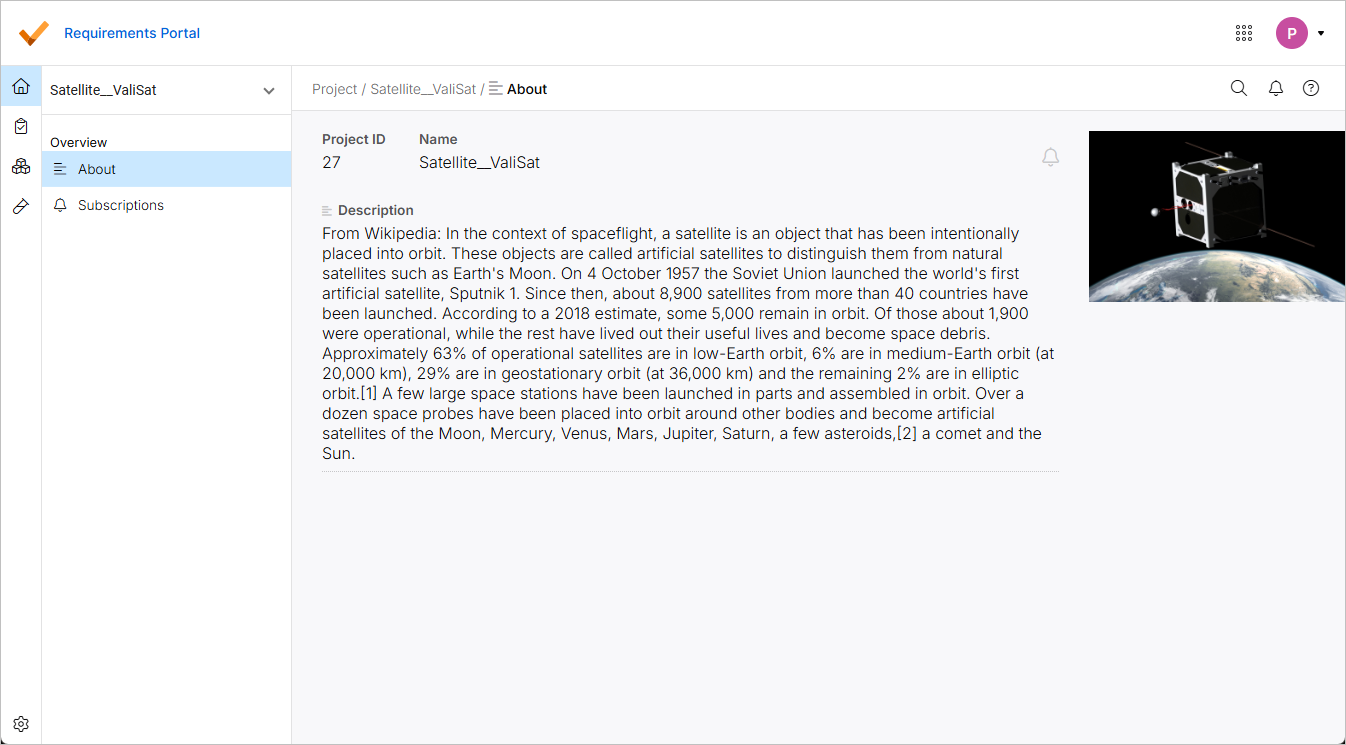
Creating a New Project
A project is a Requirement Portal entity where a user or a group performs the system and requirement definition. The Valis (properties) inside the projects can be referred to or used in different projects.
Creating a New Empty Project
To create a new project, click the project name and then click the  button in the drop-down. This will open a wizard to create a new empty project, as described below.
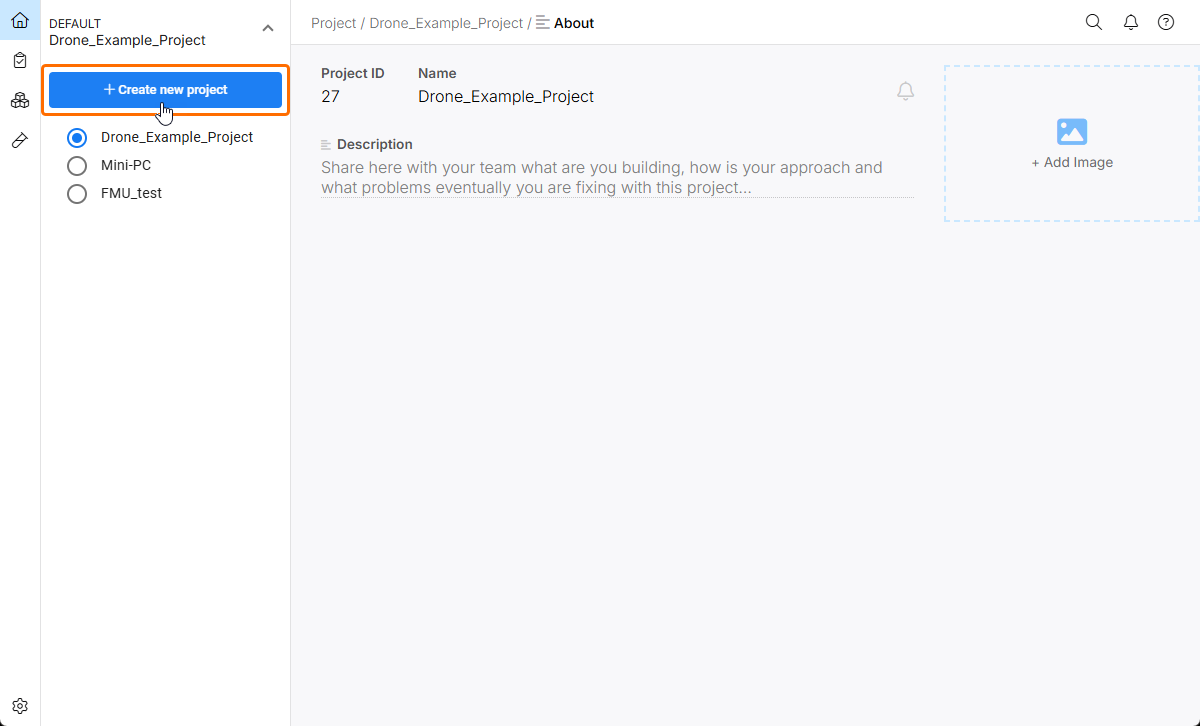
Start creating a new project by clicking the drop-down at the top left and clicking the button.
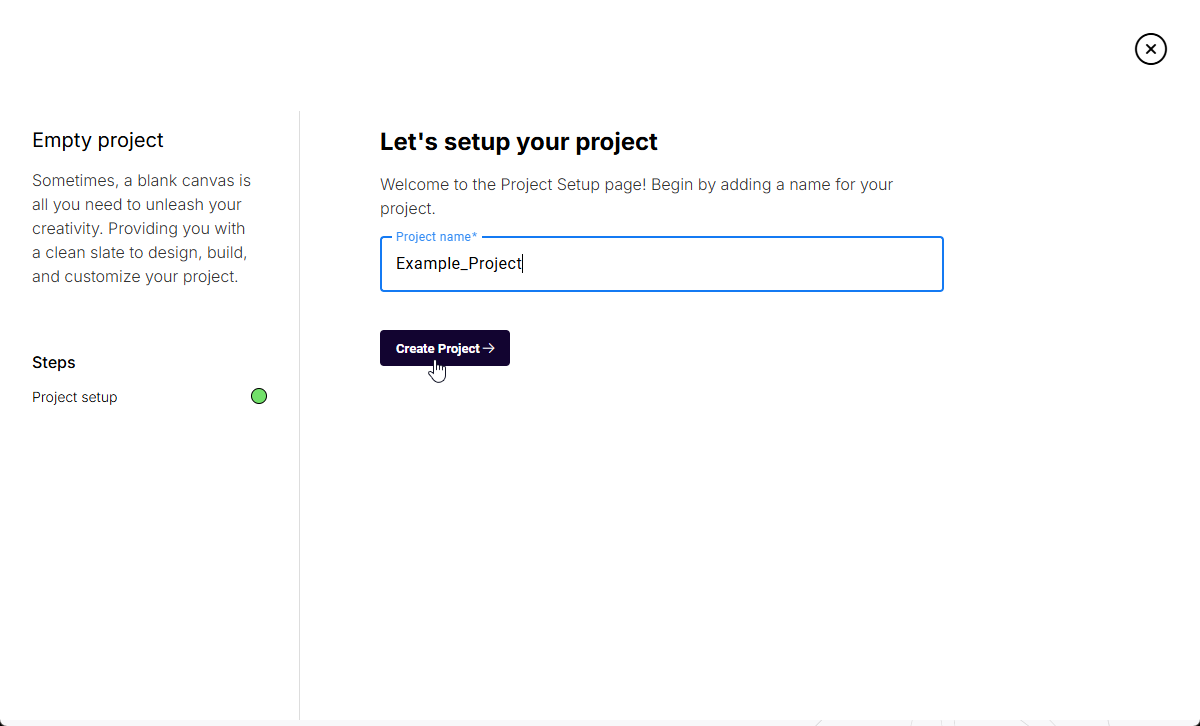
Enter a unique (not yet existing) project name into the Project name field and click the  button.
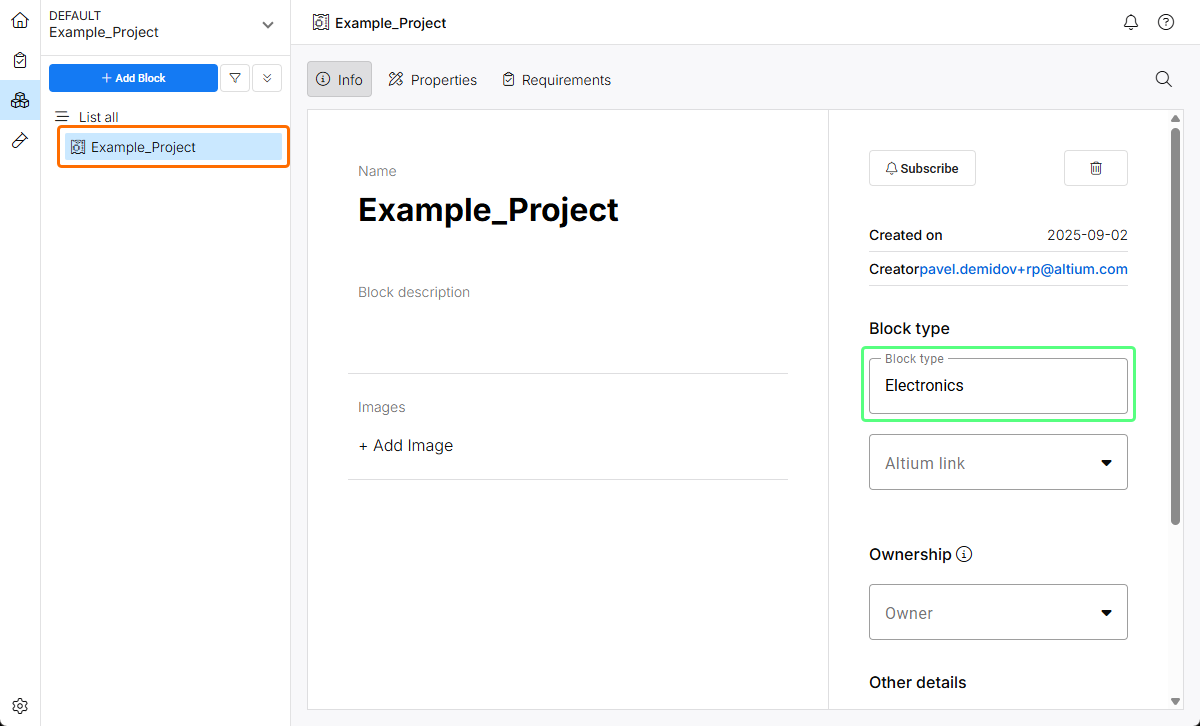
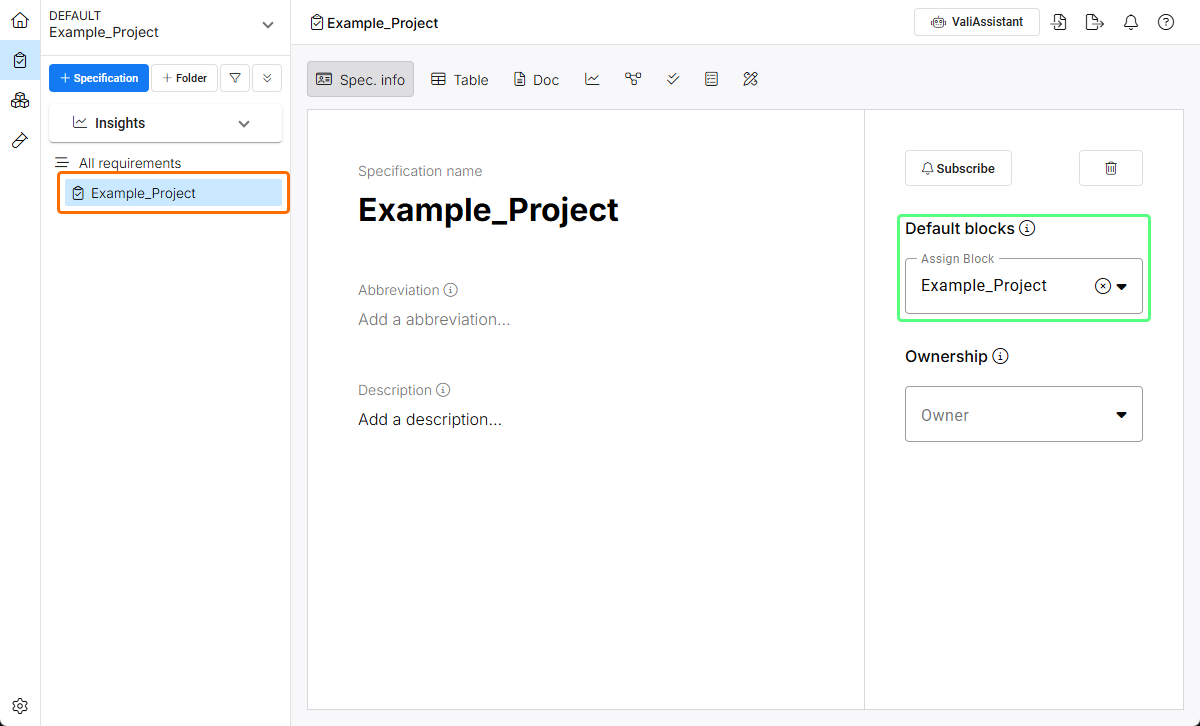
Changing Main Properties of a Project
From the About page of the Project Module, you can change main properties of a project. When in the Project Module, select the About entry in the left-hand side menu (under the Overview heading) to access the page from which the following information and controls are available:
-
Project ID – a system-assigned ID of the project.
-
Name – the name of the project. If required, you can change it by clicking in the field, changing the name as required, and pressing
Enter(or clicking outside of the field). -
Description – a meaningful description that you can add to your project.
Click the  button at the top right of the page to subscribe to notifications for the project.
For more information about notifications, refer to the Notifications page.
You can also add an image to the project by clicking the + Add Image control at the top right of the page. Use the dialog that appears to add an image from a file or URL. When an image is added, hover the cursor over it preview and use the buttons that appear to change the image or remove it.